Configuration
Overview
The Configuration tab in Equipment hub shows downloaded panel configurations and lets operators review, edit, compare, export, and upload configuration changes.
Use this tab to:
- Download the latest configuration from the panel.
- Open a downloaded configuration.
- Compare a saved configuration with the current configuration.
- Export a configuration as a CSV file.
- Exclude a configuration from the rotation cycle.
- Edit panel settings and upload changes to the panel.
- Restore settings from a saved configuration.
- Create a basic configuration from selected settings.
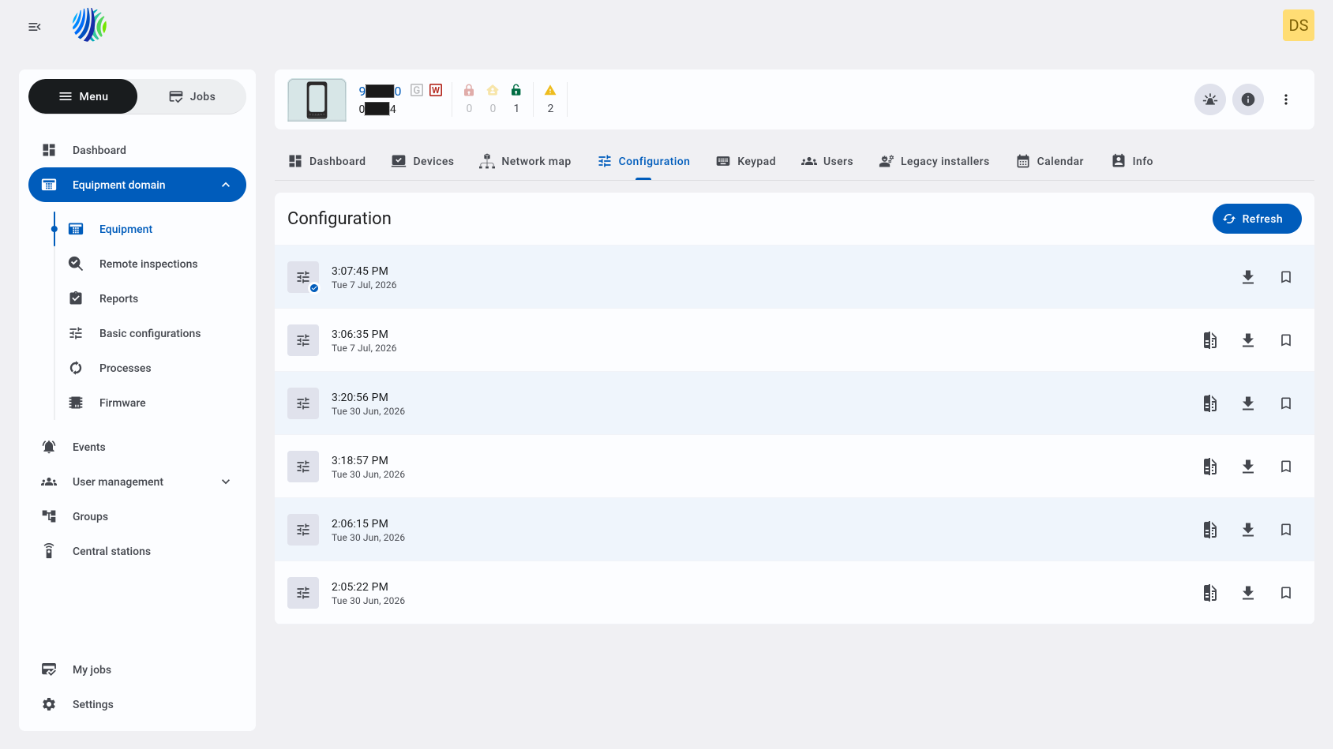
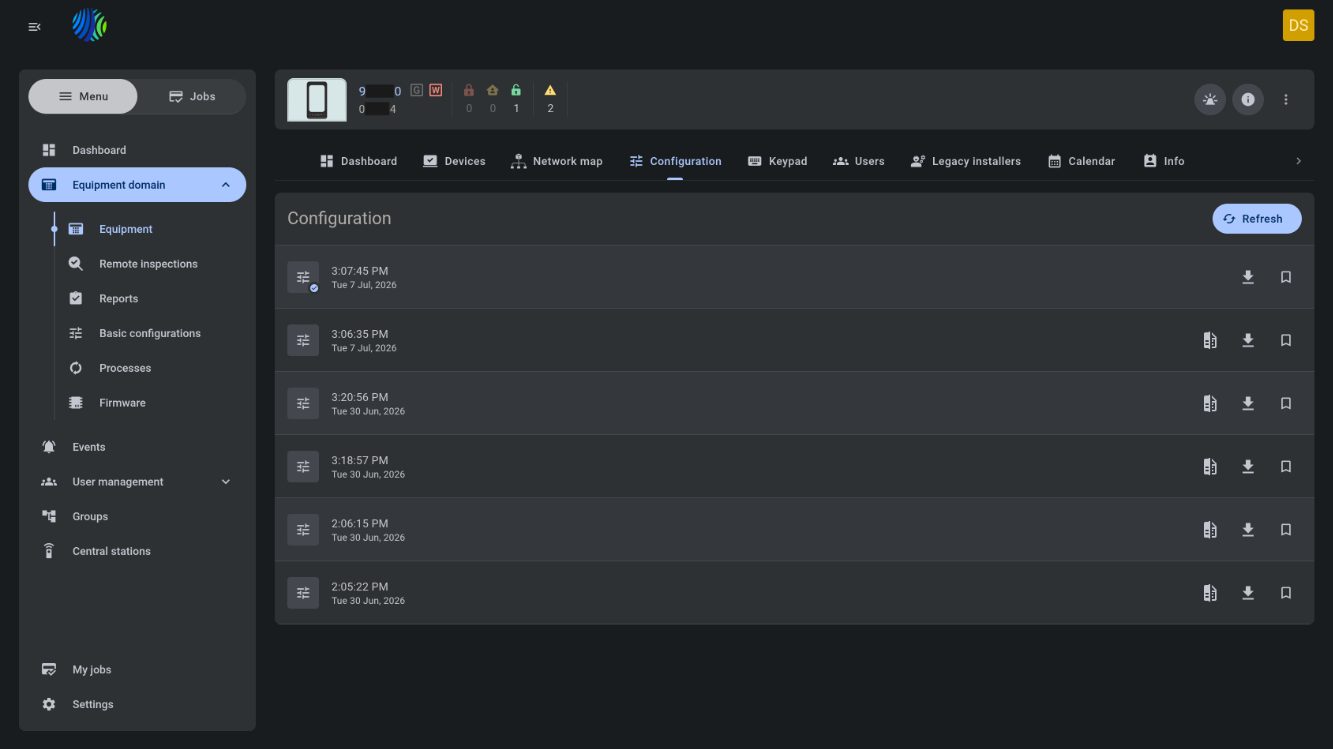
Configuration data and available settings depend on the selected panel, downloaded configuration, and panel capabilities.
Before you begin
Required permissions
Required permissions depend on the action that you want to complete.
- You must have permission to open Equipment hub for the selected panel.
- You must have permission to view panel configurations.
- You must have permission to download configuration from the panel.
- You must have permission to edit and upload configuration changes.
- You must have permission to export configurations.
- You must have permission to create basic configurations.
Access to the Equipment hub page and configuration management actions is controlled by the role permission group named Unit.
Preconditions
- Open Equipment hub by selecting a panel from the Equipment page.
- The selected panel must exist on the PowerManage server.
- At least one configuration must be downloaded before the configuration list can show configuration history.
- The panel must be reachable to successfully download or upload configuration.
Dependencies
- Configuration download depends on panel connectivity and panel response.
- The current configuration is the latest downloaded configuration.
- Compare depends on an existing saved configuration and the current configuration.
- Upload depends on changed settings on the Configuration page.
Important limitations
- Uploading configuration can take more than 5 minutes.
- The Upload and Cancel buttons on the Configuration page are shown only when at least one setting has been changed.
- The Create button in Make basic mode is active only when at least one setting is selected.
- The Compare with current configuration button is not shown for the current configuration.
- Restoring settings on the Compare page reverts changed settings to values from the saved configuration, but does not automatically upload the changes to the panel.
Page layout
Configurations list
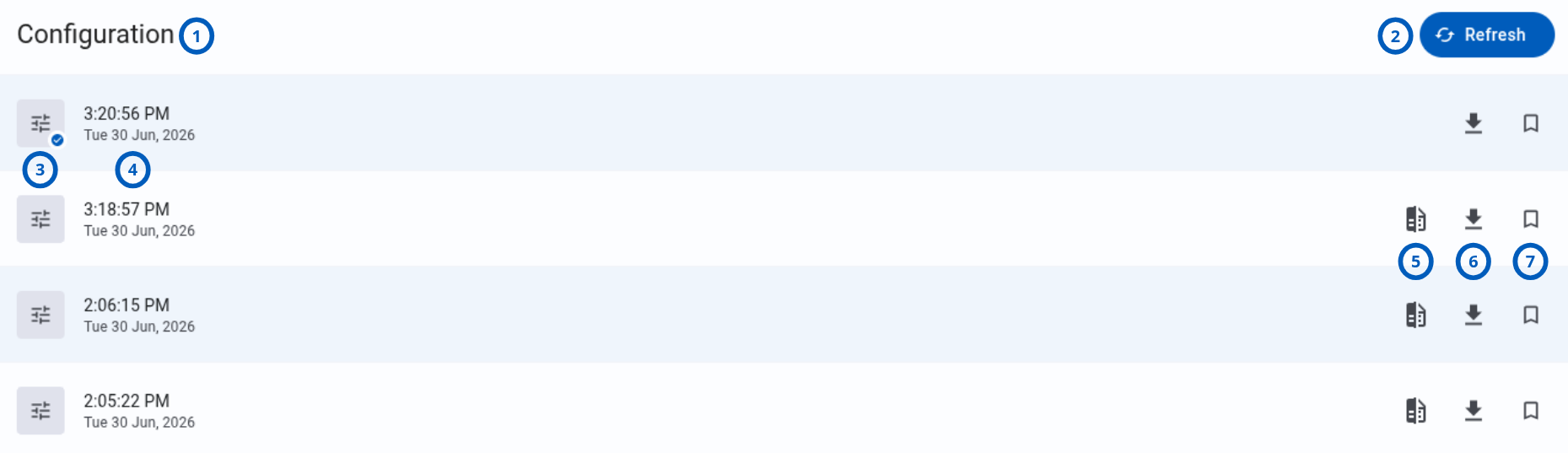
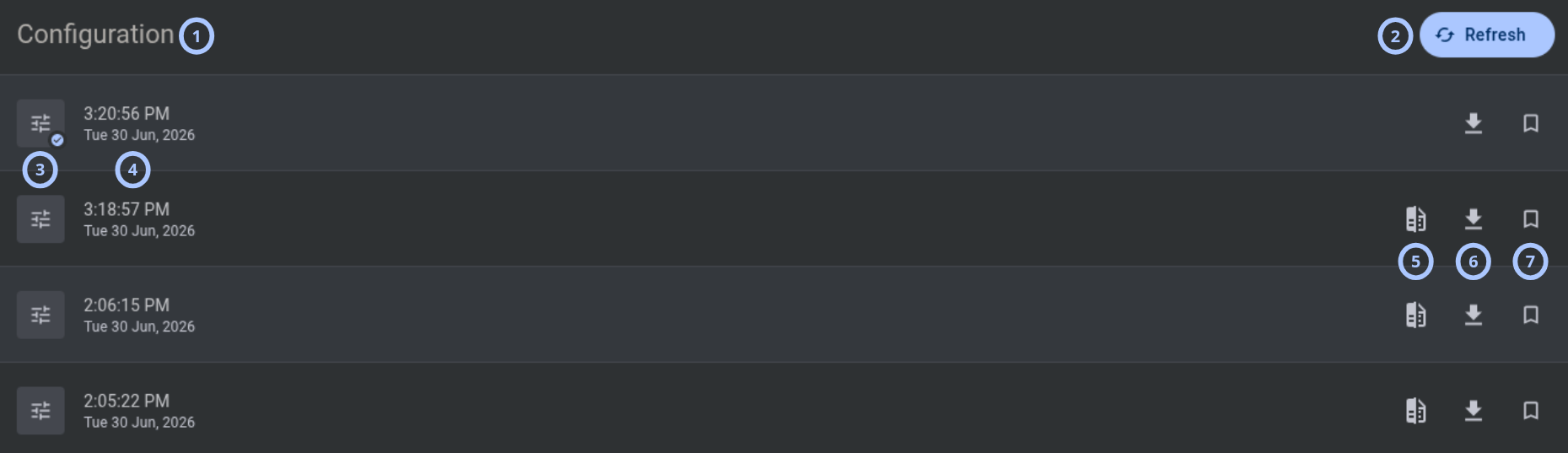
The configurations list shows downloaded panel configurations and actions for each configuration.
| Callout | UI element | Description | When to use |
|---|---|---|---|
| 1 | Tab title | Shows the tab title: Configuration. | Use to confirm that you are on the Configuration tab. |
| 2 | Refresh button | Downloads configuration from the panel. | Use to get the latest available panel configuration. |
| 3 | Configuration status icon | Shows a check icon for the latest current configuration. | Use to identify the current configuration. |
| 4 | Configuration timestamp | Shows the date and time when the configuration was downloaded, for example, 1:16:13 PM Fri 3 Jul, 2026. | Use to identify when the configuration was downloaded. |
| 5 | Compare with current configuration button | Opens the Compare page. This button is not shown for the current configuration. | Use to compare a saved configuration with the current configuration. |
| 6 | Export button | Opens the Export file modal window and exports the configuration to the local machine as a CSV file. | Use to download the configuration file. |
| 7 | Exclude from rotation button | Excludes the configuration from the rotation cycle. | Use when the configuration must not be included in rotation. |
Selecting a configuration in the list opens the Configuration page for that downloaded configuration.
Configuration page
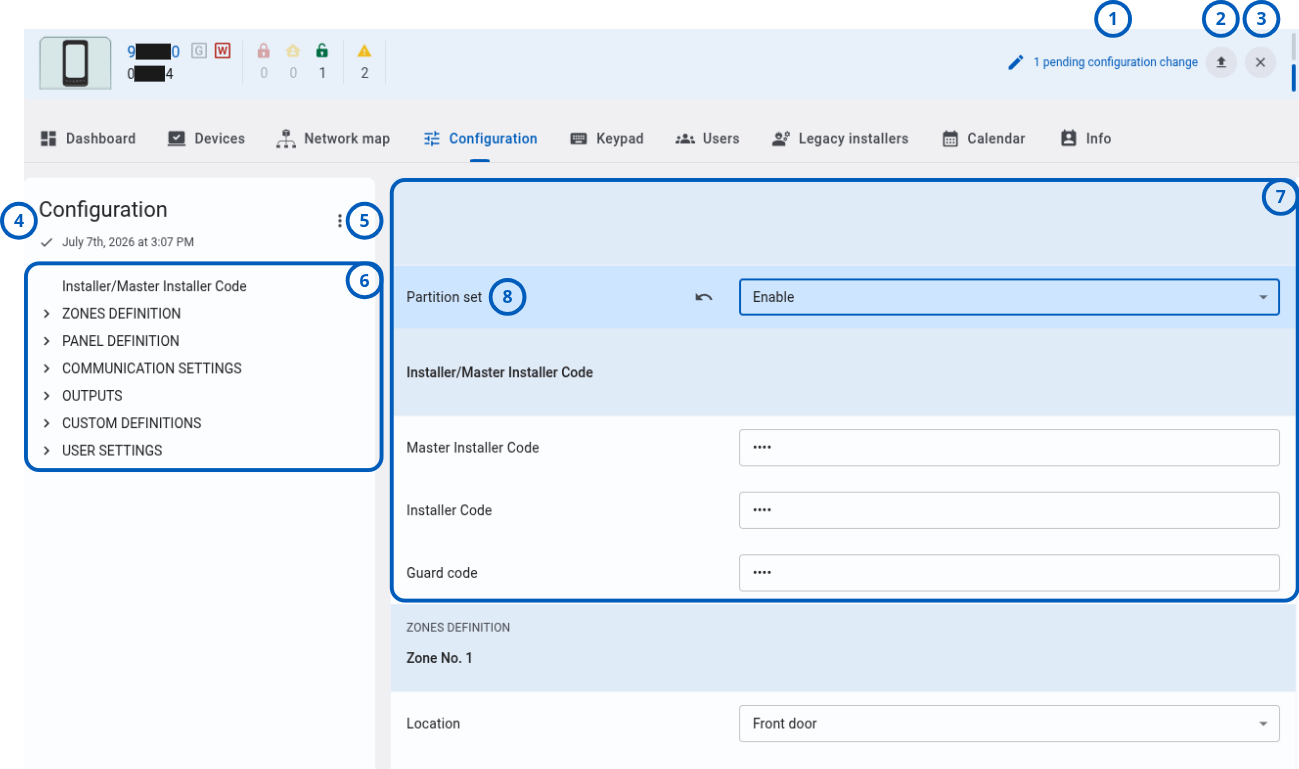
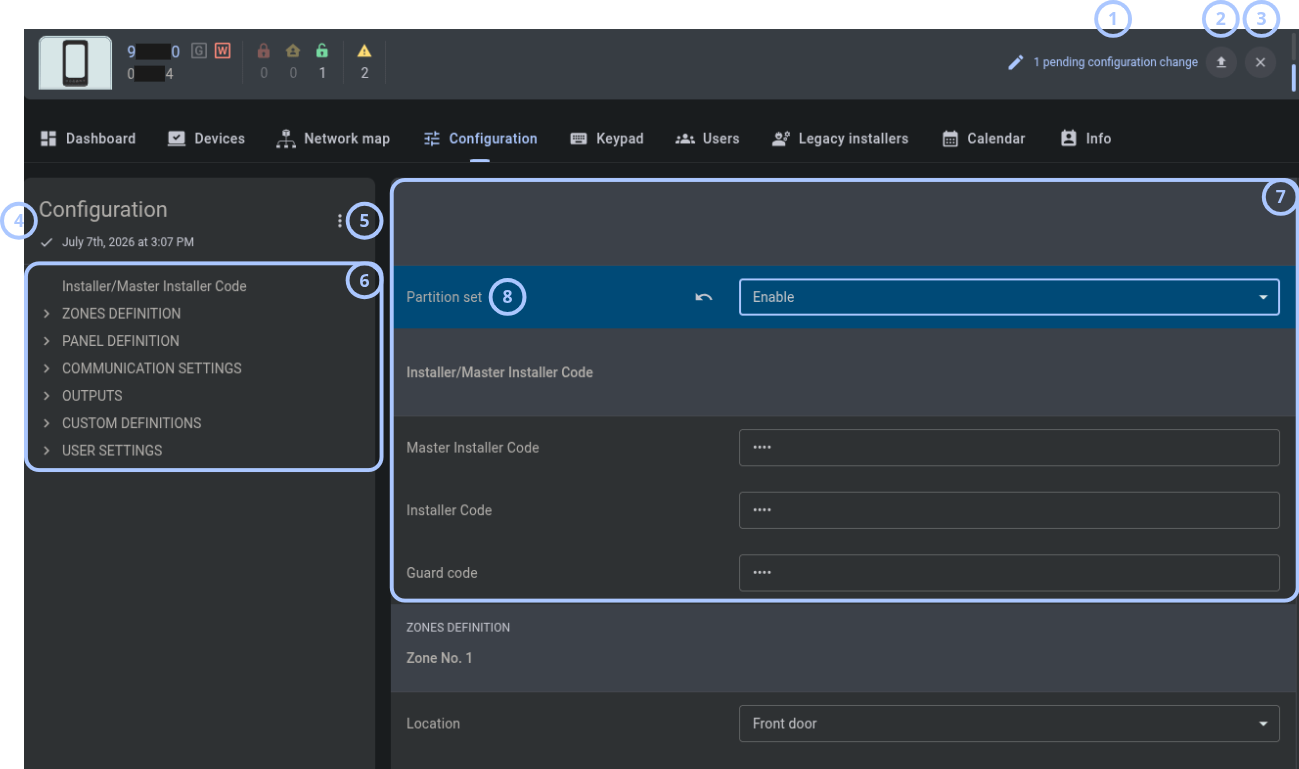
The Configuration page shows panel settings for the selected configuration and lets you edit settings.
| Callout | UI element | Description | When to use |
|---|---|---|---|
| 1 | Count of changed settings | Shows the number of settings that have been changed. This count is visible only when at least one setting has been modified. | Use to monitor how many unsaved changes exist. |
| 2 | Upload button | Opens the Upload configuration changes modal window. This button is visible only when at least one setting has been changed. | Use to upload changed settings to the panel. |
| 3 | Cancel button | Discards all configuration changes. This button is visible only when at least one setting has been changed. | Use to abandon all current changes. |
| 4 | Page title and configuration download time | Shows the page title Configuration and the download timestamp, for example, July 3rd, 2026 at 1:16 PM. | Use to confirm which configuration you are reviewing. |
| 5 | More button | Shows actions such as Export and Make basic. Export opens the Export file modal window. Make basic switches the Configuration page to Make basic mode. | Use to export the configuration or create a basic configuration. |
| 6 | Panel settings categories list | Shows the list of panel settings categories. Selecting a category navigates to the related settings section. | Use to move between configuration sections. |
| 7 | Settings widget | Contains the panel settings for the selected category. | Use to review and edit panel settings. |
| 8 | Changed setting | Highlights a changed setting with a visual indicator and shows an Undo button to revert the change. | Use to identify or undo individual changes. |
Configuration page in Make basic mode
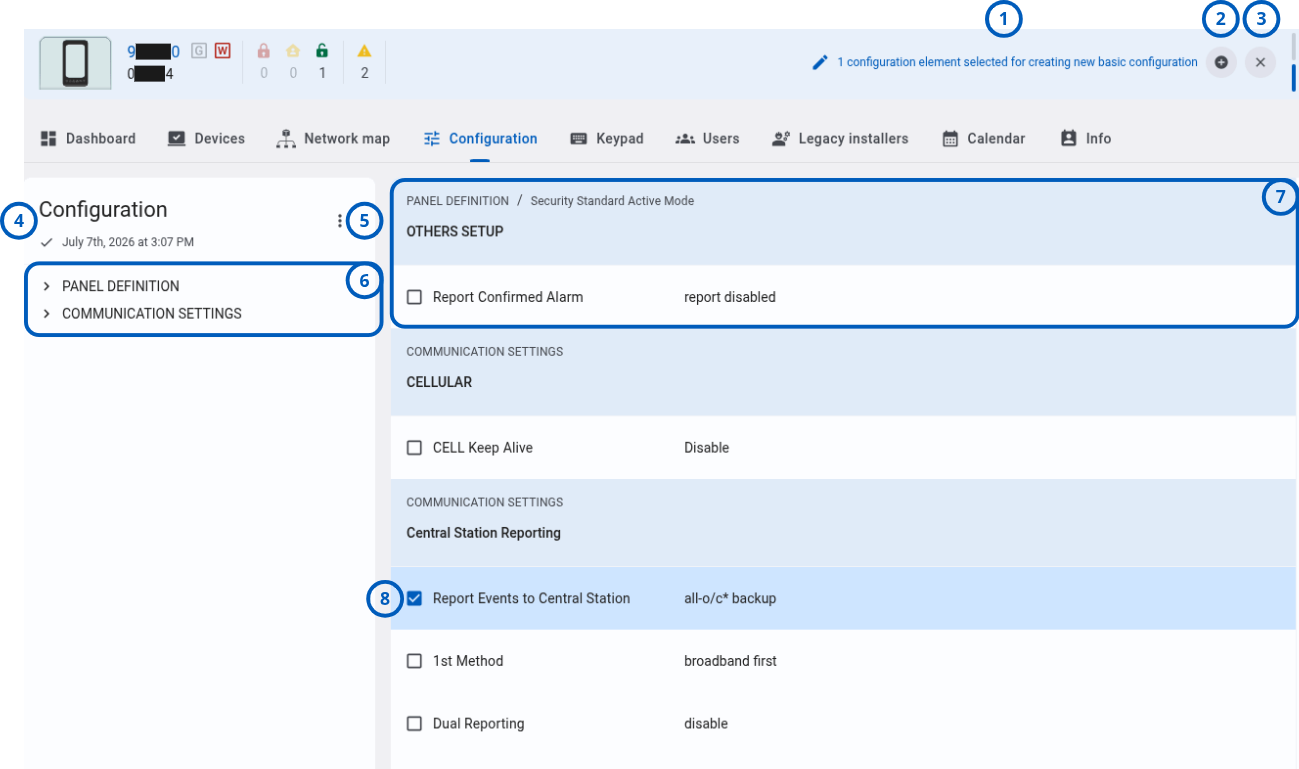
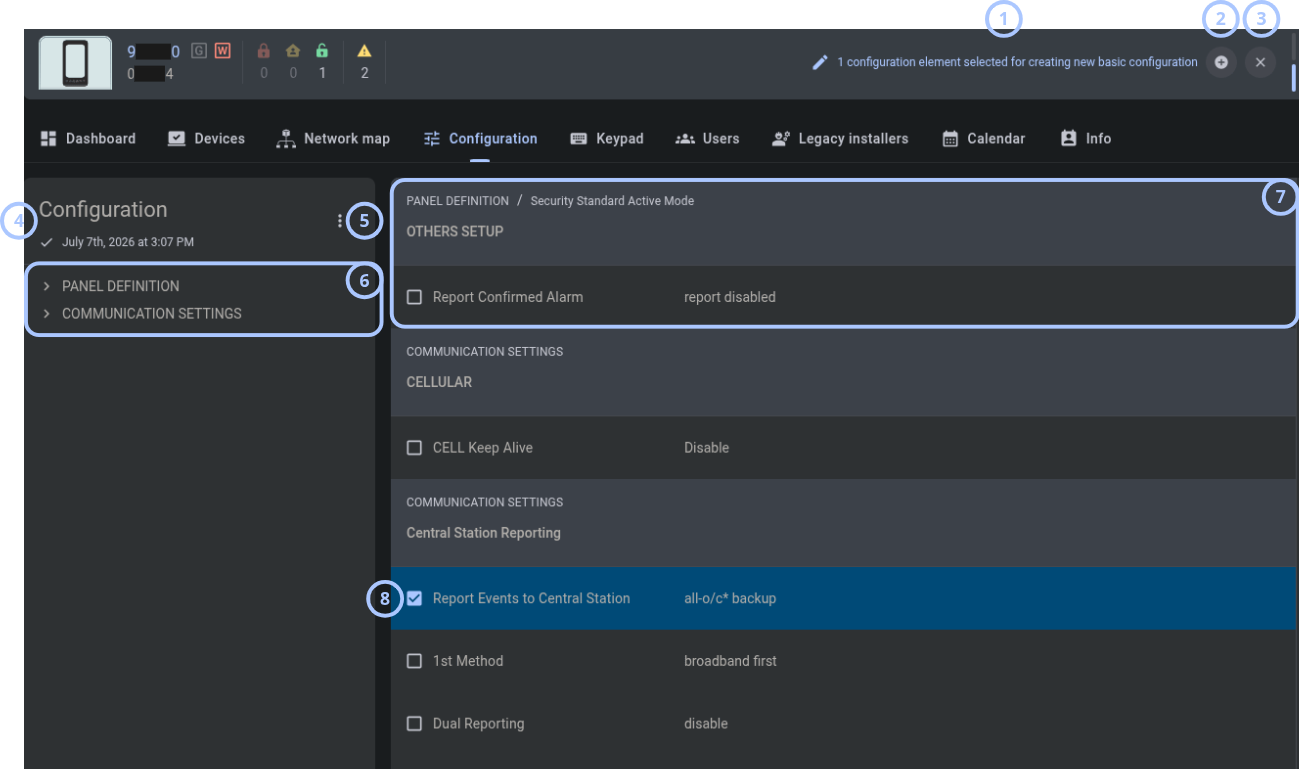
Make basic mode lets you select settings and create a new basic configuration from the selected settings and current values.
| Callout | UI element | Description | When to use |
|---|---|---|---|
| 1 | Count of selected settings | Shows the number of settings selected for creating a new basic configuration. | Use to monitor how many settings will be included. |
| 2 | Create button | Opens the Basic configuration modal window. The button is active only when at least one setting is selected. | Use to create a basic configuration from selected settings. |
| 3 | Cancel button | Exits Make basic mode and returns to the standard Configuration page view. | Use to stop creating a basic configuration. |
| 4 | Page title and configuration download time | Shows the page title Configuration and the download timestamp, for example, July 3rd, 2026 at 1:16 PM. | Use to confirm which configuration is being used. |
| 5 | More button | Shows the Export action, which opens the Export file modal window. | Use to export the configuration while in Make basic mode. |
| 6 | Panel settings categories list | Shows the list of panel settings categories. Selecting a category navigates to the related settings section. | Use to move between settings sections. |
| 7 | Settings widget | Contains the panel settings for the selected category. | Use to review and select settings. |
| 8 | Checkbox | Selects settings to include in the basic configuration. Selected settings are highlighted. | Use to choose settings for the basic configuration. |
Compare page
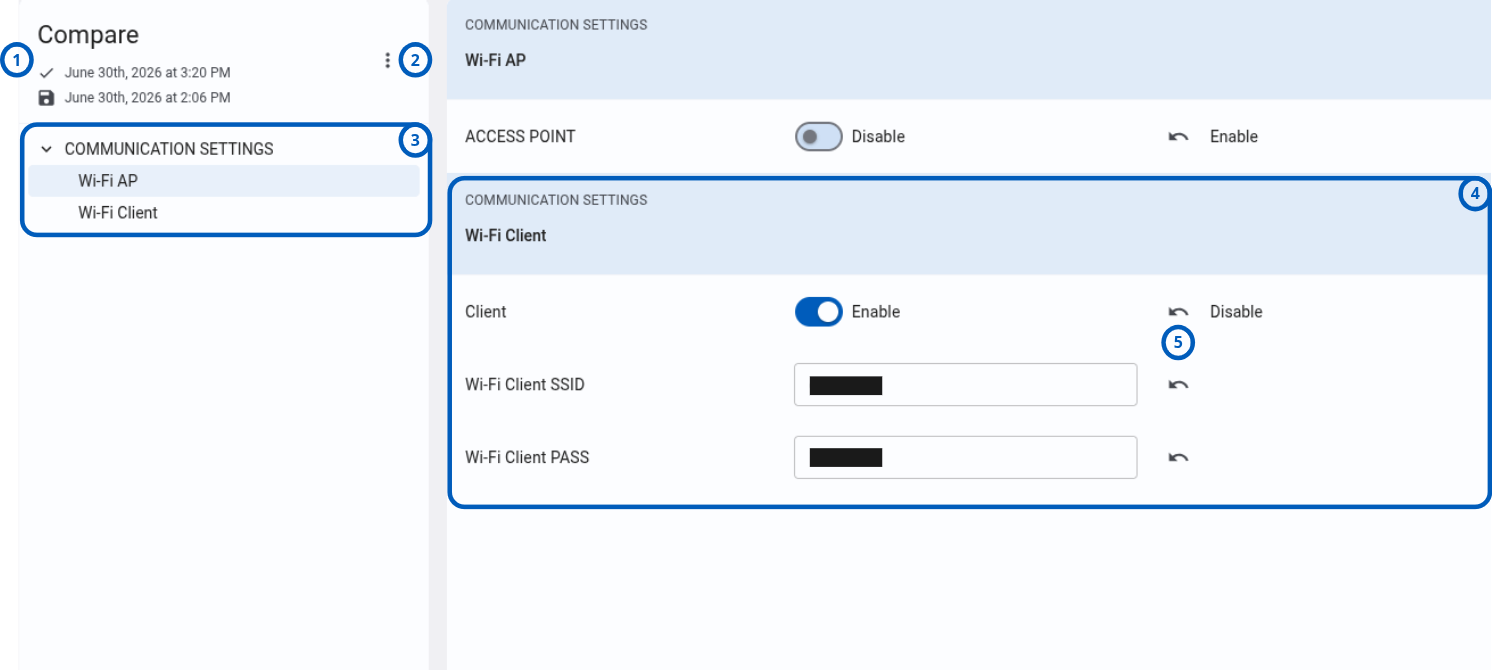
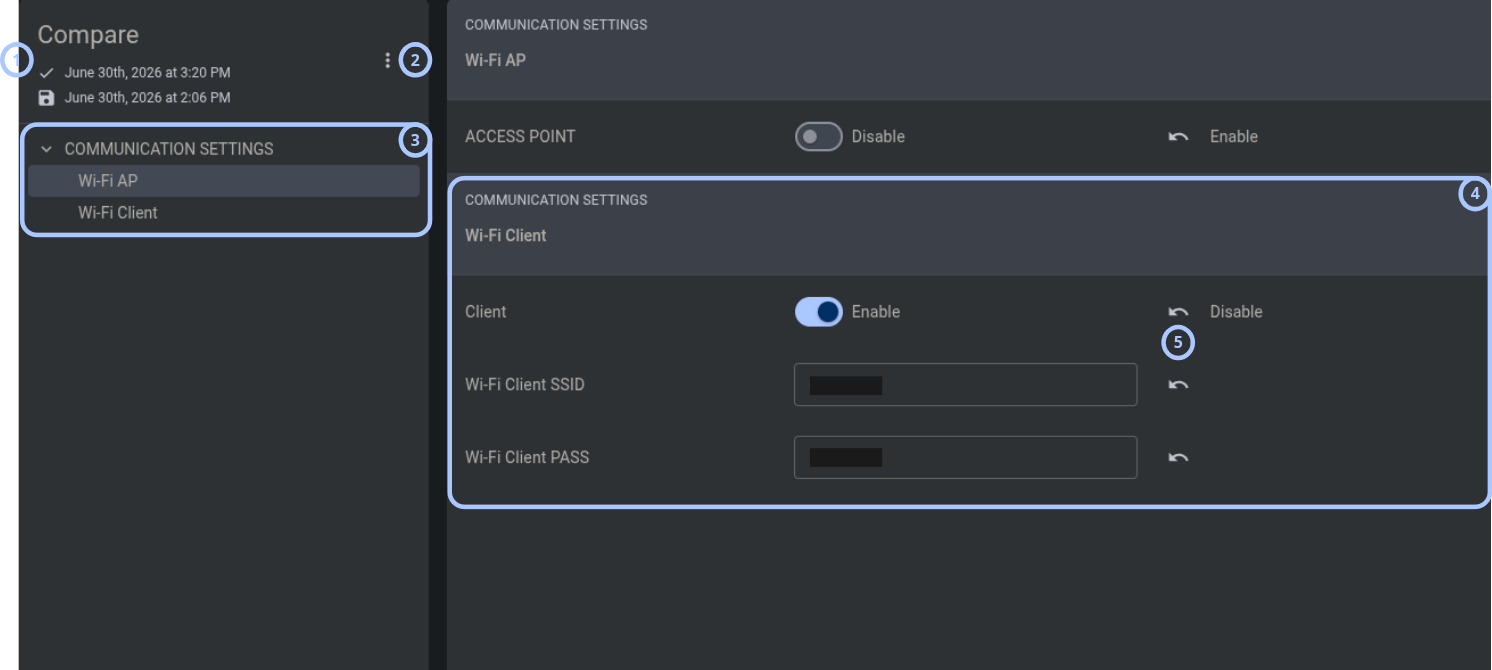
The Compare page shows differences between the current configuration and a saved configuration.
| Callout | UI element | Description | When to use |
|---|---|---|---|
| 1 | Page title and configuration timestamps | Shows the page title Compare and the download timestamps for the current and saved configurations, for example, July 3rd, 2026 at 1:16 PM. | Use to confirm which configurations are being compared. |
| 2 | More button | Shows the Restore action. Restore reverts all changed settings to values from the saved configuration without automatically uploading to the panel. | Use to restore saved values before uploading if needed. |
| 3 | Panel settings categories list | Shows only categories that contain changed settings. Selecting a category navigates to the related settings section. | Use to move between changed settings categories. |
| 4 | Settings widget | Shows changed panel settings with current and saved values displayed side by side. | Use to compare setting values. |
| 5 | Restore from saved icon | Restores an individual setting to the value from the saved configuration. | Use to restore one setting without restoring all settings. |
Export file modal window
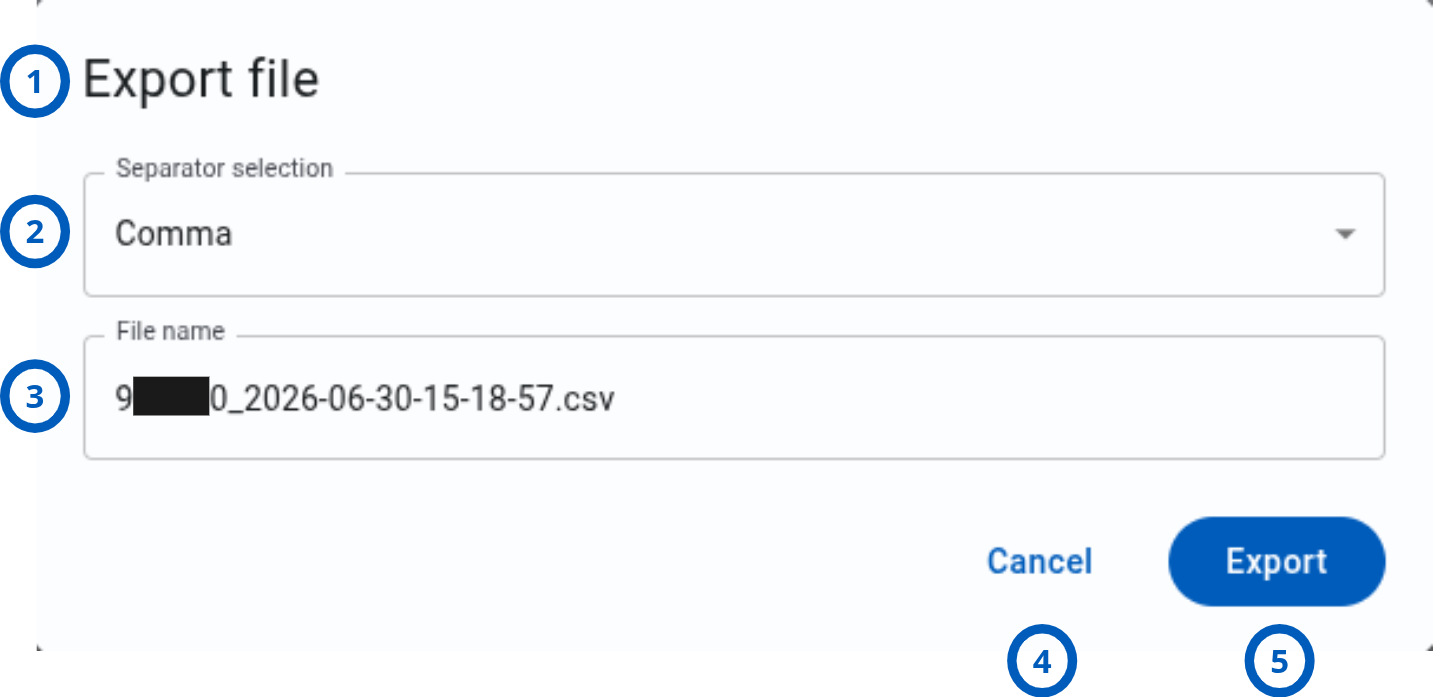
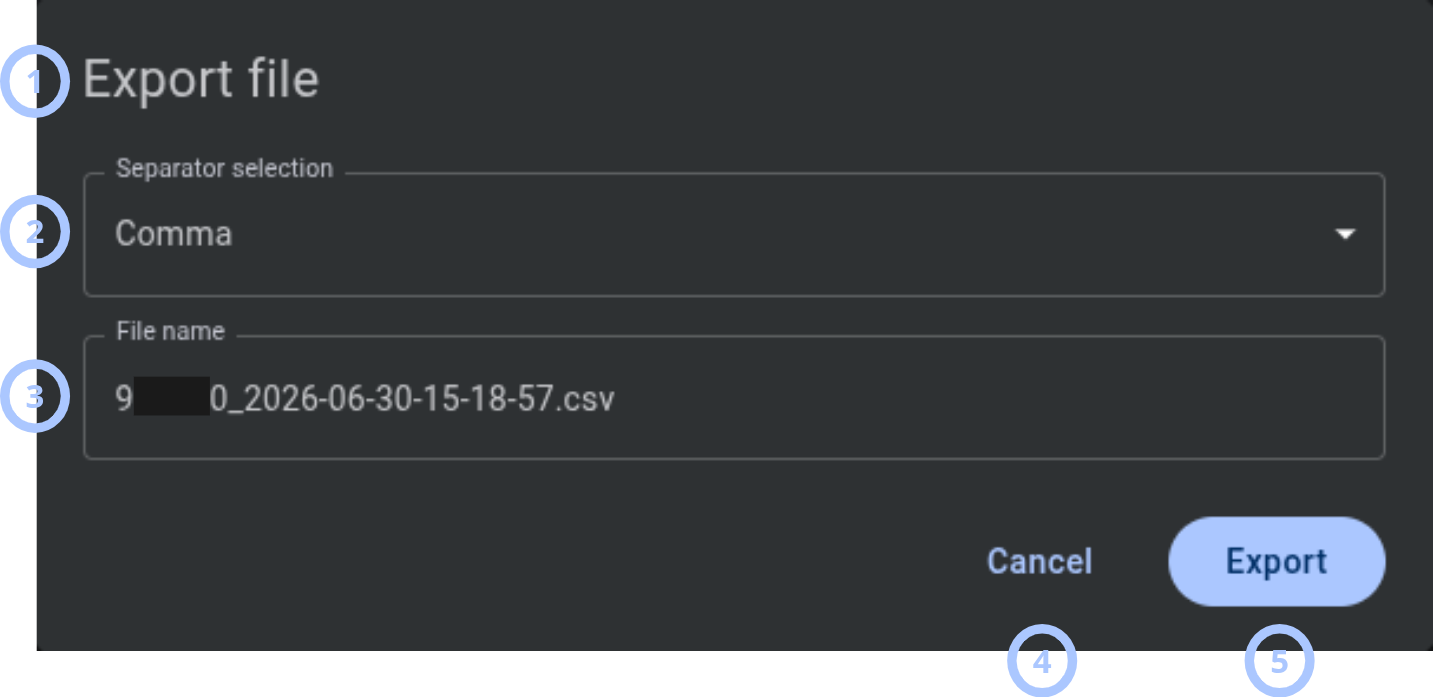
The Export file modal window lets you configure the CSV export file.
| Callout | UI element | Description | When to use |
|---|---|---|---|
| 1 | Modal title | Shows the modal name: Export file. | Use to confirm that you are exporting a configuration. |
| 2 | Separator selection | Shows the CSV separator dropdown. Available options are Comma, Semicolon, and Tabulation. The default value is Comma. | Use to choose the CSV separator. |
| 3 | File name | Lets you specify the export file name. The default format is PanelID_YYYY-MM-DD-HH-MM-SS.csv. | Use to name the exported file. |
| 4 | Cancel button | Closes the modal window without exporting. | Use when you do not want to export the file. |
| 5 | Export button | Downloads the configuration file to the local machine as a CSV file. | Use to export the configuration. |
Upload configuration changes modal window
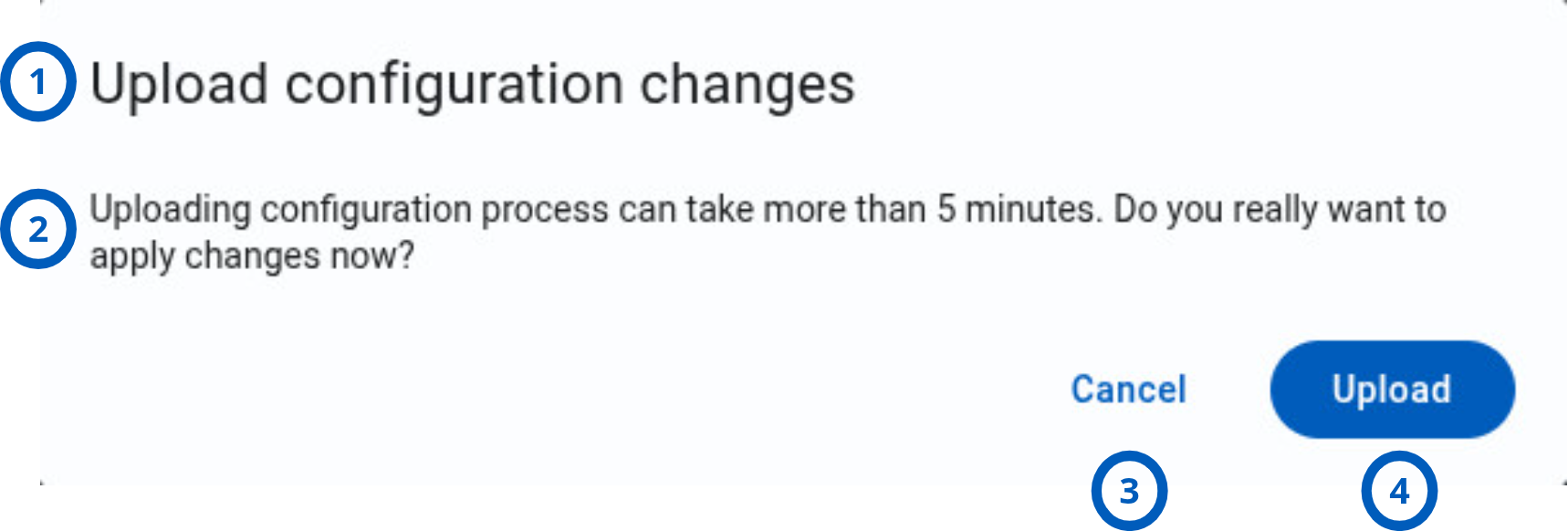
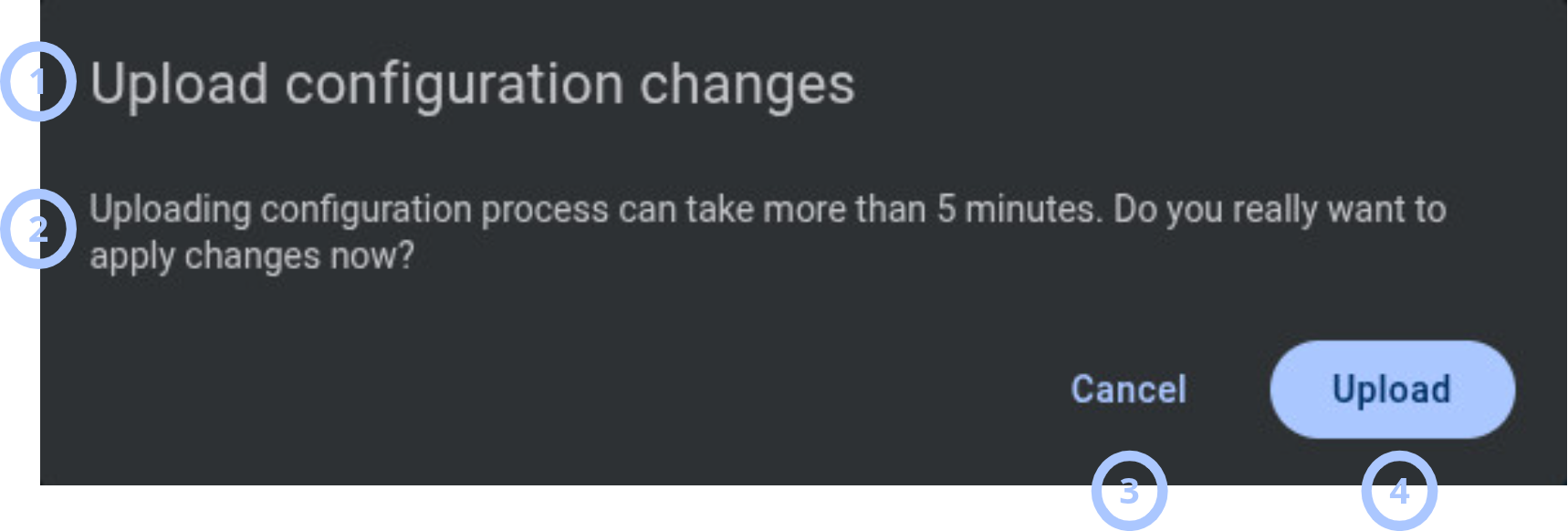
The Upload configuration changes modal window confirms that you want to apply configuration changes to the panel.
| Callout | UI element | Description | When to use |
|---|---|---|---|
| 1 | Modal title | Shows the modal name: Upload configuration changes. | Use to confirm that you are uploading configuration changes. |
| 2 | Warning message | Shows the message: Uploading configuration process can take more than 5 minutes. Do you really want to apply changes now? | Use to understand the upload duration before you continue. |
| 3 | Cancel button | Closes the modal without uploading configuration. | Use when you do not want to apply the changes. |
| 4 | Upload button | Starts the upload configuration to panel process. | Use to apply changed settings to the panel. |
Basic configuration modal window
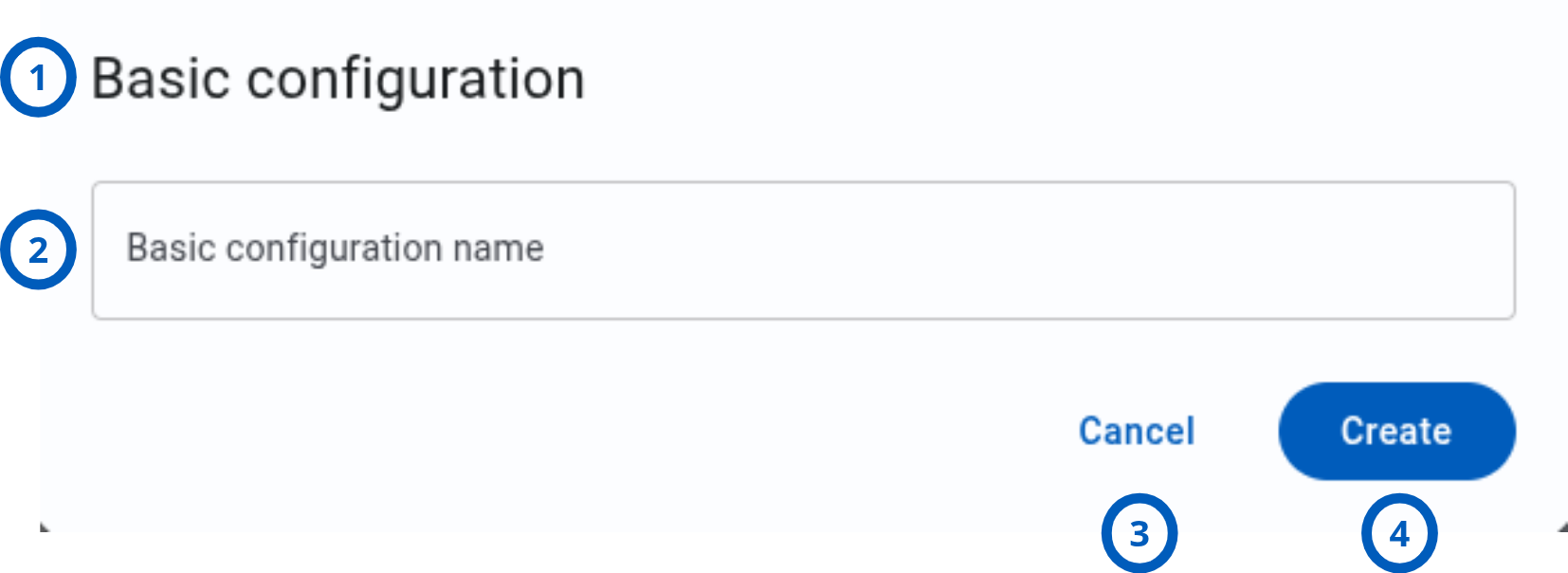
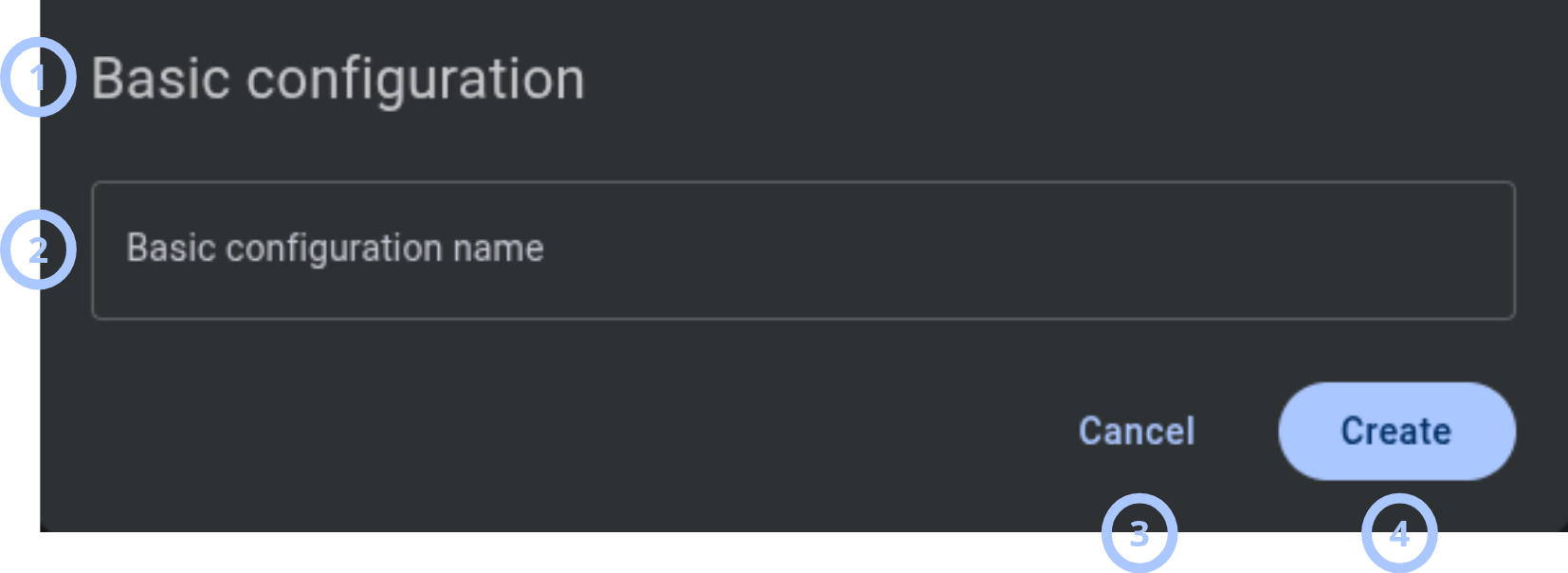
The Basic configuration modal window lets you create a basic configuration from selected settings.
| Callout | UI element | Description | When to use |
|---|---|---|---|
| 1 | Modal title | Shows the modal name: Basic configuration. | Use to confirm that you are creating a basic configuration. |
| 2 | Basic configuration name | Input field for the basic configuration name. The name must be 5 to 200 characters. | Use to name the basic configuration. |
| 3 | Cancel button | Closes the modal window without creating the basic configuration. | Use when you do not want to create the basic configuration. |
| 4 | Create button | Creates the basic configuration with the selected settings and their current values. | Use to save the basic configuration. |
How to use this page
Open the Configuration tab
Goal:
- Open panel configurations for a selected panel.
Steps:
- Open the Equipment page.
- Select the panel that you want to review.
- In Equipment hub, select the Configuration tab.
Expected result:
- The Configuration tab opens.
- The configurations list shows available downloaded configurations.
Download the latest configuration
Goal:
- Download the latest configuration from the panel.
Steps:
- Open the Configuration tab.
- Select Refresh.
- Wait for the configuration download to finish.
Expected result:
- The latest configuration is downloaded from the panel.
- The latest configuration is marked with the current configuration status icon.
Open a configuration
Goal:
- Review settings from a downloaded configuration.
Steps:
- Open the Configuration tab.
- In the configurations list, select a configuration.
Expected result:
- The Configuration page opens for the selected configuration.
- Panel settings categories and settings are shown.
Edit and upload configuration changes
Goal:
- Change settings and upload the changes to the panel.
Steps:
- Open a configuration.
- Select a panel settings category.
- Change the required settings.
- Review the changed settings count.
- Select Upload.
- In the Upload configuration changes modal window, select Upload.
Expected result:
- The upload configuration to panel process starts.
- Changed settings are applied to the panel after the process completes successfully.
Undo a changed setting
Goal:
- Revert one changed setting before upload.
Steps:
- Open a configuration.
- Find a highlighted changed setting.
- Select Undo for that setting.
Expected result:
- The individual setting change is reverted.
- The changed settings count updates.
Cancel configuration changes
Goal:
- Discard all current configuration changes.
Steps:
- Open a configuration with changed settings.
- Select Cancel.
- Confirm the action if a confirmation message appears.
Expected result:
- All current configuration changes are discarded.
- The Configuration page returns to the unchanged state.
Compare a saved configuration with the current configuration
Goal:
- Review differences between a saved configuration and the current configuration.
Steps:
- Open the Configuration tab.
- In the configurations list, find a saved configuration that is not current.
- Select Compare with current configuration.
Expected result:
- The Compare page opens.
- Changed categories and settings are shown with current and saved values side by side.
Restore settings from a saved configuration
Goal:
- Restore saved configuration values before uploading them to the panel.
Steps:
- Open the Compare page.
- To restore all changed settings, open More and select Restore.
- To restore one setting, select the Restore from saved icon for that setting.
- Review restored changes on the Configuration page.
- Upload changes if you want to apply them to the panel.
Expected result:
- Selected settings are reverted to values from the saved configuration.
- Restored changes are not automatically uploaded to the panel.
Export a configuration
Goal:
- Download a configuration as a CSV file.
Steps:
- Open a configuration or use the configurations list.
- Select Export.
- In the Export file modal window, select a separator.
- Review or edit the file name.
- Select Export.
Expected result:
- The configuration is downloaded to the local machine as a CSV file.
Exclude a configuration from rotation
Goal:
- Remove a configuration from the rotation cycle.
Steps:
- Open the Configuration tab.
- In the configurations list, find the configuration to exclude.
- Select Exclude from rotation.
Expected result:
- The selected configuration is excluded from the rotation cycle.
Create a basic configuration
Goal:
- Create a basic configuration from selected settings.
Steps:
- Open a configuration.
- Open More and select Make basic.
- Select the checkboxes for settings to include.
- Select Create.
- In the Basic configuration modal window, enter a name from 5 to 200 characters.
- Select Create.
Expected result:
- A basic configuration is created with the selected settings and their current values.
Tips
- Use Refresh before comparing or editing if you need the latest panel configuration.
- Check the current configuration status icon before selecting a configuration.
- Use Undo to revert one changed setting before upload.
- Use Cancel to discard all current configuration changes.
- Remember that restored settings from the Compare page are not uploaded automatically.
- Use a clear file name when exporting configuration files.
Troubleshooting
Configuration download fails
Possible causes
- The panel is offline.
- Communication with the panel was interrupted.
- Your role does not allow downloading configuration.
What to do
- Check the panel connection status.
- Wait for the panel to reconnect.
- Confirm that your role allows downloading configuration.
- Select Refresh again.
Upload button is not visible
Possible causes
- No settings have been changed.
- Your role does not allow uploading configuration changes.
What to do
- Change at least one setting.
- Confirm that the changed settings count appears.
- Confirm that your role allows uploading configuration changes.
Compare with current configuration button is not shown
Possible causes
- The selected configuration is the current configuration.
- There is no saved configuration available for comparison.
What to do
- Select a configuration that is not marked as current.
- Download another configuration if no saved configuration is available.
Create button is disabled in Make basic mode
Possible causes
- No settings are selected.
- Your role does not allow creating basic configurations.
What to do
- Select at least one setting checkbox.
- Confirm that the selected settings count is greater than zero.
- Confirm that your role allows creating basic configurations.
Export does not download a file
Possible causes
- The browser blocked the download.
- The file name is invalid.
- Your role does not allow exporting configuration.
What to do
- Check browser download settings.
- Review the file name in the Export file modal window.
- Confirm that your role allows exporting configuration.
- Try exporting again.
Restored settings are not applied to the panel
Possible causes
- Restored settings are not uploaded automatically.
- The upload process has not been started.
What to do
- Review the changed settings after restore.
- Select Upload.
- Confirm the upload in the Upload configuration changes modal window.