Groups
Overview
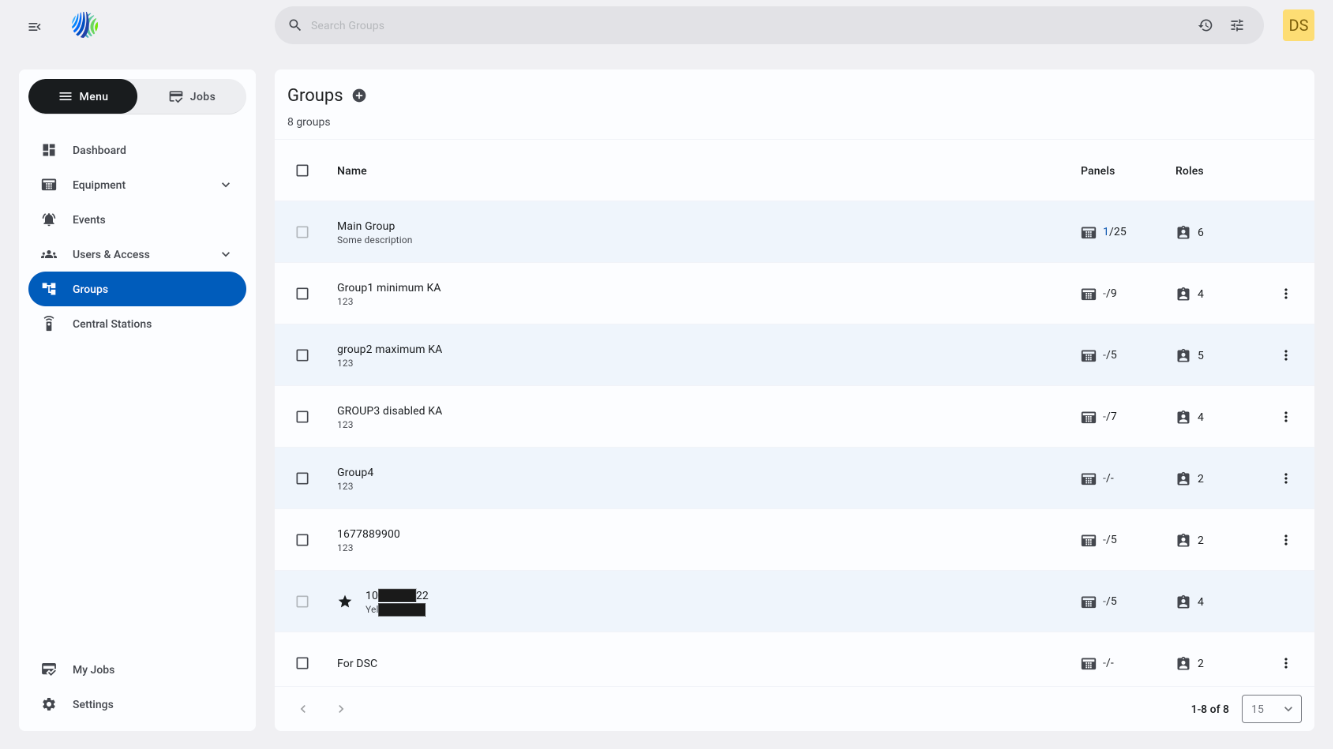
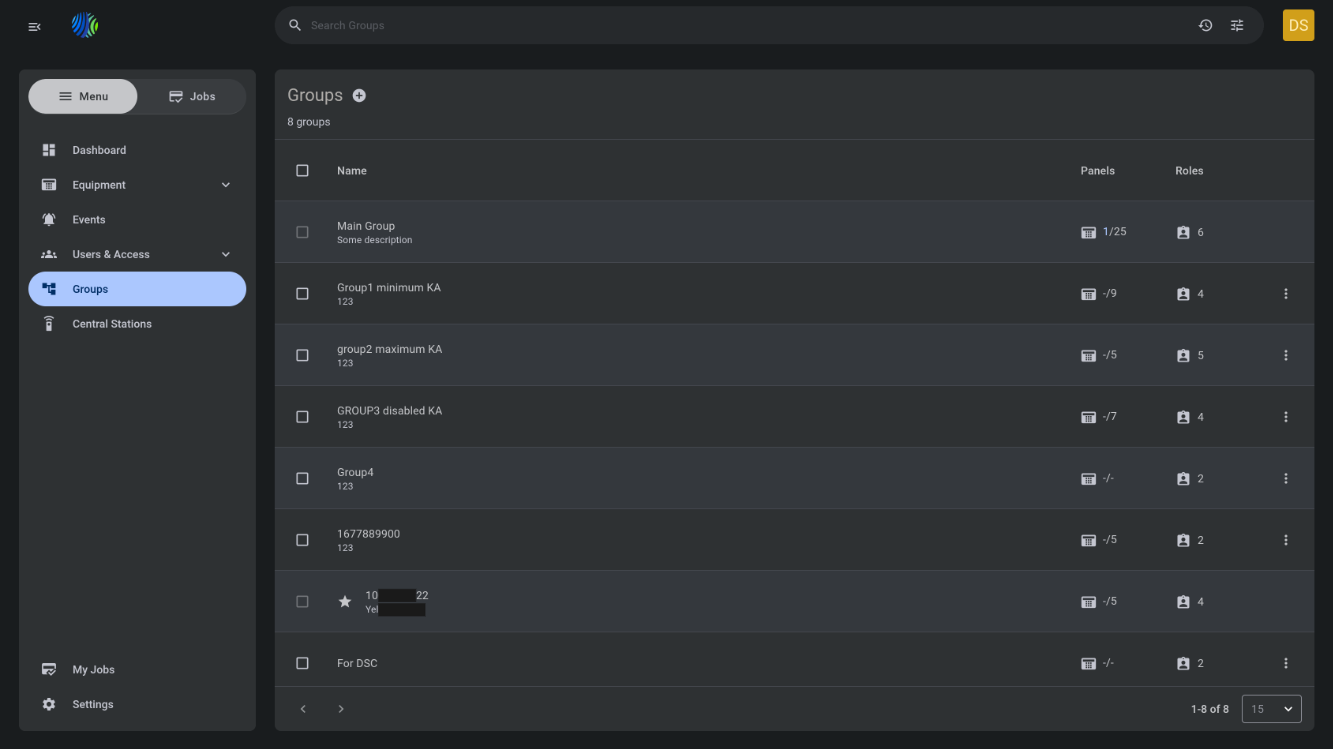
The Groups page lets you view, create, and remove groups.
Use this page when you need to:
- Review how many panels are assigned to each group.
- Check which roles are assigned to a group.
- Remove a group that is no longer needed.
Before you begin
Required permissions
- You must have permission to view the groups list.
- You must have permission to create groups.
- You must have permission to remove groups.
- You must have permission to edit groups.
Access to the Groups page and group management actions is controlled by the Groups role permission group.
Preconditions
- At least one group exists in the system.
Dependencies
- Panel assignment data is required to show the connected and total panel count.
- Role assignment data is required to show the number of roles assigned to each group.
- Role names are required to display the roles tooltip.
Important limitations
- The Main group cannot be removed.
- When you remove a group, all panels from that group are moved to the Main group.
- Removing a group may affect roles assigned to that group.
Page layout
Page header


| Callout | UI element | Description | When to use |
|---|---|---|---|
| 1 | Page title | Shows the current page name: Groups. | Use to confirm that you are viewing group management. |
| 2 | + icon | Opens the Create group modal window. | Use to create a new group. |
| 3 | Group count | Shows the total number of groups. | Use to confirm the number of available groups after creating or removing a group. |
| 4 | Remove button | Appears in the page header after you select one or more groups. | Use to remove selected groups when they are no longer needed. |
Create group modal window
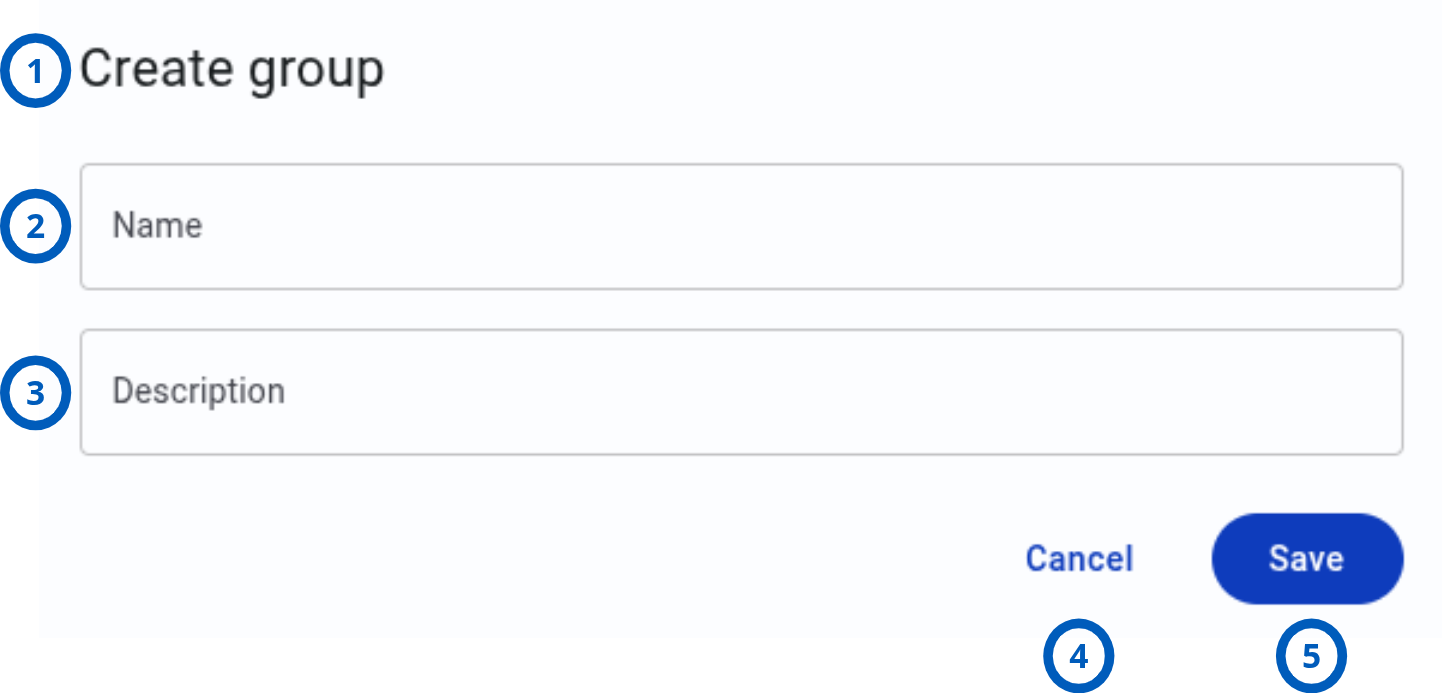
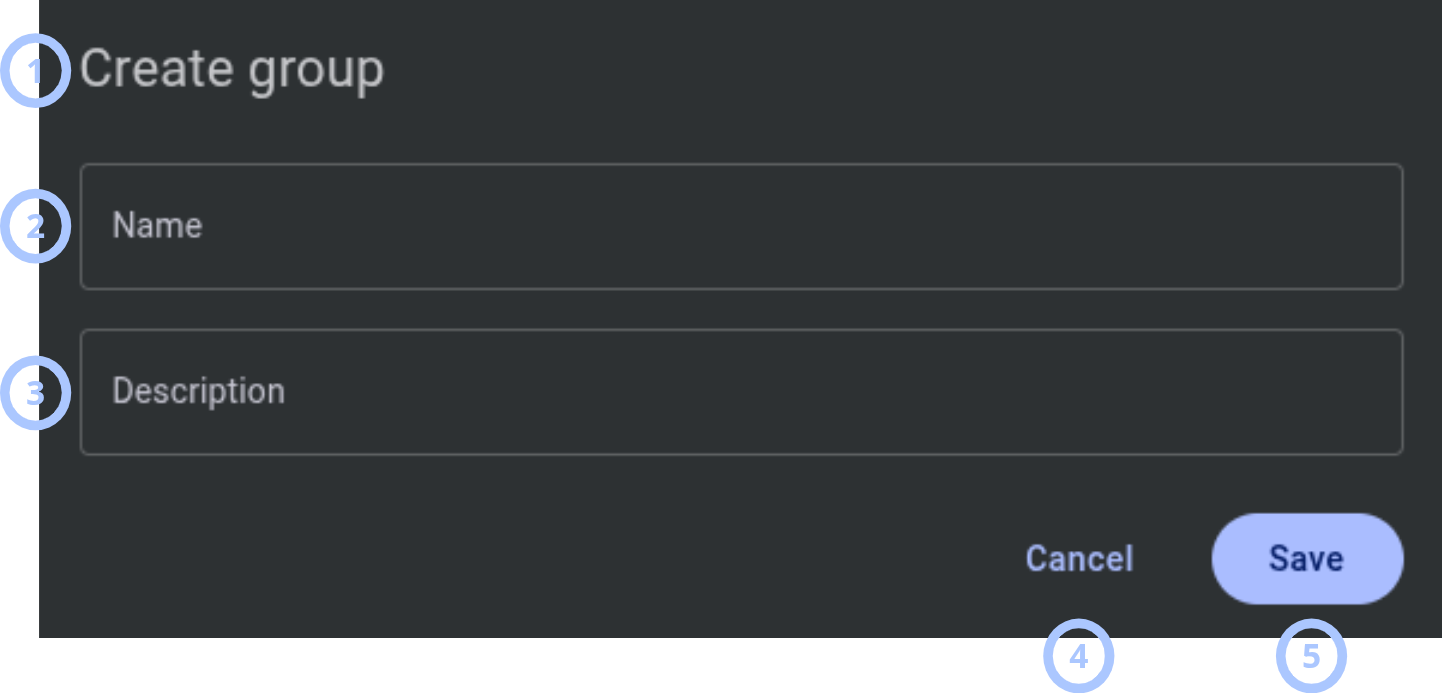
The Create group modal window appears after you select the + icon.
| Callout | UI element | Description | When to use |
|---|---|---|---|
| 1 | Modal title | Shows the modal name: Create group. | Use to confirm that you are creating a group. |
| 2 | Name field | Defines the group name shown in the groups grid. | Enter a clear name that helps users identify the group. |
| 3 | Description field | Provides additional information about the group. | Use to explain the group purpose, scope, or ownership. |
| 4 | Cancel button | Closes the modal window without creating a group. | Select when you do not want to save the new group. |
| 5 | Save button | Creates the group using the entered values. | Select after entering the required group information. |
Groups grid
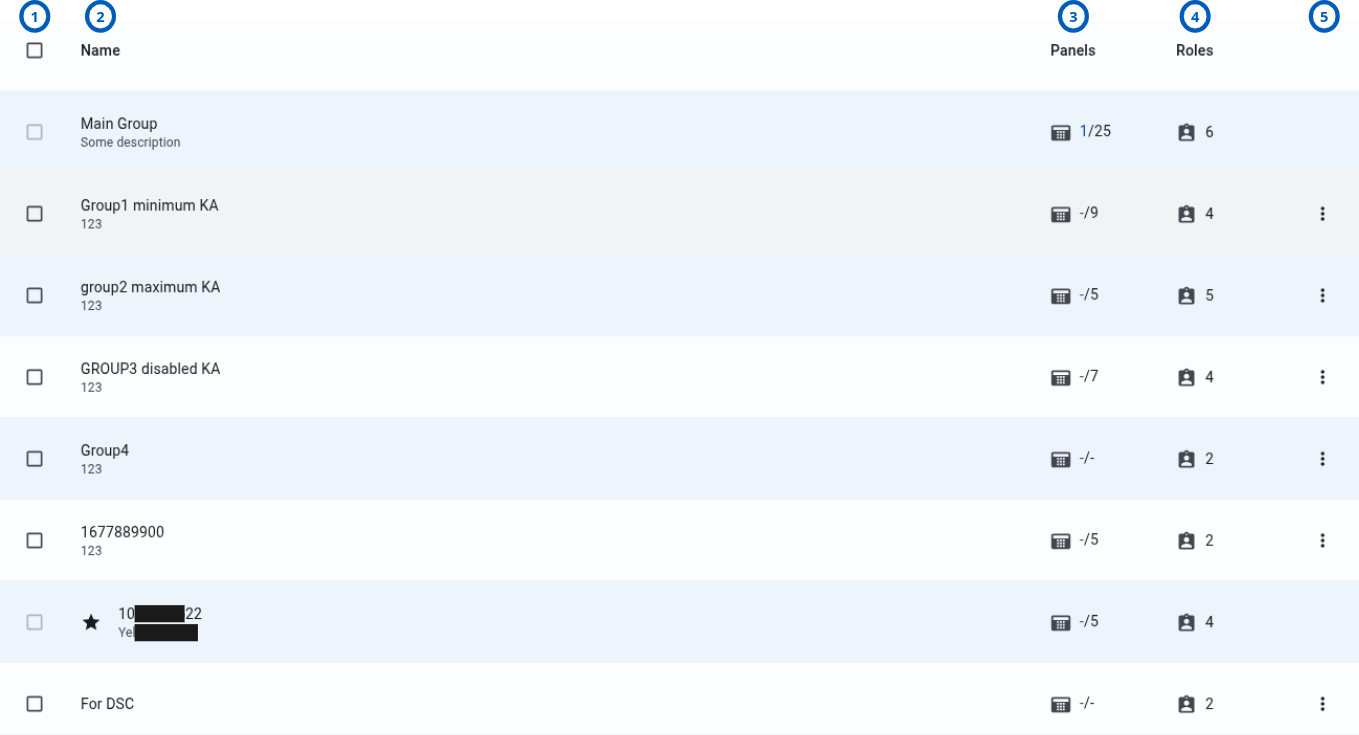
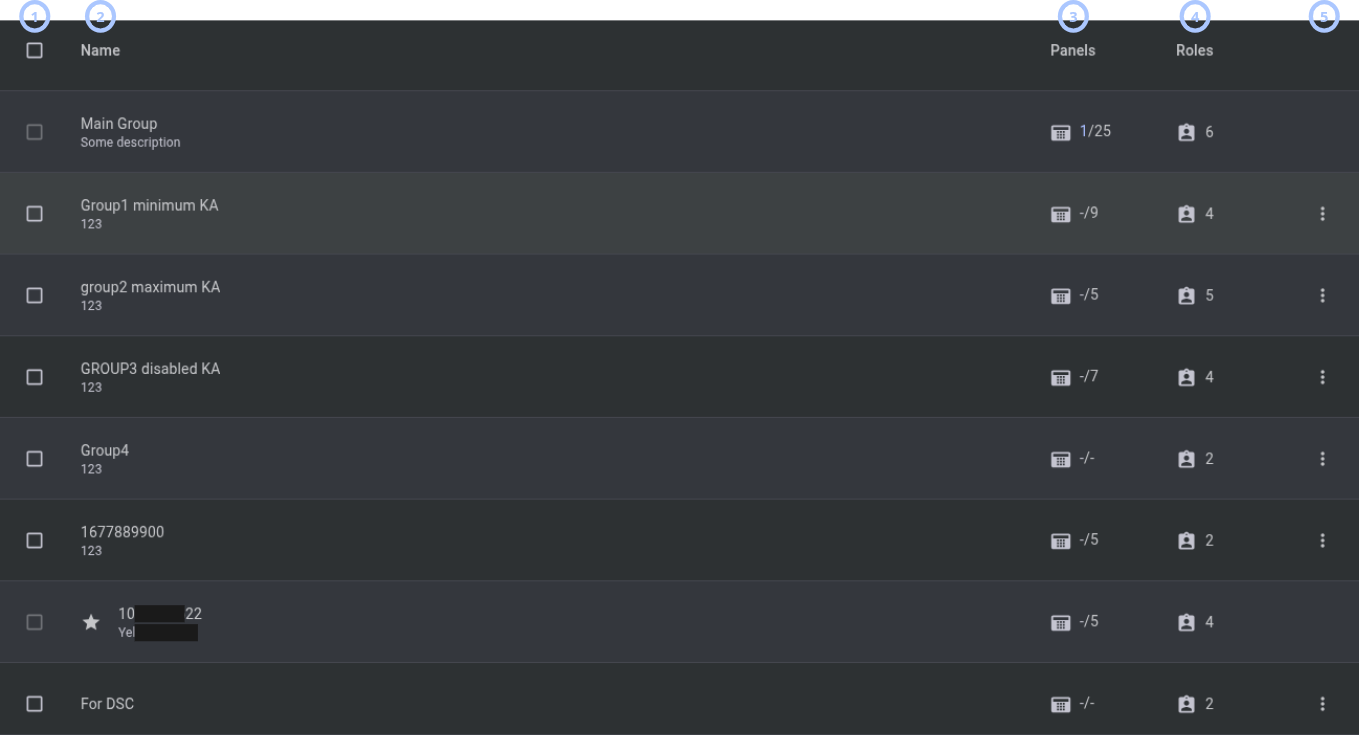
The groups grid lists available groups and key details about each group.
| Callout | UI element | Description | When to use |
|---|---|---|---|
| 1 | Checkbox column | Lets you select groups for bulk removal. | Select one or more removable groups when you want to remove them. |
| 2 | Name column | Shows the group name and description. | Use to identify the group and understand its purpose. |
| 3 | Panels column | Shows panels assigned to the group in the format connected panels / total panels. | Use to check how many panels are in the group. |
| 4 | Roles column | Shows the number of roles assigned to the group. | Use to review role assignment coverage for the group. |
| 5 | Three-dot icon | Opens a row action menu for the selected group. Available for all groups except Main group. | Use to remove a specific group from its row. |
A star icon appears next to the group name for dealer groups.
Remove group modal window
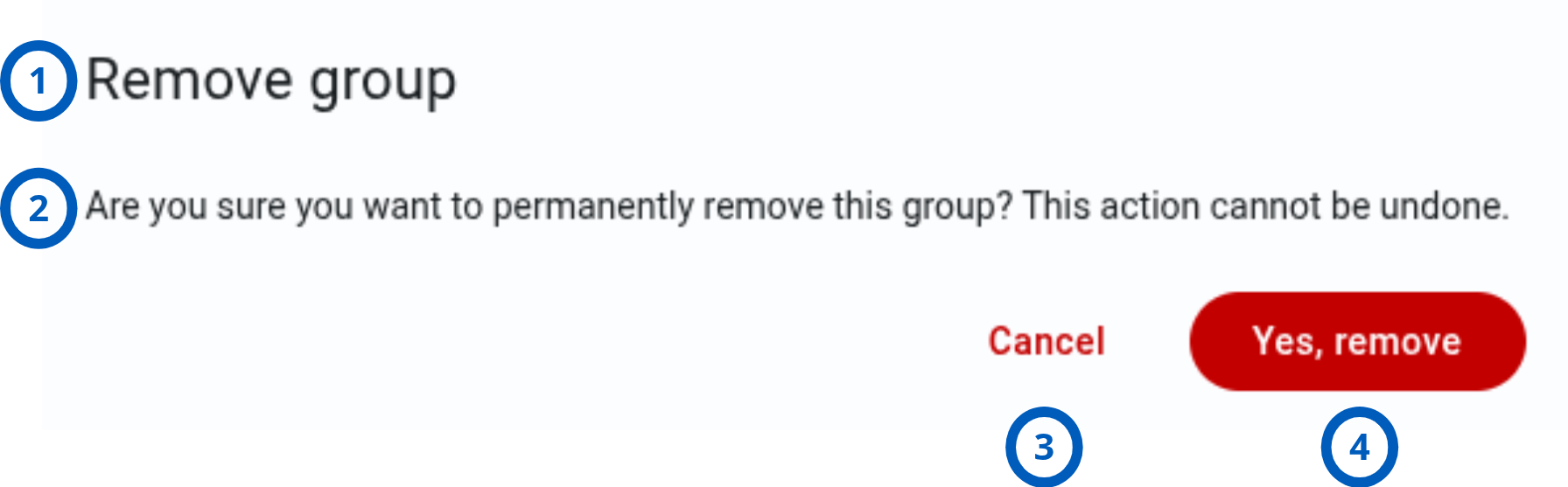
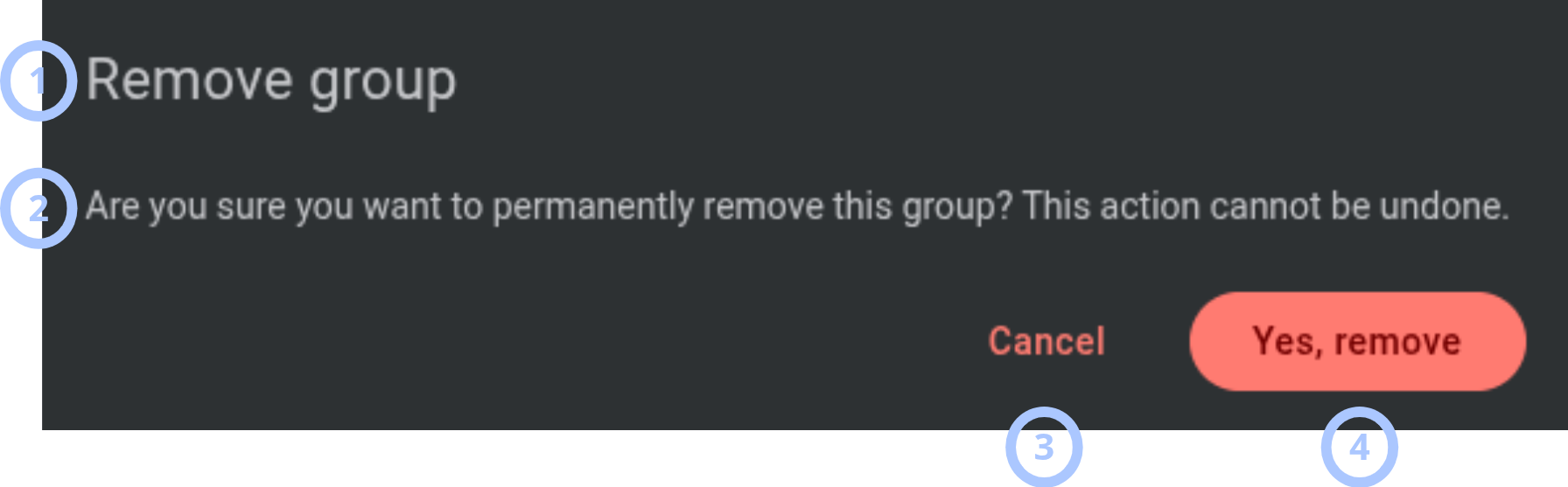
The Remove group modal window appears when you start a remove action.
| Callout | UI element | Description | When to use |
|---|---|---|---|
| 1 | Modal title | Shows the modal name: Remove group. | Use to confirm that you are removing a group. |
| 2 | Warning message | Explains the impact of removing the group. | Read before confirming the removal. |
| 3 | Cancel button | Closes the modal window without removing the group. | Select if you want to keep the group. |
| 4 | Yes, remove button | Confirms the removal. | Select only after you confirm that the group should be removed. |
After the group is removed, all panels from that group move to the Main group.
Pagination controls


The pagination controls appear under the groups grid.
| Callout | UI element | Description | When to use |
|---|---|---|---|
| 1 | Navigation arrows | Move between pages of groups. | Use when the group list has more items than the current page can show. |
| 2 | Range indicator | Shows the current range and total number of groups, for example, 1-15 of 26. | Use to understand where you are in the groups list. |
| 3 | Page size dropdown | Controls how many groups appear on each page (10, 15, 50, 100, 200). | Use to show fewer or more groups in the grid. |
Search
- Search bar
- Filters
- Search and filter controls
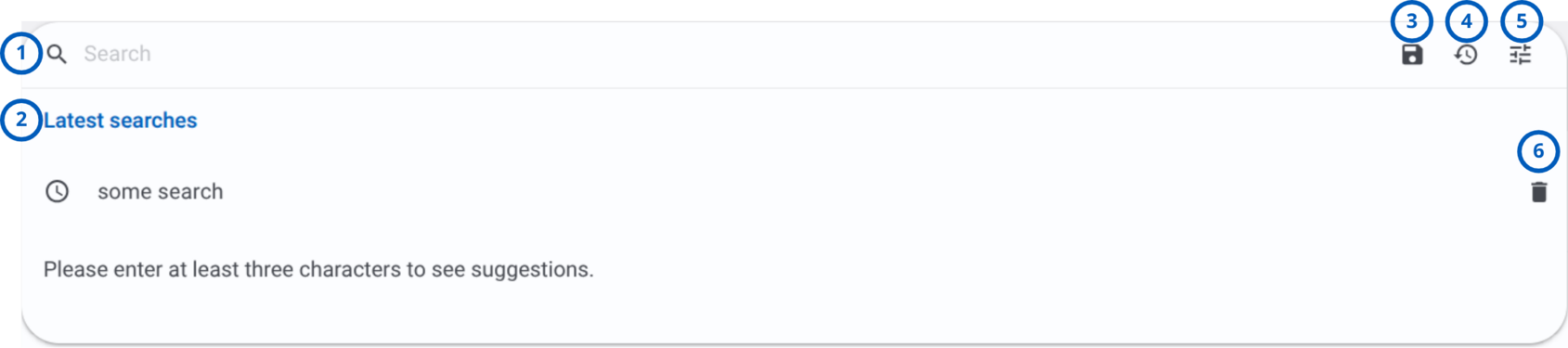
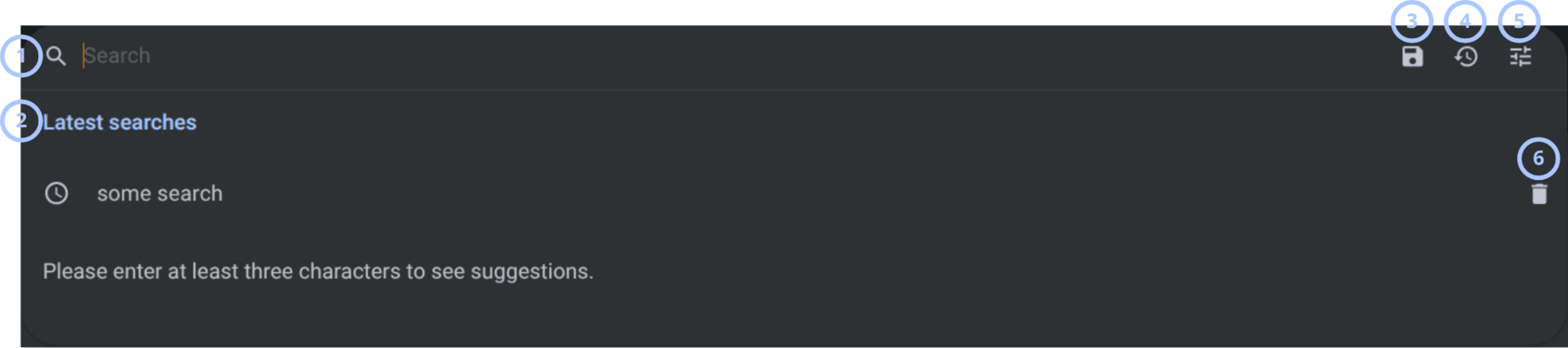
The Search bar lets you search for entries on the page, access saved filters, reopen last visited entries and latest searches, and open the filter widget.
Last visited entries and latest searches are limited to five items. They are stored locally in the browser and managed as FIFO.
| Callout | UI element | Description | When to use |
|---|---|---|---|
| 1 | Search | Search icon used to initiate a search. | Use when you want to find a specific entry or set of entries. |
| 2 | Latest searches | Search field that displays up to five latest search queries. Latest searches appear after you select the search field. | Use when you want to enter a new search query or quickly repeat a recent search. |
| 3 | Saved filters | Displays filter entries that have been saved for reuse. | Use when you want to quickly apply a previously saved filter. |
| 4 | Last visited | Displays the five most recently visited entries. | Use when you want to quickly reopen entries that were accessed recently. |
| 5 | Show filters | Opens the filter widget and displays the available filtering options. | Use when you need to add, modify, or remove filter criteria. |
| 6 | Delete last visited or latest search result | Removes the corresponding search or last visited query from the list. | Use when you want to remove a search query or last visited entry from the list. |
Use the filter widget to find and display entries according to the selected filter values.


| Callout | UI element | Description | When to use |
|---|---|---|---|
| 1 | Names field | Multi-select field used to filter results by one or more group names. | Use when you want to view entries associated with specific groups. |
| 2 | Roles field | Multi-select field used to filter results by one or more assigned user roles. | Use when you need to find entries associated with specific roles. |
Use the action area of the filter widget to clear selected filter criteria, save the current filter configuration, or apply filters to display matching results.


| Callout | UI element | Description | When to use |
|---|---|---|---|
| 1 | Clear all | Removes all selected filter values and resets the filter widget to its default state. | Use when you want to remove all active filters and start a new search. |
| 2 | Save filter | Saves the current filter configuration so that it can be reused later. | Use when you frequently apply the same filter criteria. |
| 3 | Search | Applies the selected filter criteria and displays matching results. | Use after configuring filters to view the filtered results. |
How to use this page
Create a group
Goal:
- Add a new group to organize panels.
Steps:
- Go to the Groups page.
- Select the + icon next to the page title.
- In the Create group modal window, enter a value in the Name field.
- Enter a value in the Description field, if needed.
- Select Save.
Expected result:
- The modal window closes.
- The new group appears in the groups grid.
- The group count updates.
Review group details
Goal:
- Check group name, description, assigned panels, and assigned roles.
Steps:
- Go to the Groups page.
- Find the group in the grid.
- Review the Name column for the group name and description.
- Review the Panels column.
- Review the Roles column.
Expected result:
- You can identify the group.
- You can see connected panels and total panels.
- You can see how many roles are assigned to the group.
View role names for a group
Goal:
- See which roles are assigned to a group.
Steps:
- Go to the Groups page.
- Find the group in the grid.
- Hover over the number in the Roles column.
Expected result:
- A tooltip appears.
- The tooltip shows the assigned role names.
Remove a group by selecting it
Goal:
- Remove a group from the grid using checkbox selection.
Steps:
- Go to the Groups page.
- In the checkbox column, select the group you want to remove.
- Confirm that the Remove button appears in the top-right corner.
- Select Remove.
- In the Remove group modal window, read the warning message.
- Select Yes, remove.
Expected result:
- The selected group is removed.
- Panels from the removed group move to the Main group.
- The groups grid updates.
- The group count updates.
You cannot select or remove the Main group.
Remove a group from the row action menu
Goal:
- Remove one specific group from its row.
Steps:
- Go to the Groups page.
- Find the group you want to remove.
- Select the three-dot icon in the group row.
- Select Remove.
- In the Remove group modal window, read the warning message.
- Select Yes, remove.
Expected result:
- The group is removed.
- Panels from the removed group move to the Main group.
- The groups grid updates.
Change the number of groups shown on a page
Goal:
- Show more or fewer groups in the grid.
Steps:
- Go to the pagination bar under the groups grid.
- Open the page size dropdown.
- Select one of the available values (10, 15, 50, 100, 200).
Expected result:
- The grid refreshes to show the selected number of groups per page.
- The range indicator updates.
Navigate between pages
Goal:
- Move through the full list of groups.
Steps:
- Go to the pagination bar under the groups grid.
- Review the range indicator, for example, 1-15 of 26.
- Select the navigation arrows to move to another page.
Expected result:
- The grid shows the groups for the selected page.
- The range indicator updates.
Field and option reference
| Name | Description | Accepted values | Behavior | Restrictions | Default value |
|---|---|---|---|---|---|
| Name | Group name shown in the groups grid. | Text. | Used to identify the group. | Must contain less than 24 characters. | None. |
| Description | Additional information shown under or near the group name. | Text. | Helps users understand the group purpose. | Must contain less than 1024 characters. | None. |
| Checkbox | Selects a group for removal. | Selected or not selected. | Shows the Remove button when a removable group is selected. | The Main group cannot be selected. | Not selected. |
| Panels | Shows connected panels and total panels. | Numeric ratio, such as 5/11. | The first number is connected panels. The second number is total panels. | Read-only. | Depends on panel data. |
| Roles | Shows the number of roles assigned to the group. | Number. | Hovering over the value shows role names in a tooltip. | Read-only. | Depends on role assignments. |
| Page size | Controls how many groups appear on one page. | 10, 15, 50, 100, or 200. | Refreshes the grid with the selected page size. | Only listed values are available. | 15. |
Tips
- Use clear group names that describe the group purpose, location, customer, dealer, or operational scope.
- Review the Panels column before removing a group. This helps you understand how many panels affect group deletion.
- Use the roles tooltip to confirm role assignments before making changes to group.
- Increase the page size when you need to review many groups without moving between pages.
Troubleshooting
The group cannot be added
Possible causes
- You do not have permission to create groups.
What to do
- Confirm that you have the required group management permissions.
- Contact an administrator if the + icon is still unavailable.
The group cannot be saved
Possible causes
- The Name field is empty.
- The entered value does not meet validation rules.
- A group with the same name may already exist.
- You do not have permission to create groups.
What to do
- Check that the Name field has a valid value.
- Review the Description field for unsupported content, if validation appears.
- Try a unique group name.
- Select Save again.
- Contact an administrator if the issue continues.
The Main group cannot be selected
Possible causes
- This is expected behavior.
- The Main group is protected from removal.
The group cannot be removed
Possible causes
- You do not have permission to remove groups.
What to do
- Confirm that you have the required group management permissions.
- Contact an administrator if removing groups is still unavailable.
Panels moved to Main group after removing a group
Possible causes
- This is expected behavior.
The roles tooltip does not appear
Possible causes
- The pointer is not positioned over the roles count.
- Your browser or session has a temporary display issue.
What to do
- Hover directly over the value in the Roles column.
- Refresh the page.
- Contact an administrator if role information still does not appear.
Pagination does not show the expected groups
Possible causes
- The selected page size limits how many groups appear.
- You are viewing a different page in the list.
What to do
- Use the navigation arrows to move between pages.
- Change the page size if you need to show more groups.