Staff
Overview
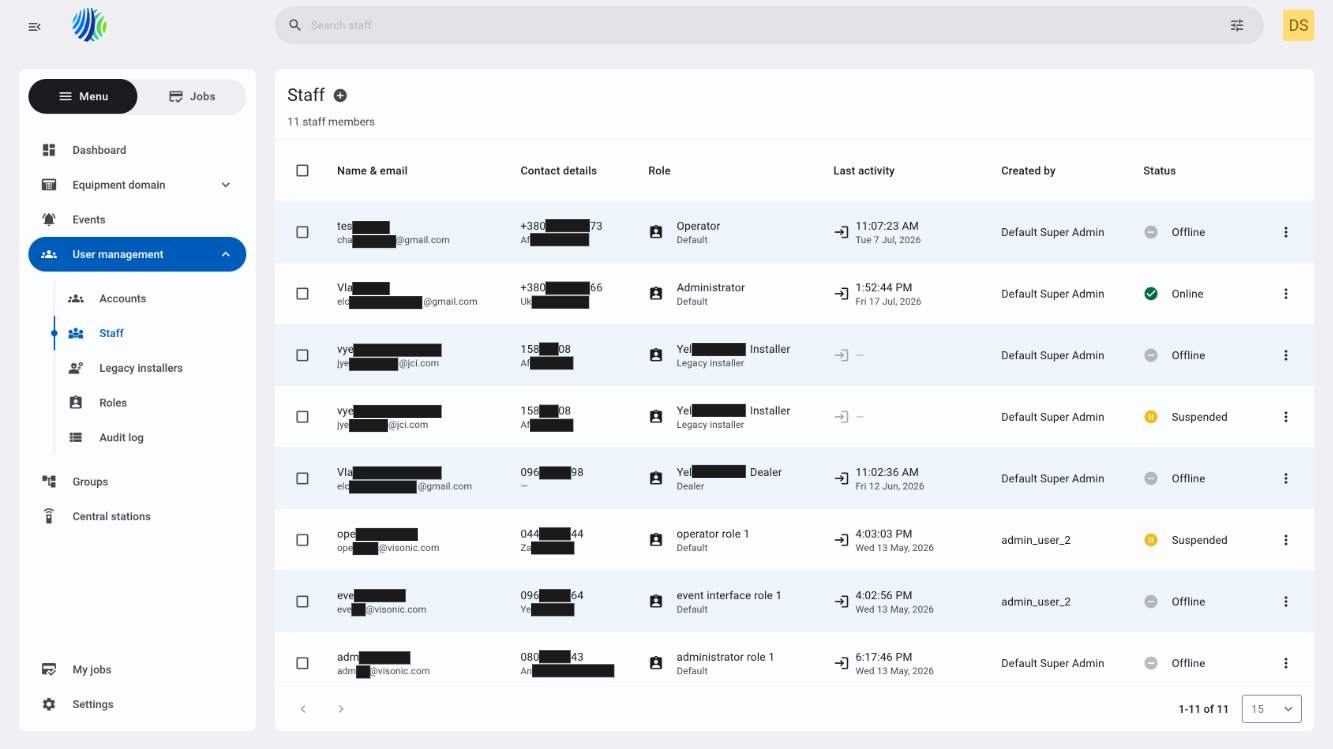
The Staff page is used to manage staff member accounts in the system.
Use this page to:
- View registered staff.
- Register a new staff member.
- Edit staff member details.
- Suspend or enable staff member access.
- Reset a staff member password.
- Remove staff member accounts.
- Review staff member status, role, who created the member, and last activity.
This page helps administrators keep staff member access accurate and up to date. It also supports account recovery and access control workflows.
Before you begin
Required permissions
- You must have permission to add staff.
- You must have permission to edit staff.
- You must have permission to view staff.
- You must have permission to register staff.
- You must have permission to remove staff.
- You must have permission to reset staff member passwords.
- You must have permission to enable or suspend staff.
Access to the Staff page and staff management is controlled by the Users role permission group.
Preconditions
- At least one role must exist before you register a staff member.
- Staff member email addresses must be valid and reachable.
- The staff member must have access to the email inbox used during registration or password reset.
- SMTP must be configured to send one-time codes for registration and password reset.
Dependencies
- SMTP configuration is required for:
- Sending one-time registration codes.
- Sending one-time password reset codes.
- Role configuration is required to assign a role to a staff member.
Important limitations
- If SMTP is not configured, registration and password reset codes cannot be sent.
- Available bulk actions depend on the status of the selected staff.
Page layout
Page header


 + add iconOpens the Register staff member modal window. Use to register a new staff member.
 Three-dot menu buttonShows actions for selected staff. Available buttons can include Suspend, Enable, Edit, Reset password and Remove. Use after selecting one or more staff in the grid.
Register staff member modal
The Register staff member modal opens when you select the + add icon.
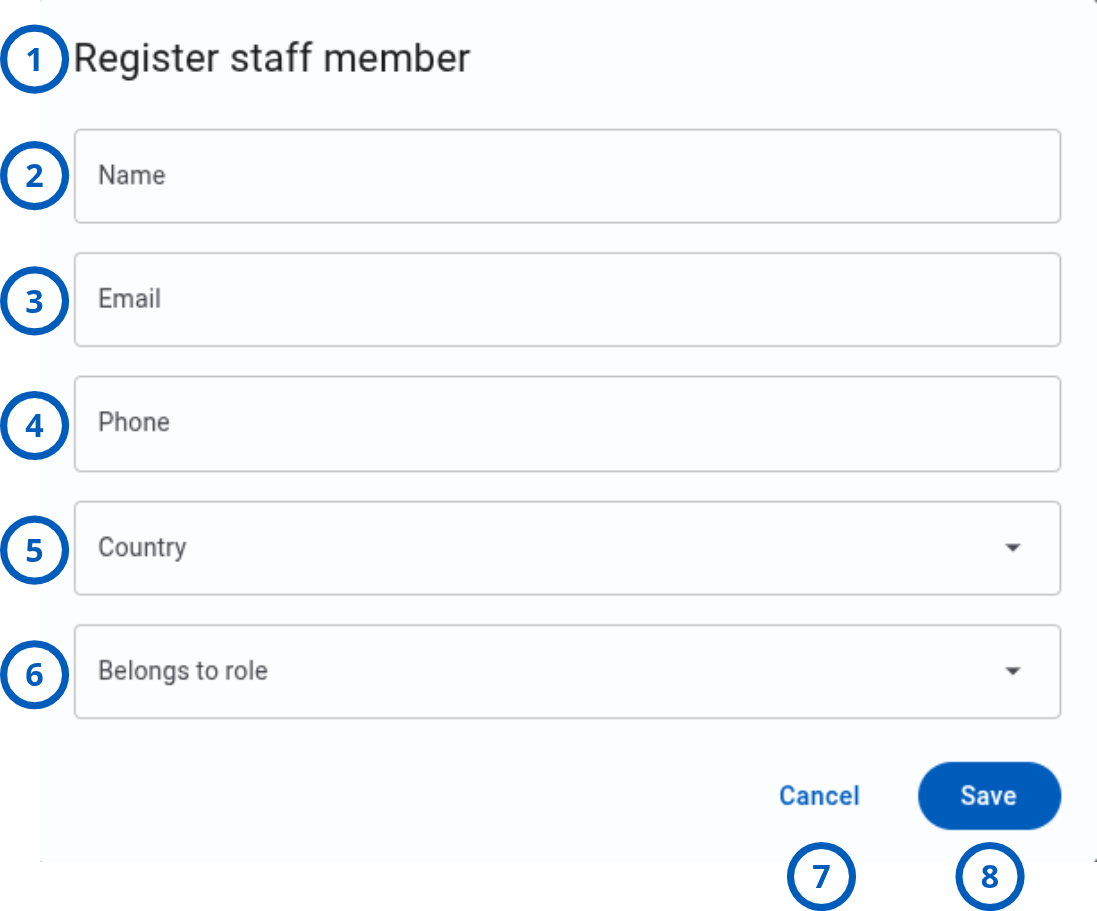
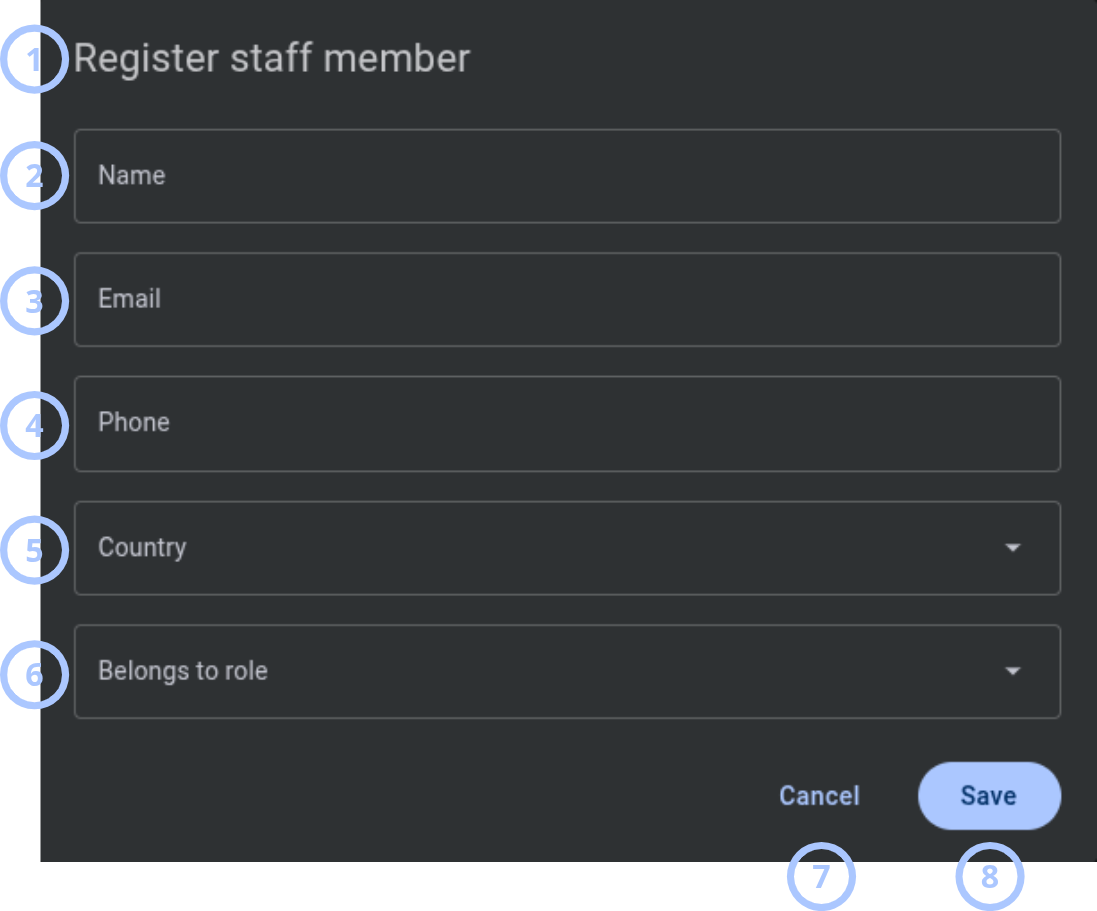
- Name fieldStores the staff member name. Use to enter the staff member display name.
- Email fieldStores the staff member email address. The system sends a one-time registration code to this address. Use to enter the staff member email address for account registration.
- Phone fieldStores the staff member phone number. Use to enter contact information for the staff member.
- Country fieldStores the staff member country or location. Use to specify the staff member location shown in the grid.
- Belong to role fieldAssigns the staff member to a role. Use to control what the staff member can access.
Staff grid
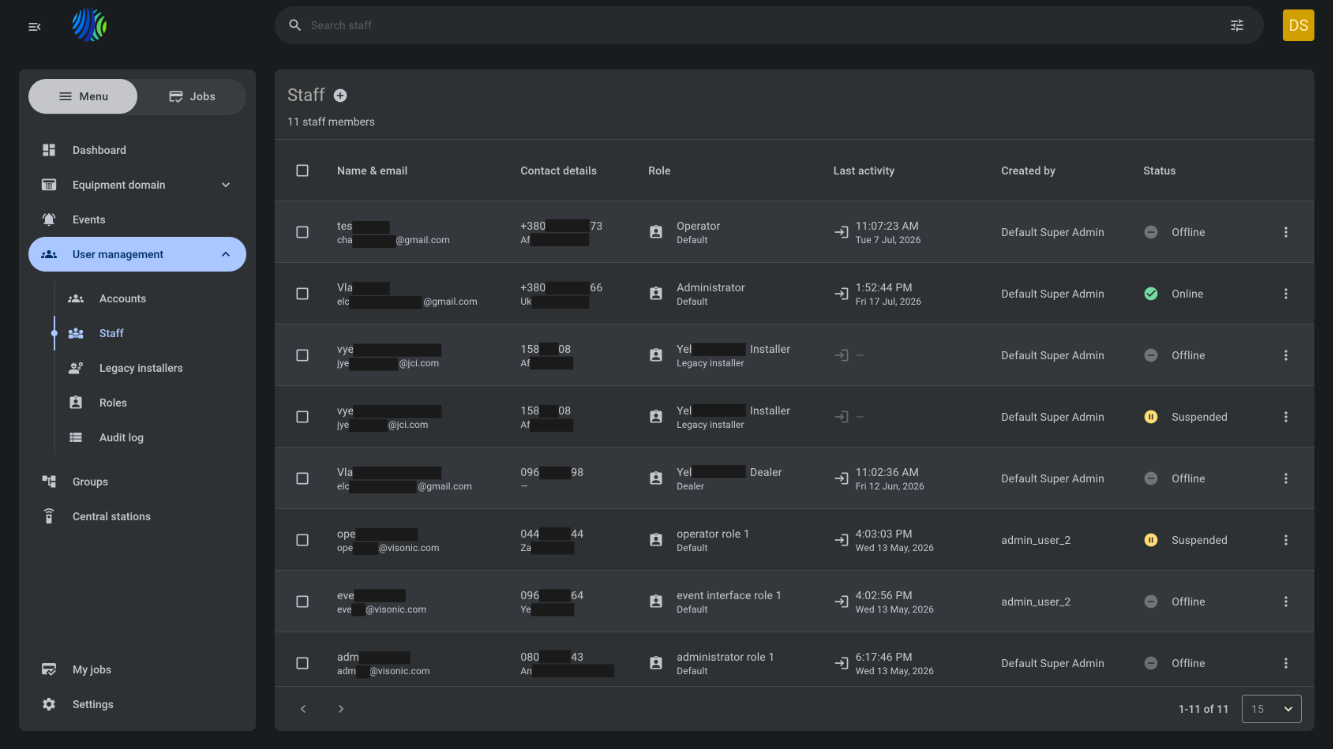
The staff grid lists registered staff members and their account details.
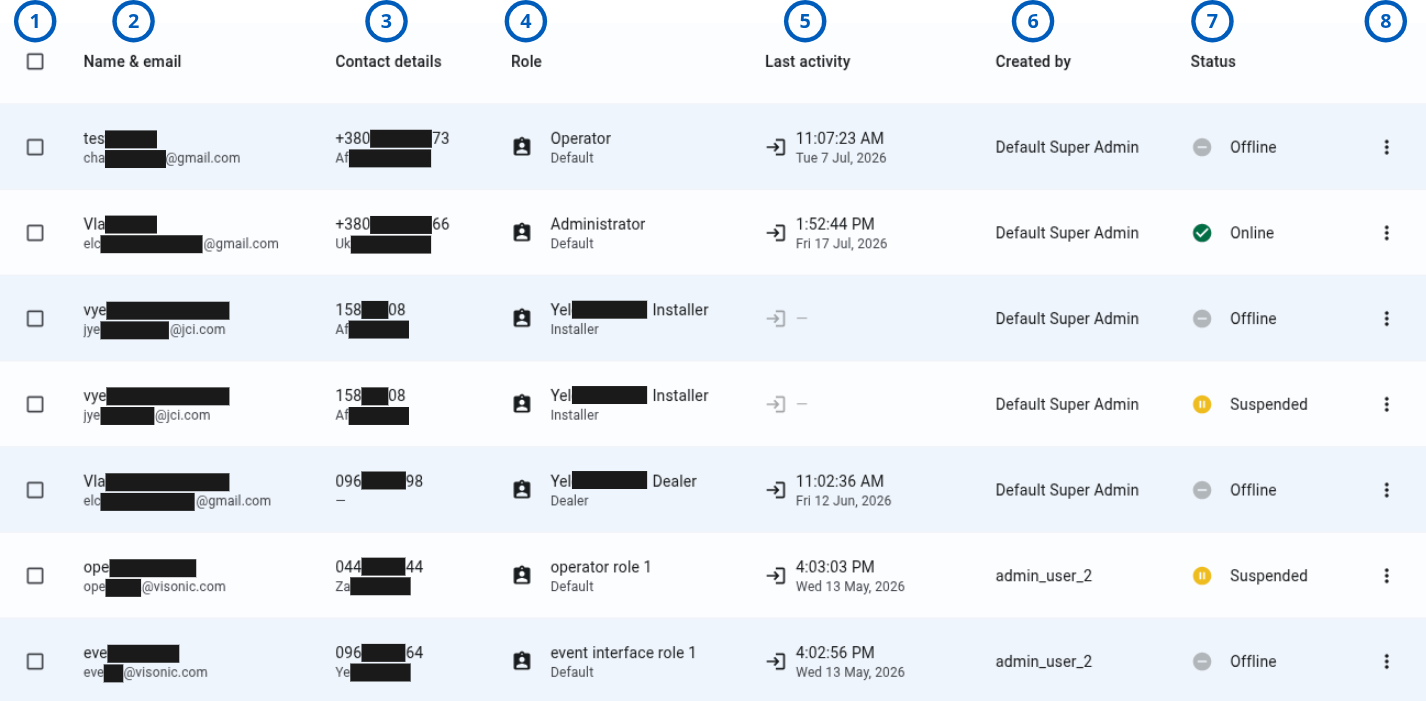
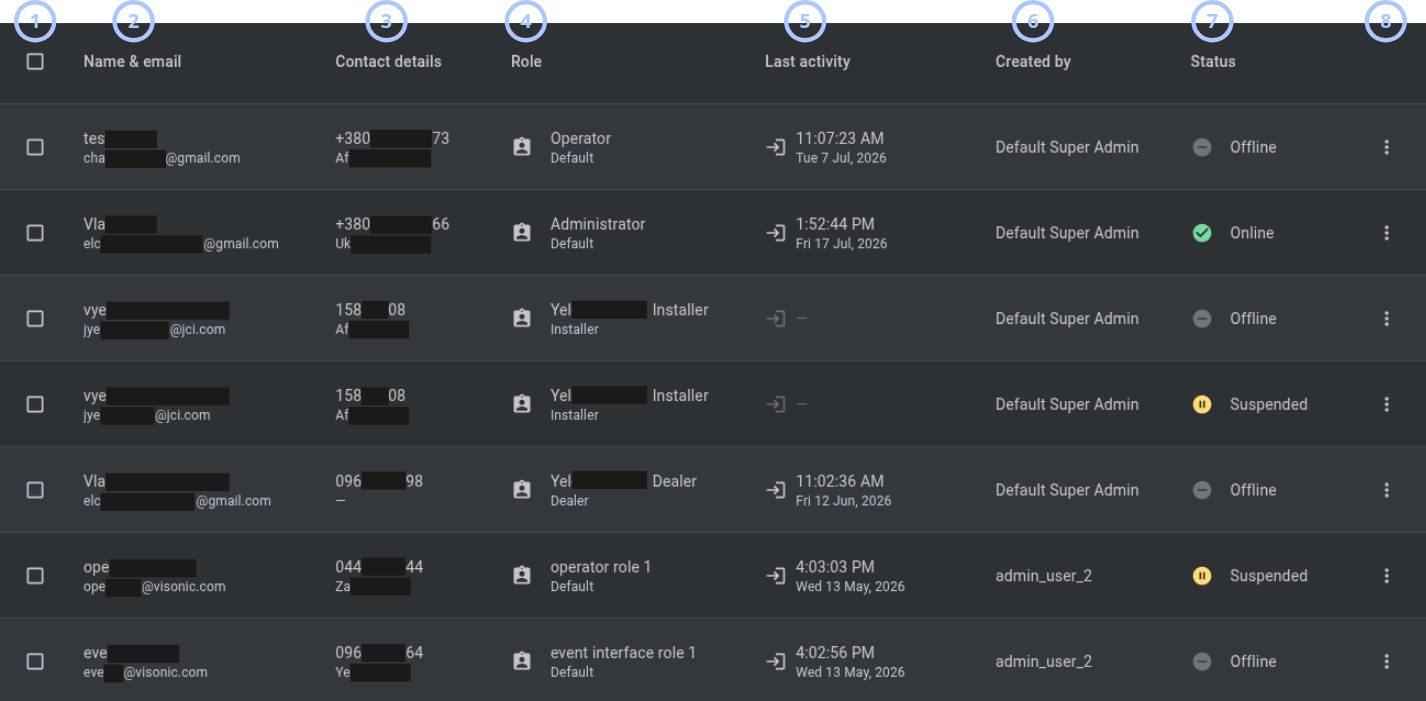
 CheckboxSelects one or more staff members. Use to show the bulk actions menu in the top-right area of the page.
- Name & email columnShows the staff member name and email address. Use to identify the staff member account.
- Contact details columnShows the staff member phone number and location. Use to review staff member contact and country information.
 Role columnShows the role assigned to the staff member. Use to verify that the staff member has the expected access level.
 Last activity columnShows the date and time of the staff member's last activity. Use to review recent account activity.
- Created by columnShows who created the staff member account. Use to audit account ownership or setup history.

 Status columnShows the current staff member status: Online, Offline, or Suspended. Use to understand whether the staff member account is active, inactive, or suspended.
- Row actions menuShows a three-dot menu for the staff member row. Use to edit, suspend, enable, reset password, or remove a specific staff member.
Row actions menu
Each staff member row has a three-dot menu. The available actions depend on the staff member's status.
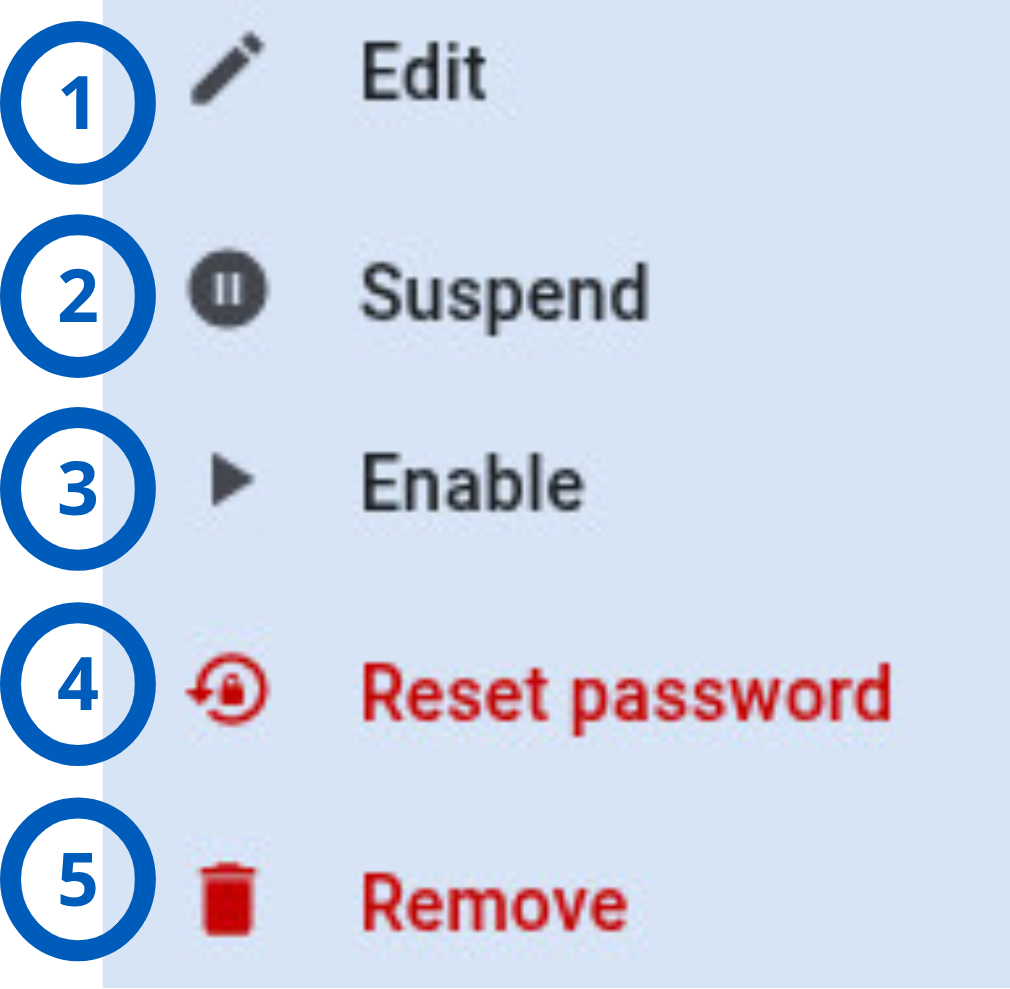
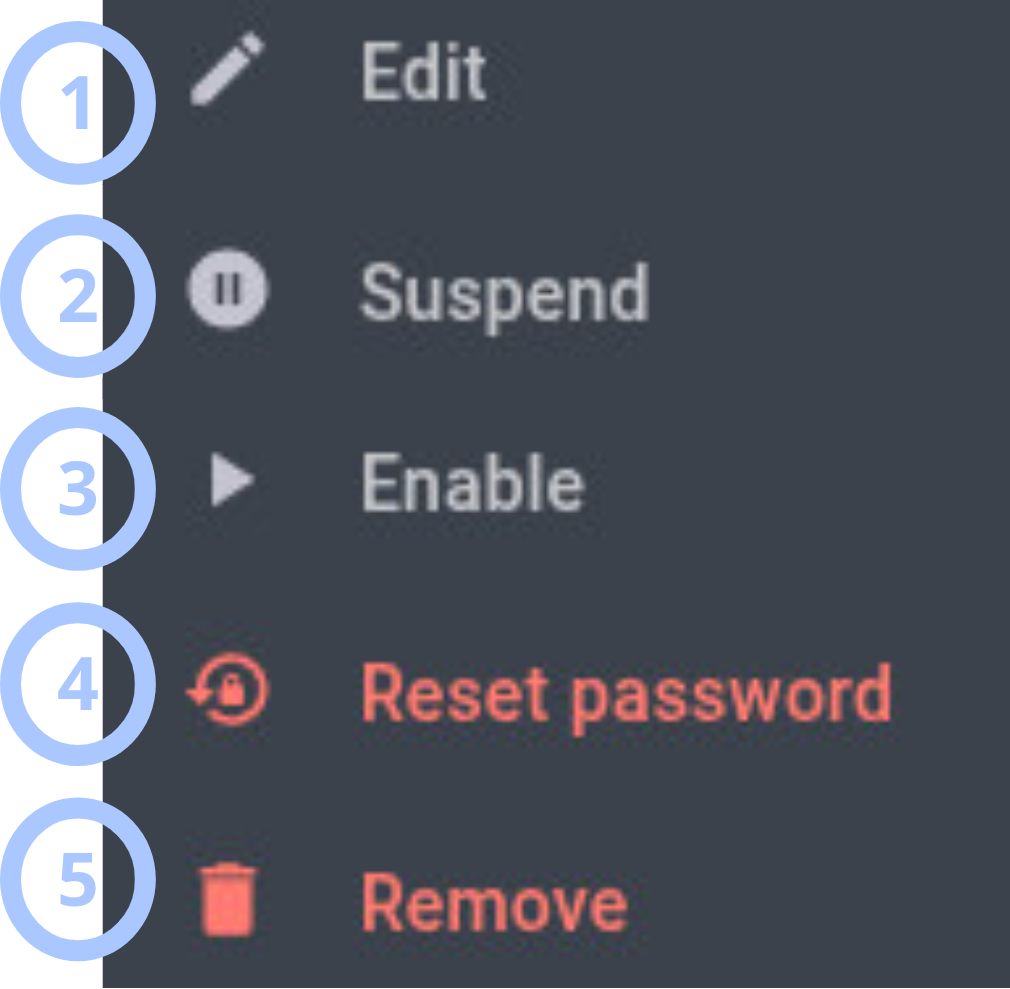
 EditOpens the Edit staff member modal with the current staff member details. Use to update staff member information, such as Name, Email, Phone, Country, or Belong to role.
 SuspendChanges an active staff member account to Suspended. Available for staff with Online or Offline status. Use to disable access for an active staff member account.
 EnableChanges a suspended staff member account back to an active state. The status changes to Online or Offline. Use to restore access for a suspended staff member account.
 Reset passwordOpens the Reset password modal. After saving a valid reason, the system sends a one-time password reset code to the staff member email address. Use when a staff member needs to reset their password. SMTP must be configured.
 RemoveRemoves the staff member account from the staff grid. Use when the staff member account should no longer be listed.
Pagination controls
Pagination controls appear at the bottom of the entries grid.



 Previous and next arrowsMove between pages when the list contains more records than one page can show.
- Range indicatorShows the current range and total number of entries.
- Entries per page selectorControls how many entries appear on one page.
Search
- Search bar
- Filters
- Search and filter controls
The Search bar lets you search for entries on the page, access saved filters, reopen latest searches, and open the filter widget.
Last visited entries and latest searches are limited to five items. They are stored locally in the browser and managed as FIFO.
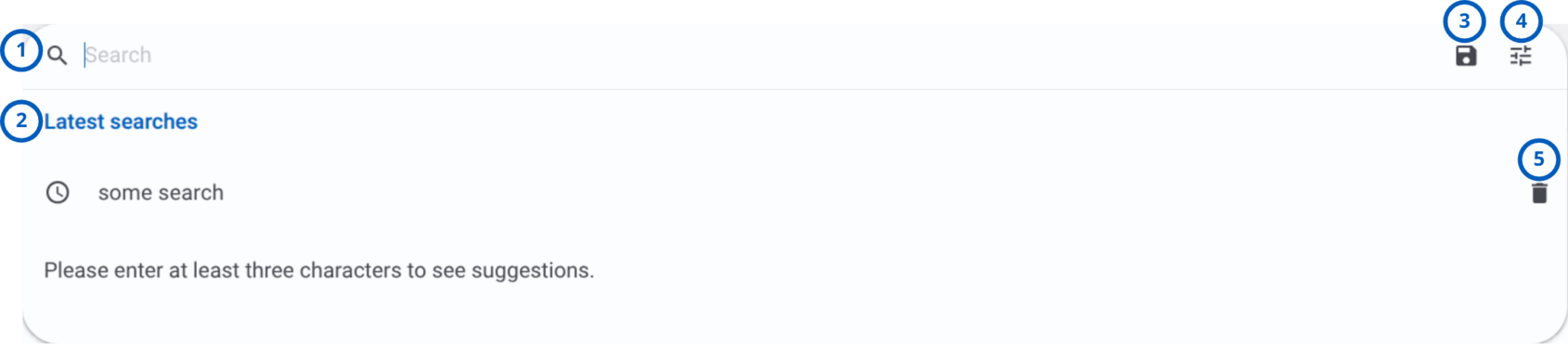
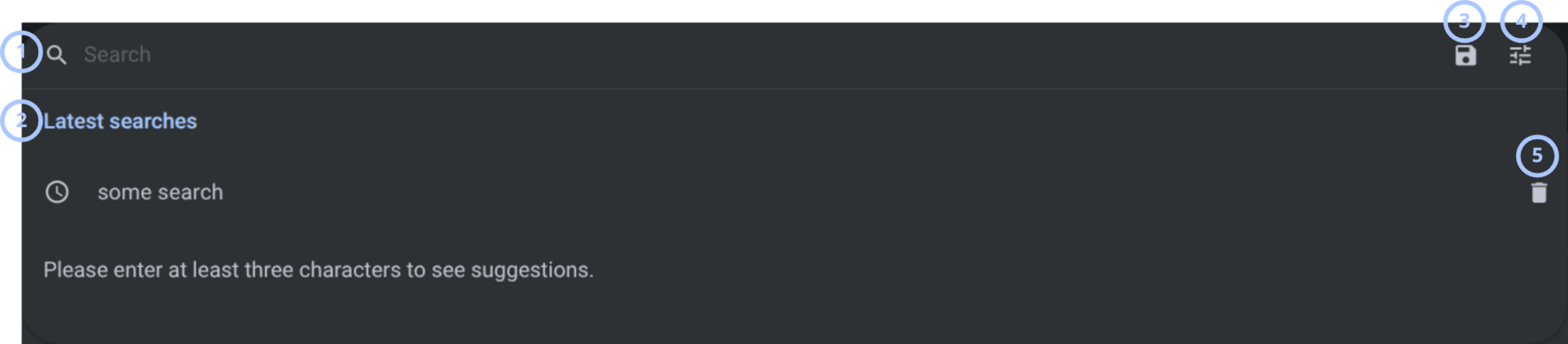
 SearchSearch icon used to initiate a search. Use when you want to find a specific entry or set of entries.
 Latest searchesSearch field that displays up to five latest search queries. Latest searches appear after you select the search field. Use when you want to enter a new search query or quickly repeat a recent search.
 Saved filtersDisplays filter entries that have been saved for reuse. Use when you want to quickly apply a previously saved filter.
 Show filtersOpens the filter widget and displays the available filtering options. Use when you need to add, modify, or remove filter criteria.
- Delete latest searchRemoves the corresponding search query from the Latest searches list. Use when you want to remove a search query from the Latest searches list.
Use the filter widget to find and display entries according to the selected filter values.
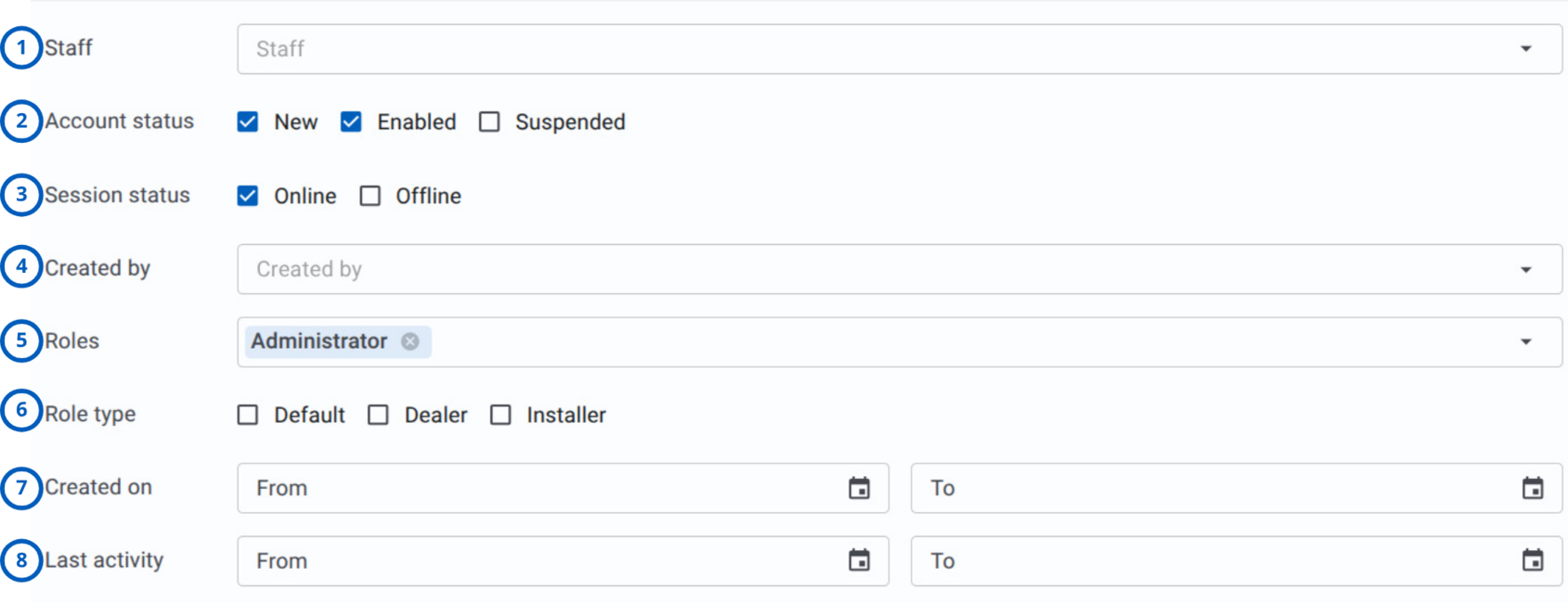
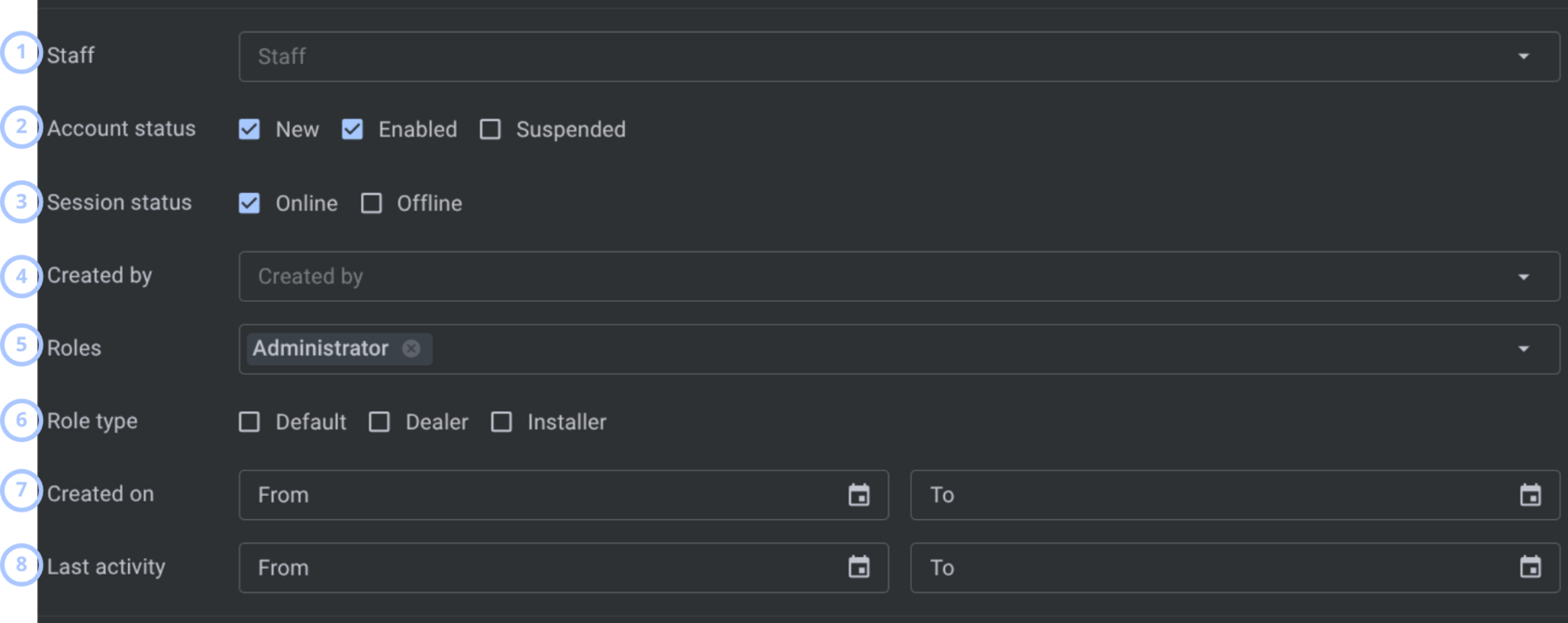
- StaffSelects one or more staff accounts to include in the results. Use when you want to find specific staff members.
- Account statusFilters staff accounts by status, such as New, Enabled, or Suspended. Use when you need to review staff accounts in a specific state.
- Session statusFilters staff accounts by current session status, such as Online or Offline. Use when you want to identify staff accounts based on their session status.
- Created byFilters staff accounts by the user who created them. Use when you need to review staff accounts created by specific users.
- RolesFilters staff accounts by assigned roles. Use when you want to display staff members with specific permissions or responsibilities.
- Role typeFilters staff accounts by role type, such as Default, Dealer, or Installer. Use when you need to review staff assigned to a particular role category.
 Created onDefines a date range for filtering staff accounts by creation date. Use when you want to find staff accounts created during a specific period.
- Last activityDefines a date range for filtering staff accounts by their most recent activity. Use when you want to find staff accounts that were recently active.
Use the action area of the filter widget to clear selected filter criteria, save the current filter configuration, or apply filters to display matching results.


 Clear allRemoves all selected filter values and resets the filter widget to its default state. Use when you want to remove all active filters and start a new search.
- Save filterSaves the current filter configuration so that it can be reused later. Use when you frequently apply the same filter criteria.
- SearchApplies the selected filter criteria and displays matching results. Use after configuring filters to view the filtered results.
Common scenarios
Register a staff member
Goal:
- Create a new staff member account and send a one-time registration code to the staff member email address.
Steps:
- Open the Staff page.
- Select the + add icon.
- In the Register staff member modal, enter the staff member name.
- Enter the staff member email address.
- Enter the staff member phone number.
- Enter or select the staff member country.
- Select a value in Belong to role.
- Select Save.
Expected result:
- The staff member is registered.
- A one-time registration code is sent to the staff member email address.
- The staff member appears in the staff grid.
SMTP must be configured before the system can send the one-time registration code.
Edit a staff member
Goal:
- Update staff member information, such as Name, Email, Phone, Country, or Belong to role.
Steps:
- Open the Staff page.
- Find the staff member in the grid.
- Select the three-dot menu for the staff member.
- Select Edit.
- In the Edit staff member modal, update the required fields.
- Select Save.
Expected result:
- The staff member record is updated.
- The updated values appear in the staff grid.
Suspend a staff member
Goal:
- Disable access for an active staff member account.
Steps:
- Open the Staff page.
- Find a staff member with Online or Offline status.
- Select the three-dot menu for the staff member.
- Select Suspend.
Expected result:
- The staff member status changes to Suspended.
- The staff member is no longer treated as an active account.
Enable a suspended staff member
Goal:
- Restore access for a suspended staff member account.
Steps:
- Open the Staff page.
- Find a staff member with Suspended status.
- Select the three-dot menu for the staff member.
- Select Enable.
Expected result:
- The staff member status changes from Suspended to Online or Offline.
- The staff member account becomes active again.
Reset a staff member password
Goal:
- Send a one-time password reset code to the staff member email address.
Steps:
- Open the Staff page.
- Find the staff member in the grid.
- Select the three-dot menu for the staff member.
- Select Reset password.
- In the Reset password modal, select a reason:
- Account is compromised
- Requested by user
- Password Rotation
- Other
- Select Save.
Expected result:
- The password reset request is saved.
- A one-time password reset code is sent to the staff member email address.
SMTP must be configured before the system can send the one-time password reset code.
Remove a staff member
Goal:
- Delete a staff member from the staff grid.
Steps:
- Open the Staff page.
- Find the staff member in the grid.
- Select the three-dot menu for the staff member.
- Select Remove.
Expected result:
- The staff member is removed.
- The staff member no longer appears in the grid.
Removal affects the staff member record shown in the grid. Confirm that the account should be removed before you use this action.
Select staff for bulk actions
Goal:
- Select one or more staff members and use the top-right actions menu.
Steps:
- Open the Staff page.
- Select the checkbox for one or more staff members.
- Review the top-right area of the page.
- Select the three-dot menu.
- Choose an available action.
Expected result:
- The selected action is applied to the selected staff member or staff members, if supported by their statuses.
If selected staff members have different statuses, the menu still appears. Some actions may depend on whether the selected staff are active or suspended.
Tips
- Review the staff member email before saving. Registration and password reset codes are sent to that address.
- Assign the correct role during registration to avoid access issues later.
- Use the staff per page selector when reviewing large staff lists.
- Check the Last activity column when investigating inactive or unused accounts.
Troubleshooting
The staff member was not registered
Possible causes:
- Required fields were not completed.
- One or more fields contain invalid values.
- SMTP is not configured, and the system cannot send the one-time registration code.
What to try:
- Open the Register staff member modal again.
- Confirm that all required fields are completed.
- Confirm that the email address is valid.
- Confirm that a valid role is selected.
- Check SMTP configuration.
- Select Save again.
The staff member did not receive the registration code
Possible causes:
- SMTP is not configured.
- SMTP configuration is incorrect.
- The staff member email address is incorrect.
- The email was blocked, delayed, or sent to spam.
What to try:
- Verify the staff member email address.
- Check SMTP configuration.
- Ask the staff member to check spam or junk folders.
- If the email address is wrong, edit the staff member and update the email.
- Register again or use the appropriate recovery process.
The password reset code was not sent
Possible causes:
- SMTP is not configured.
- The staff member email address is invalid.
- No reset reason was selected.
What to try:
- Open the staff member row actions menu.
- Select Reset password.
- Select a valid reason.
- Select Save.
- If the code is still not received, verify SMTP configuration and the staff member email address.
The expected action is not available
Possible causes:
- The staff member status does not support the action.
- The selected staff have different statuses.
- You do not have permission to perform the action.
What to try:
- Check the staff member status in the Status column.
- Use Suspend only for staff members with Online or Offline status.
- Use Enable only for staff members with Suspended status.
- If using bulk actions, review the statuses of all selected staff members.
- Confirm that your role includes permission for the action.
The staff member still appears after removal
Possible causes:
- The remove action was not completed.
- The grid did not refresh.
- You are viewing a cached or unchanged page.
What to try:
- Refresh the staff grid.
- Search visually for the staff member again in the current page.
- Check other pages by using the pagination controls.
- Try the remove action again if the staff member is still present.
- Contact an administrator if the staff member cannot be removed.
The staff member status did not change after Suspend or Enable
Possible causes:
- The action was not completed.
- You selected an unsupported action for the staff member status.
- You do not have permission to change staff member status.
- The grid did not refresh.
What to try:
- Confirm the staff member's current status.
- For Online or Offline staff members, select Suspend.
- For Suspended staff members, select Enable.
- Refresh the grid.
- If the status does not change, check your permissions or contact an administrator.
The grid does not show all staff
Possible causes:
- The staff list is split across multiple pages.
- The current page size is too small.
- The staff member was removed.
- The staff member was not registered successfully.
What to try:
- Review the range indicator, for example, 1-15 of 56.
- Use the pagination arrows to move between pages.
- Increase the staff per page value.
- Confirm that the staff member registration was saved successfully.