My jobs
Overview
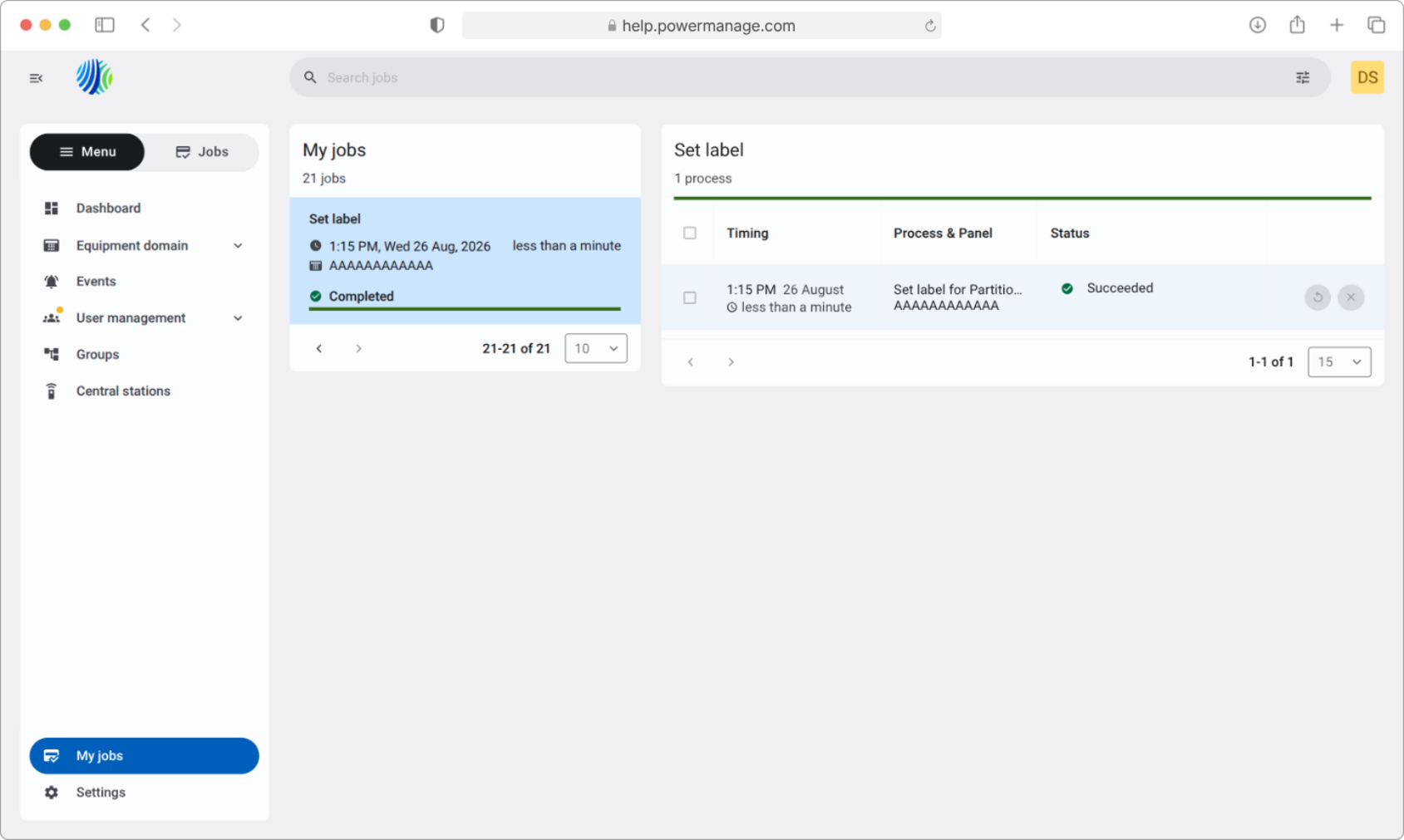
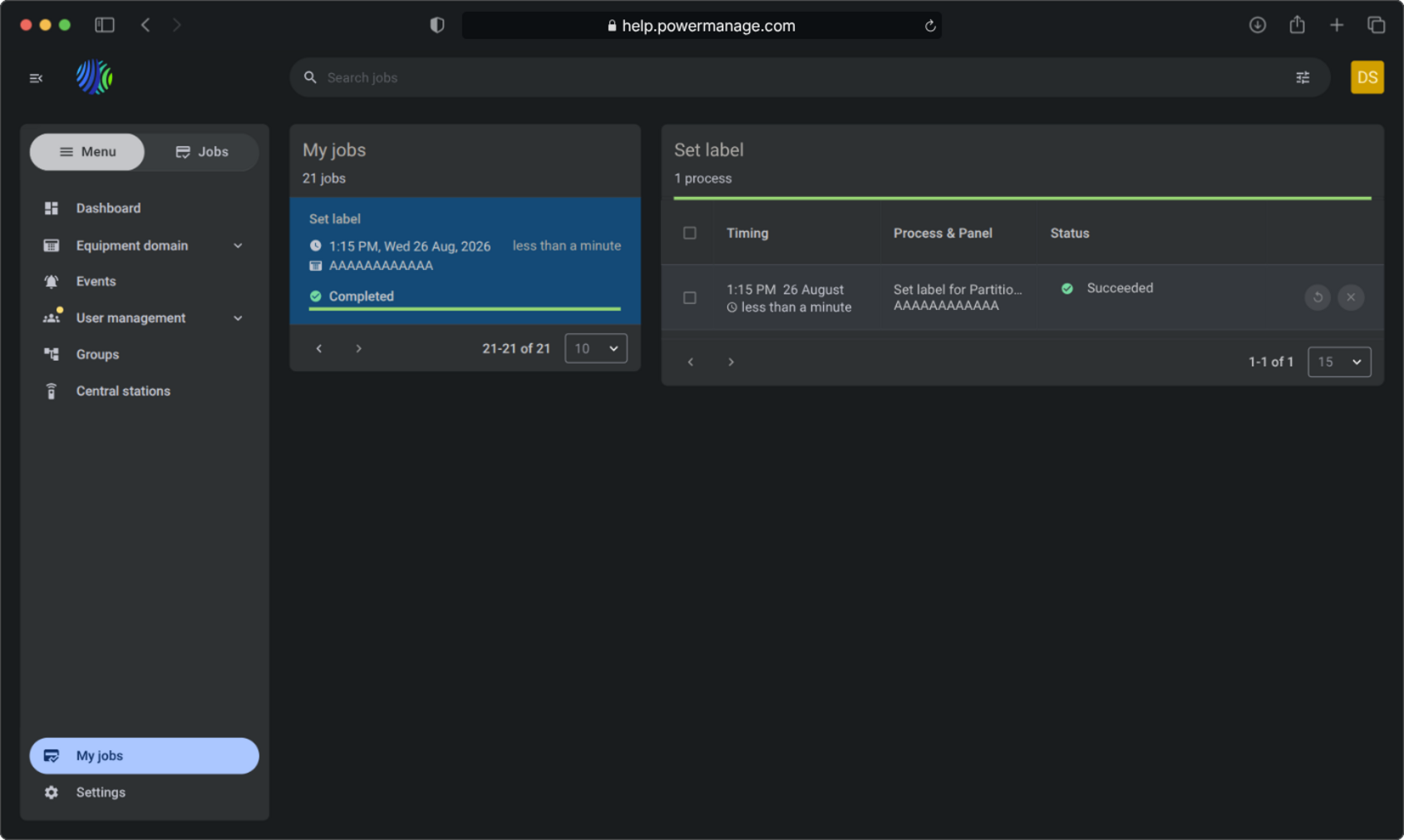
The My jobs page shows started jobs and lets users review job progress, results, and details.
Use this page to:
- Select a job and review related process details.
- Review recent configuration jobs.
- Check whether a job completed successfully.
- View the job start time and execution duration.
- Retry a failed process.
The page helps users track background operations and quickly identify completed, failed, or canceled processes.
Before you begin
Preconditions
- At least one job must exist before the jobs list shows job cards.
- A job must be selected before job details appear in the details panel.
Screen layout
My jobs widget
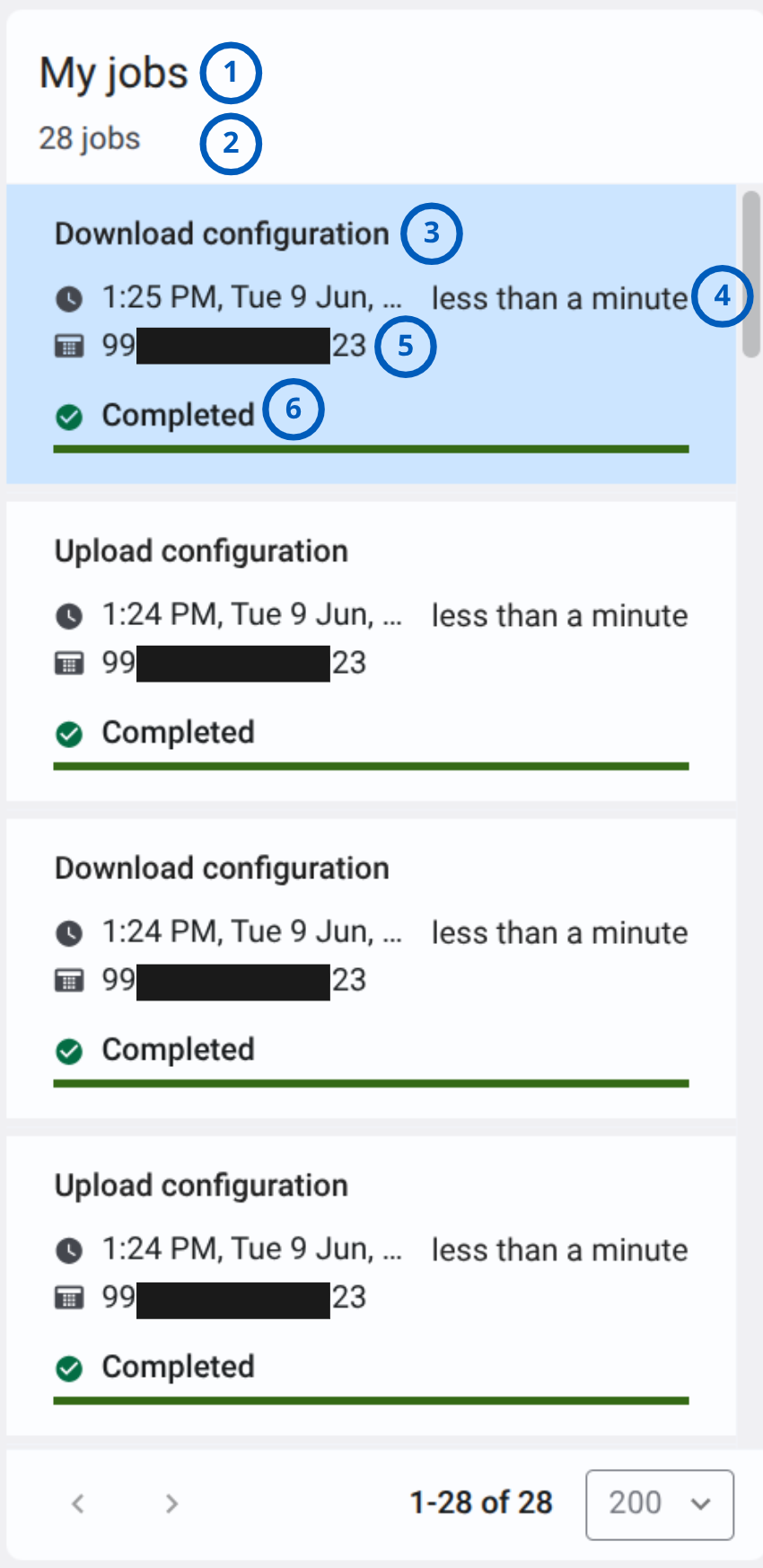
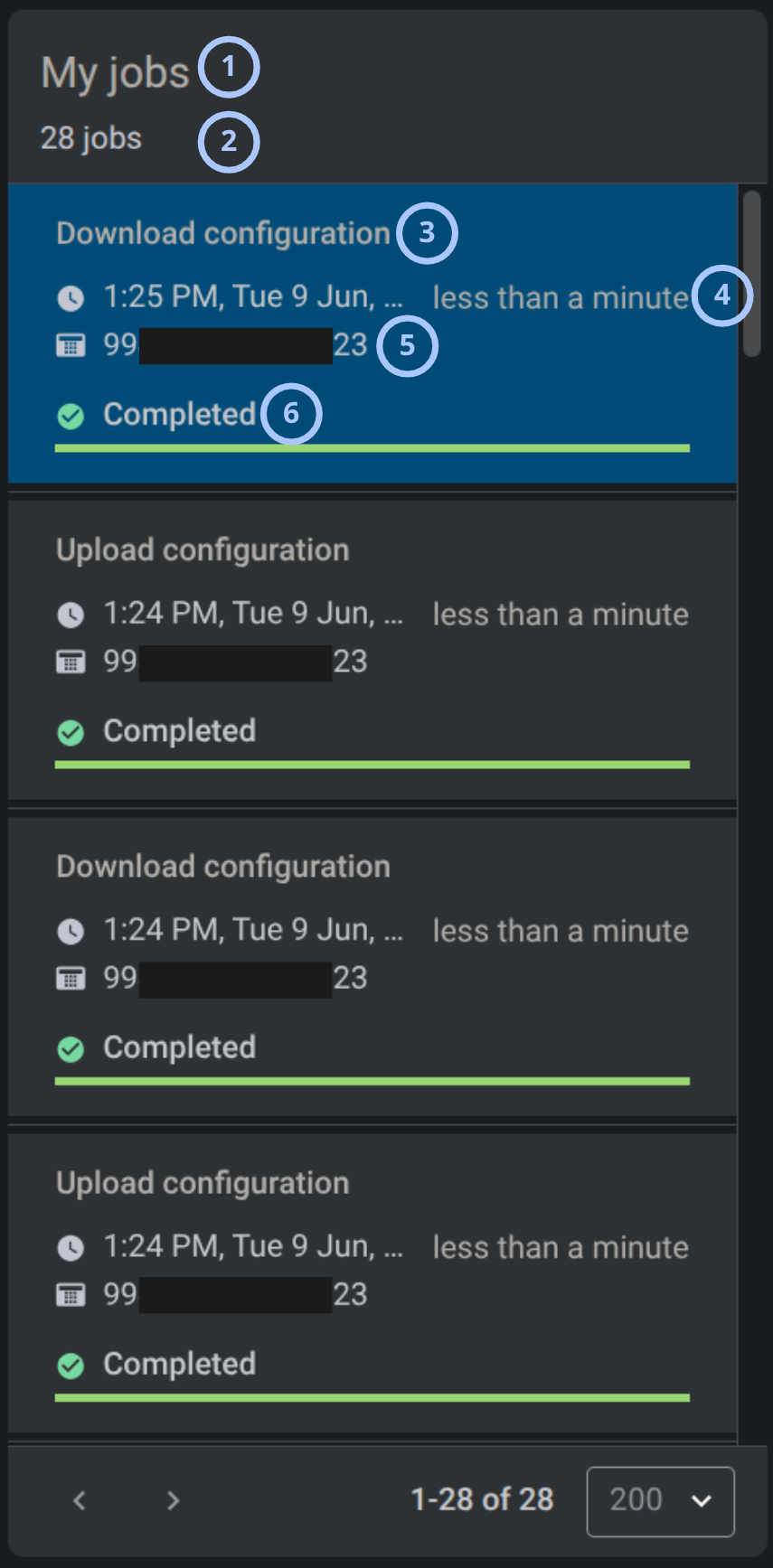
The My jobs widget contains a list of job cards, status indicators, and progress bars.
| Callout | UI element | Description | When to use |
|---|---|---|---|
| 1 | Widget title | Shows the widget name. | Use this title to confirm that the current widget shows user job records. |
| 2 | Jobs count | Shows the total number of jobs available in the widget. | Use this value to understand how many job records are available. |
| 3 | Job name | Shows the name of the job. | Use the job name to identify what operation was performed. |
| 4 | Job duration | Shows how long the job took or how recently the job completed. | Use the duration to quickly check how long the operation took. |
| 5 | Panel column | Shows the related panel identifier. | Use to identify the panel affected by the process. |
| 6 | Job status | Shows the current job status. | Use the status to confirm whether the job finished successfully. |
My jobs details
The job details appear on the right side of the page. The panel shows information for the selected job.
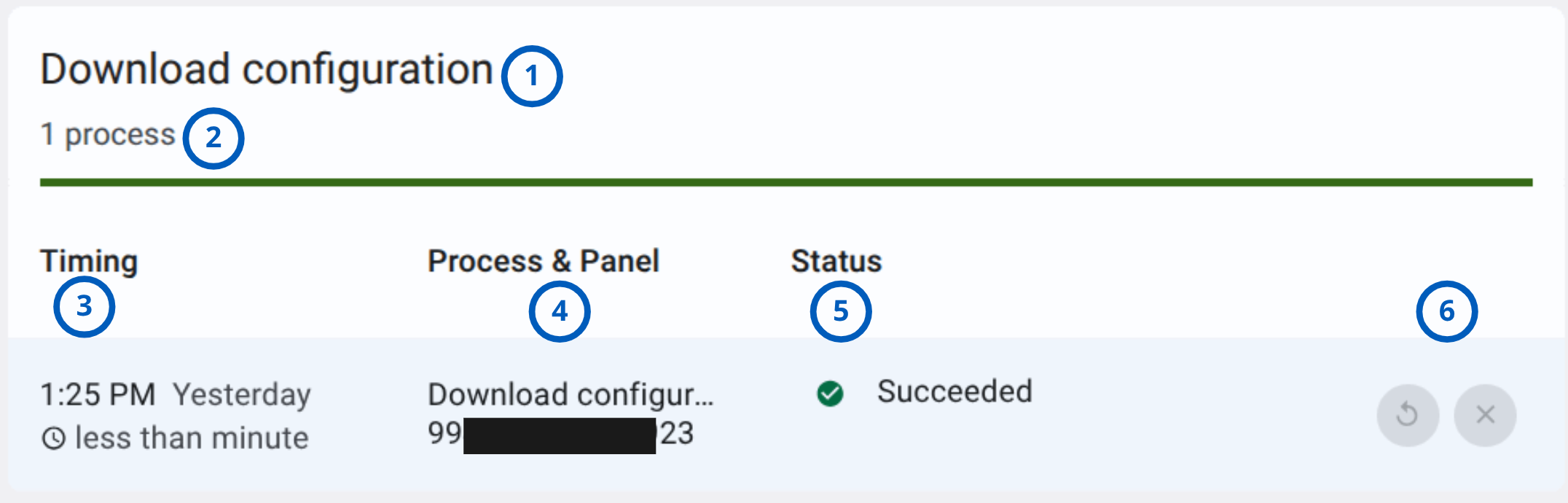
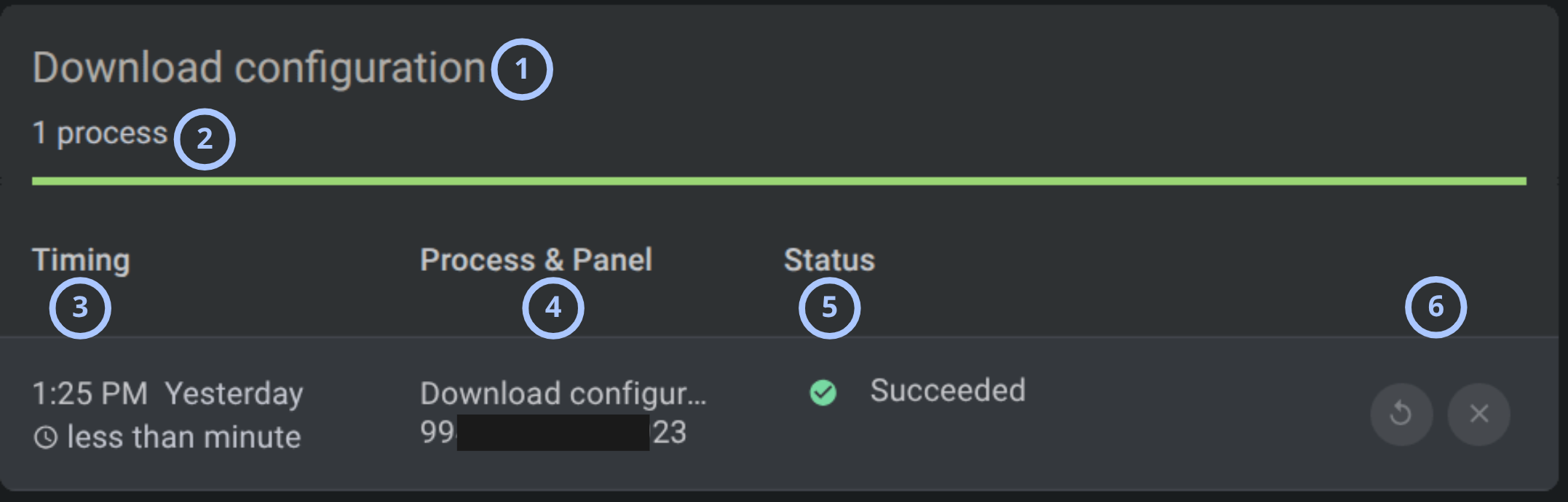
| Callout | UI element | Description | When to use |
|---|---|---|---|
| 1 | Details title | Shows the selected job name. | Use to confirm which selected job details are displayed. |
| 2 | Process count | Shows how many processes belong to the selected job. | Use to understand whether the job includes one or more processes. |
| 3 | Timing column | Shows the process time and relative date. | Use to check when the process ran and how long the process took. |
| 4 | Process & Panel column | Shows the process name and related panel identifier. | Use to identify the process and the panel affected by the process. |
| 5 | Status column | Shows the process status and additional reason text. | Use to understand whether the process succeeded, failed, or was canceled. |
| 6 | Retry and cancel action | Shows a circular arrow and an X icon for retrying or canceling the process when the action is available. | Use to run and stop the failed or incomplete process again when the system allows retry. |
Pagination controls
Pagination controls appear at the bottom of the entries grid.


| Callout | UI element | Description | When to use |
|---|---|---|---|
| 1 | Previous and next arrows | Shows left and right arrows, such as < and >, to move between pages. | Use when the entries list has more records than the current page can show. |
| 2 | Range indicator | Shows the current range and total number of entries. | Use to understand where you are in the entries list. |
| 3 | Entries per page selector | Controls how many entries appear on one page. | Use to show fewer or more entries in the grid. |
Search
- Search bar
- Filters
- Search and filter controls
The Search bar lets you search for entries on the page, access saved filters, reopen latest searches, and open the filter widget.
Last visited entries and latest searches are limited to five items. They are stored locally in the browser and managed as FIFO.
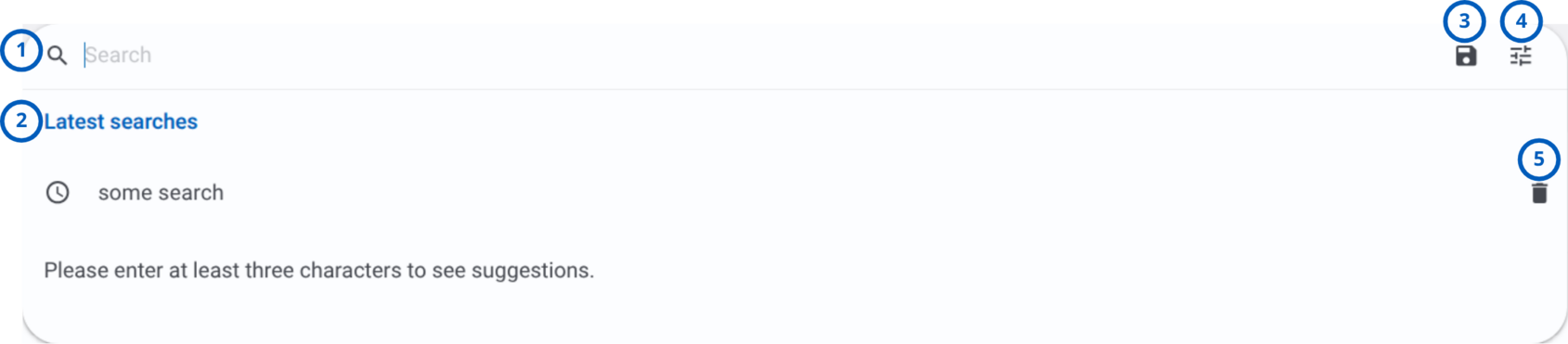
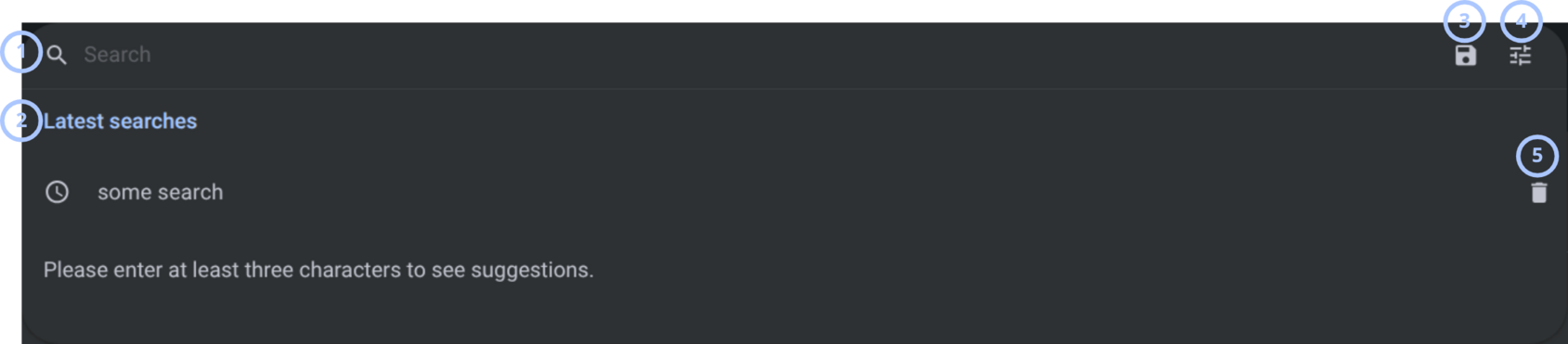
| Callout | UI element | Description | When to use |
|---|---|---|---|
| 1 | Search | Search icon used to initiate a search. | Use when you want to find a specific entry or set of entries. |
| 2 | Latest searches | Search field that displays up to five latest search queries. Latest searches appear after you select the search field. | Use when you want to enter a new search query or quickly repeat a recent search. |
| 3 | Saved filters | Displays filter entries that have been saved for reuse. | Use when you want to quickly apply a previously saved filter. |
| 4 | Show filters | Opens the filter widget and displays the available filtering options. | Use when you need to add, modify, or remove filter criteria. |
| 5 | Delete latest search | Removes the corresponding search query from the Latest searches list. | Use when you want to remove a search query from the Latest searches list. |
Use the filter widget to find and display entries according to the selected filter values.
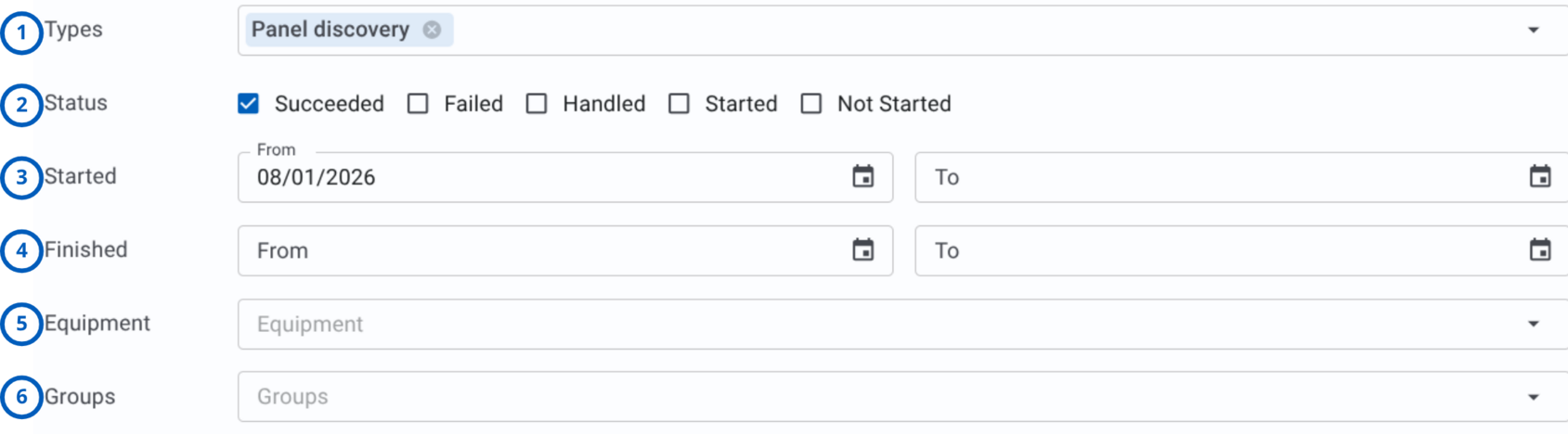
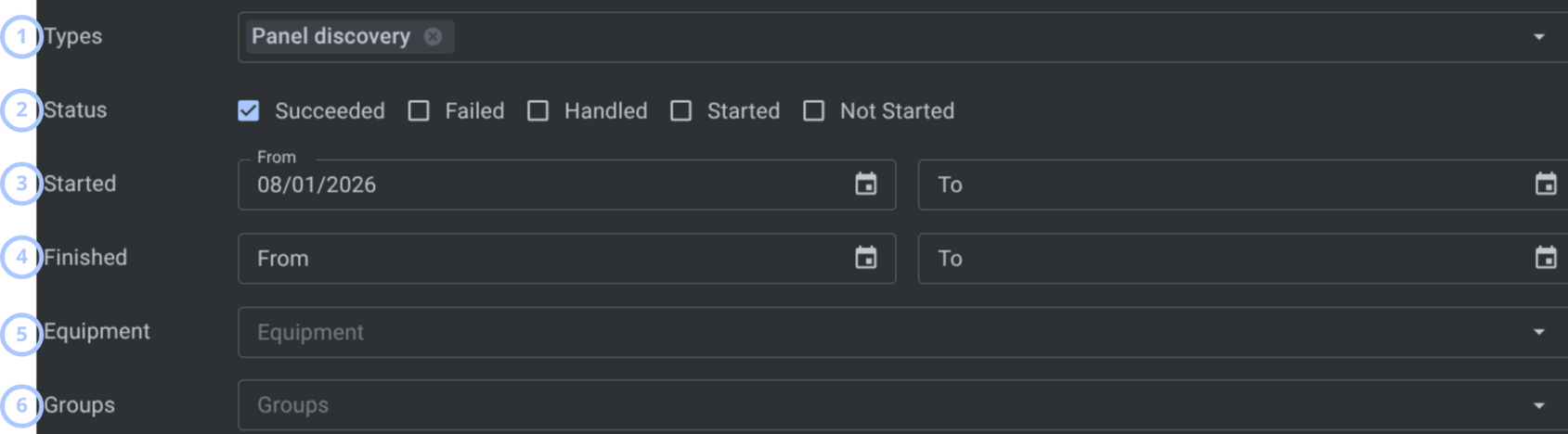
| Callout | UI element | Description | When to use |
|---|---|---|---|
| 1 | Types | Selects one or more job types to include in the results. | Use when you want to display only specific types of jobs. |
| 2 | Status | Filters jobs by status, such as Succeeded, Failed, Handled, Started, or Not Started. | Use when you need to view jobs in a particular processing status. |
| 3 | Started | Defines a start date range for filtering jobs based on when they started. | Use when searching for jobs that started within a specific period. |
| 4 | Finished | Defines a finish date range for filtering jobs based on when they completed. | Use when searching for jobs that finished within a specific period. |
| 5 | Equipment | Filters jobs associated with specific equipment. | Use when you need to view jobs related to particular equipment. |
| 6 | Groups | Filters jobs associated with equipment from specific groups. | Use when you want to display jobs related to equipment from selected groups. |
Use the action area of the filter widget to clear selected filter criteria, save the current filter configuration, or apply filters to display matching results.


| Callout | UI element | Description | When to use |
|---|---|---|---|
| 1 | Clear all | Removes all selected filter values and resets the filter widget to its default state. | Use when you want to remove all active filters and start a new search. |
| 2 | Save filter | Saves the current filter configuration so that it can be reused later. | Use when you frequently apply the same filter criteria. |
| 3 | Search | Applies the selected filter criteria and displays matching results. | Use after configuring filters to view the filtered results. |
How to use this page
Review job details
Goal:
- Open a job and review the related process information.
Steps:
- Open the My jobs page.
- Review the job cards in the center panel.
- Select a job card.
- Review the details panel on the right.
- Check the Timing, Process & Panel, and Status columns.
Expected result:
- The selected job card is highlighted.
- The details panel shows the selected job name, process count, and process details.
Identify a failed process
Goal:
- Find a process that failed and review the failure reason.
Steps:
- Open the My jobs page.
- Select a job card with a red status indicator or red status bar.
- In the details panel, review the Status column.
- Read the status text and the reason shown below the status.
Expected result:
- Failed process information is visible in the details panel.
Retry a failed process
Goal:
- Start the selected process again when retry is available.
Steps:
- Open the My jobs page.
- Select the job that contains the failed process.
- In the details panel, find the failed process row.
- Select the retry action shown as a circular arrow icon.
- Monitor the process status after retry starts.
Expected result:
- The system attempts to run the process again.
- The process status updates after the retry action completes or fails.
Cancel a process action
Goal:
- Stop an available process action with the X button.
Steps:
- Open the My jobs page.
- Select the job that contains the process.
- In the details panel, locate the process row.
- Select the X action when it is available.
- Review the process status after the action is applied.
Expected result:
- The process action is stopped according to the supported behavior for that process.
Tips
- Select a job card before reviewing the details panel.
- Check the panel or device identifier before retrying a process to avoid running an operation on the wrong object.
Troubleshooting
The job I need is not visible
Possible causes
- The job is on another page.
- The jobs list is filtered by the search field.
- The job was not created successfully.
What to do
- Clear the Search Jobs field.
- Use the pagination arrows to move between pages.
- Increase the number of jobs shown per page.
- Confirm that the related operation created a job.
The details panel does not show the expected job
Possible causes
- A different job card is selected.
- The jobs list refreshed after a search or page change.
What to do
- Check which job card is highlighted in the jobs list.
- Select the required job card again.
- Review the details panel title and process count.
- Refresh the page if the details panel does not update.
Retry is not available
Possible causes
- The process state does not support retry.
- The process already completed successfully.
What to do
- Select the job and review the process status.
- Confirm that the process failed or supports retry.
The process still shows Failed after retry
Possible causes
- The underlying issue was not resolved.
- The operation was canceled again.
- The affected panel or device is unavailable.
What to do
- Review the reason text below the process status.
- Confirm that the affected panel or device identifier is correct.
- Resolve the issue that caused the failure.
- Retry the process again if the retry action is available.
- Contact an administrator if the process continues to fail.