Billing
Overview
The Billing page are used to review and manage billing plans for supported IQ and Neo 5 panels.
Use this page to:
- Review the active service plan, billing recurrence, and billing country.
- Choose a new billing plan.
- Deactivate or reactivate a billing plan.
Billing helps administrators manage panel service plans and understand which billing plan is active, available, or eligible for reactivation.
Before you begin
Preconditions
- The panel must exist in PowerManage.
- The panel must be visible on the Equipment page.
- Billing must be enabled in Version & License section. Click the Powermanage logo and go to the License Info section to open it.
Dependencies
- Billing functionality depends on Billing Enabled in Version & License.
Important limitations
- If the selected country is incorrect, the billing plan request can be rejected.
- Please note that if there is no active billing plan, it will impact the user's ability to access the mobile app for the IQ and Neo 5 Panels.
Page layout
Billing plan dialog
The Billing plan dialog opens from the billing action on the equipment row.
PowerManage includes the billing plan button in the Equipment page and in the Equipment hub:




| Callout | Description |
|---|---|
| 1 | Equipment hub |
| 2 | Billing plan button |
| 3 | Equipment page |
The billing plan button displays the billing plan set for the panel:
| Billing plan button | Description |
|---|---|
| Red | No active billing plan |
| Rotating star | The billing plan request is in progress |
| Gray | Mobile App Plan |
| Blue | One-year billing plan |
| Green | One-month billing plan |
| Yellow | Two-year billing plan |
| Light Blue | Three-year billing plan |
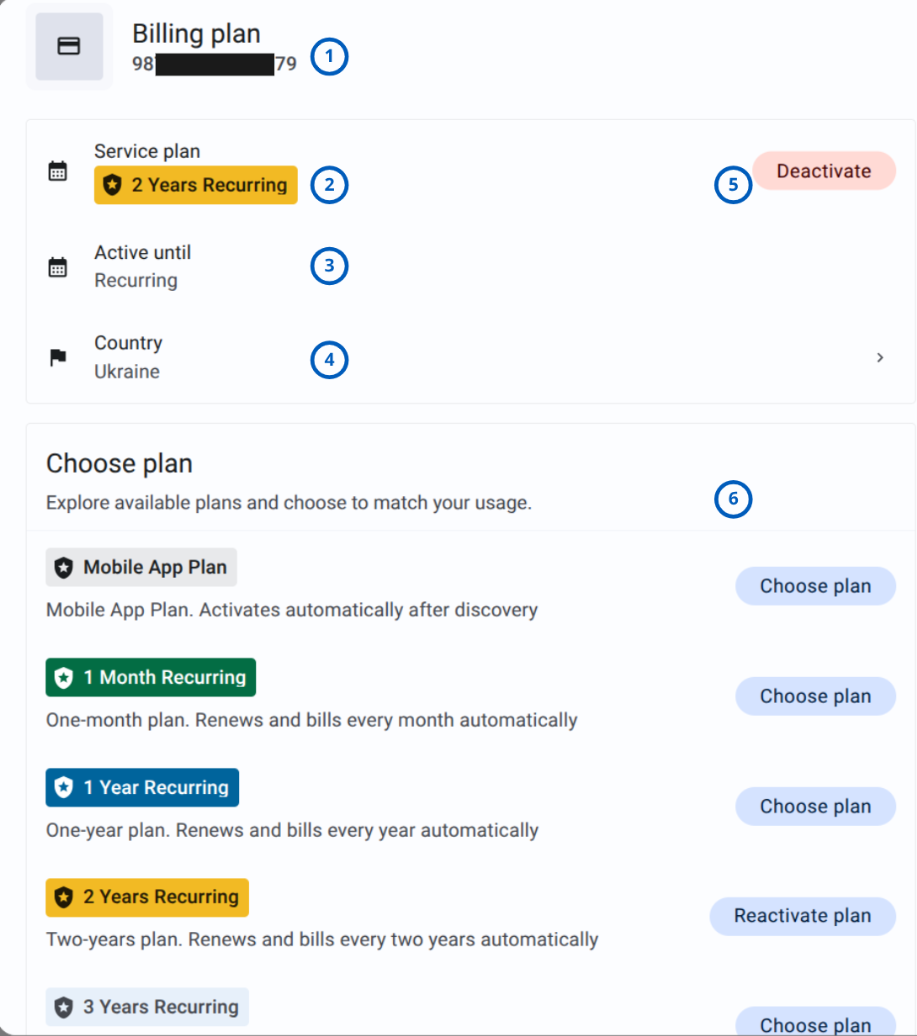
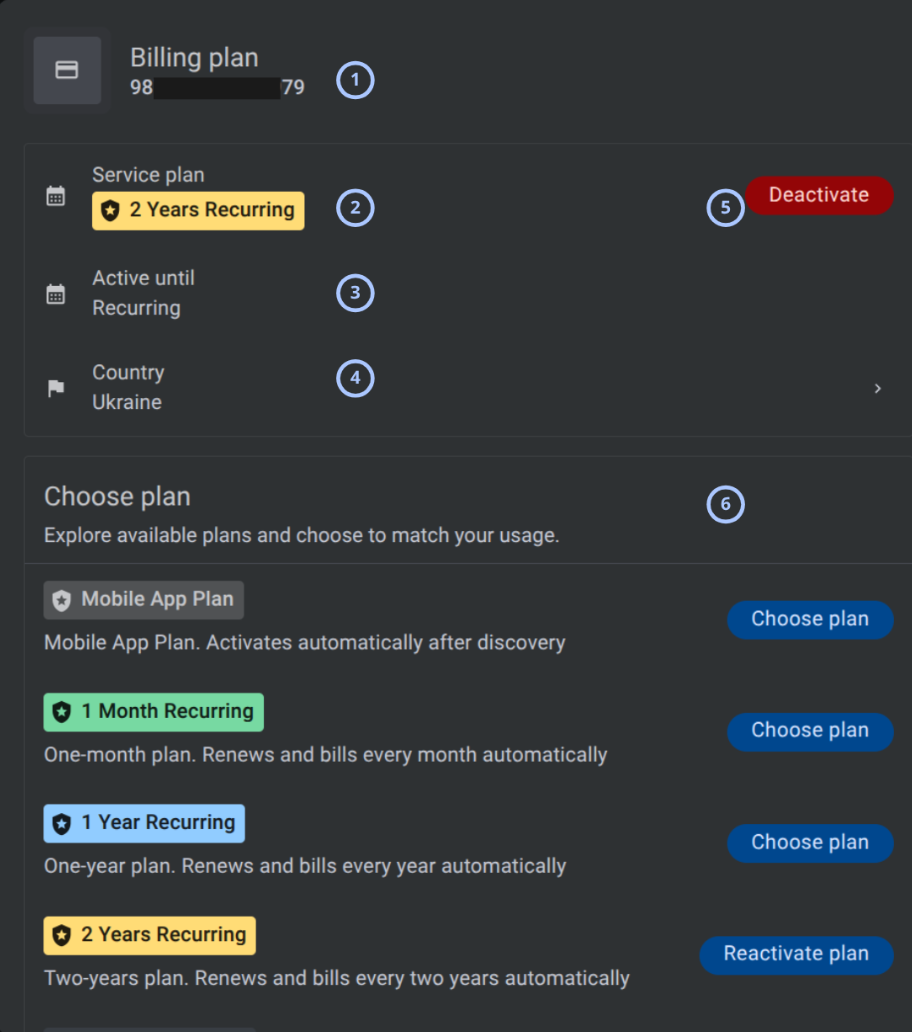
Click the billing plan button to open the Billing status panel and set up the panel’s billing plan:
| Callout | UI element | Description | When to use |
|---|---|---|---|
| 1 | Panel identifier | Shows the selected panel identifier. | Use to confirm which panel you are managing. |
| 2 | Service plan | Shows the active service plan. | Use to confirm the current active plan. |
| 3 | Active until | Shows the active period or recurrence state. | Use to understand whether the plan renews automatically. |
| 4 | Country | Shows the billing country. | Use to confirm regional billing configuration. |
| 5 | Deactivate button | Red button labeled Deactivate. | Use to deactivate the current billing plan. |
| 6 | Choose plan menu | Vertical Choose plan menu | Use to scroll through all available plans and actions. |
How to use this page
Choose a billing plan
Goal:
- Select a new billing plan for a panel.
Steps:
- Open the panel Billing plan dialog.
- Scroll to Choose plan.
- Review the plan descriptions.
- Select Choose plan next to the required plan.
- Complete the confirmation workflow when prompted.
Expected result:
- The selected billing plan is requested according to billing rules.
Confirm the billing country before choosing a plan. An incorrect country can cause the billing request to be rejected.
Deactivate a billing plan
Goal:
- Deactivate the current billing plan for a panel.
Steps:
- Open the panel Billing plan dialog.
- Review the active Service plan.
- Select Deactivate.
- Confirm the action when prompted.
Expected result:
- The active billing plan is deactivated.
Reactivate a billing plan
Goal:
- Restore a billing plan when reactivation is available.
Steps:
- Open the panel Billing plan dialog.
- Scroll to Choose plan.
- Find the plan with Reactivate plan.
- Select Reactivate plan.
- Complete the confirmation workflow when prompted.
Expected result:
- The plan is reactivated when the action is allowed.
Confirm billing is enabled
Goal:
- Verify that billing functionality is enabled in the PowerManage.
Steps:
- Open Version & License.
- Select License info.
- Review the Billing section.
- Confirm that Billing Enabled shows a checkmark.
Expected result:
- Billing is enabled when the checkmark is shown.
Tips
- Confirm Billing Enabled in Version & License before troubleshooting missing billing actions. Click the Powermanage logo and go to the License Info section to open it.
- Check the billing label in the Equipment column before opening the billing dialog.
- Review plan descriptions before selecting Choose plan.
- Confirm the country before changing or reactivating a plan.
- Use Deactivate only when the current plan should be stopped.
Troubleshooting
Billing plan dialog does not open
Possible causes
- Billing is not enabled.
What to do
- Confirm Billing Enabled in Version & License. Click the Powermanage logo and go to the License Info section to open it.
- Contact an administrator if the billing action should be available.
Billing request was rejected
Possible causes
- The selected country is incorrect.
- The plan is not available for the selected panel or country.
- Backend billing configuration rejected the request.
What to do
- Open the Billing plan dialog.
- Review Country.
- Select a supported plan.
- Submit the request again.
- Contact an administrator if the request is rejected again.
Plan does not renew as expected
Possible causes
- The plan is not recurring.
- The plan was deactivated.
- Billing is not enabled.
- Backend billing processing did not complete.
What to do
- Review Service plan and Active until.
- Confirm that the plan shows Recurring.
- Confirm Billing Enabled in Version & License.
- Reactivate or choose a plan if required.