Dealers
Overview
The Dealers page explains dealer registration, dealer groups, dealer roles, and dealer installer workflows.
Use this page to:
- Understand dealer types and deployment models.
- Register a Dealer Plus, Dealer, or Sub-dealer.
- Understand which objects PowerManage creates after dealer approval.
- Troubleshoot dealer registration and dealer installer access issues.
This page helps administrators and dealer operators keep dealer access, installer access, panel visibility, roles, and groups aligned with the dealer structure.
Before you begin
Required permissions
- You must have permission to view and manage staff if you add, enable, suspend dealer installers.
Preconditions
- A dealer request must be submitted and approved before dealer objects are created.
- Email delivery must be configured when the PowerManage sends registration, notification, or verification emails.
Dependencies
- Panel visibility depends on dealer group membership and dealer ID association.
Glossary
See the following grid for a description of the main terms related to the IQ and Neo 5 panels support.
| Term | Description |
|---|---|
| Dealer Plus | Dealer that owns a self-hosted PowerManage server and has full access to that PowerManage server. |
| Dealer | Dealer that owns one group on a hosted PowerManage server and has full access to that group. |
| Sub-dealer | Dealer that owns one group in a self-hosted PowerManage server. |
| Dealer installer | Installer created by a Dealer Plus, Dealer, or Sub-dealer. A dealer installer can manage dealer panels through the installer app and PowerManage website. |
| Self-hosted PowerManage | PowerManage server owned by a Dealer Plus. It can be a cloud instance or hardware server and can include one Dealer Plus and multiple sub-dealers. |
| Hosted PowerManage | PowerManage server controlled and managed by the hosting organization. Dealers enroll their groups to this server. |
How to use this page
Dealer registration
The dealer registration process is described on a separate page in the section Getting started -> Authentication -> Dealer Registration.
How Dealer Portal registration affects your PowerManage login
When your dealer account is approved, the system creates or updates your access in PowerManage. What happens depends on your dealer type.
What the system creates on approval
For every approved dealer (Dealer Plus, JCI‑hosted, or sub‑dealer), PowerManage automatically:
- Creates a group named after the dealer's unique 10‑digit Dealer ID. All panels associated with this dealer are placed in this group.
- Creates two roles scoped exclusively to that group:
| Role | Based on | Access |
|---|---|---|
| Dealer | Administrator | Full administrative access within the dealer's group — manage panels, users, and dealer settings. |
| Installer | Operator | Operational access to panels within the dealer's group — can work with panels but cannot change group assignments. |
Both roles can only see and manage resources within their own group (Dealer ID). They have no access to other dealers' data or server‑wide settings.
Self‑hosted Dealer Plus (you own the PM server)
If you registered with "Use self‑hosted PowerManage" and you are the first dealer on this host (Dealer Plus):
- Your dealer becomes the owner of this PowerManage server.
- In addition to the group and roles above, the Default Super Admin email on your PowerManage server is replaced with your Dealer Plus email (the support email from your application).
- Only the email changes – the Super Admin password stays the same as it was set during server installation.
After approval:
- Log in to Dealer Portal with your Okta account (as before).
- Log in to your PowerManage server as Super Admin using your Dealer Plus email and the existing Super Admin password.
Make sure the email you use in your application is a valid, monitored email – it becomes your main PowerManage administrator login and is used for password reset and security notifications.
JCI‑hosted dealers and sub‑dealers
If you use JCI‑hosted PowerManage or you are a sub‑dealer under a Dealer Plus:
- The system creates the group, the two roles, and a new dealer‑level user for you to manage your own panels.
- The Default Super Admin email is not changed.
- On JCI‑hosted servers, Super Admin access stays with JCI.
- On self‑hosted servers, Super Admin access stays with the Dealer Plus owner.
Quick FAQ
Does my password change when I'm approved? No. For Dealer Plus, only the Super Admin email is updated to your Dealer Plus email; the password is not changed. For other dealers, a new dealer‑level user is created without touching the Super Admin.
My old Super Admin email stopped working on a self‑hosted server. Why? After Dealer Plus approval, the login email for Super Admin becomes your Dealer Plus email. Use that email with the existing Super Admin password.
What are the Dealer and Installer roles? These are two roles automatically created for your dealer group when your account is approved. The Dealer role gives full administrative control within your group. The Installer role gives operational access to panels in your group but with some restrictions (e.g., cannot reassign panels to other groups). Both roles are limited to your dealer's data only.
Adding dealer installers
Dealer installer can view and manage all dealer’s panels through the AlarmInstall app and PowerManage, and can add new IQ and Neo 5 panels to PowerManage.
Installer initiator
To become a dealer installer, complete the following steps.
-
Run AlarmInstall and tap Remote mode.
-
In the Server field, enter the PowerManage URL and tap Sign Up.
-
In the Enter your info page, enter the required information: in the Dealer ID field, enter the dealer ID.
-
Tap SIGN UP.
-
Complete the two-factor authentication (2FA) process. PowerManage adds you in the Staff page with the Installer role.
You are suspended until the dealer or PowerManage administrator enables you.
To enable a suspended installer, complete the following steps.
- In the Staff page, click on the three vertical dots on the right side of the suspended installer row.
- Click Enable.
Dealer invitation
The dealer can invite an installer to become a dealer installer by completing the following steps.
- In the Staff page, click Register staff member.
- Enter the installer information and click SAVE.
- Inform the installer on his user name and password.
Dealer groups
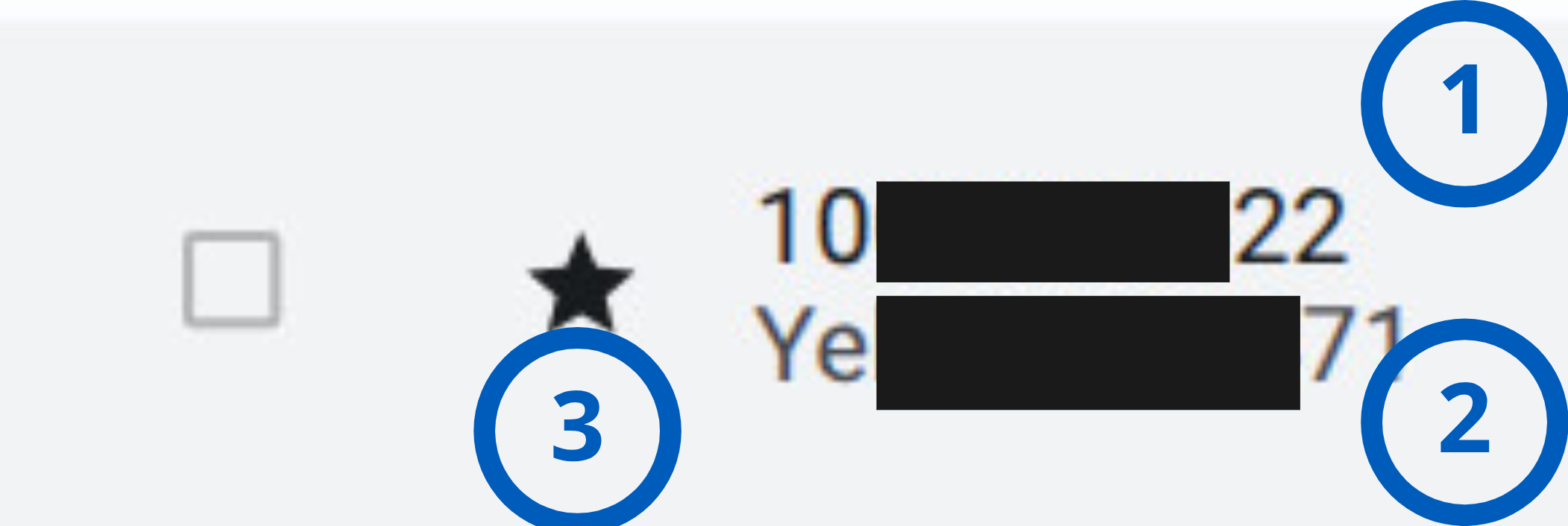
When the Customer Service approves a new dealer request, PowerManage adds a dealer group in the Groups page:
| Callout | Name | Description |
|---|---|---|
| 1 | Group name | The dealer’s group name is the dealer ID assigned by the Dealer Portal. |
| 2 | Description | The group description |
| 3 | Star icon | The star indicates that it is a dealer group |
Dealer roles
When the Customer Service approves a new dealer request, PowerManage creates two roles in the Roles page:
- Dealer role can manage panels in the dealer group and create dealer installers.
- Installer role - Installer role can manage only panels in the dealer group.
Dealer Staff
When the Customer Service approves a new dealer request, PowerManage creates a user in the Staff page:
- New dealer user can log into the PowerManage server
- Dealer Plus user can access the full PowerManage server while standard dealers can access only their group
- Dealer Staff can create new installers
Tips
- Verify the dealer ID before an installer submits a sign-up request.
- Review dealer and installer role permissions before enabling Staff.
- Use the dealer group to confirm that panels and Staff are associated with the correct dealer.
- Ask installers to check spam or junk folders if verification email is not received.
Troubleshooting
Self-hosted PowerManage instance is offline during host verification
Possible causes
- Issues with closed ports between PowerManage and repository.
- Issues with synchronization between PowerManage and the repository.
- Billing feature is disabled in PowerManage license.
- PowerManage is offline.
What to do
- Confirm that the required ports are open on the PowerManage side.
- Confirm that PowerManage can successfully synchronize with the repository.
- Confirm that Billing feature is enabled in PowerManage license.
- Confirm that PowerManage is online.
Installer cannot access dealer panels
Possible causes
- The installer entered an incorrect dealer ID.
- The installer did not enter a dealer ID.
- The installer is still suspended.
- The installer has the wrong role or group access.
- Panels are not associated with the expected dealer group.
What to do
- Verify the dealer ID used during installer registration.
- Confirm that the installer user exists.
- Confirm that the installer is enabled.
- Confirm that the installer has the correct role.
- Confirm that the installer is associated with the correct dealer group.
- Confirm that the panels are in the dealer group.
Dealer user did not receive credentials
Possible causes
- Dealer request was not approved.
- Email address is incorrect.
- Email delivery failed.
- Email was filtered to spam or junk.
What to do
- Confirm dealer approval status.
- Verify the registration email address.
- Check spam or junk folders.
- Contact the portal or PowerManage administrator.
Installer did not receive the verification email
Possible causes
- Email delivery is not configured correctly.
- The installer email address is incorrect.
- The email was filtered to spam or junk.
What to do
- Verify the installer email address.
- Ask the installer to check spam or junk folders.
- Check email delivery configuration.
- Repeat the registration or invite workflow if needed.