Authentication page
Overview
The Authentication page lets users access PowerManage.
Use this page to:
- Sign in with an employee email address and password.
- Complete multi-factor authentication (MFA) when MFA is enabled.
- Confirm or update a phone number during the first MFA sign-in.
- Recover a password.
- Register a new PowerManage account, if self-registration is enabled on the server.
By default, when you open the Authentication page, PowerManage shows the Log into PowerManage form.
The authentication flow depends on server settings. MFA and self-registration behavior can vary by deployment configuration.
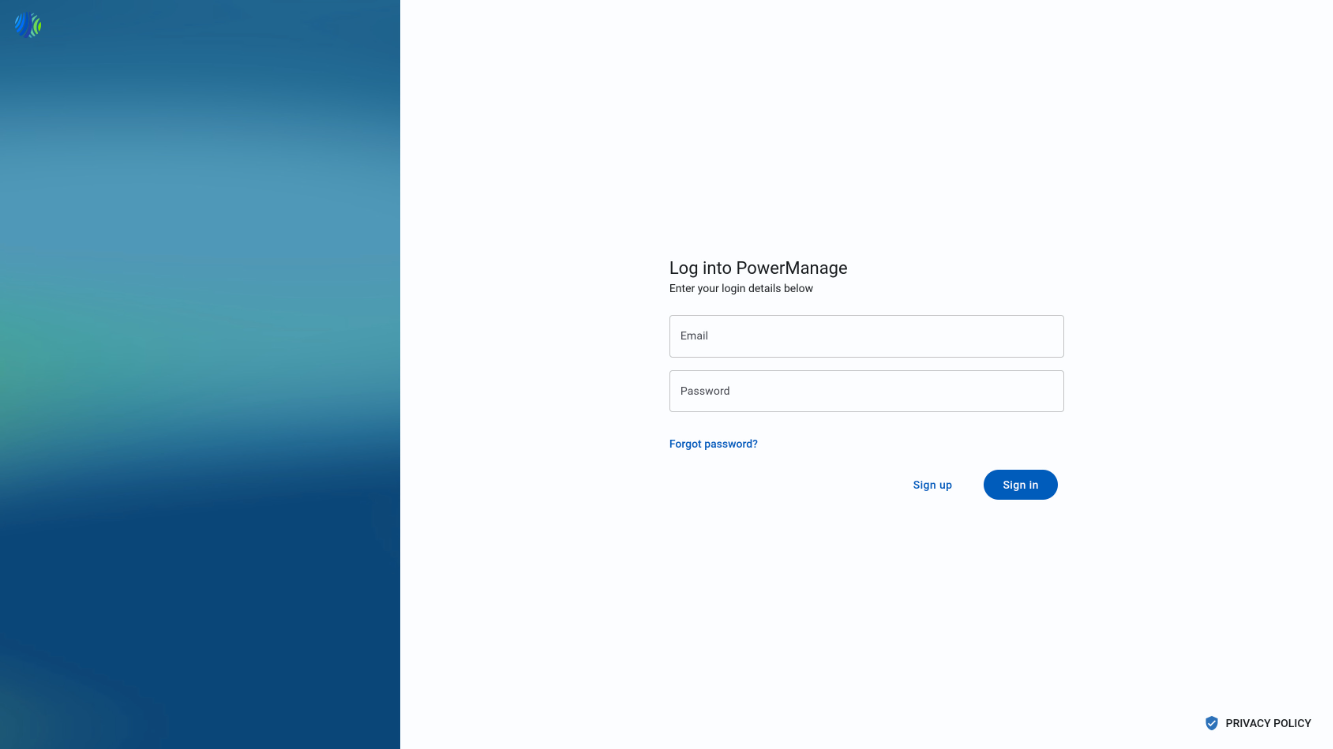
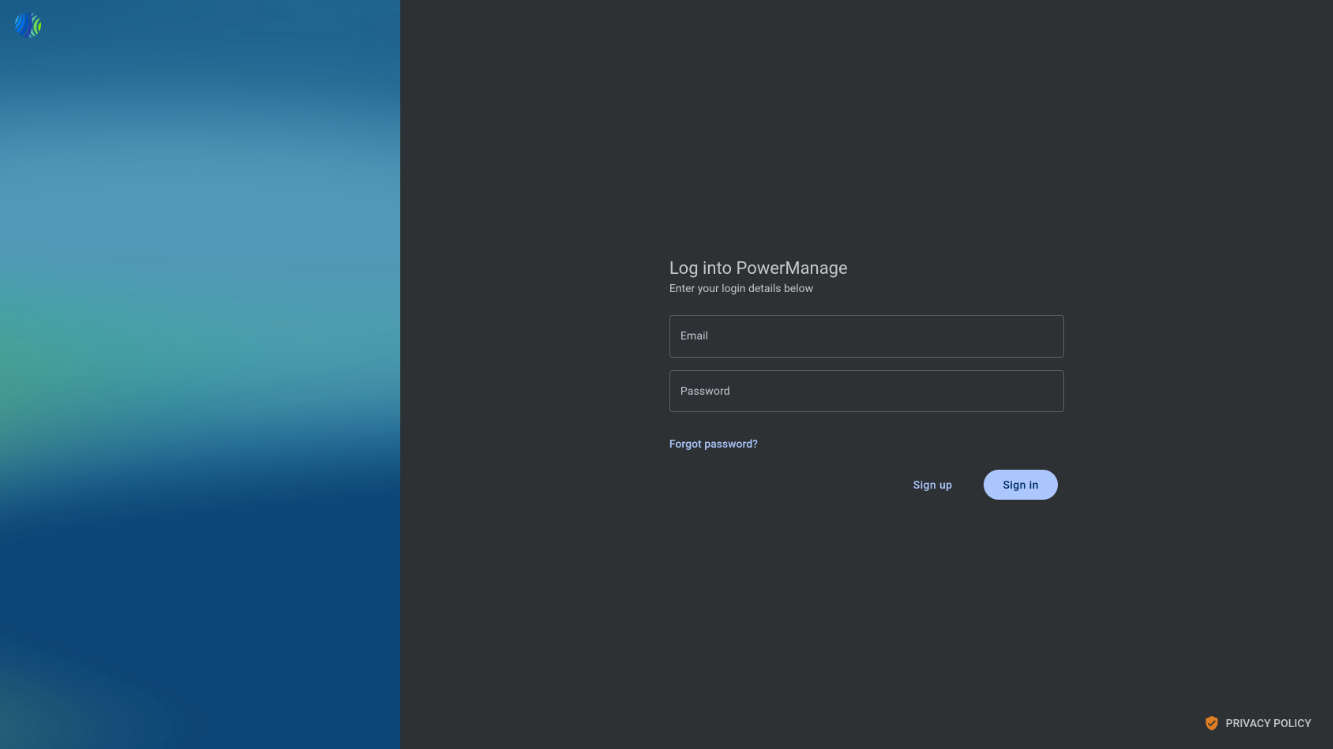
Page layout
The Authentication page includes these forms:
- Log into PowerManage
- Register in PowerManage
- Password recovery
- Phone number confirmation
- Enter verification code
- Set your new password
The form shown depends on the selected action and the configured authentication flow.
Register in PowerManage form
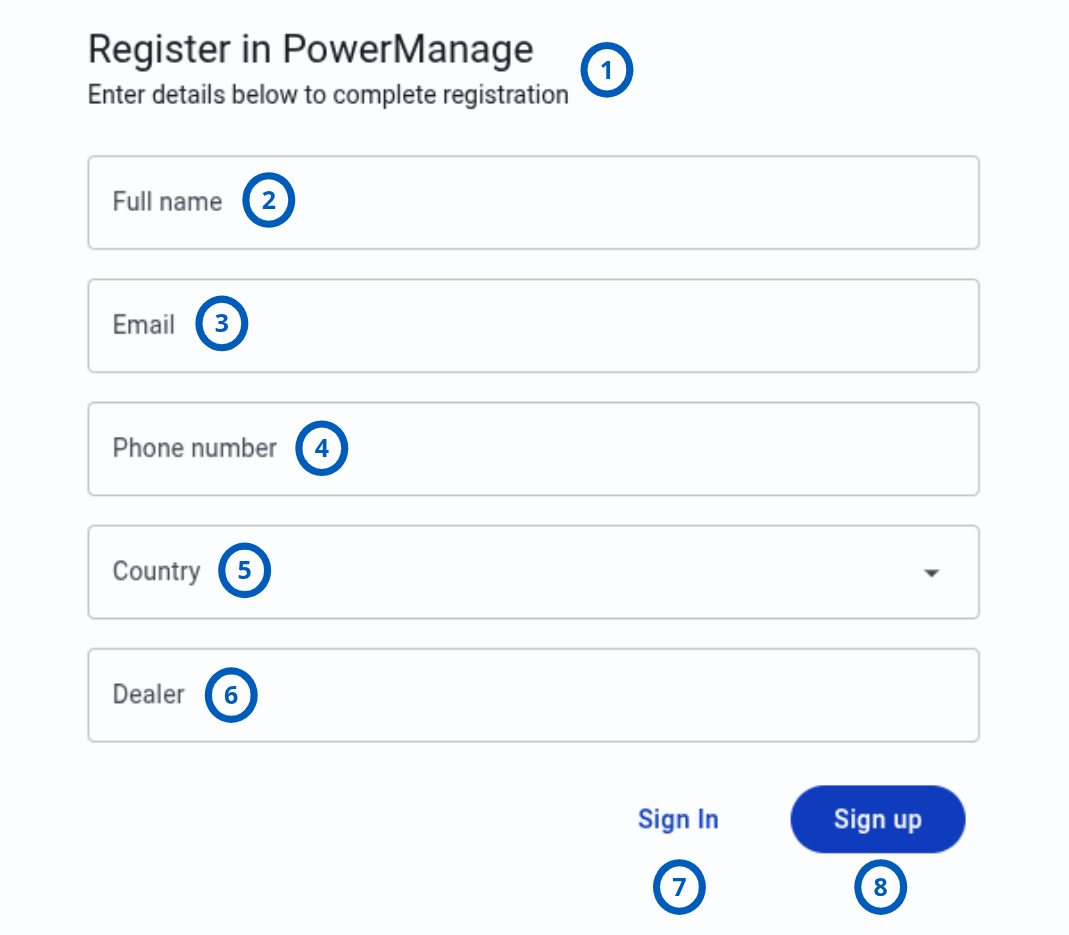
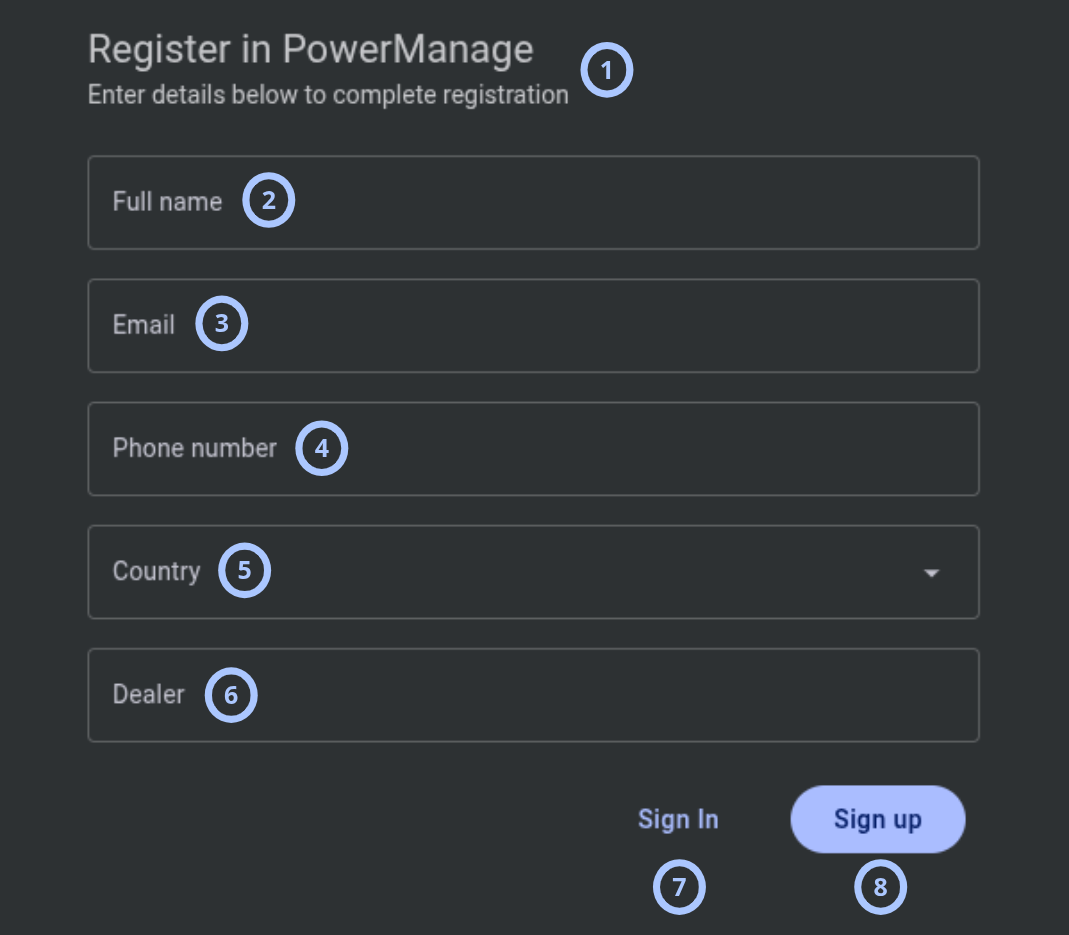
The Register in PowerManage form lets a user request or create a PowerManage account, depending on the server self-registration settings.
| Callout | UI element | Description | When to use |
|---|---|---|---|
| 1 | Form name | Shows Register in PowerManage. | Use to confirm that you are on the registration form. |
| 2 | Full name field | Lets you enter the user name for registration. | Use when creating or requesting a new PowerManage account. |
| 3 | Email field | Lets you enter the email address for registration. | Use to provide the email address that will identify the account. |
| 4 | Phone number field | Lets you enter the phone number for registration. | Use to provide a reachable phone number for account contact or MFA flows. |
| 5 | Country drop-down | Lets you select the country for the new account. | Use to assign the correct country to the account profile. |
| 6 | Dealer field | Lets you enter the dealer ID. | Use to associate the registration request with the correct dealer. |
| 7 | Sign in button | Returns you to the Log into PowerManage form. | Use if you already have an account or do not want to continue registration. |
| 8 | Sign up button | Submits the registration information. The system sends an OTP code for login according to the server self-registration settings. | Use after you enter the required registration details. |
Log into PowerManage form
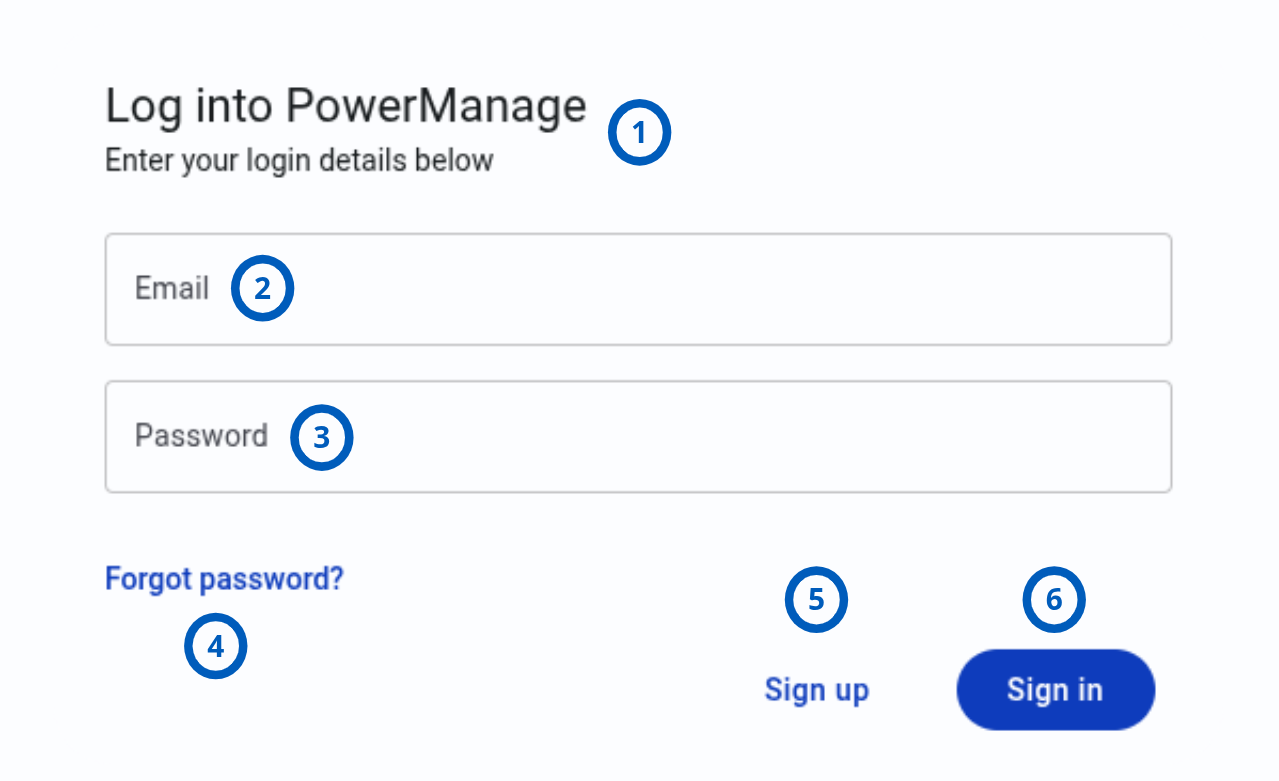
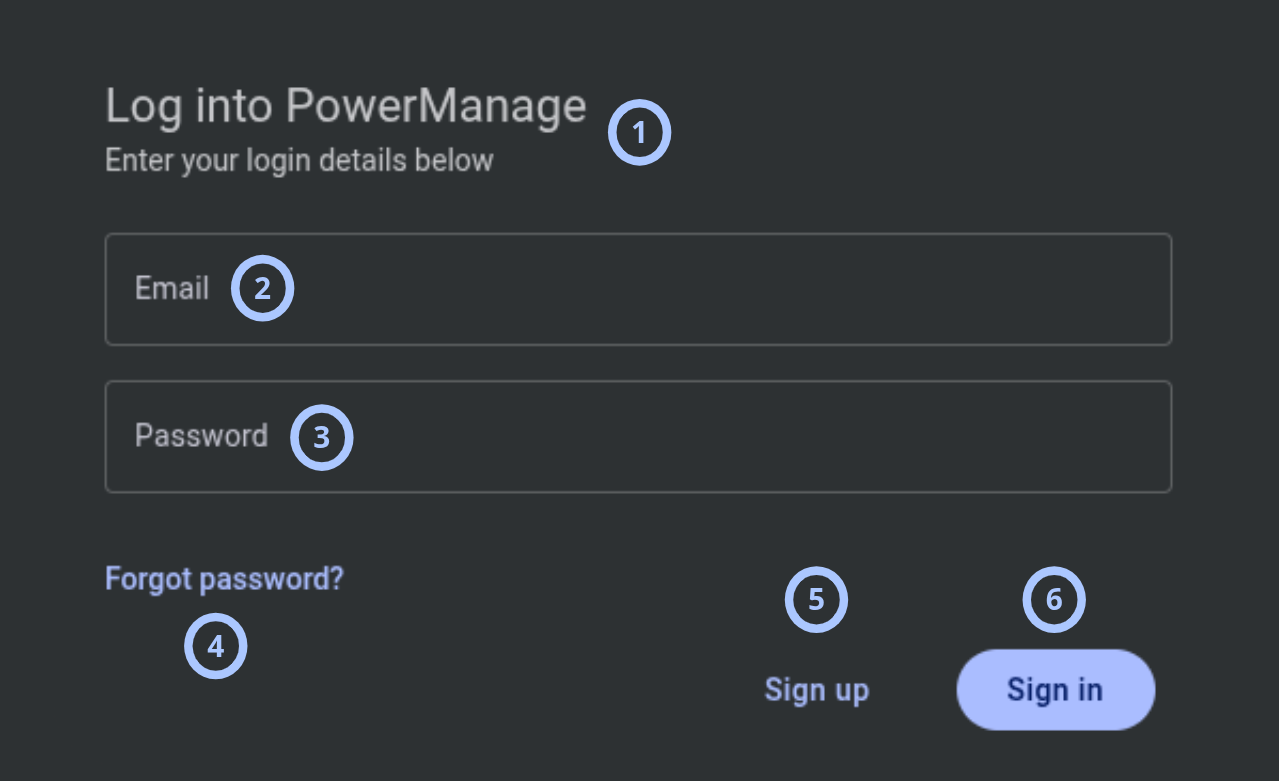
The Log into PowerManage form is the default form on the Authentication page. Use it to sign in with an employee email address and password.
| Callout | UI element | Description | When to use |
|---|---|---|---|
| 1 | Form name | Shows Log into PowerManage. | Use to confirm that you are on the sign-in form. |
| 2 | Email field | Lets you enter your employee email address. | Use when signing in to PowerManage. |
| 3 | Password field | Lets you enter your employee password. | Use with your employee email address to authenticate. |
| 4 | Forgot password? button | Opens the Password recovery form. | Use if you cannot remember your password. |
| 5 | Sign up button | Opens the Register in PowerManage form. | Use if you need to register a new account and self-registration is available. |
| 6 | Sign in button | Submits your email address and password. | Use after you enter valid credentials. |
When you enter the correct email address and password:
- If MFA is not enabled, PowerManage signs you in.
- If MFA is enabled and this is your first MFA sign-in, PowerManage opens the Phone number confirmation form.
- If MFA is enabled and this is not your first MFA sign-in, PowerManage opens the Enter verification code form.
Password recovery form
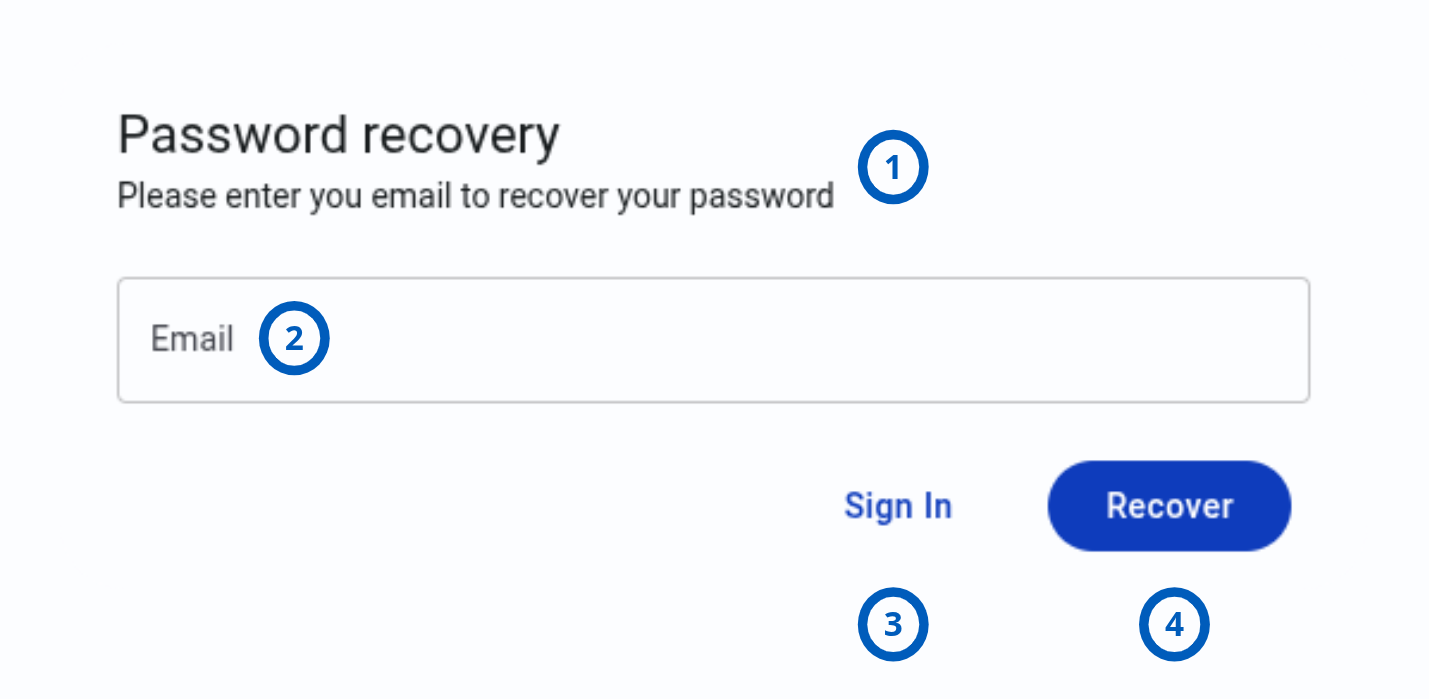
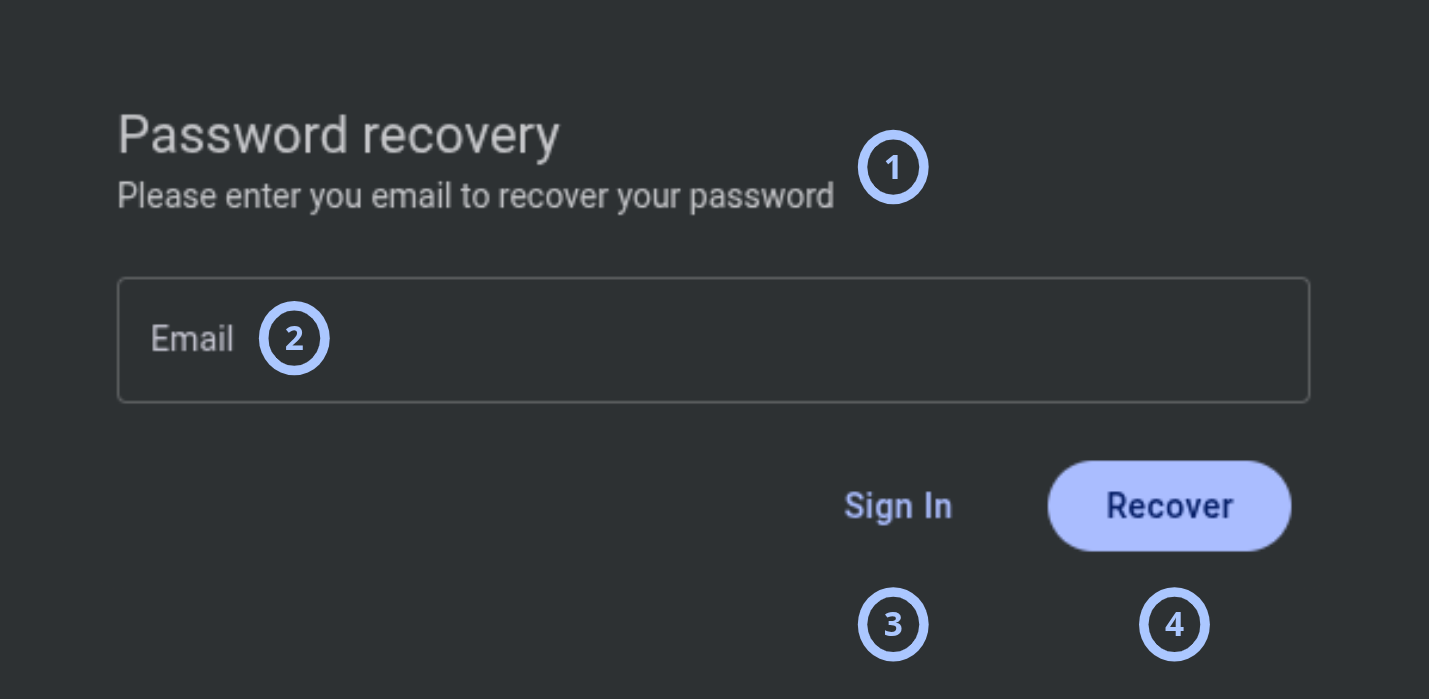
The Password recovery form lets you start password recovery for an existing employee account.
| Callout | UI element | Description | When to use |
|---|---|---|---|
| 1 | Form name | Shows Password recovery. | Use to confirm that you are on the password recovery form. |
| 2 | Email field | Lets you enter your email address. | Use to identify the employee account that needs password recovery. |
| 3 | Sign in button | Returns you to the Log into PowerManage form. | Use if you remember your password or want to cancel password recovery. |
| 4 | Recover button | Sends an OTP code to the email address if the employee account exists. | Use after you enter the email address for the account. |
For security reasons, password recovery behavior can avoid confirming whether an account exists. Check the email inbox associated with the account after selecting Recover.
Password reset email
After starts the password recovery process, PowerManage sends a password reset email. The email contains the following information about the password reset request:
- A temporary one-time password (OTP).
- A link to continue the password reset process.
To continue the password reset process, the please enter the temporary one-time password from the email on the password recovery page. You can also use reset password link from email.
By default the temporary code is valid for 900 seconds (15 minutes). If the code expires, please restart the password recovery process to receive a new code.
Phone number confirmation form
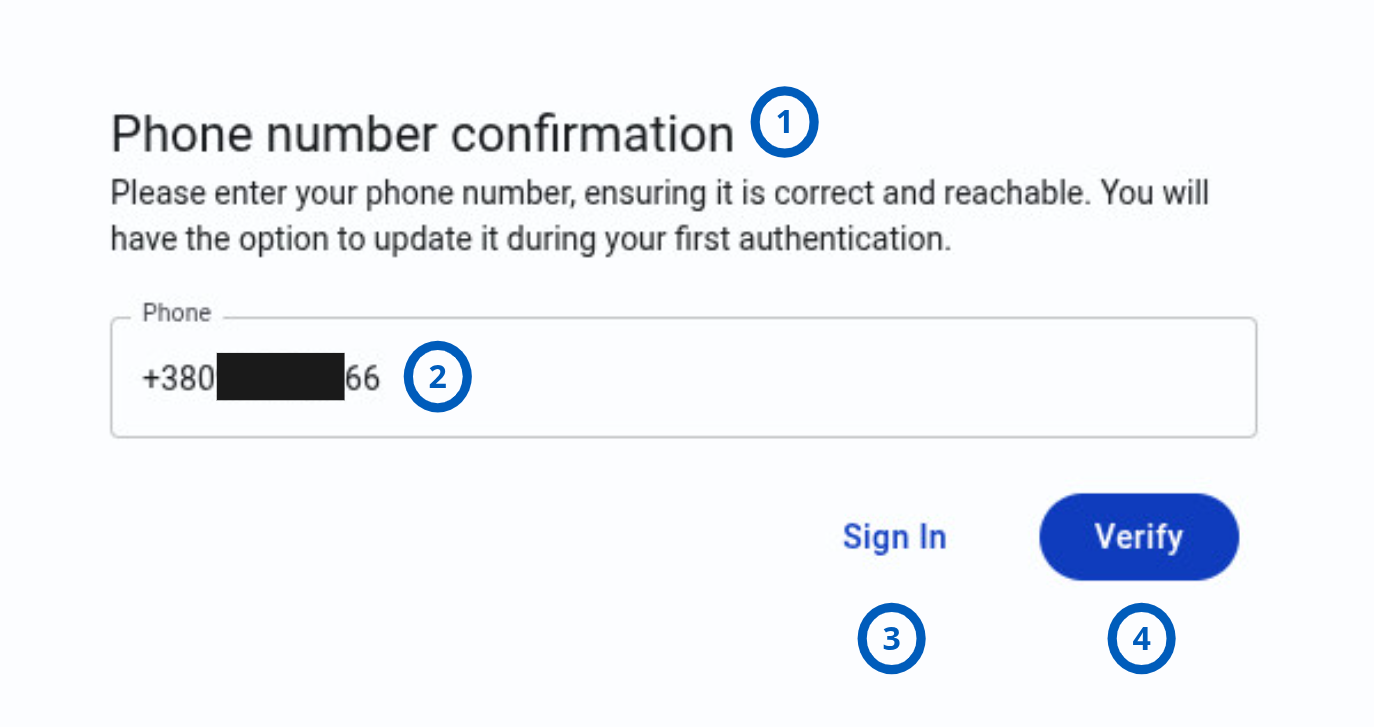
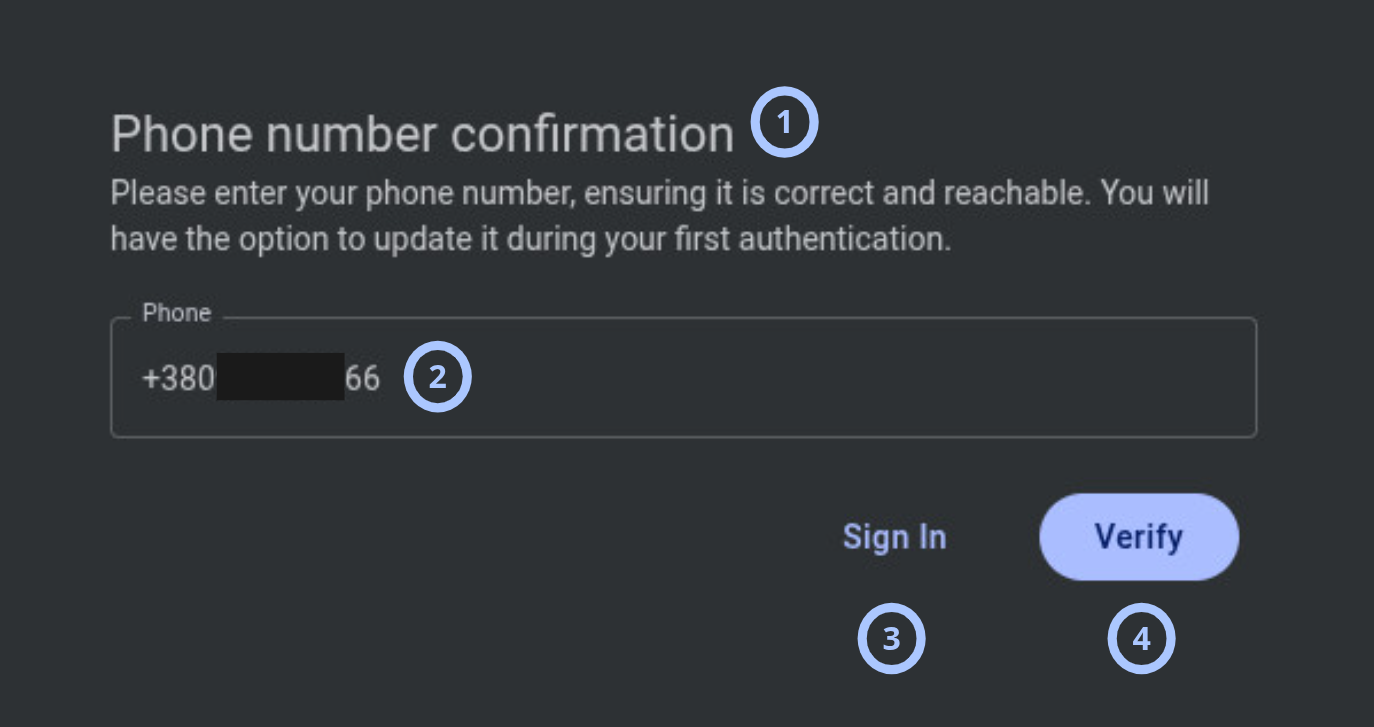
The Phone number confirmation form appears during the first MFA sign-in. Use it to confirm or update the phone number used for SMS MFA verification.
| Callout | UI element | Description | When to use |
|---|---|---|---|
| 1 | Form name | Shows Phone number confirmation. | Use to confirm that you are setting up or confirming the MFA phone number. |
| 2 | Phone field | Shows the current phone number if one is set. You can change the phone number before verification. | Use to confirm that the phone number is correct and reachable. |
| 3 | Sign in button | Returns you to the Log into PowerManage form. | Use to stop phone number confirmation and return to sign-in. |
| 4 | Verify button | Saves the phone number and sends an SMS MFA code. | Use after you confirm that the phone number is correct. |
Enter a phone number that is correct and reachable. PowerManage sends the MFA verification code to this number.
Enter verification code form
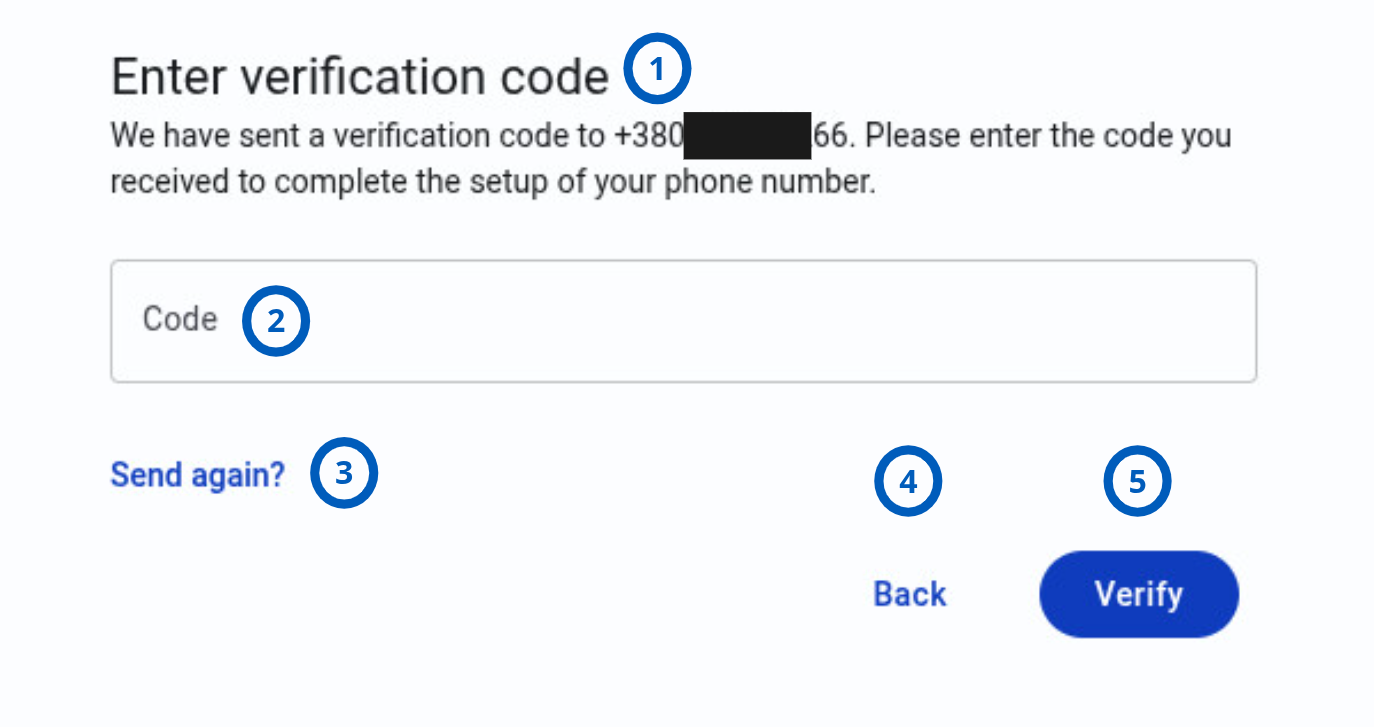
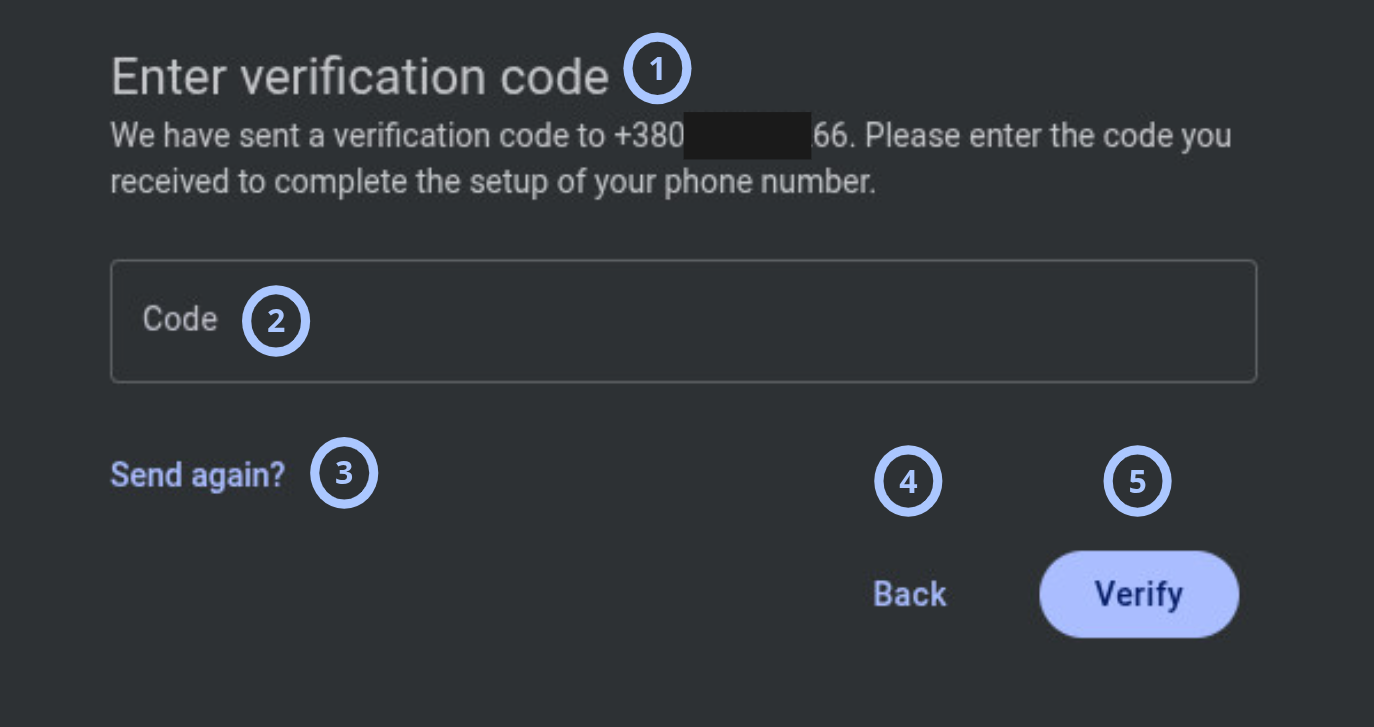
The Enter verification code form lets you complete MFA verification.
PowerManage opens this form after one of these actions:
- You confirm the phone number during first MFA sign-in.
- You sign in with valid credentials and MFA is already configured.
| Callout | UI element | Description | When to use |
|---|---|---|---|
| 1 | Form name | Shows Enter verification code. | Use to confirm that you are on the MFA verification form. |
| 2 | Code field | Lets you enter the MFA code. | Use to enter the verification code sent to your phone. |
| 3 | Send again? button | Sends another MFA code. | Use if the code did not arrive or expired. |
| 4 | Back button | Returns you to the Phone number confirmation form. | Use during first MFA setup if the phone number must be changed. |
| 5 | Verify button | Submits the MFA code. | Use after you enter the verification code. |
When you enter the correct code and select Verify, PowerManage signs you in.
Set your new password form
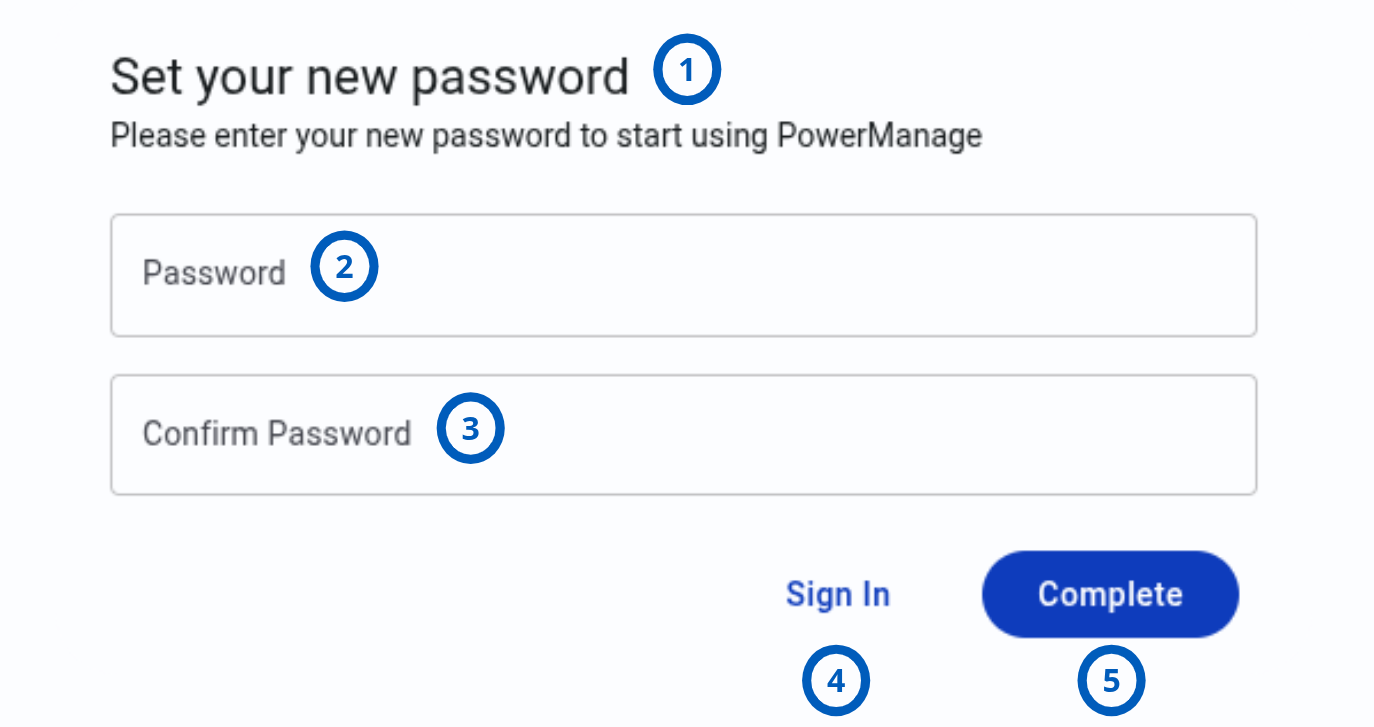
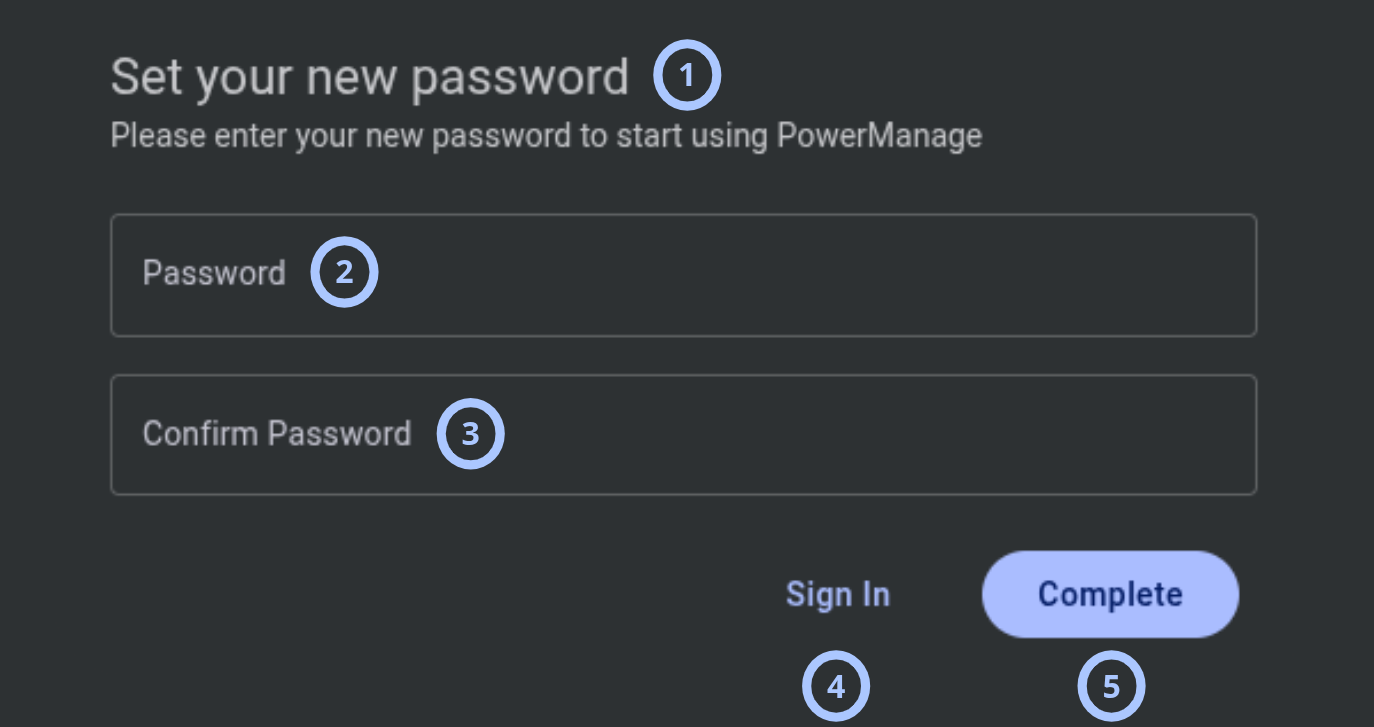
The Set your new password form opens after you enter an OTP code during password reset or after registration by an administrator. Use this form to create the password for the account.
| Callout | UI element | Description | When to use |
|---|---|---|---|
| 1 | Form name | Shows Set your new password. | Use to confirm that you are creating a new password. |
| 2 | Password field | Lets you enter the new password. | Use after password reset or administrator-created registration when PowerManage asks you to set a password. |
| 3 | Confirm Password field | Lets you enter the new password again. | Use to confirm the password before saving it. |
| 4 | Sign in button | Returns you to the Log into PowerManage form. | Use if you do not want to continue setting the password from this form. |
| 5 | Complete button | Saves the new password and signs you in to PowerManage. | Use after you enter matching password values. |