Basic configurations
Overview
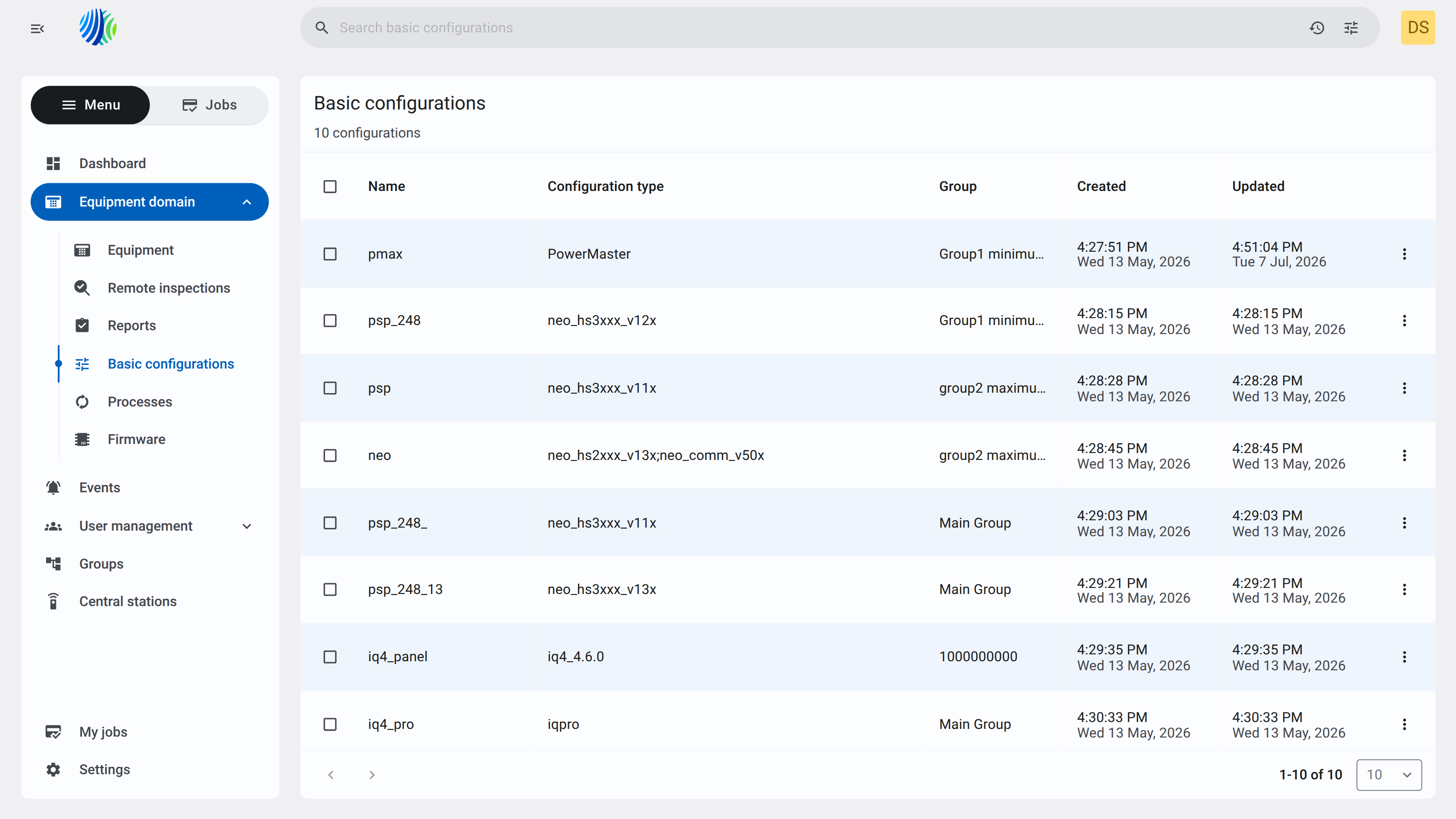
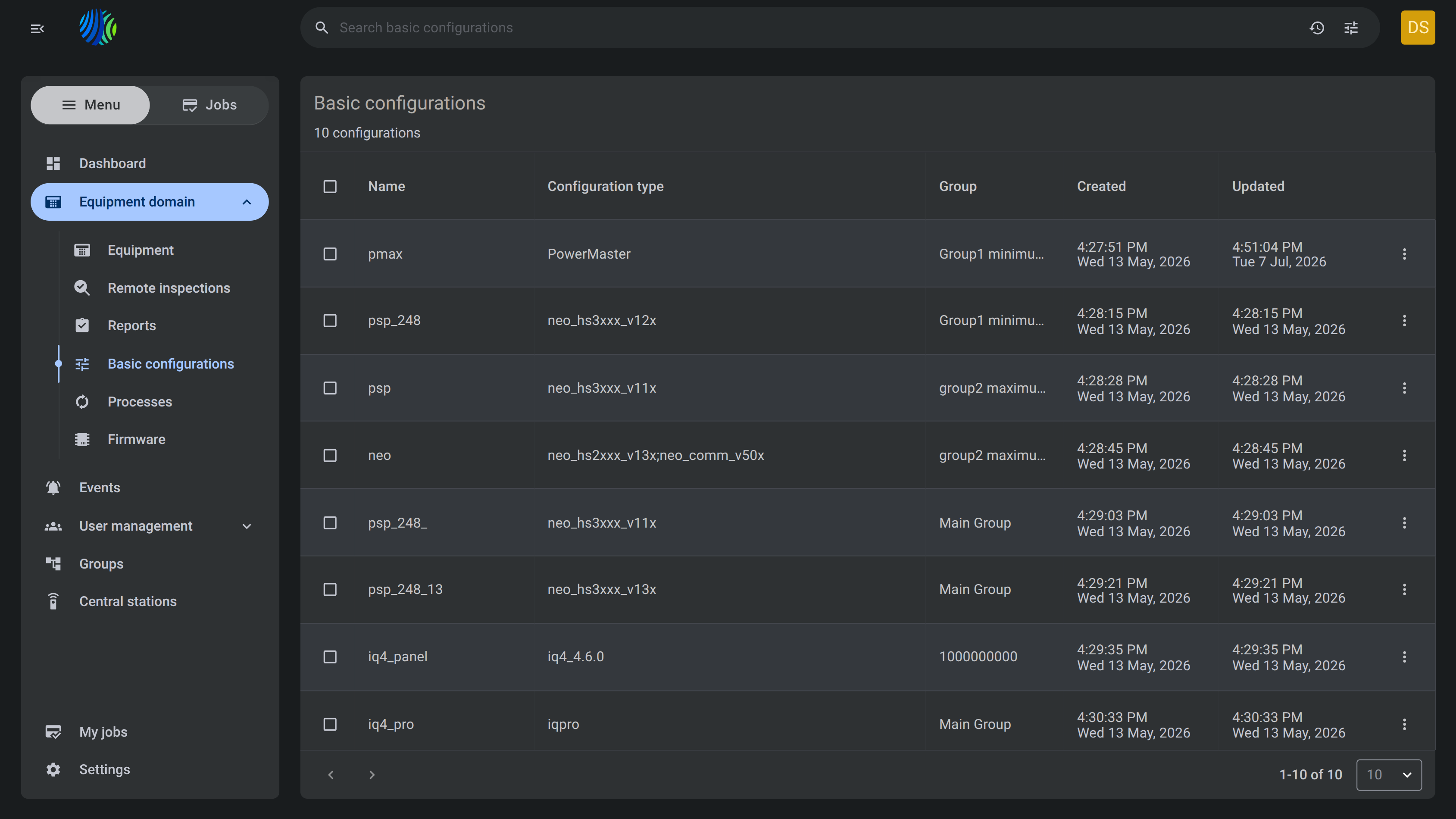
The Basic configurations page is used to view, manage, create, remove, and push saved basic configuration records.
Use this page to:
- View saved basic configuration records.
- Edit or remove a configuration from the row actions menu.
This page helps administrators review saved configuration records, manage outdated configurations, inspect configuration sections, and upload a selected basic configuration to compatible panels.
Before you begin
Required permissions
- You must have permission to create, edit, list and remove Basic configurations.
Access to the Basic configurations page is controlled by the role permission group named Units - Basic Config.
Preconditions
- At least one basic configuration must exist to display configuration records.
- At least one compatible panel must exist before a configuration can be pushed.
Dependencies
- Panel eligibility depends on the selected configuration type and panel model.
- Available configuration sections depend on the selected configuration type.
Important limitations
- Removing a configuration permanently removes the configuration record when the action is confirmed.
- Bulk Remove applies to all selected configurations. Review the selected count before using the action.
- Pushing a basic configuration uploads the selected configuration to selected panels. Review the selected panel count before you confirm the upload.
- Changing configuration settings can affect panel behavior after the configuration is pushed.
Page layout
Page header
The page header identifies the page and shows the number of available entries.


| Callout | UI element | Description | When to use |
|---|---|---|---|
| 1 | Page title | Shows the current page name | Use to confirm that you are on the page. |
| 2 | Page entries count | Shows the total number of entries | Use to understand how many entries are available. |
Basic configurations grid
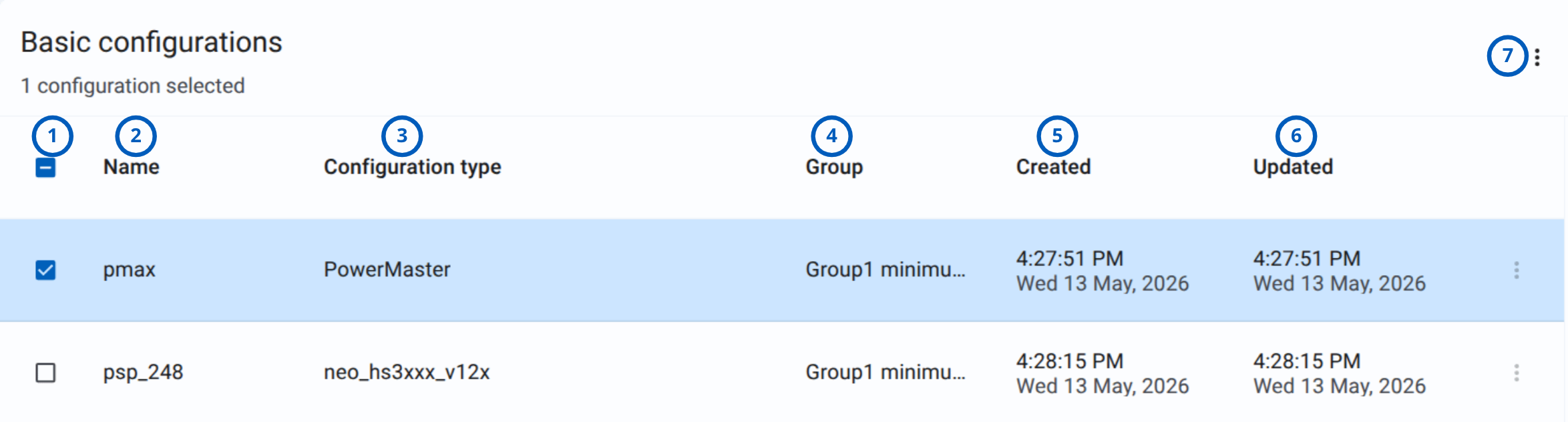
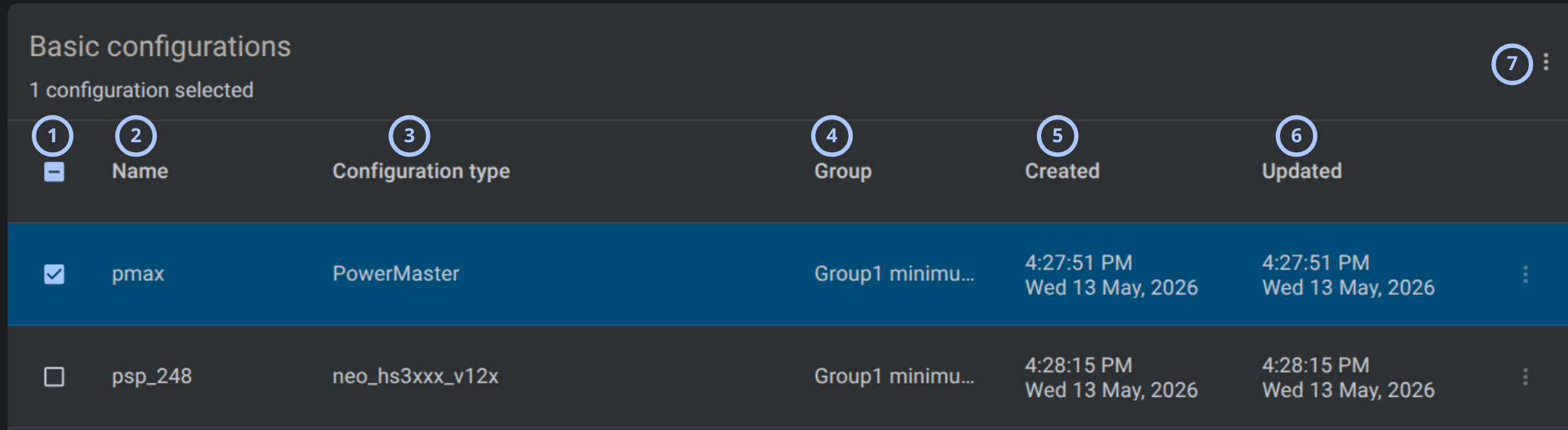
The basic configurations grid lists configuration records.
| Callout | UI element | Description | When to use |
|---|---|---|---|
| 1 | Select all checkbox | Selects or clears all configuration records in the grid. | Use to select multiple configurations before applying available actions. |
| 2 | Name column | Shows the configuration name. | Use to identify the configuration record. |
| 3 | Configuration type column | Shows the configuration type assigned to the record. | Use to confirm which configuration type the record uses. |
| 4 | Group column | Shows the group associated with the configuration. | Use to understand which group the configuration belongs to. |
| 5 | Created column | Shows the date and time when the configuration was created. | Use to review when the configuration was created. |
| 6 | Updated column | Shows the date and time when the configuration was last updated. | Use to review the latest update time. |
| 7 | More options menu | Opens additional actions for the selected configuration, such as Rename, Change group, Edit, Clone, and Remove. | Use to manage the selected configuration. |
Push basic configurations grid
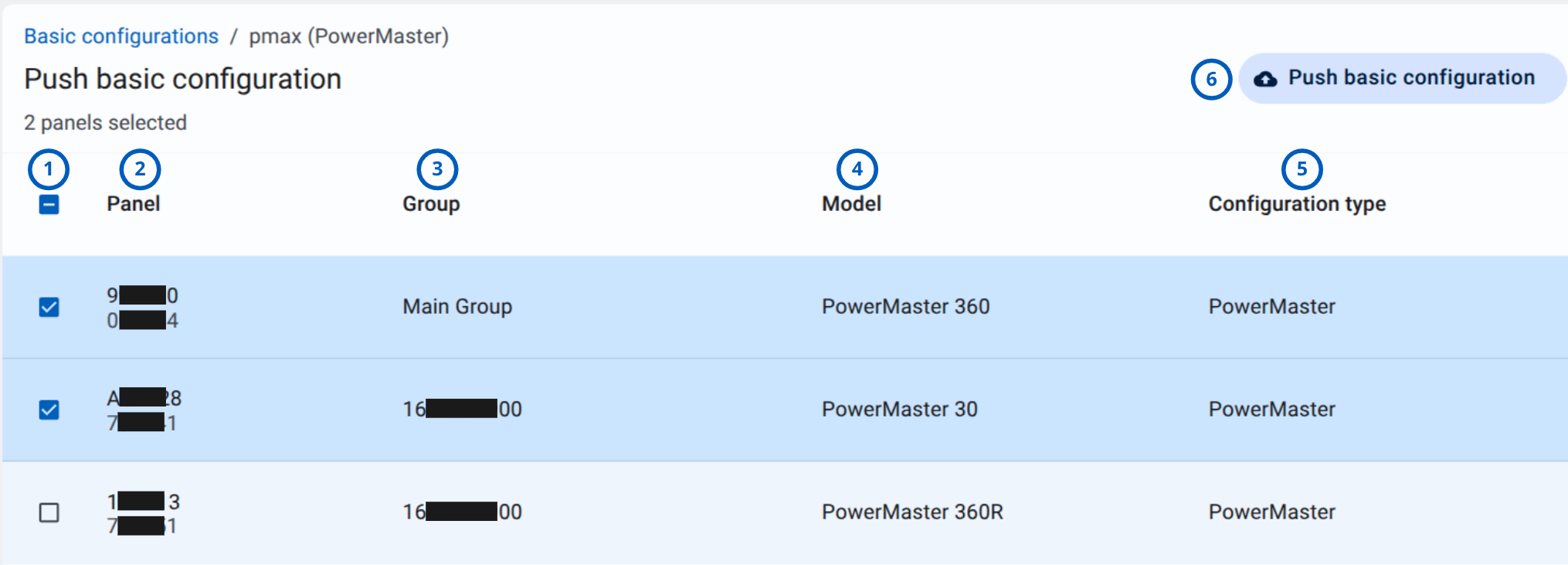
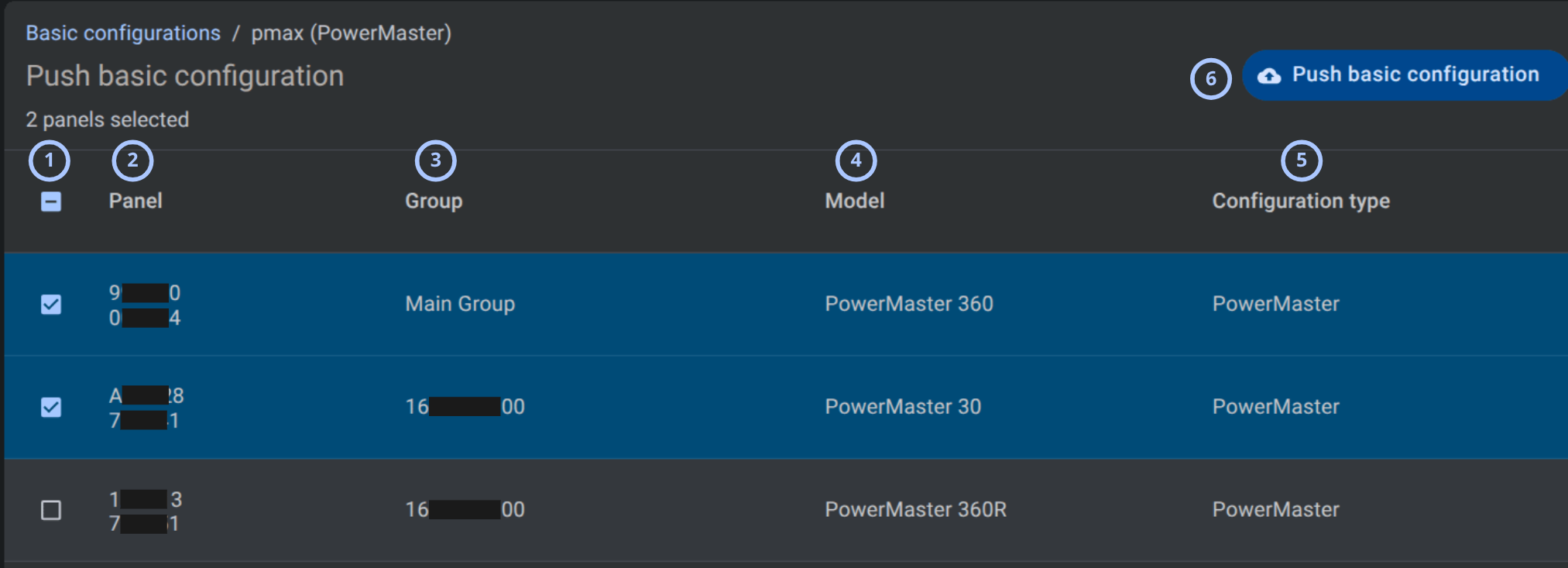
The Push basic configurations grid lists configuration records and allows to send the configuration to the panels.
| Callout | UI element | Description | When to use |
|---|---|---|---|
| 1 | Select all checkbox | Selects or clears all panels in the grid. | Use to select multiple panels before pushing the basic configuration. |
| 2 | Panel column | Displays the panel identifier for each panel. | Use to identify which panels are available for the basic configuration push. |
| 3 | Group column | Displays the group assigned to each panel. | Use to confirm that the selected panels belong to the expected group. |
| 4 | Model column | Displays the panel model. | Use to verify the panel model before pushing the basic configuration. |
| 5 | Configuration type column | Displays the configuration type assigned to each panel. | Use to confirm that the selected panels use the correct configuration type. |
| 6 | Push basic configuration button | Pushes the selected basic configuration to the selected panels. | Use after selecting the required panels and confirming their group, model, and configuration type. |
Edit basic configurations grid
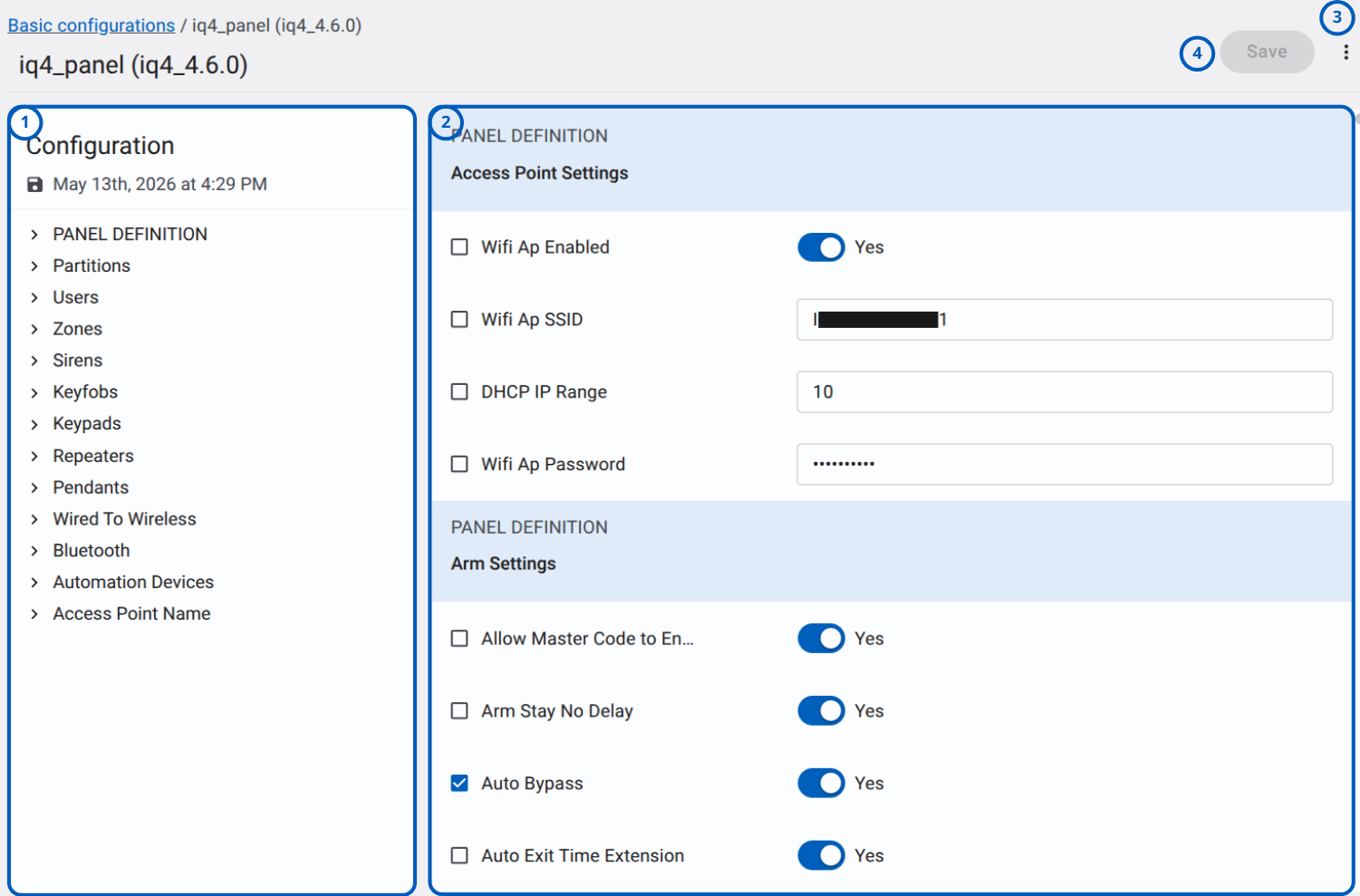
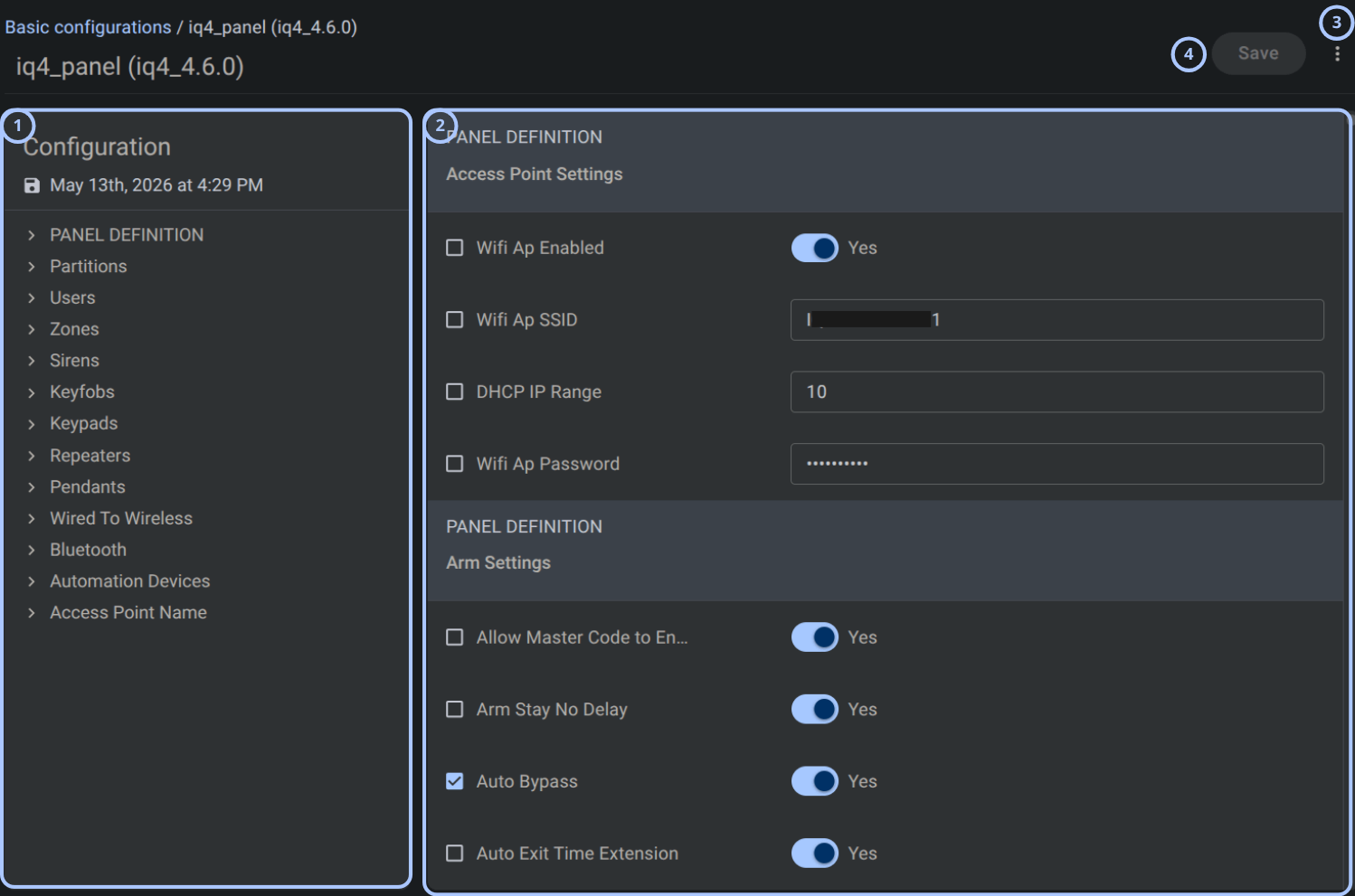
The Edit basic configurations grid lists all configuration options and allows to edit the configuration of the panels.
| Callout | Name | Description | When to use |
|---|---|---|---|
| 1 | Configuration navigation panel | Displays the configuration sections, such as Panel Definition, Partitions, Users, Zones, Sirens, Keyfobs, Keypads, Repeaters, Pendants, Wired To Wireless, Bluetooth, Automation Devices, and Access Point Name. note Available section depends on the panel type, model and firmware version. | Use to select the configuration section that needs to be reviewed or edited. |
| 2 | Configuration settings panel | Displays the settings for the selected configuration section, including checkboxes, toggles, and input fields. | Use to review or edit selected basic configuration settings. |
| 3 | More options menu | Opens additional actions for the configuration page - such as Rename, Change group. | Use when additional page actions are needed. |
| 4 | Save button | Saves changes made to the basic configuration. | Use after updating configuration settings. |
Select configuration options for push
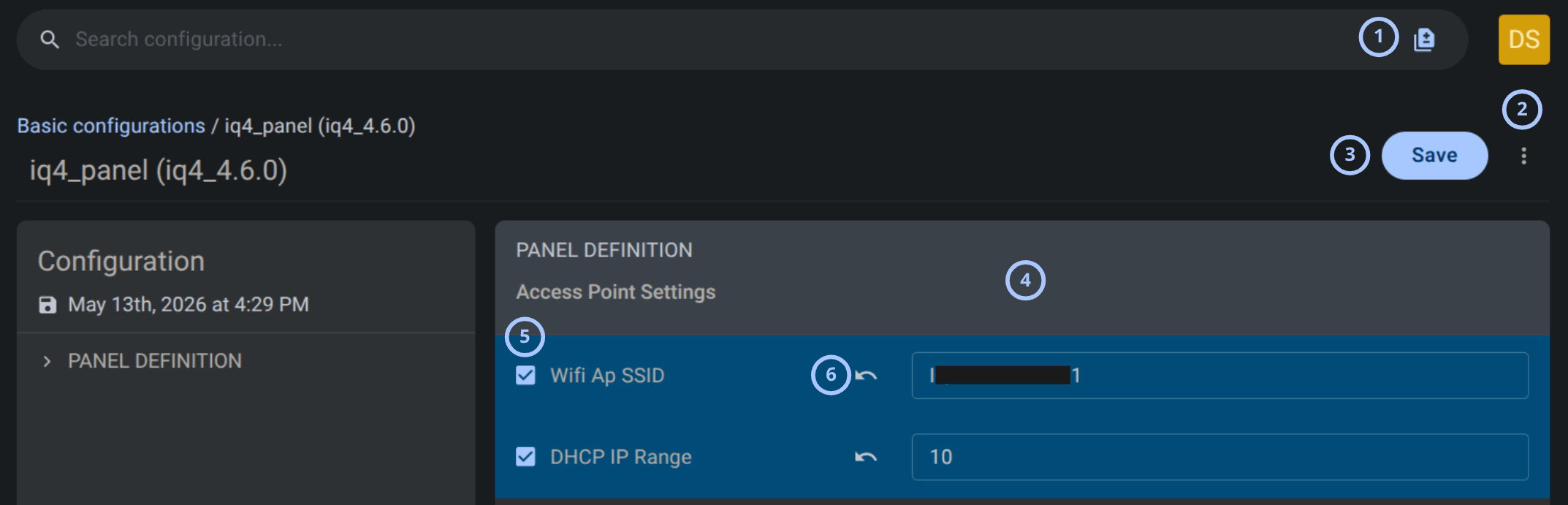
The push configurations options grid shows explame how to select options and push it to panel. The search bar at the top left has a button that, when clicked, shows only the selected records from the configuration grid to be sent to the panel.
Also an arrow to the left of the input fields cancels changes and restores the values when clicked.
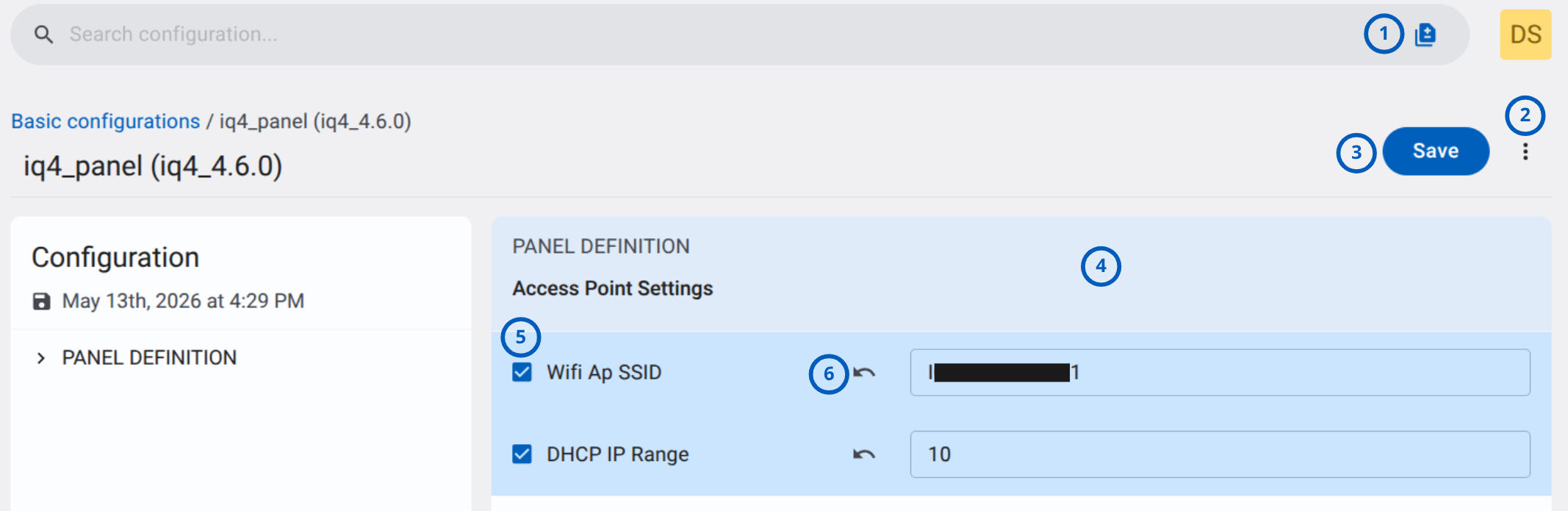
| Callout | Name | Description | When to use |
|---|---|---|---|
| 1 | Show only selected options icon | Shows only the configuration options that are currently selected. | Use to filter the configuration view and display only selected options. |
| 2 | More options menu | Opens additional actions for the basic configuration, such as Rename and Change group. | Use to rename the configuration or move it to another group. |
| 3 | Save button | Saves changes made to the basic configuration. | Use after updating configuration values. |
| 4 | Configuration settings area | Shows the settings for the selected configuration section. | Use to review or edit the displayed configuration settings. |
| 5 | Configuration option checkbox | Selects or clears a specific configuration option. | Use to include or exclude the configuration option before saving changes. |
| 6 | Restore value arrow | Cancels changes made to the input field and restores the previous value. | Use to discard edits to a specific field before saving changes. |
Pagination controls
Pagination controls appear at the bottom of the entries grid.


| Callout | UI element | Description | When to use |
|---|---|---|---|
| 1 | Previous and next arrows | Shows left and right arrows, such as < and >, to move between pages. | Use when the entries list has more records than the current page can show. |
| 2 | Range indicator | Shows the current range and total number of entries | Use to understand where you are in the entries list. |
| 3 | Entries per page selector | Controls how many entries appear on one page. | Use to show fewer or more entries in the grid. |
How to use this page
Clone a basic configuration
Goal:
- Create a copy of an existing basic configuration with a new name.
Steps:
- Open Equipment domain > Basic configurations.
- Select the configuration that you want to clone.
- Open the row actions menu.
- Select Clone.
- In the Clone basic configuration dialog, review or update the value in the Basic configuration name field.
- Select Save.
Expected result:
- A new basic configuration is created as a copy of the selected configuration.
- The cloned configuration appears in the Basic configurations grid with the specified name.
- The original configuration remains unchanged.
Use Clone when you need to create a similar configuration without changing the original configuration.
Review basic configurations
Goal:
- View saved basic configuration records and their metadata.
Steps:
- Open Equipment domain > Basic configurations.
- Review the grid.
- Check the following columns:
- Name to identify the configuration.
- Configuration type to confirm the configuration type.
- Group to review the associated group.
- Created to see when the configuration was created.
- Updated to see when the configuration was last updated.
Expected result:
- You can identify available configurations and review their type, group, created time, and updated time.
Remove selected configurations
Goal:
- Remove multiple selected configurations.
Steps:
- Open Equipment domain > Basic configurations.
- Select the configurations you want to remove.
- Review the selected count.
- Select Remove.
- In the Remove basic configuration dialog, review the warning message.
- Select Yes, remove.
Expected result:
- Selected configurations are removed.
- The configuration count and grid contents update after removal.
The remove action is permanent. Confirm that the selected configurations are no longer needed before you select Yes, remove.
Open a configuration details page
Goal:
- Review the settings tree for a selected configuration.
Steps:
- Open Equipment domain > Basic configurations.
- Open the row actions menu for the configuration.
- Select Edit.
- Review the breadcrumb and configuration title.
- Use the left configuration tree to navigate sections.
Expected result:
- The selected configuration opens.
- The left panel shows sections that match the selected configuration type.
Push a basic configuration
Goal:
- Upload the selected basic configuration to selected panels.
Steps:
- Open the Push basic configuration page for a configuration.
- Select the target panel or panels.
- Select Push basic configuration.
- In the confirmation dialog, review the message: Do you really want to push basic configuration for selected panel?
- Select Yes, upload.
Expected result:
- PowerManage starts the upload request for the selected panel or panels.
- The Upload configuration progress dialog may appear.
- The configuration push process is submitted.
Use Yes, upload only after you verify the selected panels. Uploading the wrong configuration to a panel can cause incorrect panel configuration.
Monitor configuration upload
Goal:
- Monitor an upload after confirming a push operation.
Steps:
- Confirm the push operation with Yes, upload.
- Review the Upload configuration dialog.
- Confirm the panel identifier shown in the dialog.
- Watch the progress indicator.
- Close the dialog with the X icon.
Expected result:
- You can confirm that the upload operation has started for the selected panel.
- The progress indicator shows upload progress.
Tips
- Review the selected count before using Remove or Push basic configuration.
- Use the configuration actions menu for Make basic action.
- Review the breadcrumb before changing settings to confirm that the correct configuration is open.
- Review the panel Model and Configuration type before pushing a configuration.
Troubleshooting
Upload configuration does not progress
Possible causes
- The panel is unavailable.
- The upload process is waiting for a response.
What to do
- Review the Upload configuration dialog and confirm the panel identifier.
- Wait for the upload process to update.
- Refresh the page if the progress indicator does not change.
- Check related process history if available.
- Contact support if the upload remains incomplete.
Expected configuration section is not visible
Possible causes
- The selected configuration type does not include that section.
- The section is collapsed.
- The section is unavailable for basic configuration and mass upload due to security reasons.
What to do
- Confirm the configuration type in the breadcrumb.
- Expand the relevant section in the configuration tree.
- Verify that this section should be available.
note
The user code configuration isn’t available for basic configuration due to security requirements.
- Refresh the configuration details page.
- Contact an administrator if the section should be available but is not shown.
The basic configurations page is not visible
Possible causes
- Your role does not include permission to list Basic configurations.
What to do
- Confirm that you are signed in with the correct user account.
- Contact an administrator with role management permissions.