Info
Overview
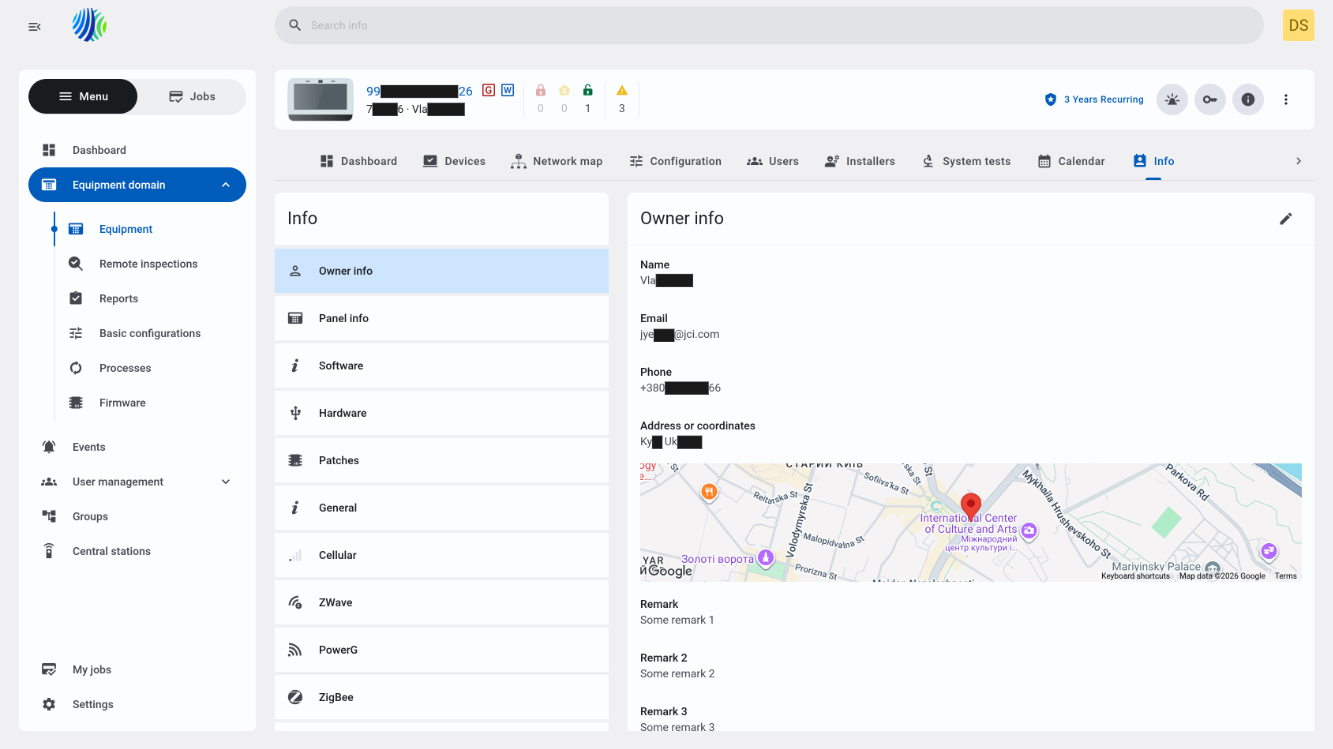
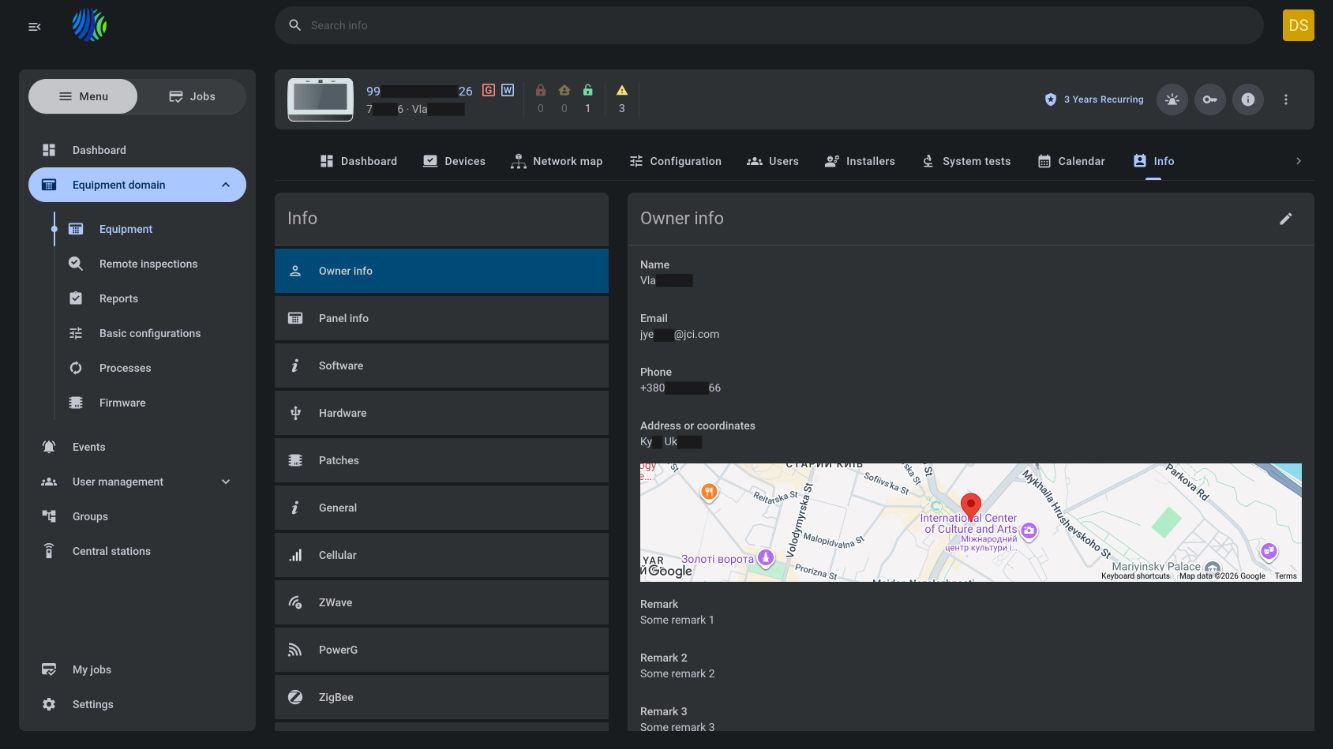
The Info tab in Equipment hub shows information categories and widgets for the selected panel.
Use this tab to:
- Review owner information.
- Review panel information.
- Edit saved owner details.
- Edit panel group assignment.
- Review panel-model-specific information after discovery.
- View location details for the owner when location services are configured.
Before you begin
Required permissions
Required permissions depend on the action that you want to complete.
- You must have permission to open Equipment hub for selected panel.
- You must have permission to view the selected panel.
- You must have permission to view, edit and save panel information.
- You must have permission to manage groups if you want to change a panel group.
Access to the Equipment hub page and panel information management is controlled by the role permission group named Unit.
Preconditions
- Open Equipment hub by selecting a panel from the Equipment page.
- The selected panel must exist on the PowerManage server.
- Panel-model-specific categories appear after successful discovery.
- Some categories depend on installed panel modules or daughter cards.
Dependencies
- Owner info and Panel info data depend on saved panel records.
- Map display and address autocomplete depend on Google API key configuration in Settings > Resolve > Weather/Location/Timezone Sync Settings.
- Panel-model-specific categories depend on discovered panel data.
- Z-Wave, PowerG, and ZigBee categories for IQ panels depend on installed daughter cards.
Important limitations
- Categories that depend on discovery are not shown until discovery completes successfully.
- The Sim Number field is not present in the Edit panel modal window for IQ panels. It is available only for Visonic, DSC, Neo 5, and DualPath panels.
Page layout
General
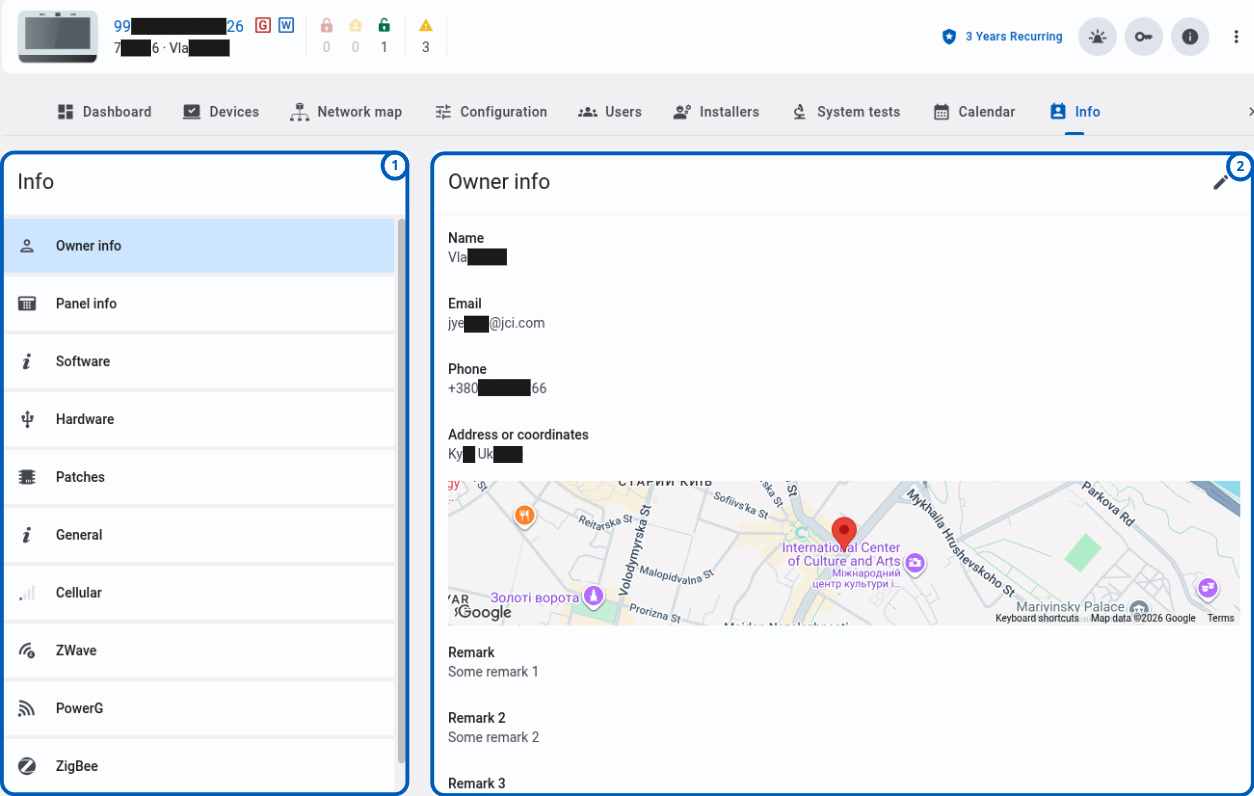
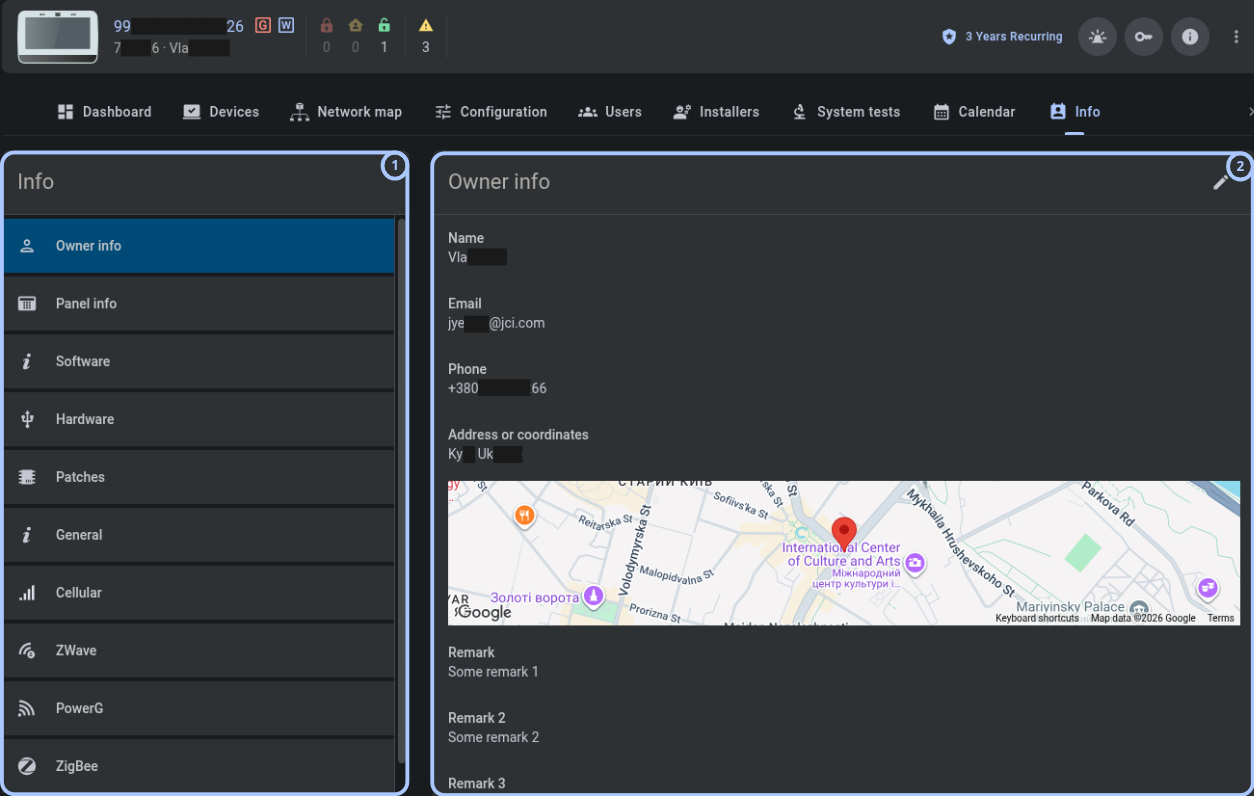
The Info tab has a category list and widgets for the selected category.
| Callout | UI element | Description | When to use |
|---|---|---|---|
| 1 | Info categories | Displays a list of information categories in the left sidebar. | Use to select the information category that you want to review. |
| 2 | Info widgets | Displays the content of the selected category as a widget with relevant fields. | Use to review information for the selected category. |
Owner info and Panel info are permanent categories for all panels and are available even before discovery.
- IQ panels can show Dealer Info, Software, Hardware, Patches, Panel, Cellular, Z-Wave, PowerG, and ZigBee after successful discovery. Z-Wave, PowerG, and ZigBee depend on installed daughter cards.
- DSC NEO/PSP panels and Visonic panels can show Fw/Hw versions, General, and Cellular after discovery.
- Neo 5 panels can show Fw/Hw versions, General, Cellular, and Dealer info after discovery.
Owner info widget
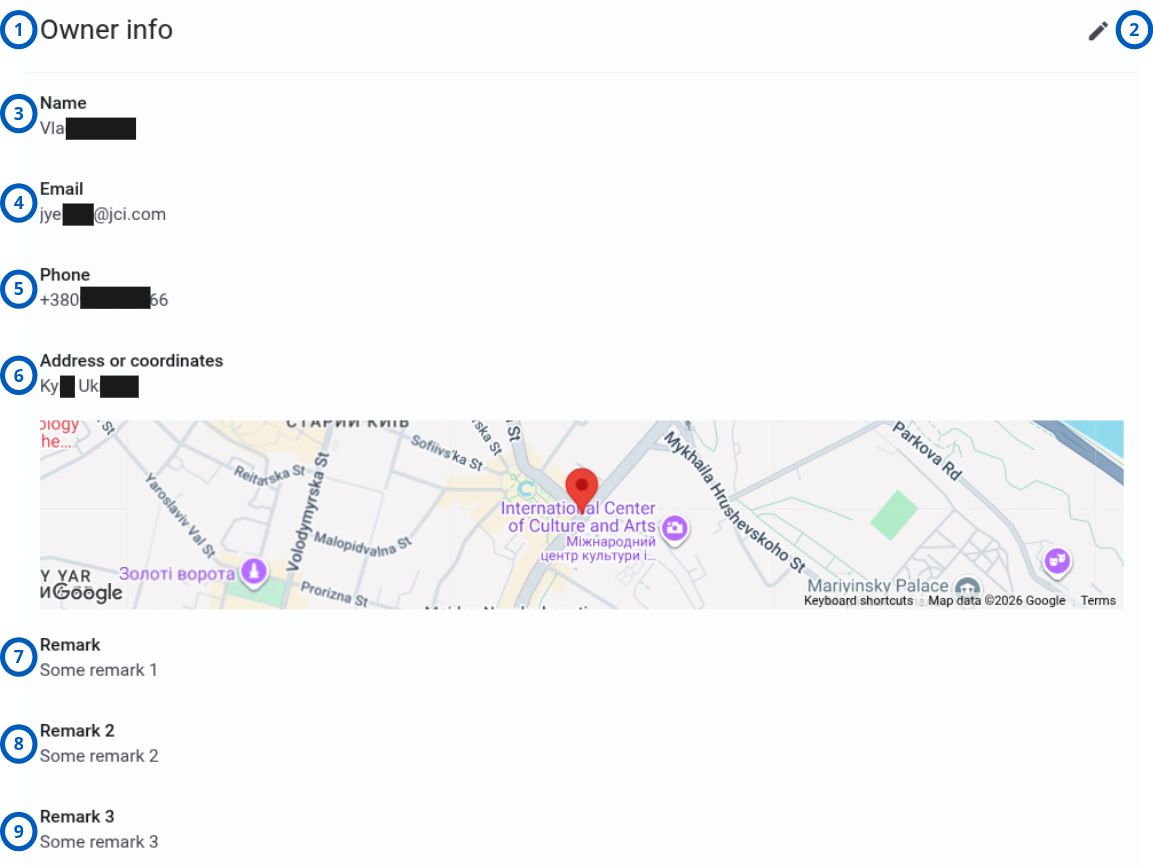
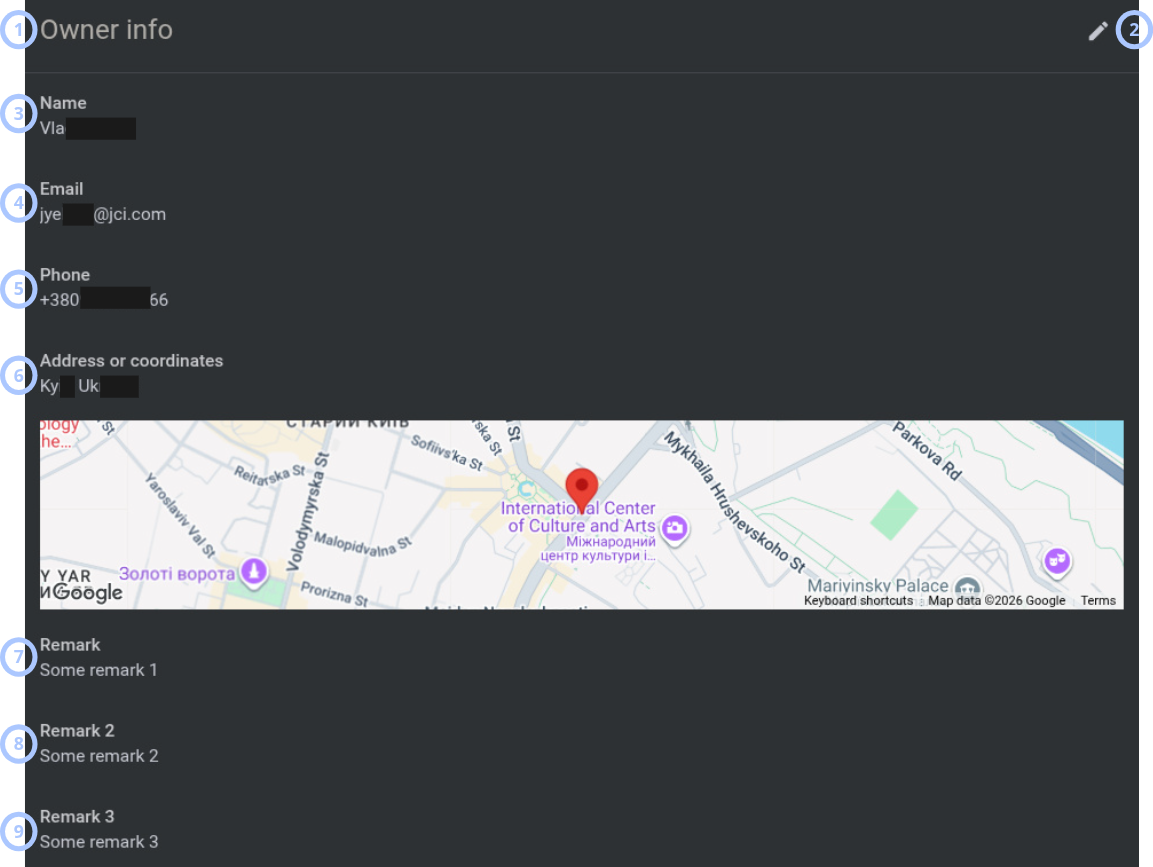
The Owner info widget shows saved owner details for the selected panel.
| Callout | UI element | Description | When to use |
|---|---|---|---|
| 1 | Widget title | Shows the widget name: Owner info. | Use to confirm that you are reviewing owner details. |
| 2 | Edit button | Opens the Edit owner info modal window. | Use to edit saved owner information. |
| 3 | Name | Displays the saved name of the panel owner. | Use to identify the panel owner. |
| 4 | Displays the saved email address of the panel owner. | Use to review owner contact information. | |
| 5 | Phone | Displays the saved phone number of the panel owner. | Use to review owner contact information. |
| 6 | Address or coordinates | Displays the saved address or geographic coordinates of the panel owner. If a Google API key is configured in server settings, a map widget is shown with the saved location pinned. | Use to review the owner location. |
| 7 | Remark 1 | Displays the saved value of Remark 1. | Use to review additional owner information. |
| 8 | Remark 2 | Displays the saved value of Remark 2. | Use to review additional owner information. |
| 9 | Remark 3 | Displays the saved value of Remark 3. | Use to review additional owner information. |
Panel info widget
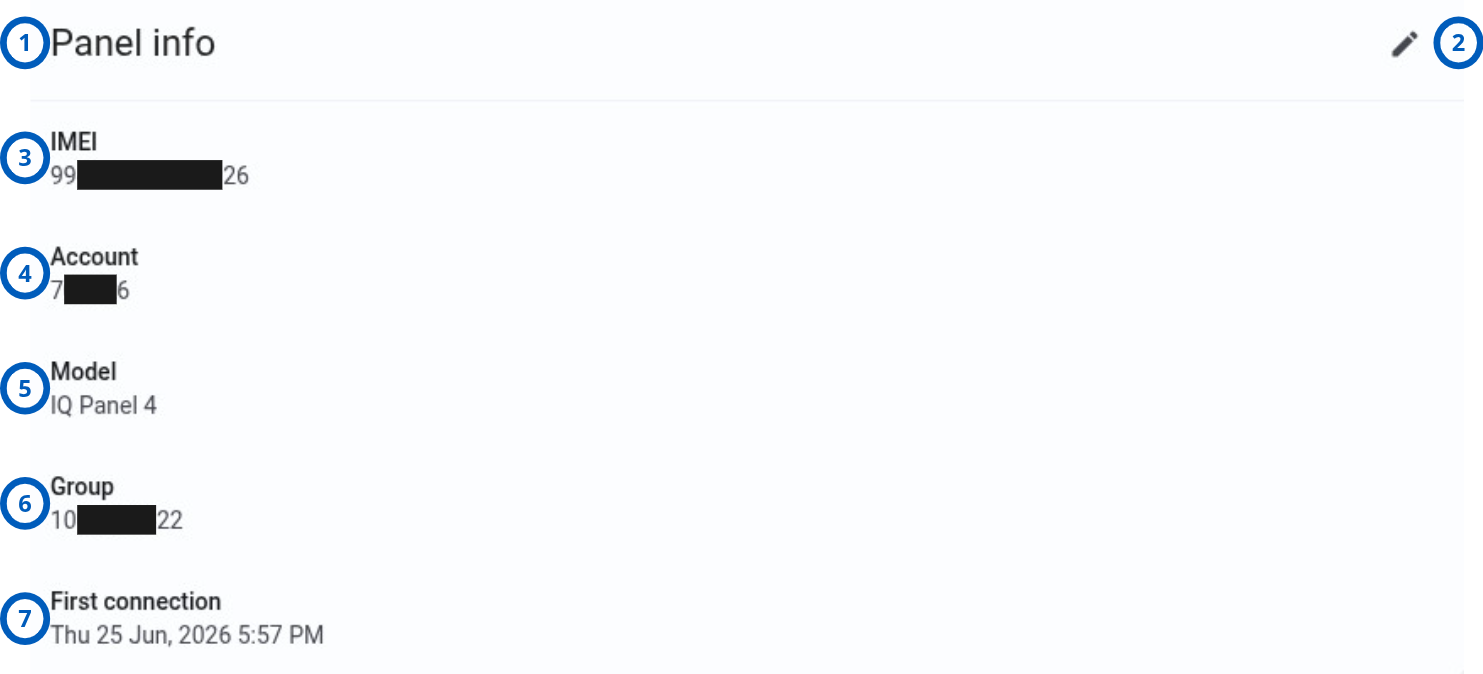
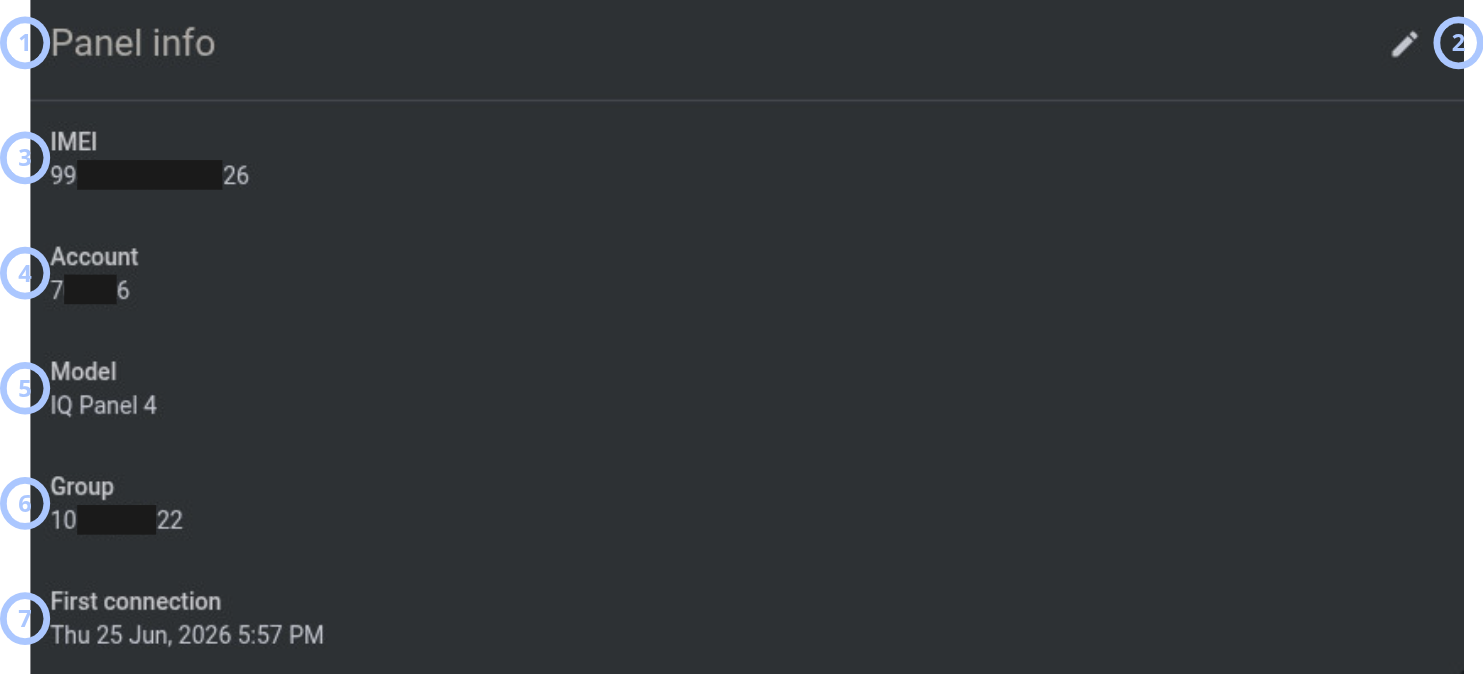
The Panel info widget shows key panel identity and assignment details.
| Callout | UI element | Description | When to use |
|---|---|---|---|
| 1 | Widget title | Shows the widget name: Panel info. | Use to confirm that you are reviewing panel details. |
| 2 | Edit button | Opens the Edit panel modal window. | Use to edit panel group assignment. |
| 3 | IMEI or Panel ID | Displays the panel IMEI for IQ panels. For Visonic, DSC, Neo 5, and DualPath panels, displays Panel ID. | Use to identify the panel. |
| 4 | Account | Displays the panel account code. | Use to review the panel account. |
| 5 | Model | Displays the panel model type. | Use to identify the panel model. |
| 6 | Group | Displays the group that the panel is assigned to. | Use to review panel group assignment. |
| 7 | First connection | Displays the timestamp of the first panel connection to the server, for example, Thu 25 Jun, 2026 5:57 PM. | Use to review when the panel first connected. |
Edit owner info modal window
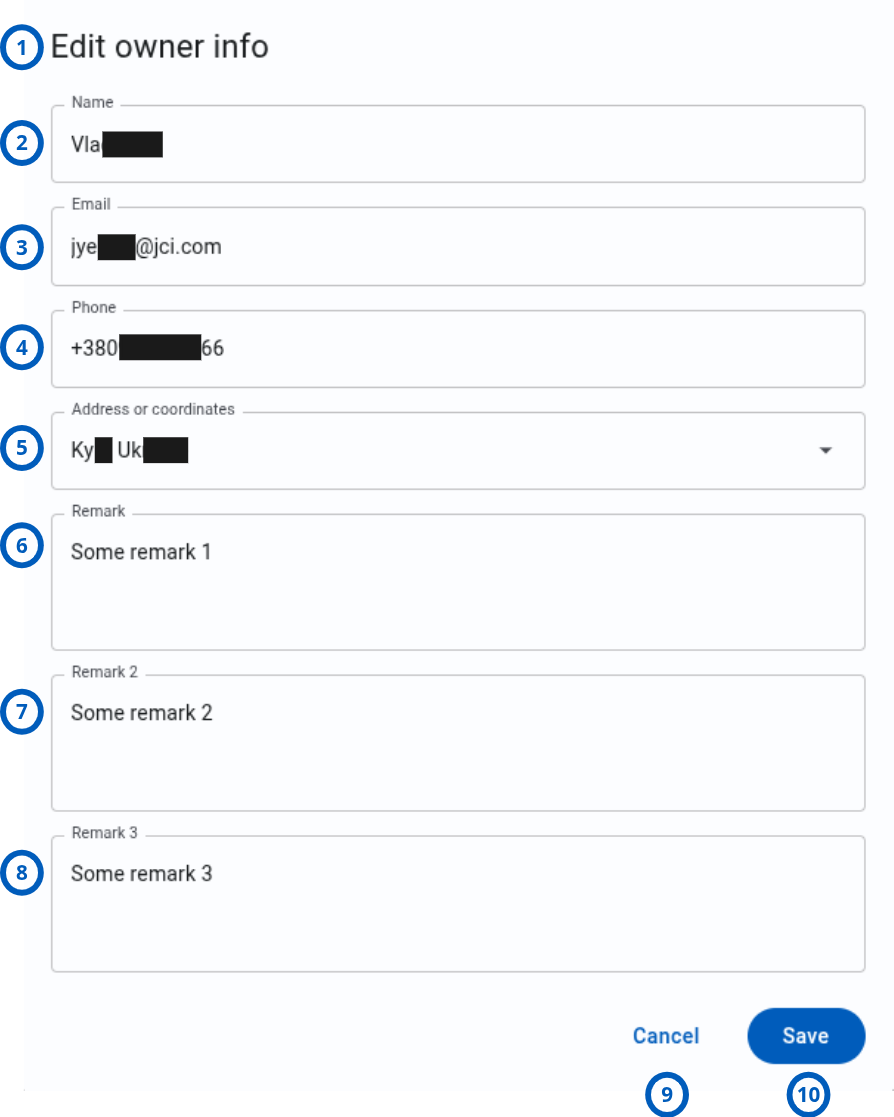
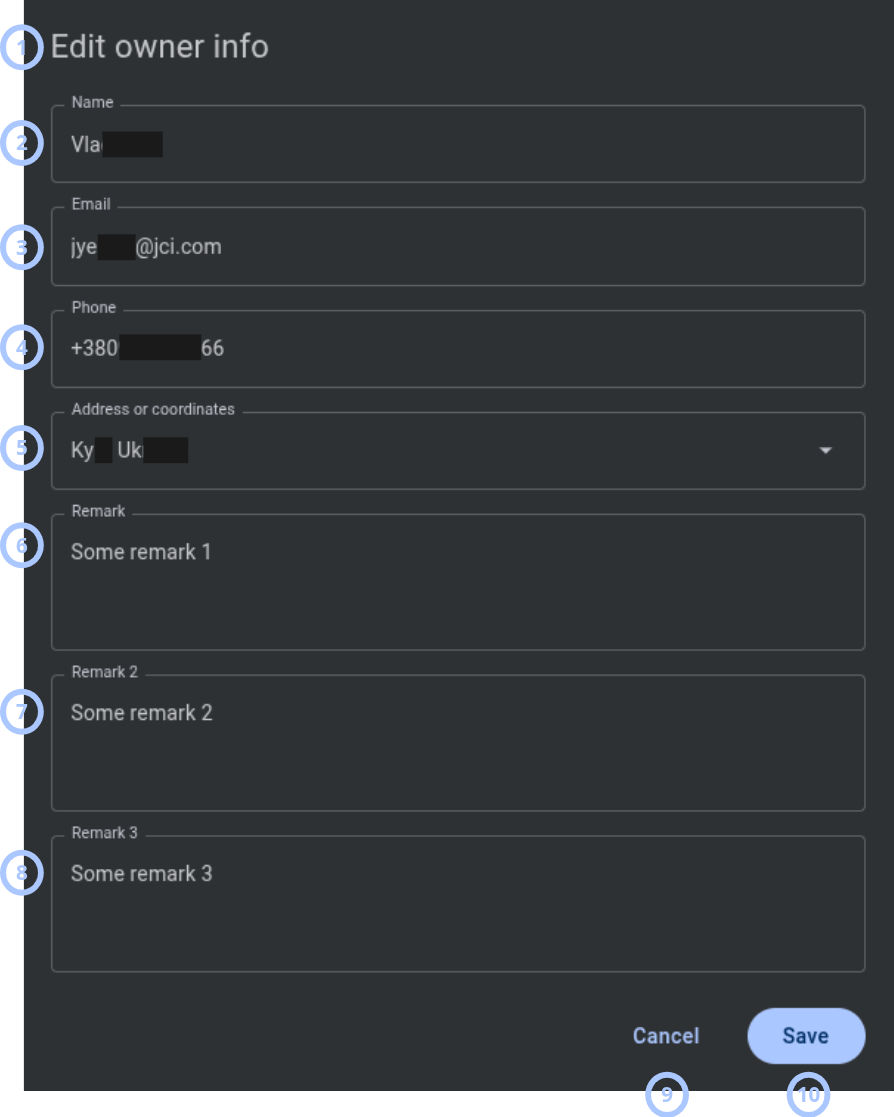
The Edit owner info modal window lets you update saved owner details.
| Callout | UI element | Description | When to use |
|---|---|---|---|
| 1 | Modal title | Shows the modal name: Edit owner info. | Use to confirm that you are editing owner details. |
| 2 | Name | Displays the current name of the panel owner. The field is editable. | Use to update the owner name. |
| 3 | Displays the current email address of the panel owner. The field is editable. | Use to update the owner email address. | |
| 4 | Phone | Displays the current phone number of the panel owner. The field is editable. | Use to update the owner phone number. |
| 5 | Address or coordinates | Displays the current address or coordinates of the panel owner. The field is editable. If a Google API key is configured, address search with autocomplete suggestions is available. | Use to update the owner location. |
| 6 | Remark 1 | Displays the current value of Remark 1. The field is editable. | Use to update additional owner information. |
| 7 | Remark 2 | Displays the current value of Remark 2. The field is editable. | Use to update additional owner information. |
| 8 | Remark 3 | Displays the current value of Remark 3. The field is editable. | Use to update additional owner information. |
| 9 | Cancel button | Closes the modal window without saving changes. | Use when you do not want to save owner changes. |
| 10 | Save button | Saves all changes and closes the modal window. | Use to save owner changes. |
Edit panel modal window
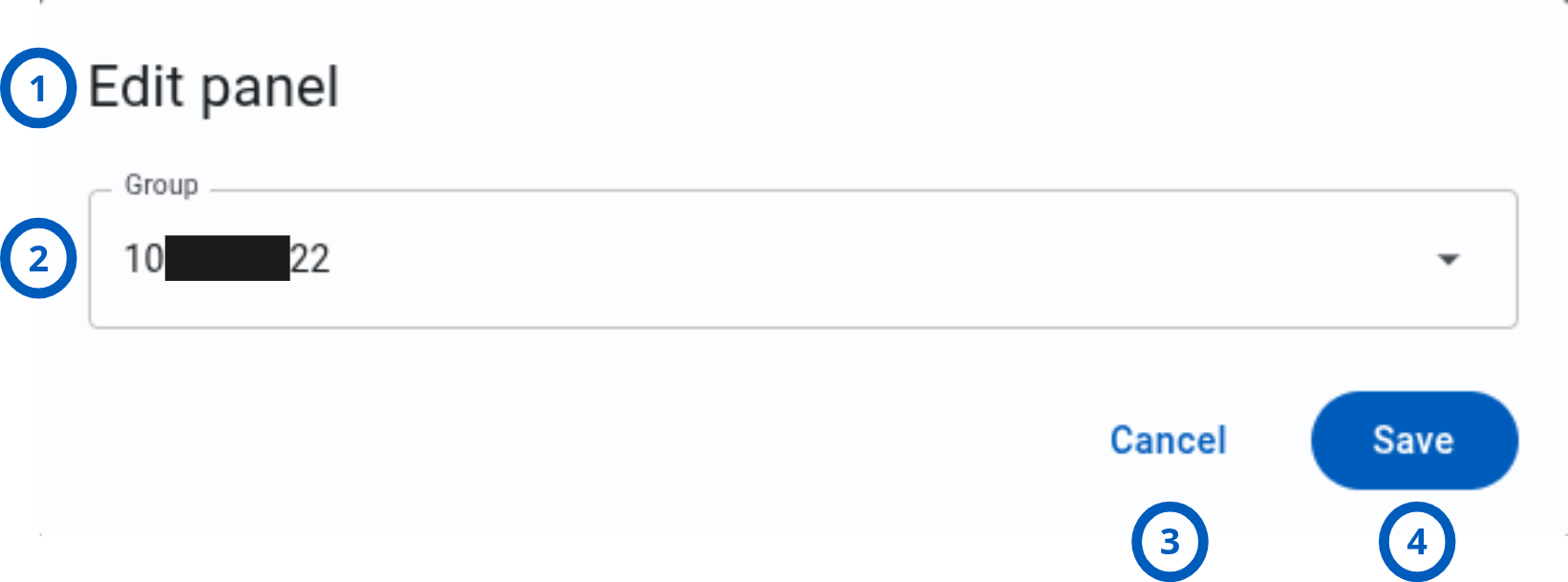
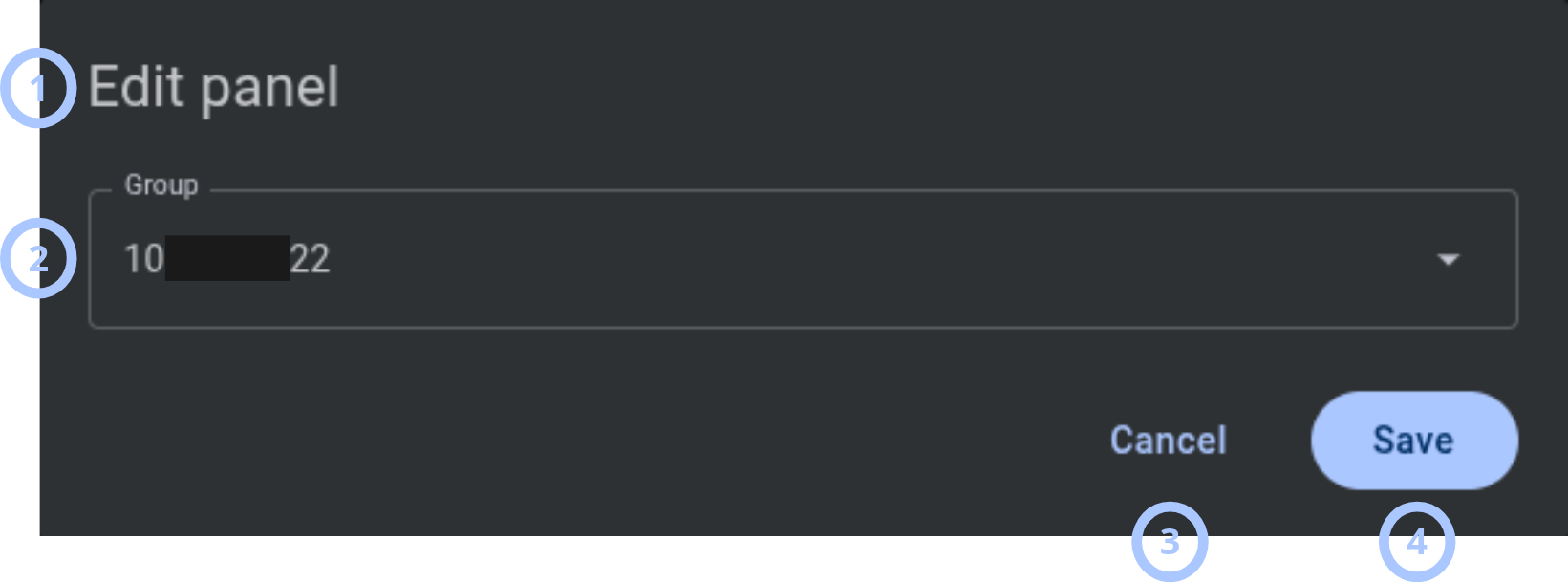
The Edit panel modal window lets you review read-only panel identifiers and update the panel group.
| Callout | UI element | Description | When to use |
|---|---|---|---|
| 1 | Modal title | Shows the modal name: Edit panel. | Use to confirm that you are editing panel details. |
| 2 | Group | Displays the current group of the panel. The field is editable by using a dropdown selector. You can select an existing group or create a new group. | Use to change the panel group assignment. |
| 3 | Cancel button | Closes the modal window without saving changes. | Use when you do not want to save panel changes. |
| 4 | Save button | Saves all changes and closes the modal window. | Use to save panel changes. |
The Sim Number field is not present in the Edit panel modal window for IQ panels. It is available only for Visonic, DSC, Neo 5, and DualPath panels.
How to use this page
Open the Info tab
Goal:
- Open panel information for a selected panel.
Steps:
- Open the Equipment page.
- Select the panel that you want to review.
- In Equipment hub, select the Info tab.
Expected result:
- The Info tab opens.
- The left sidebar shows information categories available for the selected panel.
Review owner information
Goal:
- Review saved owner details for the selected panel.
Steps:
- Open the Info tab.
- In the left sidebar, select Owner info.
- Review the owner name, email, phone, address or coordinates, and remarks.
Expected result:
- The Owner info widget shows saved owner details.
- If location services are configured and a location is saved, the location shown on a map.
Edit owner information
Goal:
- Update saved owner details for the selected panel.
Steps:
- Open the Info tab.
- Select Owner info.
- Select Edit.
- Update the required fields.
- Select Save.
Expected result:
- Owner information is saved.
- The Owner info widget shows the updated details.
Review panel information
Goal:
- Review panel identity and group assignment.
Steps:
- Open the Info tab.
- In the left sidebar, select Panel info.
- Review IMEI or Panel ID, account, group, panel type, and first connection.
Expected result:
- The Panel info widget shows key panel details.
Edit panel group assignment
Goal:
- Change the group assigned to the selected panel.
Steps:
- Open the Info tab.
- Select Panel info.
- Select Edit.
- In Group, select an existing group.
- Select Save.
Expected result:
- The panel group assignment is saved.
- The Panel info widget shows the updated group.
Review model-specific information after discovery
Goal:
- Review additional information categories that appear after discovery.
Steps:
- Open the Info tab after discovery is complete.
- Review the available categories in the left sidebar.
- Select a category.
- Review the widget content.
Expected result:
- The selected category widget shows discovered information for the panel model.
Tips
- Use Owner info to review contact and location information for the panel owner.
- Use Panel info to confirm panel identity, account code, group, panel type, and first connection date.
- Complete discovery to see panel-model-specific categories.
- Check installed IQ daughter cards if Z-Wave, PowerG, or ZigBee categories are not shown.
- Configure the Google API key in server settings if you need address autocomplete and map display.
Troubleshooting
Expected category is not visible
Possible causes
- Discovery has not completed successfully.
- The selected panel model does not support the category.
- The required daughter card or module is not installed.
- Your role does not allow viewing the category.
What to do
- Confirm that discovery completed successfully.
- Confirm the selected panel model.
- For IQ panels, confirm whether the required daughter card is installed.
- Confirm that your role allows viewing the selected panel information.
Owner location map is not shown
Possible causes
- Address or coordinates are not saved.
- Google API key is not configured in server settings.
What to do
- Confirm that an address or coordinates are saved for the owner.
- Check Settings > Resolve > Weather/Location/Timezone Sync Settings.
- Confirm that the Google API key is configured.
- Save the owner location again if needed.
Address autocomplete is not available
Possible causes
- Google API key is not configured.
What to do
- Check Settings > Resolve > Weather/Location/Timezone Sync Settings.
- Confirm that the Google API key is configured.
- Enter the address or coordinates manually if autocomplete is unavailable.
Save button does not update owner information
Possible causes
- Required data is invalid.
- Your role does not allow editing owner information.
What to do
- Review the edited fields.
- Correct invalid values.
- Confirm that your role allows editing owner information.
- Try saving again.
Group cannot be changed
Possible causes
- Your role does not allow editing panel information.
- Your role does not allow managing groups.
- The selected group is not available to your role.
- The server could not save the group assignment.
What to do
- Confirm that your role allows editing panel information.
- Confirm that your role allows access to the target group.
- Select another available group if needed.
- Try saving again.
Sim Number field is not shown
Possible causes
- The selected panel is an IQ panel.
- The Sim Number field is available only for Visonic, DSC, Neo 5, and DualPath panels.
What to do
- Confirm the selected panel type.
- Use Sim Number only for supported panel types.