Installers
Overview
The Installers tab in Equipment hub shows installers that have access to the selected panel.
The tab name and content depend on whether the panel belongs to a dealer group:
- Legacy installers tab — shown when the panel is not in a dealer group. Displays legacy installers assigned to the panel.
- Installers tab — shown when the panel is in a dealer group. Displays only dealer installers for that group. Legacy installers are not shown.
If a panel is moved from a non-dealer group to a dealer group, all legacy installers are automatically unassigned from that panel.
Use this tab to:
- Review installers assigned to the selected panel.
- Change the installer code for the selected panel.
- Assign a legacy installer to a panel that is not in a dealer group.
- Unassign a legacy installer from the selected panel.
- Open installer details and actions.
- Review legacy installer and dealer installer status.
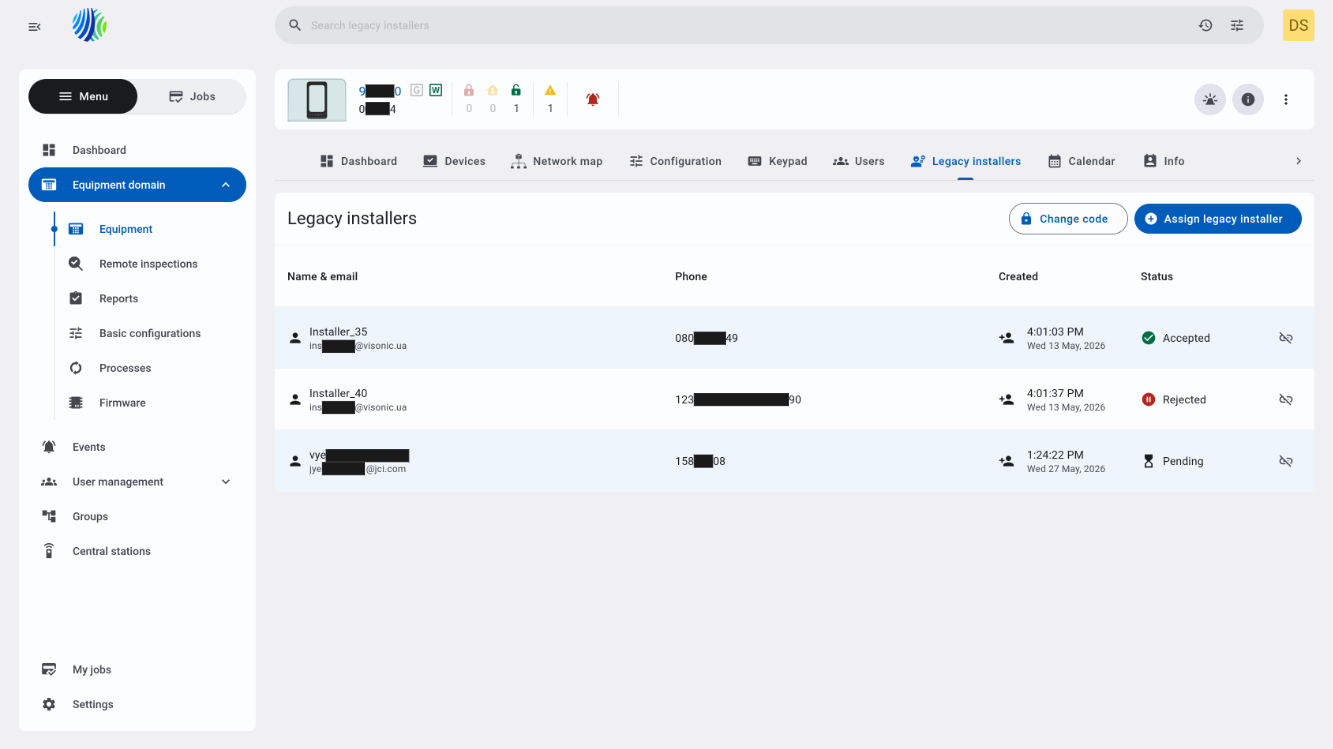
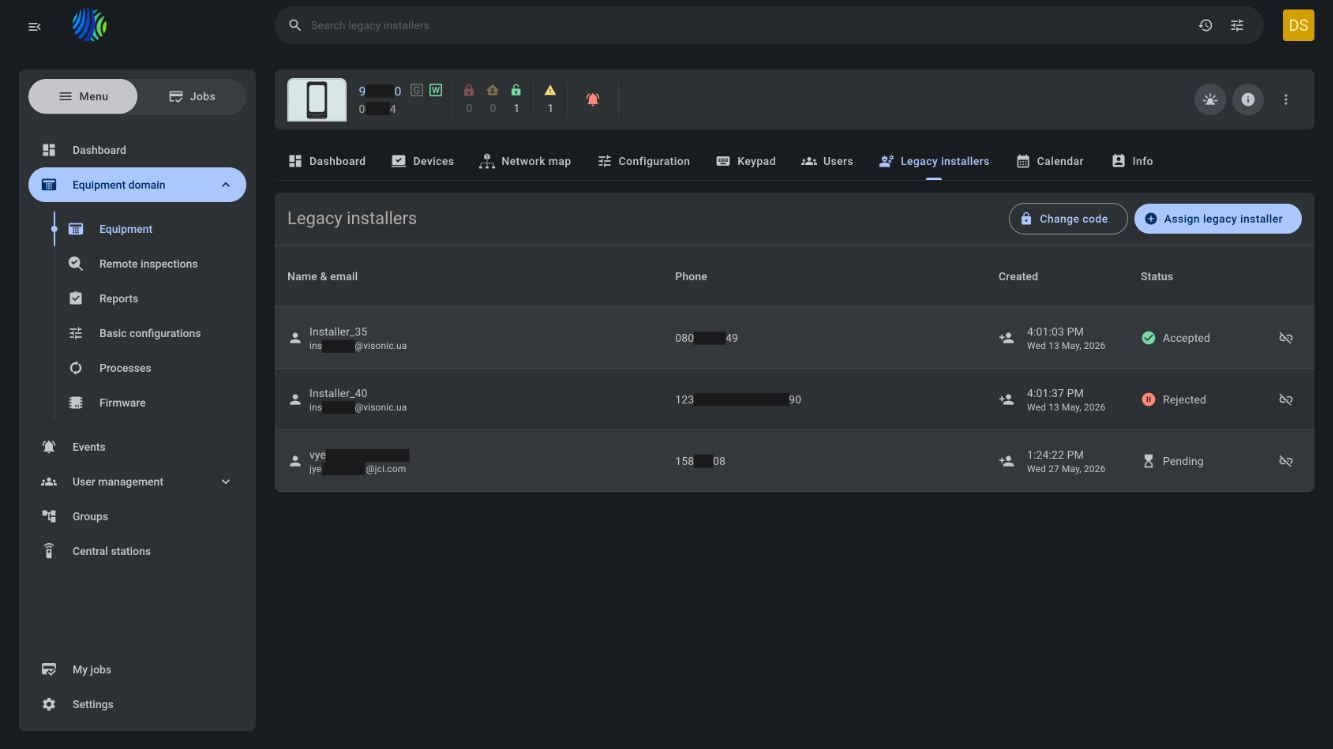
To open the Installers tab, select a panel on the Equipment page, open Equipment hub, and then select the Installers tab.
Installer types
PowerManage uses two types of installers:
-
Legacy installers — Installers with full server access. They are created and managed from the Legacy installers page under User Management. They can be assigned to panels that are not in a dealer group. Legacy installers can register, set up a password, and access panels through the installer application after they are accepted.
-
Dealer installers — Employees created with the dealer installer role. They are managed from the Staff page. Dealer installers are associated with a dealer group and are automatically available for all panels within that group. They do not need to be assigned manually.
The Assign installer button supports legacy installers only and is shown only for panels that are not in a dealer group.
Before you begin
Required permissions
Required permissions depend on the action that you want to complete.
- You must have permission to open Equipment hub for the selected panel.
- You must have permission to view installers assigned to the selected panel.
- You must have permission to change panel installer codes.
- You must have permission to assign or unassign legacy installers if these actions are restricted by role.
- You must have permission to manage installers if you need to reset a password or remove a legacy installer.
Access to the Equipment hub page and installer management actions is controlled by the role permission group named Unit.
Preconditions
- Open Equipment hub by selecting a panel from the Equipment page.
- The selected panel must exist on the PowerManage server.
- Legacy installers must exist before they can be assigned to a panel.
- Dealer installers are shown automatically when the panel belongs to a dealer group and the employee has the dealer installer role for that group.
Dependencies
- The tab name and content depend on whether the selected panel belongs to a dealer group.
- The installer list depends on the selected panel, panel group, assigned legacy installers, and dealer installers available for the panel group.
- The Assign installer button depends on whether the selected panel is in a dealer group.
- Installer status depends on installer registration, password setup, rejection state, and access to the installer application.
- Installer details and actions depend on installer type and role permissions.
Important limitations
- The tab is named Legacy installers for panels that are not in a dealer group, and Installers for panels that are in a dealer group.
- When a panel is in a dealer group, only dealer installers are displayed. Legacy installers are not shown.
- If a panel is moved from a non-dealer group to a dealer group, all legacy installers are automatically unassigned from that panel.
- The Assign installer button is shown only for panels that are not in a dealer group.
- Dealer installers cannot be assigned by using the Assign installer button.
- The Convert to staff member button is located on the general Legacy installers page, not on the panel Installers tab.
Dealer installers are employees with the dealer installer role. This role is assigned to the dealer group where the panel is located. Dealer installers for that group are displayed in the Installers grid automatically.
Page layout
Page header


The page header shows the tab name and available panel-level actions.
| Callout | UI element | Description | When to use |
|---|---|---|---|
| 1 | Page name | Shows the page name: Installers or Legacy installers. | Use to confirm that you are on the Installers tab. |
| 2 | Change code button | Opens the Change code modal window. | Use to change a panel installer code. |
| 3 | Assign legacy installer button | Opens the Assign legacy installer to panel modal window. The button is shown only for panels that are not in a dealer group. | Use to assign a legacy installer to the panel. |
Installers grid
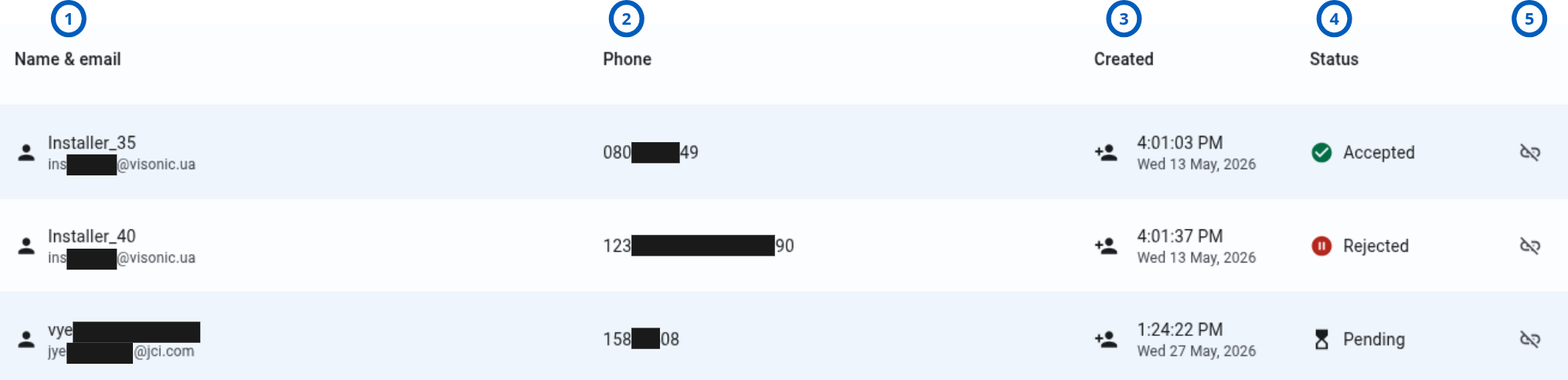
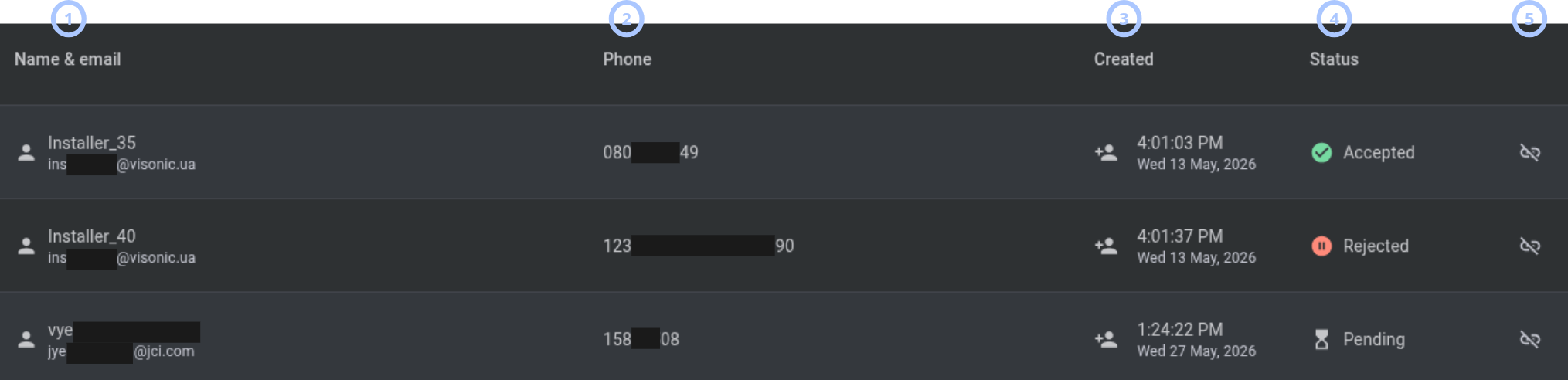
The Installers grid shows installers that have access to the selected panel.
| Callout | UI element | Description | When to use |
|---|---|---|---|
| 1 | Name and email | Shows the installer name and email address. | Use to identify the installer. |
| 2 | Phone | Shows the installer phone number. | Use to review installer contact information. |
| 3 | Created | Shows the installer created date, for example, 4:24:55 PM Wed 13 May, 2026. | Use to review when the installer was created. |
| 4 | Status | Shows the installer status. Legacy installer statuses are Accepted, Rejected, and Pending. Dealer installer statuses are Accepted and Rejected. | Use to understand whether the installer has access to the installer application. |
| 5 | Unassign installer icon button | Opens the Unassign installer modal window. The button is shown only for legacy installers. | Use to unlink a legacy installer from the selected panel. |
Legacy installers are installers that can be created from the Legacy installers page under User Management. Dealer installers are employees created with the dealer installer role. More information about legacy installers, dealer installers, and the Convert to staff member functionality is described on the Legacy installers page.
Assign legacy installer to panel modal window
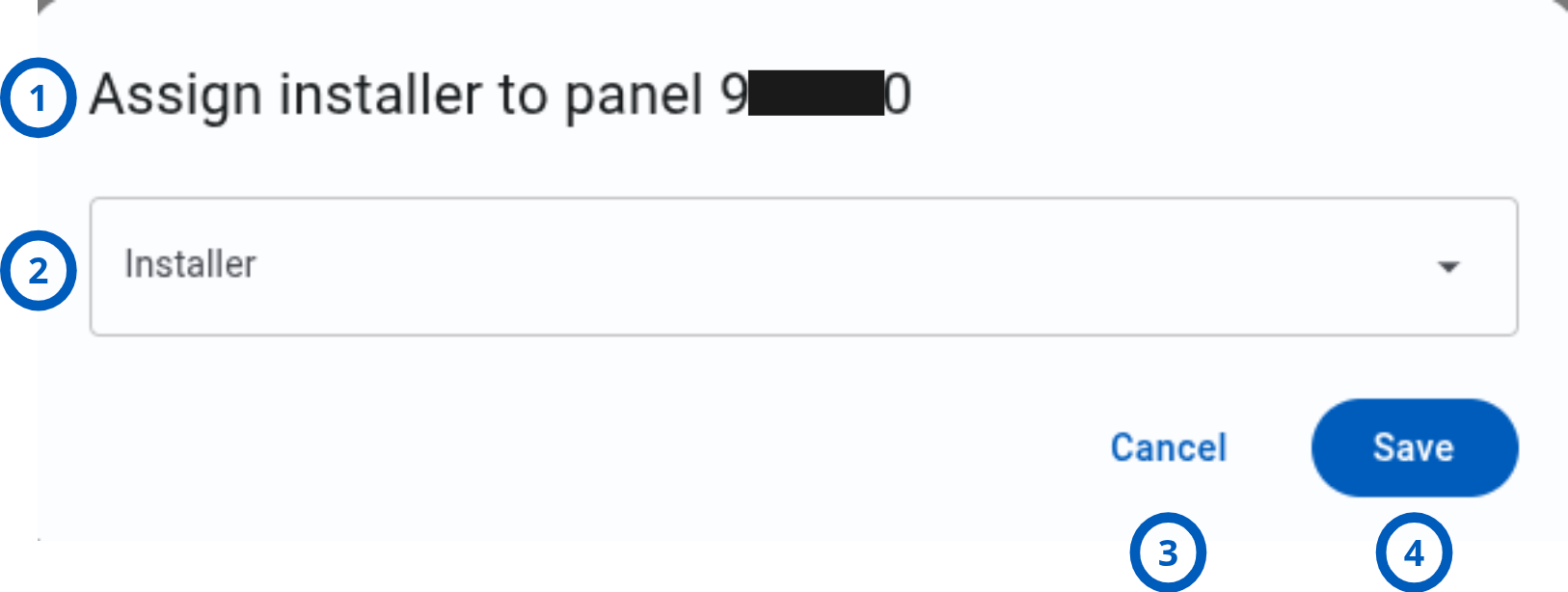
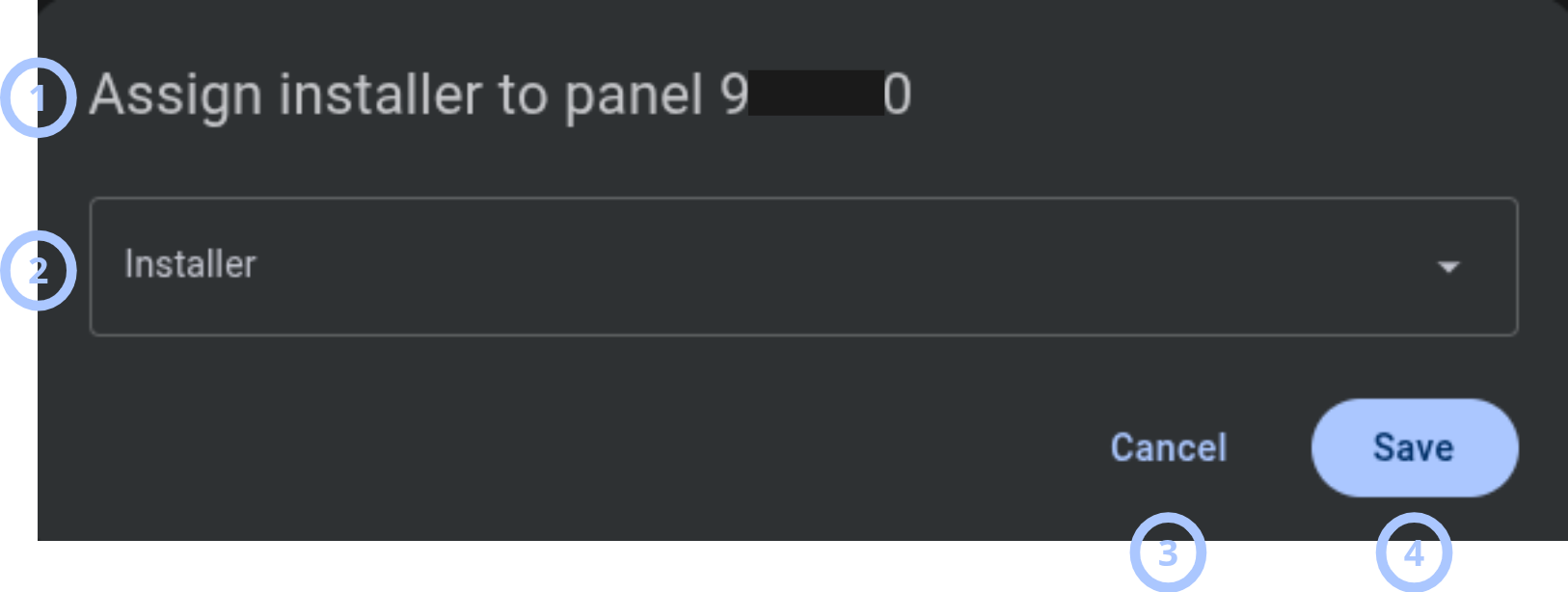
The Assign legacy installer to panel modal window lets you assign a legacy installer to the selected panel.
| Callout | UI element | Description | When to use |
|---|---|---|---|
| 1 | Modal title | Shows the modal name: Assign legacy installer to panel. | Use to confirm that you are assigning an installer to the correct panel. |
| 2 | Legacy installer dropdown | Shows legacy installers that can be assigned to the panel. | Use to select the legacy installer that must get access to the panel. |
| 3 | Cancel button | Closes the modal window without saving changes. | Use when you do not want to assign an installer. |
| 4 | Save button | Assigns the selected legacy installer to the panel and gives access to the panel through the installer application. | Use to save the installer assignment. |
Change code modal window
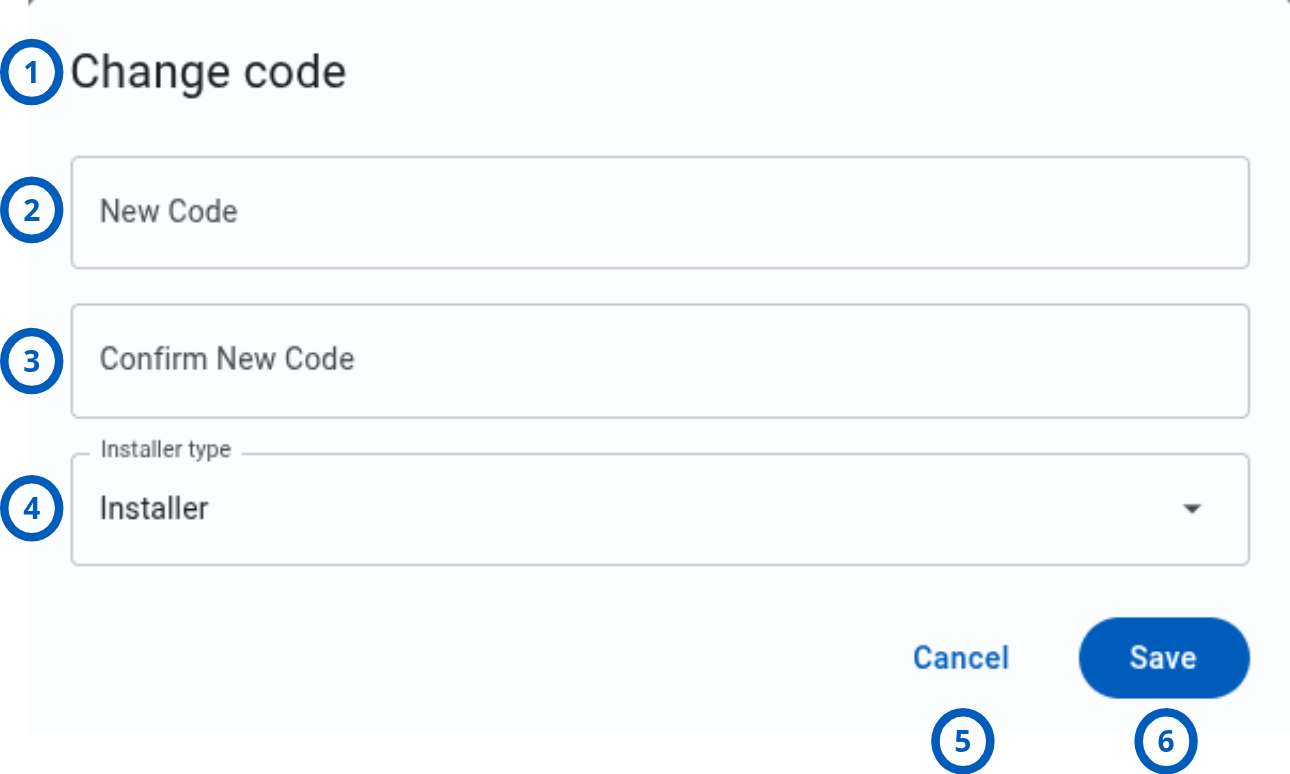
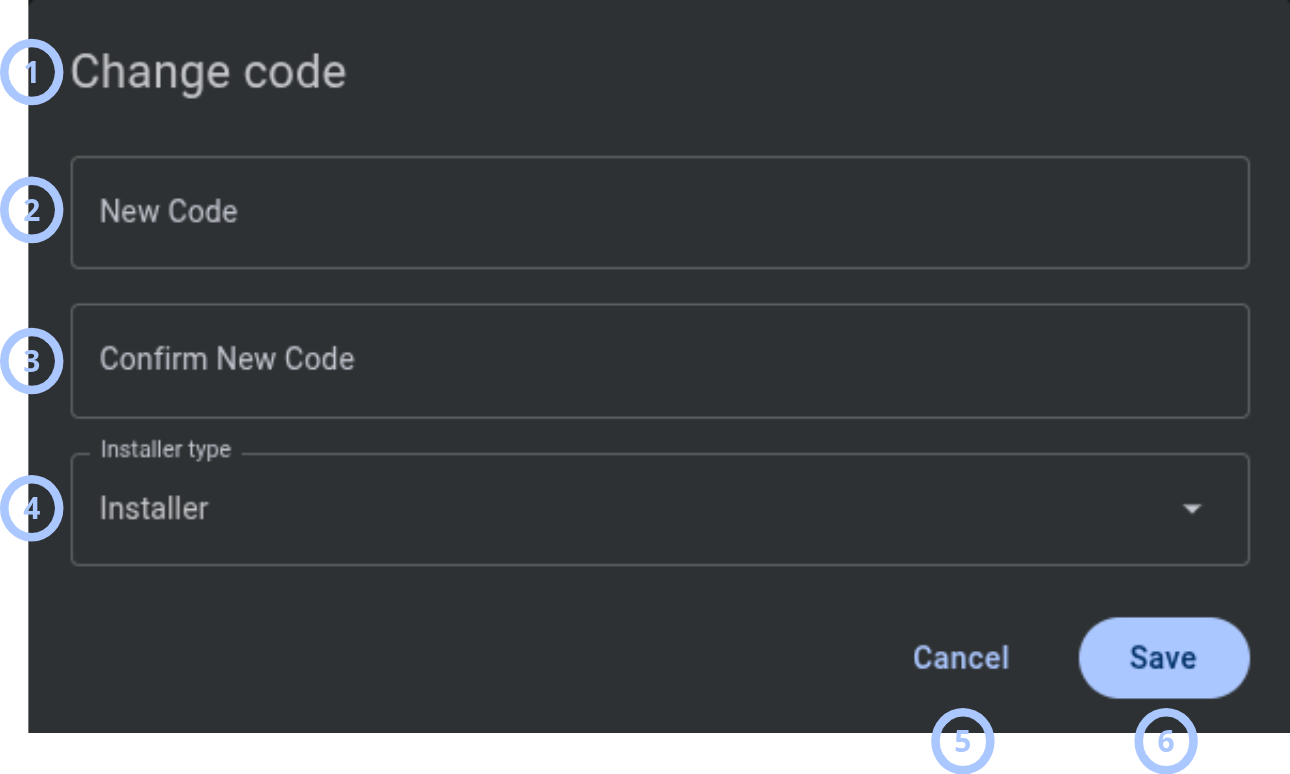
The Change code modal window lets you change a panel installer code.
| Callout | UI element | Description | When to use |
|---|---|---|---|
| 1 | Modal title | Shows the modal name: Change code. | Use to confirm that you are changing the installer code. |
| 2 | New Code field | Accepts the new panel installer code. The code can be 4, 6, or 8 digits depending on the panel configuration. | Use to enter the new code. |
| 3 | Confirm New Code field | Accepts the new panel installer code again. The code can be 4, 6, or 8 digits depending on the panel configuration. | Use to confirm the new code. |
| 4 | Installer code type dropdown | Shows installer code types that are available for the selected panel. For Visonic panels, the list include Installer code and Master Installer code. For IQ panels, the list include Installer code and Dealer code. | Use to select which code type to change. |
| 5 | Cancel button | Closes the modal window without saving changes. | Use when you do not want to change the code. |
| 6 | Save button | Changes the selected installer code type for the panel when the entered values are valid and match. | Use to save the new installer code. |
Unassign legacy installer modal window
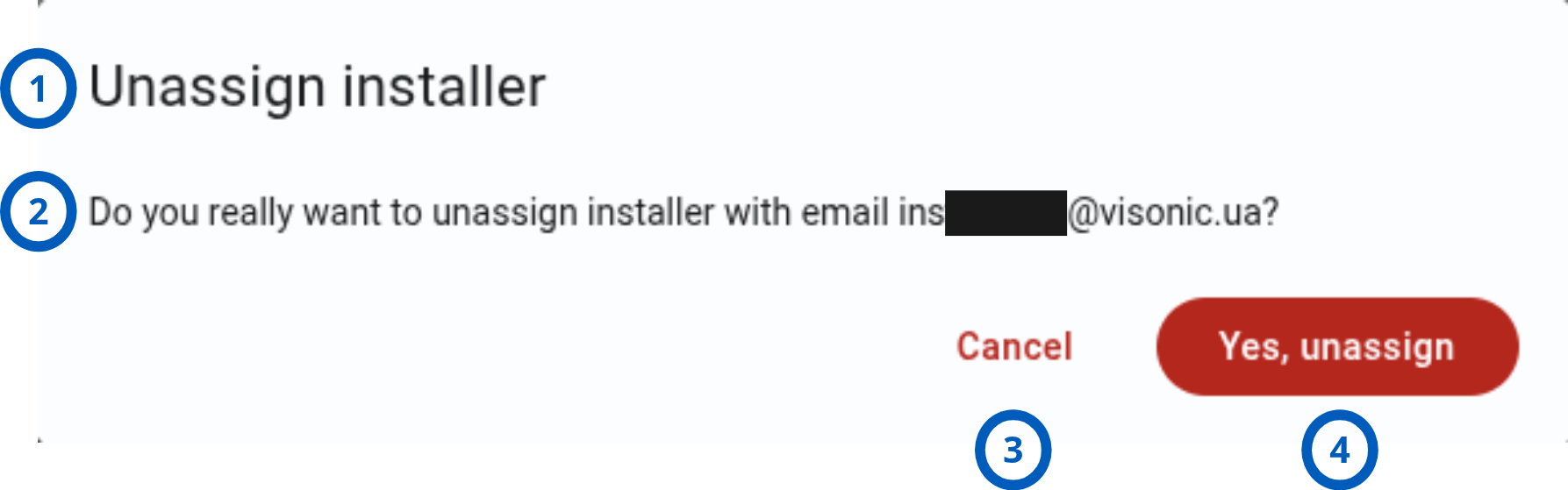
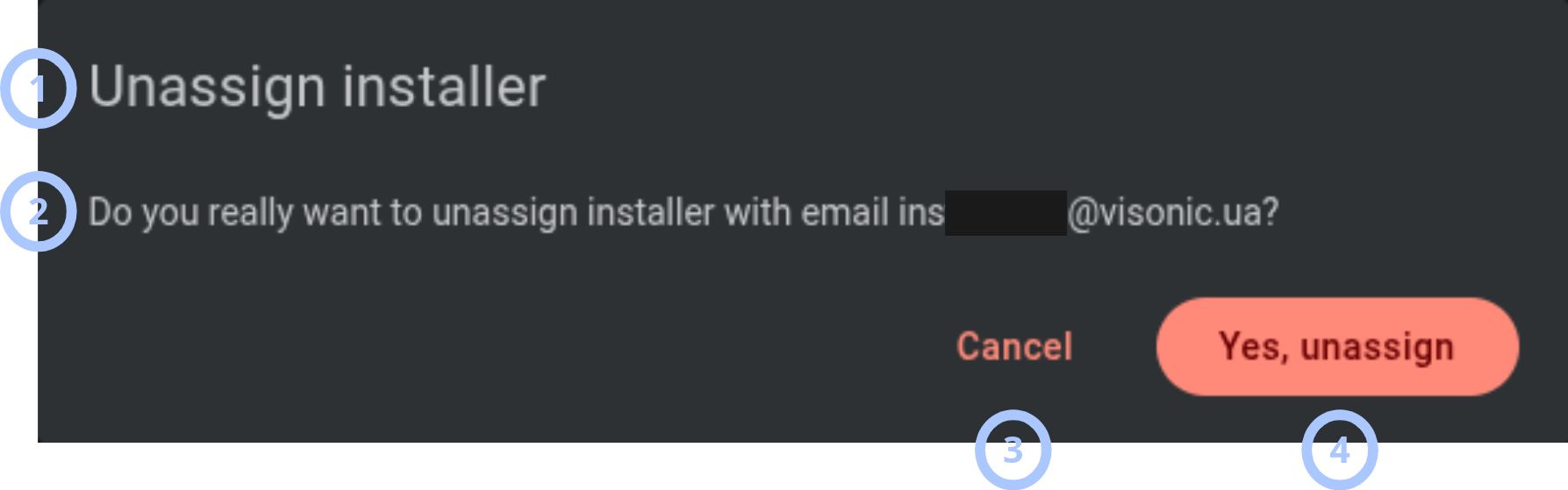
The Unassign legacy installer modal window confirms that you want to unlink a legacy installer from the selected panel.
| Callout | UI element | Description | When to use |
|---|---|---|---|
| 1 | Modal title | Shows the modal name: Unassign legacy installer. | Use to confirm that you are in the unassign flow. |
| 2 | Warning message | Shows the message: Do you really want to unassign legacy installer with email -? | Use to confirm which installer will be unassigned. |
| 3 | Cancel button | Closes the modal window without unassigning the installer. | Use when you do not want to continue. |
| 4 | Yes, unassign button | Unlinks the legacy installer from the panel. The legacy installer no longer has access to the panel through the installer application. | Use to confirm the unassign action. |
Installer details and actions modal
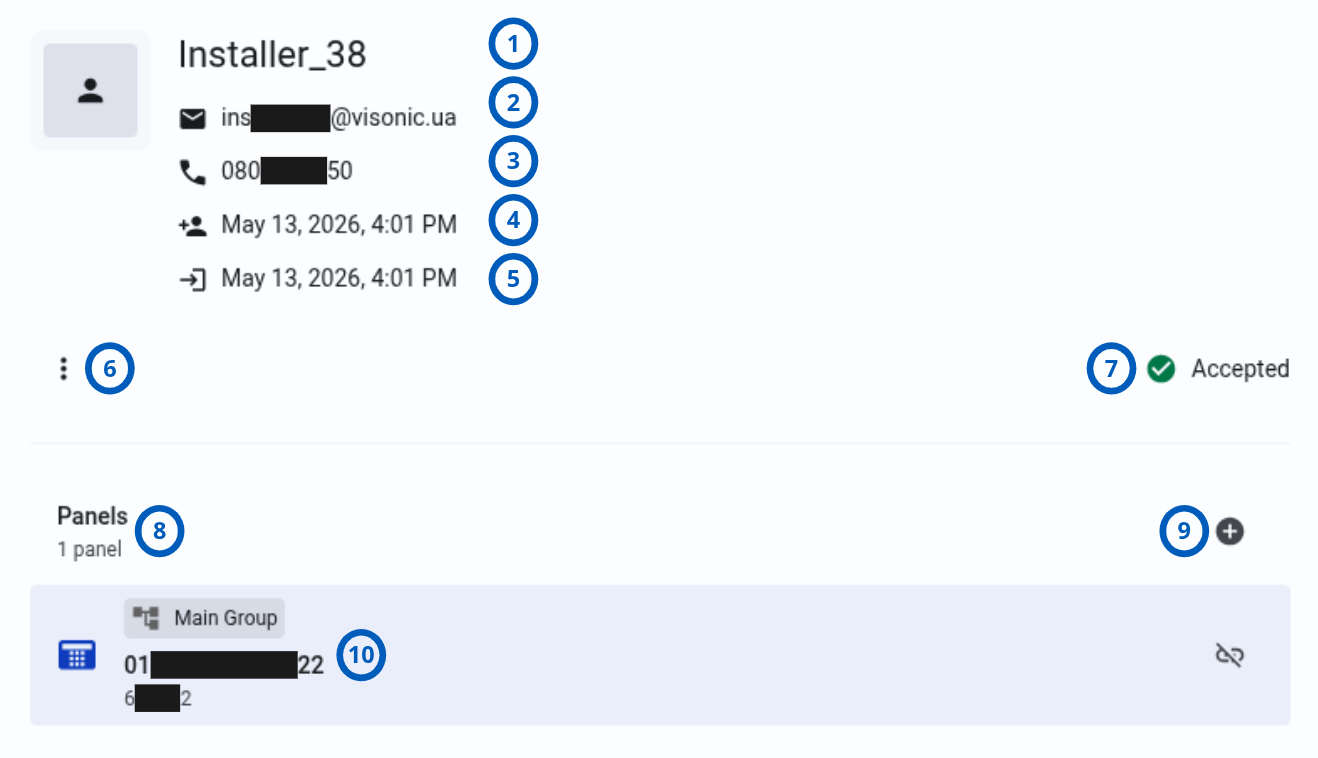
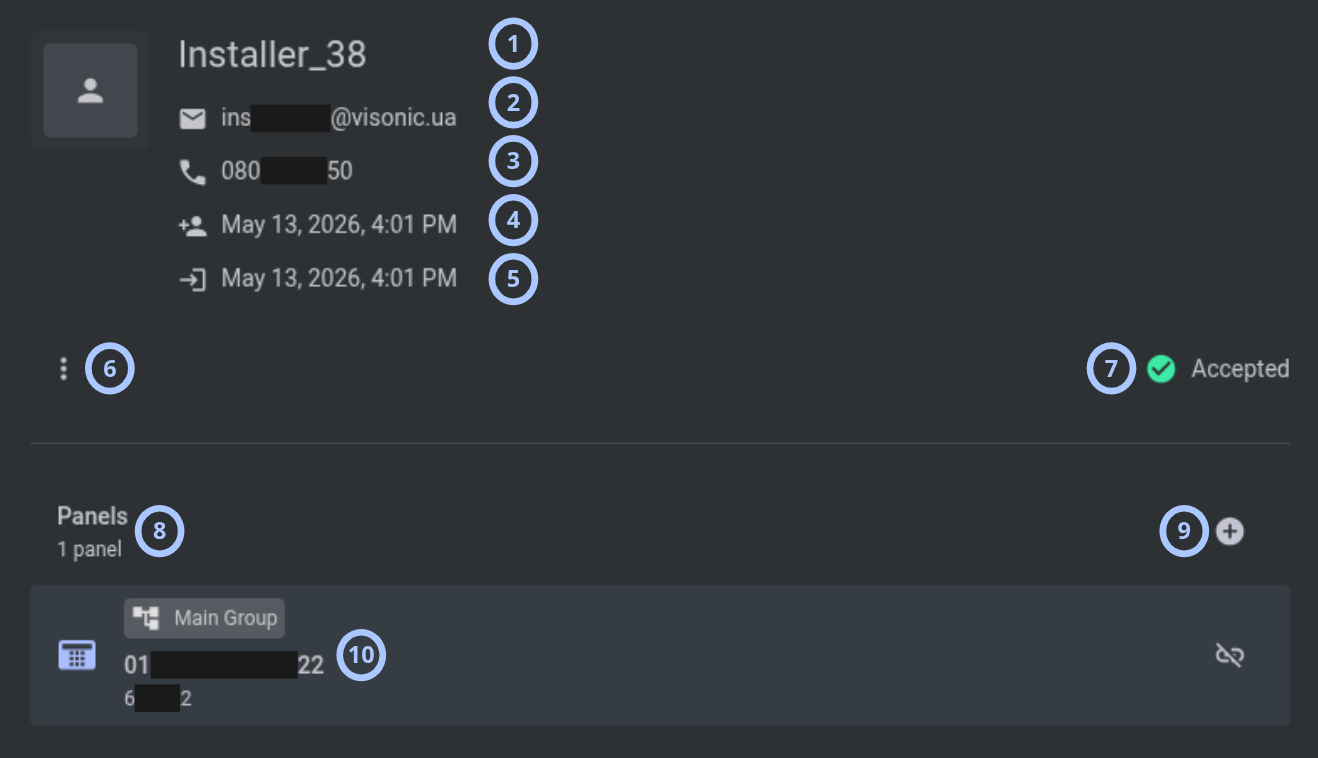
When you select an installer in the Installers grid, the Installer details and actions modal opens on the right side.
| Callout | UI element | Description | When to use |
|---|---|---|---|
| 1 | Installer name | Shows the legacy installer name or dealer installer name. | Use to identify the selected installer. |
| 2 | Shows the installer email address. | Use to review installer contact and sign-in information. | |
| 3 | Phone | Shows the installer phone number. | Use to review installer contact information. |
| 4 | Created | Shows the installer created date, for example, 4:24:55 PM Wed 13 May, 2026. | Use to review when the installer was created. |
| 5 | Last login | Shows the installer last login date to the installer application, for example, 4:24:55 PM Wed 13 May, 2026. | Use to review recent installer application activity. |
| 6 | Three dots icon | For legacy installers, shows actions such as Reset password and Remove. | Use to manage a legacy installer. |
| 7 | Status | Shows the installer status. | Use to review whether the installer has access to the installer application. |
| 8 | Panels | For legacy installers, shows the count of panels assigned to the installer. | Use to understand panel assignment scope. |
| 9 | Add panel icon | For legacy installers, lets you assign more panels to this installer. | Use to add panel assignments. |
| 10 | Assigned panel card | For legacy installers, shows assigned panel IMEI, account code, panel group, and the Unassign panel icon. When a panel is unassigned from the installer. | Use to review or remove assigned panel access. |
Dealer installer details show name, email, phone, created date, last login, and status. Legacy-only actions and panel assignment controls are not available for dealer installers in this modal.
How to use this page
Open the Installers tab
Goal:
- Open installers for a selected panel.
Steps:
- Open the Equipment page.
- Select the panel that you want to review.
- In Equipment hub, select the Installers tab.
Expected result:
- The Installers tab opens.
- The grid shows installers that have access to the selected panel.
Assign a legacy installer to a panel
Goal:
- Give a legacy installer access to a panel that is not in a dealer group.
Steps:
- Open the Installers tab.
- Select Assign legacy installer.
- In the Legacy installer dropdown, select a legacy installer.
- Select Save.
Expected result:
- The legacy installer is assigned to the panel.
- The installer gets access to the panel through the installer application.
Change a panel installer code
Goal:
- Change an installer code for the selected panel.
Steps:
- Open the Installers tab.
- Select Change code.
- Select an installer code type.
- Enter the new code in New Code.
- Enter the same code in Confirm New Code.
- Select Save.
Expected result:
- The selected installer code type is changed for the panel.
Review installer status
Goal:
- Check whether an installer has access to the installer application.
Steps:
- Open the Installers tab.
- In the Installers grid, review the Status column.
- Compare the status with the installer type.
Expected result:
- You can identify whether the installer is accepted, rejected, or pending.
Open installer details and actions
Goal:
- Review installer details or available actions.
Steps:
- Open the Installers tab.
- Select an installer in the grid.
- Review the right-side Installer details and actions modal.
- Use available actions if needed.
Expected result:
- The installer details and actions modal opens.
- Available details and actions are shown according to installer type and permissions.
Unassign a legacy installer from a panel
Goal:
- Remove a legacy installer assignment from the selected panel.
Steps:
- Open the Installers tab.
- In the grid, select the Unassign legacy installer icon button.
- Review the warning message.
- Select Yes, unassign.
Expected result:
- The legacy installer is unlinked from the panel.
- The installer no longer has access to the panel through the installer application.
Reset a legacy installer password
Goal:
- Reset a legacy installer password and send an OTP.
Steps:
- Open the Installers tab.
- Select a legacy installer in the grid.
- In the right-side modal, open the three dots menu.
- Select Reset password.
Expected result:
- The installer password is reset.
- An OTP is sent.
Remove a legacy installer
Goal:
- Remove a legacy installer completely.
Steps:
- Open the Installers tab.
- Select a legacy installer in the grid.
- In the right-side modal, open the three dots menu.
- Select Remove.
Expected result:
- The legacy installer is removed completely.
Field and option reference
Installer types
| Name | Description | Available for | Behavior | Restrictions | Result |
|---|---|---|---|---|---|
| Legacy installer | Installer that can be created from the Legacy installers page under User Management. | Panels that allow legacy installer assignment. | Can be assigned to or unassigned from panels. Can have actions such as Reset password and Remove. | Cannot be assigned with the Assign installer button when the panel is in a dealer group. | Gets access to the panel through the installer application when assigned. |
| Dealer installer | Employee created with the dealer installer role. | Panels in dealer groups where the employee has the dealer installer role. | Displayed automatically in the Installers grid for the dealer group. | Cannot be assigned by using the Assign installer button. | Gets access according to dealer installer role and group assignment. |
Installer statuses
| Installer type | Status | Description | Access result |
|---|---|---|---|
| Legacy installer | Accepted | The installer registered, set up a password, and has access to the installer application. | Has installer application access. |
| Legacy installer | Rejected | The installer registered, set up a password, then was rejected. | Does not have installer application access. |
| Legacy installer | Pending | The installer registered but has not set up a password. | Does not have installer application access. |
| Dealer installer | Accepted | The employee with the dealer installer role registered and has access to the installer application. | Has installer application access. |
| Dealer installer | Rejected | The employee with the dealer installer role registered, then was rejected. | Does not have installer application access. |
Tips
- Use Change code when you need to update a panel installer code.
- Use Assign legacy installer only for legacy installers and only when the panel is not in a dealer group.
- Select an installer row to open detailed information and available actions.
- Review the Status column before troubleshooting installer application access.
- Use the Legacy installers page under User Management for Convert to staff member functionality.
- If you expect legacy installers to appear but the tab shows only dealer installers, confirm whether the panel was recently moved to a dealer group. Moving a panel to a dealer group automatically unassigns all legacy installers.
Troubleshooting
Assign installer button is not visible
Possible causes
- The panel is in a dealer group.
- Your role does not allow assigning installers.
What to do
- Confirm whether the selected panel is in a dealer group.
- Confirm that your role allows installer assignment.
- Refresh the Installers tab.
Legacy installer is not available in the Installer dropdown
Possible causes
- No legacy installers exist.
- Your role does not allow viewing or assigning that installer.
What to do
- Confirm that the legacy installer exists on the Legacy installers page under User Management.
- Confirm that your role allows assigning the installer.
Dealer installer cannot be assigned manually
Possible causes
- Dealer installers are employees with the dealer installer role.
- Dealer installers are displayed automatically for the dealer group.
- The Assign installer button supports legacy installers only.
What to do
- Confirm that the employee has the dealer installer role.
- Confirm that the role is assigned to the panel dealer group.
- Review the Installers grid again.
Legacy installers are no longer shown for a panel
Possible causes
- The panel was moved from a non-dealer group to a dealer group.
- When a panel is in a dealer group, only dealer installers are displayed.
- Moving a panel to a dealer group automatically unassigns all legacy installers.
What to do
- Confirm whether the panel is currently in a dealer group.
- If the panel was moved to a dealer group and legacy installer access is still required, review whether the panel group assignment should be changed.
- If the panel must remain in the dealer group, use dealer installer accounts instead.
Change code cannot be saved
Possible causes
- The new code and confirmation code do not match.
- The code length does not match panel configuration.
- Your role does not allow changing installer codes.
What to do
- Re-enter the code in New Code and Confirm New Code.
- Confirm that the code uses the required number of digits.
- Select an available installer code type.
- Confirm that your role allows changing panel installer codes.
Installer status is Pending
Possible causes
- The legacy installer registered but has not set up a password.
What to do
- Ask the installer to complete password setup.
- Refresh the Installers tab after setup is complete.
- Confirm that the status changes to Accepted.
Installer does not have application access
Possible causes
- The installer status is Rejected or Pending.
- The legacy installer is not assigned to the selected panel.
- The dealer installer role is not assigned to the panel dealer group.
- Installer app access toggle is disabled for panel.
What to do
- Review the installer status in the grid.
- For legacy installers, confirm that the installer is assigned to the panel.
- For dealer installers, confirm role and group assignment.
- Check installer app access toggle.
Unassign installer action is not available
Possible causes
- The installer is a dealer installer.
- Your role does not allow unassigning legacy installers.
What to do
- Confirm whether the installer is a legacy installer.
- Confirm that your role allows unassigning installers.