Keypad
Overview
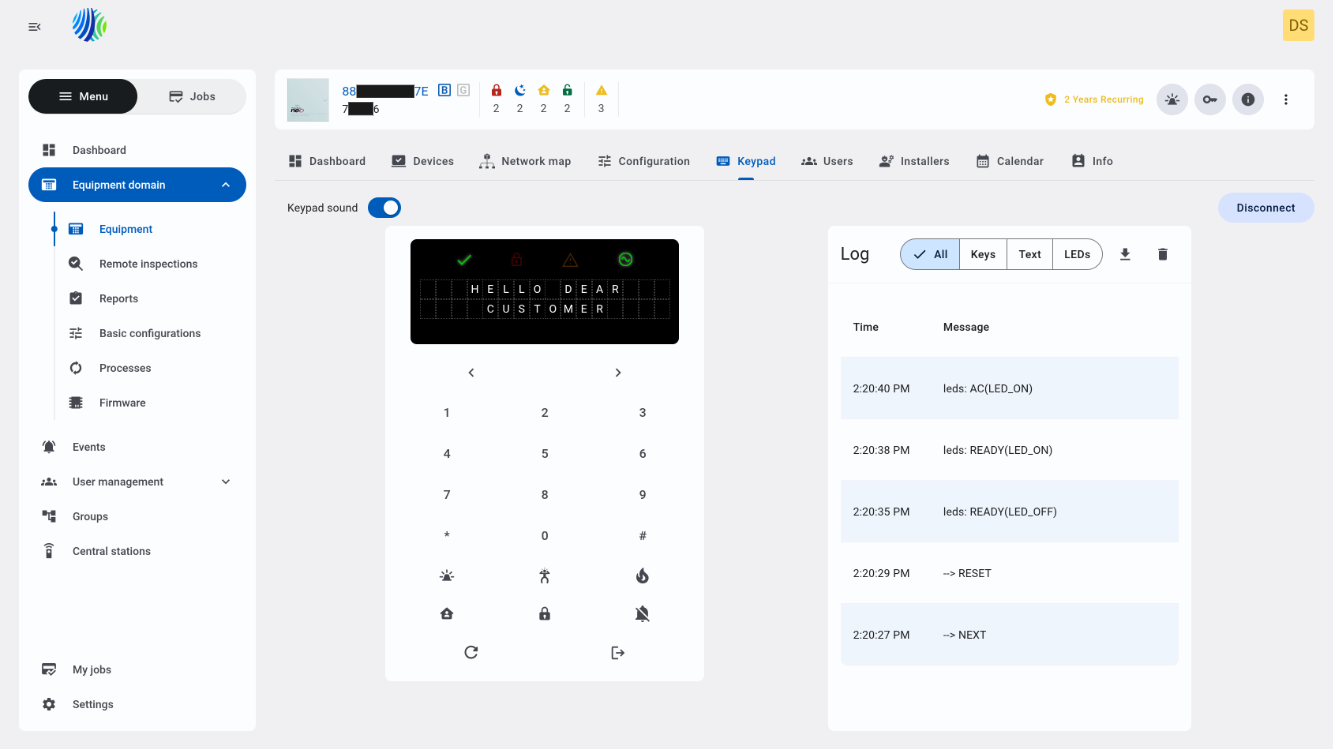
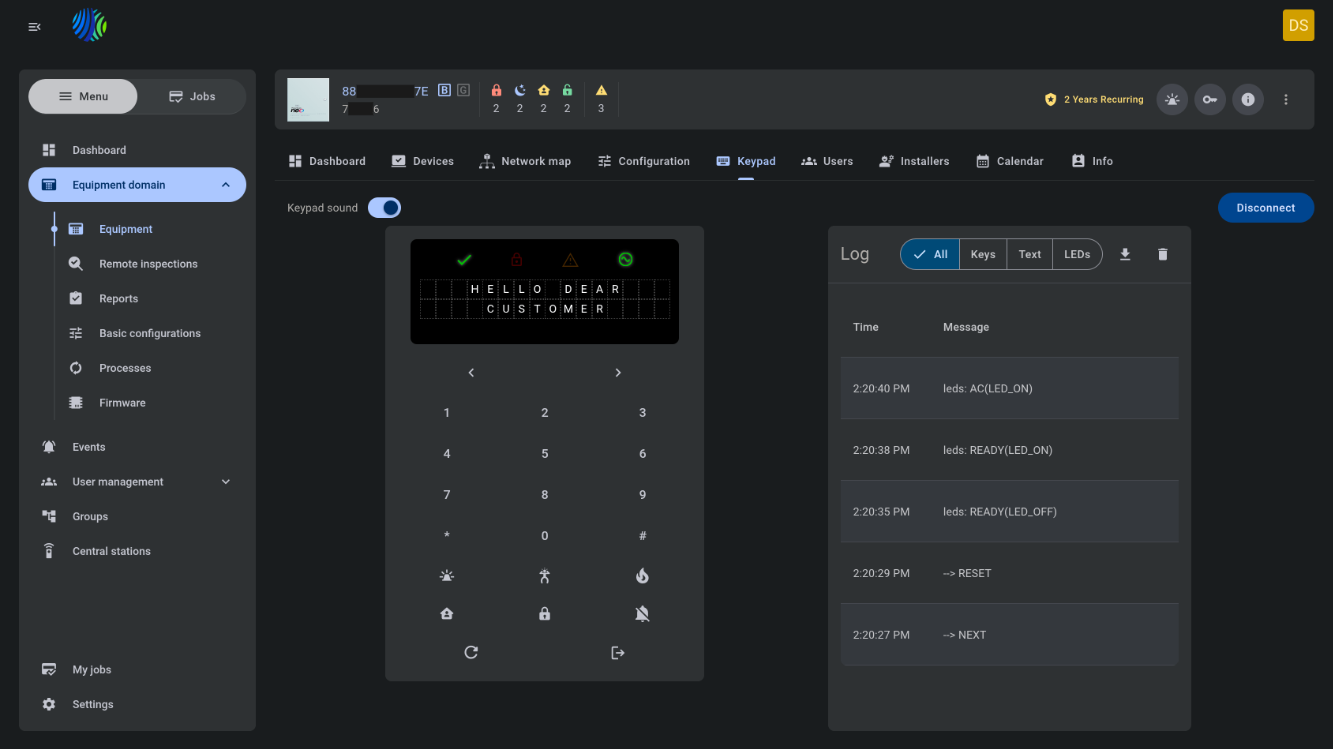
The Keypad tab in Equipment hub provides a virtual keypad session for the selected panel.
Use this tab to:
- Connect to the panel virtual keypad.
- Enable or disable keypad sound.
- Review panel LEDs and LCD content.
- Send keypad commands by using virtual keypad buttons.
- Review keypad session log entries.
- Filter keypad log entries by type.
- Download the keypad log as a CSV file.
- Clear the keypad log for the current session.
- Disconnect from the virtual keypad session.
Before you begin
Required permissions
Required permissions depend on the action that you want to complete.
- You must have permission to open Equipment hub.
- You must have permission to use the virtual keypad for the selected panel.
Access to the Equipment hub page and panel virtual keypad management is controlled by the role permission group named Unit.
Preconditions
- Open Equipment hub by selecting a panel from the Equipment page.
- The selected panel must support the virtual keypad.
- The selected panel must be available for a virtual keypad session.
Dependencies
- The keypad screen depends on the panel LCD content returned during the current virtual keypad session.
- Panel LEDs depend on the LED data returned by the selected panel.
- Keypad buttons depend on the selected panel type.
- Keypad log entries depend on actions and state changes that occur during the virtual keypad session.
Important limitations
- The session automatically disconnects after 15 minutes of user inactivity.
- If another user already has an active virtual keypad session for the selected panel, the system shows a notification and the new session cannot start until the active session is disconnected or expires.
- The keypad log is cleared after the virtual keypad session is re-established.
- For DSC panels, if all physical keypad slots are occupied, the virtual keypad cannot be used. Also, the last available keypad slot is taken by the virtual keypad during its use.
Page layout
Top bar


The top bar contains the virtual keypad session controls.
| Callout | UI element | Description | When to use |
|---|---|---|---|
| 1 | Keypad sound toggle | Enables or disables keypad sound for the virtual keypad session. | Use to turn keypad tones on or off during the session. |
| 2 | Disconnect button | Disconnects from the current virtual keypad session. | Use when you are finished using the virtual keypad or need to release the session for another user. |
Disconnect from the session when you finish your work. This helps other users connect to the same panel without waiting for the inactivity timeout.
Keypad
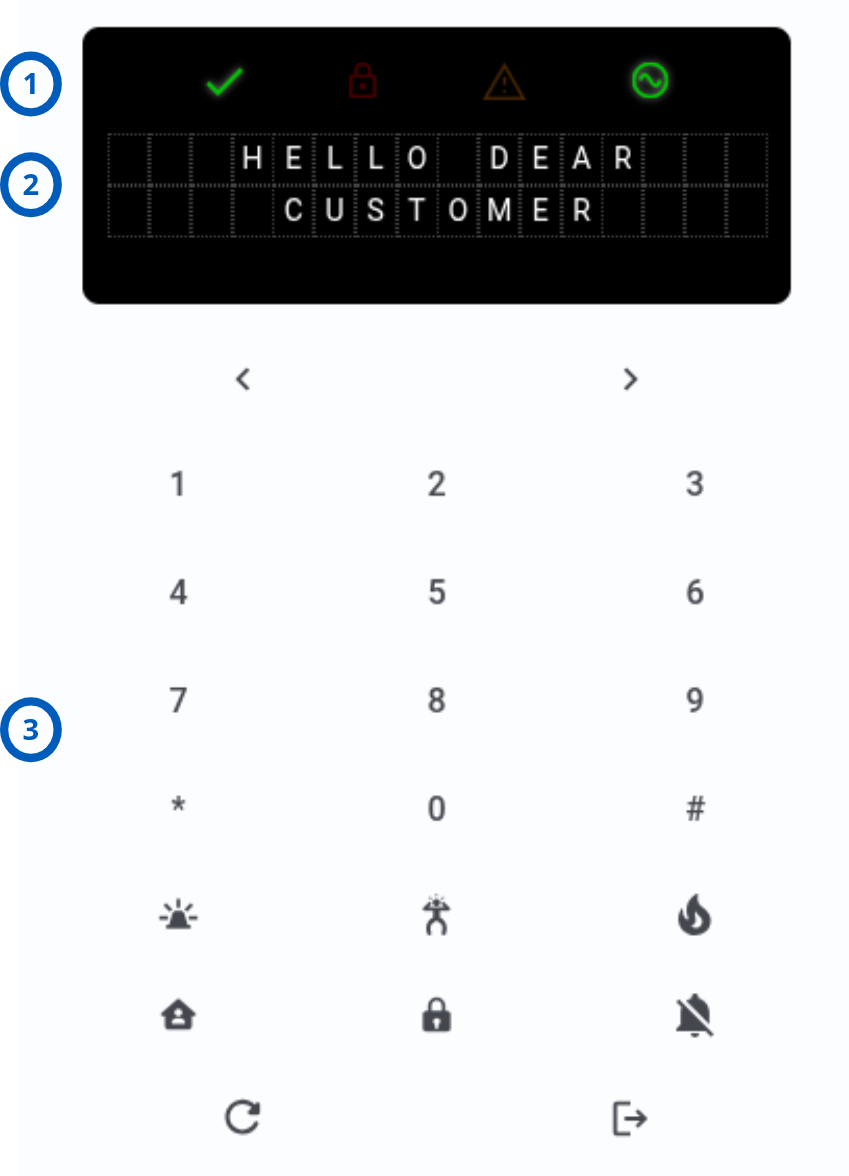
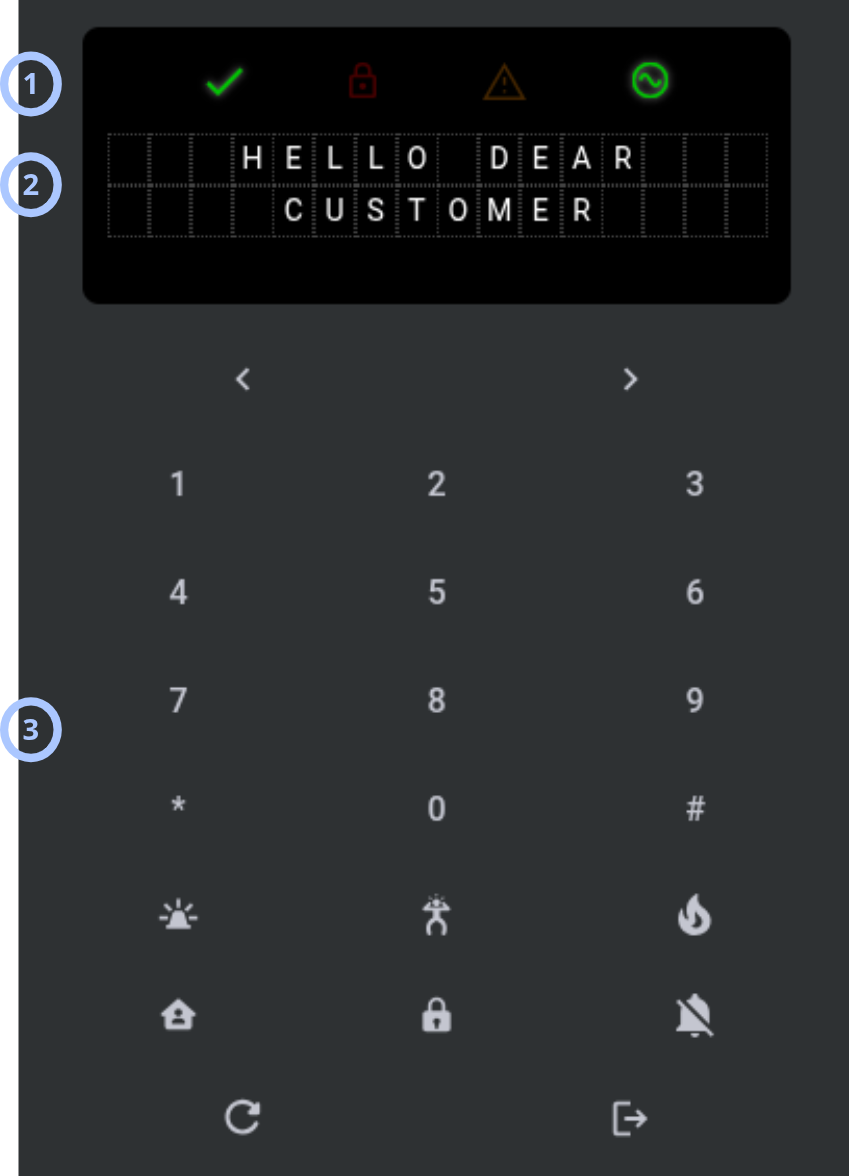
The virtual keypad shows the current panel keypad state and provides buttons for panel control.
| Callout | UI element | Description | When to use |
|---|---|---|---|
| 1 | Panel LEDs | Shows panel LED indicators returned by the selected panel. | Use to review the current visual state of the panel. |
| 2 | Keypad screen | Shows the panel keypad LCD content. | Use to read panel prompts, status messages, and menu information. |
| 3 | Keypad buttons | Sends keypad input to the panel. Available buttons differ by panel type. | Use to control the panel through the virtual keypad. |
Keypad buttons can differ by panel type. Use the buttons that are shown for the selected panel.
Log
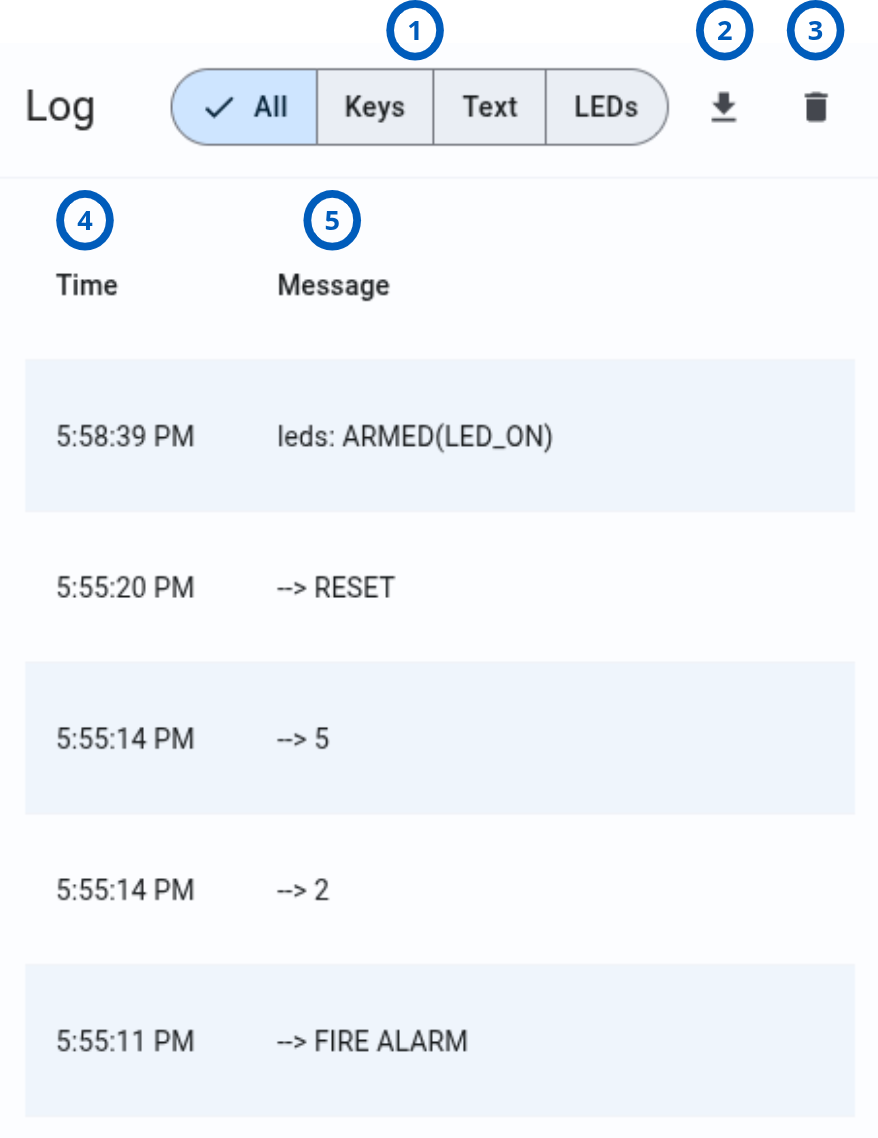
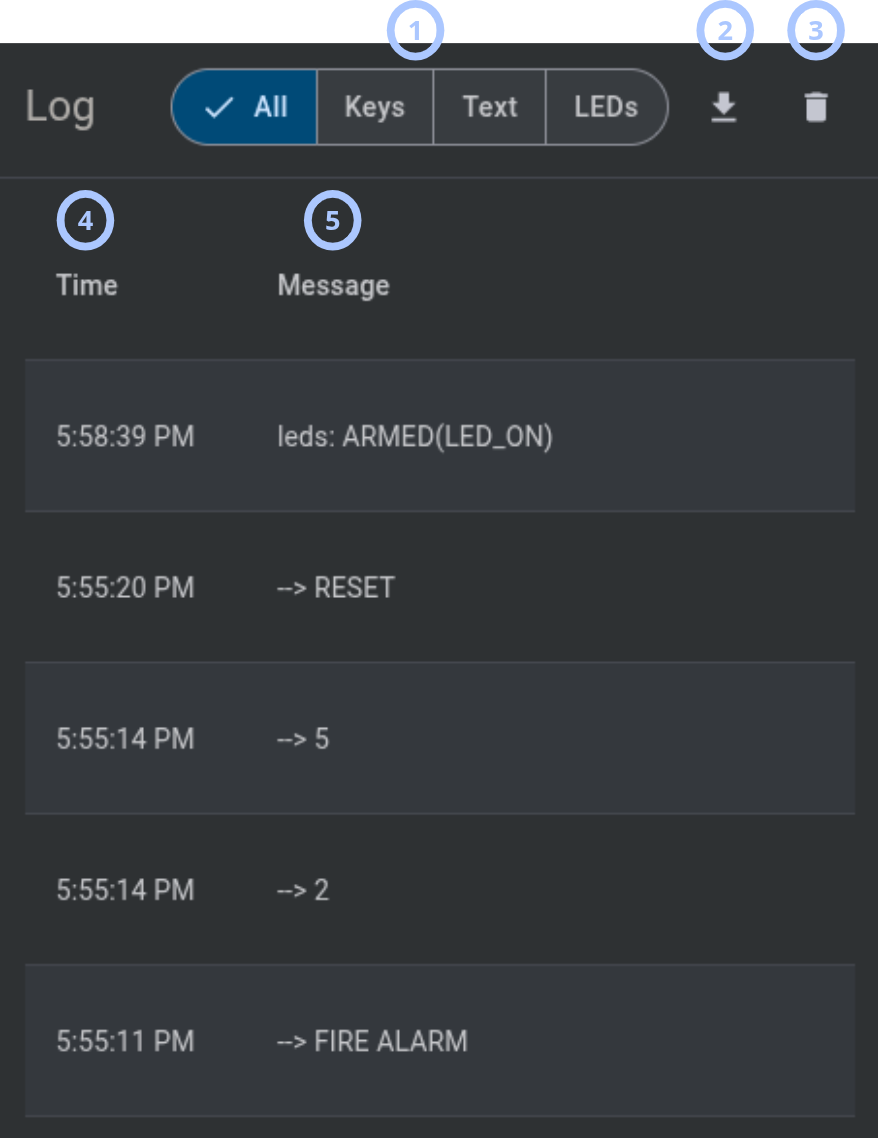
The log shows keypad session activity and helps you review keys, text, and LED changes during the session.
| Callout | UI element | Description | When to use |
|---|---|---|---|
| 1 | Log filters | Filters log entries by type: All, Keys, Text, or LEDs. | Use to show all entries or focus on key presses, screen text, or LED changes. |
| 2 | Download button | Downloads the keypad log to the local machine in CSV format. | Use to save keypad session details for review or troubleshooting. |
| 3 | Clear log button | Clears keypad log entries from the current view. | Use to remove current session log entries from the screen. |
| 4 | Time | Shows the timestamp for each keypad log entry. | Use to understand when each keypad event occurred. |
| 5 | Message | Shows the keypad log entry message. | Use to review key input, text updates, and LED updates. |
The keypad log is cleared after the virtual keypad session is re-established.
How to use this page
Open the Keypad tab
Goal:
- Open the virtual keypad for a selected panel.
Steps:
- Open the Equipment page.
- Select the panel that you want to control.
- In Equipment hub, select the Keypad tab.
- Select Connect button.
Expected result:
- The Keypad tab opens.
- A virtual keypad session starts if the panel is available and not used by another virtual keypad session.
Enable or disable keypad sound
Goal:
- Turn keypad sound on or off for the current virtual keypad session.
Steps:
- Open the Keypad tab.
- In the top bar, switch the Keypad sound toggle on or off.
Expected result:
- Keypad sound is enabled or disabled for the current session.
Use the virtual keypad
Goal:
- Send keypad commands to the selected panel.
Steps:
- Open the Keypad tab.
- Review the Keypad screen for the current panel prompt or status.
- Review the Panel LEDs.
- Select the required keypad buttons.
- Continue according to the panel screen prompts.
Expected result:
- The selected keypad input is sent to the panel.
- The keypad screen, LEDs, and log update according to the panel response.
Review keypad log entries
Goal:
- Review keypad activity during the current virtual keypad session.
Steps:
- Open the Keypad tab.
- Review the Log area.
- Check the Time column to see when an entry occurred.
- Check the Message column to review the entry content.
Expected result:
- You can see keypad activity for the current session.
Filter keypad log entries
Goal:
- Show only the log entries that are relevant to the current review.
Steps:
- Open the Keypad tab.
- In the Log area, select one of the filters: All, Keys, Text, or LEDs.
Expected result:
- The log updates to show entries that match the selected filter.
Download the keypad log
Goal:
- Save the keypad log to the local machine.
Steps:
- Open the Keypad tab.
- Review the log entries that you want to save.
- Select Download.
Expected result:
- A CSV file with keypad log entries downloads to the local machine.
Clear the keypad log
Goal:
- Remove current keypad log entries from the log view.
Steps:
- Open the Keypad tab.
- In the Log area, select Clear log.
- Confirm the action if a confirmation message appears.
Expected result:
- Keypad log entries are cleared from the current view.
Disconnect from the virtual keypad session
Goal:
- End the current virtual keypad session.
Steps:
- Open the Keypad tab.
- In the top bar, select Disconnect.
Expected result:
- The virtual keypad session is disconnected.
- Another user can start a virtual keypad session for the panel if permitted.
Reconnect after inactivity timeout
Goal:
- Start a new virtual keypad session after the current session is disconnected automatically.
Steps:
- Return to the Keypad tab after the inactivity timeout.
- Start a new virtual keypad session if required.
- Review the keypad screen and log after the session is re-established.
Expected result:
- A new virtual keypad session starts if the panel is available.
- The keypad log is cleared after the virtual keypad session is re-established.
Tips
- Disconnect from the virtual keypad session when you finish your work.
- Use the keypad screen and LEDs together to understand the panel state.
- Use log filters to focus on key presses, screen text, or LED changes.
- Download the keypad log before you reconnect if you need to keep the current session log.
Troubleshooting
Virtual keypad session does not start
Possible causes
- The selected panel does not support the virtual keypad.
- The panel is already in use by another virtual keypad session.
- Your role does not allow using the virtual keypad.
What to do
- Confirm that the selected panel supports the virtual keypad.
- Check whether a notification says that the panel is already in use.
- Wait until the active virtual keypad session is disconnected or expires.
- Confirm that your role allows using the virtual keypad.
- Try opening the Keypad tab again.
Panel is already in use by another virtual keypad session
Possible causes
- Another user has an active virtual keypad session for the selected panel.
- A previous virtual keypad session has not disconnected yet.
What to do
- Wait until the other session is disconnected.
- Ask the current user to select Disconnect if appropriate.
- Wait for the inactivity timeout if the session is inactive.
- Try opening the Keypad tab again.
Session disconnected automatically
Possible causes
- No keypad activity occurred for 15 minutes.
- The inactivity timeout disconnected the session.
What to do
- Start a new virtual keypad session if you still need access.
- Review the keypad screen after reconnecting.
- Download the log before future inactivity if you need to keep session log entries.
Keypad sound is not audible
Possible causes
- The Keypad sound toggle is disabled.
- Browser or operating system audio is muted.
- The selected panel or browser session does not play sound for the action.
What to do
- Enable the Keypad sound toggle.
- Check browser and operating system audio settings.
- Try selecting a keypad button again.
Keypad buttons do not match another panel
Possible causes
- Keypad buttons differ by panel type.
- The selected panel uses a different keypad layout.
What to do
- Confirm the selected panel type.
- Use the keypad buttons shown for the selected panel.
- Open another panel only if you need to compare layouts.
Keypad screen does not update
Possible causes
- The panel has not returned updated LCD content.
- The virtual keypad session is disconnected.
- The panel is not available for communication.
What to do
- Check whether the virtual keypad session is still active.
- Select a keypad button again if appropriate.
- Disconnect and start a new session if the screen remains stale.
- Confirm panel connectivity on other Equipment hub tabs.
Keypad log is empty
Possible causes
- No keypad activity has occurred in the current session.
- The log was cleared.
- The virtual keypad session was re-established and the previous log was cleared.
What to do
- Use the virtual keypad to generate new log entries.
- Check whether a log filter is hiding entries.
- Select All to show all log entry types.
Downloaded CSV is missing expected entries
Possible causes
- The log was cleared before download.
- The virtual keypad session was re-established before download.
What to do
- Download the log before clearing the log or reconnecting.
- Start a new session and reproduce the activity if the previous log is unavailable.