System tests
Overview
The System tests tab in Equipment hub lets operators run diagnostic tests on a panel and its components directly from the PowerManage user interface.
Use this tab to:
- Run all available System tests for an IQ panel.
- Run a single selected system test.
- Review overall system test progress.
- Review the last saved result for each test.
- Review per-device results for device-level tests.
- Identify failed tests and affected devices.
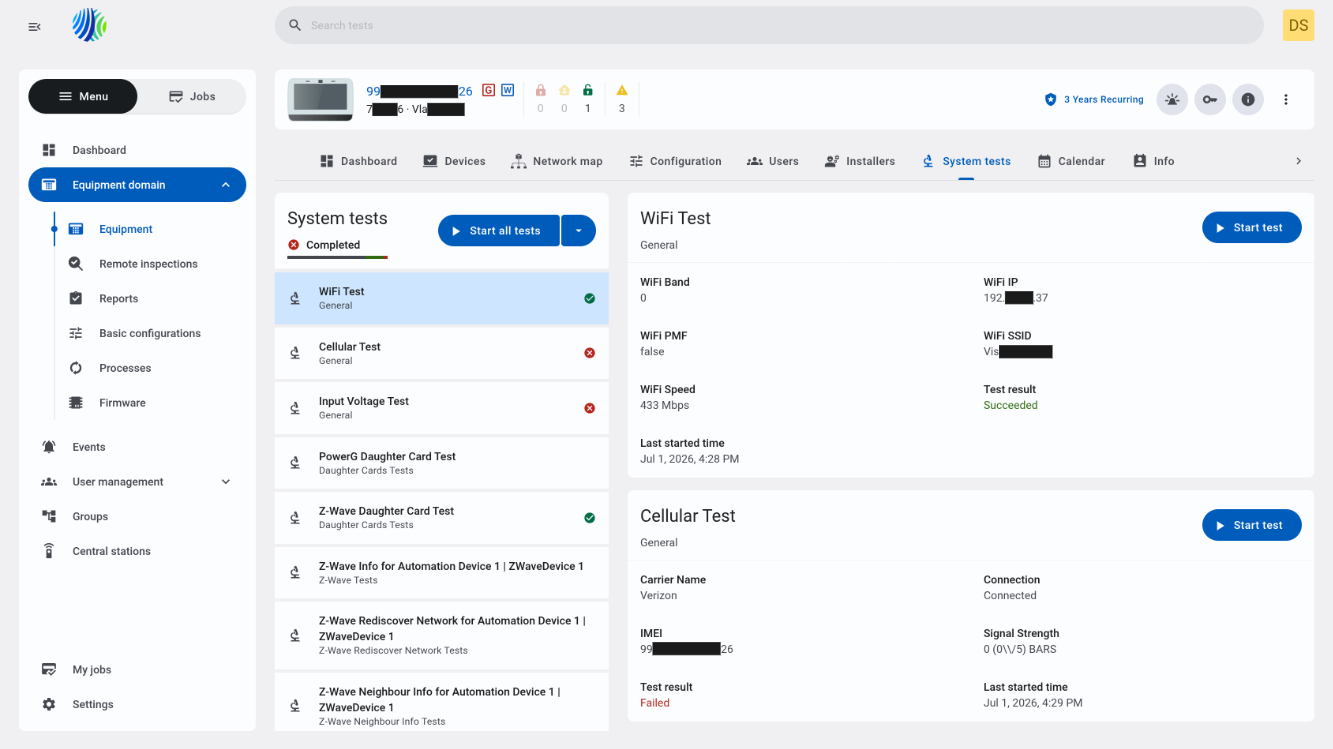
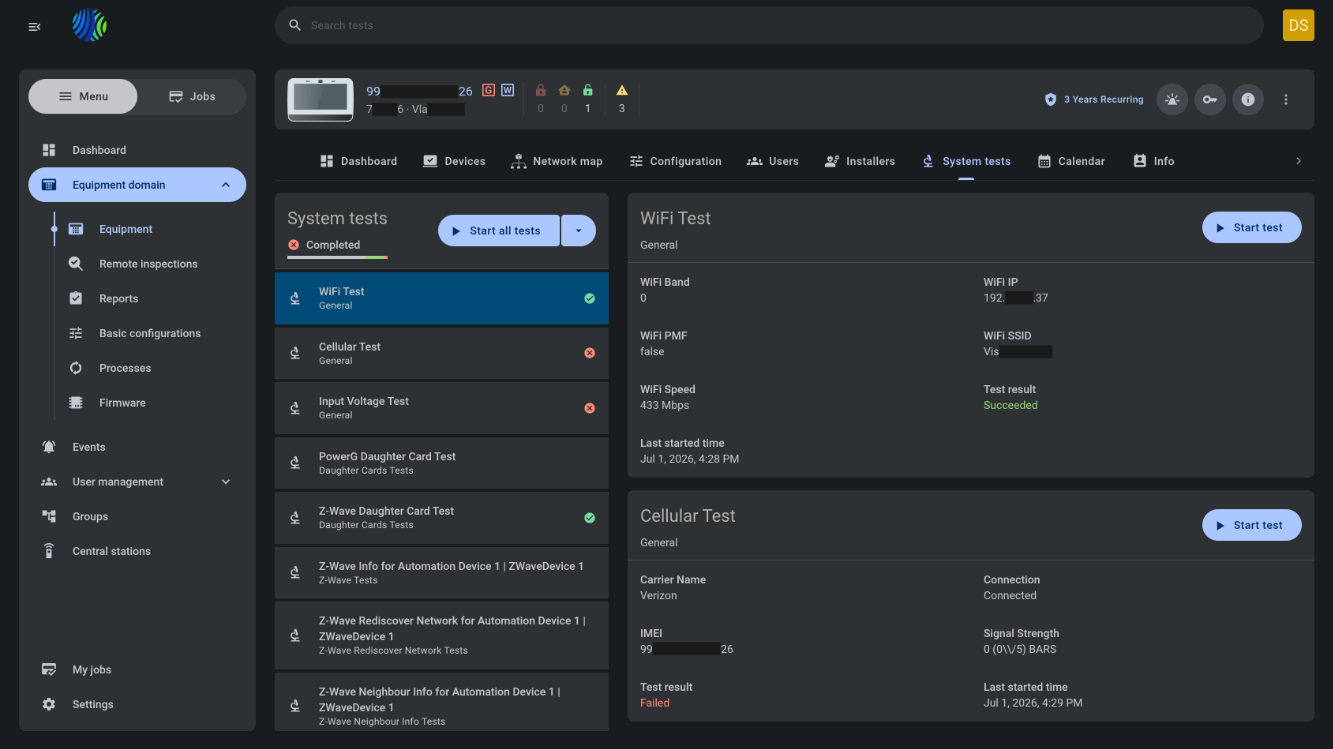
The System tests tab is available only for IQ panels.
Before you begin
Required permissions
Required permissions depend on the action that you want to complete.
- You must have permission to open Equipment hub for the selected panel.
- You must have permission to view the selected panel.
- You must have permission to run System tests for the selected panel.
Access to the Equipment hub page and System tests actions is controlled by the role permission group named Unit.
Preconditions
- Open Equipment hub by selecting an IQ panel from the Equipment page.
- The selected IQ panel must exist on the PowerManage server.
- Discovery must complete successfully for tests that depend on installed daughter cards or enrolled devices.
Dependencies
- The available System tests depend on the IQ panel model, installed daughter cards, and enrolled devices.
- General tests depend on panel communication and panel hardware status.
- Daughter Card tests depend on installed daughter cards.
- Z-Wave, Zigbee, SRF, PowerG, and LED tests depend on enrolled devices and related installed modules.
- System test results depend on the latest completed test process.
Important limitations
- The System tests tab is available only for IQ panels.
- Only the last result for each test is saved. Previous results are overwritten.
- If the panel is offline, tests fail after a timeout.
System test results persist after page refresh, navigating to another tab, new discovery, configuration changes, backup and restore, and incremental upgrades.
Page layout
System tests list and actions
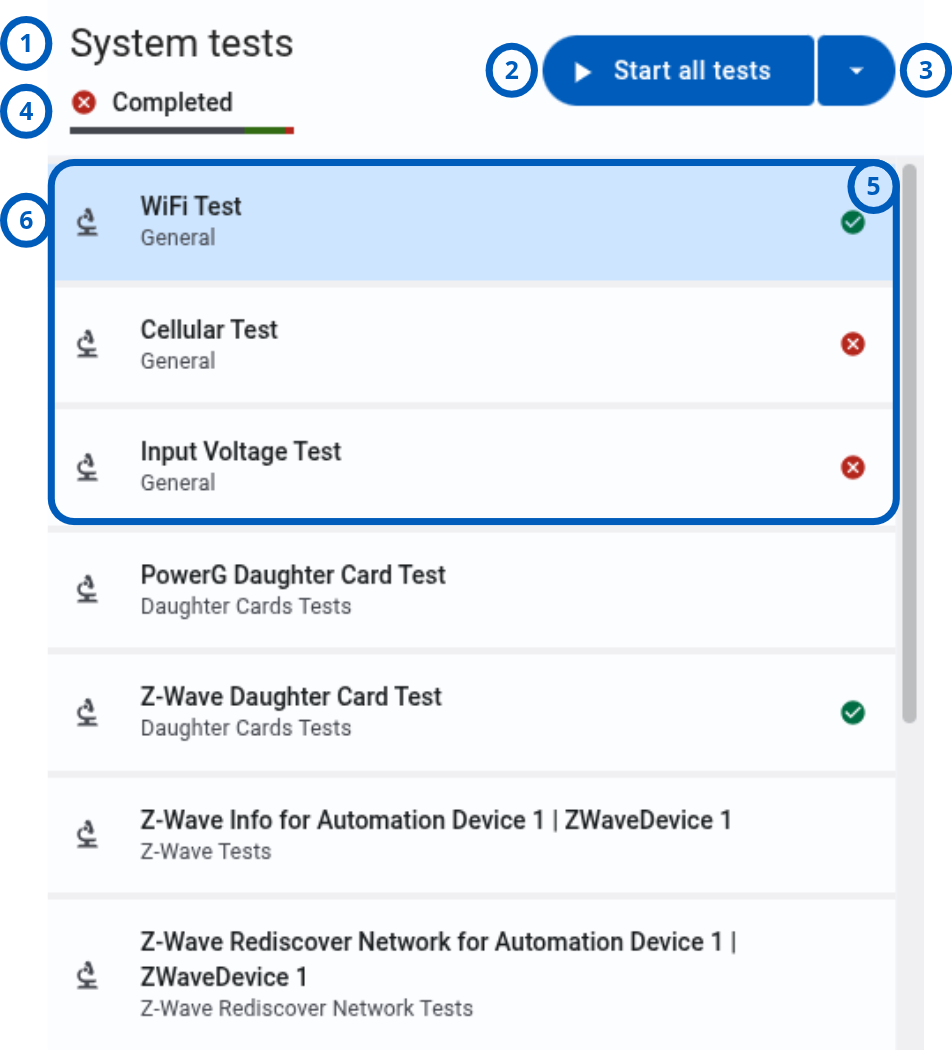
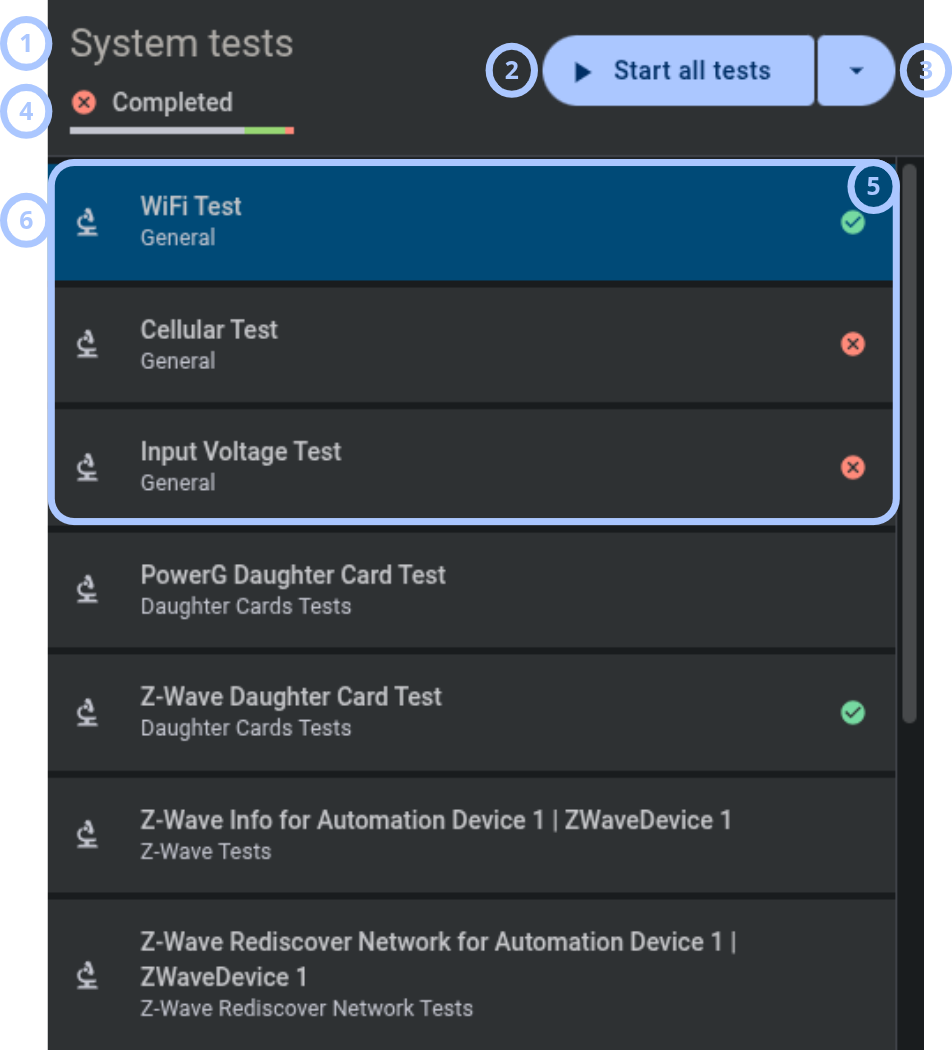
The System tests list shows available test actions, overall progress, and test groups.
| Callout | UI element | Description | When to use |
|---|---|---|---|
| 1 | Title | Shows the page area title: System tests. | Use to confirm that you are in the System tests area. |
| 2 | Start all tests button | Starts processes for all available System tests at once. When all tests run, processes are distributed into batches according to their test groups. | Use to run a complete diagnostic test set for the selected IQ panel. |
| 3 | Drop-down button | Shows a list of available System tests. You can select and start one specific test. | Use to run one diagnostic test without starting the full test set. |
| 4 | System tests results and progress bar | Shows the overall status icon and segmented progress bar. The status icon is green when all tests succeeded and red when at least one test failed. Progress bar segments show Not started, Succeeded, and Failed tests. | Use to review overall system test progress and result state. |
| 5 | System test groups | Shows groups that organize available System tests. Availability depends on panel model, installed daughter cards, and enrolled devices. | Use to review tests by category. |
| 6 | System test item | Shows the system test name, category, and status icon. If the test has not started, no status icon is displayed. | Use to review each test and its latest status. |
For more info about system test groups, see System test groups in the Field and option reference section.
System test widget
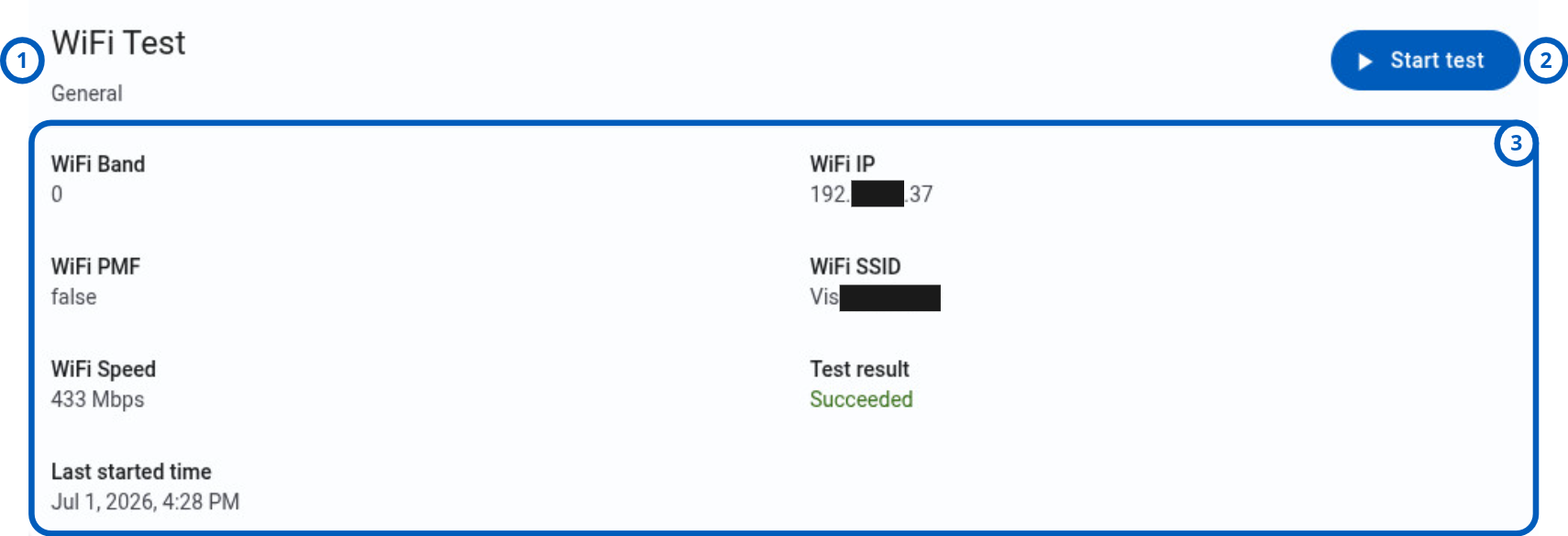
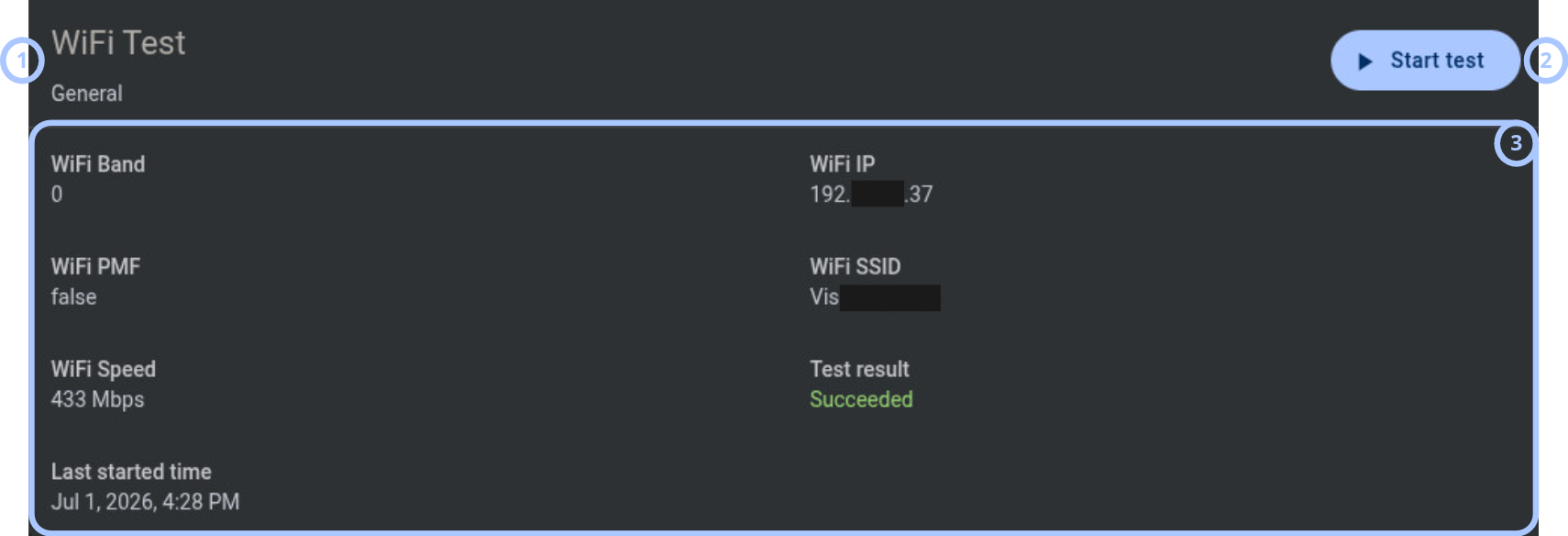
The system test widget shows details and results for the selected system test.
| Callout | UI element | Description | When to use |
|---|---|---|---|
| 1 | Widget title | Displays the system test name and its category or group name. | Use to confirm which system test you are reviewing. |
| 2 | Start test button | Starts the selected system test process. A running test cannot be started again until the current process finishes. | Use to run this specific diagnostic test. |
| 3 | System test results | Displays detailed results for the selected system test. For per-device tests, such as PowerG, Z-Wave, SRF, Zigbee, and LED tests, individual device results are shown. | Use to review detailed diagnostic results and affected devices. |
How to use this page
Open the System tests tab
Goal:
- Open system diagnostics for a selected IQ panel.
Steps:
- Open the Equipment page.
- Select the IQ panel that you want to test.
- In Equipment hub, select the System tests tab.
Expected result:
- The System tests tab opens.
- Available tests are shown according to the panel model, installed daughter cards, and enrolled devices.
Run all System tests
Goal:
- Start all available System tests for the selected IQ panel.
Steps:
- Open the System tests tab.
- Select Start all tests.
- Review the progress bar while tests run.
- Wait for the test processes to finish.
Expected result:
- Processes start for all available System tests.
- Tests run in batches according to their test groups.
- The progress bar updates with Not started, Succeeded, and Failed segments.
Run a single system test
Goal:
- Run one selected diagnostic test.
Steps:
- Open the System tests tab.
- Select the drop-down button.
- Select the system test that you want to run.
- Start the selected test.
- Review the test widget for results.
Expected result:
- The selected test process starts.
- The test widget shows the latest result after the process finishes.
Run a test from the system test widget
Goal:
- Start a specific system test from its widget.
Steps:
- Open the System tests tab.
- Select a system test item.
- In the test widget, select Start test.
- Wait for the current process to finish.
Expected result:
- The selected system test starts.
- The Start test button cannot start the same test again while the test is running.
- The widget shows the latest test result after the test finishes.
Review overall test progress
Goal:
- Check whether the full test set succeeded or failed.
Steps:
- Open the System tests tab.
- Review the overall status icon.
- Review the segmented progress bar.
- Check the number of Not started, Succeeded, and Failed tests.
Expected result:
- A green success icon appears when all tests succeeded.
- A red failed icon appears when at least one test failed.
- The progress bar shows the current result distribution.
Review per-device test results
Goal:
- Review results for tests that run per enrolled device.
Steps:
- Open the System tests tab.
- Select a per-device test, such as PowerG Test, Z-Wave Test, SRF Sensor Test, Zigbee Test, or LED Test.
- Review individual device results in the system test widget.
Expected result:
- The widget shows per-device results for the selected test when supported devices are enrolled.
Reset Z-Wave counters
Goal:
- Reset Z-Wave counters when the action is available.
Steps:
- Open the System tests tab.
- Select the Counters test in the Z-Wave tests group.
- Select Reset counters.
Expected result:
- Z-Wave counters are reset.
- The latest counter result updates after the action completes.
Field and option reference
System test groups
| Name | Description | Availability | Behavior | Restrictions | Result details |
|---|---|---|---|---|---|
| General tests | Basic panel connectivity and electrical tests. | Available according to panel model and panel configuration. | Can include Wi-Fi Test, Cellular Test, and Input Voltage Test. | Unavailable tests are hidden. | Shows the latest result for each test. |
| Daughter Card tests | Tests installed daughter cards. | Available when the corresponding daughter card is installed. | Can include PowerG, Z-Wave, SRF, Zigbee, and Ethernet tests. | Each test appears only when the corresponding card is installed. | Shows card-level test results. |
| Z-Wave tests | Tests Z-Wave network and device data. | Available when Z-Wave devices are enrolled. | Can include Z-Wave Test, Rediscover Network, Neighbour Info, and Counters. Supports per-device results and Reset counters functionality. | Requires enrolled Z-Wave devices. | Shows network-level and per-device results when available. |
| Panel tests | Tests panel-level functions and services. | Available according to panel model and configuration. | Can include Arm/Disarm, Camera, Photos, Battery, LEDs, Tamper, AC Status, Internet Connection, Wi-Fi Connection, Upgrade Services, Z-Wave Module, and Siren. | Unavailable panel services are hidden. | Shows panel-level diagnostic results. |
| Sensor Tests | Tests SRF sensors by device. | Available when an SRF card is installed and SRF devices are enrolled. | Runs SRF Sensor Test per device and supports the Stop action. | Requires installed SRF card and enrolled SRF devices. | Shows per-device sensor results. |
| PowerG tests | Tests PowerG and PowerG+ devices by device. | Available when a PowerG card is installed and PowerG or PowerG+ devices are enrolled. | Runs PowerG Test per enrolled device. | Requires installed PowerG card and enrolled PowerG or PowerG+ devices. | Shows per-device PowerG results. |
| LED test | Tests device LEDs by device. | Available when a PowerG card is installed and PowerG or PowerG+ devices are enrolled. | Runs LED Test per enrolled device. | Requires installed PowerG card and enrolled PowerG or PowerG+ devices. | Shows per-device LED test results. |
| Zigbee tests | Tests Zigbee devices by device. | Available when Zigbee devices are enrolled. | Runs Zigbee Test per enrolled Zigbee device. | Requires enrolled Zigbee devices. | Shows per-device Zigbee results. |
System test statuses
| Name | Description | Behavior |
|---|---|---|
| Not started | The test has not run yet. | Shown in the progress bar as the not-started segment. A test item that has not started has no status icon. |
| Succeeded | The test passed. | Shown as a passed test in the progress bar. If all tests succeeded, the overall status icon is green. |
| Failed | The test failed. | Shown as a failed test in the progress bar. If at least one test failed, the overall status icon is red. |
Tips
- Use Start all tests when you need a full diagnostic check of the selected IQ panel.
- Use the drop-down button when you need to run only one specific test.
- Review the system test widget for detailed results after a test finishes.
- Check installed daughter cards and enrolled devices if an expected test group is not shown.
- Review failed per-device results to identify affected devices.
Troubleshooting
System tests tab is not visible
Possible causes
- The selected panel is not an IQ panel.
- Your role does not allow access to System tests.
What to do
- Confirm that the selected panel is an IQ panel.
- Confirm that your role allows access to System tests.
Expected test group is not shown
Possible causes
- The required daughter card is not installed.
- Required devices are not enrolled.
- Discovery has not completed successfully.
- The selected IQ panel model does not support the test group.
What to do
- Confirm the IQ panel model.
- Confirm that discovery completed successfully.
- Confirm that the required daughter card is installed.
- Confirm that required devices are enrolled.
- Refresh the System tests tab.
Test fails after timeout
Possible causes
- The panel is offline.
- The panel did not respond before the timeout.
- Communication with the panel was interrupted.
What to do
- Check the panel connection status.
- Wait for the panel to reconnect.
- Run the test again.
- Review related processes and events if the test fails again.
Start test button is not available
Possible causes
- The selected test is already running.
- Your role does not allow starting the test.
What to do
- Wait for the running test process to finish.
- Confirm that your role allows starting System tests.
Previous test result is missing
Possible causes
- Only the last result for each test is saved.
- A newer test run overwrote the previous result.
What to do
- Review the latest result shown in the system test widget.
- Run the test again if you need a new result.
- Record important results before running the same test again.
Per-device results are not shown
Possible causes
- No supported devices are enrolled.
- The required daughter card or module is not installed.
What to do
- Confirm that supported devices are enrolled.
- Confirm that the required daughter card or module is installed.
- Refresh the System tests tab.