Firmware
Overview
The Firmware page lets you select a firmware package and upgrade equipment.
Use this page to:
- Review available firmware packages for the selected criteria.
- Review compatible equipment before starting an upgrade.
- Upgrade selected equipment.
- Upgrade all equipment listed in the current view.
- Review equipment group and type information before upgrading.
This page helps administrators prepare firmware upgrades and confirm which equipment records are included before the upgrade starts.
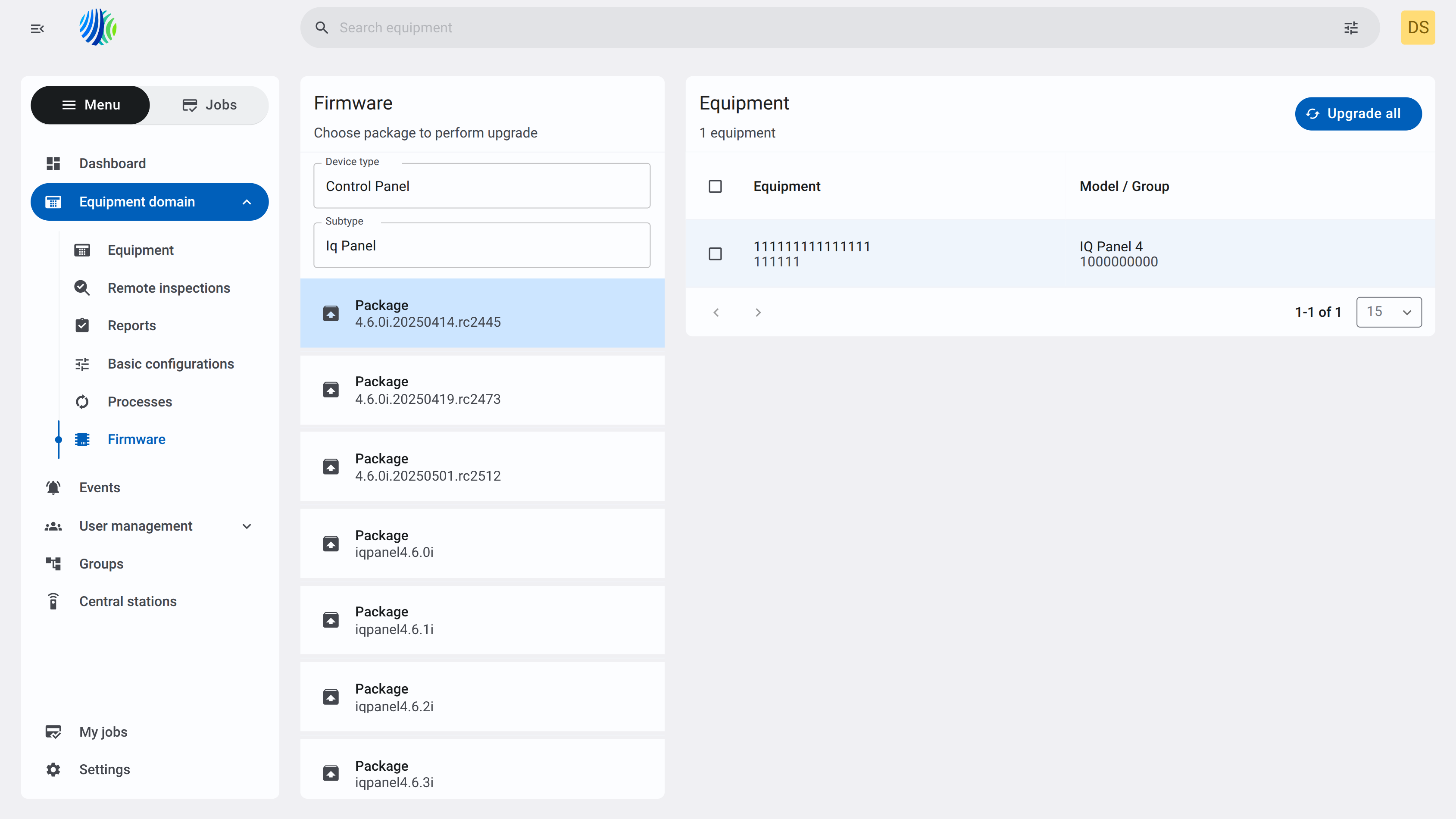
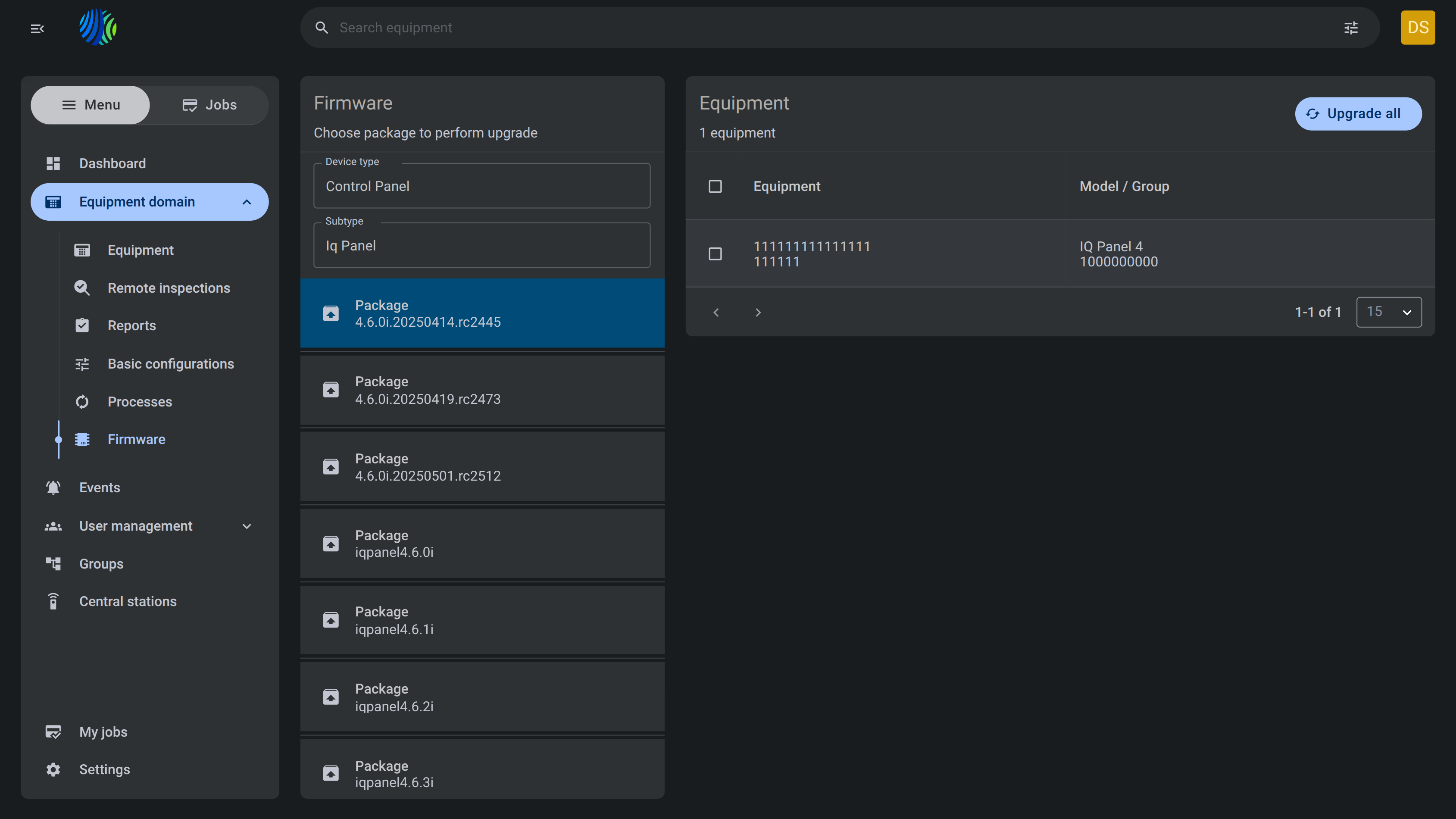
Before you begin
Required permissions
- You must have permission to view the list, view status, upgrade all items, and upgrade selected items in the Firmware tab.
Access to the Firmware page is controlled by the Firmware - Unit and Unit - Firmware permission groups.
Preconditions
- At least one firmware package must be available.
- At least one compatible equipment record must exist for the Equipment grid to show entries.
Dependencies
- Available Device type values depend on configured firmware packages.
- Available Subtype values depend on the selected device type.
- Available packages depend on the selected device type and subtype.
- Equipment results depend on the selected package criteria.
- If no suitable upgrade package is available for your panel, you will not see the panel in the grid.
Important limitations
- Firmware upgrades can affect equipment operation. Review equipment before starting an upgrade.
- Upgrade all applies to all equipment listed in the current firmware view.
- Upgrade selected applies only to selected equipment rows.
- PowerManage receives the firmware package list from the Neo 5 panel, not directly from a firmware repository.
- Upgrade progress, stage, and error values are reported by the panel.
- Do not start another upgrade for the same devices while an upgrade is in progress.
- Some upgrade stages may require local user acknowledgement at the panel.
- Discovery runs after the upgrade process finishes to refresh device information.
- Neo panels have a 7-day upgrade timeout. This is set on the panel side and cannot be changed from PowerManage.
- When the Fail on Arm state or critical panel troubles checkbox checkbox is enabled for Visonic panels, the minimum timeout will exceed 3600 seconds and must account for the time required to verify the panel state; this duration depends on the panel communication path and the keep-alive (KA) period.
Page layout
Page header
The page header identifies the page and shows the number of available entries.


| Callout | UI element | Description | When to use |
|---|---|---|---|
| 1 | Page title | Shows the current page name | Use to confirm that you are on the page. |
| 2 | Page entries count | Shows the total number of entries | Use to understand how many entries are available. |
Firmware packages and compatible equipment grid
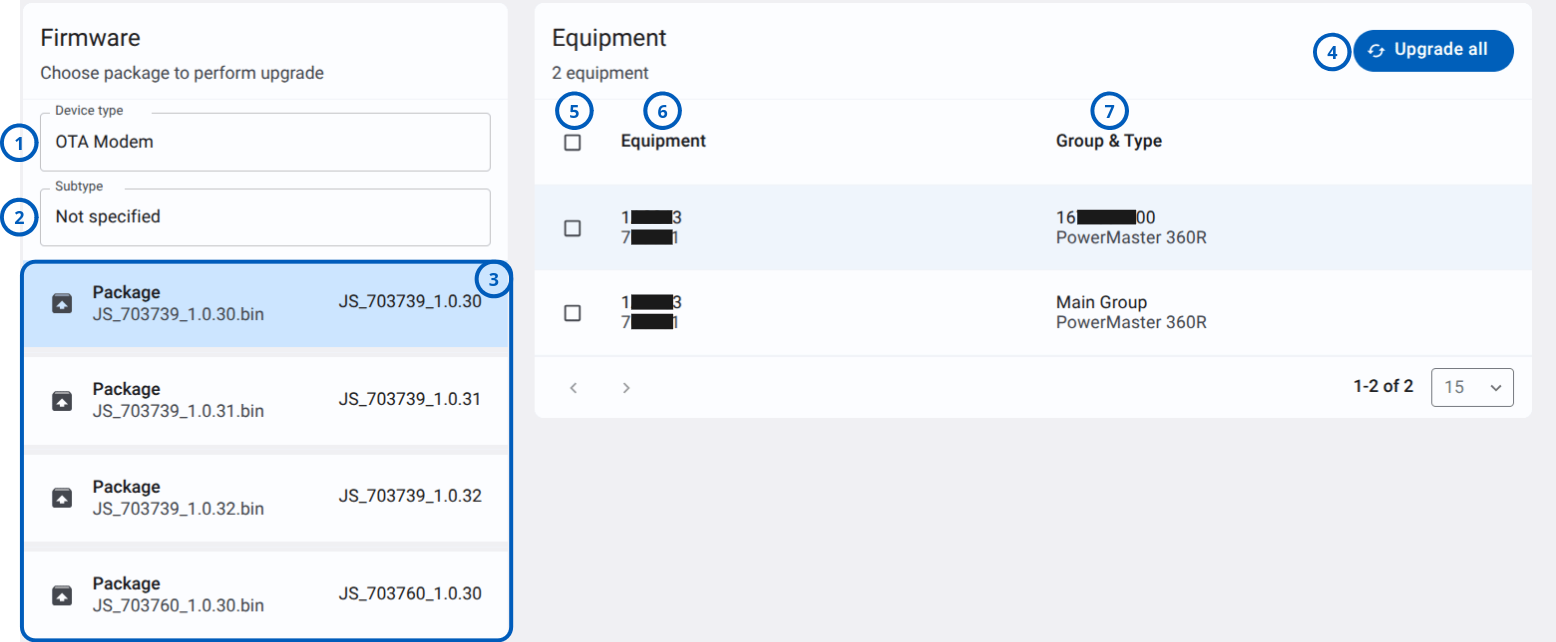
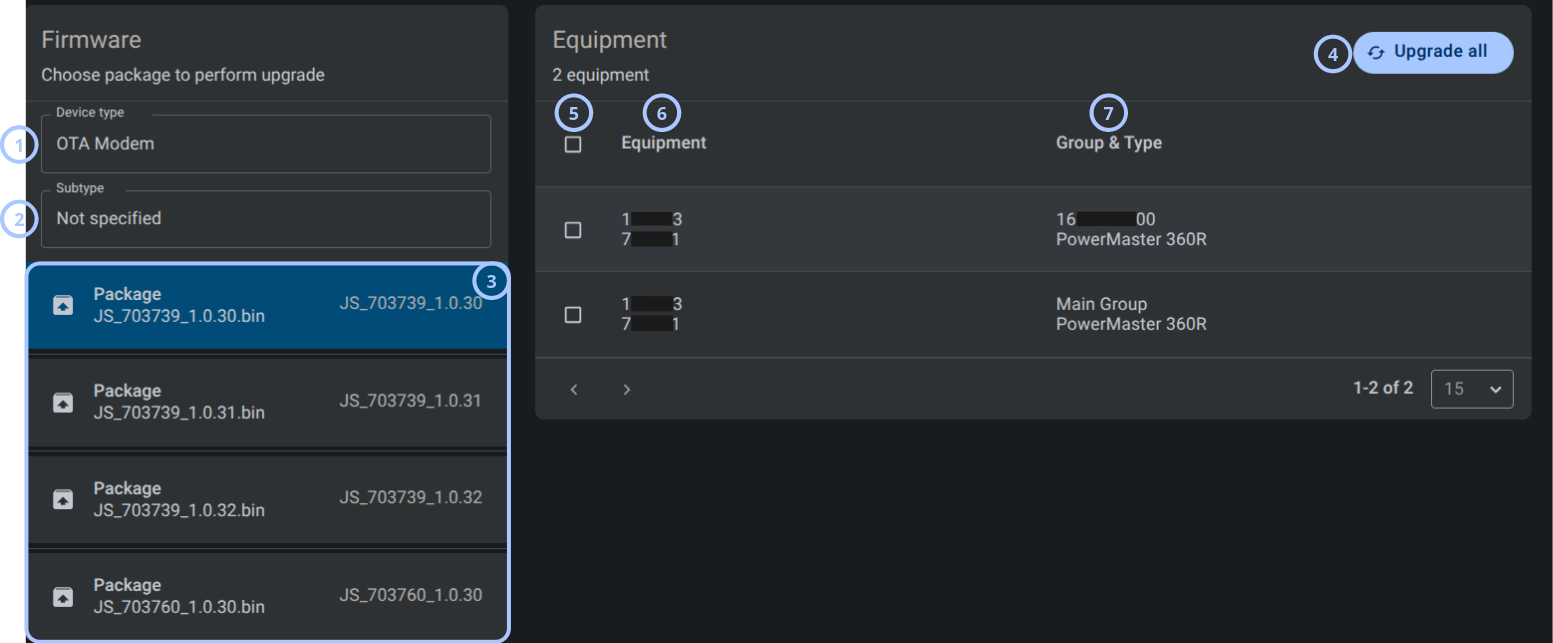
| Callout | UI element | Description | When to use |
|---|---|---|---|
| 1 | Device type field | Dropdown field used to select the target device type. | Use to choose the equipment category for the firmware package. |
| 2 | Subtype field | Dropdown field used to select the subtype. | Use to narrow the package selection by equipment subtype. |
| 3 | Package list | Shows available firmware packages for the selected device type and subtype. | Use to select the package to apply during the upgrade. |
| 4 | Upgrade all button | Starts the upgrade workflow for all equipment listed in the current view. | Use when all listed compatible equipment should be upgraded. |
| 5 | Select all checkbox | Selects or clears all equipment rows in the grid. | Use to select multiple equipment rows before starting the firmware upgrade. |
| 6 | Equipment column | Shows equipment identifiers. | Use to identify the target equipment. |
| 7 | Group & Type column | Shows the group or account value and equipment type. | Use to confirm equipment grouping and type before upgrade. |
Pagination controls
Pagination controls appear at the bottom of the entries grid.


| Callout | UI element | Description | When to use |
|---|---|---|---|
| 1 | Previous and next arrows | Shows left and right arrows, such as < and >, to move between pages. | Use when the entries list has more records than the current page can show. |
| 2 | Range indicator | Shows the current range and total number of entries. | Use to understand where you are in the entries list. |
| 3 | Entries per page selector | Controls how many entries appear on one page. | Use to show fewer or more entries in the grid. |
Firmware upgrade confirmation dialog
The firmware upgrade confirmation dialog controls how the upgrade behaves when the panel is in certain unsafe states.
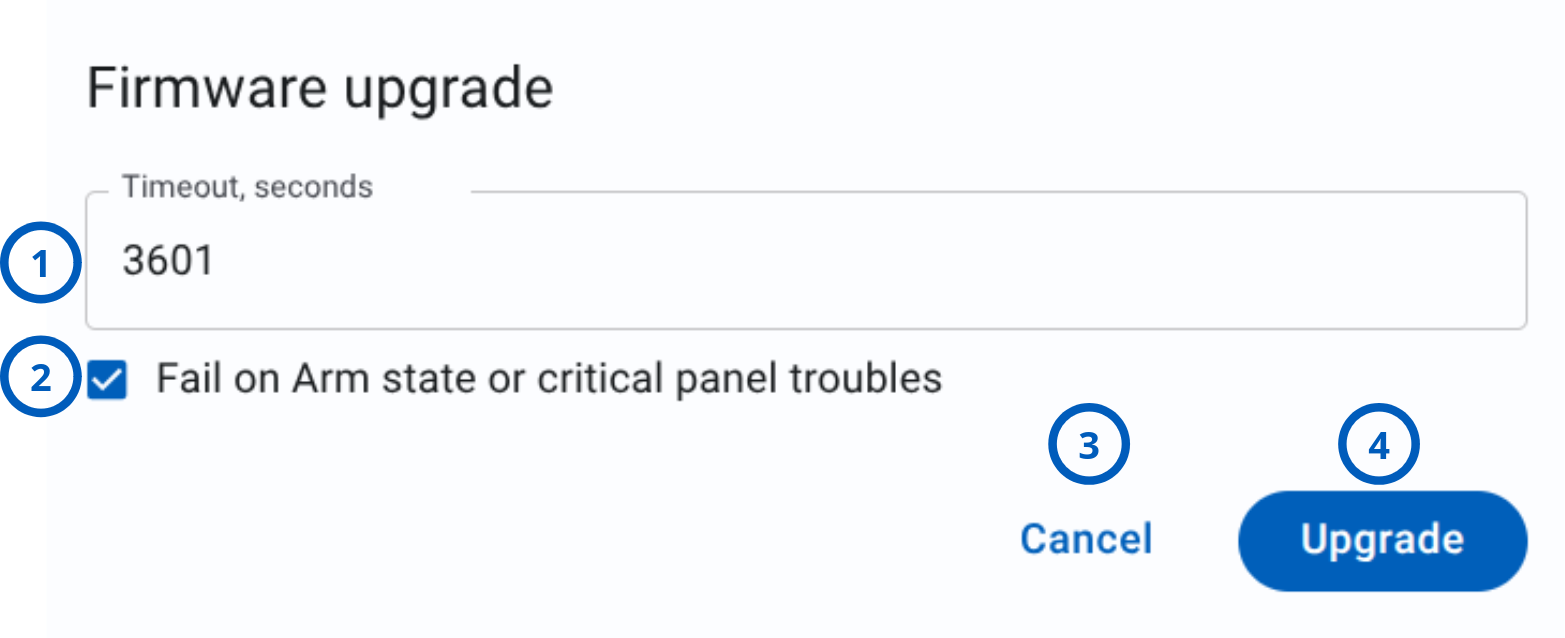
| Callout | Name | Description | When to use |
|---|---|---|---|
| 1 | Timeout field | Defines the firmware upgrade timeout value in seconds. The default timeout value is 3601 seconds, the minimum is 3600 seconds, and the maximum is 604800 seconds. note This field does not appear for IQ panels. | Use to set how long the system should wait for the firmware upgrade process before timing out. |
| 2 | Fail on Arm state or critical panel troubles checkbox | Controls whether the upgrade fails immediately when the panel is armed or has critical troubles. | Use to prevent firmware upgrade when the panel state or critical troubles can affect the upgrade process. |
| 3 | Cancel button | Closes the firmware upgrade dialog without starting the upgrade. | Use to exit the dialog when no firmware upgrade should be started. |
| 4 | Upgrade button | Starts the firmware upgrade process using the selected settings. | Use after reviewing the timeout value and checkbox setting. |
How it works
When the option is enabled, PowerManage immediately aborts the firmware upgrade if the panel is in one of the following states:
| State | Description |
|---|---|
| Panel Armed | Away, Stay, Night, Partial — the panel is armed |
| AC Fail | Mains power is lost |
| Low Battery | Battery charge is low |
| Battery Absent | Battery is missing |
| Module Missing Battery | Module battery is absent |
When the option is disabled, the upgrade process is not aborted immediately. Instead, it enters a waiting state and waits until the issue is resolved, such as when the panel is disarmed or power is restored. The upgrade then continues.
Firmware behavior by panel family
- Visonic
- NEO
- PSP
- IQ
- Neo 5
| Condition | Checkbox enabled | Checkbox disabled |
|---|---|---|
| Panel Armed | Upgrade fails immediately with Panel armed error. | Upgrade enters a waiting state. Disarm the panel. The upgrade then finishes successfully. |
| AC Fail | Upgrade fails immediately with AC failure error. | Upgrade enters a waiting state. Restore AC power. The upgrade then finishes successfully. |
| Low Battery | Upgrade fails immediately with Low battery error. | Upgrade is performed successfully. |
| Condition | Checkbox enabled | Checkbox disabled |
|---|---|---|
| Panel Armed | Upgrade fails immediately with Panel armed error. | Upgrade enters a waiting state. Disarm the panel and approve the upgrade. The upgrade then finishes successfully. |
| AC Fail | Upgrade fails immediately with AC failure error. | Upgrade enters a waiting state. Restore AC power. The upgrade then finishes successfully. |
| Low Battery | Upgrade fails immediately with Low battery error. | Upgrade enters a waiting state. Restore the battery. The upgrade then finishes successfully. |
| Module Battery Missing | Upgrade fails immediately with Battery missing error. | Upgrade enters a waiting state. Restore the module battery. The upgrade then finishes successfully. |
| Condition | Checkbox enabled | Checkbox disabled |
|---|---|---|
| Panel Armed | Upgrade fails immediately with Panel armed error. | Upgrade enters a waiting state. Disarm the panel and approve the upgrade. The upgrade then finishes successfully. |
| AC Fail | Upgrade fails immediately with AC failure error. | Upgrade enters a waiting state. Restore AC power. The upgrade then finishes successfully. |
| Low Battery | Upgrade fails immediately with Low battery error. | Upgrade enters a waiting state. Restore the battery. The upgrade then finishes successfully. |
| Module Battery Missing | Upgrade fails immediately with Battery missing error. | Upgrade enters a waiting state. Restore the module battery. The upgrade then finishes successfully. |
The Fail on Arm state or critical panel troubles option is not available for IQ panels.
IQ panels handle firmware upgrade prerequisites on the panel side:
- To apply a firmware update, the panel must be in a disarmed state.
- If the panel transitions to disarmed from any other state, the firmware update waits 10 minutes before proceeding.
- AC power is required to initiate firmware updates. If AC is not connected, the update does not begin.
- On battery only, a minimum of approximately 15% battery is required to download and apply firmware.
| Condition | Checkbox enabled | Checkbox disabled |
|---|---|---|
| Panel Armed | Upgrade fails immediately with Panel armed error. | Upgrade enters a waiting state. Disarm the panel and approve the upgrade. The upgrade then finishes successfully. |
| AC Fail | Upgrade fails immediately with AC failure error. | Upgrade enters a waiting state. Restore AC power. The upgrade then finishes successfully. |
| Low Battery | Upgrade fails immediately with Low battery error. | Upgrade enters a waiting state. Restore the battery. The upgrade then finishes successfully. |
| Module Battery Missing | Upgrade fails immediately with Battery missing error. | Upgrade enters a waiting state. Restore the module battery. The upgrade then finishes successfully. |
Information about firmware updates for Neo 5
During an upgrade, the Neo 5 panel reports status information back to PowerManage, including overall status, progress percentage, upgrade stage, and error details.
- Overall status
- Progress (%)
- Stage
- Error
| Possible value | What it means in PowerManage | What you should do |
|---|---|---|
| In Progress | The upgrade has started and is still running. | Wait and monitor Progress, Stage, and Error. Avoid starting another upgrade for the same devices. |
| Succeeded | The upgrade completed successfully. | No action is needed. Device data may refresh after discovery runs. |
| Failed | The upgrade did not complete. | Check Error and Stage to understand why. Fix the issue and retry if needed. |
| Possible value | What it means in PowerManage | Notes |
|---|---|---|
| 0–100% | Percent complete as reported by the panel. | The value is panel-reported. Some stages may move quickly or remain at the same percentage for a while depending on download or transfer conditions. |
| Stage name | What is happening | What you should do or expect |
|---|---|---|
| Null | No active stage is being reported. | If Status is In Progress and Stage stays Null, wait briefly. If it persists and then fails, use the Error value for guidance. |
| Initializing | The panel is preparing the upgrade by validating the request and preparing devices. | Wait. This stage is typically early in the process. |
| Downloading | The panel or communicator is downloading firmware packages. | Make sure the panel has stable connectivity and that any required cellular or Wi-Fi conditions are met in your environment. |
| Transferring | Firmware is being transferred or applied to the target devices. | Avoid interruptions. Wait for the process to complete. |
| Waiting for User Acknowledgement | The process requires user acknowledgement at the panel side. | A local user must acknowledge or approve the action at the panel if your upgrade flow requires it. |
| User Acknowledged | The user has acknowledged the action, and the panel is continuing the upgrade. | Wait. If the upgrade fails after this stage, use the Error value to determine next steps. |
| Error name | What it means | Recommended action |
|---|---|---|
| Null | No specific error was provided. | Retry once. If the error repeats, collect logs and the time of failure, and then contact support. |
| Check failed | The publish to JC2 succeeded, but no response was received within 10 seconds. | Check connectivity and service availability. Retry when the connection is stable. |
| At least one device failed to update for an unknown reason | One or more devices in the upgrade set did not update, but the panel did not provide a more specific reason. | Retry. If the error repeats, try upgrading devices separately to identify which device fails. |
| Panel Armed | A partition is armed after user acknowledgement, so the upgrade is blocked. | Disarm the system, and then retry the upgrade. |
| AC Trouble | The panel or module reports AC trouble after user acknowledgement. | Restore AC power or clear the trouble, and then retry. |
| Low Battery | The panel or module reports battery trouble after user acknowledgement. | Resolve the battery trouble by charging or replacing the battery as required, and then retry. |
| Communications in Progress | The panel or module is transmitting events to CMS after user acknowledgement. | Wait until communications finish or clear the condition, and then retry. |
| Incorrect module/package | The selected package does not match the target device or module. | Verify that you selected the correct package for the specific device or module type, and then retry. |
| Download Failed | The panel could not download the firmware package. | Check internet or cellular connectivity, and then retry. |
| Checksum Failed | The downloaded package failed integrity validation. | Retry. If the error repeats, use a different package or version if one is available. |
| No update is available | The panel determined that no applicable update is available for the selected devices. | Confirm current versions and package applicability. Select a different package if you intended to upgrade. |
After the firmware upgrade finishes, whether it succeeds or fails, discovery runs at the end of the process to refresh device information.
How to use this page
Select a firmware package device type
Goal:
- Choose the device type for the firmware upgrade package.
Steps:
- Open Equipment domain > Firmware.
- In the Firmware panel, select Device type.
- Choose the required device type.
- Review the subtype field, package list, and equipment list after the selection updates.
Expected result:
- The selected device type is applied.
- The package list and equipment list update when matching records are available.
Upgrade selected equipment
Goal:
- Start the upgrade workflow for selected equipment only.
Steps:
- Open Equipment domain > Firmware.
- Select the required Device type, Subtype, and package.
- In the Equipment grid, select the equipment rows you want to upgrade.
- Confirm the selected equipment count.
- Select Upgrade selected.
- Follow any confirmation prompts, if shown.
Expected result:
- PowerManage starts the upgrade workflow for the selected compatible equipment.
Upgrade selected applies only to selected equipment rows. Confirm the selected rows before continuing.
Upgrade all listed equipment
Goal:
- Start the upgrade workflow for all equipment listed in the current view.
Steps:
- Open Equipment domain > Firmware.
- Select the required Device type, Subtype, and package.
- Review the Equipment grid.
- Select Upgrade all.
- Follow any confirmation prompts, if shown.
Expected result:
- PowerManage starts the upgrade workflow for all listed compatible equipment.
Upgrade all applies to all equipment records in the current firmware view. Confirm the equipment count and grid contents before continuing.
Tips
- Select the device type before reviewing the equipment list.
- Use Subtype to narrow the equipment list when multiple subtypes are available.
- Review the Equipment and Group & Type columns before starting an upgrade.
- Use row selection and Upgrade selected when only specific equipment should be upgraded.
- Use Upgrade all only when all listed equipment should receive the upgrade.
Troubleshooting
The Firmware page is not visible
Possible causes
- Your role does not include permission to view Firmware.
- The Equipment section is hidden for your role.
What to do
- Confirm that you are signed in with the correct user account.
- Contact an administrator with role management permissions.
- Ask the administrator to verify your access to the Firmware page.
No equipment is displayed
Possible causes
- No equipment matches the selected device type, subtype, or package.
- No compatible equipment is available to your role.
- The firmware package criteria are too narrow.
What to do
- Review the selected Device type.
- Review the selected Subtype.
- Review the selected package.
- Select Not specified in Subtype if a specific subtype is not required.
- Confirm that compatible equipment exists.
- Contact an administrator if expected equipment is missing.
Firmware package list is empty
Possible causes
- No package is available for the selected device type.
- No package is available for the selected subtype.
What to do
- Select another Device type.
- Select Not specified in Subtype if a specific subtype is not required.
- Refresh the page.
- Contact an administrator if the expected package should be available.
Upgrade all is unavailable
Possible causes
- A valid firmware package was not selected.
- No compatible equipment is listed.
- Your role does not include permission to perform mass upgrades.
- The selected package does not support the listed equipment.
What to do
- Select a valid Device type.
- Select a valid Subtype if required.
- Select a firmware package row.
- Confirm that equipment records are listed.
- Contact an administrator if you need permission to perform mass upgrades.
Upgrade selected is unavailable
Possible causes
- No equipment row is selected.
- A valid firmware package was not selected.
- Your role does not include permission to perform upgrades.
- The selected package does not support the selected equipment.
What to do
- Select a valid Device type and Subtype.
- Select a firmware package row.
- Select one or more equipment rows.
- Confirm that Upgrade selected appears.
- Contact an administrator if the action should be available but is not shown.