Processes
Overview
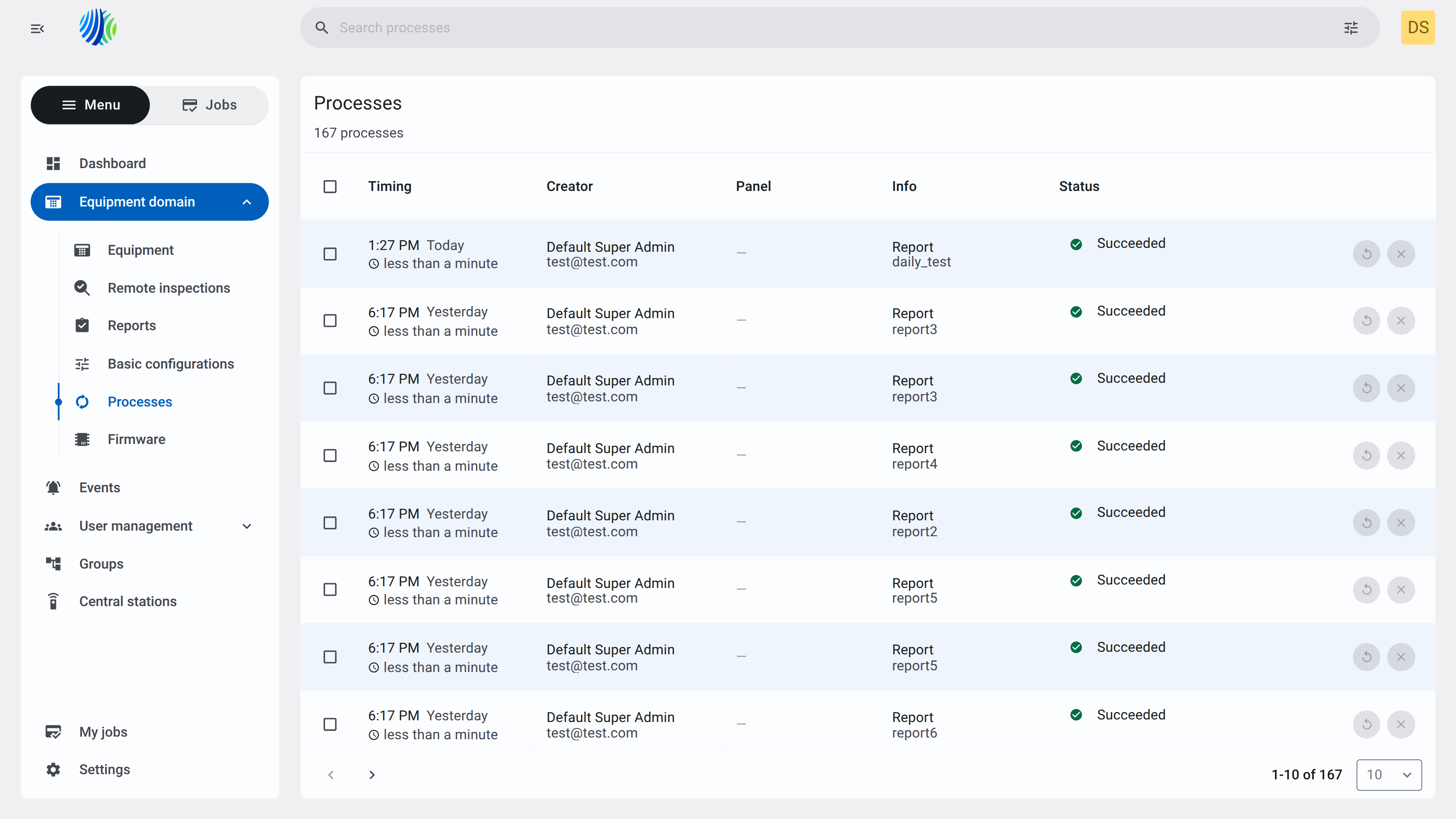
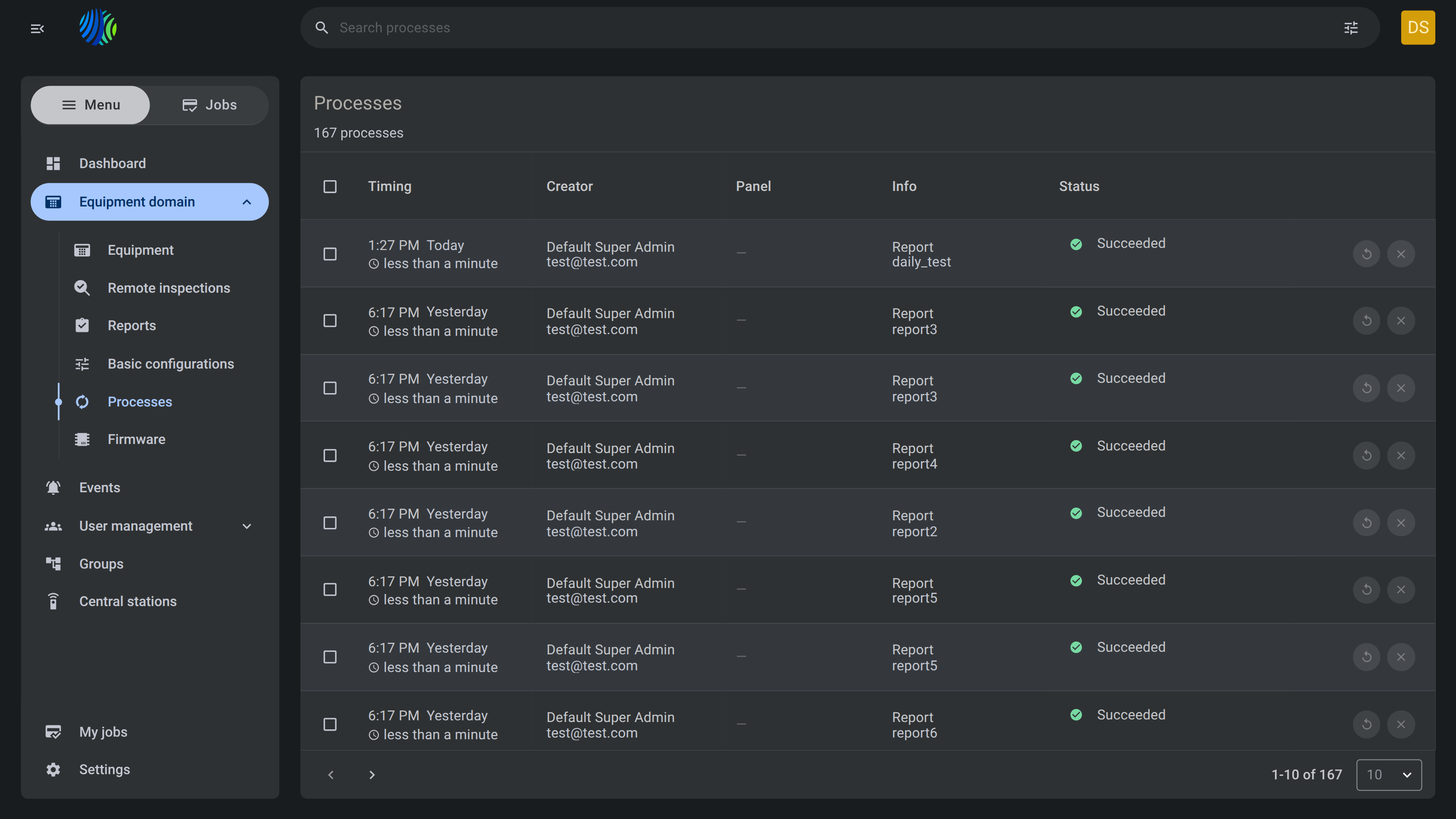
The Processes page shows background processes. Use this page to review process history, check process status, identify the creator, and retry or stop supported processes.
Use this page to:
- View all available processes in a grid.
- Search for processes.
- Review process timing and duration.
- Review who created a process.
- Check whether a process succeeded.
- Retry and Stop process.
Before you begin
Required permissions
- You must have permission to list and stop processes.
info
Access to the Processes page is controlled by the role permission group named Processes.
Preconditions
- At least one process must exist before the grid shows process records.
Dependencies
- Process records are created by supported system operations, such as report generation or equipment-related workflows.
- Status values depend on the result returned by the related operation.
- Search results depend on the process data available to the current user.
Important limitations
warning
- The retry and stop icons are visible in each row, but the action behavior depends on process state.
Page layout
Page header
The page header identifies the page and shows the number of available entries.


| Callout | UI element | Description | When to use |
|---|---|---|---|
| 1 | Page title | Shows the current page name | Use to confirm that you are on the page. |
| 2 | Page entries count | Shows the total number of entries | Use to understand how many entries are available. |
Processes entries grid
| Callout | UI element | Description | When to use |
|---|---|---|---|
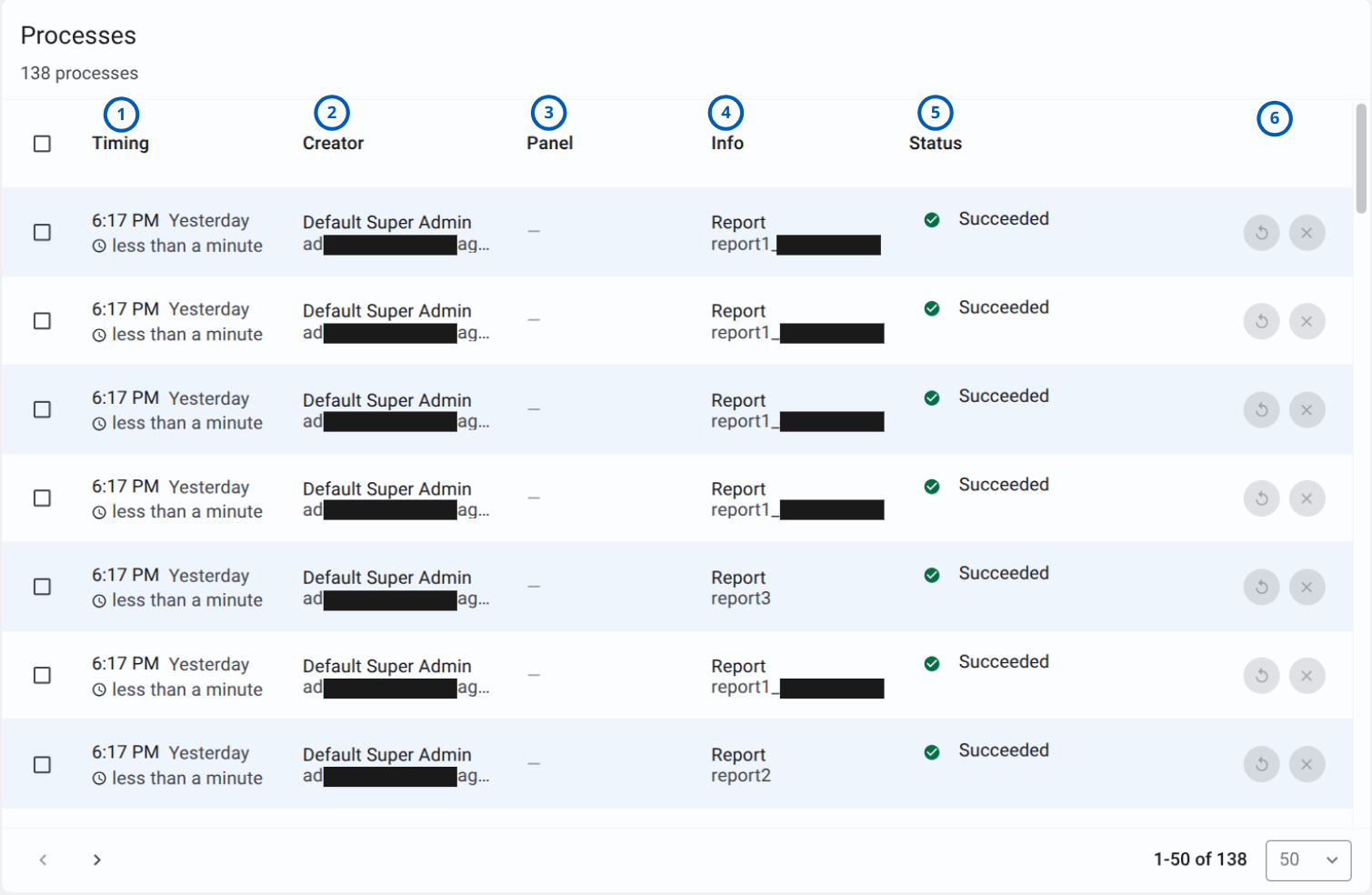
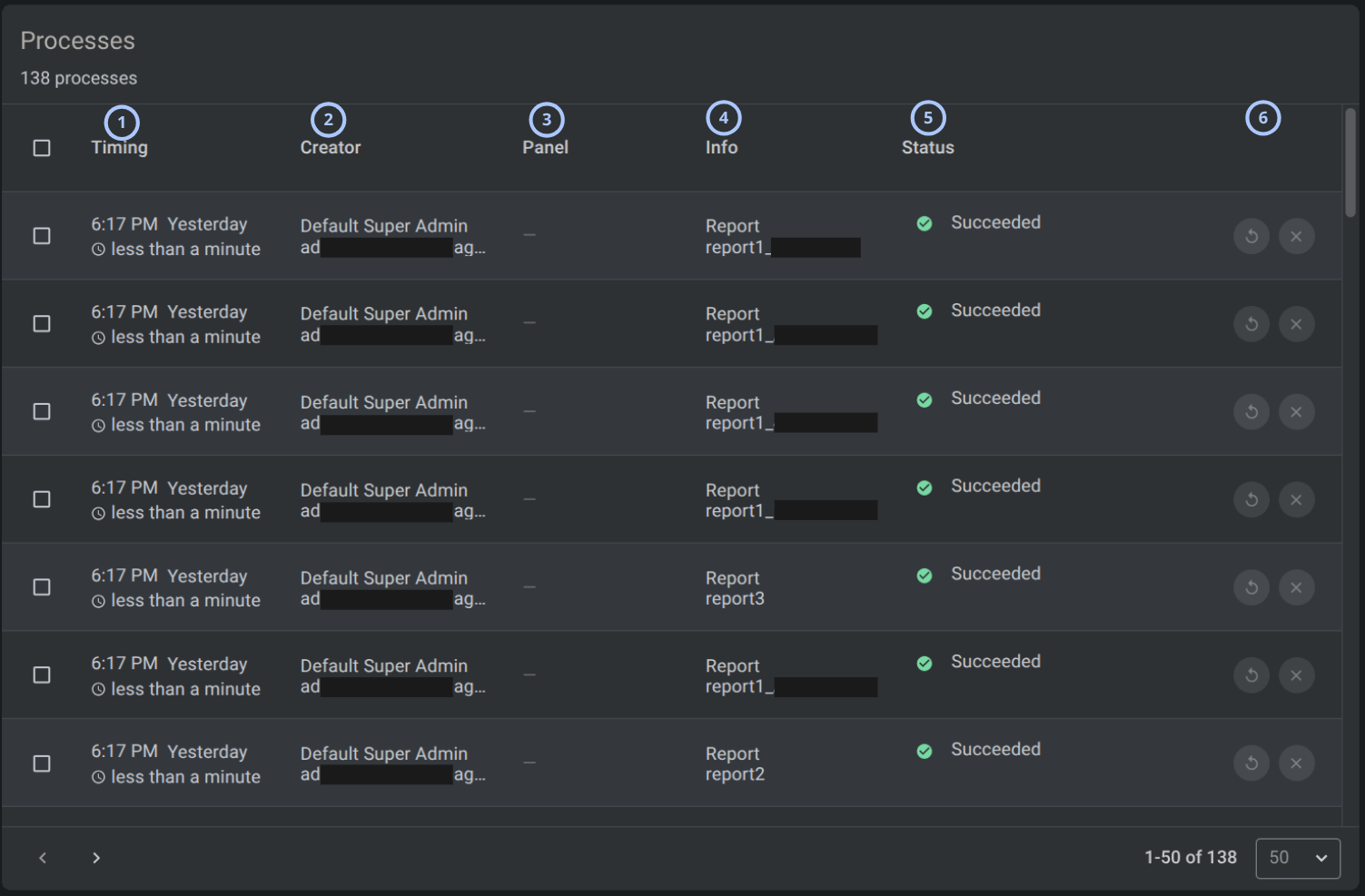
| 1 | Timing column | Shows when the process ran and how long it took. | Use to review when a process occurred and its duration. |
| 2 | Creator column | Shows the process creator name and email. | Use to identify who started or created the process. |
| 3 | Panel column | Shows the related panel. | Use to identify the panel related to the process when a panel value exists. |
| 4 | Info column | Shows process information. | Use to understand what the process was related to. |
| 5 | Status column | Shows the process result. | Use to confirm whether a process completed successfully. |
| 6 | Retry and stop actions | Shows a circular arrow and an X icons at the end of each row. | Use to retry and stop process. |
Pagination controls
Pagination controls appear at the bottom of the entries grid.


| Callout | UI element | Description | When to use |
|---|---|---|---|
| 1 | Previous and next arrows | Shows left and right arrows, such as < and >, to move between pages. | Use when the entries list has more records than the current page can show. |
| 2 | Range indicator | Shows the current range and total number of entries | Use to understand where you are in the entries list. |
| 3 | Entries per page selector | Controls how many entries appear on one page. | Use to show fewer or more entries in the grid. |
How to use this page
Review process status
Goal:
- Confirm whether a process completed successfully.
Steps:
- Open the Processes page.
- Find the process row in the grid.
- Review the Status column.
- Check the status icon next to the status text.
Expected result:
- The process status is visible in the Status column.
- A green check icon and Succeeded status indicate that the process completed successfully.
Retry a process
Goal:
- Run a process again when retry is available.
Steps:
- Open the Processes page.
- Locate the required process row.
- Review the process status and information.
- Select the circular arrow icon at the end of the row.
- Monitor the process status after the retry starts.
Expected result:
- The system attempts to run the process again when retry is allowed.
- The process status updates after the retry completes or fails.
Stop a process action
Goal:
- Stop a supported process action.
Steps:
- Open the Processes page.
- Locate the required process row.
- Select the X icon at the end of the row when the action is enabled.
- Review the process status after the action is applied.
Expected result:
- The process action is stopped according to the supported behavior for that process.
- The process status updates if the action changes the process state.
Tips
tip
- Use Search Processes when the grid contains many process records.
- Review the Timing column before retrying a process to avoid retrying an old or unrelated record.
- Check the Creator column when auditing who started a process.
- Use pagination when the total count is higher than the number of visible rows.
Troubleshooting
The process I need is not visible
Possible causes
- The process is on another page.
- The search field is filtering the grid.
- The process is not available to the current user.
- The process was not created successfully.
What to do
- Clear the Search Processes field.
- Review the process count below the page title.
- Use the pagination arrows to move between pages.
- Change the number of processes shown per page.
- Confirm that your role has permission to list the process.
Retry is not available or does not work
Possible causes
- The process state does not support retry.
- The process already succeeded.
- The retry action is disabled by system rules.
What to do
- Review the process status.
- Confirm that retry is supported for the selected process.
- If retry remains unavailable, contact an administrator.
The stop action is not available or does not work
Possible causes
- The process state does not support stop action.
- The process already completed.
- You do not have permission to stop the process action.
What to do
- Review the process status.
- Confirm that the process can still be stopped.
- Confirm that your role has the required permission.
- Refresh the grid and check the process status again.
- Contact an administrator if the action should be available but is not shown.
Related pages
See also
Was this page helpful?