Remote inspections
Overview
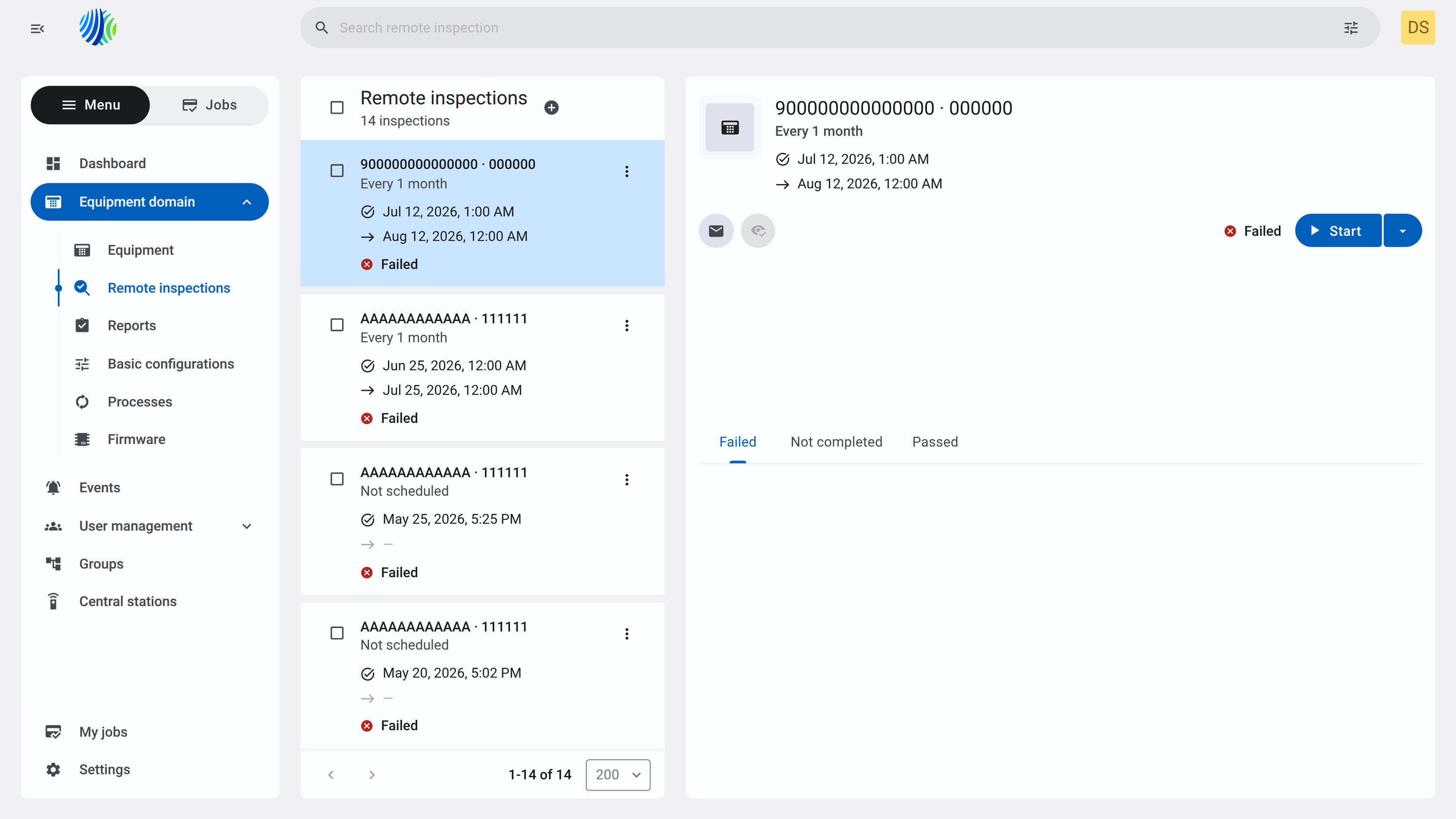
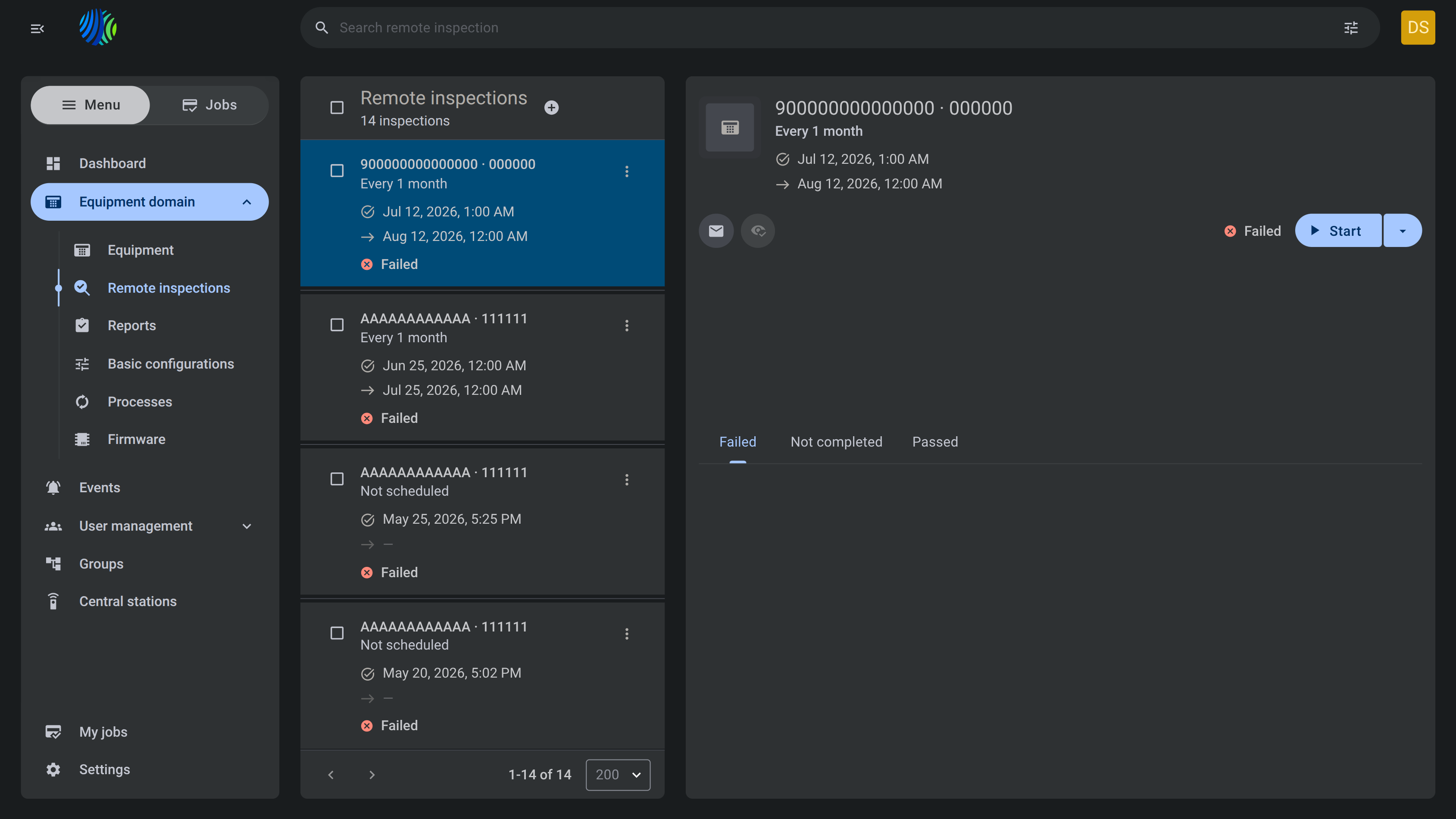
The Remote inspections page is used to review and manage remote inspection records for equipment.
Use this page to:
- Review inspection details and schedule, last run time, next scheduled time, and status.
- Open inspection actions from the actions menu.
- Send an email related to an inspection.
- Review failed, not completed, and passed inspection result categories.
- Review fault, usage, zone, clock, and broadband result sections.
- Open the Start dropdown and schedule an inspection.
- Set the next inspection date and repetition interval.
- Schedule remote inspections by uploading a CSV file.
This page helps operators track scheduled and completed remote inspections, identify failed inspections, start new inspections, and manage remote inspection actions for selected equipment.
Before you begin
Required permissions
- You must have permission to run, list, review, send Remote inspections.
Access to the Remote inspections page is controlled by the role permission group named Remote Inspections.
Preconditions
- At least one remote inspection record must exist before the list shows inspections.
- A CSV file must use the required structure before it can be used for CSV scheduling.
Dependencies
- CSV scheduling depends on the CSV file structure, date format, and repetition values.
Important limitations
- Bulk actions apply to all selected inspection records. Review the selected count before applying an action.
- The Schedule button in the CSV upload dialog is disabled until a valid CSV file is selected or uploaded.
- A zero or empty repetition value in the CSV means a one-time report.
- Dates in the CSV must use the YYYY-MM-DD format.
Page layout
Page header
The Remote inspections header shows the total number of inspections and provides controls for selecting all records or scheduling remote inspections using a CSV file.


| Callout | UI element | Description | When to use |
|---|---|---|---|
| 1 | Select all checkbox | Selects or clears all remote inspection records in the list. | Use to select all remote inspection records before applying a bulk action. |
| 2 | Schedule RRI by CSV | Opens the workflow for scheduling remote inspections by importing a CSV file. | Use to schedule remote inspections for multiple panels using data from a CSV file. |
Remote inspections list
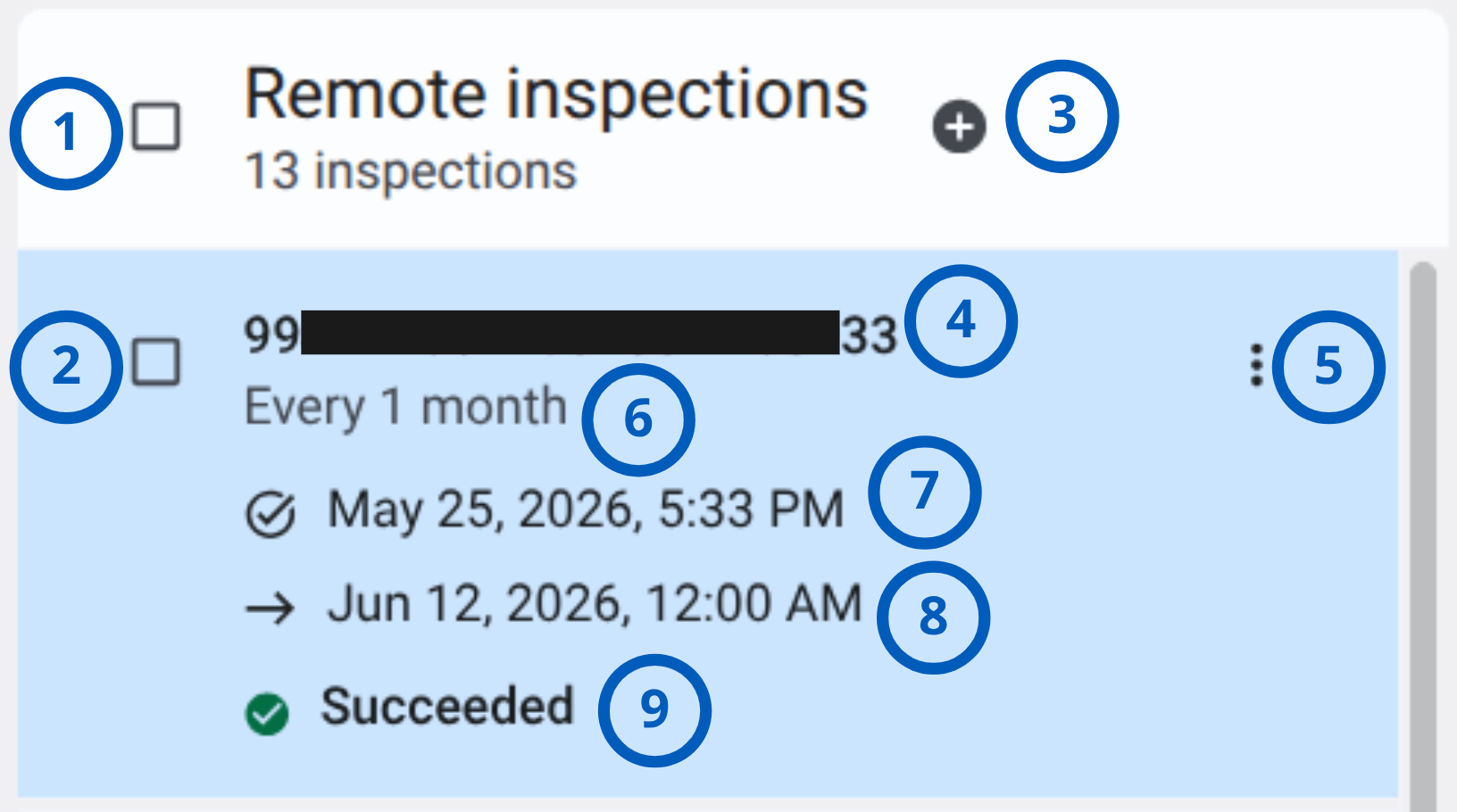
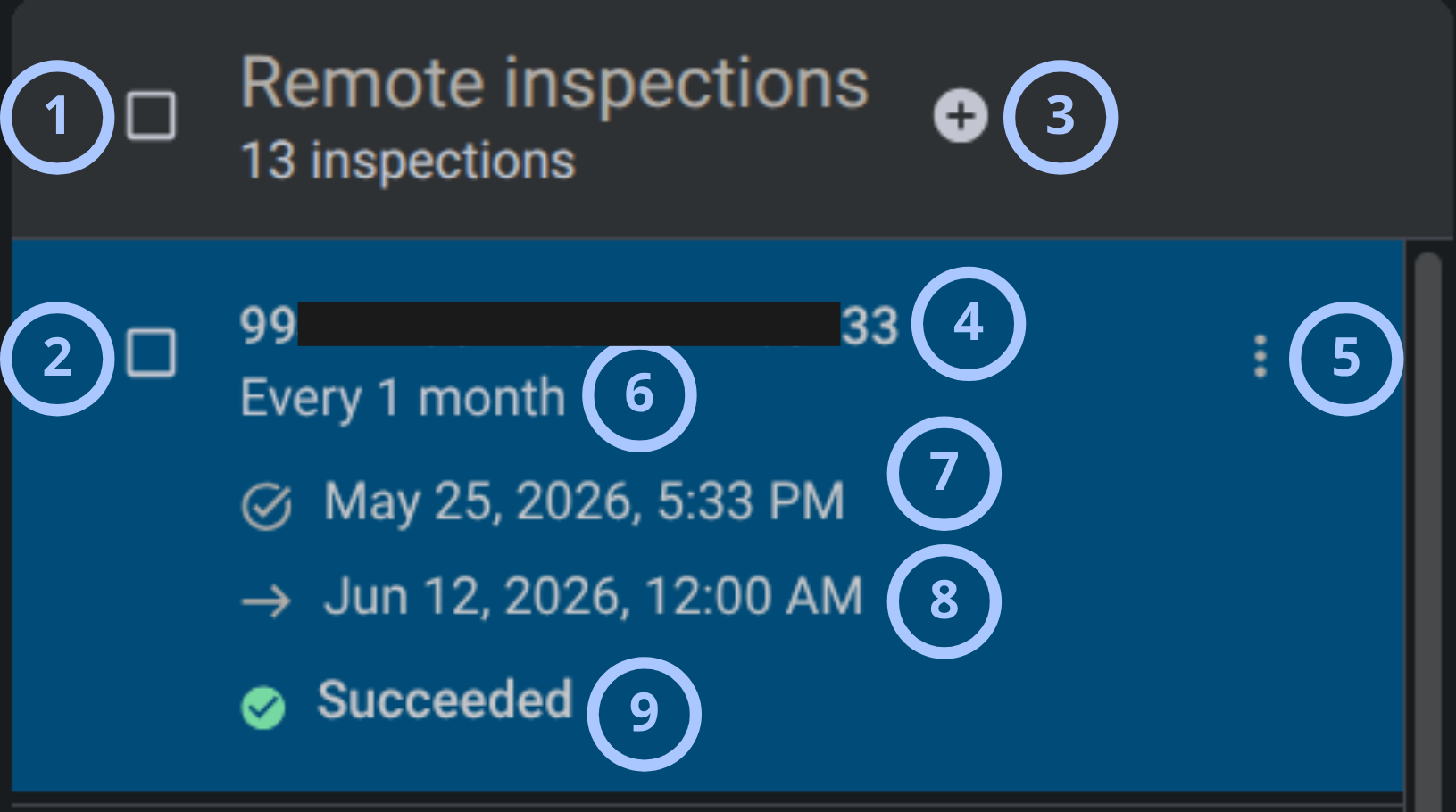
The Remote inspections list appears in the middle panel. It shows inspection records and their summary information. Clicking Panel identifier field opens the Calendar page.
| Callout | UI element | Description | When to use |
|---|---|---|---|
| 1 | Record selection checkbox | Selects or clears the remote inspection record. | Use to select an individual inspection record before applying an available action. |
| 2 | Row actions menu | Opens the actions available for the selected remote inspection record. | Use to initiate an inspection, manage its schedule, send an email, or mark the inspection as reviewed. |
| 3 | Inspection details | Shows the inspection schedule, last inspection time, next scheduled time, and last inspection status. | Use to review the schedule and last state of the remote inspection. |
Row actions menu
The Remote inspection actions menu provides actions for starting an inspection, managing its schedule, sending inspection information by email, and reviewing inspection details.
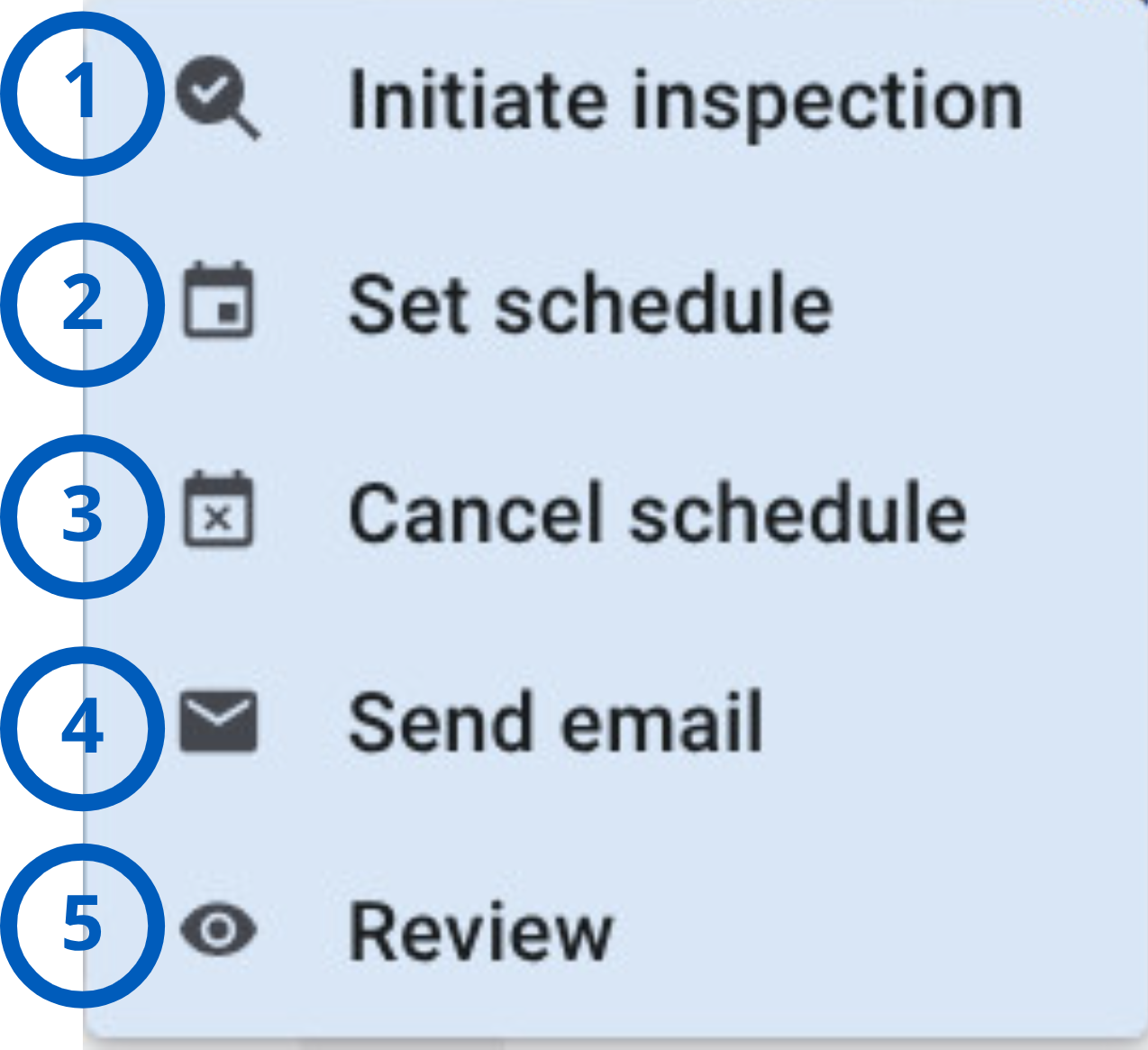
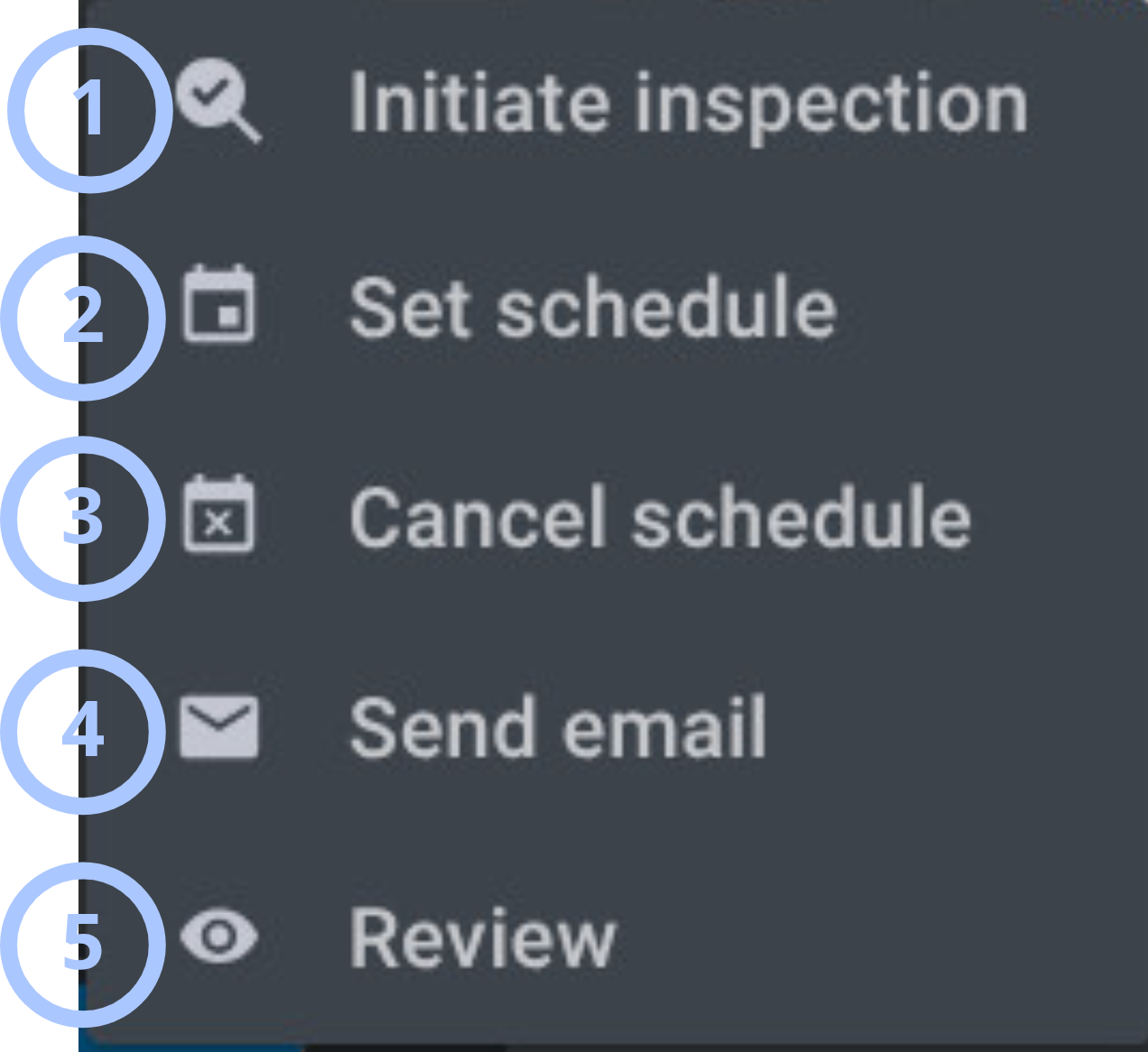
| Callout | UI element | Description | When to use |
|---|---|---|---|
| 1 | Initiate inspection | Starts a remote inspection for the selected panel. | Use to run a remote inspection immediately. |
| 2 | Set/Cancel schedule | Opens the scheduling options for the selected remote inspection. | Use to configure when and how often the remote inspection runs or cancel existing schedule. |
| 3 | Send email | Send remote inspection info by email. | Use to send inspection information to owner email. |
| 4 | Review | Marks the remote inspection as read and reviewed. | Use after reading and verifying the remote inspection information. |
Inspection details panel
The Inspection details panel appears on the right side after selecting an inspection record.
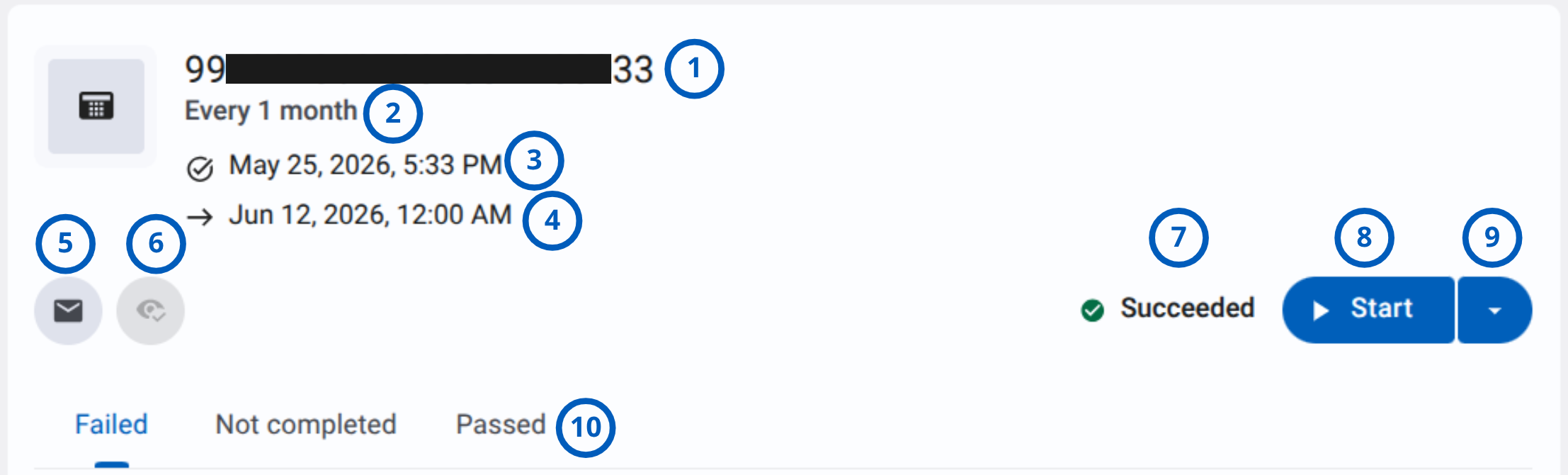
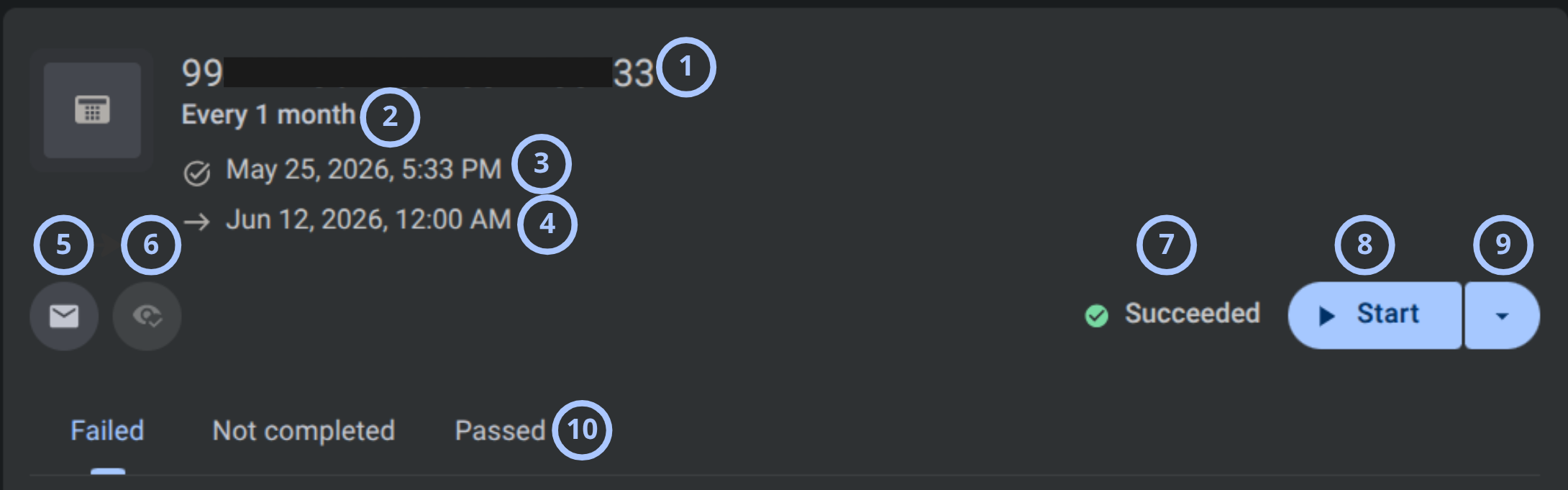
| Callout | UI element | Description | When to use |
|---|---|---|---|
| 1 | Inspection title | Shows the identifier of the panel associated with the remote inspection. | Use to confirm which panel and remote inspection record are open. |
| 2 | Inspection schedule details | Shows the inspection recurrence, last inspection time, and next scheduled inspection time. | Use to review how often the inspection runs, when it last ran, and when it is scheduled to run next. |
| 3 | Send email action | Send remote inspection info by email. | Use to send inspection information to owner email. |
| 4 | Review action | Marks the remote inspection as read and reviewed. | Use after reading and verifying the remote inspection information. |
| 5 | Status indicator | Shows the latest outcome or processing status of the remote inspection. | Use to confirm whether the remote inspection succeeded, failed, or has another status. |
| 6 | Start button | Starts a remote inspection for the selected panel. | Use to run the remote inspection immediately. |
| 7 | Start actions dropdown | Opens additional scheduling actions for the selected remote inspection. The available action depends on whether an inspection schedule exists. | Use to set a schedule or cancel the existing schedule. |
Inspection results area
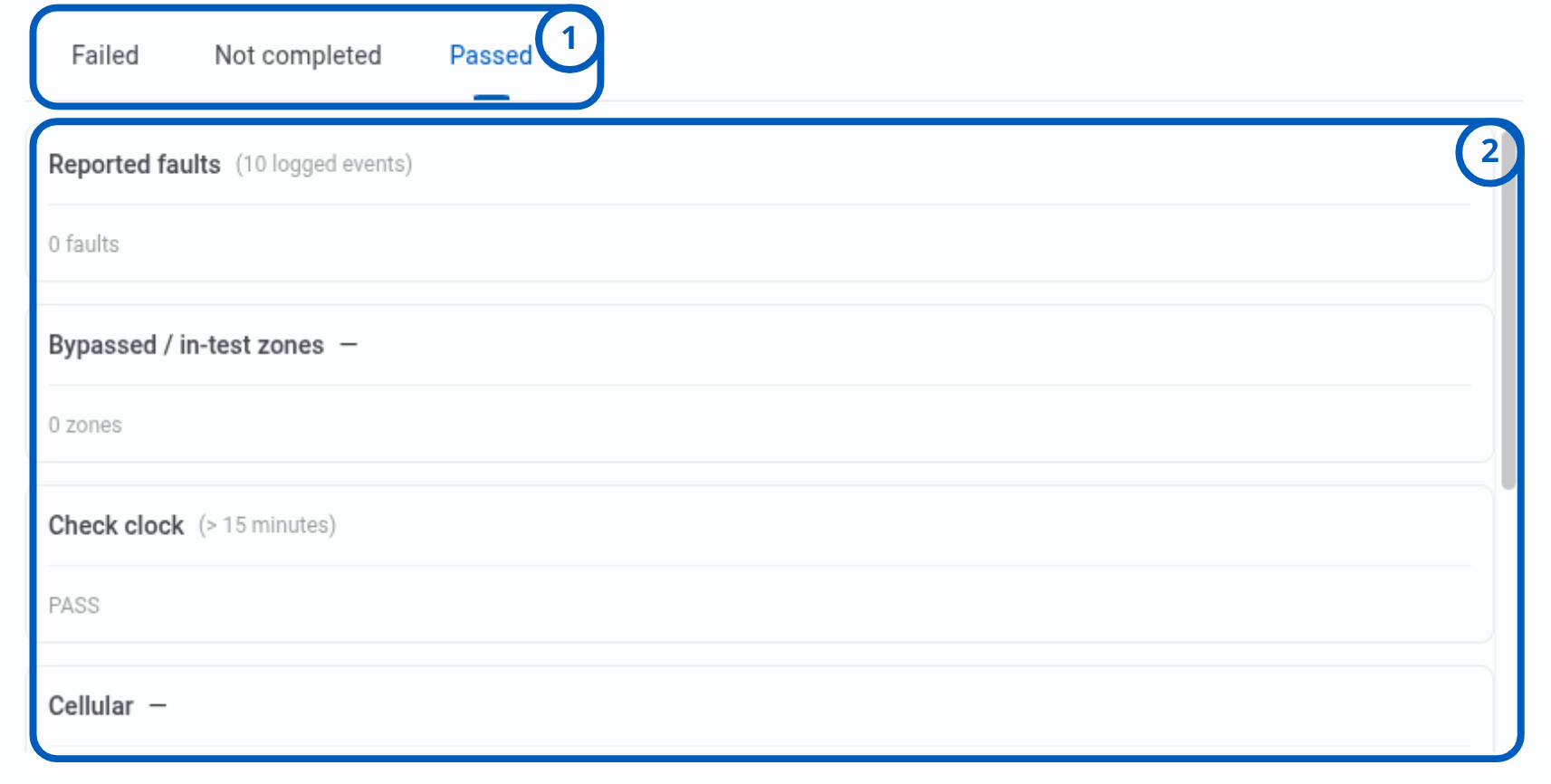
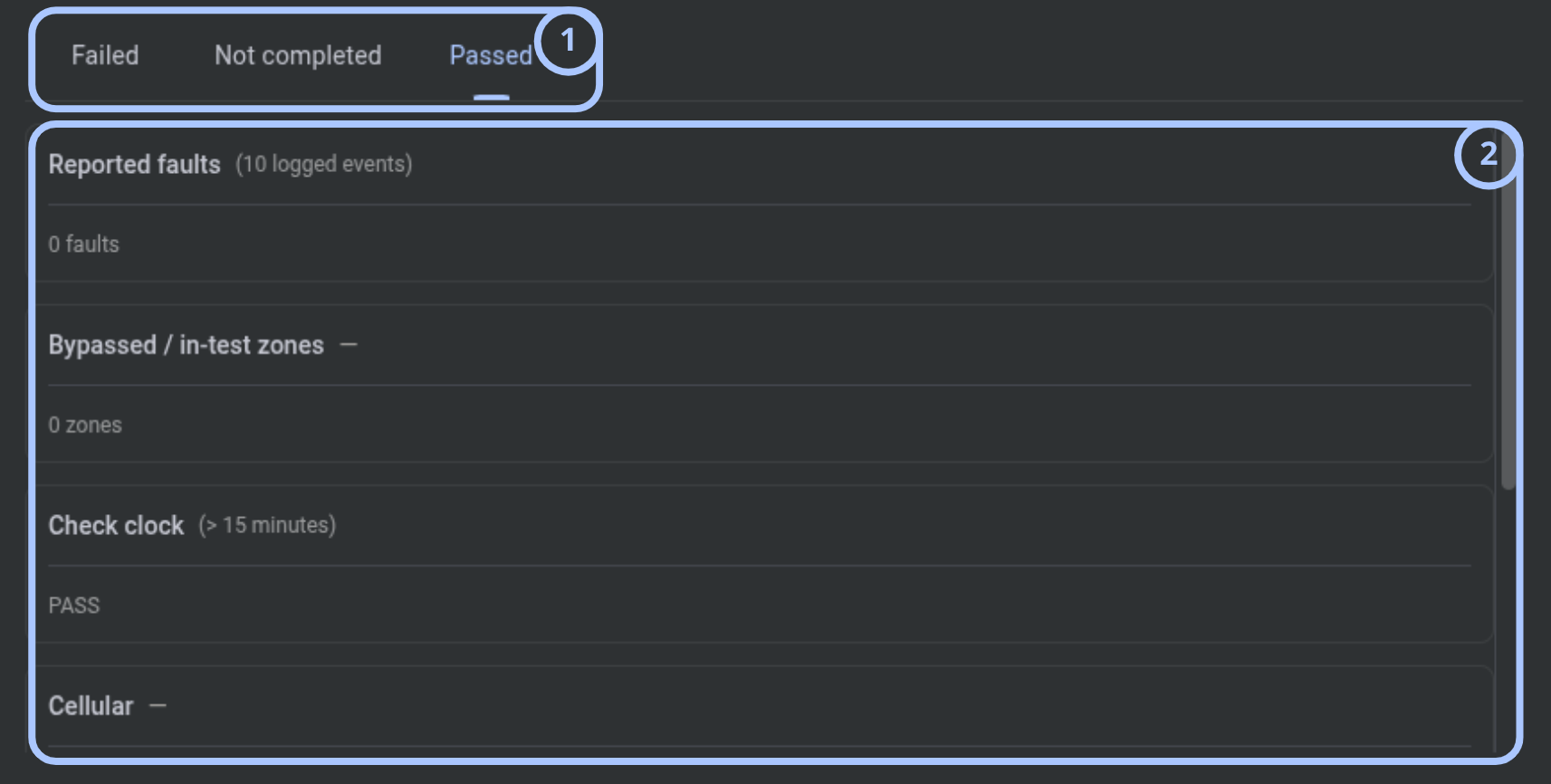
The inspection results area groups remote inspection checks by result and displays detailed information for the selected result category.
| Callout | UI element | Description | When to use |
|---|---|---|---|
| 1 | Result tabs | Shows the Failed, Not completed, and Passed result categories. | Use to switch between failed, incomplete, and passed inspection checks. |
| 2 | Inspection results list | Shows the checks included in the selected result category and the result of each check. | Use to review the detailed results of the remote inspection. Scroll through the list to view all available checks. |
Pagination controls
Pagination controls appear at the bottom of the entries grid.


| Callout | UI element | Description | When to use |
|---|---|---|---|
| 1 | Previous and next arrows | Shows left and right arrows, such as < and >, to move between pages. | Use when the entries list has more records than the current page can show. |
| 2 | Range indicator | Shows the current range and total number of entries | Use to understand where you are in the entries list. |
| 3 | Entries per page selector | Controls how many entries appear on one page. | Use to show fewer or more entries in the grid. |
How to use this page
Schedule a remote inspection
Goal:
- Set the next inspection date and repetition interval for a selected remote inspection.
Steps:
- Open Equipment domain > Remote inspections.
- Select an inspection record.
- In the details panel, select the dropdown arrow next to Start.
- Select Schedule.
- In the Schedule remote inspection dialog, set Next inspection.
- Select Choose repetition.
- Choose one of the available repetition options:
- Once
- 1 month
- 3 months
- 6 months
- 9 months
- Save or continue the schedule workflow when the action is available.
Expected result:
- The selected remote inspection is scheduled with the selected date and repetition interval.
Schedule inspections by CSV
Goal:
- Upload a CSV file to schedule remote inspections.
Steps:
- Open Equipment domain > Remote inspections.
- Open the CSV scheduling workflow when available.
- In the Schedule RRI by CSV dialog, prepare a CSV file with this structure:
- Panel Id
- Start date
- Repetition [0,1,3,6,9]
- Confirm that the CSV uses the YYYY-MM-DD date format.
- Drag the CSV file into the drop zone or select Browse file.
- Select Schedule when the button becomes available.
Expected result:
- Inspections are scheduled from the uploaded CSV file.
A zero or empty repetition value means a one-time report. Confirm repetition values before scheduling inspections.
Send an inspection email
Goal:
- Send an email related to an inspection.
Steps:
- Open Equipment domain > Remote inspections.
- Select an inspection record.
- Open the actions menu.
- Select Send email.
Expected result:
- Remote inspection details are sent to the owner's email.
Tips
- Validate the date and repetition value before saving an inspection schedule.
- Validate the CSV structure and date format before uploading a schedule file.
Troubleshooting
The Remote inspections page is not visible
Possible causes
- Your role does not include permission to Review Remote inspections.
What to do
- Confirm that you are signed in with the correct user account.
- Contact an administrator with role management permissions.
- Ask the administrator to verify your access to Remote inspections.
No inspection records are displayed
Possible causes
- No remote inspection records exist.
- Search text or filters exclude all records.
- Your role does not allow access to inspection records.
What to do
- Clear the search field.
- Review active filters.
- Refresh the page.
- Contact an administrator if inspections should be visible but are missing.