Events
Overview
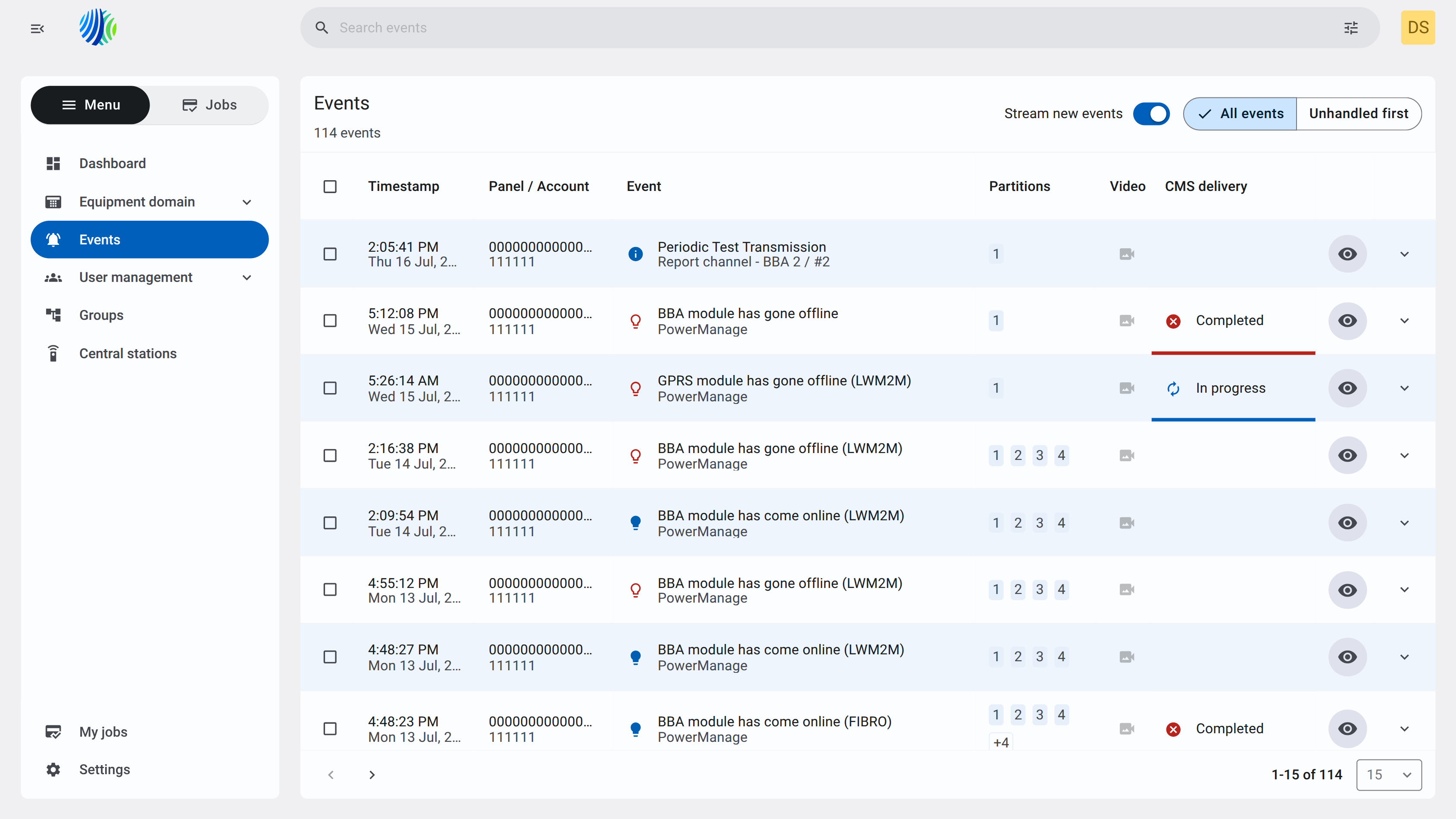
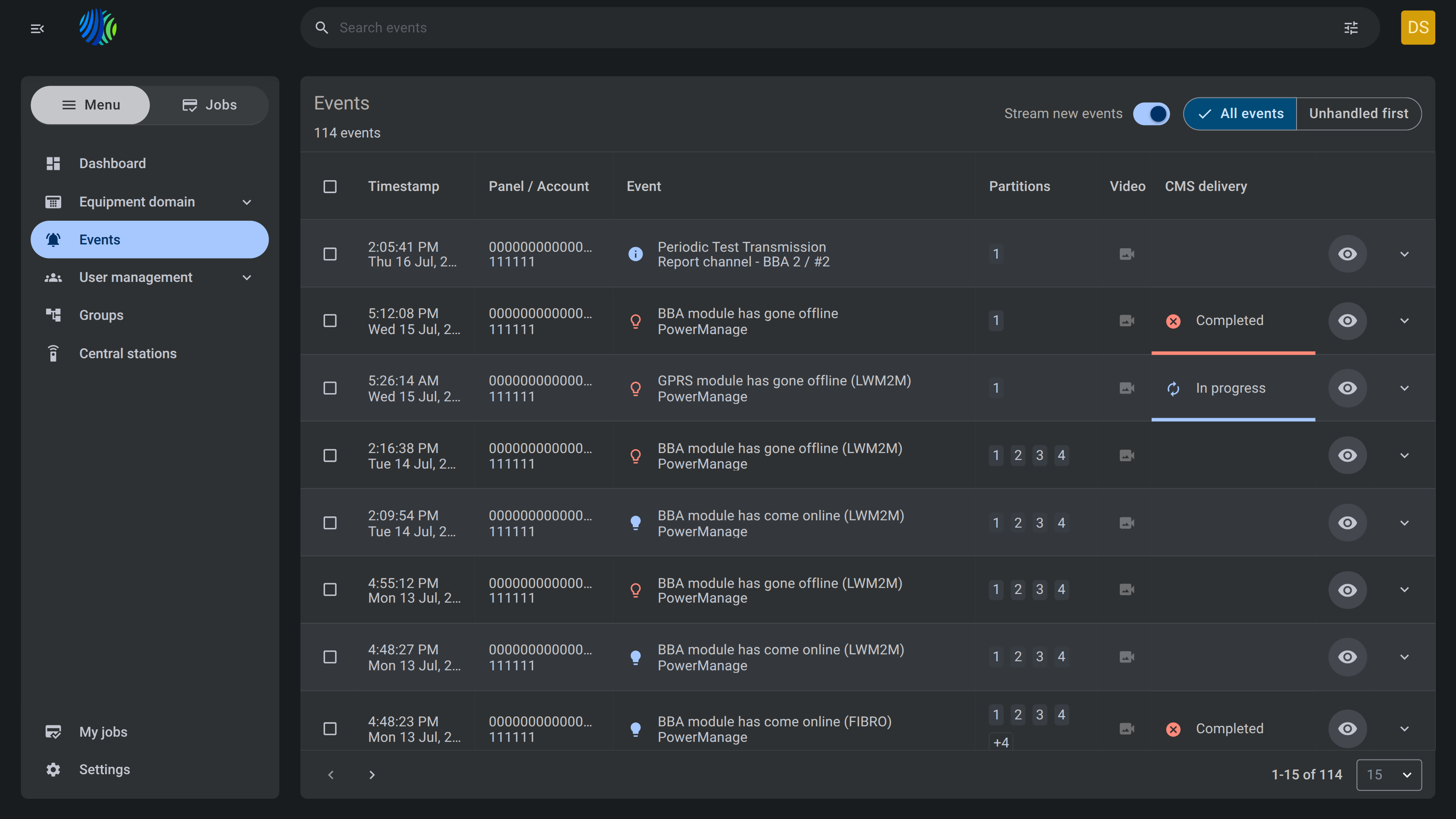
The Events page displays event records received, processed, and sent to central station automation software.
Use this page to:
- Review event delivery status to central stations.
- Review event history, monitor new events, and filter the event list by All events or Unhandled first.
- Search for event records by available event information.
- Review event time, panel, event description, partitions, video availability, and delivery status.
The Events page helps operators review incoming and historical events, identify delivery state, and focus on events that need handling.
Before you begin
Required permissions
- You must have the Event View, View Video on Demand Events List, Delivery, and Attached Video permissions in the Events role permission group.
Access to the Events page is controlled by the role permission group named Events.
Preconditions
- At least one event must exist before the grid shows event records.
- Central station delivery data must exist before central station results are shown in expanded event details.
Dependencies
- Video availability depends on whether video is associated with the event.
Important limitations
- Bulk actions apply to all selected event rows. Review the selected count before applying an action.
- Event count per panel is limited to 256 entries and the configured rotation settings.
- Video can be downloaded only after the panel sends all frames to the PowerManage server.
- Automation device status events, like "Unreachable", cannot be sent to Central stations because CID/SIA/FEP codes are missing.
Page layout
The Events page header displays summary information and controls for managing the event view. It shows the page title, the total number of events, and options for streaming new events and prioritizing unhandled events. Use these controls to monitor and filter events based on your current investigation.


| Callout | UI element | Description | When to use |
|---|---|---|---|
| 1 | Page title | Shows the current page name. | Use to confirm that you are on the Events page. |
| 2 | Page entries count | Shows the total number of events available in the current view. | Use to understand how many events are currently available. |
| 3 | Stream new events toggle | Controls whether new events stream into the grid while the page is open. | Use to monitor new events in near real time. |
| 4 | All events and Unhandled first tabs | Shows all events or prioritizes unhandled events in the current scope. The selected tab is highlighted and includes a check mark. | Use when you need a full event list or when you need to focus on events that require attention. |
Events grid
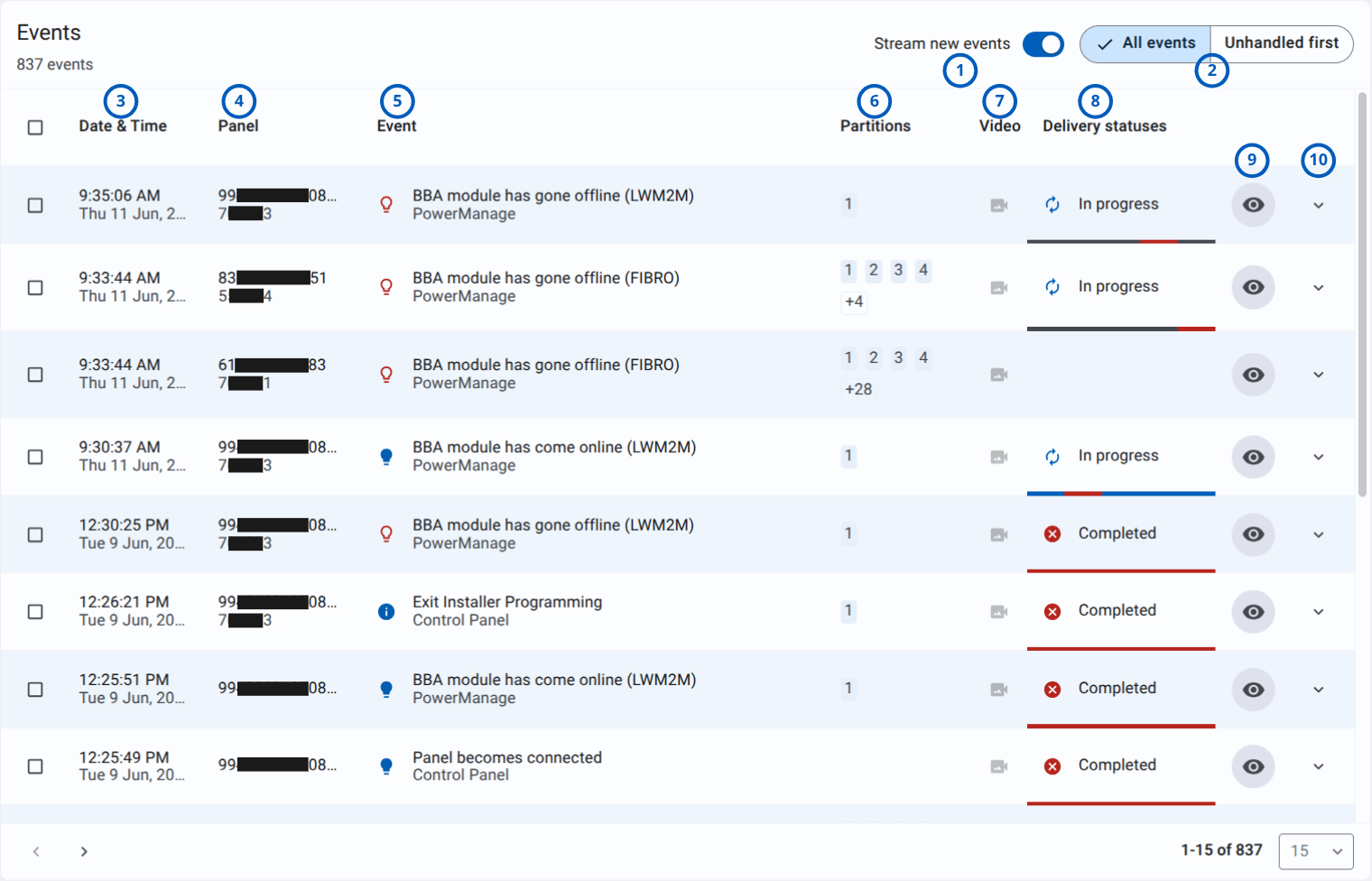
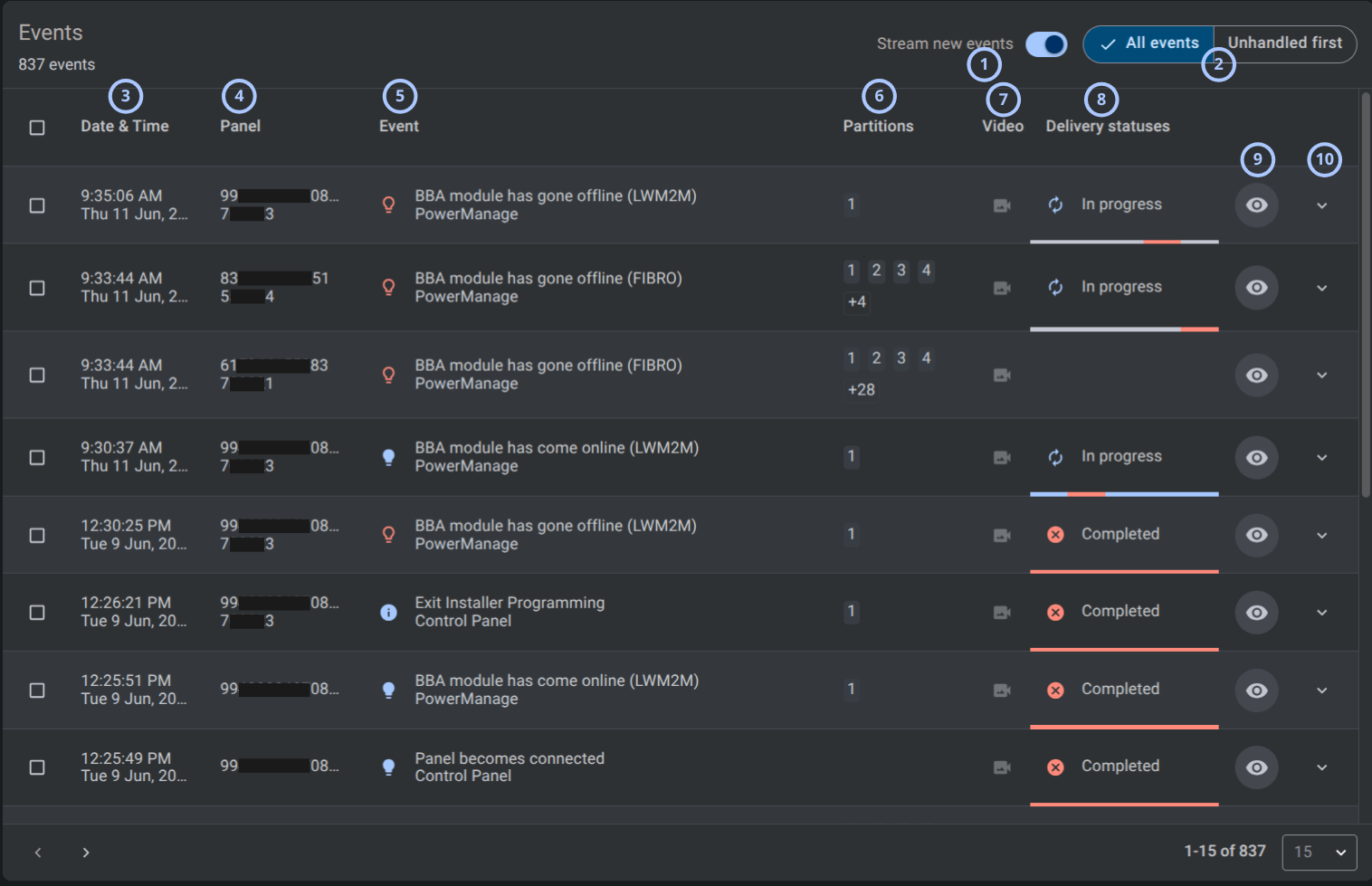
The Events grid displays event records within the selected scope. Each row represents a single event and provides information such as the event timestamp, source panel, event details, partitions, video availability, and delivery status. Use the grid controls to review, monitor, and investigate individual events.
| Callout | UI element | Description | When to use |
|---|---|---|---|
| 1 | Select row checkbox | Selects an event row for bulk actions or comparison. | Use when you need to select one or more events for further actions. |
| 2 | Date & Time column | Shows when the event occurred. The value includes the event time and date. | Use to understand when the event was recorded. |
| 3 | Panel column | Shows the panel identifier and related panel information. | Use to identify the panel that reported the event. |
| 4 | Event column | Shows the event icon, event description, and event source. | Use to understand what happened and which source reported the event. |
| 5 | Partitions column | Shows one or more partition chips associated with the event. | Use to see which partitions are associated with the event. |
| 6 | Video column | Shows a video icon when related video is available for the event. | Use to identify events that have associated video. |
| 7 | Delivery statuses column | Shows the current event delivery status, such as In progress or Completed. | Use to monitor delivery progress and completion state. |
| 8 | View event button | Eye icon that opens the event details view. | Use to review detailed information about a specific event. |
| 9 | Expand row chevron | Expands or collapses additional event information for the selected row. | Use to view or hide extended event details. |
Expanded event details
The expanded event details view provides additional information about the selected event and its delivery progress. It includes event metadata, a visual representation of the delivery workflow, and the list of central stations involved in processing the event. Use this view to investigate event details, monitor delivery status, and identify where processing succeeded or failed.
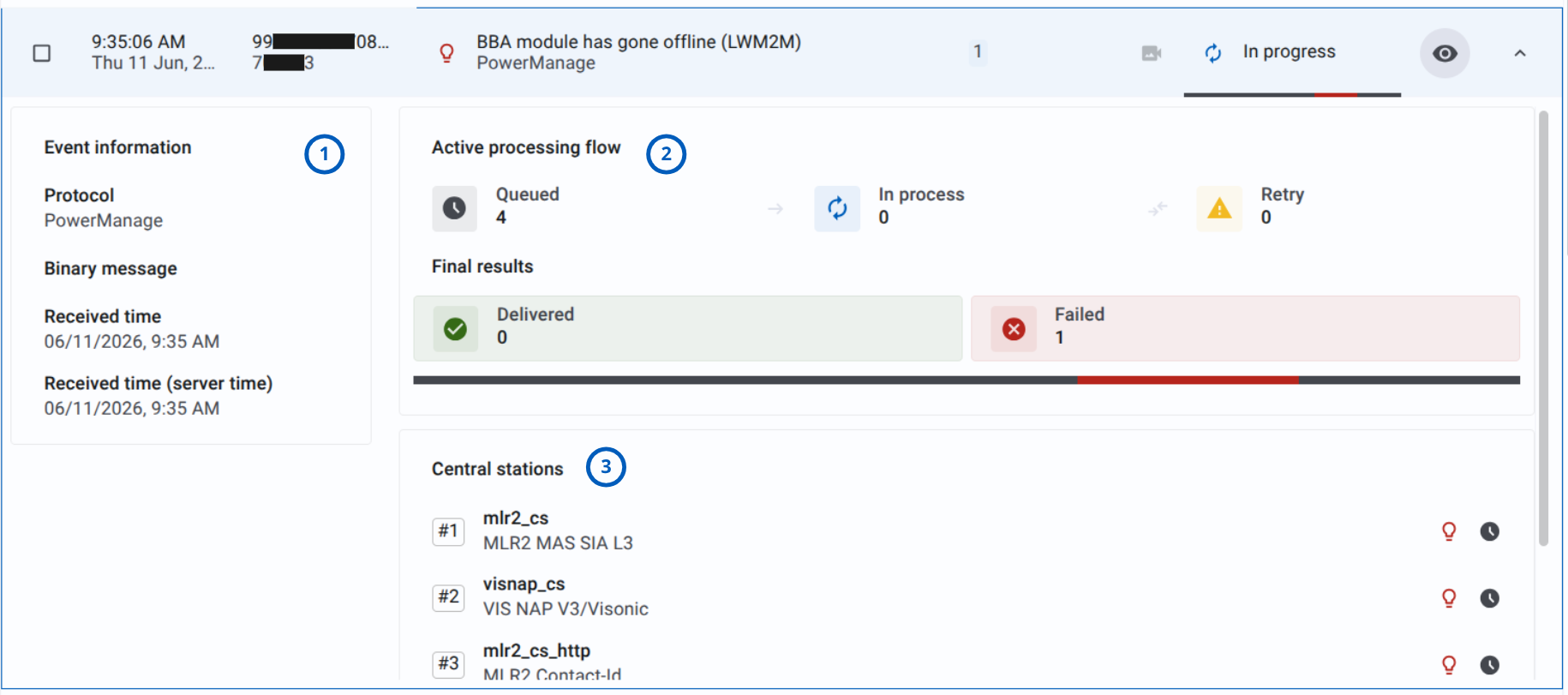
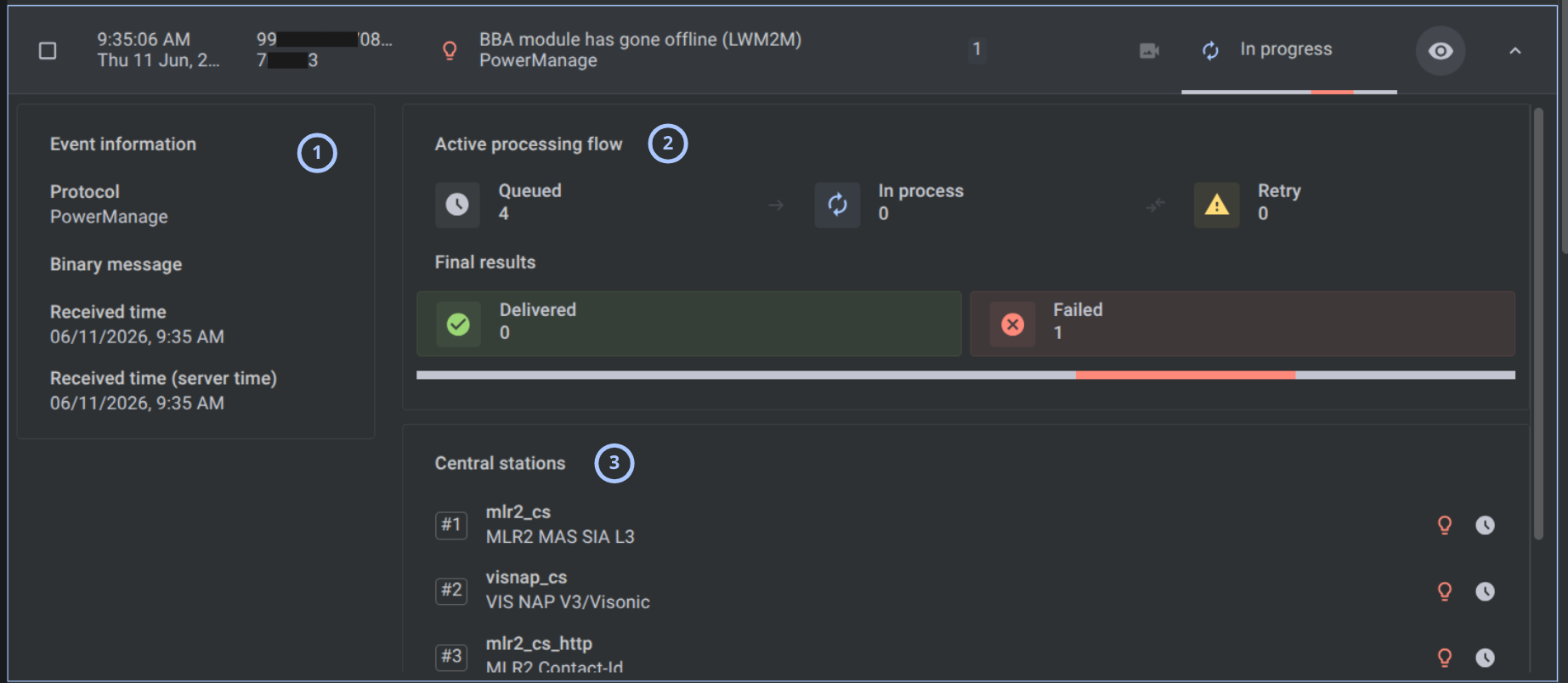
| Callout | UI element | Description | When to use | |
|---|---|---|---|---|
| 1 | Information tab | Displays event details, processing information, and delivery information for the selected event. This tab is selected by default. | Use to review event metadata, processing status, central station communication status, and delivery status. | |
| 2 | Videos tab | Displays video associated with the selected event, when available. | Use to review video associated with the event. | |
| 3 | Event information panel | Shows event metadata, including the protocol, binary message, received time, and the time when the event was received by the server. | Use to review the event metadata and original message information. | |
| 4 | Active processing flow panel | Shows the event processing stages and the number of deliveries that are queued, in progress, scheduled for retry, delivered, or failed. | Use to track how the event moves through delivery processing and review the final delivery results. | |
| 5 | Central stations panel | Lists the central stations to which the event is being delivered. Each row includes the central station name, receiver information, communication status, and event delivery status. | Use to review the central stations involved in event delivery and check the status of each destination. | |
| 6 | Central station communication status |  | Indicates that heartbeat communication is active. | Use to verify whether communication with the central station is active. |
 | Indicates that there is no connection to the central station. | |||
| 7 | Event delivery status |  | Indicates that the event was delivered successfully. | Use to verify whether the event was delivered successfully or delivery failed. |
 | Indicates that the event delivery failed. | |||
Expanded video event details
The Videos tab provides access to camera video associated with the selected event. Use Event mode and Live mode to switch between recorded event frames and the live camera stream.
- Event mode
- Live mode
In Event mode, select individual frames to view them in the main video area and use the playback controls to navigate between frames.
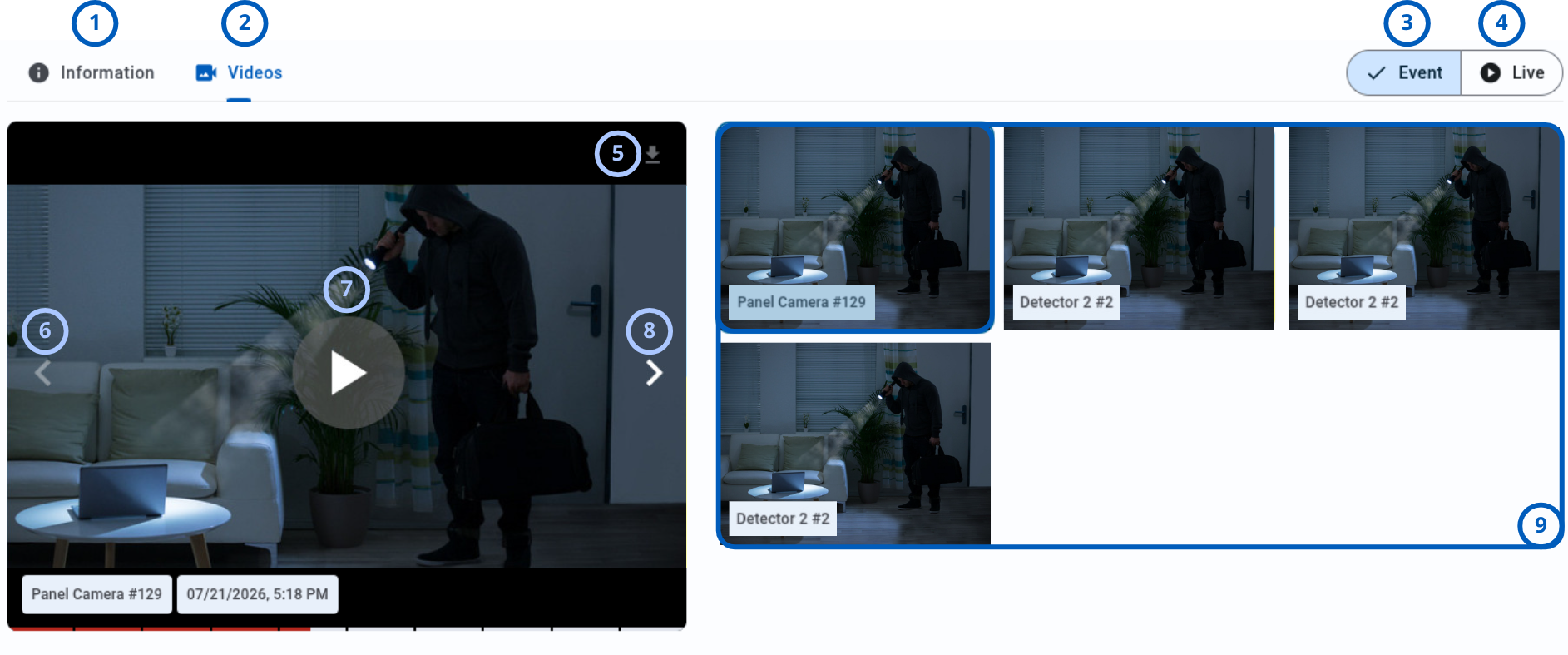
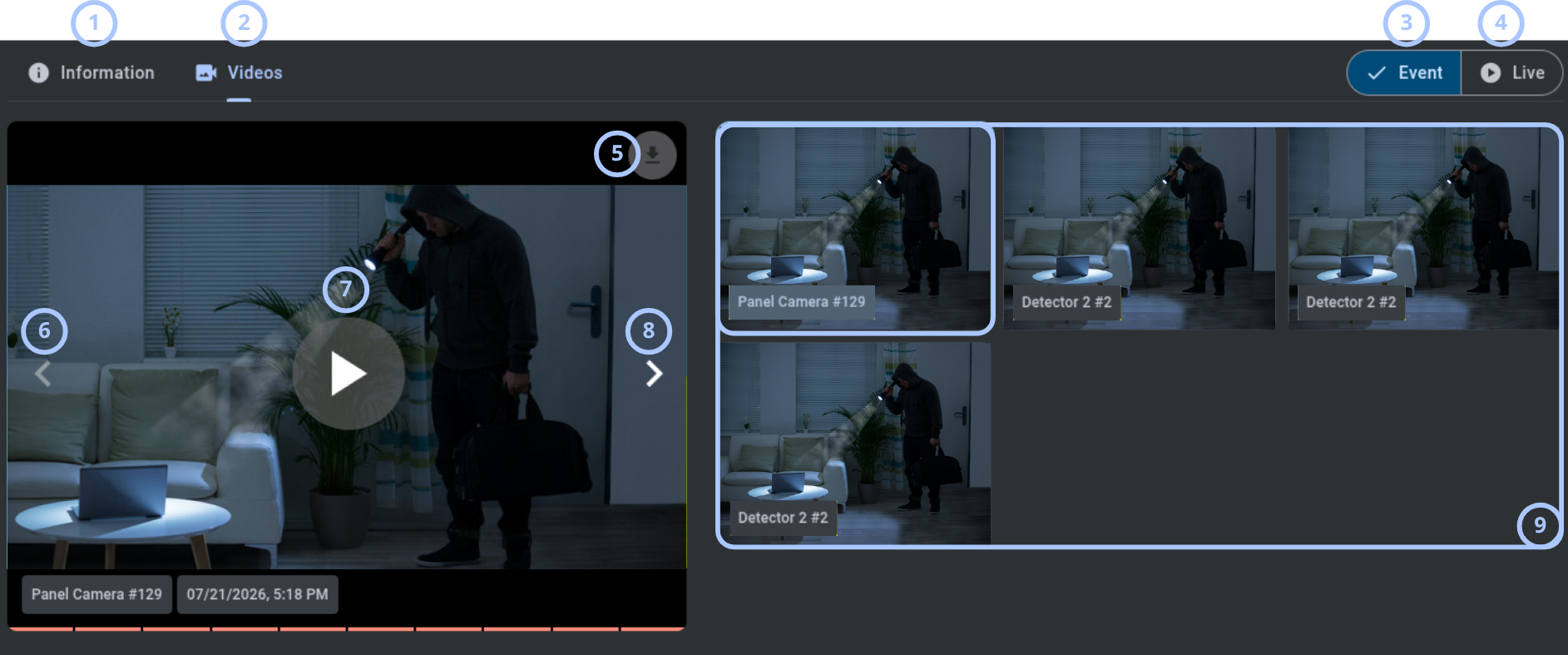
| Callout | UI element | Description | When to use |
|---|---|---|---|
| 1 | Information tab | Displays information about the selected event, including event details, processing status, and delivery information. | Use to review event information and delivery status. |
| 2 | Videos tab | Displays recorded event frames and live video associated with the selected event. | Use to review video from the cameras associated with the event. |
| 3 | Event mode | Displays the video frames recorded for the selected event. You can select a frame from the frames panel or use the video player controls to move through the frames. | Use to review recorded event video frame by frame or play the frames as a video sequence. |
| 4 | Live mode | Displays live video from the selected camera. Live mode also provides an option to request a new live video from the camera. | Use to view live camera video or select Request video from the menu to request a new live video. |
| 5 | Download button | Downloads the available video associated with the selected camera. | Use to save the video for offline review. |
| 6 | Previous frame button | Displays the previous frame in the recorded event sequence. | Use to move backward through the event frames. |
| 7 | Play button | Starts playback of the recorded event frames as a video sequence. During playback, the button changes to a pause control. | Use to play or pause the recorded event video. |
| 8 | Next frame button | Displays the next frame in the recorded event sequence. | Use to move forward through the event frames. |
| 9 | Camera panel | Displays the cameras and detectors associated with the event. Each tile identifies the video source and shows the latest available preview. A camera-off icon indicates that video is unavailable. The selected tile is highlighted, and its video is displayed in the main video area. | Use to select a camera or detector and view its latest available event video. |
In Live mode, you can request video from the camera by selecting Request video from the menu.
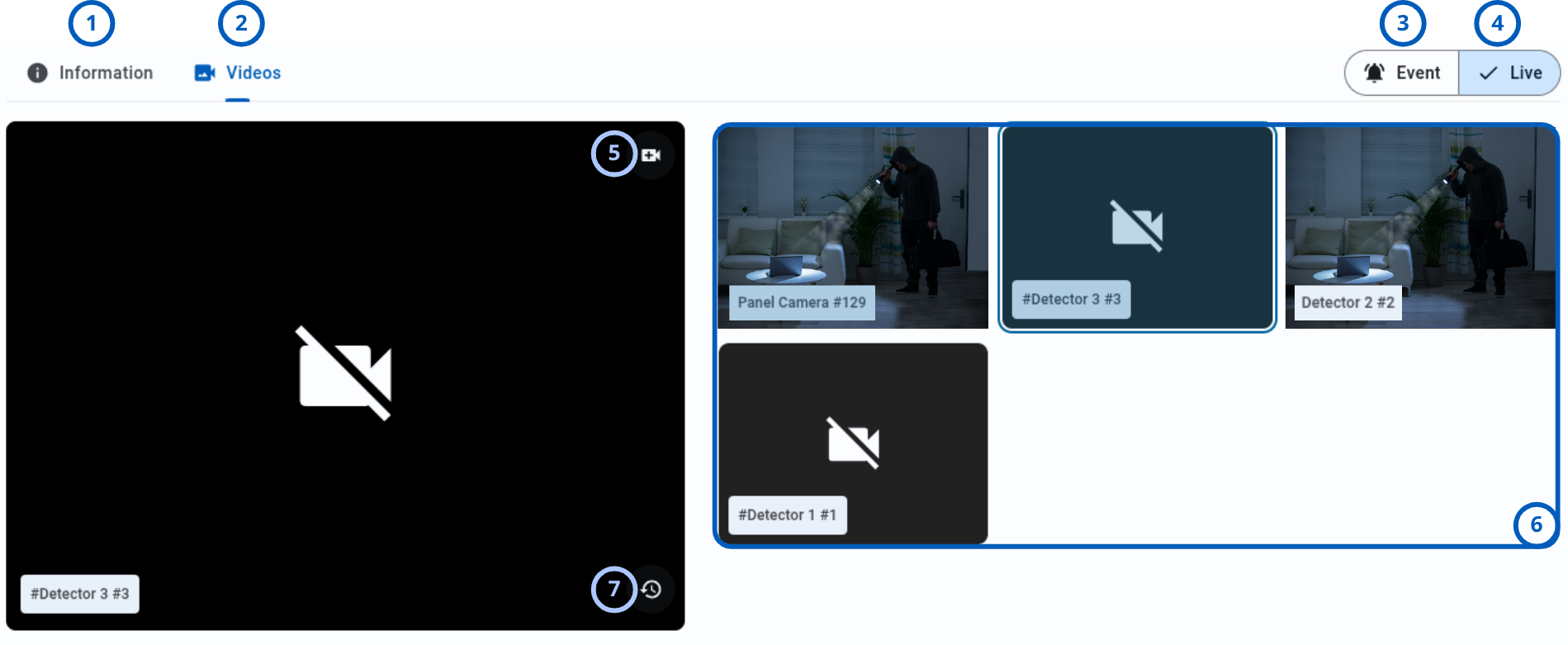
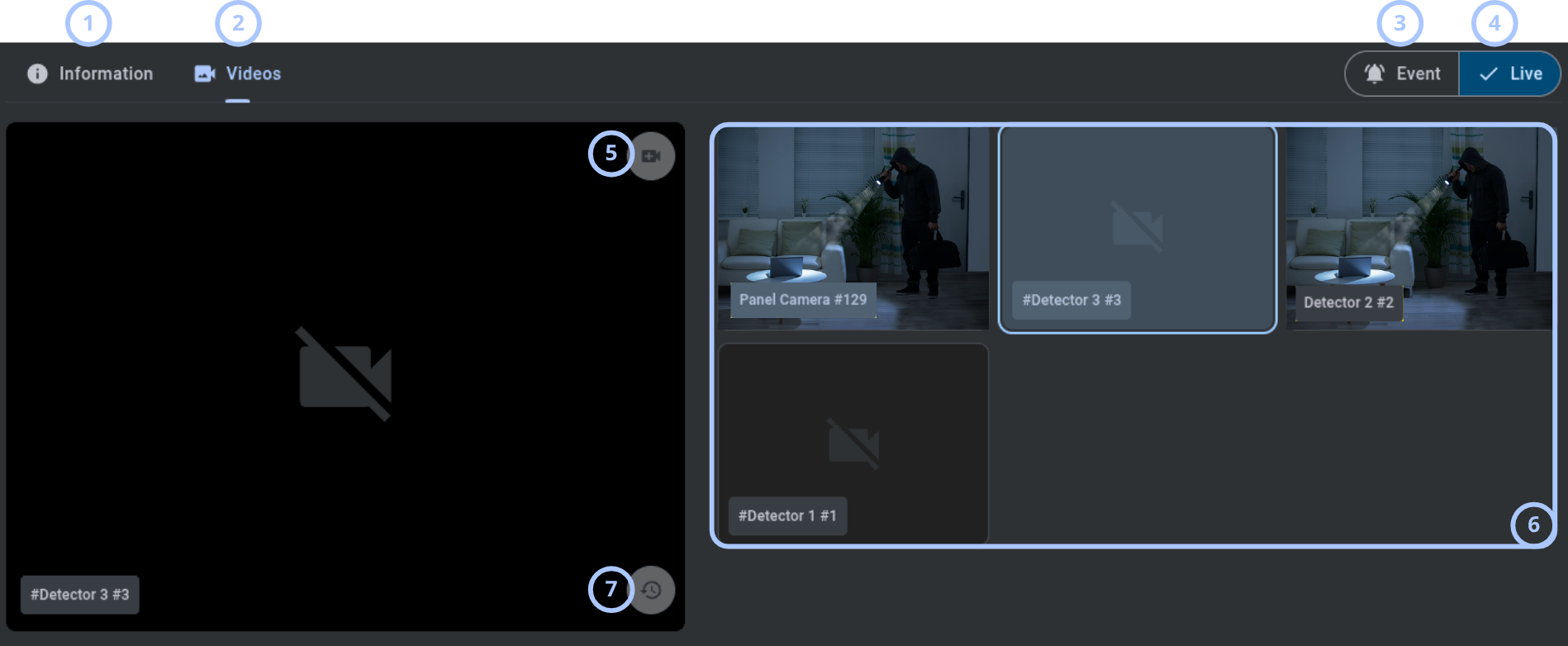
| Callout | UI element | Description | When to use |
|---|---|---|---|
| 1 | Information tab | Displays information about the selected event, including event details, processing status, and delivery information. | Use to review event information and delivery status. |
| 2 | Videos tab | Displays recorded event video and live video from cameras associated with the selected event. | Use to review event video or access live camera video. |
| 3 | Event mode | Displays the video frames recorded for the selected event. | Use to review recorded event video frame by frame or play the frames as a video sequence. |
| 4 | Live mode | Displays the latest available live video from the selected camera. | Use to view live camera video or request a new video from the selected camera. |
| 5 | Request new video | Sends a request to retrieve a new video from the selected camera. | Use to request an updated video from the selected camera. |
| 6 | Camera panel | Displays the cameras and detectors associated with the panel. Each tile identifies the video source and shows the latest available preview. A camera-off icon indicates that video is unavailable or was never requested. The selected tile is highlighted, and its video is displayed in the main video area. | Use to select a camera or detector and view its latest available live video. |
| 7 | View history | Opens the viewing history for the selected panel. The retained history size depends on the group configuration. | Use to review previously viewed video for the selected panel based on the configured history retention. |
Actions with available video
Open the Live tab and use the three-dot menu to request a new video from the selected camera if you haven't already. Then, you can download the displayed video to your device.
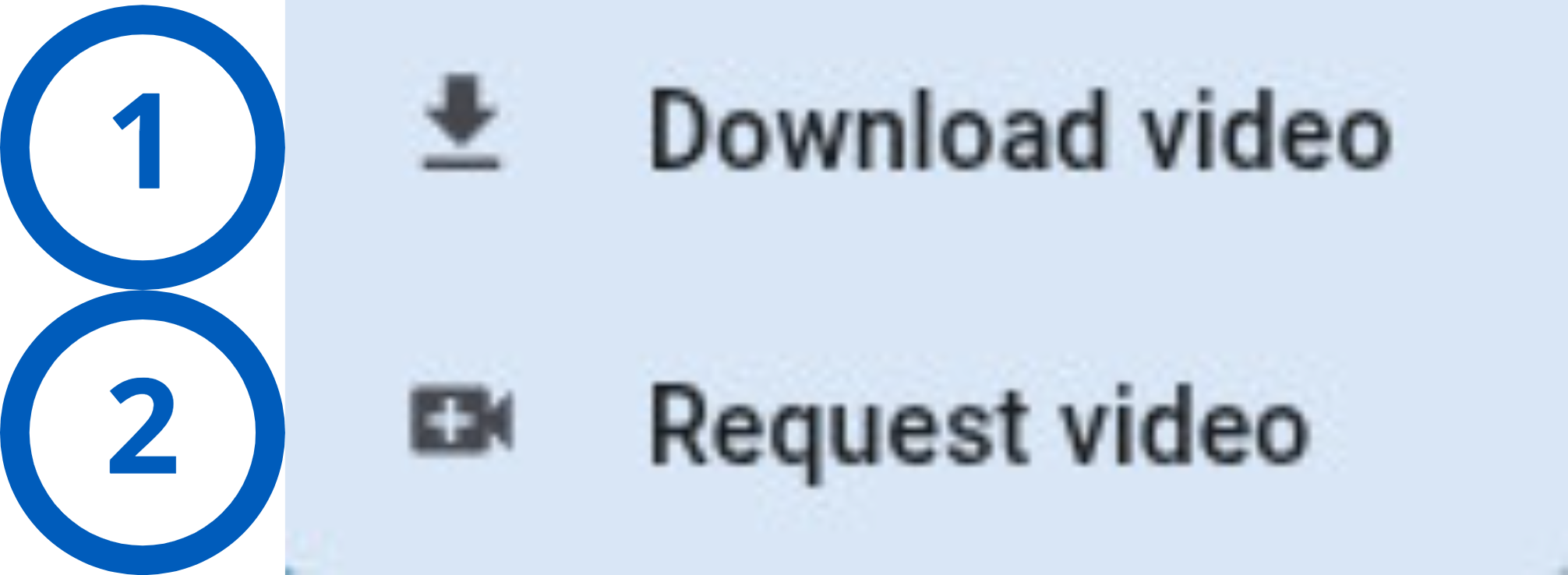
| Callout | UI element | Description | When to use |
|---|---|---|---|
| 1 | Download video | Downloads the currently displayed video as a file to your device. | Use to save the video locally for offline review. |
| 2 | Request video | Sends a request to retrieve a new video from the selected camera. | Use to request updated video from the selected camera. |
Pagination controls
Pagination controls appear at the bottom of the Events grid.


| Callout | UI element | Description | When to use |
|---|---|---|---|
| 1 | Previous and next arrows | Shows left and right arrows, such as < and >, to move between pages. | Use when the entries list has more records than the current page can show. |
| 2 | Range indicator | Shows the current range and total number of entries. | Use to understand where you are in the entries list. |
| 3 | Entries per page selector | Controls how many entries appear on one page. | Use to show fewer or more entries in the grid. |
How to use this page
Review events
Goal:
- Review event records and delivery status.
Steps:
- Open Events.
- Review the event count.
- Review the Events grid.
- Check the following columns:
- Date & Time to see when the event occurred.
- Panel to identify the source panel.
- Event to understand what happened.
- Partitions to see related partitions.
- Video to check whether video information is available.
- Delivery statuses to review delivery state.
Expected result:
- You can identify event records and understand whether delivery is in progress or completed.
Stream new events
Goal:
- Monitor new events while the Events page is open.
Steps:
- Open Events.
- Turn on Stream new events.
- Keep the Events page open.
- Review new events as the grid updates.
Expected result:
- New events can appear in the grid while streaming is enabled.
If you are reviewing older events, turn off Stream new events if list updates interrupt the review workflow.
Show all events
Goal:
- Review all event records in the current scope.
Steps:
- Open Events.
- Select All events.
- Review the grid.
Expected result:
- The All events tab is highlighted.
- The grid shows events according to the all-events view.
Prioritize unhandled events
Goal:
- Show unhandled events first.
Steps:
- Open Events.
- Select Unhandled first.
- Review the events at the top of the grid.
Expected result:
- The Unhandled first tab is highlighted.
- Events are ordered to prioritize unhandled records when the view is available.
Download event video
Goal:
- Download video related to an event for offline review.
Steps:
- Open Events.
- Select an event that has video available.
- Select View event.
- Open the Videos tab.
- Select Download.
- Open the three-dot menu.
- Select Download video.
- In Live mode, request a new video if needed.
Expected result:
- The selected event video is downloaded to your device.
You can configure video history retention in Groups. Settings. Video on demand/peek in history size by updating Video on demand/peek in history size.
Tips
- Use Unhandled first when you need to focus on events that require attention.
- Use Stream new events when monitoring live activity.
Troubleshooting
The Events page is not visible
Possible causes
- Your role does not include permission to view Events.
- The Events section is hidden for your role.
What to do
- Confirm that you are signed in with the correct user account.
- Contact an administrator with role management permissions.
- Ask the administrator to verify your access to Events.
No events are displayed
Possible causes
- No events are available in the current scope.
- Search text or filters exclude all events.
- Your role does not allow you to view available events.
What to do
- Clear search text.
- Review active filters.
- Select All events.
- Refresh the page.
- Contact an administrator if events should be visible but are missing.
Video is not available for an event
Possible causes
- The event was generated without associated video.
- The panel camera or detector did not provide video frames for this event.
- You do not have permission to view event video.
What to do
- Confirm that the event row shows a video indicator in the Video column.
- Open View event and check the Videos tab.
- Verify that your role includes video-view permissions.
- If needed, request a new video in Live mode and wait for frames to arrive.
Download video is unavailable or fails
Possible causes
- The panel has not sent all video frames to the PowerManage server yet.
- No camera is selected in the video panel.
- The currently displayed source has no downloadable video.
What to do
- In Live mode, select the required camera tile.
- Select Request video and wait until frames are available.
- Open the three-dot menu and select Download video again.
- If the issue persists, try another event with confirmed video availability.
Older events are missing for a panel
Possible causes
- The panel reached its event-history limit.
- Event rotation settings removed older entries.
What to do
- Confirm recent events in the panel scope first.
- If long-term retention is required, adjust event rotation settings according to policy.
Video history shows fewer clips than expected
Possible causes
- The history size is limited by the group-level VOD history configuration.
- Older clips were rotated out after reaching the configured maximum.
What to do
- Confirm the panel and camera in the View history screen.
- Ask an administrator to review Groups. Settings. Video on demand/peek in history size.
- Increase the configured limit if retention requirements allow it.
Event delivery remains In progress or shows failures
Possible causes
- Central station communication is unavailable.
- Delivery retries are still in progress.
What to do
- Open expanded event details and review the Central stations panel.
- Check communication and delivery status icons per destination.
- Confirm that central station links and event profiles are configured correctly.
- Retry after communication is restored.