Groups
Overview
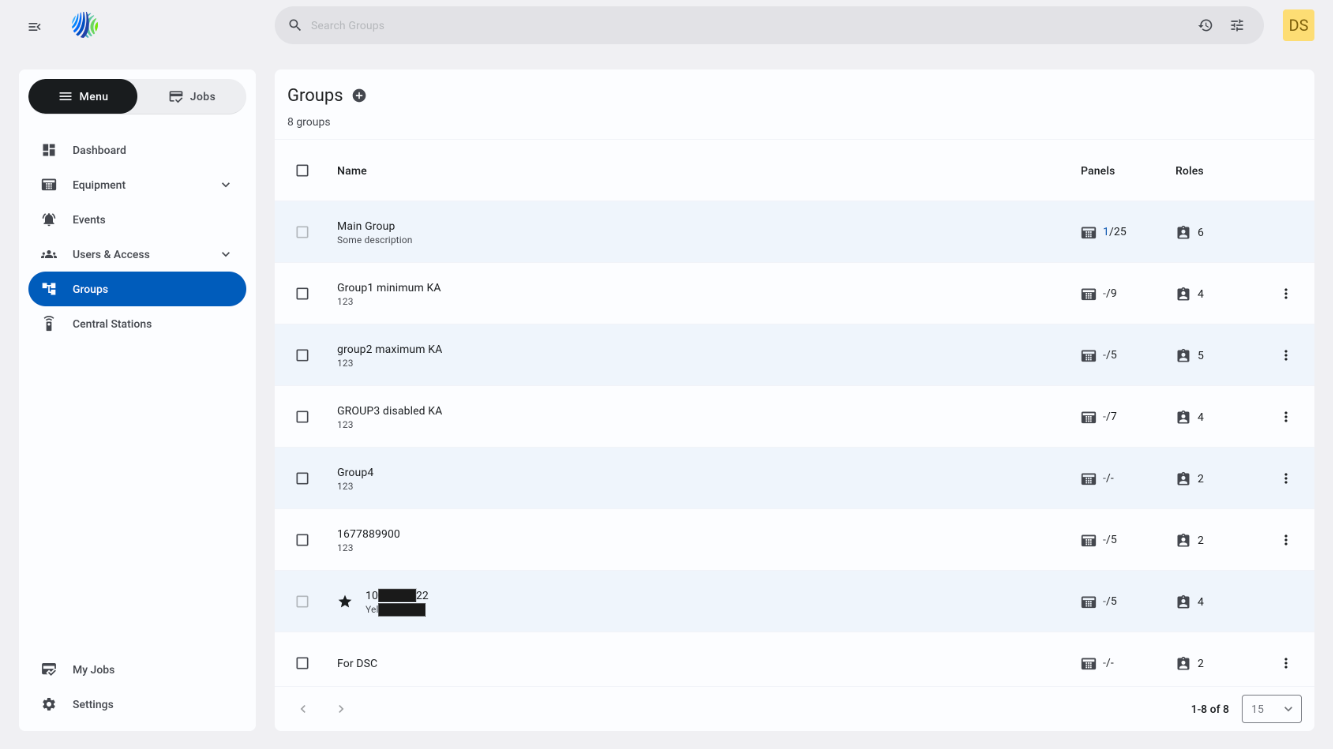
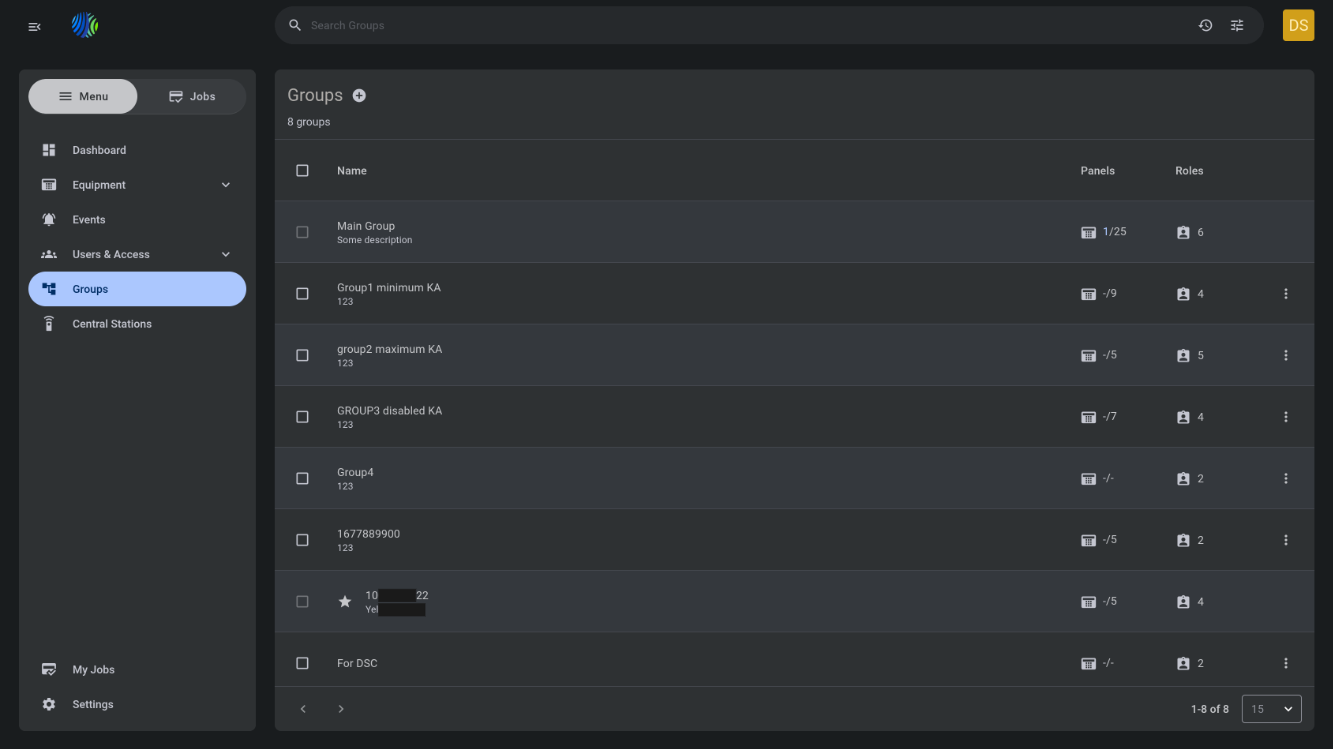
The Groups page lets you view, create, and remove groups.
Use this page when you need to:
- Review how many panels are assigned to each group.
- Check which roles are assigned to a group.
- Remove a group that is no longer needed.
Before you begin
Required permissions
- You must have permission to view the groups list.
- You must have permission to create groups.
- You must have permission to remove groups.
- You must have permission to edit groups.
Access to the Groups page and group management actions is controlled by the role permission group named "Groups".
Preconditions
- At least one group exists in the system.
Dependencies
- Panel assignment data is required to show the connected and total panel count.
- Role assignment data is required to show the number of roles assigned to each group.
- Role names are required to display the roles tooltip.
Important limitations
- The Main group cannot be removed.
- When you remove a group, all panels from that group are moved to the Main group.
- Removing a group may affect roles assigned groups.
Page layout
Page header


| Callout | UI element | Description | When to use |
|---|---|---|---|
| 1 | Page title | Shows the current page name: Groups. | Use to confirm that you are viewing group management. |
| 2 | + icon | Opens the Create group modal window. | Use to create a new group. |
| 3 | Group count | Shows the total number of groups. | Use to confirm the number of available groups after creating or removing a group. |
| 4 | Remove button | Appears in the page header after you select one or more groups. | Use to remove selected groups when they are no longer needed. |
Create group modal window
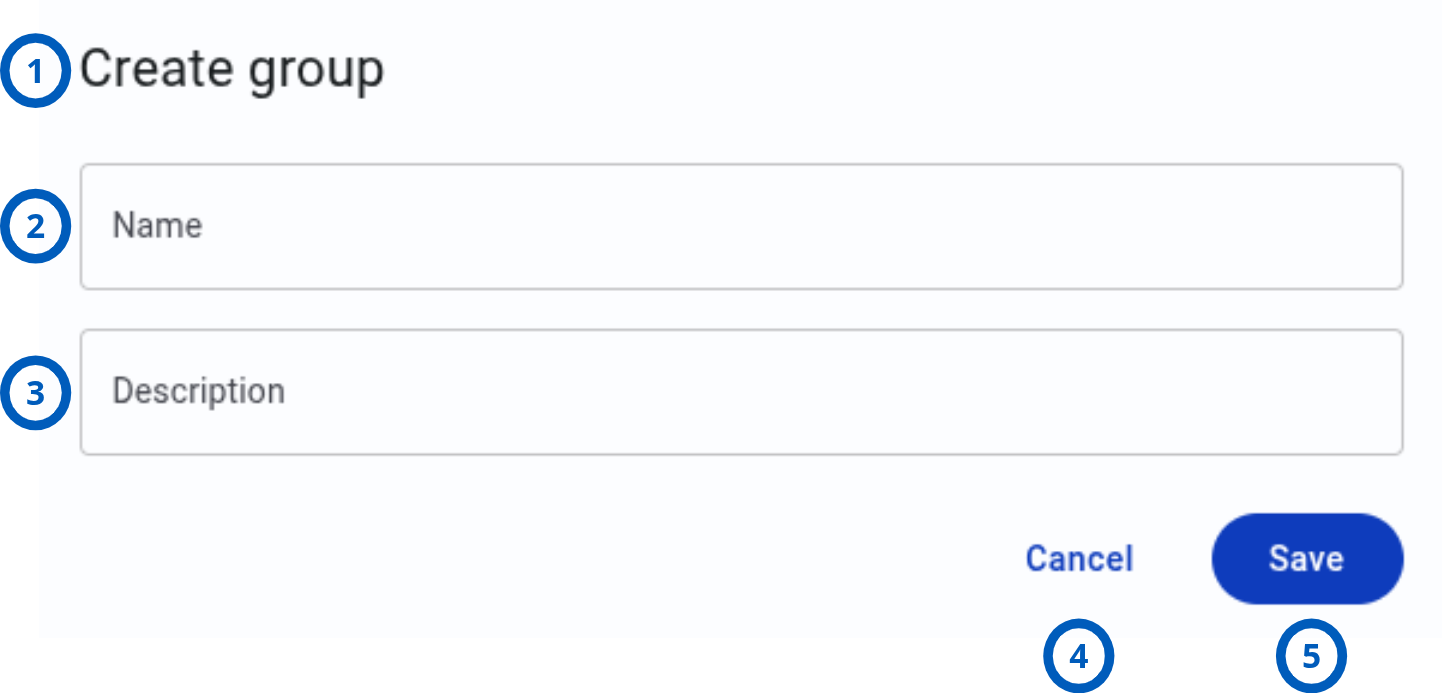
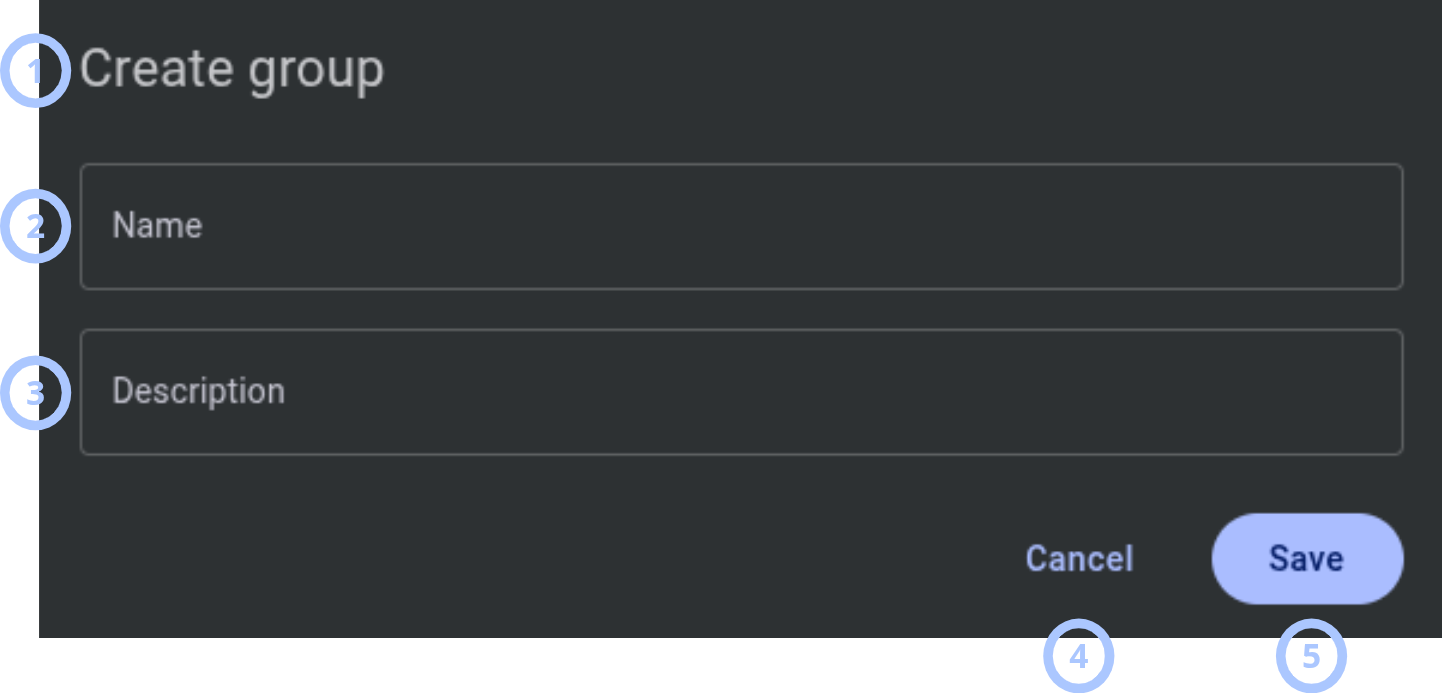
The Create group modal window appears after you select the + icon.
| Callout | UI element | Description | When to use |
|---|---|---|---|
| 1 | Modal title | Shows the modal name: Create group. | Use to confirm that you are creating a group. |
| 2 | Name field | Defines the group name shown in the groups grid. | Enter a clear name that helps users identify the group. |
| 3 | Description field | Provides additional information about the group. | Use to explain the group purpose, scope, or ownership. |
| 4 | Cancel button | Closes the modal window without creating a group. | Select when you do not want to save the new group. |
| 5 | Save button | Creates the group using the entered values. | Select after entering the required group information. |
Groups grid
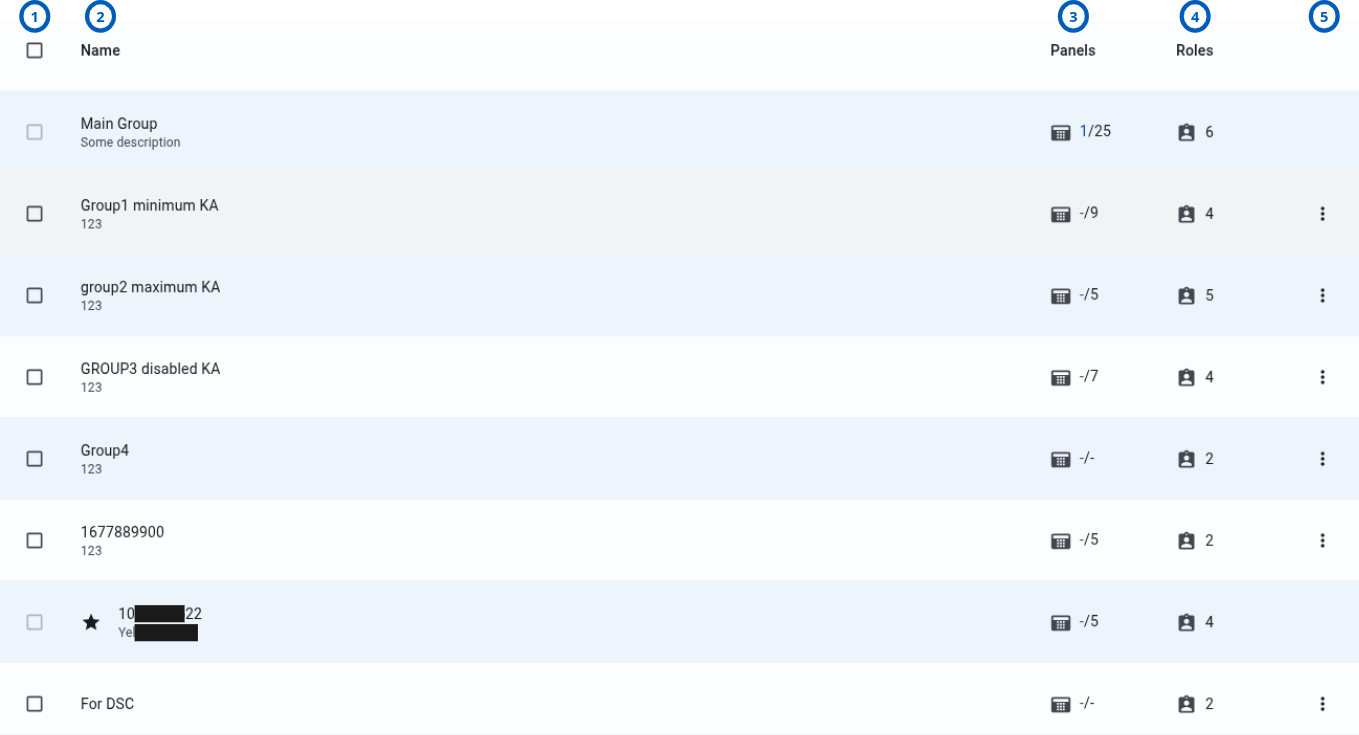
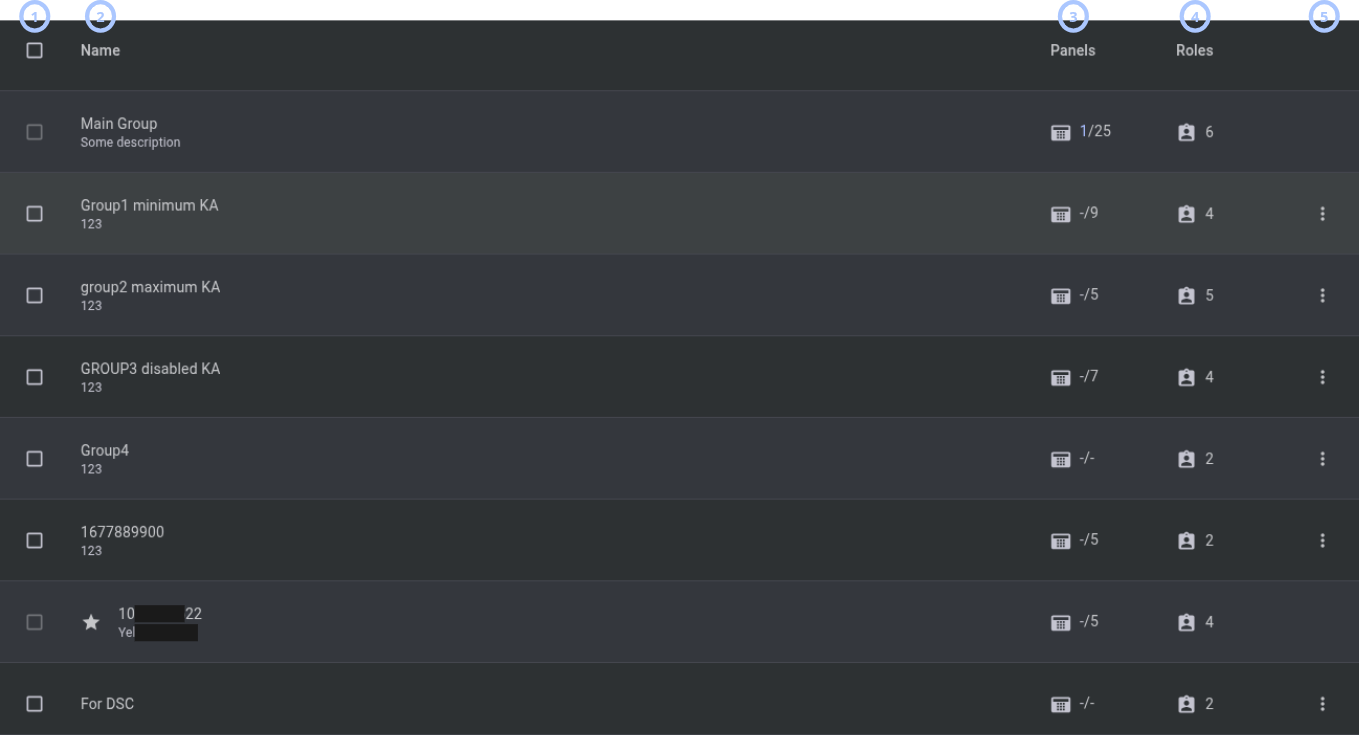
The groups grid lists available groups and key details about each group.
| Callout | UI element | Description | When to use |
|---|---|---|---|
| 1 | Checkbox column | Lets you select groups for bulk removal. | Select one or more removable groups when you want to remove them. |
| 2 | Name column | Shows the group name and description. | Use to identify the group and understand its purpose. |
| 3 | Panels column | Shows assigned panels to the group in the format connected panels / total panels. | Use to check how many panels in the group. |
| 4 | Roles column | Shows the number of roles assigned to the group. | Use to review role assignment coverage for the group. |
| 5 | Three-dot icon | Opens a row action menu for the selected group. Available for all groups except Main group. | Use to remove a specific group from its row. |
Star icon appears next to the group name for dealer groups.
Remove group modal window
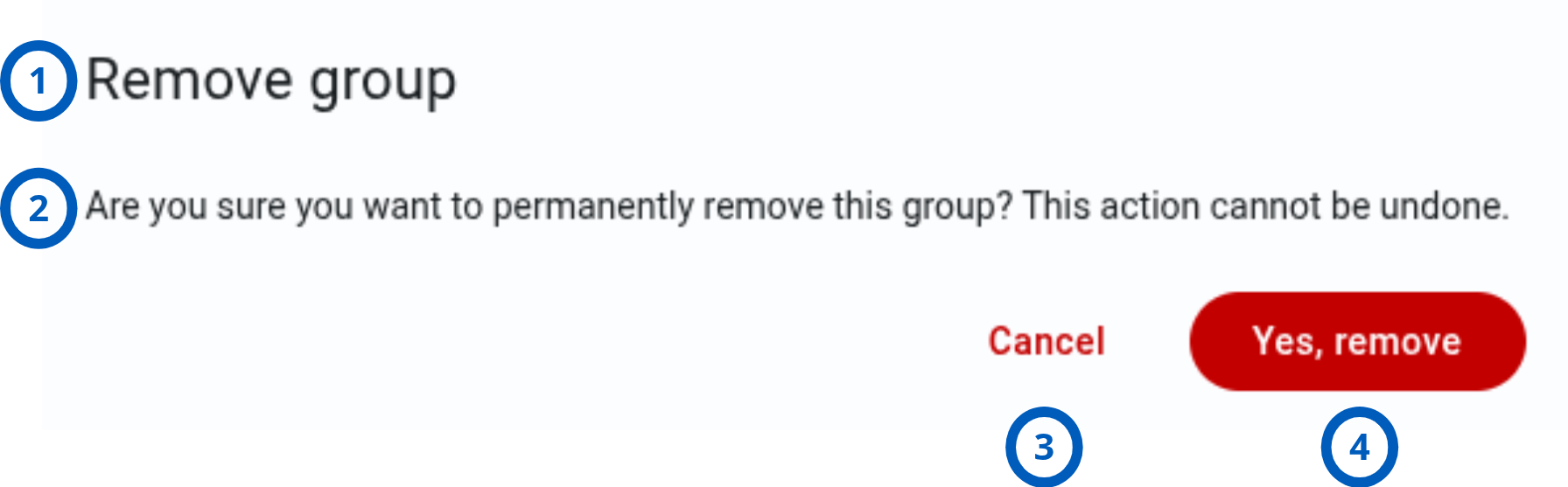
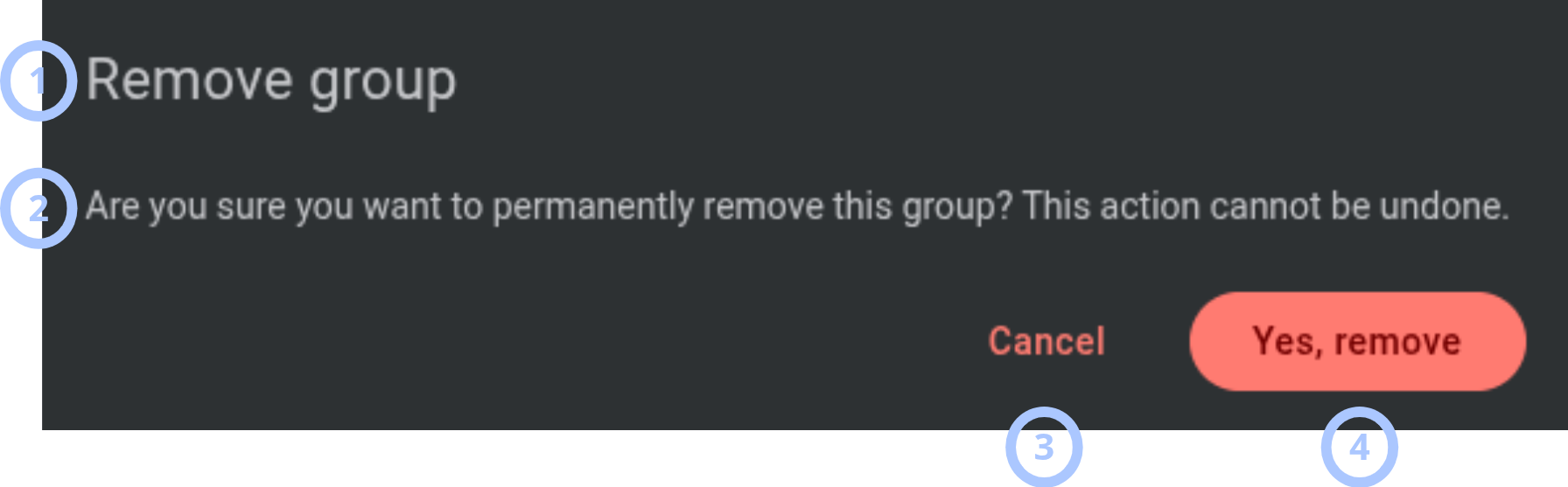
The Remove group modal window appears when you start a remove action.
| Callout | UI element | Description | When to use |
|---|---|---|---|
| 1 | Modal title | Shows the modal name: Remove group. | Use to confirm that you are removing a role. |
| 2 | Warning message | Explains the impact of removing the group. | Read before confirming the removal. |
| 3 | Cancel button | Closes the modal window without removing the group. | Select if you want to keep the group. |
| 4 | Yes, remove button | Confirms the removal. | Select only after you confirm that the group should be removed. |
After the group is removed, all panels from that group move to the Main group.
Pagination controls


The pagination controls appears under the groups grid.
| Callout | UI element | Description | When to use |
|---|---|---|---|
| 1 | Navigation arrows | Move between pages of groups. | Use when the group list has more items than the current page can show. |
| 2 | Range indicator | Shows the current range and total number of groups, for example, 1-15 of 26. | Use to understand where you are in the groups list. |
| 3 | Page size dropdown | Controls how many groups appear on each page (10, 15, 50, 100, 200). | Use to show fewer or more groups in the grid. |
How to use this page
Create a group
Goal:
- Add a new group to organize panels.
Steps:
- Go to the Groups page.
- Select the + icon next to the page title.
- In the Create group modal window, enter a value in the Name field.
- Enter a value in the Description field, if needed.
- Select Save.
Expected result:
- The modal window closes.
- The new group appears in the groups grid.
- The group count updates.
Review group details
Goal:
- Check group name, description, assigned panels, and assigned roles.
Steps:
- Go to the Groups page.
- Find the group in the grid.
- Review the Name column for the group name and description.
- Review the Panels column.
- Review the Roles column.
Expected result:
- You can identify the group.
- You can see connected panels and total panels.
- You can see how many roles are assigned to the group.
View role names for a group
Goal:
- See which roles are assigned to a group.
Steps:
- Go to the Groups page.
- Find the group in the grid.
- Hover over the number in the Roles column.
Expected result:
- A tooltip appears.
- The tooltip shows the assigned role names.
Remove a group by selecting it
Goal:
- Remove a group from the grid using checkbox selection.
Steps:
- Go to the Groups page.
- In the checkbox column, select the group you want to remove.
- Confirm that the Remove Group button appears in the top-right corner.
- Select Remove Group.
- In the Remove group modal window, read the warning message.
- Select Yes, remove.
Expected result:
- The selected group is removed.
- Panels from the removed group move to the Main group.
- The groups grid updates.
- The group count updates.
You cannot select or remove the Main group.
Remove a group from the row action menu
Goal:
- Remove one specific group from its row.
Steps:
- Go to the Groups page.
- Find the group you want to remove.
- Select the three-dot icon in the group row.
- Select Remove.
- In the Remove group modal window, read the warning message.
- Select Yes, remove.
Expected result:
- The group is removed.
- Panels from the removed group move to the Main group.
- The groups grid updates.
Change the number of groups shown on a page
Goal:
- Show more or fewer groups in the grid.
Steps:
- Go to the pagination bar under the groups grid.
- Open the page size dropdown.
- Select one of the available values (10, 15, 50, 100, 200).
Expected result:
- The grid refreshes to show the selected number of groups per page.
- The range indicator updates.
Navigate between pages
Goal:
- Move through the full list of groups.
Steps:
- Go to the pagination bar under the groups grid.
- Review the range indicator, for example, 1-15 of 26.
- Select the navigation arrows to move to another page.
Expected result:
- The grid shows the groups for the selected page.
- The range indicator updates.
Field and option reference
| Name | Description | Accepted values | Behavior | Restrictions | Default value |
|---|---|---|---|---|---|
| Name | Group name shown in the groups grid. | Text. | Used to identify the group. | Must contain less than 24 characters. | None. |
| Description | Additional information shown under or near the group name. | Text. | Helps users understand the group purpose. | Must contain less than 1024 characters. | None. |
| Checkbox | Selects a group for removal. | Selected or not selected. | Shows the Remove Group button when a removable group is selected. | The Main group cannot be selected. | Not selected. |
| Panels | Shows connected panels and total panels. | Numeric ratio, such as 5/11. | The first number is connected panels. The second number is total panels. | Read-only. | Depends on panel data. |
| Roles | Shows the number of roles assigned to the group. | Number. | Hovering over the value shows role names in a tooltip. | Read-only. | Depends on role assignments. |
| Page size | Controls how many groups appear on one page. | 10, 15, 50, 100, or 200. | Refreshes the grid with the selected page size. | Only listed values are available. | 15. |
Tips
- Use clear group names that describe the group purpose, location, customer, dealer, or operational scope.
- Review the Panels column before removing a group. This helps you understand how many panels affect group deletion.
- Use the roles tooltip to confirm role assignments before making changes to group.
- Increase the page size when you need to review many groups without moving between pages.
Troubleshooting
The group cannot be added
Possible causes
- You do not have permission to create groups.
What to do
- Confirm that you have the required group management permissions.
- Contact an administrator if the + icon is still unavailable.
The group cannot be saved
Possible causes
- The Name field is empty.
- The entered value does not meet validation rules.
- A group with the same name may already exist.
- You do not have permission to create groups.
What to do
- Check that the Name field has a valid value.
- Review the Description field for unsupported content, if validation appears.
- Try a unique group name.
- Select Save again.
- Contact an administrator if the issue continues.
The Main group cannot be selected
Possible causes
- This is expected behavior.
- The Main group is protected from removal.
The group cannot be removed
Possible causes
- You do not have permission to remove groups.
What to do
- Confirm that you have the required group management permissions.
- Contact an administrator if the removing groups is still unavailable.
Panels moved to Main group after removing a group
Possible causes
- This is expected behavior.
The roles tooltip does not appear
Possible causes
- The pointer is not positioned over the roles count.
- Your browser or session has a temporary display issue.
What to do
- Hover directly over the value in the Roles column.
- Refresh the page.
- Contact an administrator if role information still does not appear.
Pagination does not show the expected groups
Possible causes
- The selected page size limits how many groups appear.
- You are viewing a different page in the list.
What to do
- Use the navigation arrows to move between pages.
- Change the page size if you need to show more groups.