App customizations
Overview
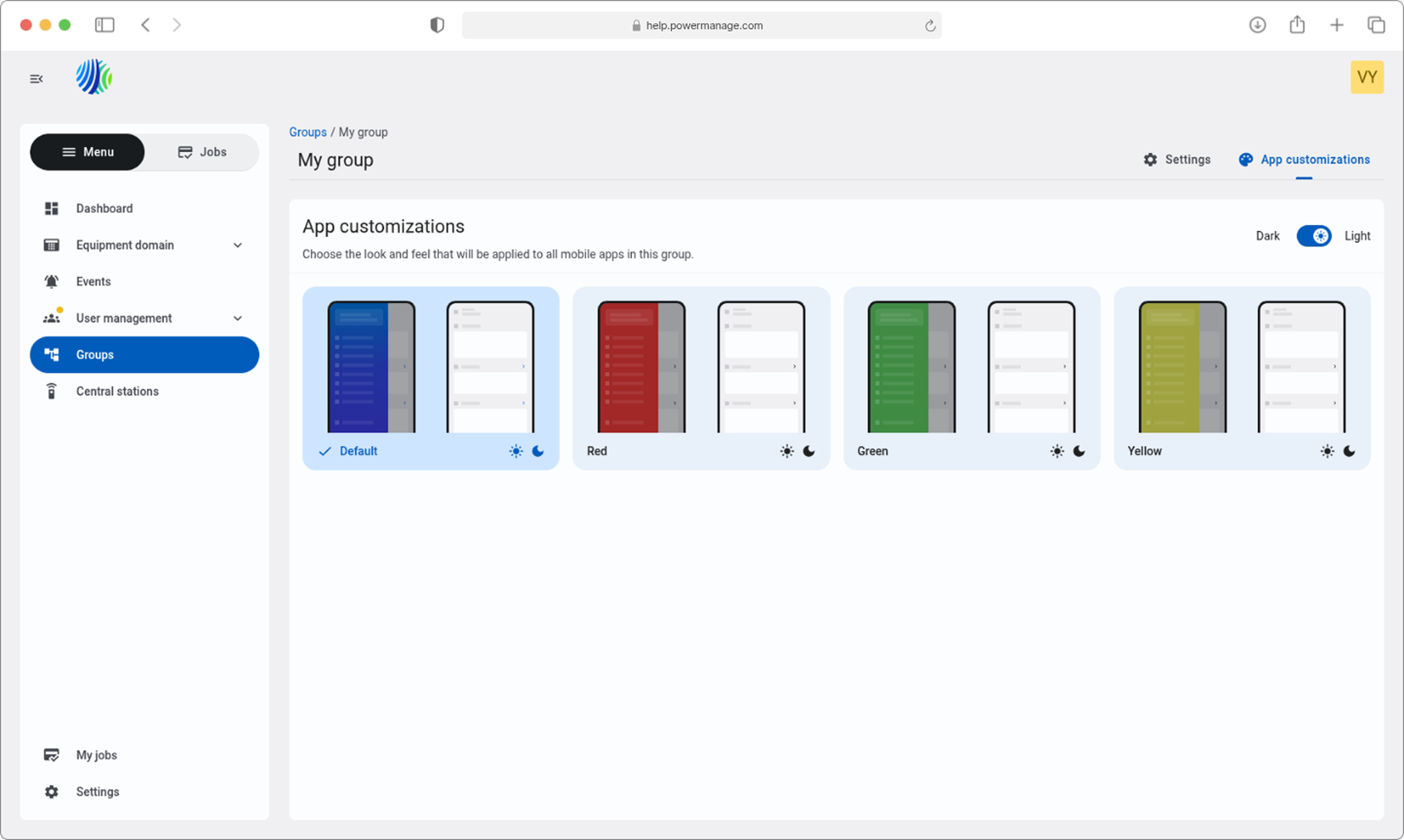
The App customizations page lets you preview and apply a customization theme to a group.
Use this page to:
- Review the app customizations available for the selected group.
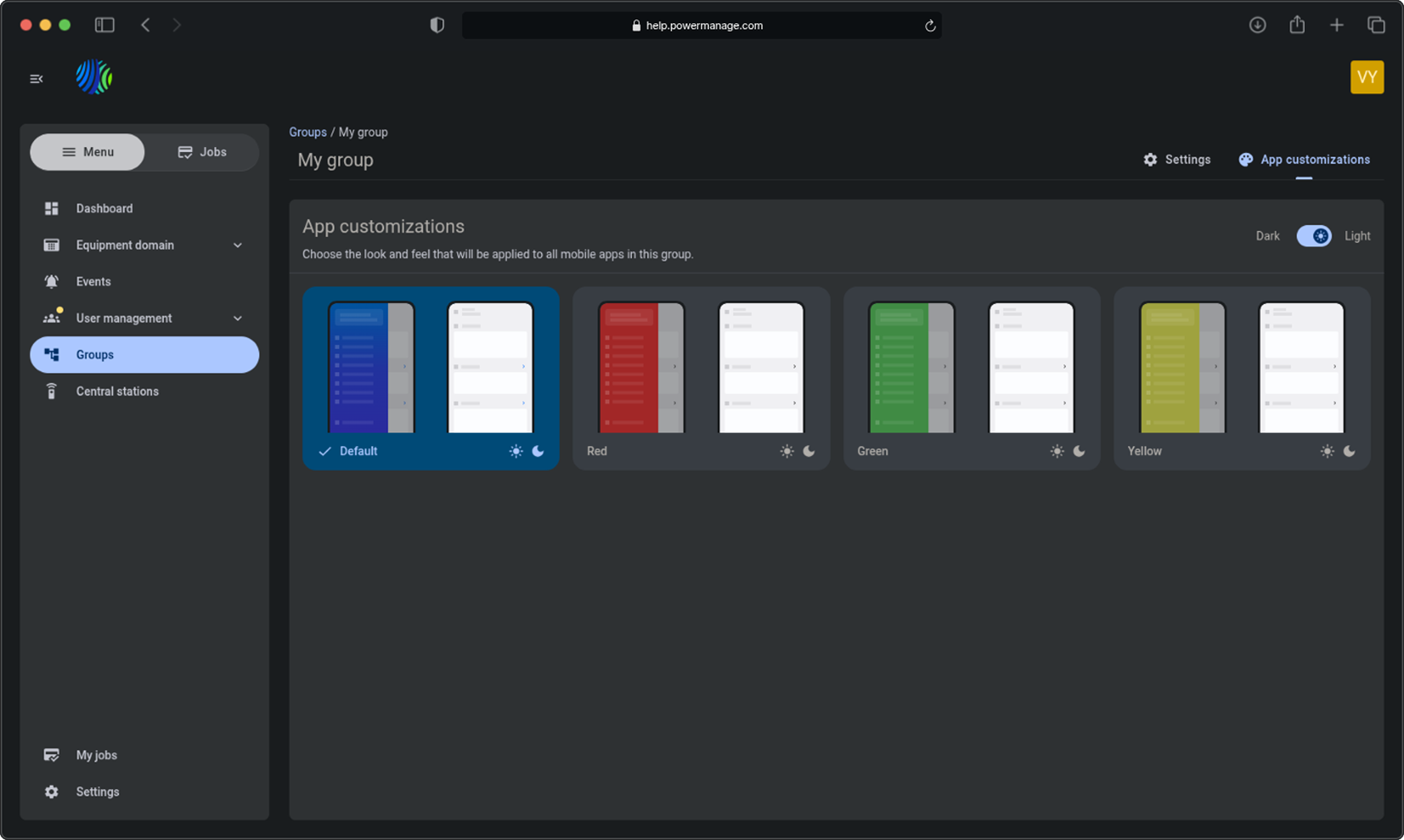
- Preview customizations in light or dark mode.
- Apply a customization to panels assigned to the group.
Customizations apply at the group level. Different groups can use different themes. Panels assigned to different groups can therefore appear with different themes in the ConnectAlarm app.
Before you begin
Required permissions
- You must have permission to view the selected group.
- You must have permission to change the selected group's app customization.
Access to the App customizations page and customization management is controlled by the role permission group named Groups.
Preconditions
- The required group must exist in PowerManage.
- To select a custom theme, the theme must be available in PowerManage after repository synchronization.
Dependencies
- Custom themes must be defined in
app_customizations.json. - The
app_customizations.jsonfile must be added to the repository. - The repository must be synchronized with PowerManage before new themes appear on the App customizations page.
Important limitations
- PowerManage stores only the default theme.
- You cannot create or add a custom theme from the PowerManage user interface.
- Each
app_customizations.jsonfile supports a maximum of 49 customizations.
Page layout
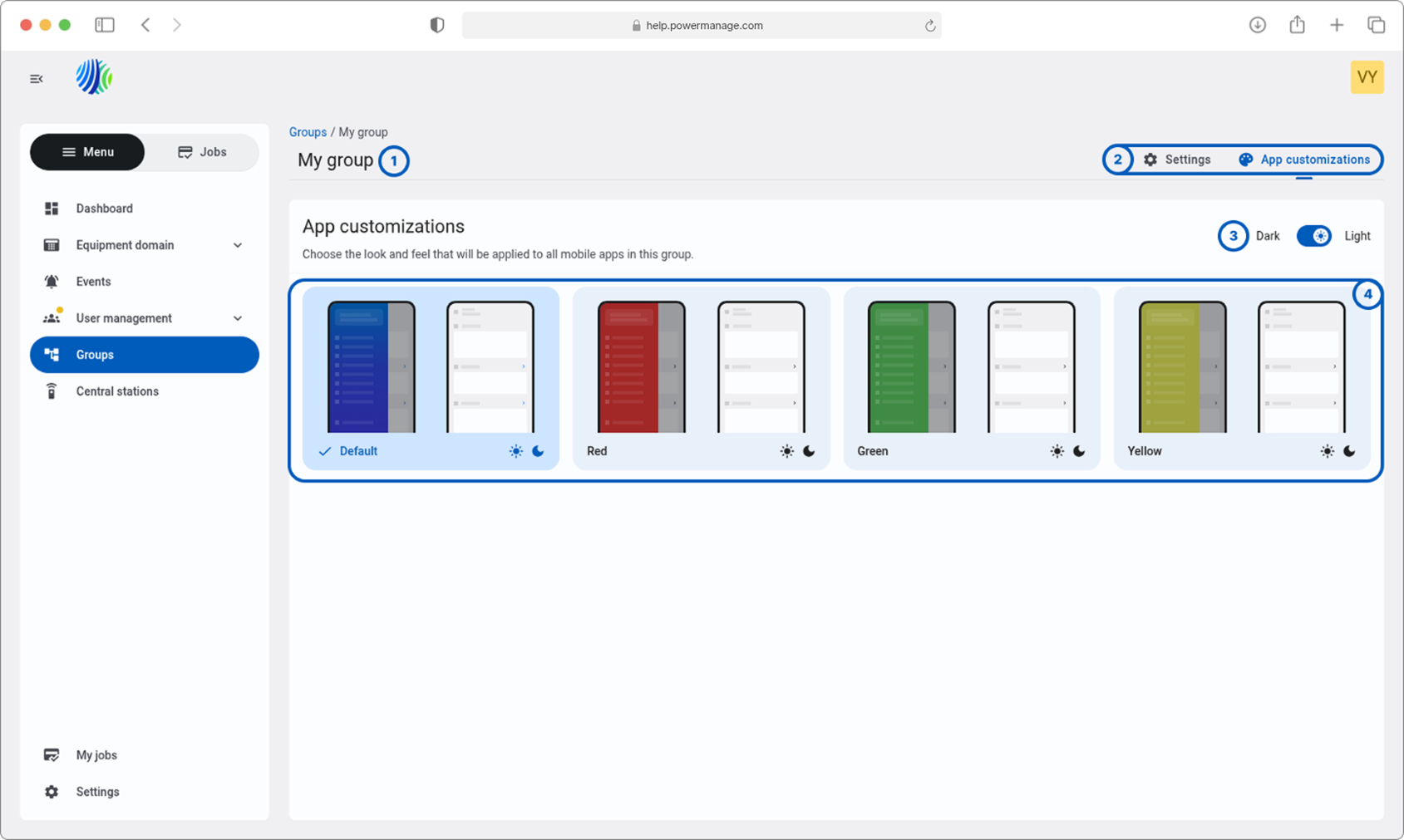
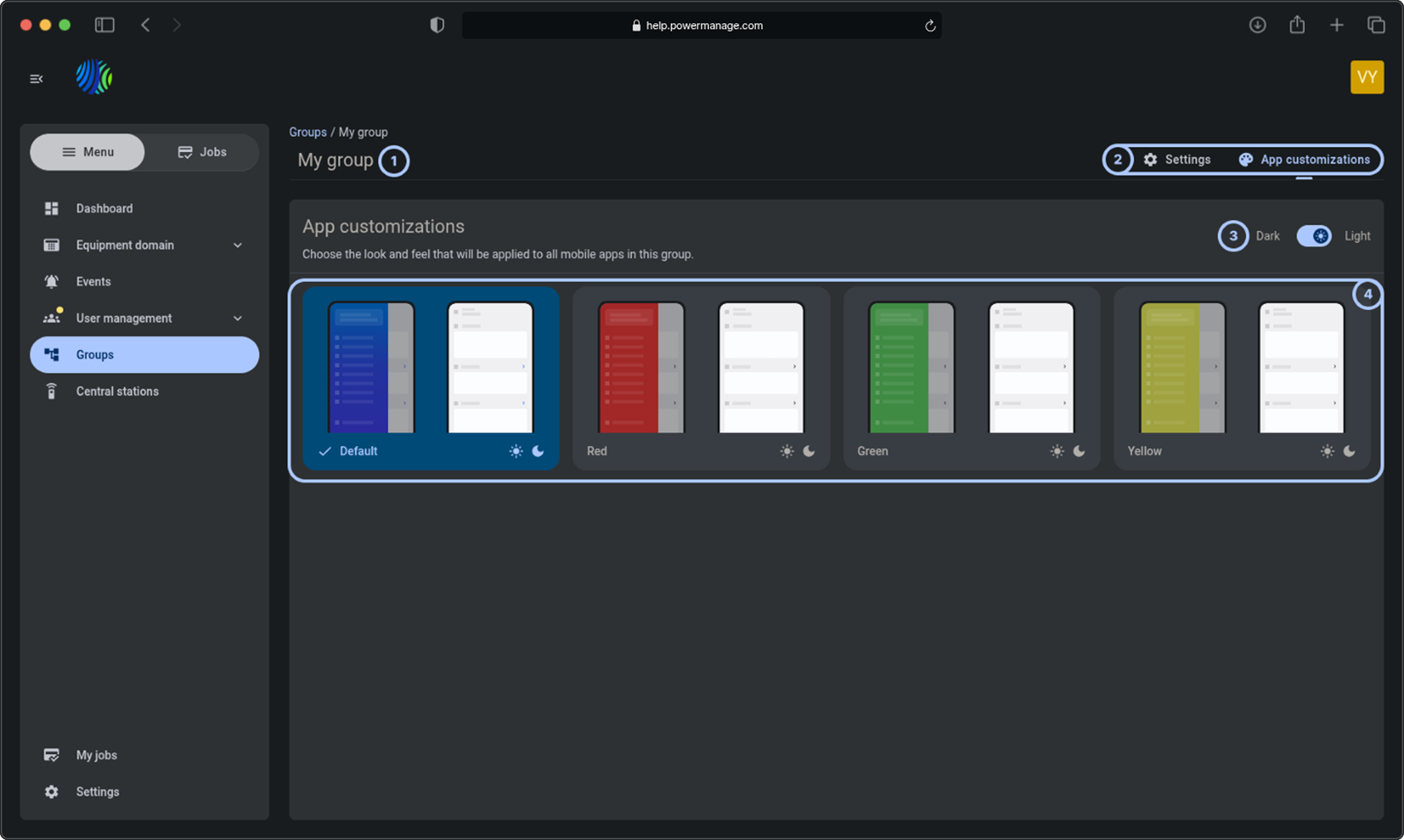
The App customizations page contains the group header, configuration-area buttons, preview theme toggle, and customization preview cards.
| Callout | UI element | Description | When to use |
|---|---|---|---|
| 1 | Group name | Shows the selected group name in the top-left area of the App customizations page. | Use to confirm that you are changing the customization for the correct group. |
| 2 | Settings and App customizations buttons | Show the available configuration areas in the top-right area of the page. | Use to switch between group settings and app customizations. |
| 3 | Dark/Light toggle | Changes the customization previews between the dark and light theme variants. | Use to review how the available customizations appear with each app theme. |
| 4 | Customizations preview | Shows cards for the available customizations. The customization currently applied to the group is highlighted. | Use to review and select a customization for the group. |
How to use this page
Preview app customizations
Goal:
- Review how an available customization appears in light and dark modes.
Steps:
- Open the required group.
- Select App customizations.
- Use the Dark/Light toggle to change the preview mode.
- Review the available customization cards.
Expected result:
- The preview cards appear in the selected light or dark mode.
- The customization currently applied to the group is highlighted.
Apply an app customization
Goal:
- Apply a selected customization to the current group.
Steps:
- Open the required group.
- Select App customizations.
- Select the required customization card.
- Select Save in the top bar.
Expected result:
- The selected customization is applied to the group.
- Panels assigned to the group show the selected theme in the ConnectAlarm app.
- The applied customization is highlighted on the App customizations page.
Dismiss a customization selection
Goal:
- Cancel a pending customization selection without applying it.
Steps:
- Select a customization card.
- Select Dismiss in the top bar.
Expected result:
- The pending selection is discarded.
- The previously applied customization remains selected.
Add custom themes through the repository
Goal:
- Make custom themes available for selection in PowerManage.
Steps:
- Create or update the
app_customizations.jsonfile. - Define the required custom themes in the file.
- Make sure that the file contains no more than 49 customizations.
- Add the file to the repository.
- Synchronize the repository with PowerManage.
- Open the required group and select App customizations.
- Confirm that the new themes appear in the customization preview.
Expected result:
- The synchronized custom themes appear as customization cards.
- The themes are available for selection and can be applied to the group.
Field and option reference
| Name | Description | Accepted values | Behavior | Restrictions | Default value |
|---|---|---|---|---|---|
| Dark/Light | Controls how customization cards appear in the preview. | Dark or Light. | Changes the preview between dark and light theme variants. | Changes the preview only. | Light. |
| Customization card | Represents an available app customization. | An available customization. | Selecting a card marks the customization for application. The currently applied customization remains highlighted. | Custom themes appear only after repository synchronization. | Default theme. |
| Save | Applies the selected customization to the current group. | Not applicable. | Applies the selected theme to panels assigned to the group. | A customization must be selected. | Not applicable. |
| Dismiss | Cancels the pending customization selection. | Not applicable. | Discards the pending selection without changing the applied customization. | A customization must be selected. | Not applicable. |
app_customizations.json | Defines custom themes that can be synchronized from the repository. | JSON file. | Makes custom themes available after repository synchronization. | Supports a maximum of 49 customizations per file. | Not applicable. |
Tips
- Check the group name before you apply a customization.
- Preview each customization in both light and dark modes before selecting Save.
- Use different group assignments when panels must show different themes in the ConnectAlarm app.
- Keep the number of customizations in each
app_customizations.jsonfile within the 49-customization limit.
Troubleshooting
Only the default theme appears
Possible causes
- No custom themes have been added to the repository.
- The repository has not been synchronized after
app_customizations.jsonwas added or updated.
What to do
- Confirm that the required themes are defined in
app_customizations.json. - Confirm that the file was added to the repository.
- Synchronize the repository with PowerManage.
- Reopen the App customizations page.
A new theme does not appear
Possible causes
- The updated
app_customizations.jsonfile is not present in the repository. - The repository has not been synchronized.
- The file contains more than 49 customizations.
What to do
- Confirm that the updated file is present in the repository.
- Confirm that the file contains no more than 49 customizations.
- Synchronize the repository again.
- Reopen the App customizations page.
The selected customization was not applied
Possible causes
- Dismiss was selected instead of Save.
- The selection was not saved.
What to do
- Select the required customization card again.
- Select Save in the top bar.
- Confirm that the selected customization is highlighted.
The panel shows the previous theme
Possible causes
- The group customization was changed while the user was signed in to the panel in ConnectAlarm.
- The user has not signed out and signed in again after the group customization was changed.
What to do
- Confirm that the correct customization is selected and saved for the panel's group in PowerManage.
- In ConnectAlarm, sign out of the panel.
- Sign in to the panel again.
- Confirm that the panel shows the updated theme.