Legacy installers
Overview
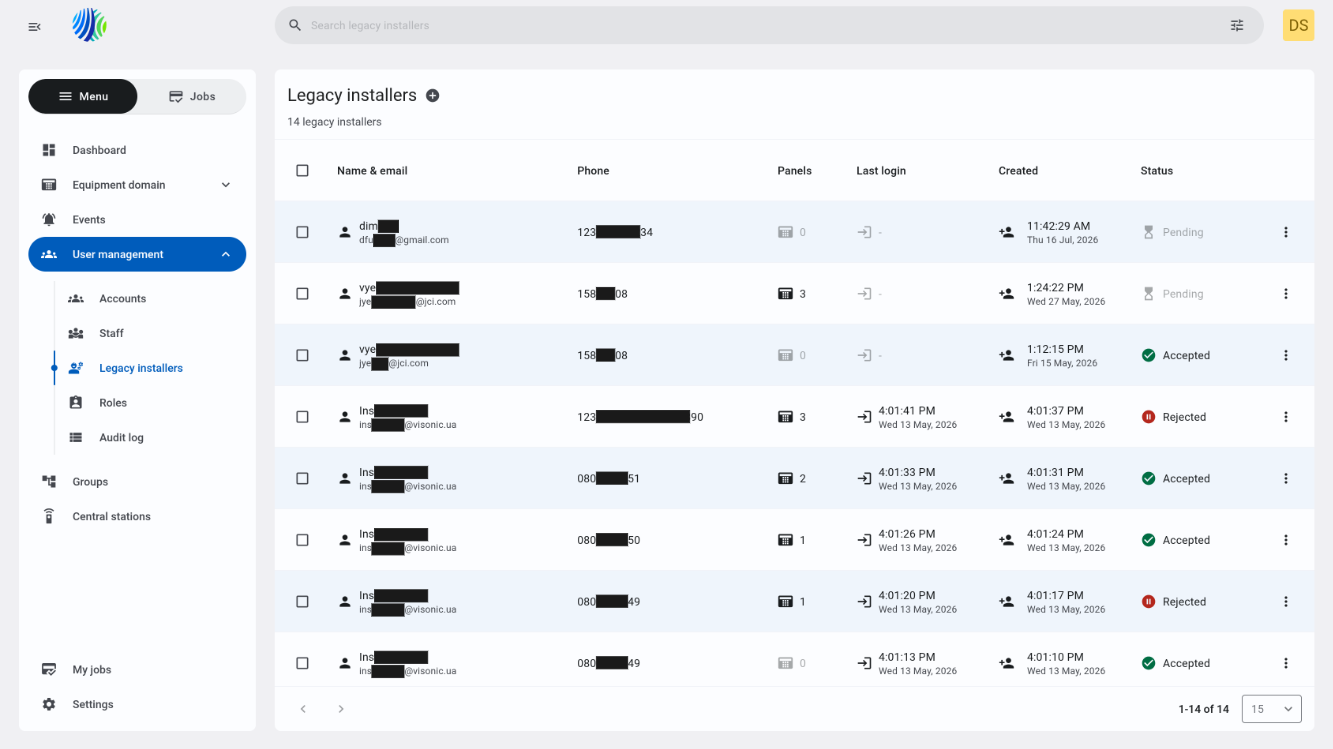
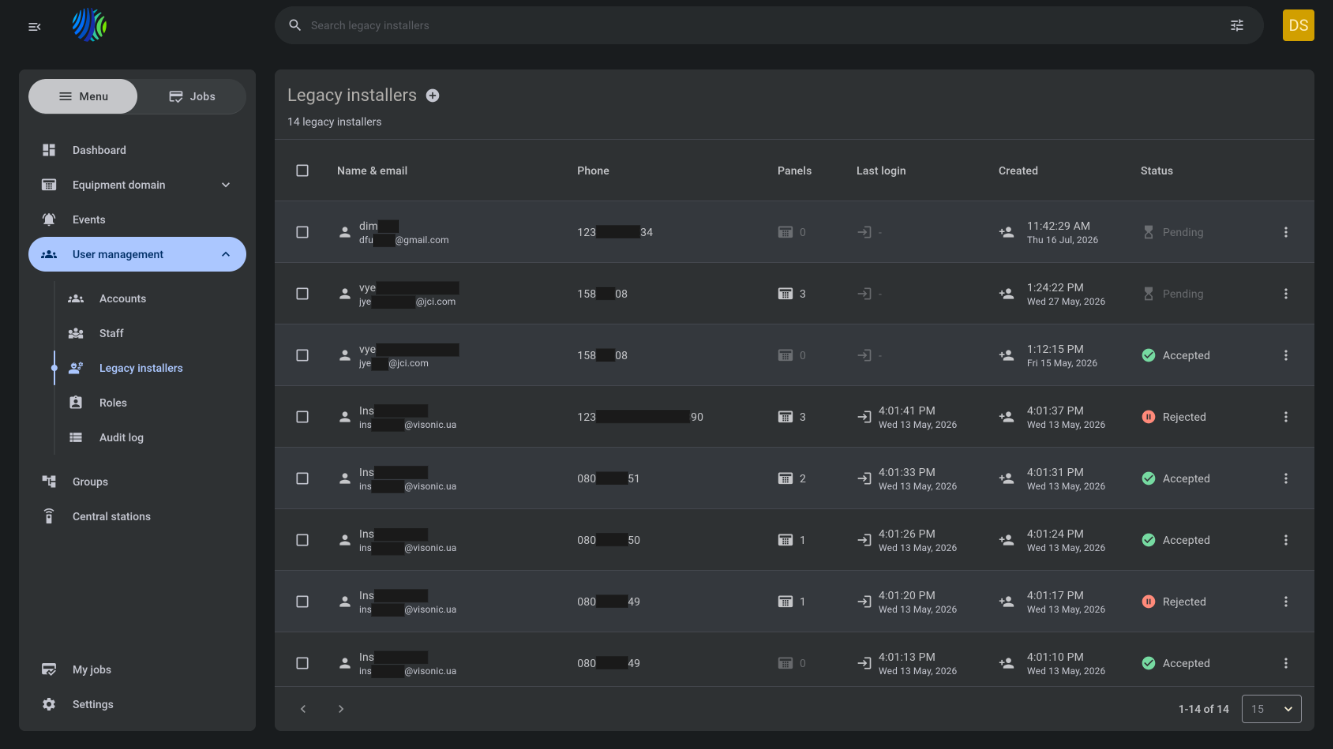
The Legacy installers page is used to manage legacy installers who can access the installer application.
Use this page to:
- Register a legacy installer.
- Review legacy installer contact details, status, assigned panels, and login activity.
- Accept or reject legacy installer access.
- Reset an legacy installer password.
- Convert a legacy installer to a staff member.
- Assign or unassign panels.
- Remove legacy installers that are no longer needed.
This page helps administrators control legacy installer access and manage panel assignments from one location. Info described on this page is related only to legacy installers.
Legacy Installer
A Legacy Installer is an installer account that is managed from the Legacy Installer page in PowerManage. It operates independently of the dealer/billing system.
Installer (Dealer Installer)
An Installer (Dealer Installer) is a staff member who has been assigned the Dealer Installer role in PowerManage. This role ties the installer to a specific Dealer and provides role-based access and permissions.
Before you begin
Required permissions
- You must have permission to accept legacy installers
- You must have permission to add legacy installers
- You must have permission to assign panels to legacy installers
- You must have permission to convert legacy installers to staff members
- You must have permission to view legacy installers
- You must have permission to view panels assigned to legacy installers
- You must have permission to remove legacy installers
- You must have permission to reset password for legacy installers
- You must have permission to unassign panels to legacy installers
Access to the Legacy installers page and related actions is controlled by the role permission group named "Installers".
Preconditions
- SMTP must be configured before sending one-time codes for registration or password reset.
- The legacy installer must have a valid email address to receive registration and password reset codes.
- Panels must exist before they can be assigned to an legacy installer.
Dependencies
- Email delivery depends on the configured SMTP service.
- Panel assignment depends on available panels in the system.
Important limitations
- Removing an legacy installer is permanent and cannot be undone.
- A rejected legacy installer cannot access the legacy installer application.
- During conversion to a staff member, panels may be unassigned if they belong to a group that is not visible to the converted staff member.
Page layout
Page header


The page header identifies the page, shows the number of legacy installers, and provides the entry point for registering a new legacy installer.
| Callout | UI element | Description | When to use |
|---|---|---|---|
| 1 | Page title and legacy installers count | Shows the current page name: Legacy installers and the number of legacy installers currently listed, for example, 14 legacy installers installers. | Use to confirm that you are on the legacy installer management page. |
| 2 | + add icon | Opens the Register legacy installer modal. | Use to register a new legacy installer. |
| 4 | Bulk action buttons | Shows actions for selected legacy installers. Available buttons can include Accept, Reject, and Remove. | Use after selecting one or more installers in the grid. |
Bulk action buttons appear only after you select at least one legacy installer. If you select legacy installers with different statuses, actions for the selected statuses can appear together.
Legacy installers grid
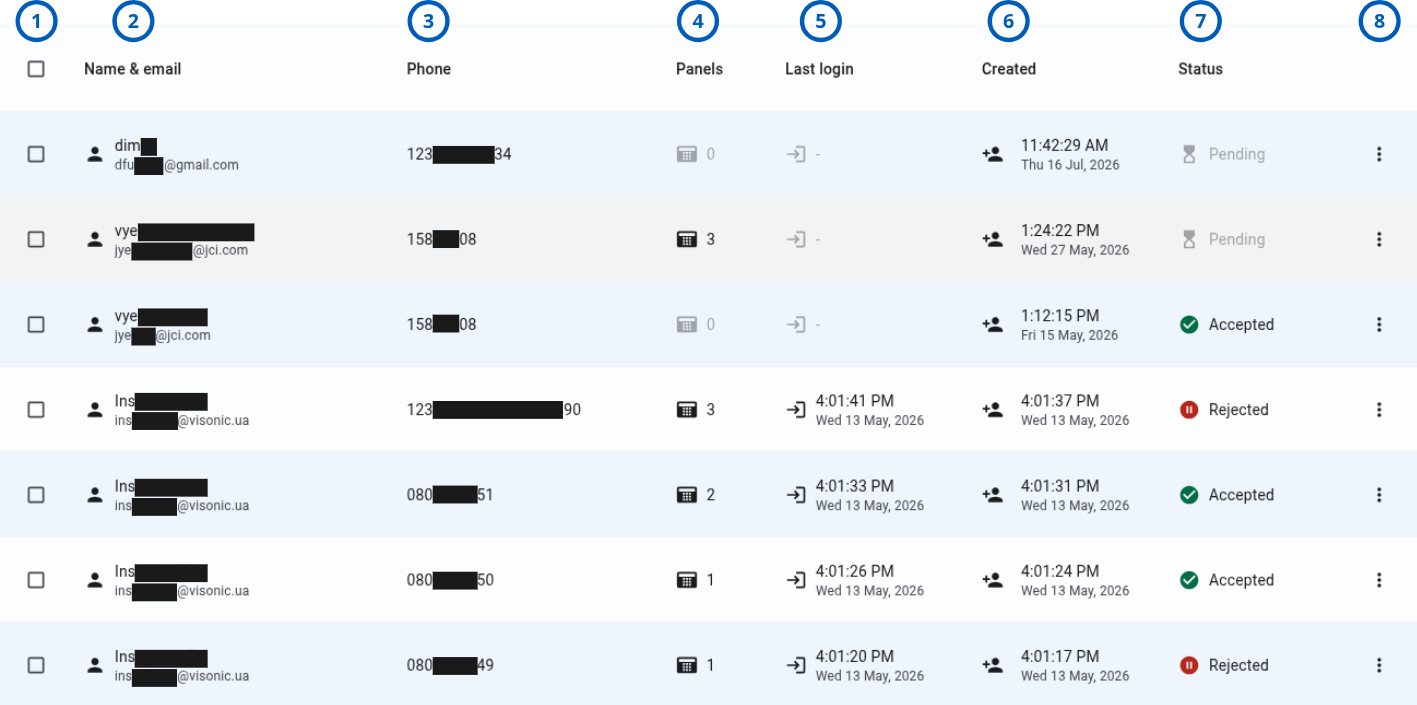
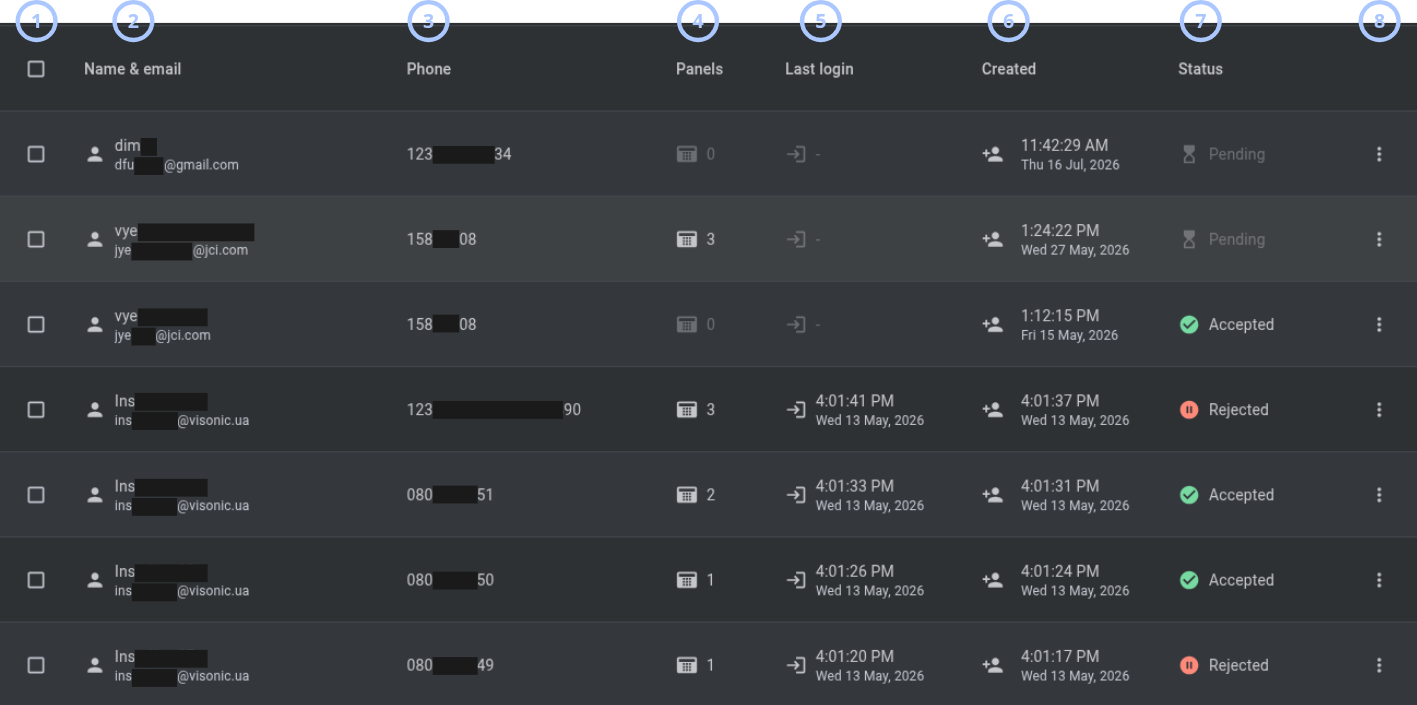
The installers grid lists legacy installers and shows account, access, and panel assignment details.
| Callout | UI element | Description | When to use |
|---|---|---|---|
| 1 | Checkbox | Selects one or more legacy installers. | Use to show bulk actions in the page header. |
| 2 | Name & email column | Shows the legacy installer name and email address. | Use to identify the legacy installer account. |
| 3 | Phone column | Shows the legacy installer phone number. | Use to review legacy installer contact information. |
| 4 | Panels column | Shows the number of panels assigned to the legacy installer. | Use to review assignment volume before opening legacy installer details. |
| 5 | Last login column | Shows the date and time of the legacy installer's last login. | Use to review recent access activity. |
| 6 | Created column | Shows when the legacy installer account was created. | Use to audit when the legacy installer was registered. |
| 7 | Status column | Shows the current legacy installer status: Accepted, Rejected, or Pending. | Use to understand whether the legacy installer has access to the installer application. |
| 8 | Row actions menu | Shows a three vertical dots menu for a specific legacy installer. | Use to accept, reject, convert, reset password, or remove one legacy installer. |
Selecting an legacy installer row opens the legacy installer details modal from the right side of the page.
Register legacy installer modal
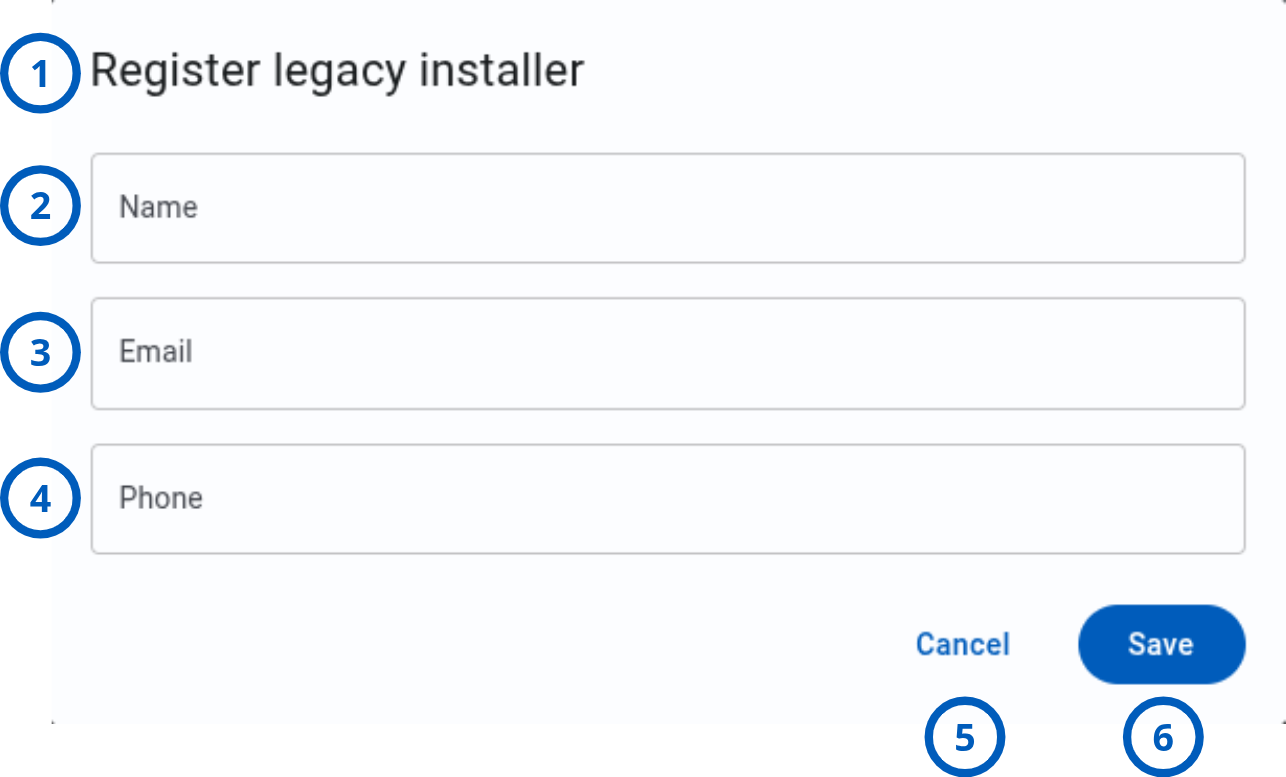
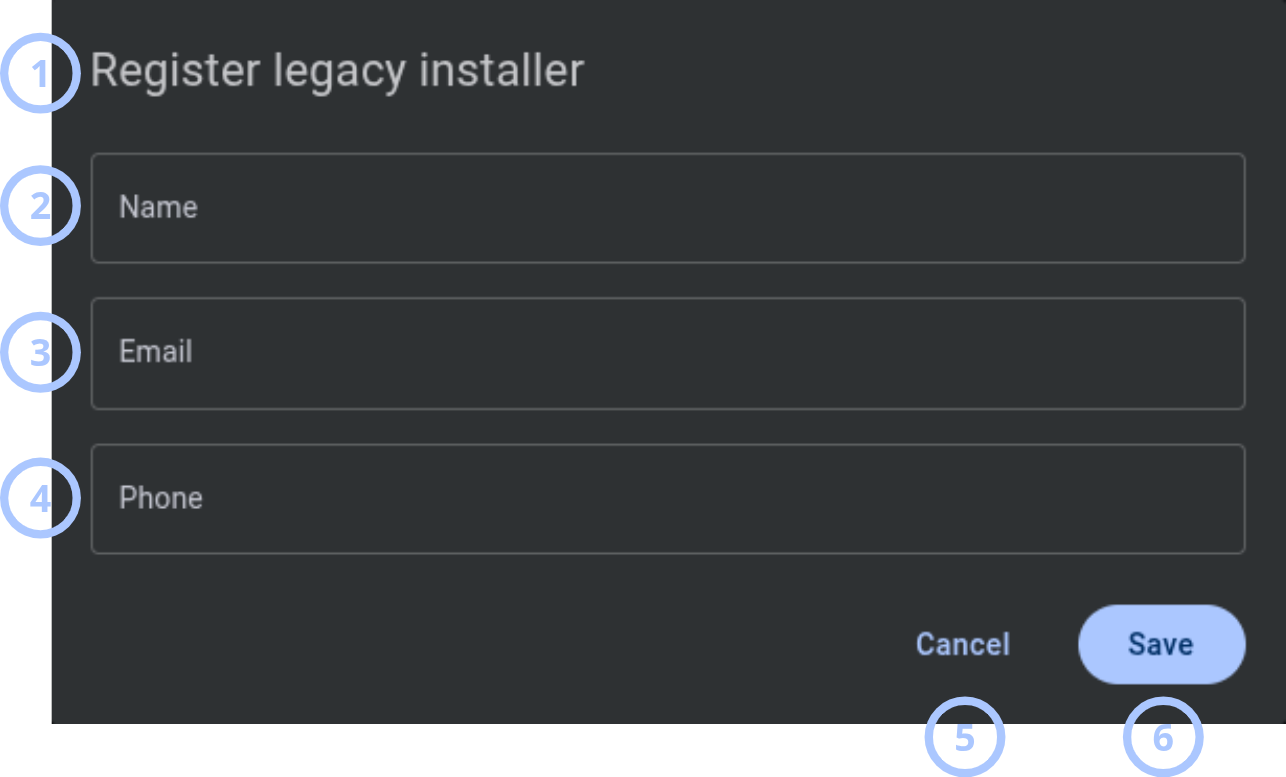
The Register legacy installer modal opens when you select the + add icon in the page header.
| Callout | UI element | Description | When to use |
|---|---|---|---|
| 1 | Modal title | Shows the modal name: Register legacy installer. | Use to confirm that you are creating a legacy installer account. |
| 2 | Name field | Stores the legacy installer display name. | Use to enter the legacy installer name shown in the grid and details modal. |
| 3 | Email field | Stores the legacy installer email address. The system sends a one-time registration code to this address. | Use to enter the email address the legacy installer will use for registration. |
| 4 | Phone field | Stores the legacy installer phone number. | Use to enter legacy installer contact information. |
| 5 | Cancel button | Closes the modal without saving. | Use when you do not want to register the legacy installer. |
| 6 | Save button | Registers the legacy installer when all required values are valid. | Use to create the legacy installer and send a one-time registration code by email. |
Row actions menu
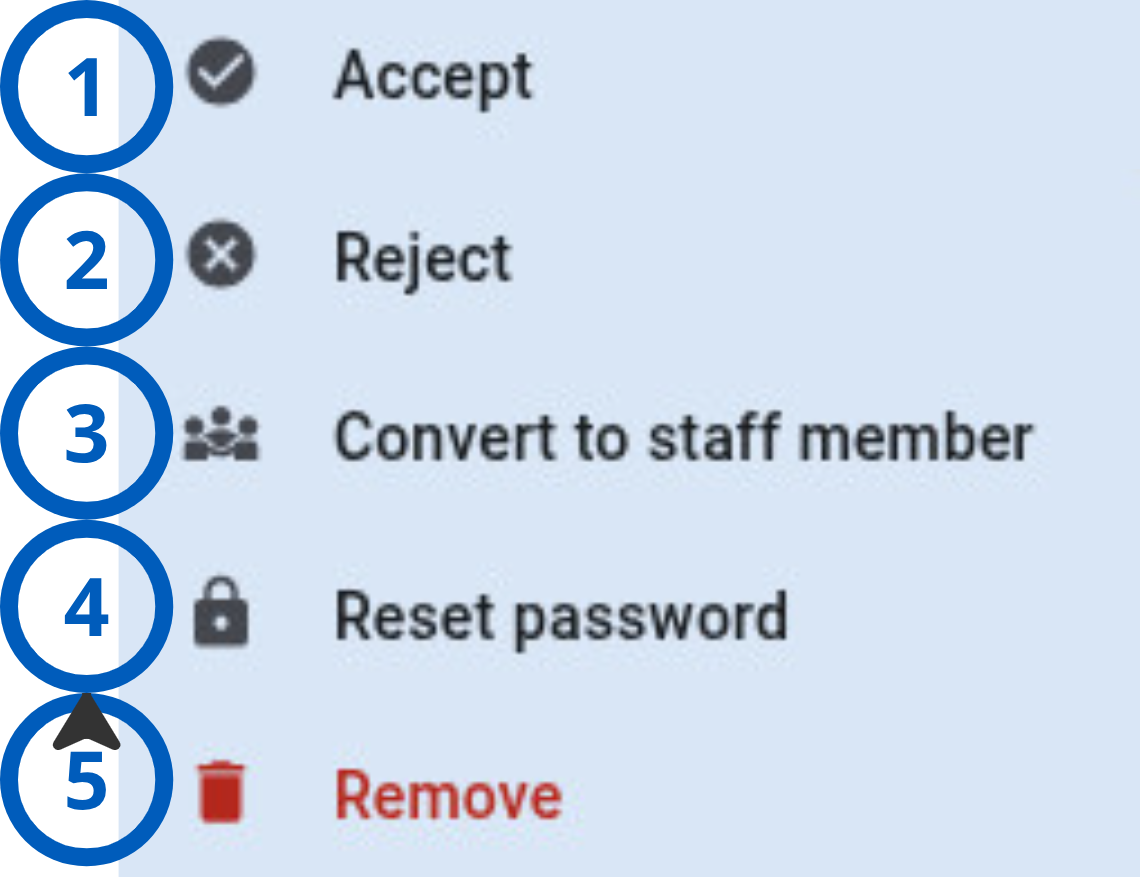
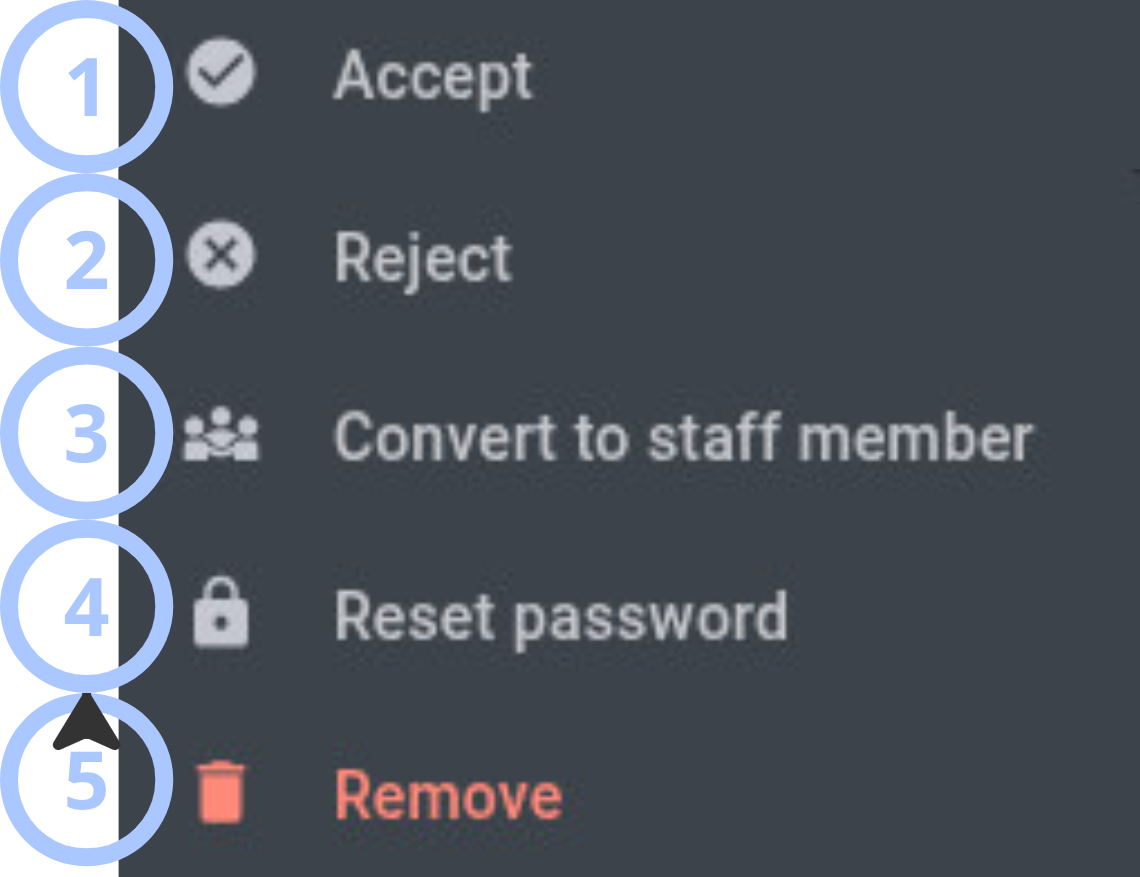
Each legacy installer row has a three vertical dots menu. The available access action depends on the legacy installer status.
| Callout | UI element | Description | When to use |
|---|---|---|---|
| 1 | Accept | Changes the legacy installer status to Accepted. The legacy installer has access to the installer application. | Use for installers with Rejected or Pending status. |
| 2 | Reject | Changes the legacy installer status to Rejected. The legacy installer does not have access to the installer application. | Use for installers with Accepted status when access must be disabled. |
| 3 | Convert to staff member | Opens the Legacy installer conversion modal. | Use when a legacy installer must become a staff member, such as a dealer installer. |
| 4 | Reset password | Opens the Reset password confirmation modal. | Use when the legacy installer needs a one-time password reset code. |
| 5 | Remove | Opens the Remove legacy installer confirmation modal. | Use when the legacy installer account must be permanently removed from the grid. |
Legacy installer conversion modal
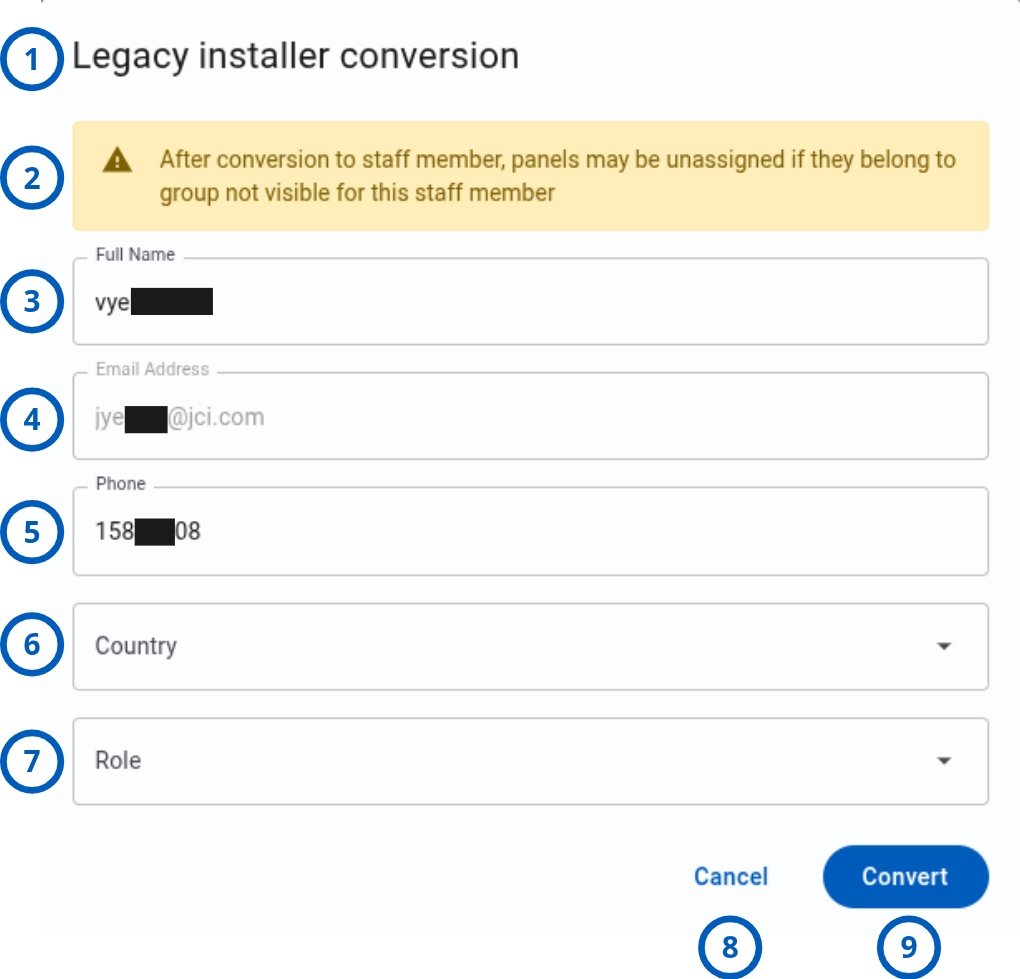
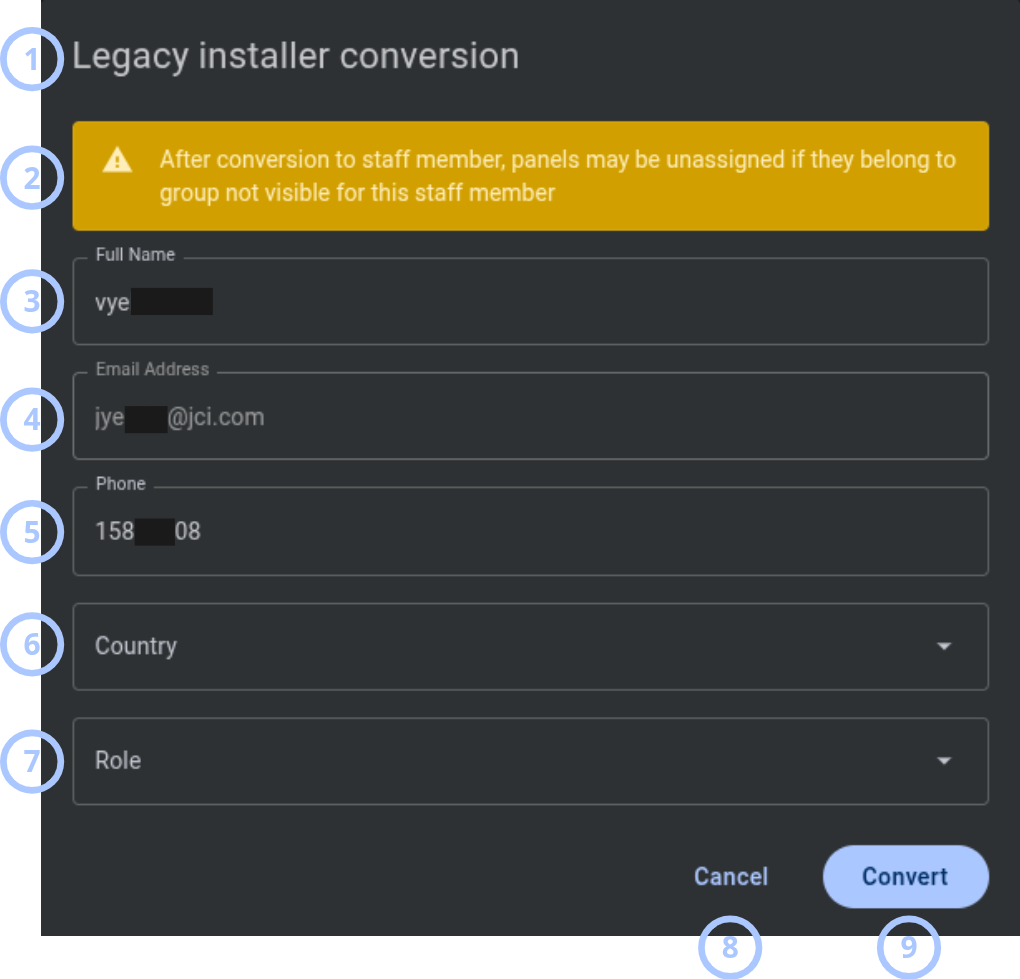
The Legacy installer conversion modal opens when you select Convert to staff member from the row actions menu.
After conversion to staff member, panels may be unassigned if they belong to a group that is not visible for this staff member.
| Callout | UI element | Description | When to use |
|---|---|---|---|
| 1 | Modal title | Shows the modal name: Legacy installer conversion. | Use to confirm that you are converting a legacy installer to a staff member. |
| 2 | Warning message | Explains that panels may be unassigned if the converted staff member cannot access their groups. | Review before conversion. |
| 3 | Full name field | Shows the current legacy installer name by default and allows changes. | Use to set the staff member display name. |
| 4 | Email address field | Shows the current legacy installer email address. This field is read-only. | Use to verify the account email before conversion. |
| 5 | Phone field | Shows the current legacy installer phone number by default and allows changes. | Use to update contact information before conversion. |
| 6 | Country dropdown | Sets the staff member country. The field is empty by default. | Use to select the staff member country before conversion. |
| 7 | Role dropdown | Assigns a staff member role. The field is empty by default. | Use to select the target role, such as a dealer legacy installer role. |
| 8 | Cancel button | Closes the modal without converting the legacy installer. | Use when you do not want to continue. |
| 9 | Convert button | Converts the legacy installer to a staff member when all required values are valid. | Use to complete the conversion. |
Reset password modal
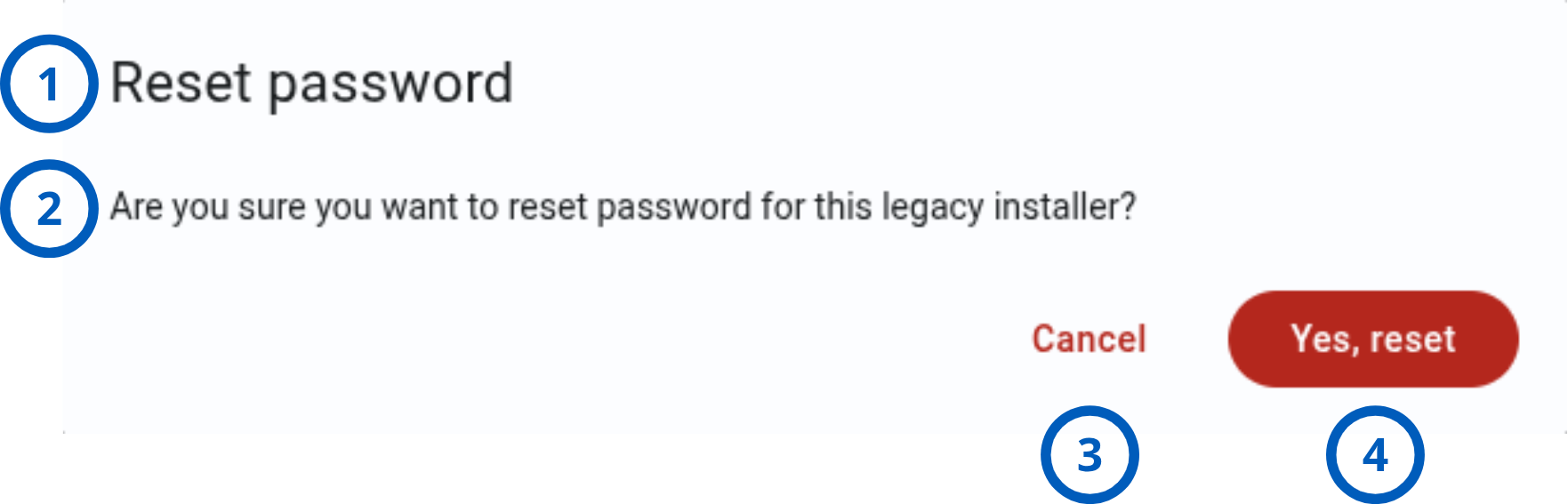
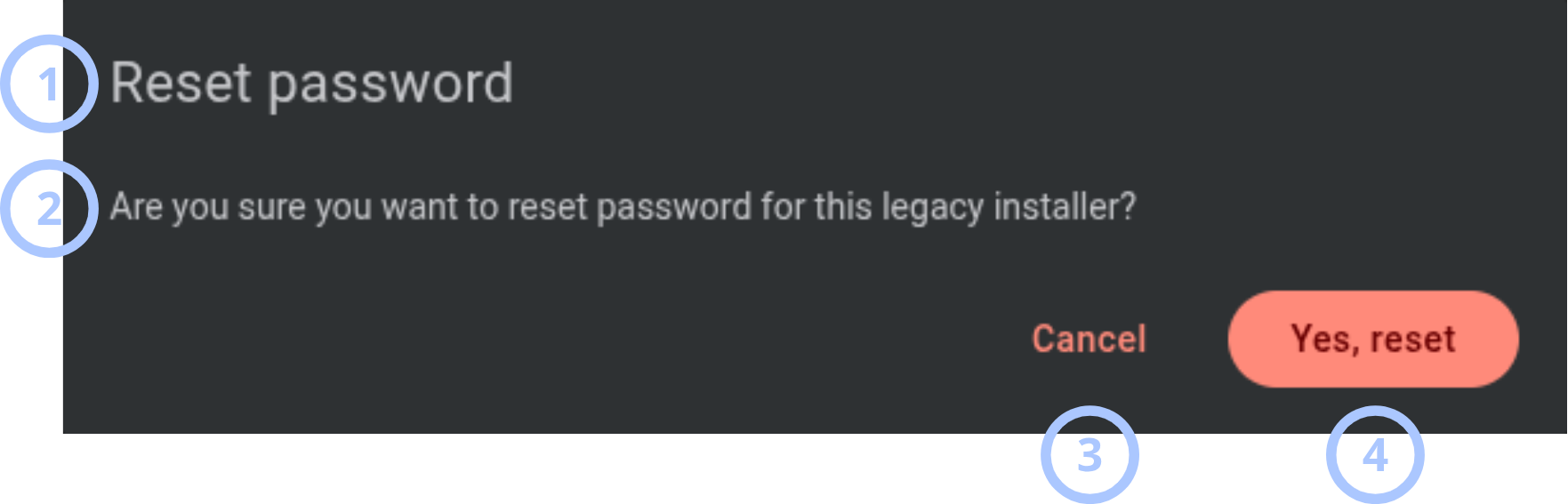
The Reset password modal opens when you select Reset password from the row actions menu.
| Callout | UI element | Description | When to use |
|---|---|---|---|
| 1 | Modal title | Shows the modal name: Reset password. | Use to confirm that you are starting a password reset. |
| 2 | Warning message | Shows the message: Are you sure you want to reset password for this legacy installer? | Review before sending a reset code. |
| 3 | Cancel button | Closes the modal without resetting the password. | Use when you do not want to continue. |
| 4 | Yes, reset button | Sends a one-time password reset code to the legacy installer email address. | Use to confirm the password reset. |
Remove legacy installer modal
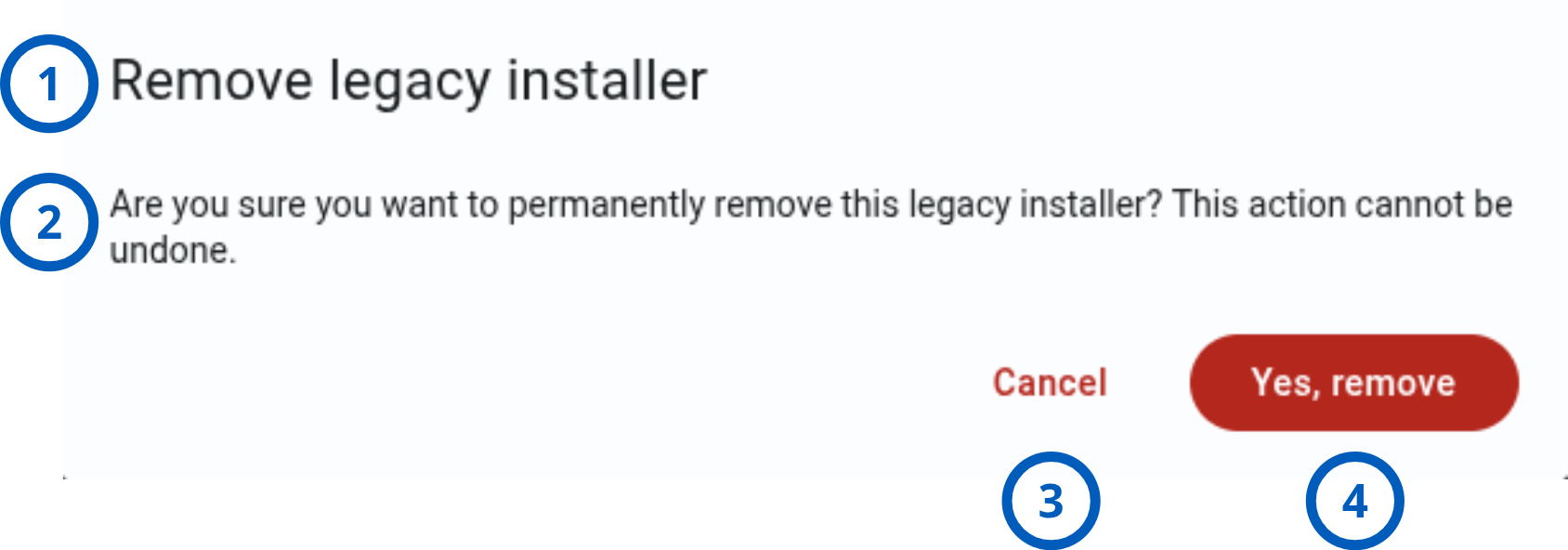
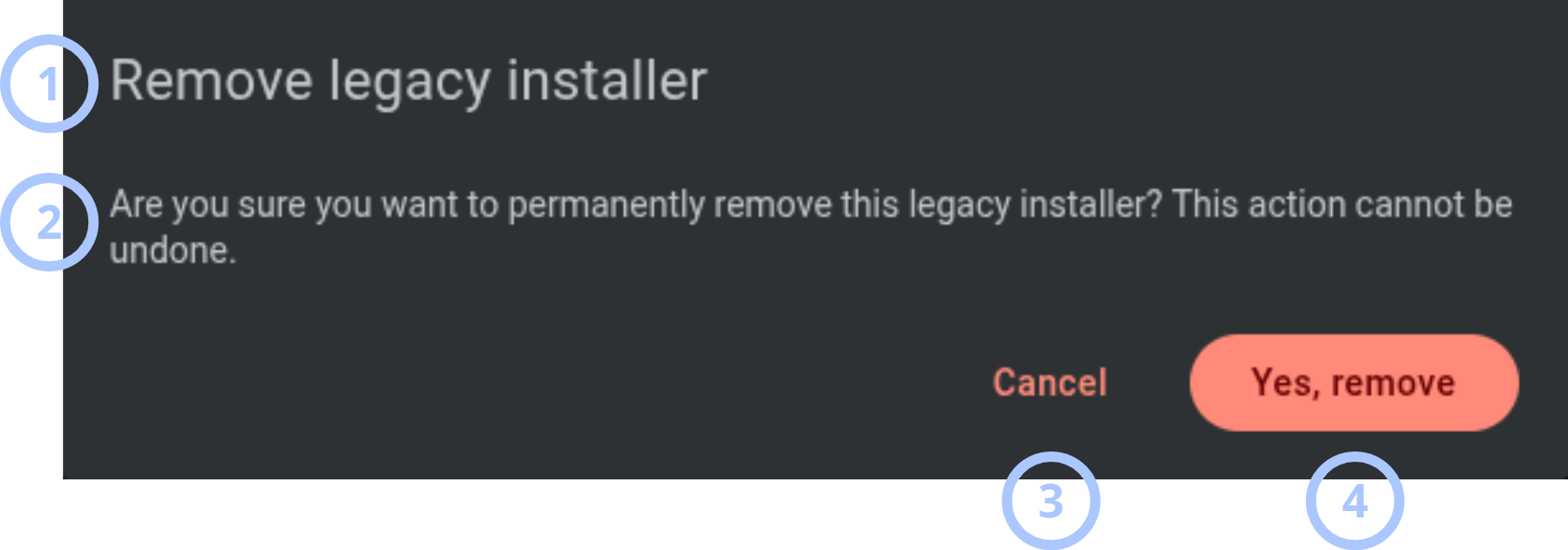
The Remove legacy installer modal opens when you select Remove from the row actions menu or from available bulk actions.
| Callout | UI element | Description | When to use |
|---|---|---|---|
| 1 | Modal title | Shows the modal name: Remove legacy installer. | Use to confirm that you are removing an legacy installer. |
| 2 | Warning message | Shows the message: Are you sure you want to permanently remove this legacy installer? This action cannot be undone. | Review before removal. |
| 3 | Cancel button | Closes the modal without removing the legacy installer. | Use when you do not want to remove the legacy installer. |
| 4 | Yes, remove button | Permanently removes the legacy installer from the installers grid. | Use only when the legacy installer account is no longer needed. |
Removing an legacy installer cannot be undone.
Legacy installer details modal
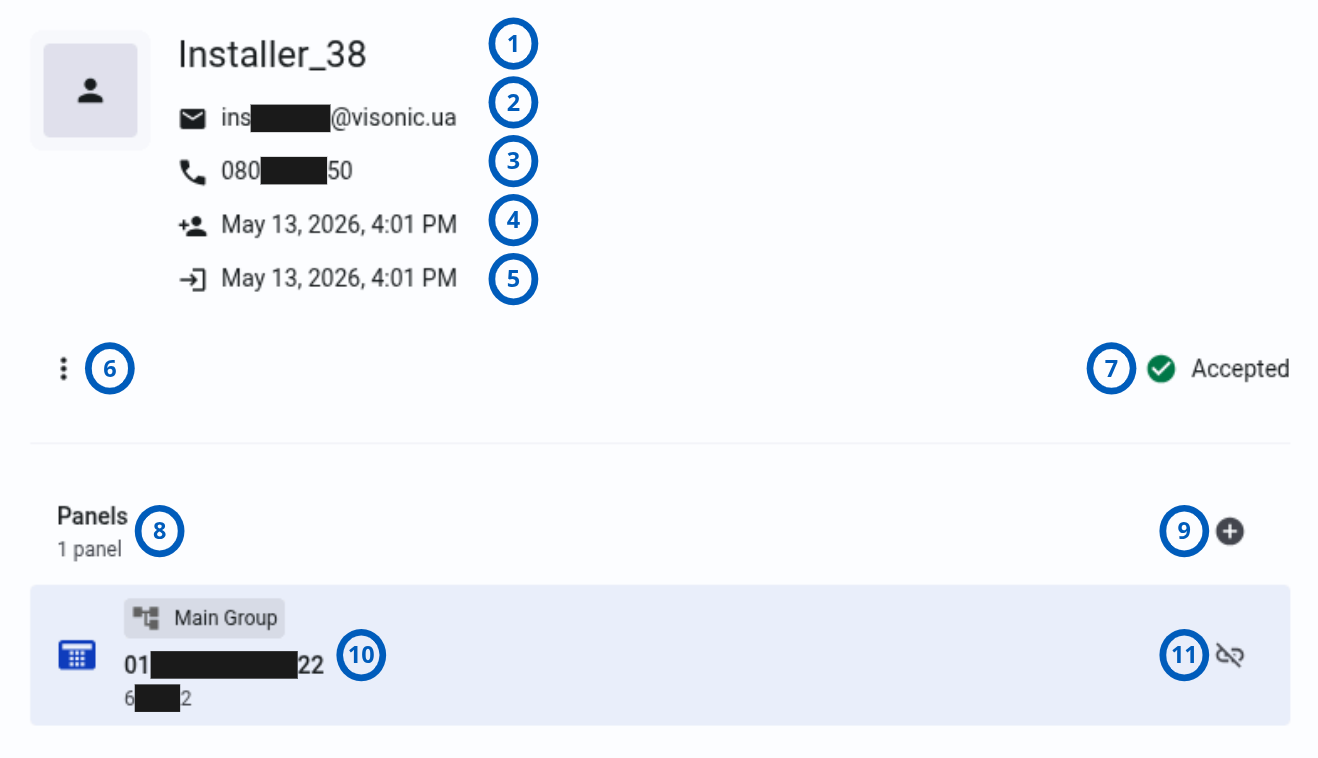
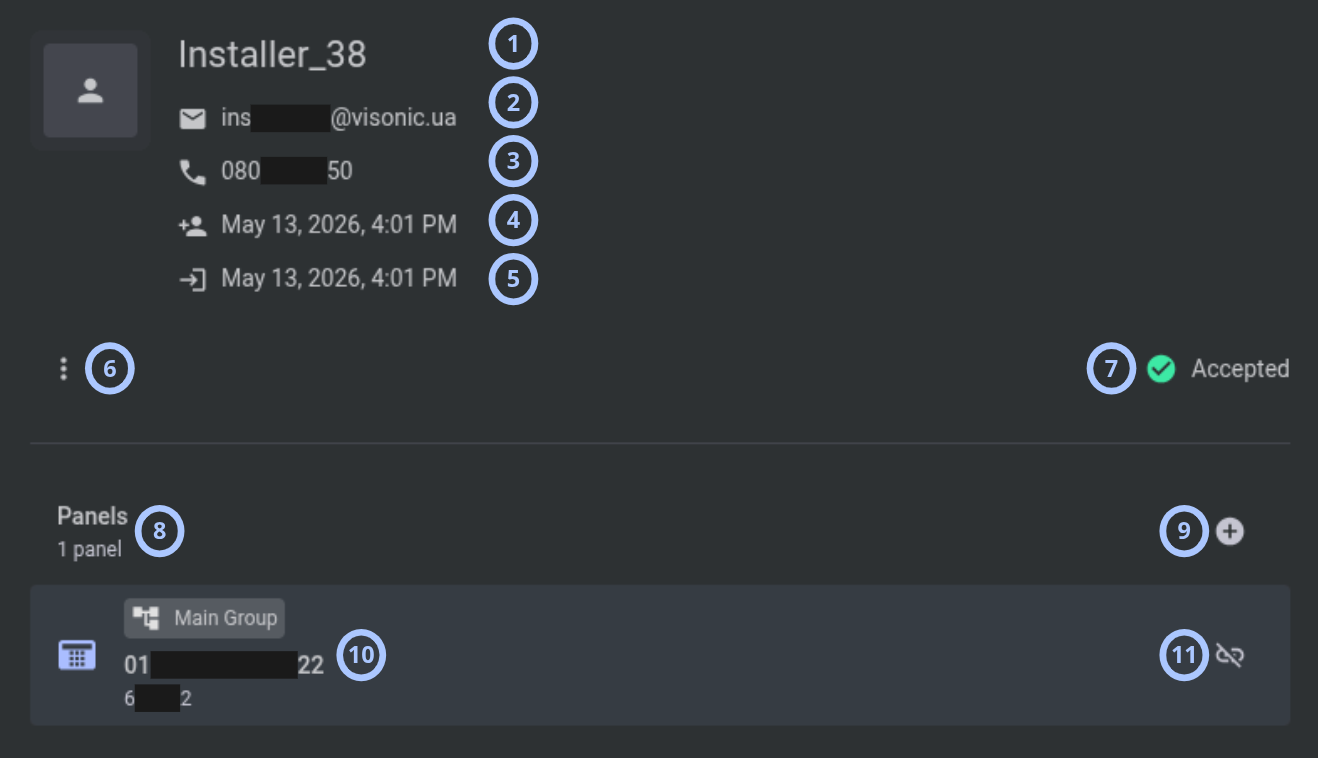
The legacy installer details modal opens from the right side of the page when you select an legacy installer in the grid.
| Callout | UI element | Description | When to use |
|---|---|---|---|
| 1 | Name | Shows the legacy installer name. | Use to confirm which legacy installer record is open. |
| 2 | Shows the legacy installer email address. | Use to verify where registration and password reset codes are sent. | |
| 3 | Phone | Shows the legacy installer phone number. | Use to review legacy installer contact information. |
| 4 | Created | Shows when the legacy installer account was created. | Use for account review or audit checks. |
| 5 | Last login | Shows the legacy installer's most recent login date and time. | Use to review account activity. |
| 6 | Three vertical dots menu | Shows the same relevant actions available for the legacy installer status. | Use to accept, reject, convert, reset password, or remove the legacy installer. |
| 7 | Status | Shows the current access status: Accepted, Rejected, or Pending. | Use to determine whether the legacy installer has access. |
| 8 | Panels section | Lists panels assigned to the legacy installer. | Use to review, assign, or unassign legacy installer panels. |
| 9 | + assign panel icon | Opens the Assign legacy installer to panel modal. | Use to assign another panel to the legacy installer. |
| 10 | Panel item | Shows panel IMEI, account code, and panel group. | Use to identify an assigned panel. |
| 11 | Unassign panel icon | Opens the Unassign panel confirmation modal. | Use to remove the panel assignment from the legacy installer. |
Assign legacy installer to panel modal
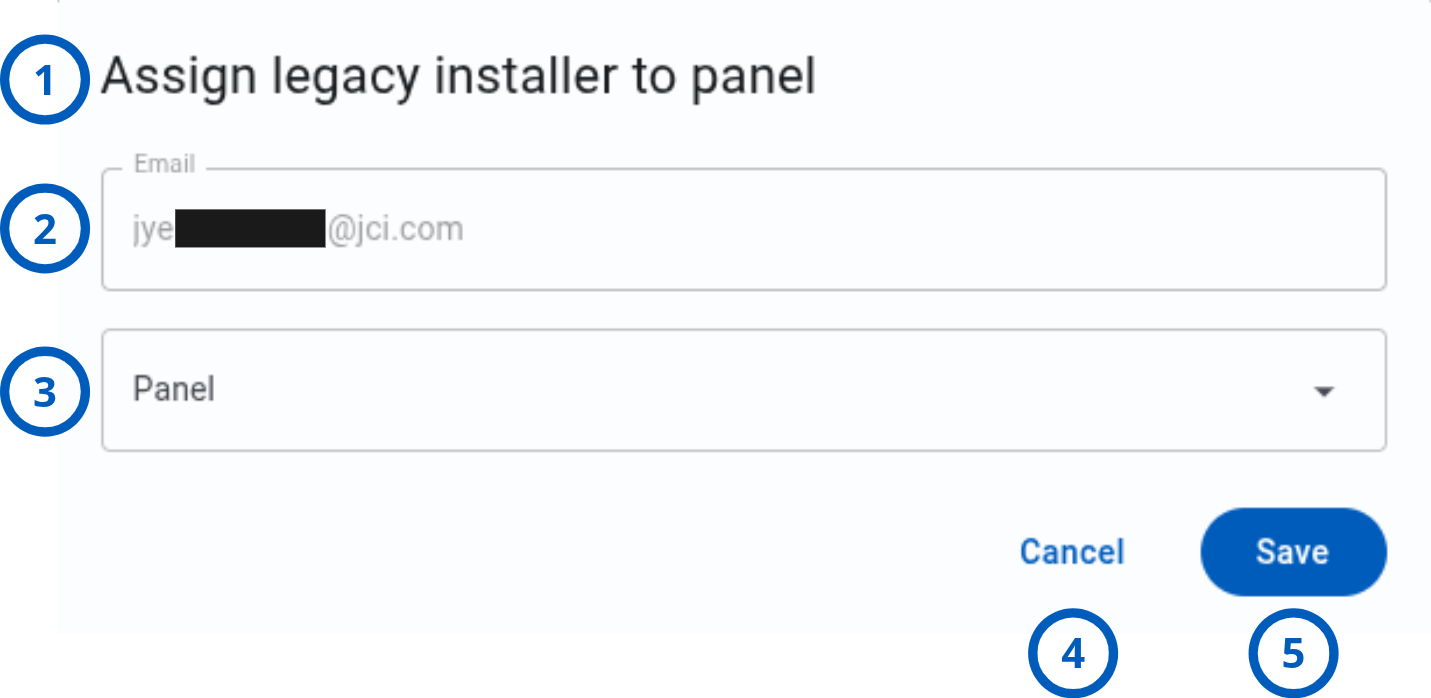
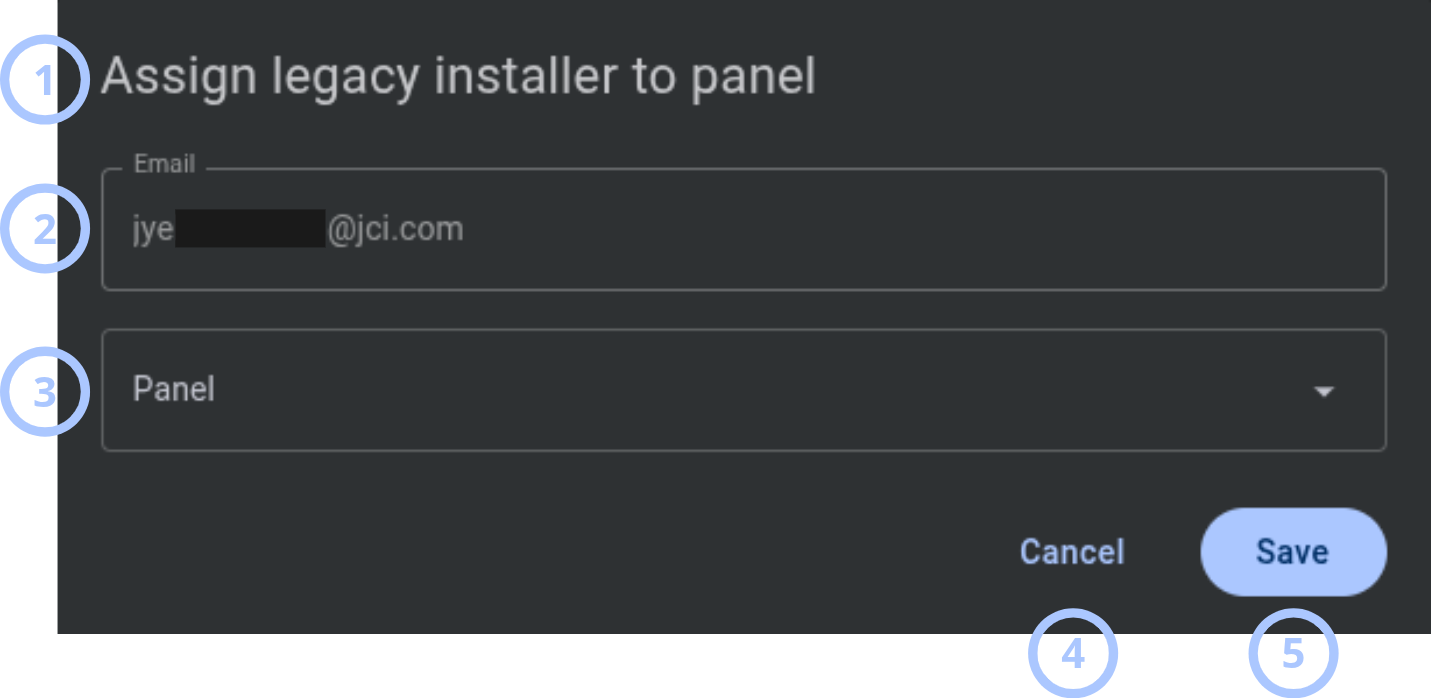
The Assign legacy installer to panel modal opens when you select the + icon in the Panels section of the legacy installer details modal.
| Callout | UI element | Description | When to use |
|---|---|---|---|
| 1 | Modal title | Shows the modal name: Assign legacy installer to panel. | Use to confirm that you are assigning a panel. |
| 2 | Email field | Shows the legacy installer email address. This field is read-only. | Use to verify the legacy installer before assigning a panel. |
| 3 | Panel dropdown | Lists panels that can be assigned. | Use to select the panel to assign to the legacy installer. |
| 4 | Cancel button | Closes the modal without assigning a panel. | Use when you do not want to continue. |
| 5 | Save button | Assigns the selected panel to the legacy installer. | Use after selecting a valid panel. |
Unassign panel modal
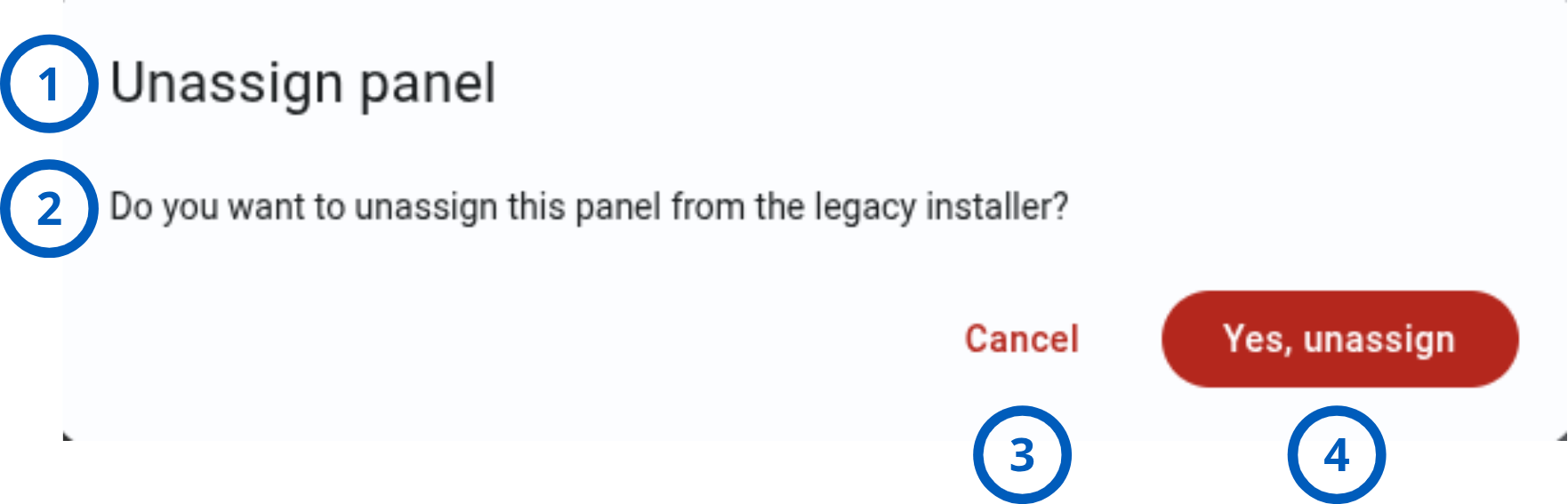
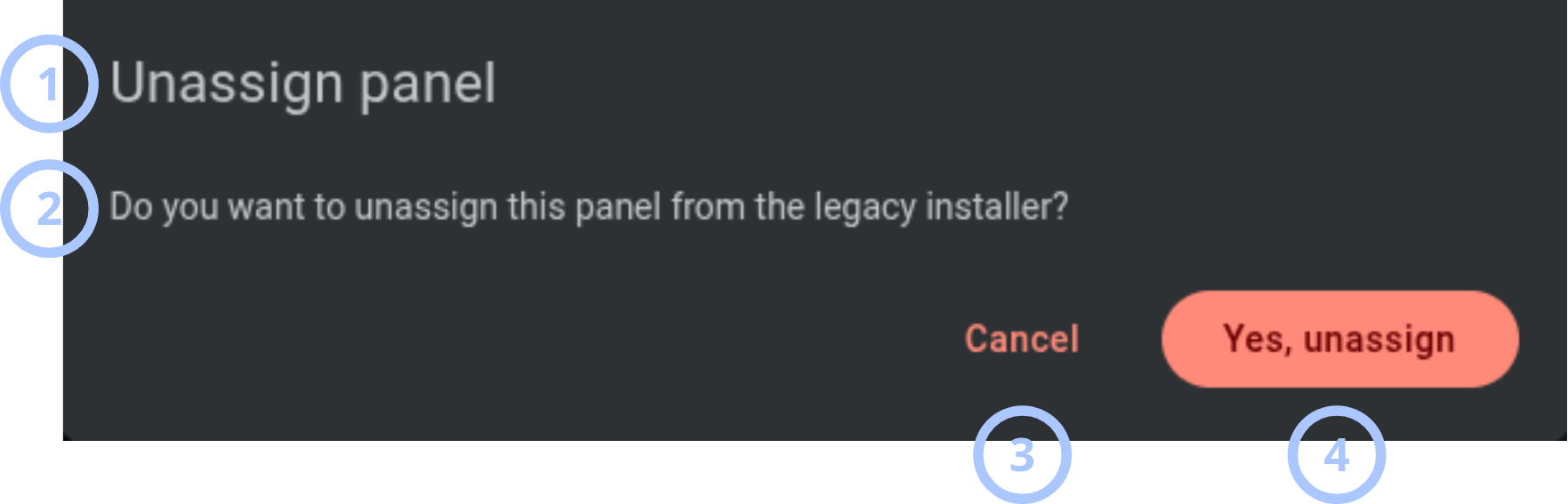
The Unassign panel modal opens when you select the unassign icon for a panel in the legacy installer details modal.
| Callout | UI element | Description | When to use |
|---|---|---|---|
| 1 | Modal title | Shows the modal name: Unassign panel. | Use to confirm that you are removing a panel assignment. |
| 2 | Warning message | Shows the message: Do you want to unassign this panel from the legacy installer? | Review before unassigning the panel. |
| 3 | Cancel button | Closes the modal without unassigning the panel. | Use when you do not want to continue. |
| 4 | Yes, unassign button | Unassigns the panel from the legacy installer. | Use to confirm the change. |
Pagination controls


Pagination controls appear at the bottom of the installers grid.
| Callout | UI element | Description | When to use |
|---|---|---|---|
| 1 | Previous and next arrows | Move between pages in the installers grid. | Use when the legacy installer list has more records than the current page can show. |
| 2 | Range indicator | Shows the current range and total number of installers, for example, 1-15 of 25. | Use to understand where you are in the legacy installer list. |
| 3 | Legacy installers per page selector | Controls how many installers appear on one page. Available values are 10, 15, 50, 100, and 200. | Use to change the grid page size. |
How to use this page
Register a legacy installer
Goal:
- Create a legacy installer account and send a one-time registration code to the legacy installer email address.
Steps:
- Open the Legacy installers page.
- Select the + add icon in the page header.
- In the Register legacy installer modal, enter the legacy installer name.
- Enter the legacy installer email address.
- Enter the legacy installer phone number.
- Select Save.
Expected result:
- The legacy installer is registered.
- A one-time registration code is sent to the legacy installer email address.
- The legacy installer appears in the legacy installers grid with Pending status.
SMTP must be configured before the system can send the one-time registration code.
Accept a legacy installer
Goal:
- Give a pending or rejected legacy installer access to the installer application.
Steps:
- Open the Legacy installers page.
- Find a legacy installer with Pending or Rejected status.
- Select the three vertical dots menu for the legacy installer.
- Select Accept.
Expected result:
- The legacy installer status changes to Accepted.
- The legacy installer has access to the installer application.
A Pending legacy installer can also become accepted after the first login to the installer application.
Reject a legacy installer
Goal:
- Disable access for an accepted legacy installer.
Steps:
- Open the Legacy installers page.
- Find a legacy installer with Accepted status.
- Select the three vertical dots menu for the legacy installer.
- Select Reject.
Expected result:
- The legacy installer status changes to Rejected.
- The legacy installer no longer has access to the installer application.
Use bulk actions for selected legacy installers
Goal:
- Apply access or removal actions to one or more selected legacy installers.
Steps:
- Open the Legacy installers page.
- Select the checkbox for one or more legacy installers.
- Review the buttons that appear in the page header.
- Select one of the available actions:
- Accept
- Reject
- Remove
- Complete any confirmation modal, if shown.
Expected result:
- The selected action is applied to the selected legacy installers.
- The grid updates to show the latest statuses or removal result.
If selected legacy installers have different statuses, actions for the selected statuses can appear together. Review the selected rows before you continue.
Convert a legacy installer to a staff member
Goal:
- Convert a legacy installer account into a staff member account and assign a staff member role.
Steps:
- Open the Legacy installers page.
- Find the legacy installer in the grid.
- Select the three vertical dots menu for the legacy installer.
- Select Convert to staff member.
- In the Legacy installer conversion modal, review the warning message.
- Review or update Full name.
- Review the read-only Email address.
- Review or update Phone.
- Select a Country.
- Select a Role.
- Select Convert.
Expected result:
- The legacy installer is converted to a staff member.
- The legacy installer no longer appears in the legacy installers grid.
- The converted account is available on the Staff page.
Panels may be unassigned during conversion if their groups are not visible to the converted staff member.
Reset a legacy installer password
Goal:
- Send a one-time password reset code to the legacy installer email address.
Steps:
- Open the Legacy installers page.
- Find the legacy installer in the grid.
- Select the three vertical dots menu for the legacy installer.
- Select Reset password.
- In the Reset password modal, review the warning message.
- Select Yes, reset.
Expected result:
- A one-time password reset code is sent to the legacy installer email address.
- The legacy installer can use the code to reset the password.
SMTP must be configured before the system can send the one-time password reset code.
Remove a legacy installer
Goal:
- Permanently remove a legacy installer from the legacy installers grid.
Steps:
- Open the Legacy installers page.
- Find the legacy installer in the grid.
- Select the three vertical dots menu for the legacy installer.
- Select Remove.
- In the Remove legacy installer modal, review the warning message.
- Select Yes, remove.
Expected result:
- The legacy installer is removed.
- The legacy installer no longer appears in the legacy installers grid.
This action cannot be undone.
Review legacy installer details
Goal:
- View legacy installer account details and assigned panels.
Steps:
- Open the Legacy installers page.
- Select a legacy installer row in the grid.
- Review the legacy installer name, email, phone, created date, last login date, and status.
- Review the Panels section.
- Select a panel group link if you need to open the related group page.
Expected result:
- The legacy installer details modal opens from the right side of the page.
- The modal shows legacy installer details and assigned panel information.
Assign a panel to a legacy installer
Goal:
- Assign an available panel to a legacy installer.
Steps:
- Open the Legacy installers page.
- Select a legacy installer row in the grid.
- In the legacy installer details modal, go to the Panels section.
- Select the + assign panel icon.
- In the Assign legacy installer to panel modal, review the read-only legacy installer email field.
- Select a panel from the Panel dropdown.
- Select Save.
Expected result:
- The selected panel is assigned to the legacy installer.
- The panel appears in the Panels section of the legacy installer details modal.
- The panel count updates.
Unassign a panel from a legacy installer
Goal:
- Remove a panel assignment from a legacy installer.
Steps:
- Open the Legacy installers page.
- Select a legacy installer row in the grid.
- In the legacy installer details modal, find the panel in the Panels section.
- Select the unassign panel icon.
- In the Unassign panel modal, review the warning message.
- Select Yes, unassign.
Expected result:
- The panel is unassigned from the legacy installer.
- The panel no longer appears in the legacy installer details modal.
- The panel count updates.
Change the number of legacy installers shown per page
Goal:
- Change how many legacy installers appear in the grid.
Steps:
- Go to the bottom-right area of the legacy installers grid.
- Open the legacy installers per page selector.
- Select one of the available values:
- 10
- 15
- 50
- 100
- 200
Expected result:
- The grid updates to show the selected number of legacy installers per page.
- The range indicator updates.
Move between pages of legacy installers
Goal:
- Navigate through multiple pages of legacy installers.
Steps:
- Go to the bottom-left area of the legacy installers grid.
- Select the next arrow to move forward.
- Select the previous arrow to move back.
- Review the range indicator, for example, 1-15 of 25.
Expected result:
- The grid shows the selected page of legacy installers.
- The range indicator updates.
Field and option reference
Register legacy installer fields
| Name | Description | Accepted values | Behavior | Restrictions | Default value |
|---|---|---|---|---|---|
| Name | Legacy installer display name. | Text. | Shown in the Name & email column and legacy installer details modal. | Must contain less than 255 characters. | Empty. |
| Legacy installer email address. | Valid email address. | Used for one-time registration and password reset codes. | Must be valid and reachable. | Empty. | |
| Phone | Legacy installer phone number. | Phone number text. | Shown in the Phone column and legacy installer details modal. | Must contain less than 20 characters. | Empty. |
Legacy installer conversion fields
| Name | Description | Accepted values | Behavior | Restrictions | Default value |
|---|---|---|---|---|---|
| Full name | Staff member display name after conversion. | Text. | Can be changed before conversion. | Must contain less than 255 characters. | Current legacy installer name. |
| Email address | Staff member email address after conversion. | Current legacy installer email address. | Read-only field used to verify the account email. | Cannot be changed in the conversion modal. | Current legacy installer email address. |
| Phone | Staff member phone number after conversion. | Phone number text. | Can be changed before conversion. | Must contain less than 20 characters. | Current legacy installer phone number. |
| Country | Staff member country. | Value from the dropdown list. | Required for conversion. | Must be selected before conversion. | Empty. |
| Role | Staff member role assigned after conversion. | Existing role from the dropdown list. | Controls staff member access after conversion. | Must be selected before conversion. The role must exist before it can be assigned. | Empty. |
Legacy installer grid columns
| Name | Description | Accepted values | Behavior | Restrictions | Default value |
|---|---|---|---|---|---|
| Checkbox | Selects legacy installers for bulk actions. | Selected or not selected. | Shows bulk action buttons in the page header. | Available actions depend on selected legacy installer statuses. | Not selected. |
| Name & email | Legacy installer name and email address. | Values saved in the legacy installer record. | Used to identify the legacy installer. | Email must be valid for registration and password reset delivery. | Not applicable. |
| Phone | Legacy installer phone number. | Value saved in the legacy installer record. | Used to review contact information. | Exact validation rules are not specified. | Not applicable. |
| Panels | Number of panels assigned to the legacy installer. | Number. | Updates when panels are assigned or unassigned. | Panel assignment is managed from the legacy installer details modal. | Not specified. |
| Last login | Date and time of the legacy installer's last login. | Date and time format, for example: 12:08:58 PM Tue 5 May, 2026. | Used to review legacy installer account activity. | Shown only when login data exists. | Not specified. |
| Created | Date and time when the legacy installer was created. | Date and time format, for example: 12:08:58 PM Tue 5 May, 2026. | Used for account review and audit checks. | Used to review legacy installer account activity. | Set when the legacy installer is registered. |
| Status | Current legacy installer access state. | Accepted, Rejected, or Pending. | Controls access to the installer application and available actions. | Status changes are made through Accept or Reject. | Pending after registration. |
Legacy installer status values
| Name | Description | Accepted values | Behavior | Restrictions | Default value |
|---|---|---|---|---|---|
| Accepted | The legacy installer was registered and accepted. | Not applicable. | The legacy installer has access to the installer application. The row actions menu shows Reject, Convert to staff member, Reset password, and Remove. | Can be changed to Rejected by using the Reject action. | Not the default status for a newly registered legacy installer. |
| Rejected | The legacy installer was registered and rejected. | Not applicable. | The legacy installer does not have access to the installer application. The row actions menu shows Accept, Convert to staff member, Reset password, and Remove. | Can be changed to Accepted by using the Accept action. | Not the default status for a newly registered legacy installer. |
| Pending | The legacy installer was registered but has not been accepted. | Not applicable. | The legacy installer can be accepted by using the Accept action or after first login to the installer application. The row actions menu shows Accept, Convert to staff member, Reset password, and Remove. | Access is not fully active until the status becomes Accepted. | Default status after registration. |
Panel assignment fields
| Name | Description | Accepted values | Behavior | Restrictions | Default value |
|---|---|---|---|---|---|
| Email legacy installer email | Legacy installer email address in the assign panel modal. | Current legacy installer email address. | Read-only field used to verify the selected legacy installer. | Cannot be changed in the assign panel modal. | Current legacy installer email address. |
| Panel | Panel to assign to the legacy installer. | Panel from the dropdown list. | The selected panel is assigned after you select Save. | A panel must be selected before saving. | Empty. |
Pagination options
| Name | Description | Accepted values | Behavior | Restrictions | Default value |
|---|---|---|---|---|---|
| Legacy installers per page | Controls how many legacy installers appear on one page. | 10, 15, 50, 100, 200. | Updates the grid page size. | Large page sizes may require more scrolling. | 15. |
| Range indicator | Shows the current visible range and total count. | System-generated value, for example, 1-15 of 25. | Updates when you change page or page size. | Read-only. | Depends on total legacy installer count. |
Tips
- Review the legacy installer email address before saving. Registration and password reset codes are sent to that address.
- Use the legacy installer details modal to confirm panel assignments before converting or removing a legacy installer.
- Review the conversion warning before converting a legacy installer to a staff member. Panel visibility can affect assignments after conversion.
- Increase the page size when reviewing many legacy installers, then use pagination to move through the list.
Troubleshooting
Legacy installer does not receive a registration code
Possible causes
- SMTP is not configured.
- SMTP configuration is incorrect.
- The legacy installer email address is invalid.
- The email was blocked, delayed, or moved to spam.
What to do
- Confirm that SMTP is configured.
- Verify the legacy installer email address.
- Ask the legacy installer to check spam or junk folders.
- Register the legacy installer again.
Legacy installer does not receive a password reset code
Possible causes
- SMTP is not configured.
- SMTP service is unavailable.
- The legacy installer email address is incorrect.
- The email was filtered by the recipient mailbox.
What to do
- Confirm that SMTP is configured and working.
- Check the legacy installer email address in the legacy installer details panel.
- Select Reset password again after SMTP is confirmed.
- Ask the legacy installer to check spam or junk folders.
Save is not successful when registering a legacy installer
Possible causes
- Required fields are empty.
- The email address format is invalid.
- The phone value does not match validation rules.
- The system cannot create the legacy installer record.
What to do
- Check that Name, Email, and Phone are completed.
- Verify the email address format.
- Check the phone number.
- Try saving again.
- If the issue continues, contact an administrator or support team.
Legacy installer cannot access the installer application
Possible causes
- Legacy installer status is Rejected.
- Legacy installer status is Pending.
- Registration was not completed.
- The legacy installer is using incorrect credentials.
- Legacy installer application access is disabled for panel.
What to do
- Open the Legacy installers page.
- Find the legacy installer.
- Review the Status column.
- If access should be allowed, select Accept.
- If the legacy installer cannot sign in, use Reset password to send a one-time reset code.
- Enable installer application access for panel.
Convert to staff member does not complete
Possible causes
- Country is not selected.
- Role is not selected.
- Required values are invalid.
- The user does not have permission to convert legacy installers.
What to do
- Confirm that Country is selected.
- Confirm that Role is selected.
- Review editable fields for valid values.
- Confirm that you have permission to convert legacy installers.
- Try the conversion again.
Panels disappear after legacy installer conversion
Possible causes
- The converted staff member does not have visibility to one or more panel groups.
- The panels belong to a group that is not visible for the selected staff member role.
What to do
- Open the converted user on the Staff page.
- Review the staff member role and group visibility.
- Update role or group access if appropriate.
Panel cannot be assigned to a legacy installer
Possible causes
- No panel was selected.
- The panel is not available in the drop-down list.
- The user does not have permission to assign panels.
- The panel is restricted by group visibility or other configuration.
What to do
- Open the Assign legacy installer to panel dialog.
- Confirm that a panel is selected.
- Check whether the expected panel exists.
- Confirm that you have permission to assign panels.
- Review panel and group configuration if the panel is missing.
Panel was unassigned by mistake
Possible causes
- The unassign action was confirmed.
- The wrong panel was selected.
What to do
- Open the legacy installer details panel.
- Select the + icon in the Panels section.
- Select the panel from the Panel drop-down list.
- Select Save.