Employees
Overview
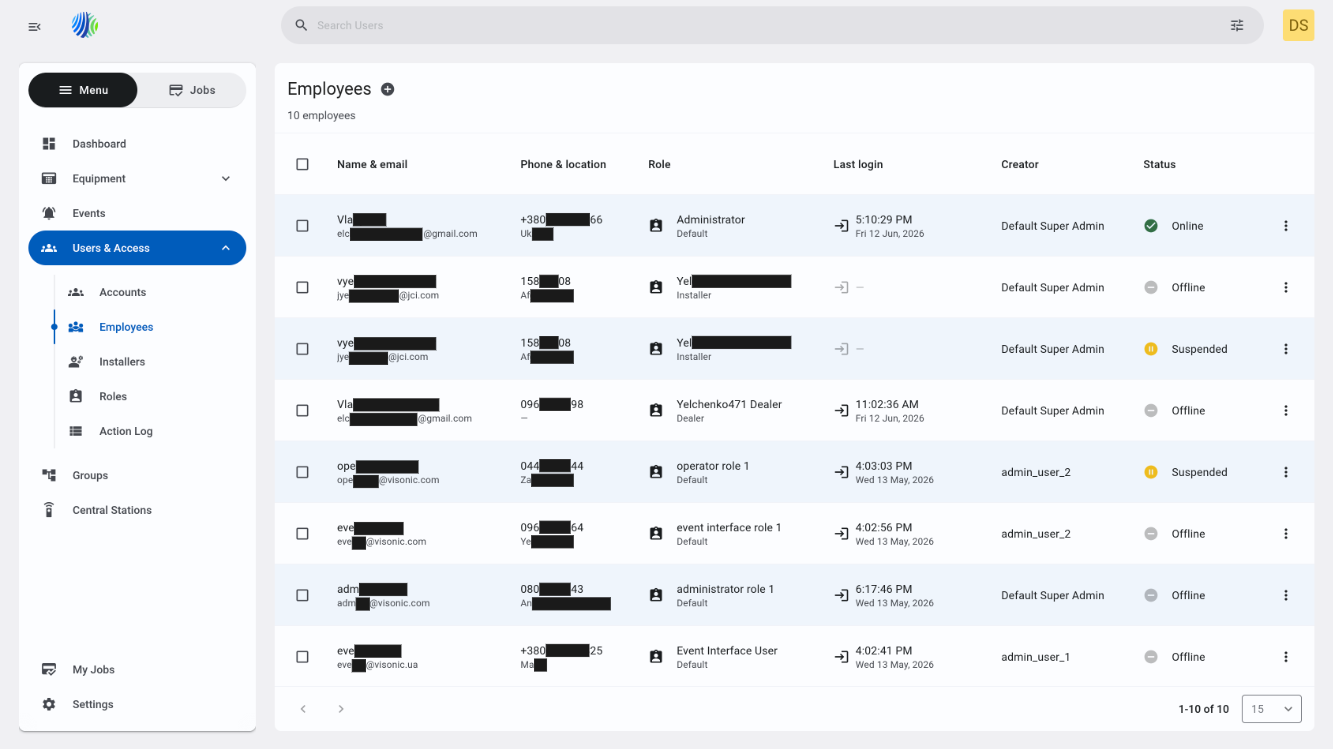
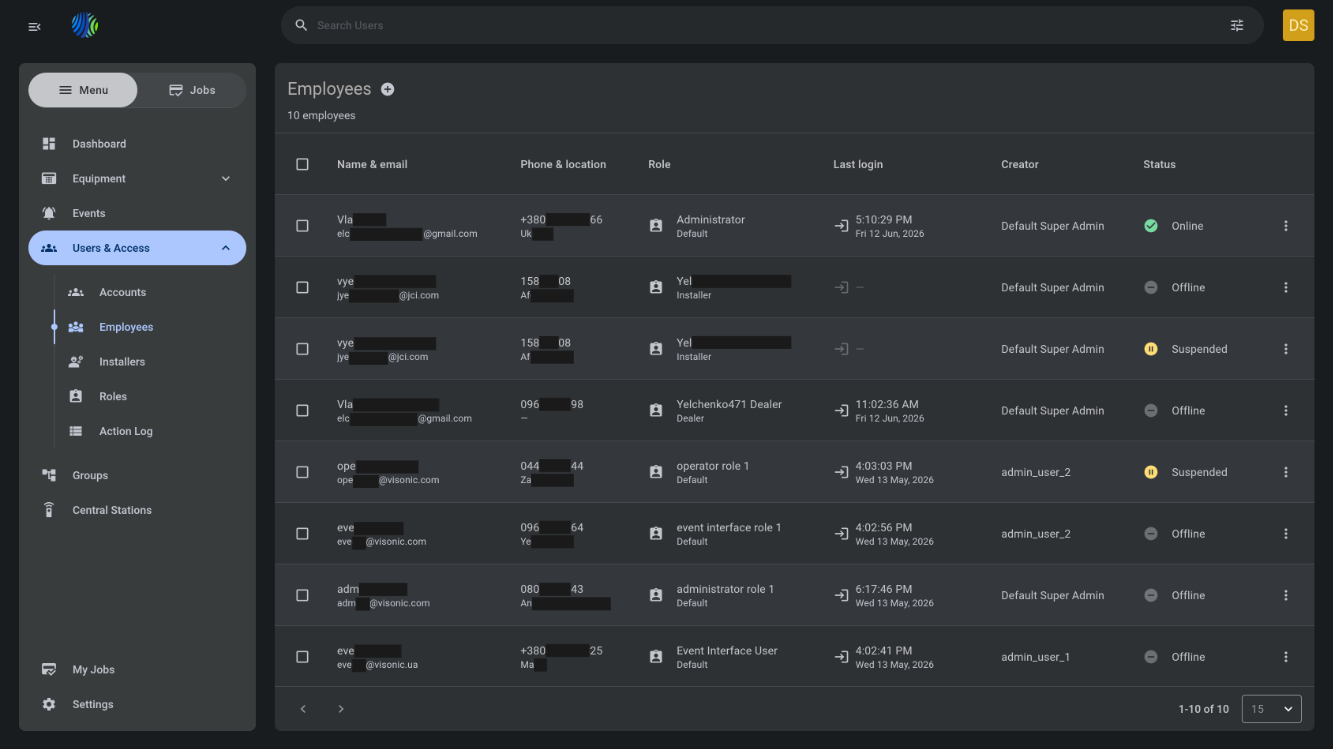
The Employees page is used to manage employee accounts in the system.
Use this page to:
- View registered employees.
- Register a new employee.
- Edit employee details.
- Suspend or enable employee access.
- Reset an employee password.
- Remove employee accounts.
- Review employee status, role, creator, and last login time.
This page helps administrators keep employee access accurate and up to date. It also supports account recovery and access control workflows.
Before you begin
Required permissions
- You must have permission to add employees
- You must have permission to edit employees
- You must have permission to view employees
- You must have permission to register employees
- You must have permission to remove employees
- You must have permission to reset password for employees
- You must have permission to enable/suspend employees
Access to Employees page and employees management are controlled by role permission group called "Users".
Preconditions
- At least one role must exist before you register an employee.
- Employee email addresses must be valid and reachable.
- The employee must have access to the email inbox used during registration or password reset.
- SMTP must be configured to send one-time codes for registration and password reset.
Dependencies
- SMTP configuration is required for:
- Sending one-time registration codes.
- Sending one-time password reset codes.
- Role configuration is required to assign a role to an employee.
Important limitations
- If SMTP is not configured, registration and password reset codes cannot be sent.
- Available bulk actions depend on the status of the selected employees.
Page layout
Page header


| Callout | UI element | Description | When to use |
|---|---|---|---|
| 1 | Page title | Shows the current page name: Employees. | Use to confirm that you are on the employee management page. |
| 2 | + add icon | Opens the Register employee modal window. | Use to register a new employee. |
| 3 | Employee count | Shows the number of employees currently available. | Use to confirm the number of employees after registration, removal, or filtering by page. |
| 4 | Three dot icon button | Shows actions for selected employees. Available buttons can include Suspend, Enable, Edit, Reset password and Remove. | Use after selecting one or more employees in the grid. |
Register employee modal
The Register employee modal opens when you select the + add icon.
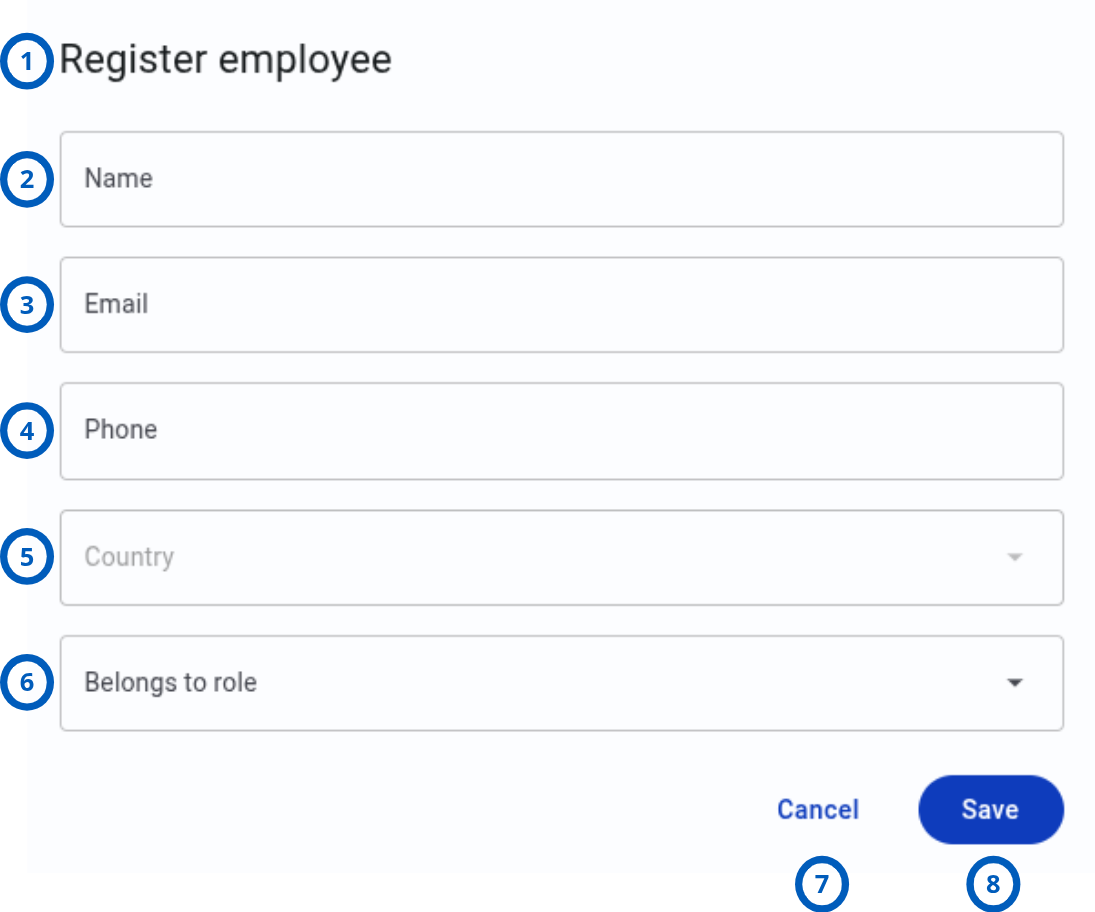
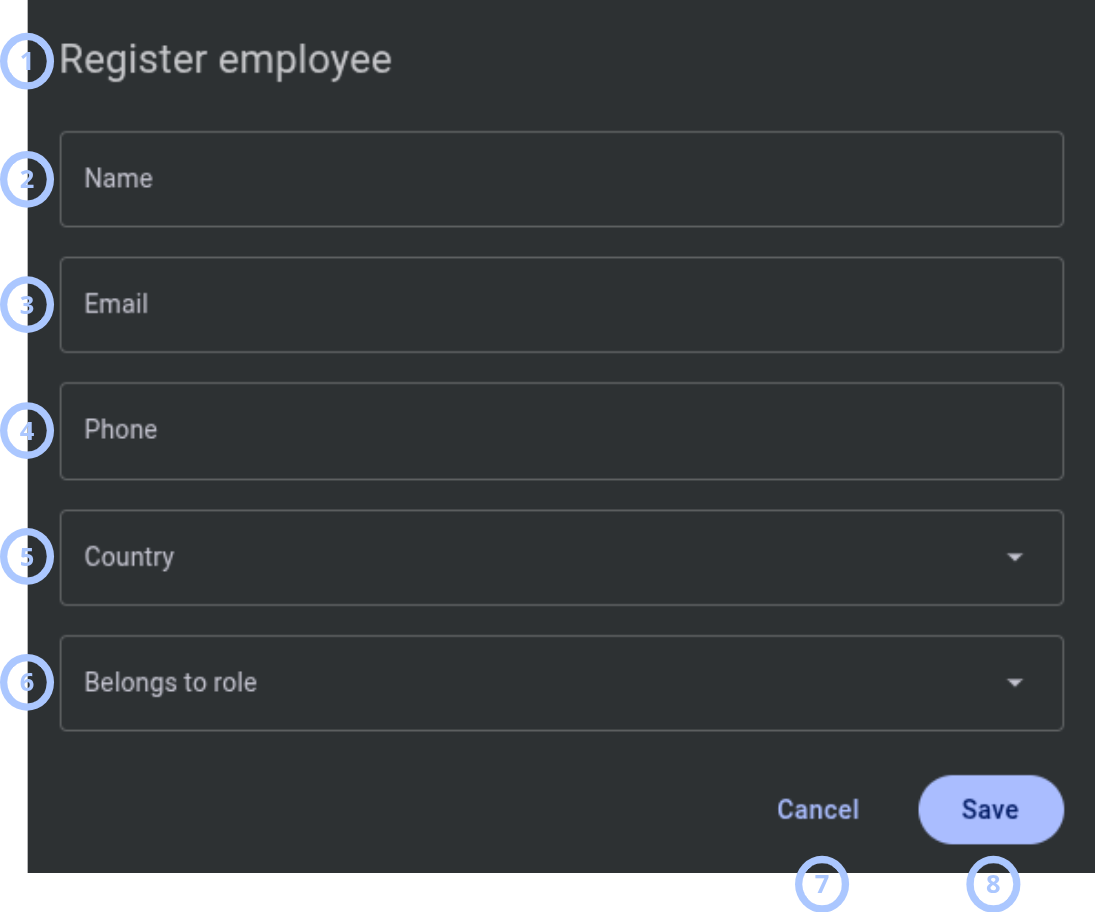
| Callout | UI element | Description | When to use |
|---|---|---|---|
| 1 | Modal title | Shows the modal name: Register employee. | Use to confirm that you are creating a new employee account. |
| 2 | Name field | Stores the employee name. | Use to enter the employee display name. |
| 3 | Email field | Stores the employee email address. The system sends a one-time registration code to this address. | Use to enter the employee email address for account registration. |
| 4 | Phone field | Stores the employee phone number. | Use to enter contact information for the employee. |
| 5 | Country field | Stores the employee country or location. | Use to specify the employee location shown in the grid. |
| 6 | Belong to role field | Assigns the employee to a role. | Use to control what the employee can access. |
| 7 | Cancel button | Closes the modal without saving changes. | Use when you do not want to register the employee. |
| 8 | Save button | Registers the employee when all required fields are valid. | Use to create the employee account and send a one-time registration code by email. |
Employees grid
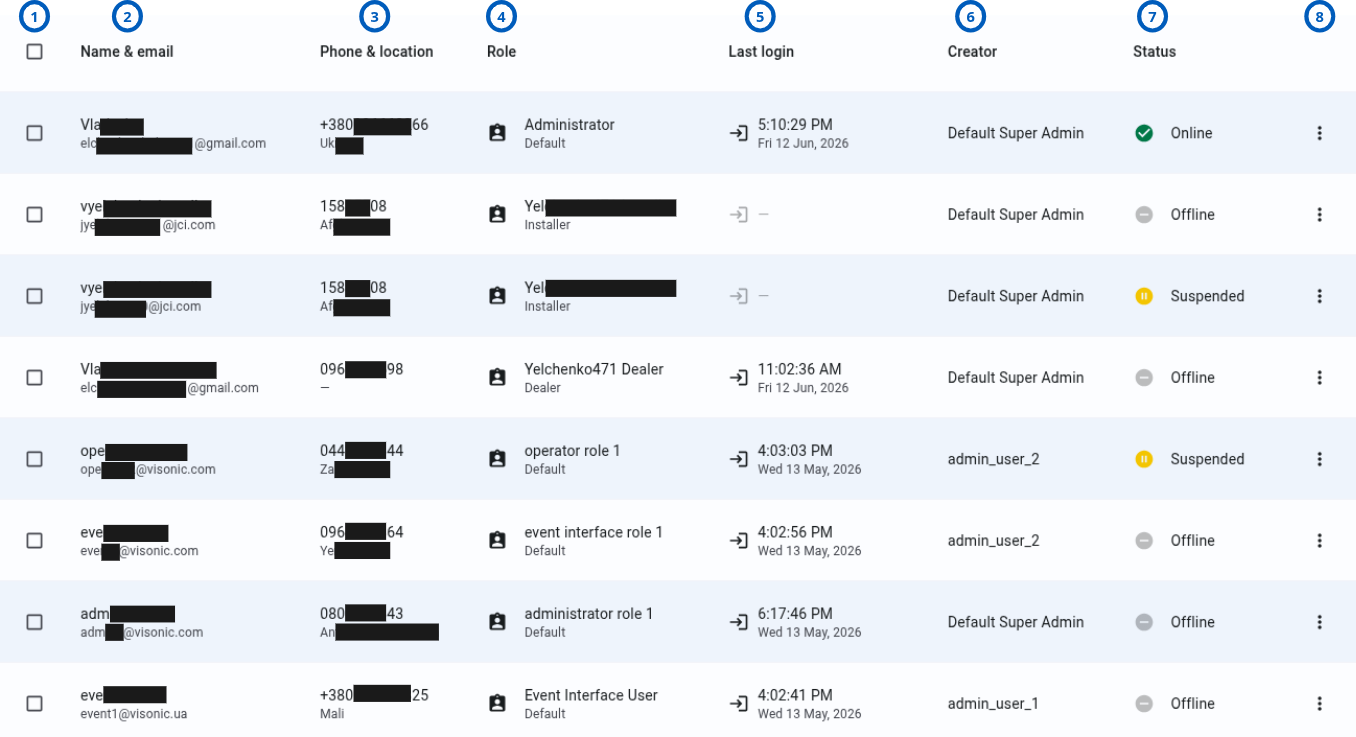
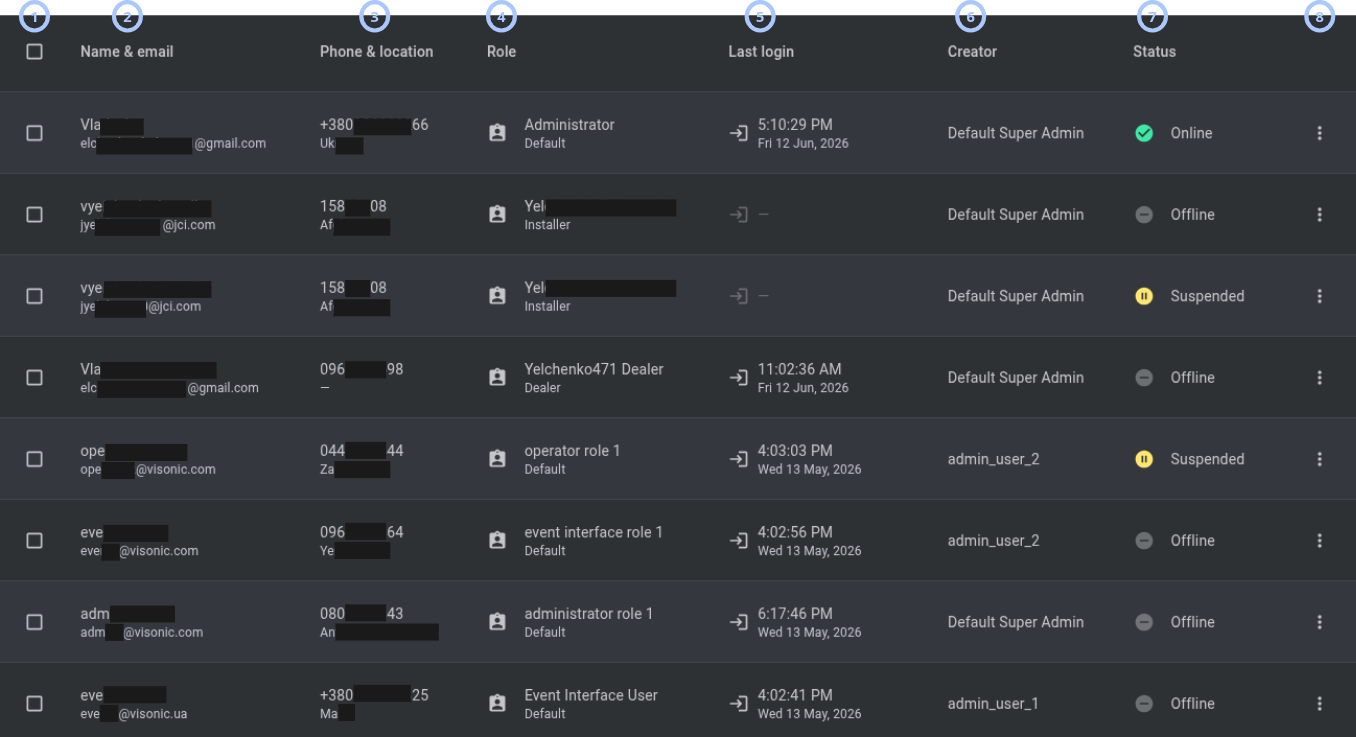
The employee grid lists registered employees and their account details.
| Callout | UI element | Description | When to use |
|---|---|---|---|
| 1 | Checkbox | Selects one or more employees. | Use to show the bulk actions menu in the top-right area of the page. |
| 2 | Name & email column | Shows the employee name and email address. | Use to identify the employee account. |
| 3 | Phone & location column | Shows the employee phone number and location. | Use to review employee contact and country information. |
| 4 | Role column | Shows the role assigned to the employee. | Use to verify that the employee has the expected access level. |
| 5 | Last login column | Shows the date and time of the employee's last login. | Use to review recent account activity. |
| 6 | Creator column | Shows who created the employee account. | Use to audit account ownership or setup history. |
| 7 | Status column | Shows the current employee status: Online, Offline, or Suspended. | Use to understand whether the employee account is active, inactive, or suspended. |
| 8 | Row actions menu | Shows a three vertical dots menu for the employee row. | Use to edit, suspend, enable, reset password, or remove a specific employee. |
Row actions menu
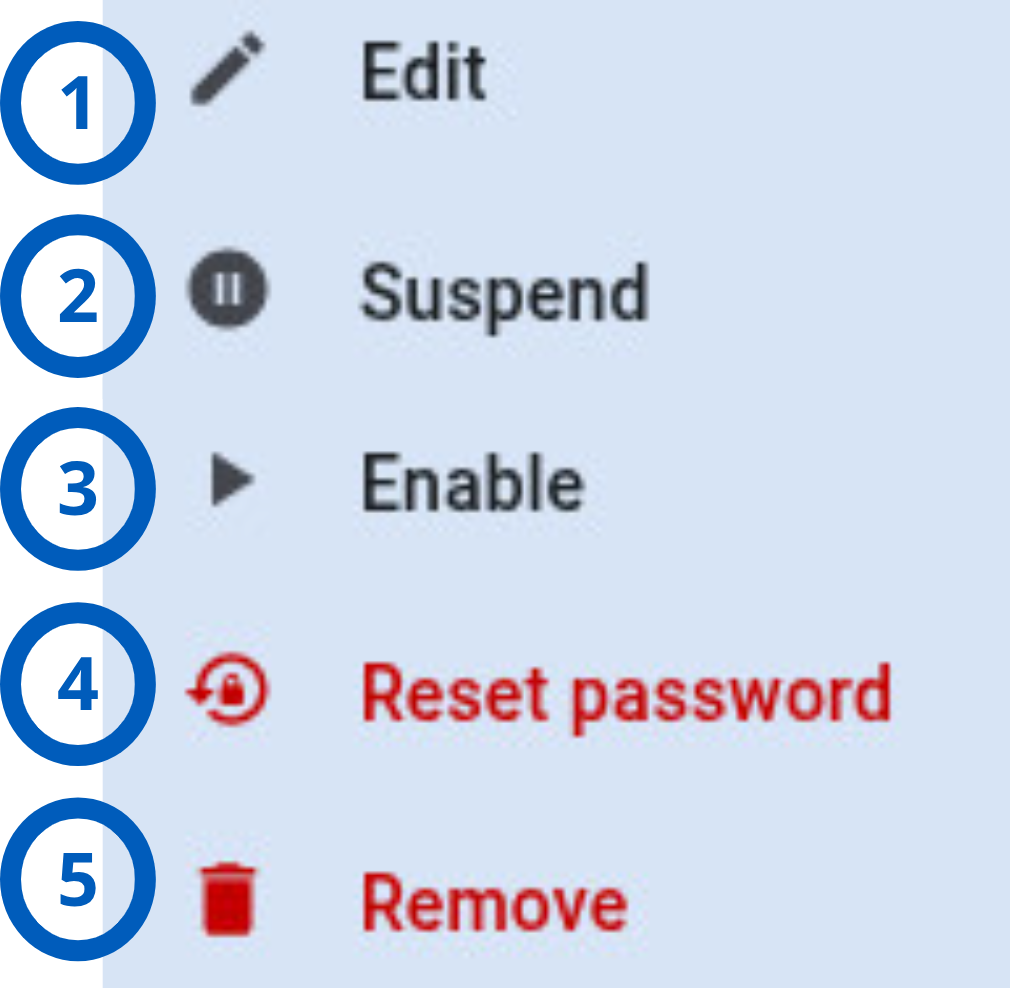
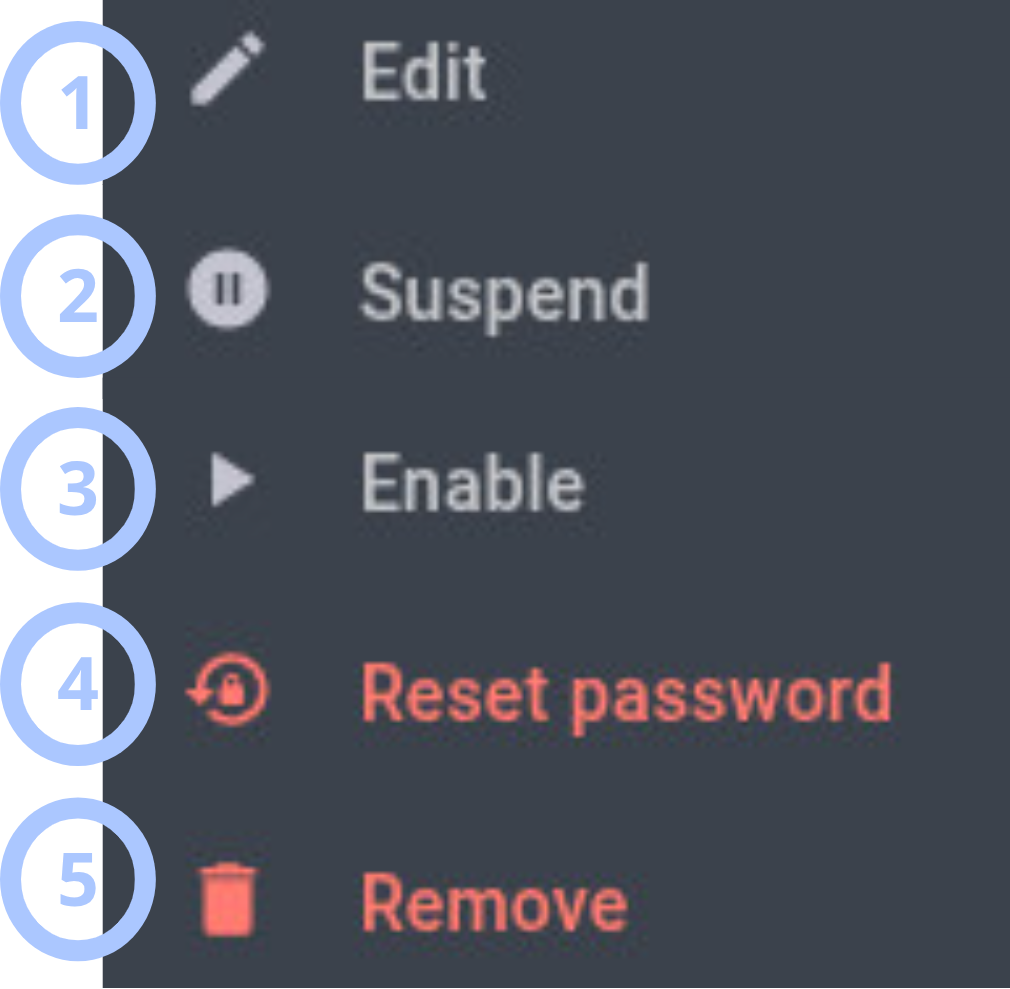
Each employee row has a three vertical dots menu. The actions in the menu depend on the employee status.
| Callout | UI element | Description | When to use |
|---|---|---|---|
| 1 | Edit | Opens the Edit employee modal with the current employee details. | Use to update employee information, such as name, email, phone, country, or role. |
| 2 | Suspend | Changes an active employee account to Suspended. Available for employees with Online or Offline status. | Use to disable access for an active employee account. |
| 3 | Enable | Changes a suspended employee account back to an active state. The status changes to Online or Offline. | Use to restore access for a suspended employee account. |
| 4 | Reset password | Opens the Reset password modal. After saving a valid reason, the system sends a one-time password reset code to the employee email address. | Use when an employee needs to reset their password. SMTP must be configured. |
| 5 | Remove | Removes the employee account from the employees grid. | Use when the employee account should no longer be listed. |
Edit employee modal
The Edit employee modal opens when you select Edit from a row actions menu or a supported bulk actions menu.
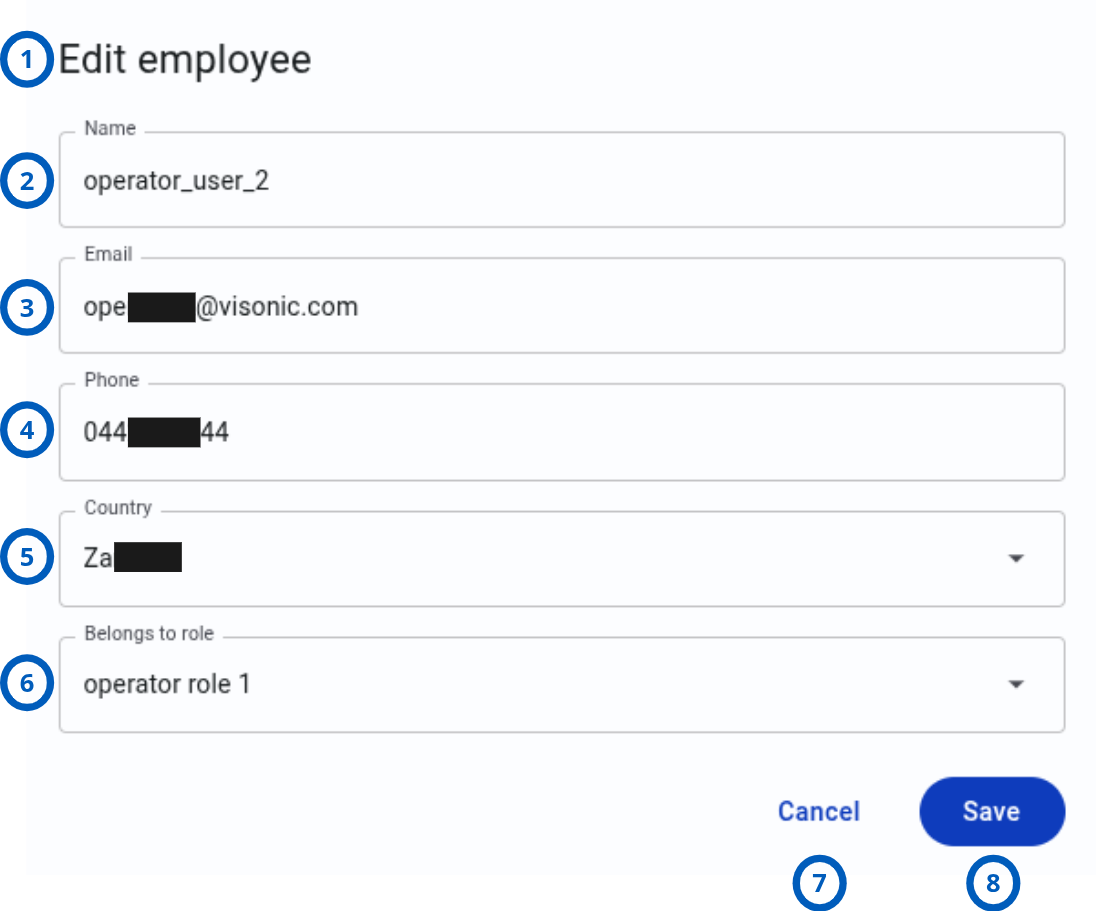
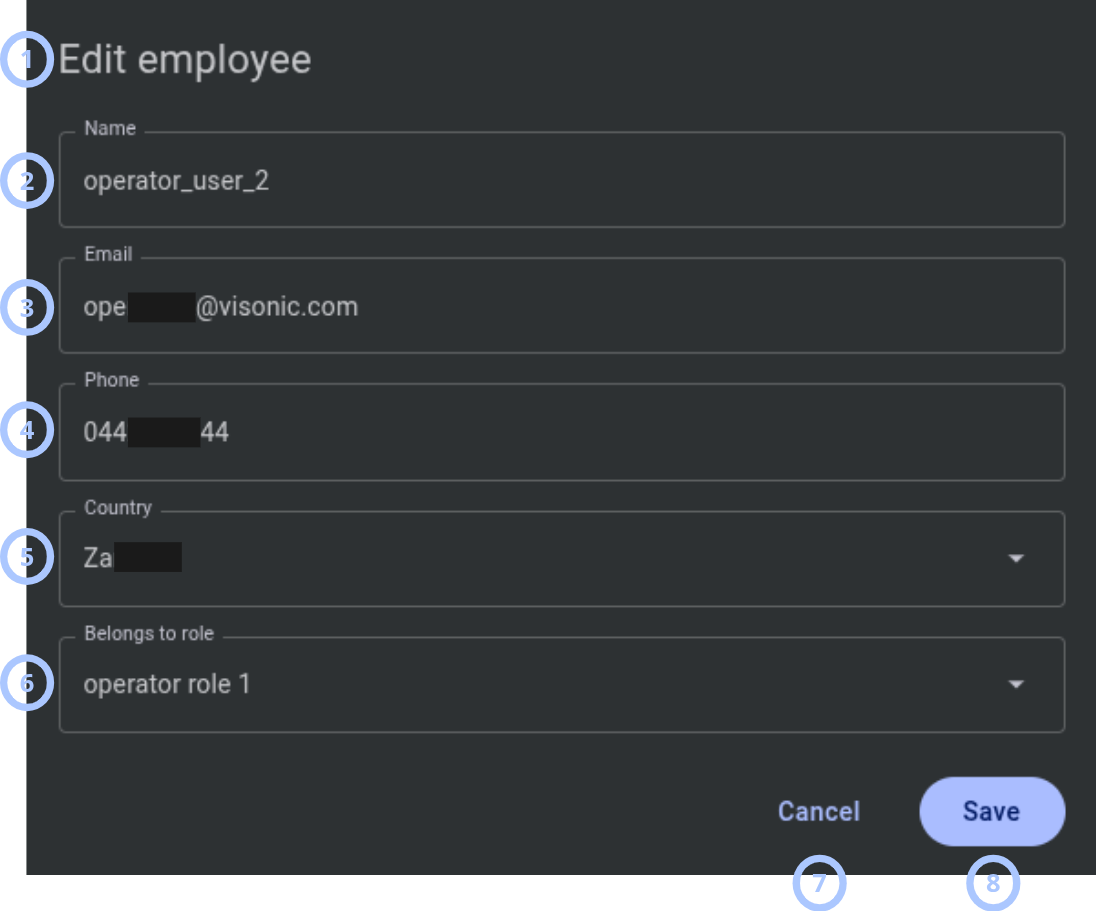
| Callout | UI element | Description | When to use |
|---|---|---|---|
| 1 | Modal title | Shows the modal name: Edit employee. | Use to confirm that you are creating a new employee account. |
| 2 | Name field | Stores the employee name. | Use to enter the employee display name. |
| 3 | Email field | Stores the employee email address. The system sends a one-time registration code to this address. | Use to enter the employee email address for account registration. |
| 4 | Phone field | Stores the employee phone number. | Use to enter contact information for the employee. |
| 5 | Country field | Stores the employee country or location. | Use to specify the employee location shown in the grid. |
| 6 | Belong to role field | Assigns the employee to a role. | Use to control what the employee can access. |
| 7 | Cancel button | Closes the modal without saving changes. | Use when you do not want to update the employee. |
| 8 | Save button | Updates the employee when all required fields are valid. | Use to update the employee account. |
Reset password modal
The Reset password modal opens when you select Reset password from a row actions menu or a supported bulk actions menu.
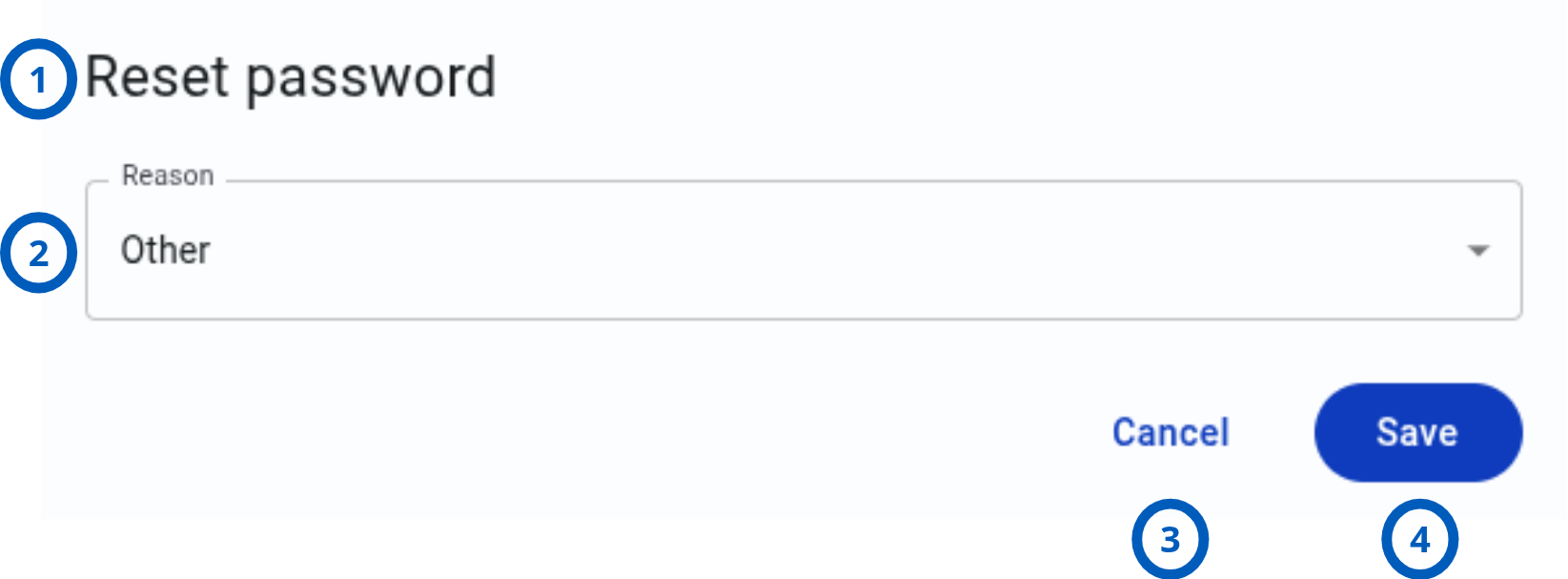
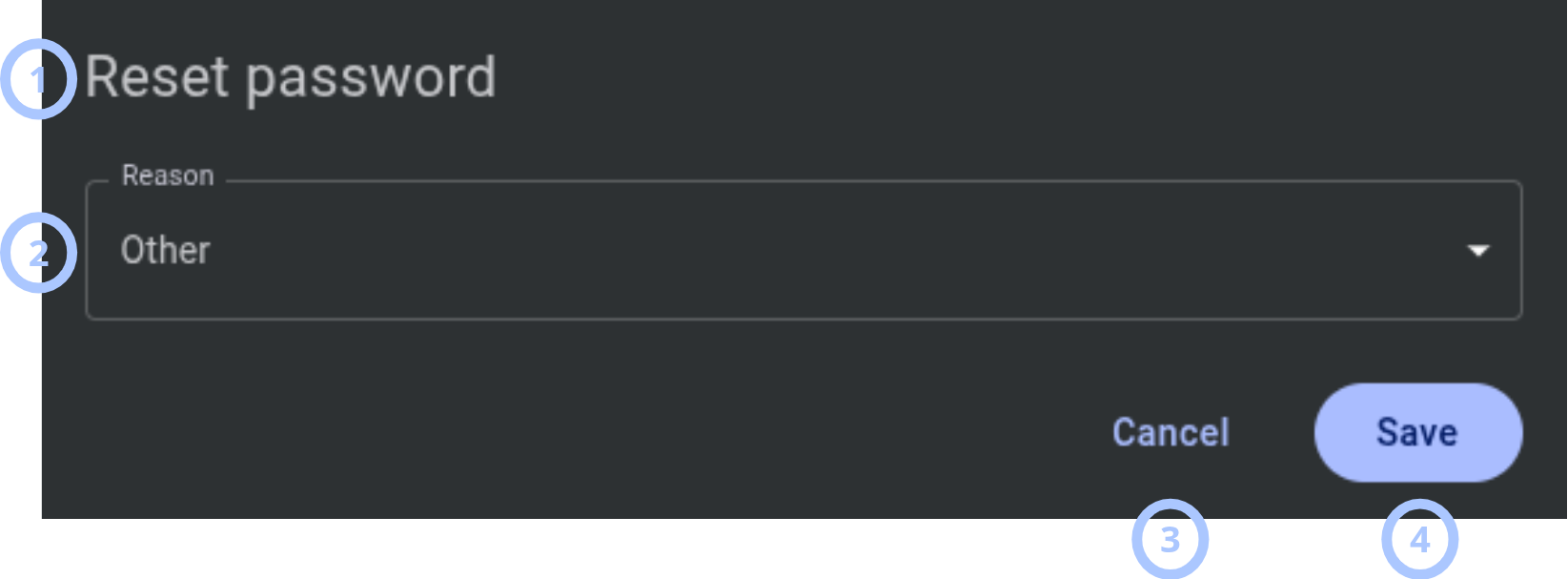
| Callout | UI element | Description | When to use |
|---|---|---|---|
| 1 | Modal title | Shows the modal name: Reset password. | Use to confirm that you are starting a password reset workflow. |
| 2 | Reason field | Dropdown used to select the reason for the password reset (Account is compromised, Requested by user, Password Rotation, Other). | Use to record why the reset was requested. |
| 3 | Cancel button | Closes the modal without sending a code. | Use when you do not want to continue with the password reset. |
| 4 | Save button | Saves the reset request when the reason is valid. | Use to send a one-time password reset code to the employee email. |
Pagination controls
Pagination controls appear at the bottom of the employee grid.


| Callout | UI element | Description | When to use |
|---|---|---|---|
| 1 | Previous and next arrows | Move between pages in the employee grid. | Use when the employee list has more records than the current page can show. |
| 2 | Range indicator | Shows the current range and total number of employees, for example, 1-15 of 56. | Use to understand where you are in the employee list. |
| 3 | Employees per page selector | Controls how many employees appear on one page. Available values are 10, 15, 50, 100, and 200. | Use to change the grid page size. |
How to use this page
Register an employee
Goal:
- Create a new employee account and send a one-time registration code to the employee email address.
Steps:
- Open the Employees page.
- Select the + add icon.
- In the Register employee modal, enter the employee name.
- Enter the employee email address.
- Enter the employee phone number.
- Enter or select the employee country.
- Select a value in Belong to role.
- Select Save.
Expected result:
- The employee is registered.
- A one-time registration code is sent to the employee email address.
- The employee appears in the employees grid.
SMTP must be configured before the system can send the one-time registration code.
Edit an employee
Goal:
- Update employee information, such as name, email, phone, country, or role.
Steps:
- Open the Employees page.
- Find the employee in the grid.
- Select the three vertical dots menu for the employee.
- Select Edit.
- In the Edit employee modal, update the required fields.
- Select Save.
Expected result:
- The employee record is updated.
- The updated values appear in the employees grid.
Suspend an employee
Goal:
- Disable access for an active employee account.
Steps:
- Open the Employees page.
- Find an employee with Online or Offline status.
- Select the three vertical dots menu for the employee.
- Select Suspend.
Expected result:
- The employee status changes to Suspended.
- The employee is no longer treated as an active employee account.
Enable a suspended employee
Goal:
- Restore access for a suspended employee account.
Steps:
- Open the Employees page.
- Find an employee with Suspended status.
- Select the three vertical dots menu for the employee.
- Select Enable.
Expected result:
- The employee status changes from Suspended to Online or Offline.
- The employee account becomes active again.
Reset an employee password
Goal:
- Send a one-time password reset code to the employee email address.
Steps:
- Open the Employees page.
- Find the employee in the grid.
- Select the three vertical dots menu for the employee.
- Select Reset password.
- In the Reset password modal, select a reason:
- Account is compromised
- Requested by user
- Password Rotation
- Other
- Select Save.
Expected result:
- The password reset request is saved.
- A one-time password reset code is sent to the employee email address.
SMTP must be configured before the system can send the one-time password reset code.
Remove an employee
Goal:
- Delete an employee from the employee grid.
Steps:
- Open the Employees page.
- Find the employee in the grid.
- Select the three vertical dots menu for the employee.
- Select Remove.
Expected result:
- The employee is removed.
- The employee no longer appears in the grid.
Removal affects the employee record shown in the grid. Confirm that the account should be removed before you use this action.
Select employees for bulk actions
Goal:
- Select one or more employees and use the top-right actions menu.
Steps:
- Open the Employees page.
- Select the checkbox for one or more employees.
- Review the top-right area of the page.
- Select the three vertical dots menu.
- Choose an available action.
Expected result:
- The selected action is applied to the selected employee or employees, if supported by their statuses.
If selected employees have different statuses, the menu still appears. Some actions may depend on whether the selected employees are active or suspended.
Change the number of employees shown per page
Goal:
- Change how many employees appear in the grid.
Steps:
- Go to the bottom-right area of the employees grid.
- Open the employees per page selector.
- Select one of the available values:
- 10
- 15
- 50
- 100
- 200
Expected result:
- The grid updates to show the selected number of employees per page.
Move between employee pages
Goal:
- Navigate through multiple pages of employees.
Steps:
- Go to the bottom-left area of the employees grid.
- Select the next arrow to move forward.
- Select the previous arrow to move back.
- Review the range indicator, for example, 1-15 of 56.
Expected result:
- The grid shows the selected page of employees.
- The range indicator updates.
Field and option reference
Register employee and Edit employee fields
| Name | Description | Accepted values | Behavior | Restrictions | Default value |
|---|---|---|---|---|---|
| Name | Employee display name. | Text. | Shown in the Name & email column. | Must contain less than 255 characters. | Empty for registration. Current employee name for editing. |
| Employee email address. | Valid email address. | Used for registration and password reset one-time codes. | Must be valid before saving. SMTP must be configured to send email. | Empty for registration. Current employee email for editing. | |
| Phone | Employee phone number. | Phone number text. | Shown in the Phone & location column. | Must contain less than 20 characters. | Empty for registration. Current employee phone for editing. |
| Country | Employee country or location. | Country or location value. | Shown in the Phone & location column. | Must not be empty. | Empty for registration. Current employee country for editing. |
| Belong to role | Role assigned to the employee. | Existing role. | Controls the employee's access level. | A role must exist before it can be assigned. | Empty for registration. Current employee role for editing. |
Employee status values
| Name | Description | Accepted values | Behavior | Restrictions | Default value |
|---|---|---|---|---|---|
| Online | The employee account is active and the employee is currently online. | Not specified. | The employee can use the system. The row actions menu shows Edit, Suspend, Reset password, and Remove. | Can be changed to Suspended by using the Suspend action. | Not specified. |
| Offline | The employee account is active, but the employee is not currently online. | Not specified. | The employee account remains active. The row actions menu shows Edit, Suspend, Reset password, and Remove. | Can be changed to Suspended by using the Suspend action. | Not specified. |
| Suspended | The employee account is suspended. | Not specified. | The employee is not treated as an active account. The row actions menu shows Edit, Enable, Reset password, and Remove. | Can be changed to Online or Offline by using the Enable action. | Not specified. |
Reset password fields
| Name | Description | Accepted values | Behavior | Restrictions | Default value |
|---|---|---|---|---|---|
| Reason | Reason for resetting the employee password. | Account is compromised, Requested by user, Password Rotation, Other. | Required before saving the password reset request. | A valid reason must be selected. | Other. |
Employee grid columns
| Name | Description | Accepted values | Behavior | Restrictions | Default value |
|---|---|---|---|---|---|
| Checkbox | Selects employees for bulk actions. | Selected or not selected. | Shows the bulk actions menu when one or more employees are selected. | Available actions depend on selected employee statuses. | Not selected. |
| Name & email | Employee name and email address. | Values saved in the employee record. | Used to identify the employee. | Email must be valid for registration and password reset email delivery. | Not applicable. |
| Phone & location | Employee phone number and country or location. | Values saved in the employee record. | Used to review contact and location details. | Exact validation rules are not specified. | Not applicable. |
| Role | Role assigned to the employee. | Existing role. | Indicates employee access level. | Role management must be configured separately. | Not applicable. |
| Last login | Date and time of the employee's last login. | Date and time format, for example: 12:08:58 PM Tue 5 May, 2026. | Used to review account activity. | Shown only when login data exists. | Not specified. |
| Creator | User who created the employee account. | Existing creator value. | Used for audit and review. | Cannot be edited. | Set when the employee is created. |
| Status | Current employee account state. | Online, Offline, Suspended. | Controls which row actions are available. | Status changes are made through Suspend or Enable actions. | Not specified. |
Tips
- Review the employee email before saving. Registration and password reset codes are sent to that address.
- Assign the correct role during registration to avoid access issues later.
- Use the employees per page selector when reviewing large employee lists.
- Check the Last login column when investigating inactive or unused accounts.
Troubleshooting
The employee was not registered
Possible causes
- Required fields were not completed.
- One or more fields contain invalid values.
- SMTP is not configured, and the system cannot send the one-time registration code.
What to do
- Open the Register employee modal again.
- Confirm that all required fields are completed.
- Confirm that the email address is valid.
- Confirm that a valid role is selected.
- Check SMTP configuration.
- Select Save again.
The employee did not receive the registration code
Possible causes
- SMTP is not configured.
- SMTP configuration is incorrect.
- The employee email address is incorrect.
- The email was blocked, delayed, or sent to spam.
What to do
- Verify the employee email address.
- Check SMTP configuration.
- Ask the employee to check spam or junk folders.
- If the email address is wrong, edit the employee and update the email.
- Register again or use the appropriate recovery process.
The password reset code was not sent
Possible causes
- SMTP is not configured.
- The employee email address is invalid.
- No reset reason was selected.
What to do
- Open the employee row actions menu.
- Select Reset password.
- Select a valid reason.
- Select Save.
- If the code is still not received, verify SMTP configuration and the employee email address.
The expected action is not available
Possible causes
- The employee status does not support the action.
- The selected employees have different statuses.
- You do not have permission to perform the action.
What to do
- Check the employee status in the Status column.
- Use Suspend only for employees with Online or Offline status.
- Use Enable only for employees with Suspended status.
- If using bulk actions, review the statuses of all selected employees.
- Confirm that your role includes permission for the action.
The employee still appears after removal
Possible causes
- The remove action was not completed.
- The grid did not refresh.
- You are viewing a cached or unchanged page.
What to do
- Refresh the employees grid.
- Search visually for the employee again in the current page.
- Check other pages by using the pagination controls.
- Try the remove action again if the employee is still present.
- Contact an administrator if the employee cannot be removed.
The employee status did not change after Suspend or Enable
Possible causes
- The action was not completed.
- You selected an unsupported action for the employee status.
- You do not have permission to change employee status.
- The grid did not refresh.
What to do
- Confirm the employee's current status.
- For Online or Offline employees, select Suspend.
- For Suspended employees, select Enable.
- Refresh the grid.
- If the status does not change, check your permissions or contact an administrator.
The grid does not show all employees
Possible causes
- The employee list is split across multiple pages.
- The current page size is too small.
- The employee was removed.
- The employee was not registered successfully.
What to do
- Review the range indicator, for example, 1-15 of 56.
- Use the pagination arrows to move between pages.
- Increase the employees per page value.
- Confirm that the employee registration was saved successfully.