My jobs
Overview
The My jobs page shows jobs started and lets users review job progress, results, and job details.
Use this page to:
- Select a job and review related process details.
- Review recent configuration jobs.
- Check whether a job completed successfully.
- View the job start time and execution duration.
- Retry a failed process.
The page helps users track background operations and quickly identify completed, failed, or canceled processes.
Before you begin
Preconditions
- At least one job must exist before the jobs list shows job cards.
- A job must be selected before job details appear in the details panel.
Page layout
My jobs widget
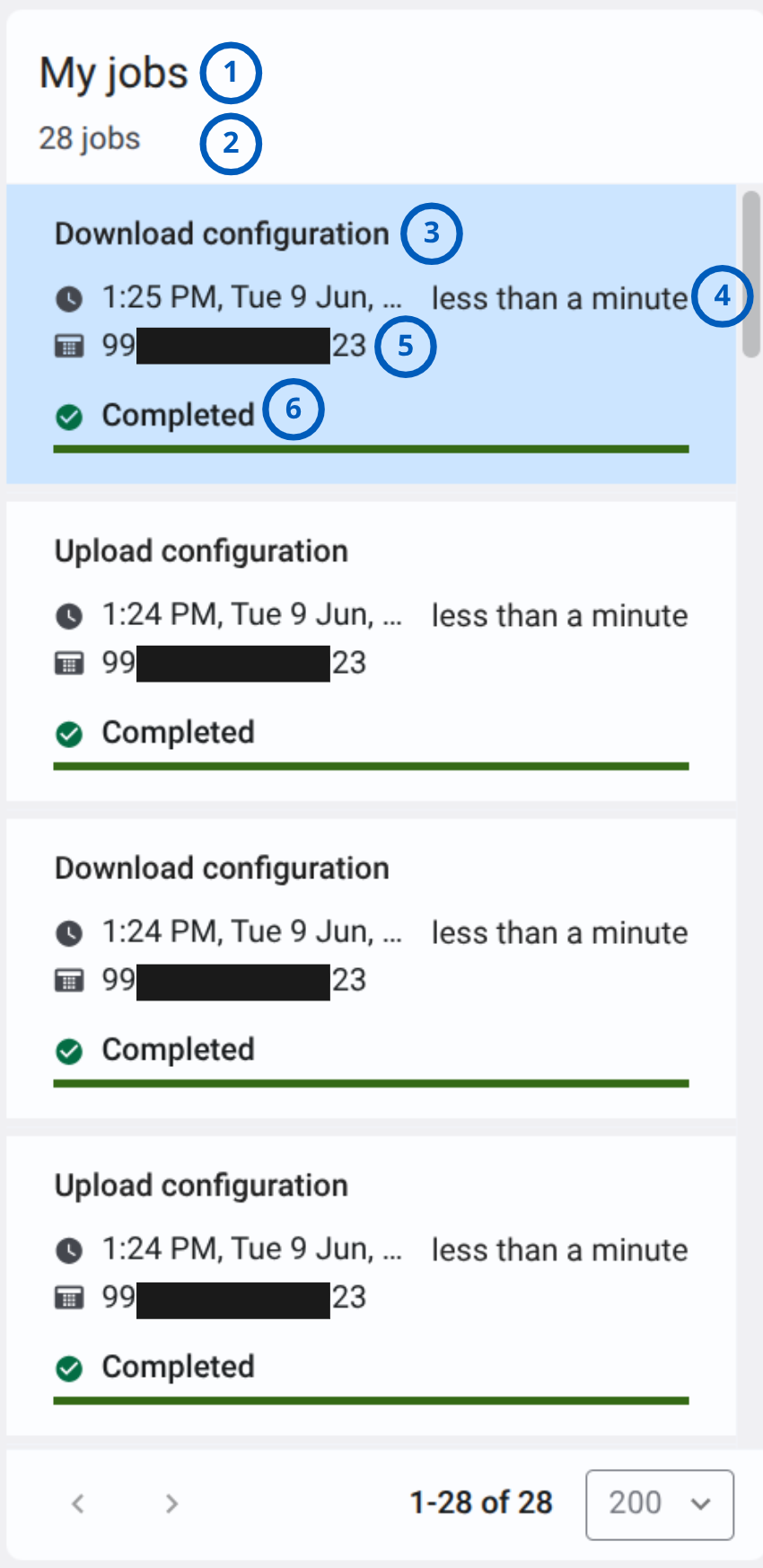
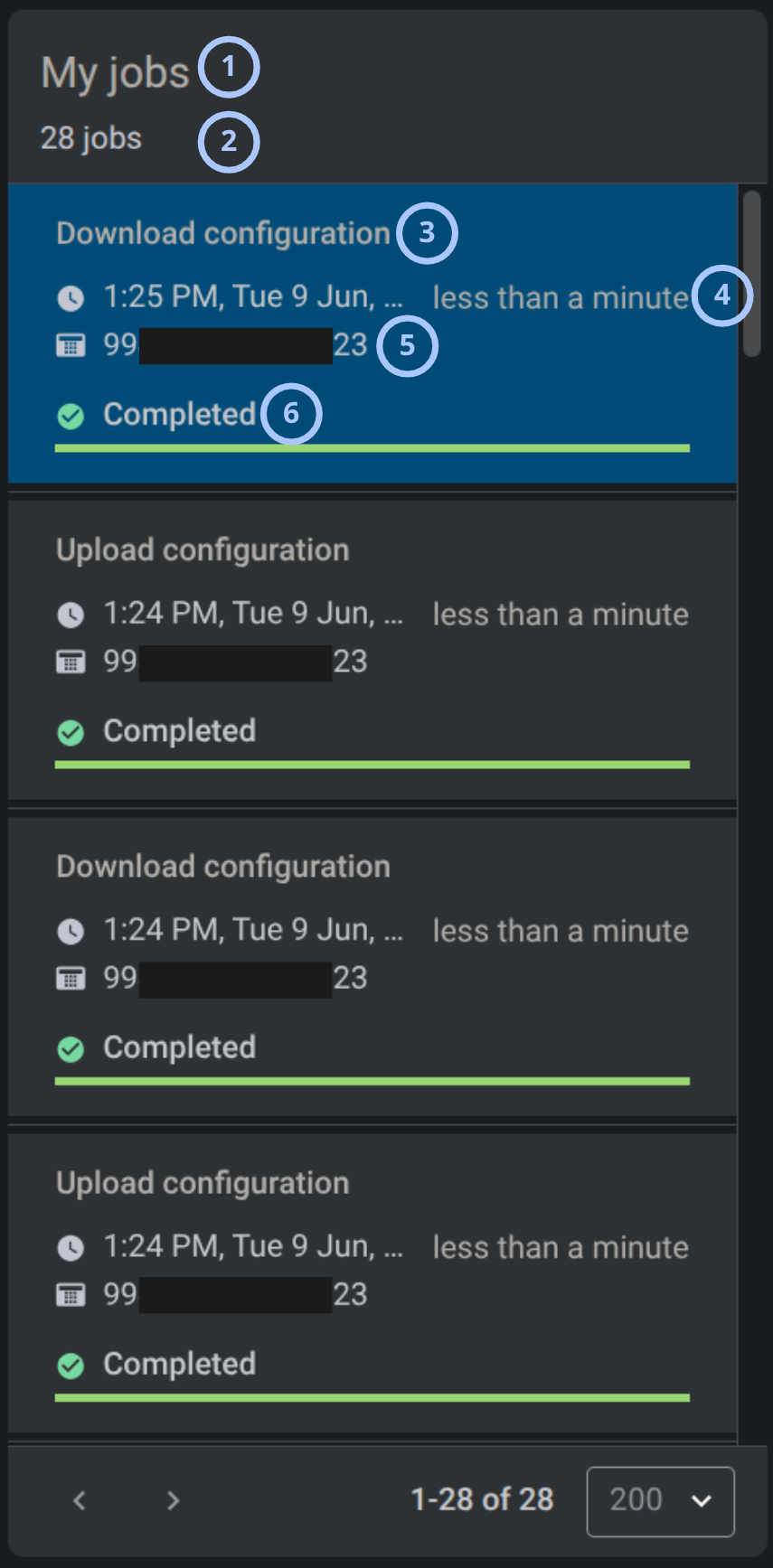
The My jobs widget contains list of job cards, status indicators, progress bars.
| Callout | UI element | Description | When to use |
|---|---|---|---|
| 1 | Widget title | Shows the widget name | Use this title to confirm that the current widget shows user job records. |
| 2 | Jobs count | Shows the total number of jobs available in the widget. | Use this value to understand how many job records are available. |
| 3 | Job name | Shows the name of the job. | Use the job name to identify what operation was performed. |
| 4 | Job duration | Shows how long the job took or how recently the job completed. | Use the duration to quickly check how long the operation took. |
| 5 | Panel column | Shows the related panel identifier | Use to identify the panel affected by the process. |
| 6 | Job status | Shows the current job status. | Use the status to confirm whether the job finished successfully. |
My jobs details
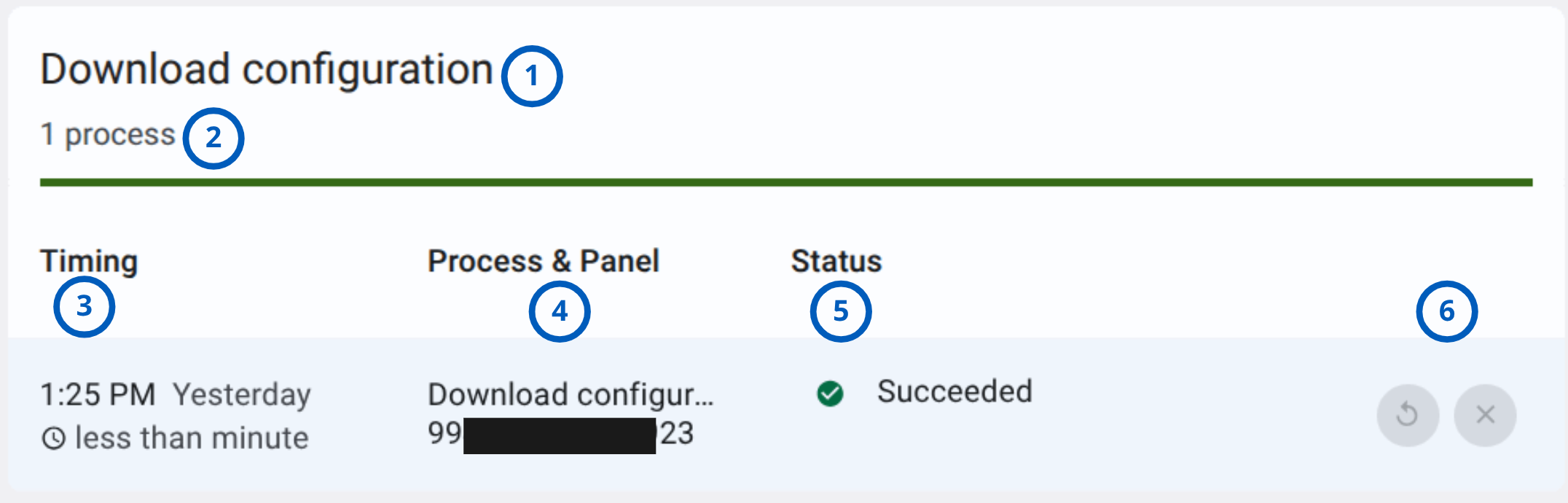
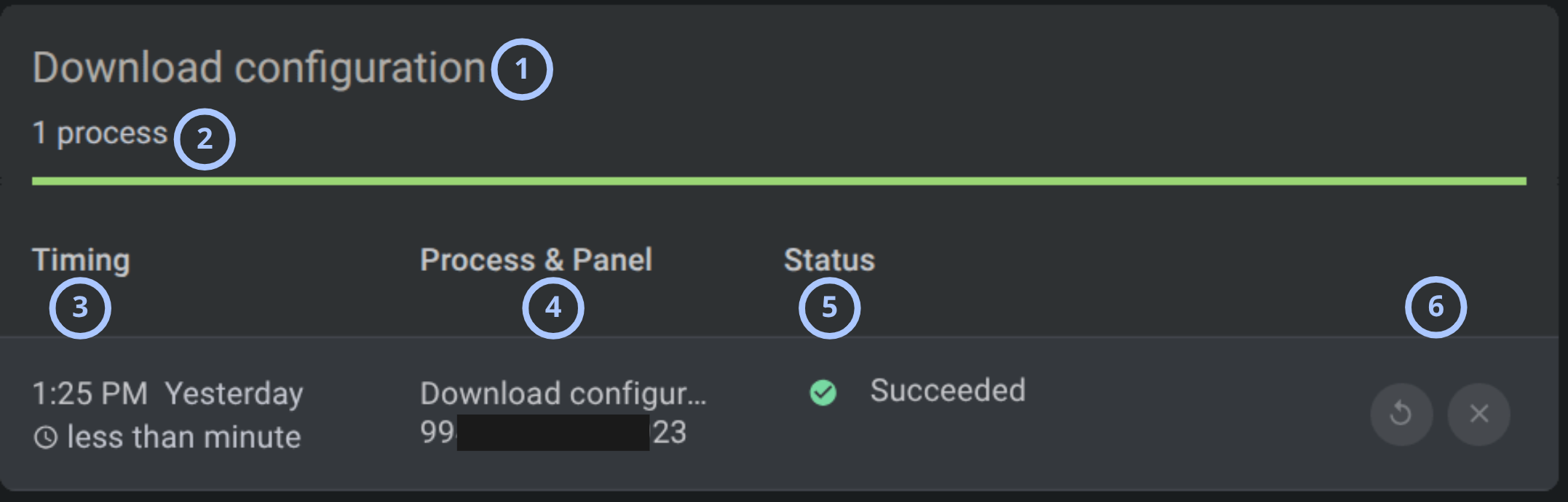
The details details appears on the right side of the page. It shows information for the selected job.
| Callout | UI element | Description | When to use |
|---|---|---|---|
| 1 | Details title | Shows the selected job name. | Use to confirm which selected job details are displayed. |
| 2 | Process count | Shows how many processes belong to the selected job. | Use to understand whether the job includes one or more processes. |
| 3 | Timing column | Shows the process time and relative date. | Use to check when the process ran and how long the process took. |
| 4 | Process & Panel column | Shows the process name and related panel identifier | Use to identify the process and the panel affected by the process. |
| 5 | Status column | Shows the process status and additional reason text. | Use to understand whether the process succeeded, failed, or was canceled. |
| 6 | Retry and cancel action | Shows a circular arrow and an X icons for retrying and canceling the process when retry is available. | Use to run and stop the failed or incomplete process again when the system allows retry. |
How to use this page
Review job details
Goal:
- Open a job and review the related process information.
Steps:
- Open the My jobs page.
- Review the job cards in the center panel.
- Select a job card.
- Review the details panel on the right.
- Check the Timing, Process & Panel, and Status columns.
Expected result:
- The selected job card is highlighted.
- The details panel shows the selected job name, process count, and process details.
Identify a failed process
Goal:
- Find a process that failed and review the failure reason.
Steps:
- Open the My jobs page.
- Select a job card with a red status indicator or red status bar.
- In the details panel, review the Status column.
- Read the status text and the reason shown below the status.
Expected result:
- Failed process information is visible in the details panel.
Retry a failed process
Goal:
- Start the selected process again when retry is available.
Steps:
- Open the My jobs page.
- Select the job that contains the failed process.
- In the details panel, find the failed process row.
- Select the retry action shown as a circular arrow icon.
- Monitor the process status after retry starts.
Expected result:
- The system attempts to run the process again.
- The process status updates after the retry action completes or fails.
Cancel a process action
Goal:
- Stop an available process action with the X button.
Steps:
- Open the My jobs page.
- Select the job that contains the process.
- In the details panel, locate the process row.
- Select the X action when it is available.
- Review the process status after the action is applied.
Expected result:
- The process action is stopped according to the supported behavior for that process.
Tips
tip
- Select a job card before reviewing the details panel.
- Check the panel or device identifier before retrying a process to avoid running an operation on the wrong object.
Troubleshooting
The job I need is not visible
Possible causes
- The job is on another page.
- The jobs list is filtered by the search field.
- The job was not created successfully.
What to do
- Clear the Search Jobs field.
- Use the pagination arrows to move between pages.
- Increase the number of jobs shown per page.
- Confirm that the related operation created a job.
The details panel does not show the expected job
Possible causes
- A different job card is selected.
- The jobs list refreshed after a search or page change.
What to do
- Check which job card is highlighted in the jobs list.
- Select the required job card again.
- Review the details panel title and process count.
- Refresh the page if the details panel does not update.
Retry is not available
Possible causes
- The process state does not support retry.
- The process already completed successfully.
What to do
- Select the job and review the process status.
- Confirm that the process failed or supports retry.
The process still shows Failed after retry
Possible causes
- The underlying issue was not resolved.
- The operation was canceled again.
- The affected panel or device is unavailable.
What to do
- Review the reason text below the process status.
- Confirm that the affected panel or device identifier is correct.
- Resolve the issue that caused the failure.
- Retry the process again if the retry action is available.
- Contact an administrator if the process continues to fail.
Related pages
Was this page helpful?