Profile management
Overview
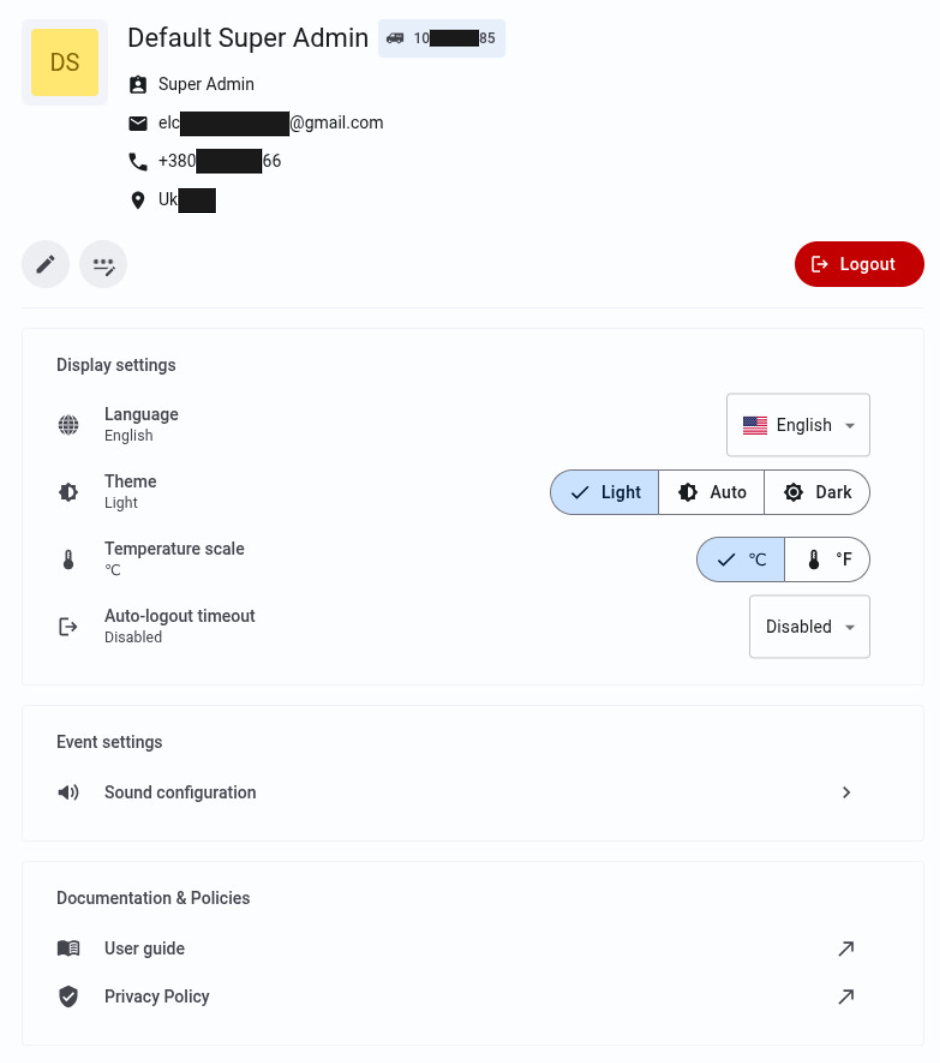
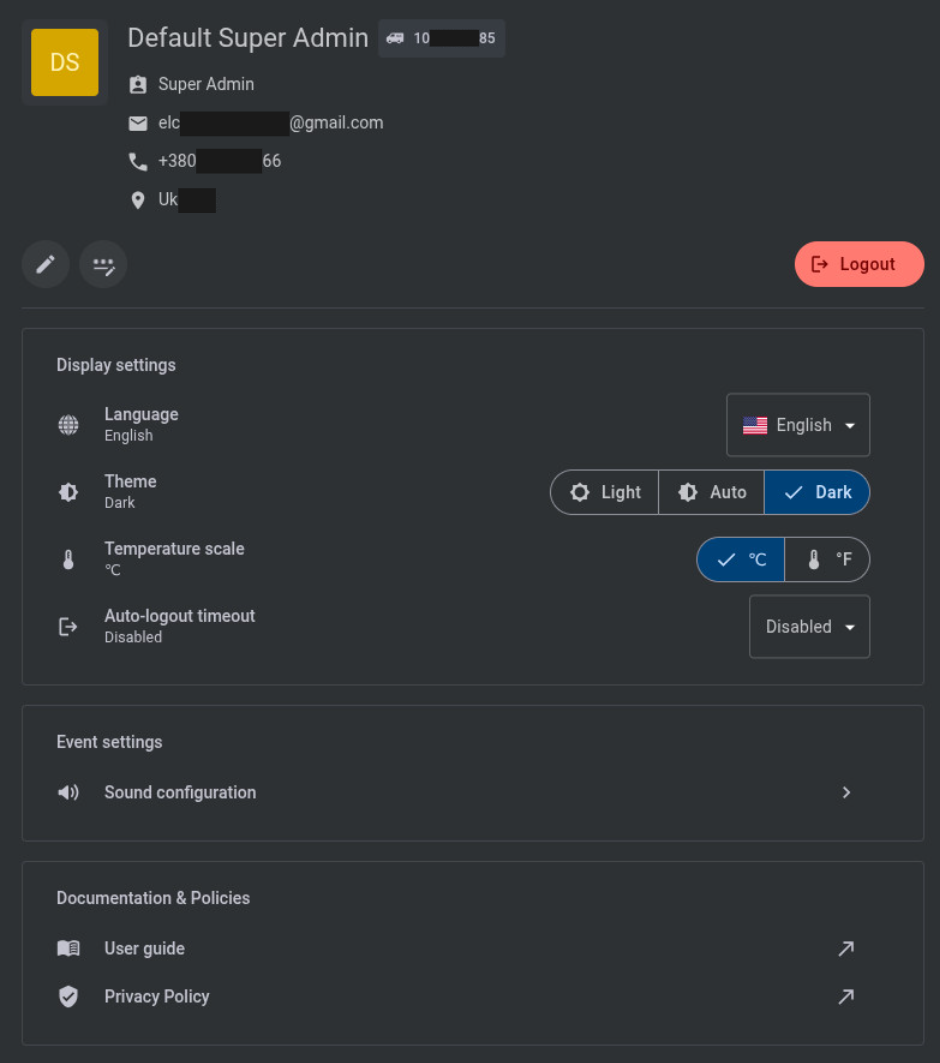
The Profile management modal window lets you view and update settings for your current PowerManage employee profile.
Use this modal window to:
- Review your profile details, including name, dealer ID, role, email address, phone number, and country.
- Edit your email address, phone number, and country.
- Change your password.
- Set profile-specific display preferences, such as language, theme, temperature scale, and auto-logout timeout.
- Configure event notification sounds.
- Open the PowerManage Web Help and Johnson Controls privacy policy.
- Sign out of PowerManage.
To open the modal window, select the profile icon in the top-right corner of any PowerManage page.
Profile settings apply to the current employee profile. They do not change settings for other employees.
Before you begin
Required permissions
- You must be signed in to PowerManage.
Preconditions
- To receive browser notifications, your browser must allow notifications from the PowerManage site.
- To save a changed email address, you must be ready to sign in again after the current session ends.
Dependencies
- Browser notification behavior depends on browser permissions and operating system notification settings.
- Sound playback depends on browser audio permissions, device audio settings, and selected event sound options.
- Documentation and privacy policy links require network access to the target documentation or policy pages.
Important limitations
- Changing your email address terminates the current session. You must authenticate again with the updated email address.
- Browser notifications are not displayed unless you grant notification permission in the browser.
- Display settings apply only to the current profile.
- Event sound settings affect notification behavior for the current profile only.
Page layout
The Profile management modal window includes the following sections:
- Profile info and management
- Display settings
- Event settings
- Documentation & Policies
The modal window also opens related modal windows for profile editing, password changes, and sound configuration.
Profile info and management
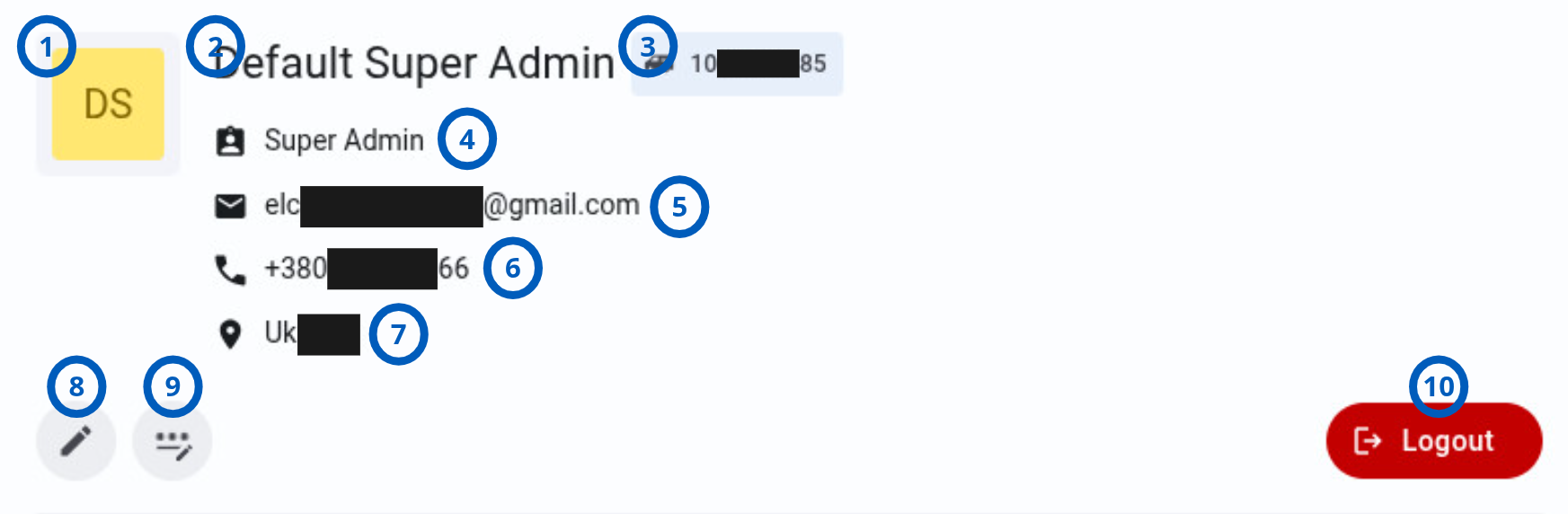
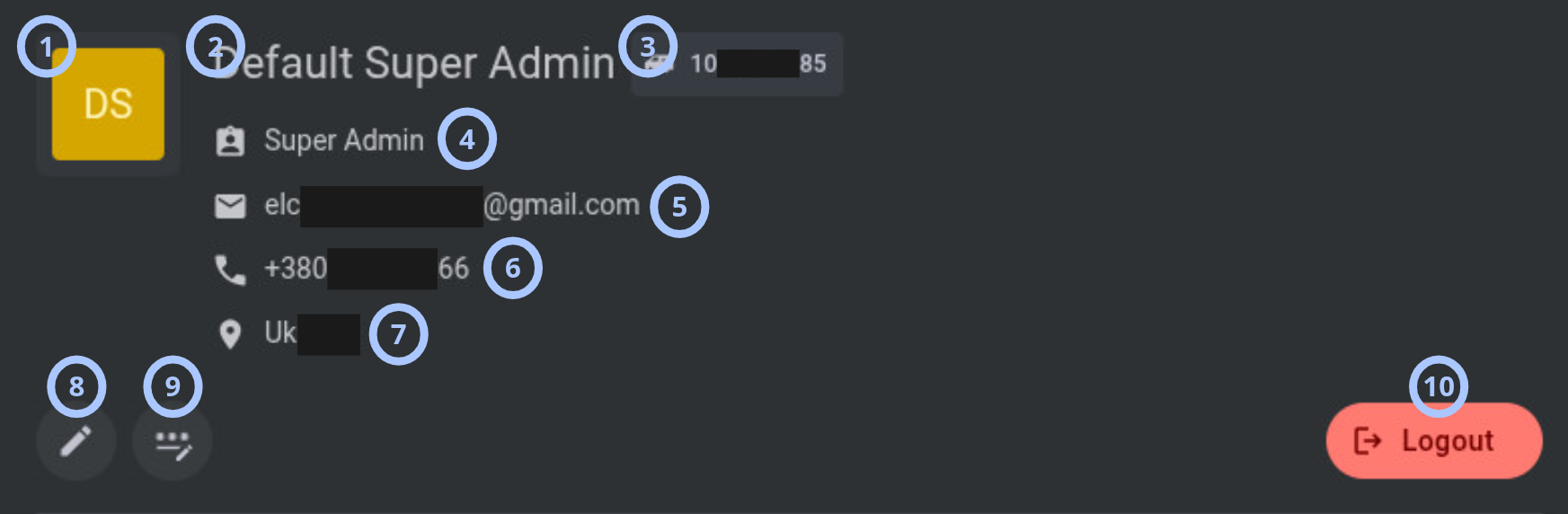
| Callout | UI element | Description | When to use |
|---|---|---|---|
| 1 | Profile icon | Shows the icon for the current profile. | Use to confirm that the modal window shows your current profile. |
| 2 | Profile name | Shows the name for the current profile. | Use to verify which profile is signed in. |
| 3 | Dealer ID | Shows the dealer ID assigned to the profile. | Use when you need to confirm the dealer info about profile. |
| 4 | Role | Shows the role assigned to the profile. | Use to understand which permission set applies to the current profile. |
| 5 | Shows the email address assigned to the profile. | Use to confirm the sign-in email address or decide whether the email must be updated. | |
| 6 | Phone number | Shows the phone number assigned to the profile. | Use to confirm or review contact details. |
| 7 | Country | Shows the country assigned to the profile. | Use to confirm or update regional profile information. |
| 8 | Edit profile icon | Opens the Edit profile modal window. | Use to update your email address, phone number, or country. |
| 9 | Change password button | Opens the Change password modal window. | Use to update your password. |
| 10 | Logout button | Signs you out of PowerManage. | Use when you finish working or need to switch profiles. |
Display settings
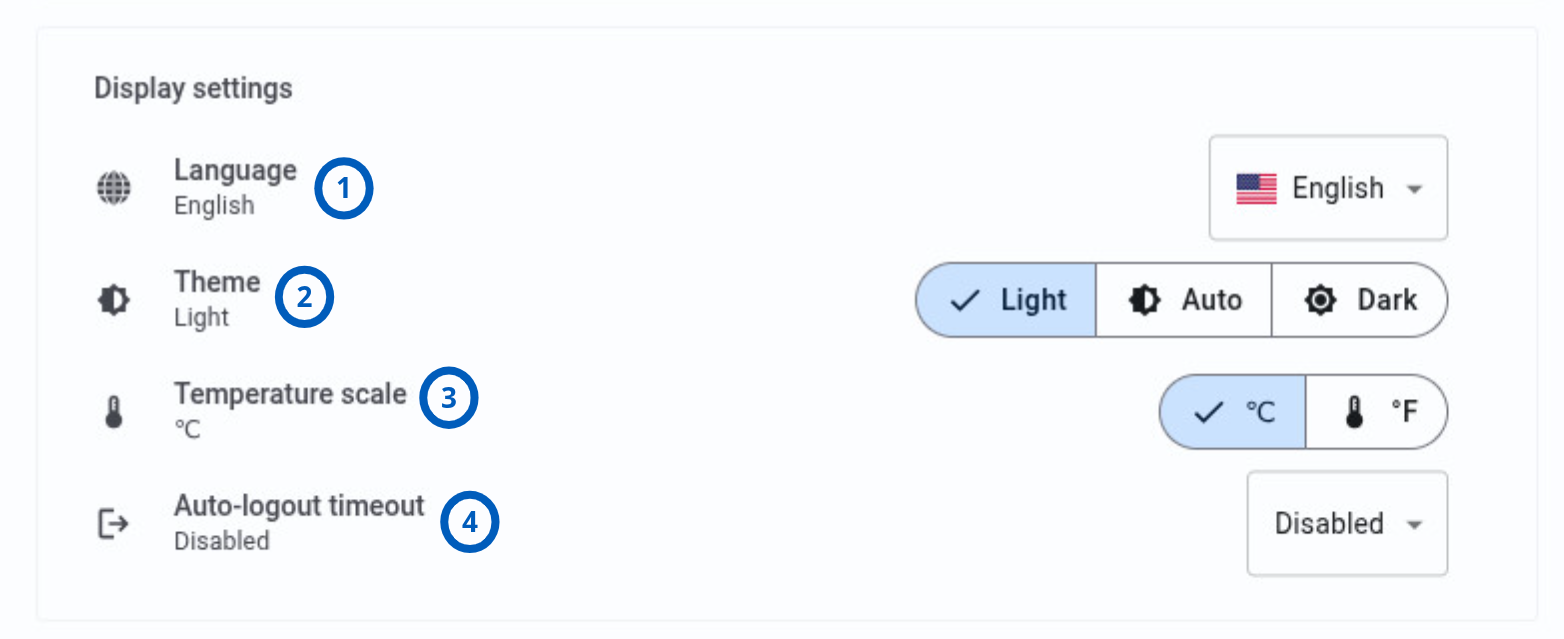
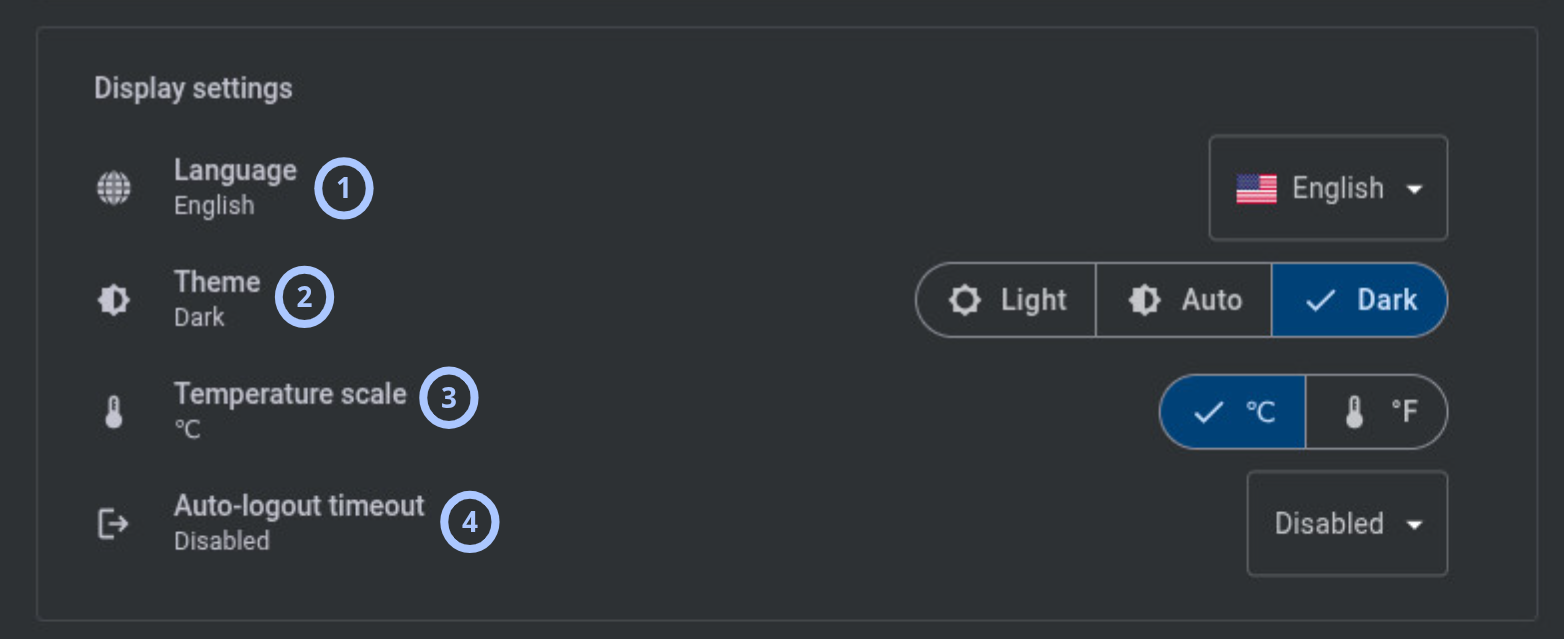
| Callout | UI element | Description | When to use |
|---|---|---|---|
| 1 | Language | Selects the UI language for the current profile. The default value is English. | Use to change the display language for your profile. |
| 2 | Theme | Selects the UI theme for the current profile. Options are Light, Auto, and Dark. The default value is Auto. | Use to change the visual theme or follow the system theme when Auto is selected. |
| 3 | Temperature scale | Selects temperature units for the current profile. Options are Celsius and Fahrenheit. The default value is Celsius. | Use to display temperatures in your preferred unit. |
| 4 | Auto-logout timeout | Selects the inactivity period before PowerManage signs out the current profile. Options are Disabled, 10 minutes, 30 minutes, 1 hour, and 4 hours. The default value is Disabled. | Use to control automatic sign-out for your session. |
Event settings


| Callout | UI element | Description | When to use |
|---|---|---|---|
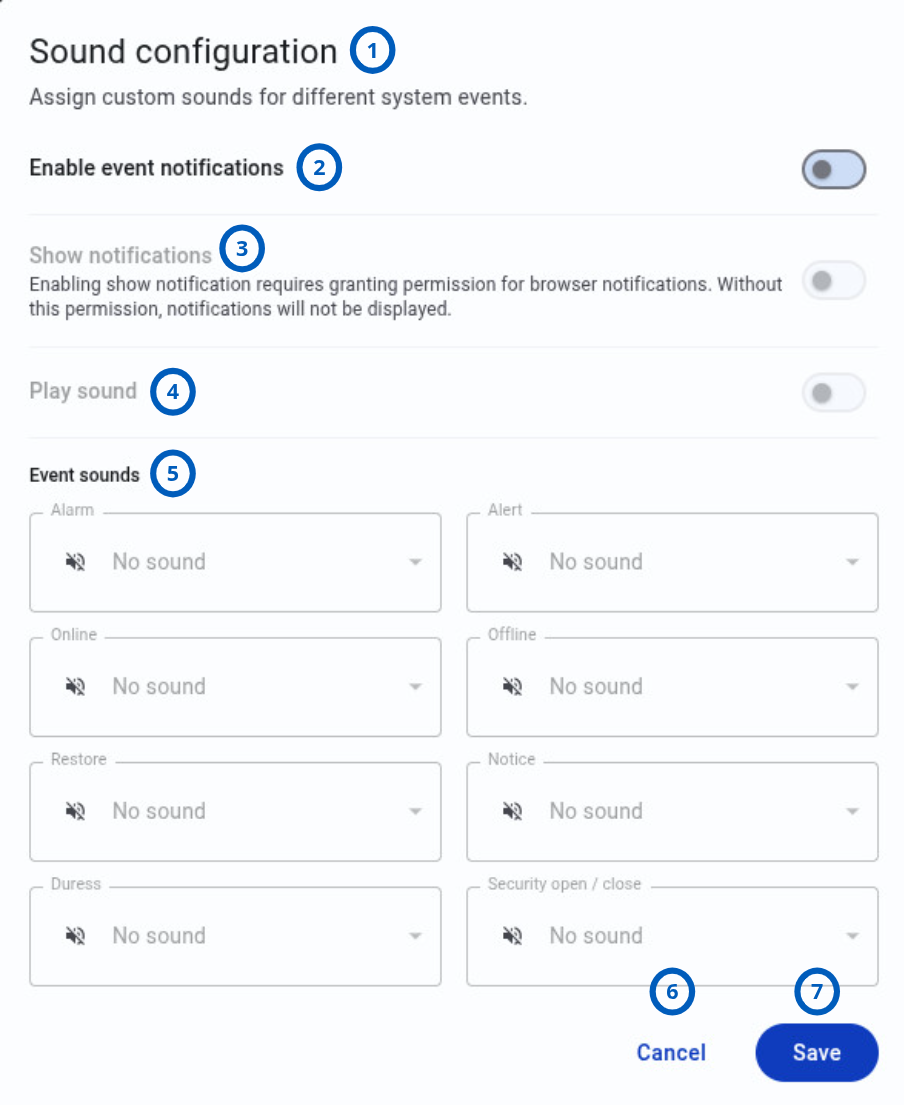
| 1 | Sound configuration | Opens the Sound configuration modal window. | Use to enable event notifications, browser notifications, sounds, and custom sounds for event types. |
Documentation & Policies
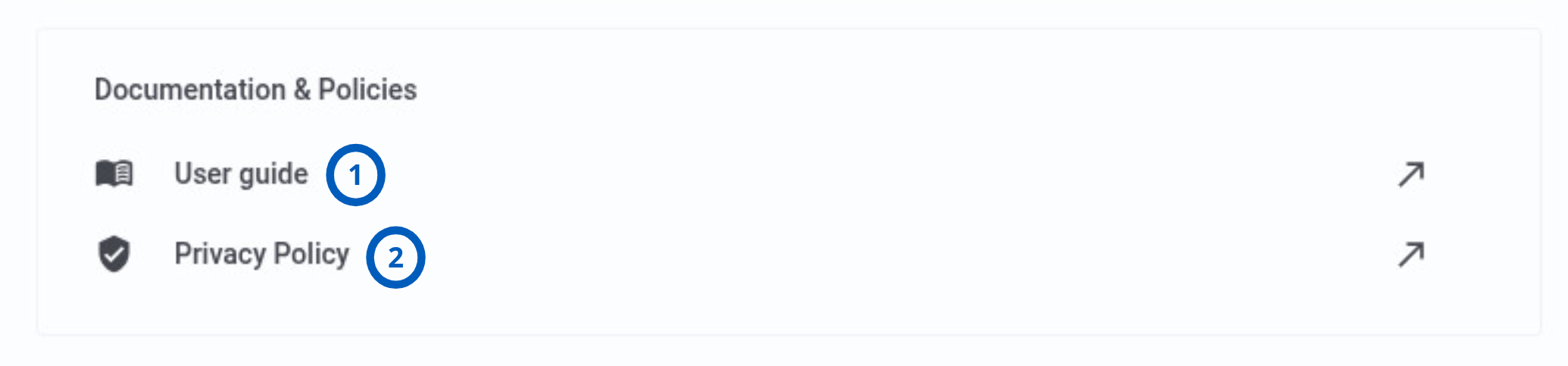
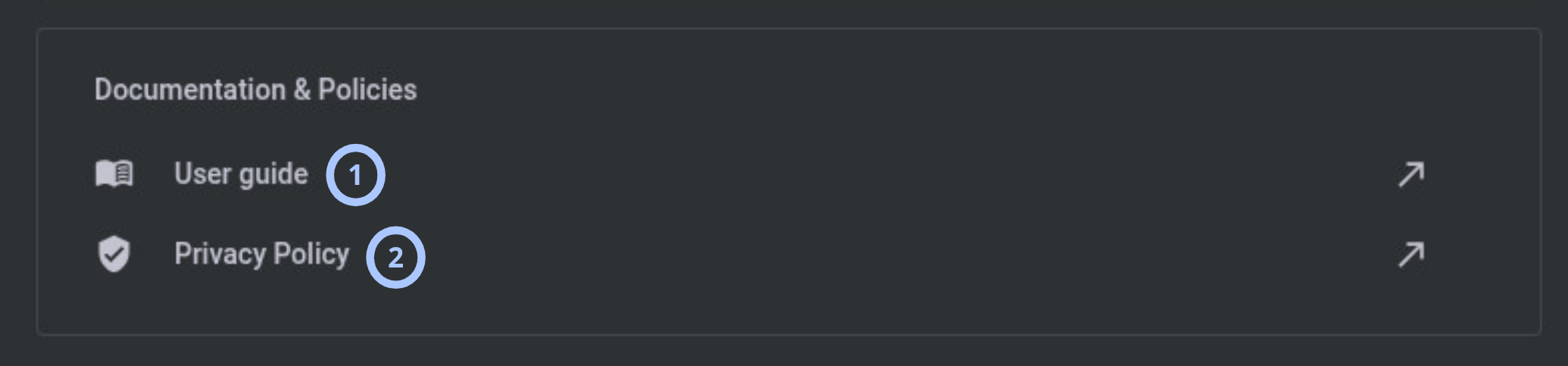
| Callout | UI element | Description | When to use |
|---|---|---|---|
| 1 | User guide | Opens PowerManage Web Help. | Use to open product documentation and user guidance. |
| 2 | Privacy Policy | Opens the Johnson Controls privacy policy. | Use to review privacy information. |
Edit profile modal window
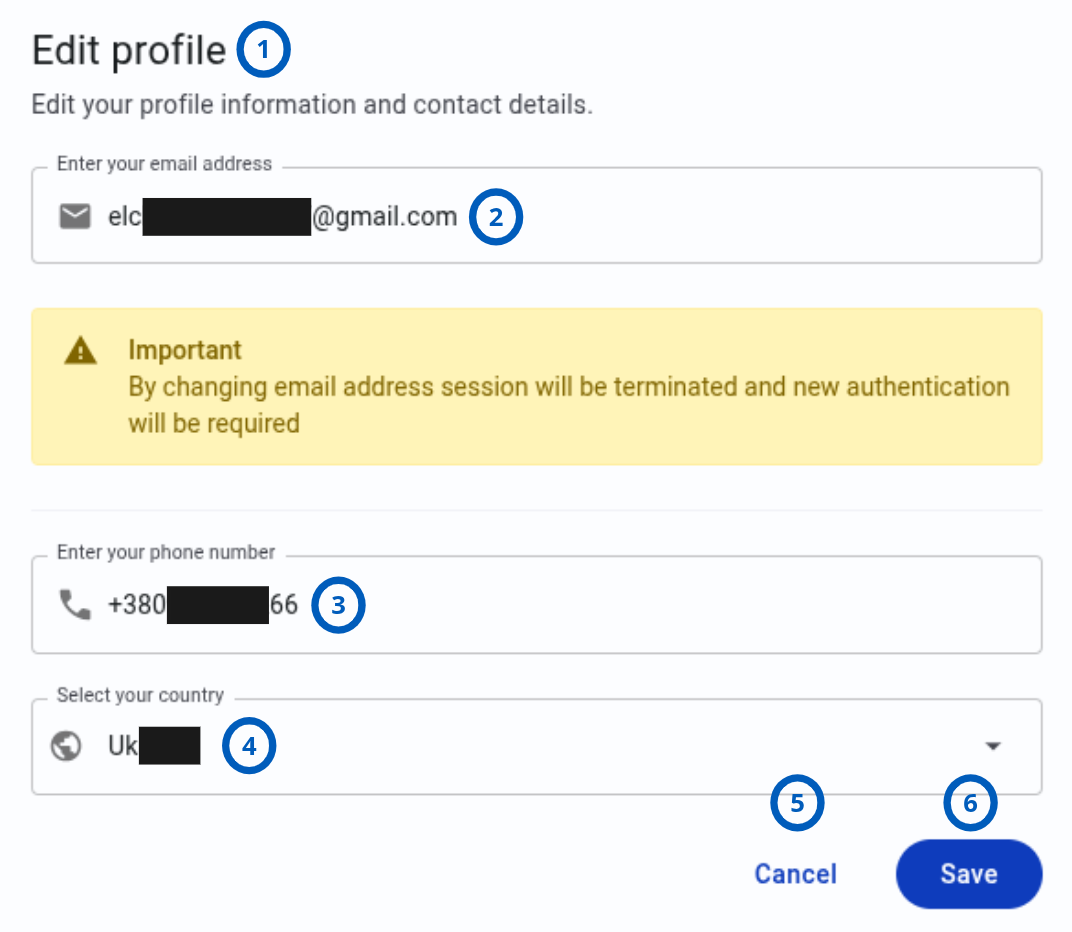
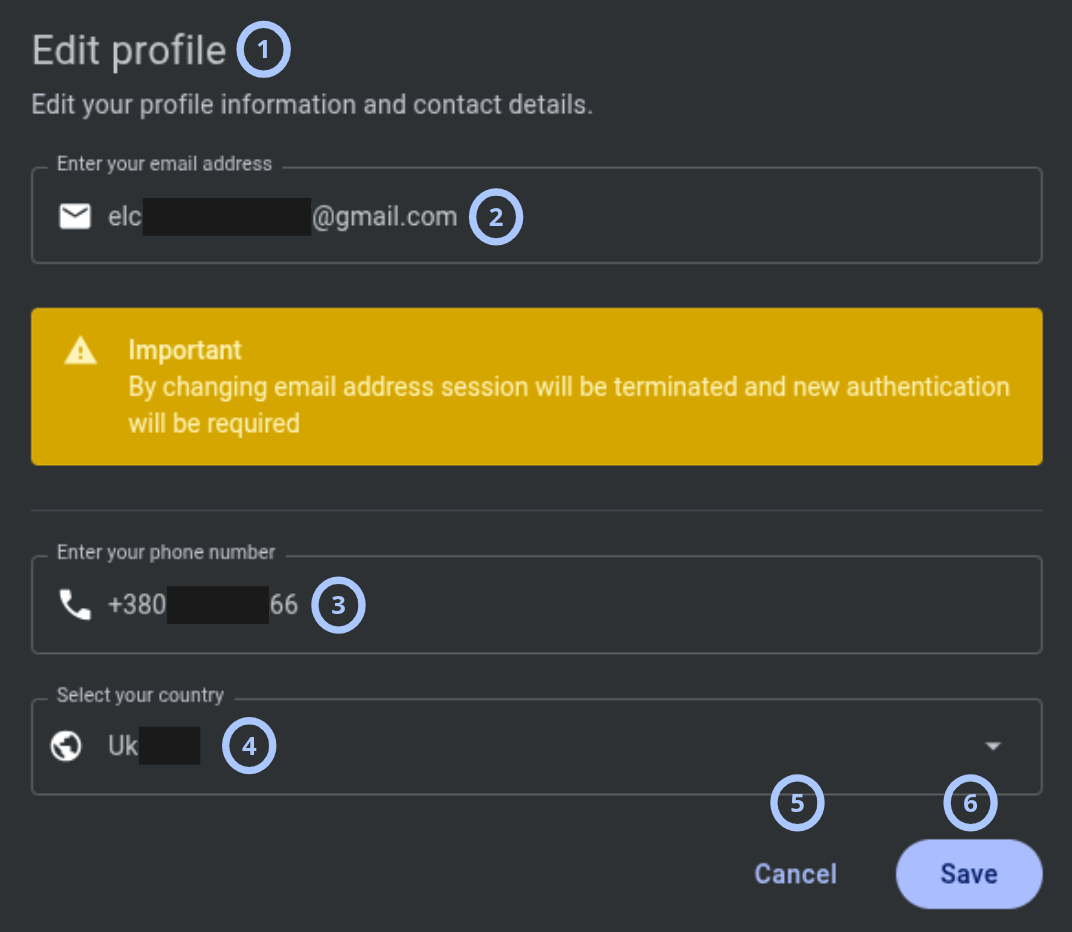
| Callout | UI element | Description | When to use |
|---|---|---|---|
| 1 | Window name | Shows Edit profile. | Use to confirm that you are editing profile details. |
| 2 | Email field | Shows the current email address and lets you enter a different email address. | Use to change the email address for the current profile. |
| 3 | Phone number field | Shows the current phone number and lets you enter a different phone number. | Use to update contact information. |
| 4 | Country drop-down | Shows the current country and lets you select a different country. | Use to update the country assigned to the profile. |
| 5 | Cancel button | Closes the modal window without saving changes. | Use to discard changes. |
| 6 | Save button | Saves changes and closes the modal window. | Use after you update profile details. |
Changing your email address terminates the current session. You must authenticate again after the change is saved.
Change password modal window
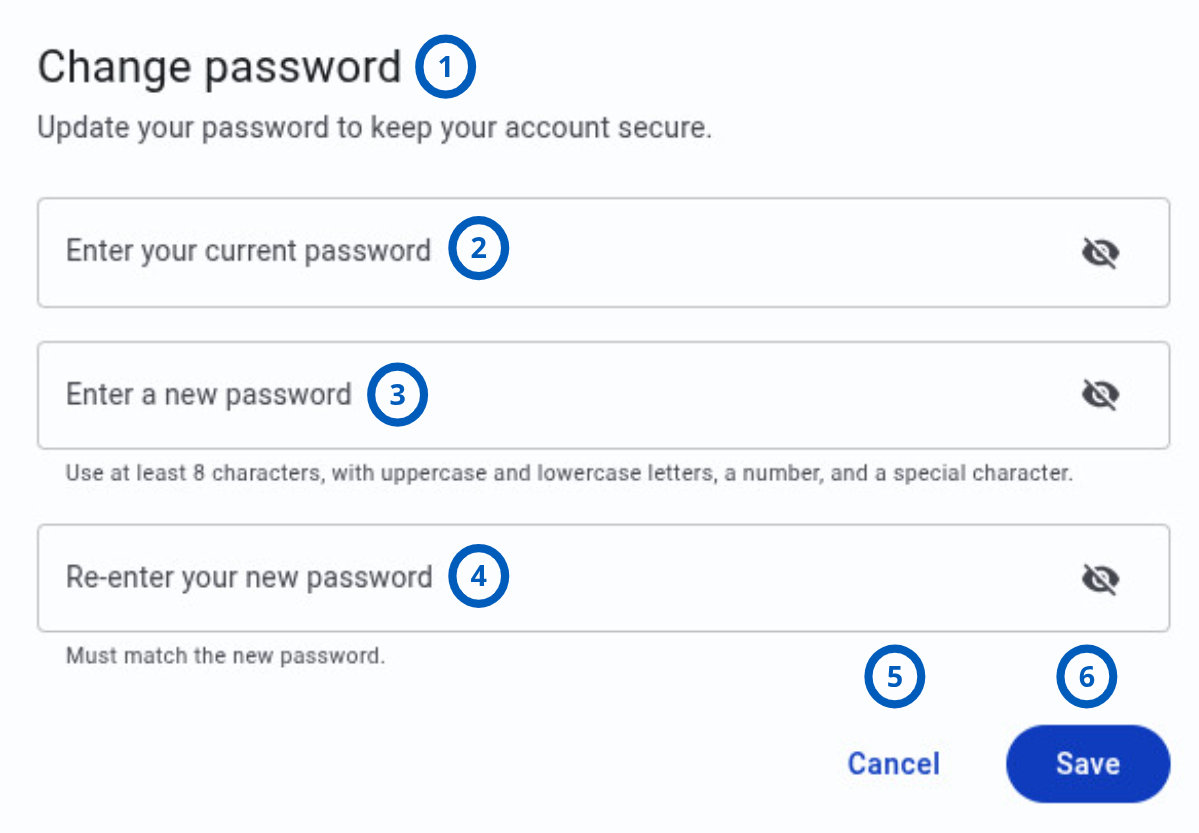
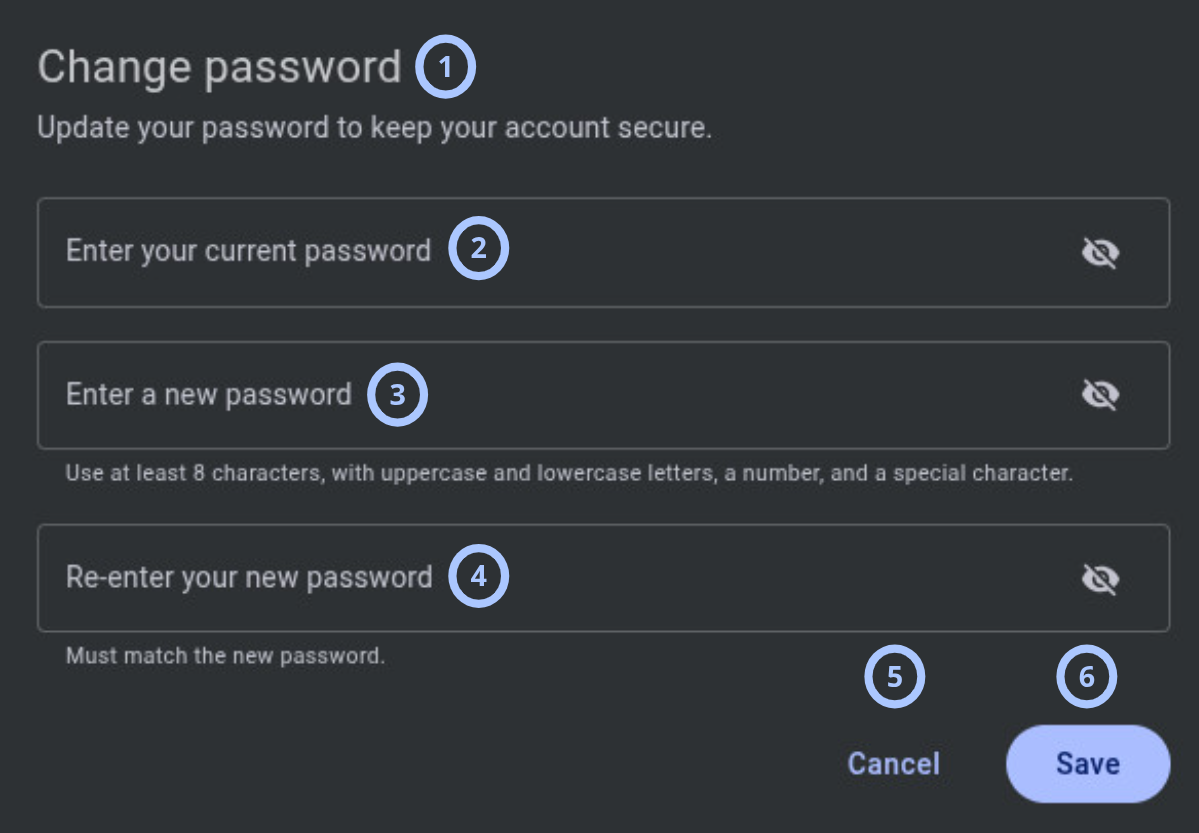
| Callout | UI element | Description | When to use |
|---|---|---|---|
| 1 | Window name | Shows Change password. | Use to confirm that you are changing your password. |
| 2 | Current password field | Lets you enter your current password. The field is empty when the modal window opens. | Use to verify that you own the current session. |
| 3 | New password field | Lets you enter the new password. The field is empty when the modal window opens. | Use to provide the new password. |
| 4 | Re-enter new password field | Lets you enter the new password again. The field is empty when the modal window opens. | Use to confirm the new password. |
| 5 | Cancel button | Closes the modal window without saving changes. | Use to cancel the password change. |
| 6 | Save button | Saves the new password and closes the modal window. | Use after you enter the current password and matching new passwords. |
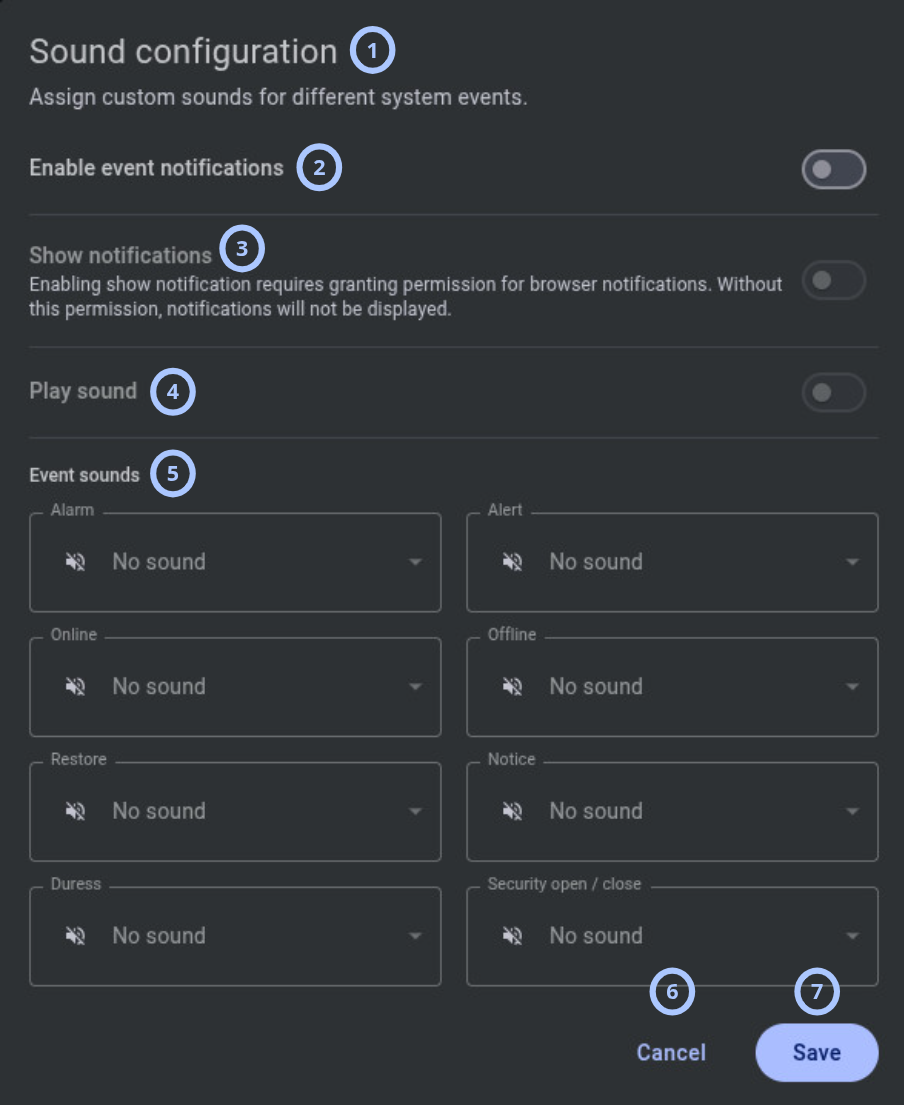
Sound configuration modal window
| Callout | UI element | Description | When to use |
|---|---|---|---|
| 1 | Window name | Shows Sound configuration. | Use to confirm that you are configuring event notification sounds. |
| 2 | Enable event notifications toggle | Enables notifications about new events. The default value is disabled. | Use when you want PowerManage to notify you about new events. |
| 3 | Show notifications toggle | Sends browser notifications about new events. The default value is disabled. | Use when you want browser notifications outside the active page view. |
| 4 | Play sound toggle | Enables sound playback for event notifications. The default value is disabled. | Use when you want an audio cue for new events. |
| 5 | Event sounds drop-down lists | Let you select a sound for each event type: Alarm, Alert, Online, Offline, Restore, Notice, Duress, and Security open / close. Each event type uses No sound by default. | Use to assign different sounds to different event types. |
| 6 | Cancel button | Closes the modal window without saving changes. | Use to cancel sound notification changes. |
| 7 | Save button | Saves the new sound notification settings and closes the modal window. | Use to save sound notification changes. |
Enabling Show notifications requires browser notification permission. Without this permission, browser notifications are not displayed.
How to use this page
Open profile management
Goal:
- Open the profile management modal window.
Steps:
- In PowerManage, go to the top-right corner of the page.
- Select the profile icon.
Expected result:
- The Profile management modal window opens.
- Your profile information and profile settings are displayed.
Edit profile details
Goal:
- Change your email address, phone number, or country.
Steps:
- Open the Profile management modal window.
- Select the Edit profile icon.
- In the Edit profile modal window, update one or more fields:
- Phone number
- Country
- Select Save.
Expected result:
- The changes are saved.
- The Edit profile modal window closes.
- If you changed the email address, the current session ends and new authentication is required.
Save an email address change only when you are ready to sign in again.
Change your password
Goal:
- Update your PowerManage password.
Steps:
- Open the Profile management modal window.
- Select Change password.
- In Current password, enter your current password.
- In New password, enter your new password.
- In Re-enter new password, enter the same new password again.
- Select Save.
Expected result:
- PowerManage saves the new password.
- The Change password modal window closes.
- Use the new password the next time authentication is required.
Change display settings
Goal:
- Change how PowerManage is displayed for your profile.
Steps:
- Open the Profile management modal window.
- In Display settings, select the setting you want to change.
- Select the required option for:
- Language
- Theme
- Temperature scale
- Auto-logout timeout
- Close the modal window when your settings are updated.
Expected result:
- PowerManage applies the selected display settings to the current profile.
Configure event notification sounds
Goal:
- Assign custom sounds for system event notifications.
Steps:
- Open the Profile management modal window.
- In Event settings, select Sound configuration.
- Turn on Enable event notifications if you want PowerManage to notify you about new events.
- Turn on Show notifications if you want browser notifications.
- If the browser asks for notification permission, allow notifications for the PowerManage site.
- Turn on Play sound if you want sound playback for event notifications.
- In Event sounds, select sounds for the required event types.
- Close the modal window when your settings are updated.
Expected result:
- PowerManage applies the event notification settings to the current profile.
- Browser notifications appear only if browser permission is granted.
- Sounds play only if sound playback is enabled and a sound is assigned.
Open documentation or privacy information
Goal:
- Open user documentation or privacy information.
Steps:
- Open the Profile management modal window.
- In Documentation & Policies, select one of the following links:
- User guide
- Privacy Policy
Expected result:
- User guide opens PowerManage Web Help.
- Privacy Policy opens the Johnson Controls privacy policy.
Sign out
Goal:
- End your current PowerManage session.
Steps:
- Open the Profile management modal window.
- Select Logout.
Expected result:
- PowerManage signs you out.
- Authentication is required before you can access PowerManage again.
Field and option reference
| Name | Description | Accepted values | Behavior | Restrictions | Default value |
|---|---|---|---|---|---|
| Language | Controls the UI language for the current profile. | Available languages configured in PowerManage. | Applies the selected language to the current profile. | Does not change the language for other users. | English |
| Theme | Controls the UI theme for the current profile. | Light, Auto, Dark. | Changes the visual theme for the current profile. Auto follows the configured automatic theme behavior. | Does not change the theme for other users. | Auto |
| Temperature scale | Controls temperature units for the current profile. | Celsius, Fahrenheit. | Displays temperatures in the selected unit. | Applies only where temperature values are displayed. | Celsius |
| Auto-logout timeout | Controls automatic sign-out after inactivity. | Disabled, 10 minutes, 30 minutes, 1 hour, 4 hours. | Signs out the current profile after the selected inactivity period. | If set to Disabled, PowerManage does not use this profile setting to automatically sign out because of inactivity. | Disabled |
| Stores the email address for the current profile. | Valid email address. | Updates the profile email address. | Changing the email address terminates the current session and requires new authentication. | Current profile email address. | |
| Phone number | Stores the phone number for the current profile. | Phone number format supported by the deployment. | Updates the profile phone number. | No restrictions. | Current profile phone number. |
| Country | Stores the country for the current profile. | Countries available in the drop-down list. | Updates the country assigned to the profile. | Only listed countries can be selected. | Current profile country. |
| Enable event notifications | Controls whether PowerManage notifies you about new events. | On, Off. | Enables or disables event notifications for the current profile. | Notification behavior depends on related notification and sound settings. | Off |
| Show notifications | Controls browser notifications for new events. | On, Off. | Sends browser notifications when enabled and permitted by the browser. | Requires browser notification permission. | Off |
| Play sound | Controls sound playback for event notifications. | On, Off. | Plays assigned sounds for event notifications when enabled. | Requires browser audio playback and an assigned sound for the event type. | Off |
| Event sounds | Assigns sounds to event types. | No sound or one of the available sounds. There are 18 available sounds. Event types include Alarm, Alert, Online, Offline, Restore, Notice, Duress, and Security open / close. | Uses the selected sound for the selected event type. | Sound plays only when Play sound is enabled. | No sound |
Tips
- Use Auto theme if you want PowerManage to follow the automatic theme behavior configured for your environment.
- Set an auto-logout timeout if you use PowerManage on a shared workstation.
- Test browser notification permissions before relying on event notifications during work.
- Assign different sounds only to event types that require immediate attention. Too many sounds can make events harder to distinguish.
Troubleshooting
Profile management does not open
Possible causes
- You are not signed in.
- The page did not load correctly.
- A browser extension or browser setting is blocking modal windows.
What to do
- Refresh the PowerManage page.
- Sign in again if the session expired.
- Select the profile icon again.
- If the modal window still does not open, try another supported browser or contact support.
Browser notifications do not appear
Possible causes
- Show notifications is disabled.
- Browser notification permission was not granted.
- Operating system notification settings block browser notifications.
- Enable event notifications is disabled.
What to do
- Open Sound configuration.
- Turn on Enable event notifications.
- Turn on Show notifications.
- Grant browser notification permission when prompted.
- Check browser and operating system notification settings.
Sounds do not play for event notifications
Possible causes
- Play sound is disabled.
- The event type is set to No sound.
- Browser audio is blocked or muted.
- Device audio is muted.
What to do
- Open Sound configuration.
- Turn on Play sound.
- Select a sound for the required event type.
- Check browser and device audio settings.
- Trigger or wait for a supported event notification.
Password change is not saved
Possible causes
- The current password is incorrect.
- The new password and re-entered password do not match.
- The new password does not meet the configured password policy.
- The session expired before you selected Save.
What to do
- Enter the current password again.
- Enter the same new password in New password and Re-enter new password.
- Make sure the new password meets your password policy.
- Select Save.
- If the issue continues, contact an administrator.
You are signed out after changing your email address
Possible causes
- PowerManage ends the current session after the profile email address changes.
What to do
- Sign in again with the updated email address.
- Complete any required authentication steps.
- Open Profile management to confirm the updated email address.
Auto-logout does not behave as expected
Possible causes
- Auto-logout timeout is set to Disabled.
- Another system or authentication policy controls session timeout.
- Browser activity or background activity may affect inactivity detection.
What to do
- Open Profile management.
- Check the Auto-logout timeout value.
- Select a timeout value if automatic sign-out is required.
- If behavior still differs from the selected value, contact an administrator.