Cellular connected
Overview
The Cellular connected settings lets administrators configure how PowerManage wakes up cellular panels from the server.
Use this page when you need to:
- Select the message broker used for panel wakeup.
- Configure how many wakeup retry attempts the server makes.
- Set the interval between retry attempts.
- Define the WakeUp panel behaviour for user-initiated discovery.
These settings help control server-side wakeup behavior for cellular panels. They are important for workflows that require the server to contact a panel that is not currently connected.
Before you begin
Required permissions
- You must have permission to General category of Server Settings.
Preconditions
- The Settings page is available in the Web GUI.
- At least one message broker is configured if you want to select a broker for wakeup.
- Cellular panels are enrolled or expected to connect through cellular communication.
- The selected message broker is available and configured for the required wakeup method.
Dependencies
- Server-side wakeup depends on a configured message broker.
- SMS-based wakeup depends on an SMS broker or GSM modem when SMS is used for the panel.
- Some panel families or versions may use different wakeup methods.
Important limitations
- If no message broker is selected, server-side wakeup will not work for workflows that require a broker.
- Incorrect retry values can increase wakeup delays or cause too many repeated wakeup attempts.
- Enabling wakeup during user-initiated discovery can increase messaging traffic and message broker usage.
- A wakeup request does not guarantee that a panel connects. Panel connectivity, SIM status, broker availability, and network conditions can still prevent connection.
- Do not change wakeup settings in production without confirming the expected impact on cellular panels.
Page layout
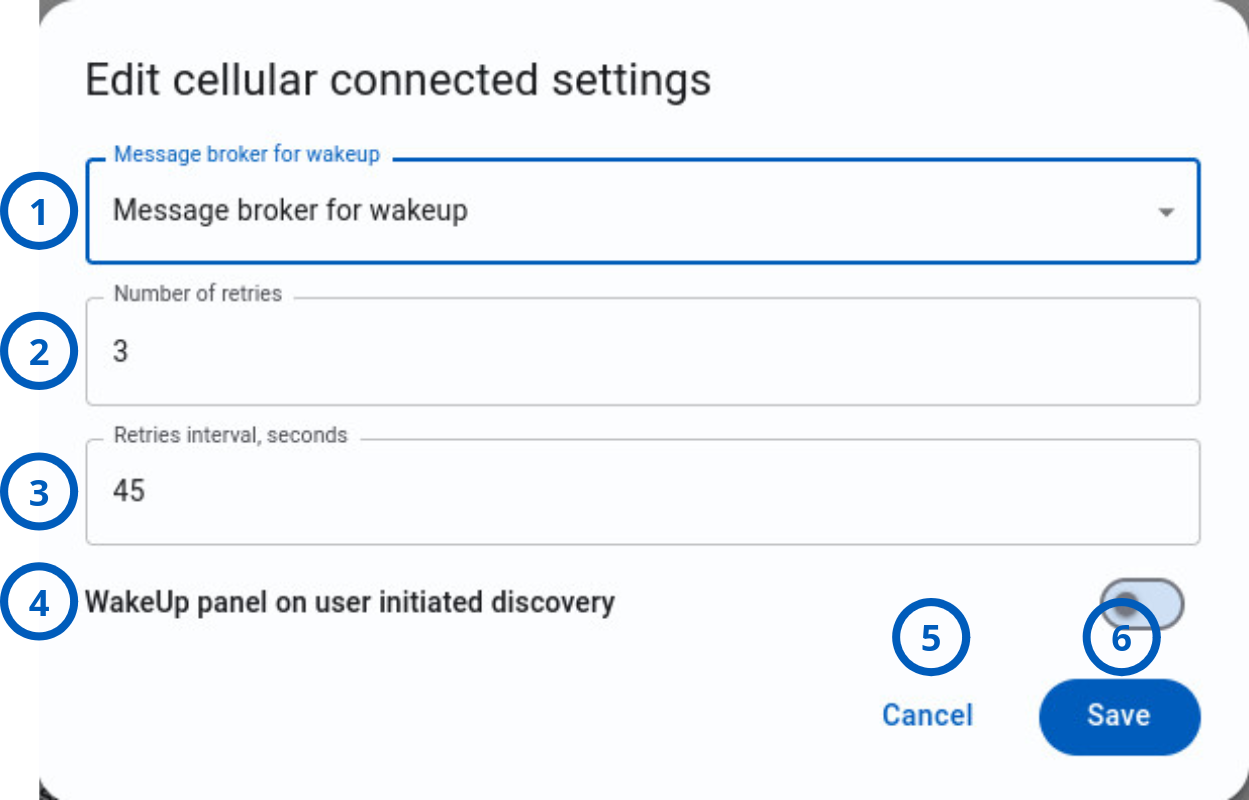
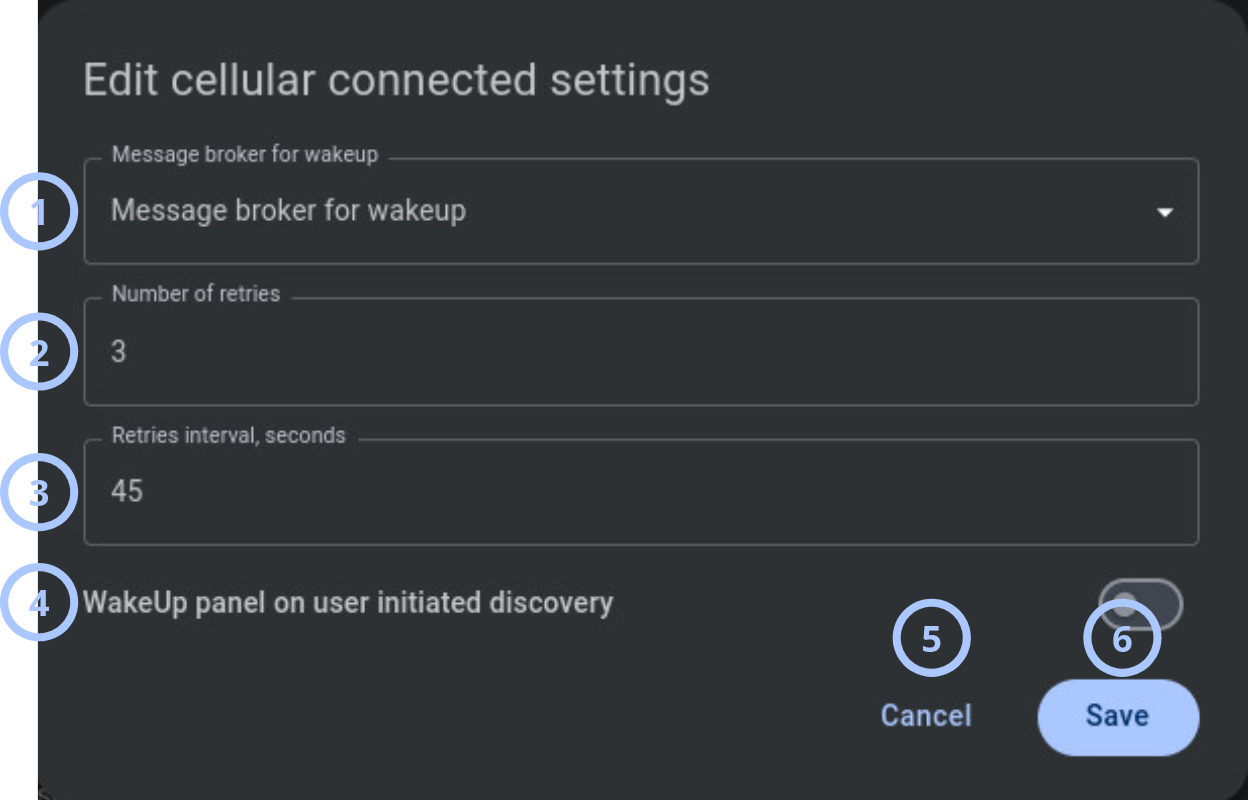
Edit cellular connected settings dialog
| Callout | UI element | Description | When to use |
|---|---|---|---|
| 1 | Message broker for wakeup | Dropdown field used to select the message broker that PowerManage uses for server-side panel wakeup. | Use when you need to assign or change the broker used to wake cellular panels. |
| 2 | Number of retries | Numeric field that defines how many retry attempts PowerManage makes after the first SMS or MQTT wake-up attempt does not complete successfully. The default value is 3. Valid range is 0 to 5. | Use to control the number of SMS or MQTT wake-up retries. |
| 3 | Retries interval, seconds | Numeric field that defines the wait time, in seconds, between SMS or MQTT wake-up retry attempts. The default value is 45. Valid range is 20 to 3000 seconds. | Use to control the delay between SMS or MQTT wake-up retries. |
| 4 | WakeUp panel on user initiated discovery | Toggle that controls whether PowerManage sends a wakeup request when a user starts discovery for a panel that needs to be woken up. | Use when discovery workflows should attempt to wake offline cellular panels automatically. |
| 5 | Cancel button | Closes the dialog without saving changes. | Use when you want to discard edits and keep the previous configuration. |
| 6 | Save button | Saves the selected message broker, retry settings, and wakeup toggle state. | Use after you review the configuration and confirm that the settings are correct. |
How to use this page
Review Cellular connected settings
Goal:
- Check the current server-side wakeup configuration.
Steps:
- Go to Settings.
- Select Cellular connected.
- Review the displayed values:
- Message broker for wakeup
- Number of retries
- Retries interval, seconds
- WakeUp panel on user initiated discovery
- If a change is required, select the edit icon for Cellular connected.
Expected result:
- You can see the current cellular wakeup configuration.
- You can decide whether the wakeup settings need to be changed.
Select a message broker for wakeup
Goal:
- Assign the broker that PowerManage uses to wake cellular panels.
Steps:
- Go to Settings.
- Select Cellular connected.
- Select the edit icon.
- Open the Message broker for wakeup dropdown.
- Select the required message broker.
- Review the retry settings.
- Select Save.
Expected result:
- The selected message broker is saved.
- PowerManage uses the selected broker for supported server-side wakeup workflows.
Select a broker only after you confirm that the broker is configured and available. A broker that is unreachable or incorrectly configured can cause wakeup attempts to fail.
Change wakeup retry attempts
Goal:
- Configure how many times PowerManage retries a wakeup request.
Steps:
- Open the Edit cellular connected settings dialog.
- In Number of retries, enter the required value.
- Review Retries interval, seconds.
- Select Save.
Expected result:
- PowerManage saves the retry count.
- Future SMS and MQTT wake-up attempts use the updated retry count.
Change the retry interval
Goal:
- Configure the wait time between wakeup retry attempts.
Steps:
- Open the Edit cellular connected settings dialog.
- In Retries interval, seconds, enter the required number of seconds.
- Review Number of retries.
- Select Save.
Expected result:
- PowerManage saves the retry interval.
- Future SMS and MQTT wake-up retry attempts use the updated interval.
Enable wakeup during user-initiated discovery
Goal:
- Allow discovery to wake a cellular panel when a user starts discovery.
Steps:
- Open the Edit cellular connected settings dialog.
- Turn on WakeUp panel on user initiated discovery.
- Confirm that Message broker for wakeup is set.
- Confirm that retry values are appropriate for the broker.
- Select Save.
Expected result:
- PowerManage saves the setting.
- When a user starts discovery for a panel that requires wakeup, PowerManage can attempt to wake the panel during the discovery workflow.
Enabling this option can increase wakeup traffic. Confirm that message broker capacity and messaging costs are acceptable before enabling this setting.
Tips
- Select a message broker before enabling wakeup during user-initiated discovery.
- Use retry values that give the panel enough time to respond without creating excessive broker traffic.
- Increase the retry interval when cellular networks are slow or unstable.
- Keep WakeUp panel on user initiated discovery disabled if discovery should not send wakeup messages.
- Record the previous retry values before changing production settings.
- Test wakeup behavior with a small set of panels before applying changes to a large deployment.
Troubleshooting
Wakeup does not work
Possible causes
- Message broker for wakeup is not selected.
- The selected broker is unavailable or misconfigured.
- The panel cannot receive the wakeup message.
- The panel SIM, cellular service, or network connection is unavailable.
- The configured wakeup method is not supported for the panel family.
- Retry values are too low for the cellular network conditions.
What to do
- Confirm that Message broker for wakeup is selected.
- Check the message broker status and configuration.
- Confirm that the panel supports the configured wakeup method.
warning
IQ panel family doesn't supports cellular wakeup.
- Review the panel cellular connection and SIM status.
- Increase Number of retries or Retries interval, seconds if network response is slow.
- Try the wakeup workflow again.
- Contact an administrator if wakeup still fails.
User-initiated discovery does not wake the panel
Possible causes
- WakeUp panel on user initiated discovery is disabled.
- No message broker is selected.
- The selected broker cannot send wakeup messages.
- The panel is unreachable or cannot receive wakeup messages.
- Discovery was started for a panel or communication path that does not support wakeup.
What to do
- Open Cellular connected settings.
- Enable WakeUp panel on user initiated discovery.
- Confirm that Message broker for wakeup is selected.
- Save the settings.
- Start discovery again.
- Check panel cellular connectivity if discovery still does not start.
Too many wakeup attempts are sent
Possible causes
- Number of retries is too high.
- Retries interval, seconds is too low.
- Users frequently start discovery for offline panels.
- WakeUp panel on user initiated discovery is enabled in a high-performance environment.
What to do
- Review Number of retries.
- Review Retries interval, seconds.
- Reduce the retry count or increase the retry interval.
- Disable WakeUp panel on user initiated discovery if wakeup should not occur during user initiated discovery.
- Monitor broker traffic after saving the changes.