Common connected
Overview
The Common connected page lets administrators control how PowerManage handles panels that connect to the server.
Use this page when you need to:
- Enable or disable automatic panel enrollment.
- Define which panel System IDs are allowed to auto-enroll.
- Control whether a panel is removed from PowerManage after the panel receiver IP is reset.
These settings affect panels that attempt to connect to PowerManage. Review the configuration before saving changes.
Before you begin
Required permissions
- You must have permission to General category of Server Settings.
Preconditions
- The Settings page is available in the Web GUI.
- The Common connected settings card is available.
- If you plan to enable auto-enroll, confirm that the required supervision settings are configured for the Main group.
Dependencies
- Panel enrollment depends on the server receiving connection attempts from panels.
- The System ID's mask value depends on a valid regular expression.
- Auto-enrollment behavior depends on the configured System ID mask.
- Receiver IP reset behavior depends on how panels are configured to connect to the receiver and connectivity state.
Important limitations
- Enabling auto-enroll can allow new panels to join the server automatically when they match the configured System ID mask.
- A broad System ID mask, such as
^.*$, allows all System IDs that reach the server to pass the mask check. - An invalid regular expression can prevent expected panels from auto-enrolling.
- Some changes can have operational impact and may be difficult to reverse after panels are enrolled or removed.
- Enabling Remove panel by resetting the receiver IP changes the panel configuration before removing it from the PowerManage server.
Page layout
Edit common connected settings dialog
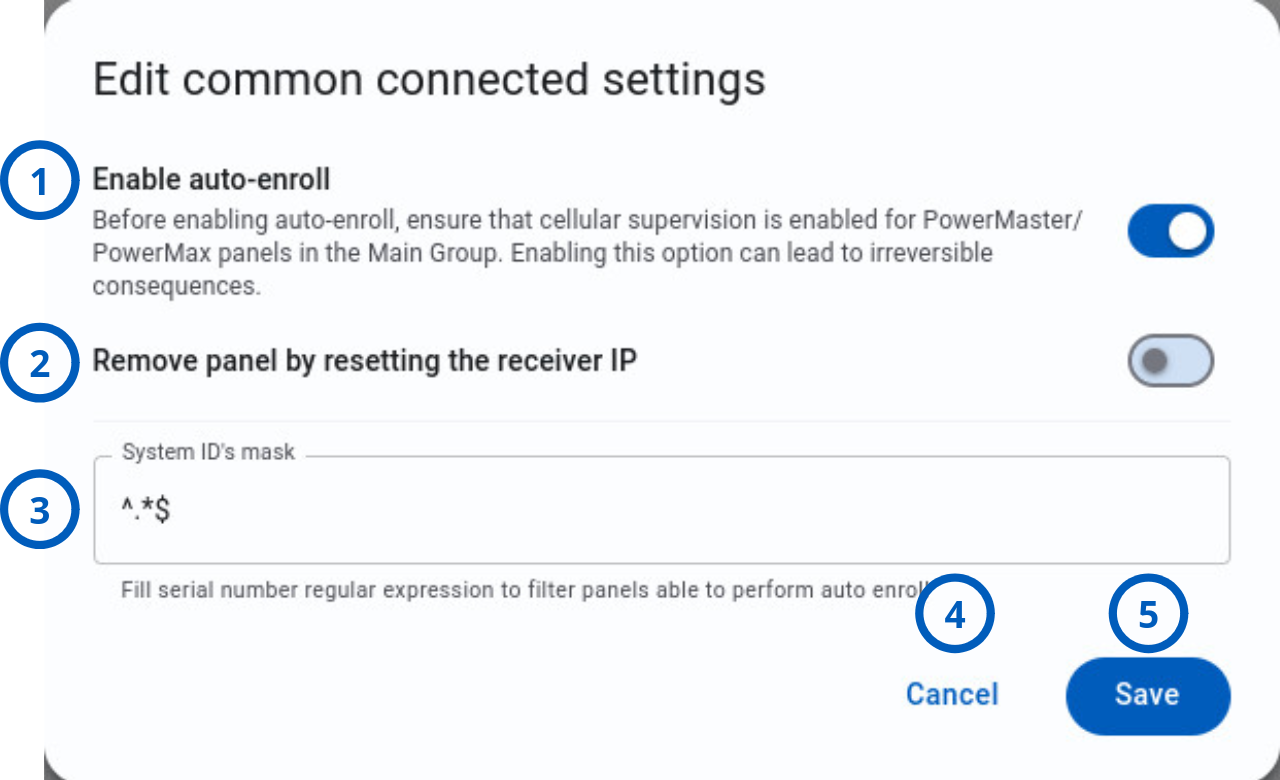
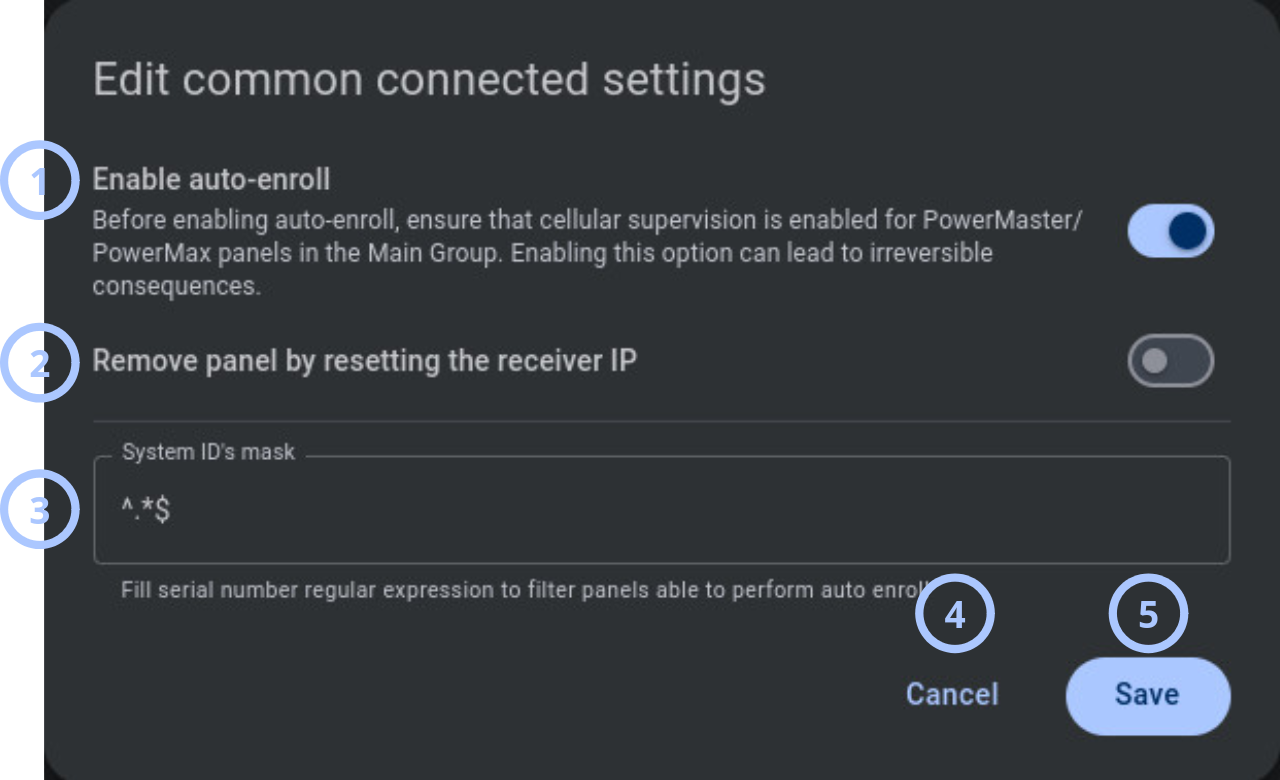
| Callout | UI element | Description | When to use |
|---|---|---|---|
| 1 | Enable auto-enroll | Controls whether the server automatically enrolls new panels that attempt to connect and match the configured System ID mask. The dialog includes a warning to ensure cellular supervision is enabled for PowerMaster and PowerMax panels in the Main Group before enabling this option. | Use when you want PowerManage to enroll eligible connecting panels without manual registration. |
| 2 | Remove panel by resetting the receiver IP | Before removing the panel from the PowerManage database, it changes its configuration and removes the PowerManage IP, preventing the panel from automatically initiating communication with the server again. | Use only when receiver IP should be resetted for the panel before removal. |
| 3 | System ID's mask | Defines the regular expression used to validate or filter System IDs for panels that attempt to connect. The default value ^.*$ allows all System IDs. | Use to restrict auto-enrollment to panels with matching System IDs. |
| 4 | Cancel button | Closes the dialog without saving changes. | Use when you want to discard changes and keep the current configuration. |
| 5 | Save button | Saves the selected toggle values and System ID mask. | Use after you review the settings and confirm that the changes are correct. |
How to use this page
Review Common connected settings
Goal:
- Check the current Common connected configuration.
Steps:
- Go to Settings.
- Select Common connected.
- Review the displayed values:
- Enable auto-enroll
- System ID's mask
- Remove panel by resetting the receiver IP
- If you need to change values, select the edit icon for Common connected.
Expected result:
- You can see the current Common connected configuration.
- You can decide whether a change is required before opening the edit dialog.
Enable automatic enrollment
Goal:
- Allow eligible connecting panels to auto-enroll.
Steps:
- Go to Settings.
- Select Common connected.
- Select the edit icon.
- In the Edit common connected settings dialog, turn on Enable auto-enroll.
- Review the warning text.
- Confirm that required supervision settings are configured for the panels and groups in your environment.
- In System ID's mask, enter the regular expression that defines which System IDs can auto-enroll.
- Select Save.
Expected result:
- PowerManage saves the Common connected settings.
- New connecting panels that match the System ID mask can be enrolled automatically.
Before enabling auto-enroll, confirm that the System ID mask does not allow unwanted panels to enroll. Use a specific mask when you need strict control.
Configure the System ID mask
Goal:
- Limit auto-enrollment to panels with matching System IDs.
Steps:
- Go to Settings.
- Select Common connected.
- Select the edit icon.
- In System ID's mask, enter a valid regular expression.
- Review the expression before saving.
- Select Save.
Expected result:
- PowerManage saves the mask.
- Auto-enrollment uses the mask to validate or filter System IDs.
Examples:
- Use
^.*$to allow all System IDs. - Use
^AAB.*$to allow only System IDs that start withAAB.
Test the expression before using it in production.
Enable panel removal by receiver IP reset
Goal:
- Receiver IP should be resetted for the panel before removal.
Steps:
- Go to Settings.
- Select Common connected.
- Select the edit icon.
- Turn on Remove panel by resetting the receiver IP.
- Select Save.
Expected result:
- PowerManage saves the setting.
- Panels may be removed from the database when receiver IP reset behavior is detected.
Before removing the panel from the PowerManage database, it changes its configuration and removes the PowerManage IP, preventing the panel from automatically initiating communication with the server again.
Tips
- Use auto-enrollment for controlled deployments where the System ID mask is specific enough to prevent unintended enrollment.
- Keep auto-enrollment disabled when each panel must be reviewed before enrollment.
- Use
^AAB.*$when only System IDs that start withAABshould pass the mask check. - Avoid using
^.*$in production unless all connecting panels are allowed to auto-enroll. - Record the previous System ID mask before changing it.
- Test a new regular expression in a non-production environment when possible.
Troubleshooting
Panels do not auto-enroll
Possible causes
- Enable auto-enroll is disabled.
- The panel System ID does not match the System ID's mask.
- The System ID mask is invalid.
- The panel is not reaching the PowerManage server.
What to do
- Open Common connected settings.
- Confirm that Enable auto-enroll is enabled.
- Review the System ID's mask.
- Confirm that the panel System ID matches the mask.
- Check panel connectivity to the server.
- Save the settings again if you made changes.
Unexpected panels auto-enroll
Possible causes
- The System ID's mask is too broad.
- The value
^.*$allows all System IDs. - Auto-enrollment is enabled in an environment that requires manual enrollment.
What to do
- Open Common connected settings.
- Replace the broad mask with a more specific regular expression.
- Save the settings.
- Review recently enrolled panels and remove any panels that should not remain enrolled, according to your operational process.
Offline panels aren’t removed from the server
Possible causes
- Remove panel by resetting the receiver IP is enabled.
- The setting was enabled without confirming the operational impact.
What to do
- Open Common connected settings.
- Check whether Remove panel by resetting the receiver IP is enabled.
- Disable the setting if you know this panel will not reach the server and the receiver IP shouldn’t reset before removal.