Message brokers
Overview
Use the Message brokers page to manage SMS gateway providers in PowerManage 5.0.
Message brokers let the PowerManage server communicate with external SMS services. The server uses configured brokers mainly to send SMS notifications and wake-up messages when SMS delivery is required.
Administrators use this page to:
- Review the SMS brokers configured on the server.
- Add a new custom broker through an HTTP Gateway or serial port.
- Edit an existing broker.
- Delete brokers that are no longer used.
- Configure connection details, authentication values, request templates, and TLS usage.
PowerManage includes several default broker entries, such as AlphaSMS, Cellsynt, Orange, TextAnywhere, and Twilio. You can also create a custom broker when the required SMS provider is not available by default.
Before you begin
Required permissions
- You must have permission to General category of Server Settings.
Preconditions
- You must have the provider connection details, such as host, port, login, password, and sender name.
- You must know whether the provider requires TLS.
- You must have the provider API format for the HTTP GET or POST SMS request.
- If the broker is used for panel wake-up messages, the target panels must have valid SIM numbers and must support SMS wake-up.
Dependencies
- The PowerManage server must be able to reach the SMS provider host over the configured network route.
- Firewall rules must allow outbound traffic to the configured host and port.
- DNS resolution must work if the broker host is configured as a domain name.
- SMS notification and wake-up workflows depend on a working broker configuration or another configured SMS delivery method, such as a GSM modem.
Important limitations
- PowerManage validates the broker settings that are entered in the form, but the SMS provider may still reject requests because of account, template, sender, or API restrictions.
- The request template must end with two blank lines.
- The HTTP Gateway broker type uses variable placeholders. Incorrect placeholder syntax can prevent SMS delivery.
- Deleting a broker can affect SMS notifications and wake-up workflows that depend on that broker.
Page layout
The Message brokers section contains a list of configured brokers and actions for adding, editing, and deleting broker entries.
Message brokers list
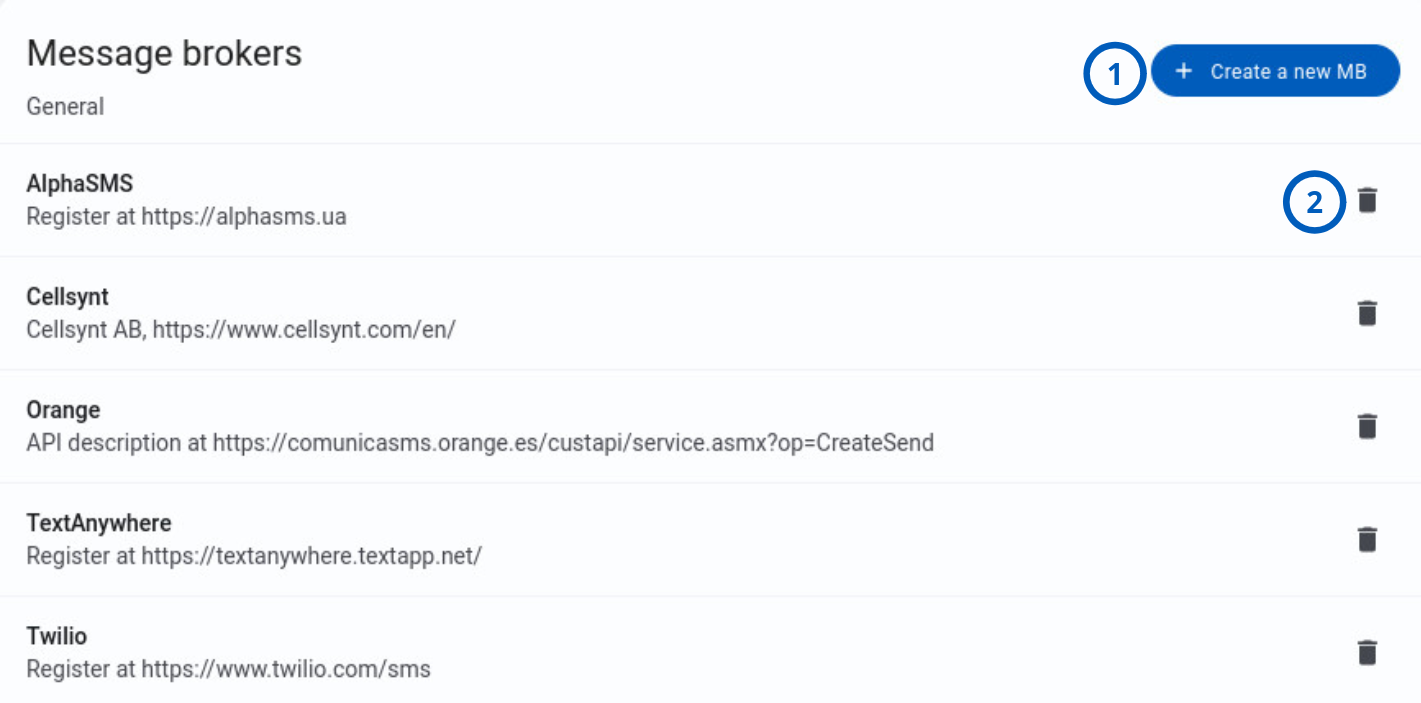
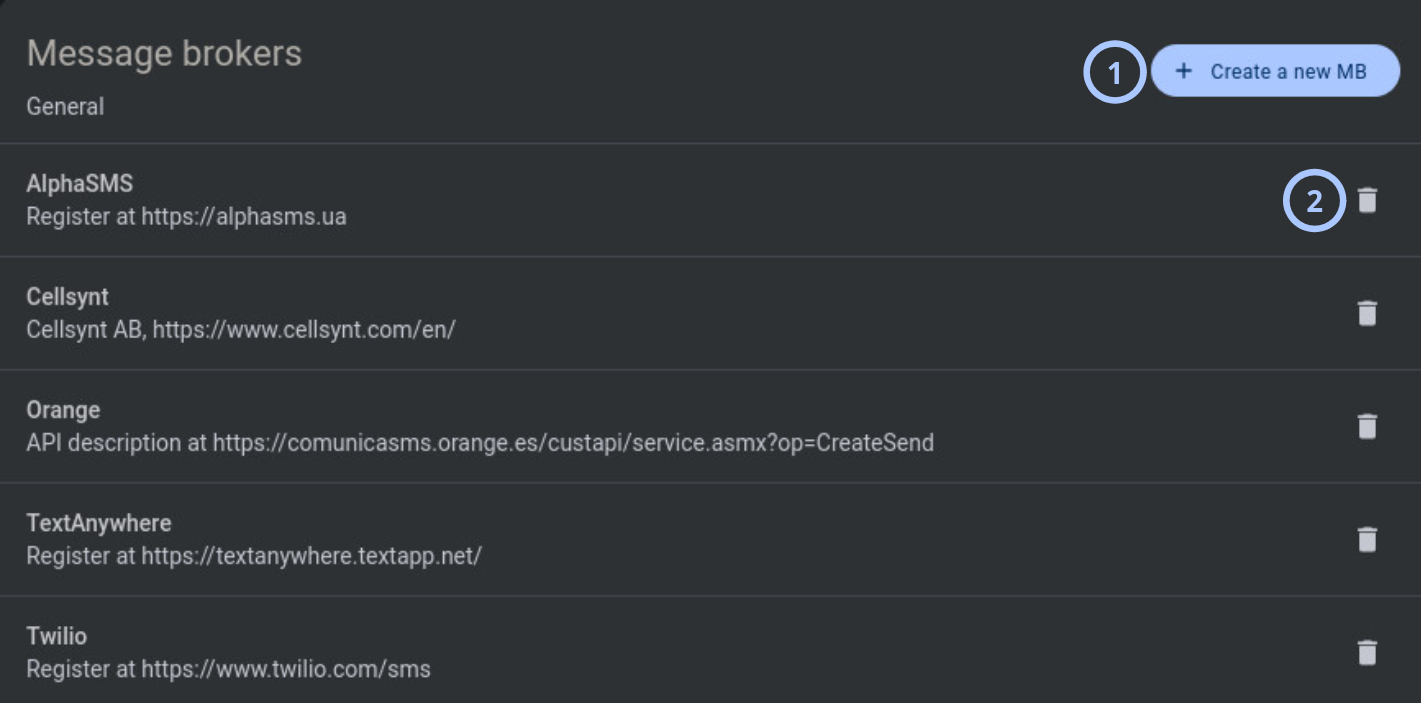
| Callout | UI element | Description | When to use |
|---|---|---|---|
| 1 | + Create a new MB button | Opens the Add message broker settings dialog. | Use to add a new message broker, including a custom HTTP Gateway broker. |
| 2 | Delete icon | Deletes the selected message broker entry. | Use when a broker is no longer needed. Before deleting a broker, confirm that no SMS workflow depends on it. |
The broker list shows one row for each configured message broker. Each row includes:
- Broker name: The display name of the SMS broker.
- Description: Provider registration information, API reference information, or a custom note.
- Delete icon: Removes the broker entry.
Select an existing broker row to open the broker settings and modify the configuration.
Add message broker settings dialog
The Add message broker settings dialog is shown as separate screenshots by section. Use the tabs below to view each part of the dialog.
- Identity
- Connection & auth
- Message template & actions
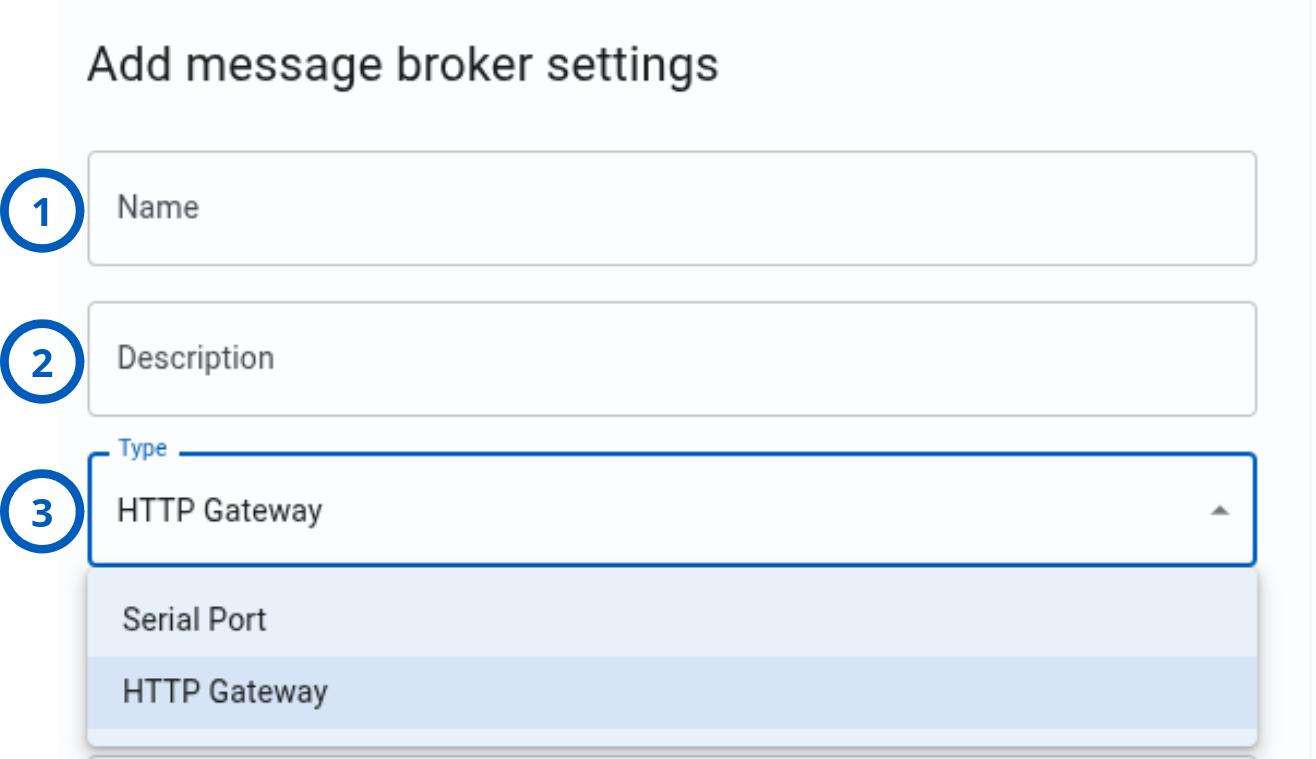
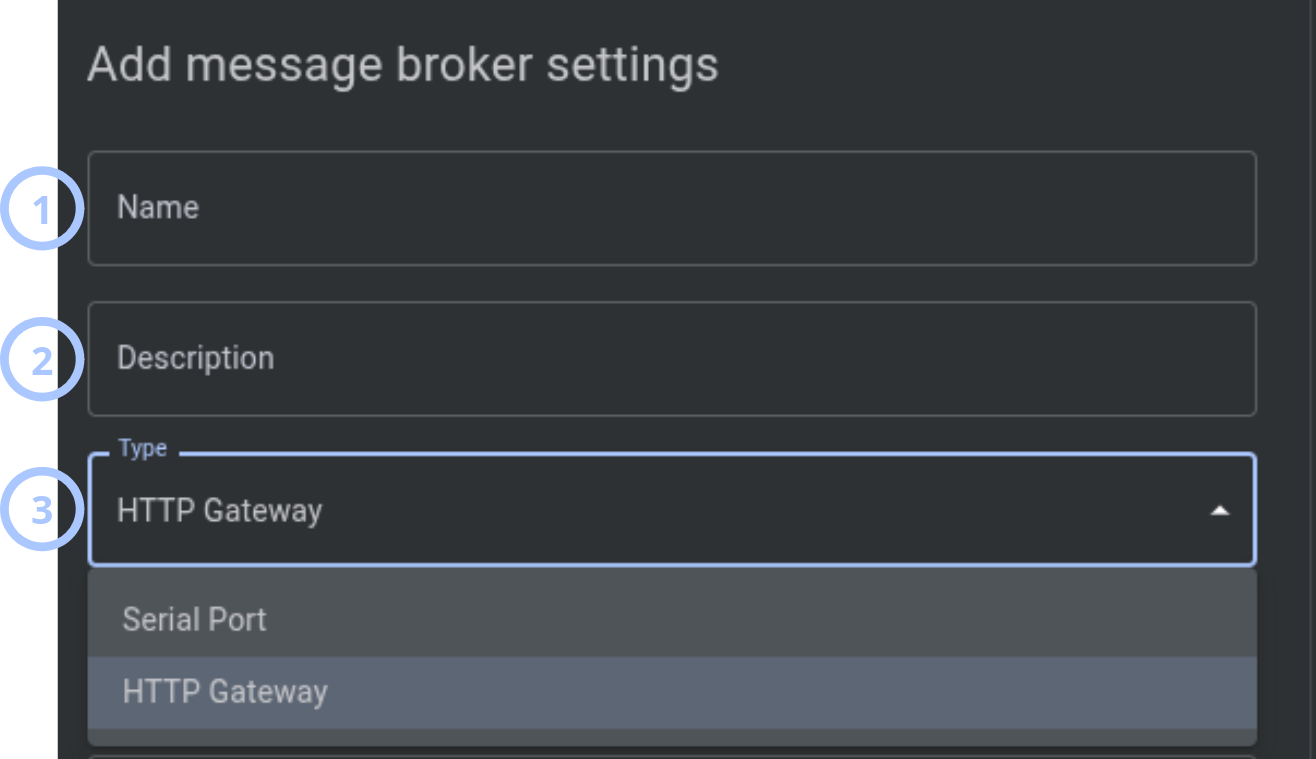
| Callout | UI element | Description | When to use |
|---|---|---|---|
| 1 | Name | Defines the display name of the message broker. | Use to enter a clear broker name that administrators can recognize in the broker list. |
| 2 | Description | Stores a free-text description for the broker. | Use to document the provider name, account purpose, API reference, or operational notes. |
| 3 | Type | Selects the broker type. Available types: HTTP Gateway and Serial Port. | Use when configuring a custom SMS provider through an HTTP Gateway or Serial Port. |
- HTTP Gateway
- Serial Port
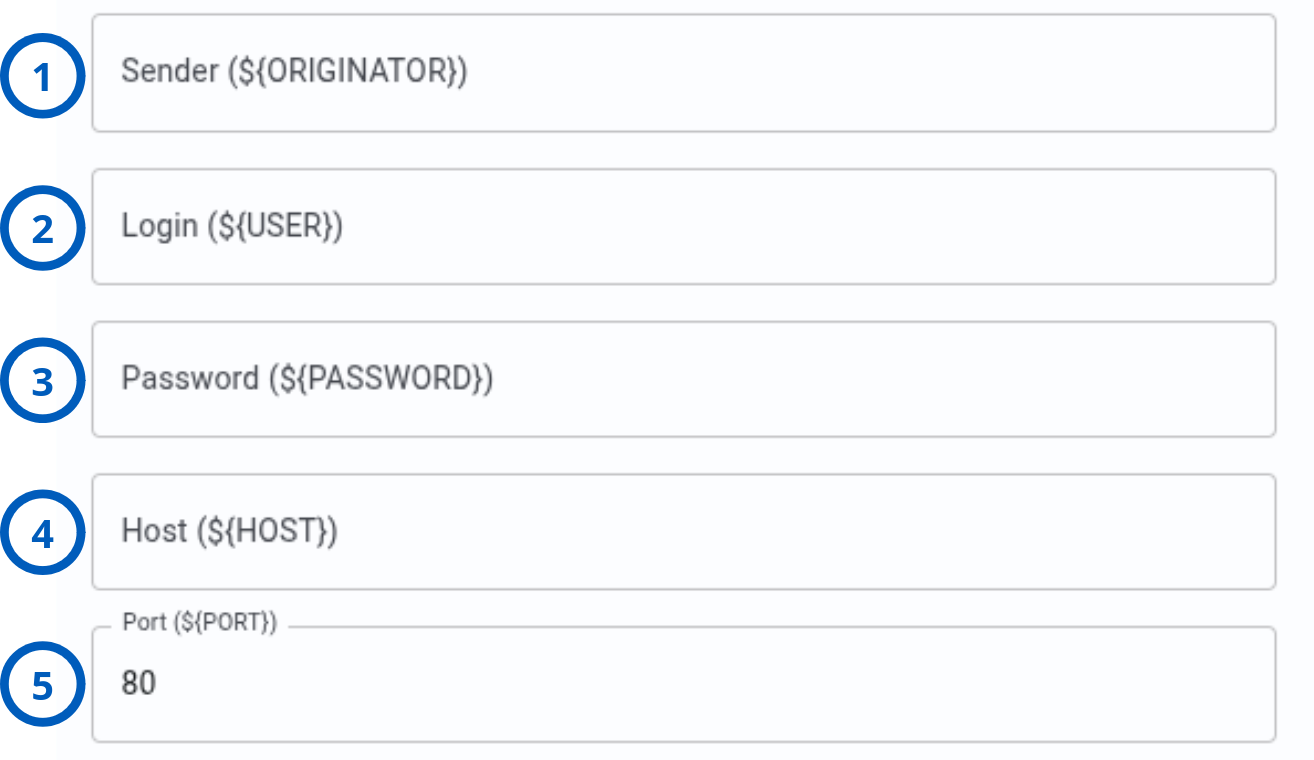
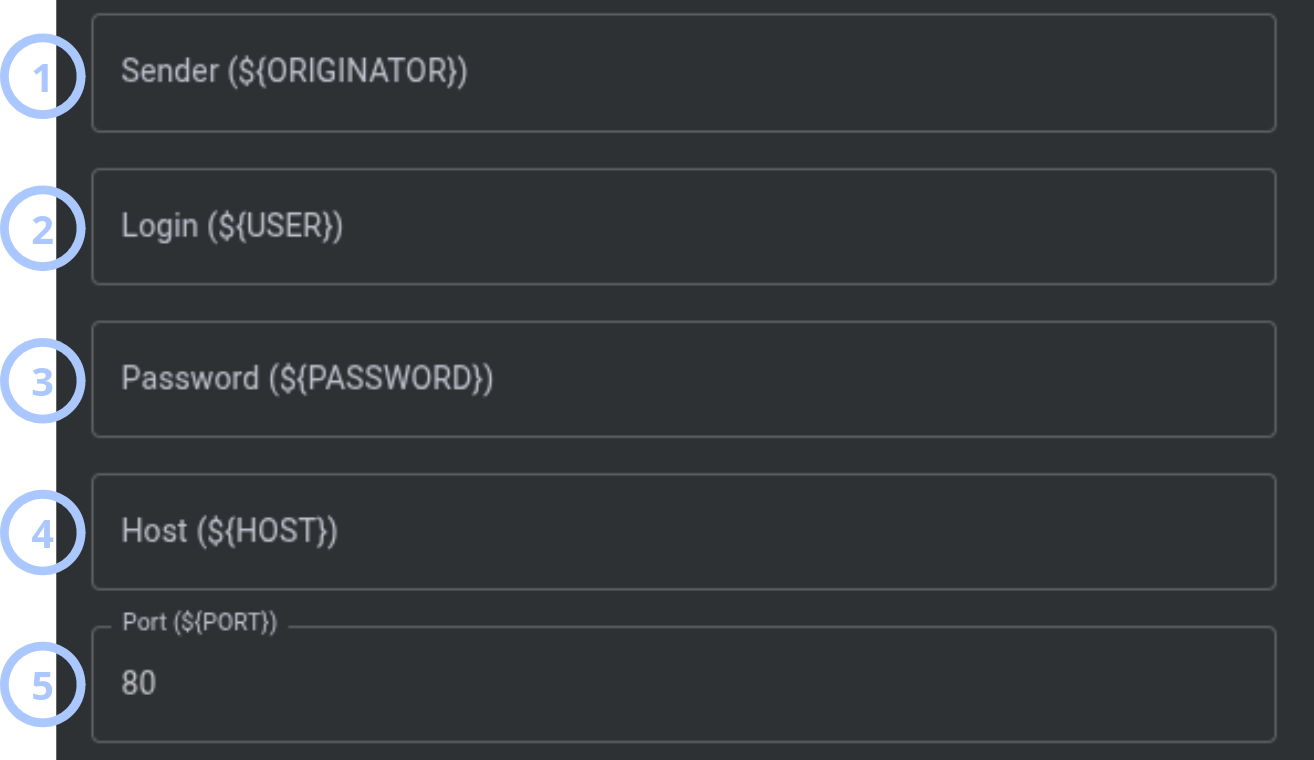
| Callout | UI element | Description | When to use |
|---|---|---|---|
| 1 | Sender (${ORIGINATOR}) | Defines the sender value that can be inserted into the request template with the ${ORIGINATOR} variable. | Use when the SMS provider requires a sender ID, originator name, or source number. |
| 2 | Login (${USER}) | Defines the login value that can be inserted into the request template with the ${USER} variable. | Use when the SMS provider requires an account name, user name, or API login. |
| 3 | Password (${PASSWORD}) | Defines the password value that can be inserted into the request template with the ${PASSWORD} variable. | Use when the SMS provider requires a password, token, secret, or API key in the SMS request. |
| 4 | Host (${HOST}) | Defines the SMS gateway host that can be inserted into the request template with the ${HOST} variable. | Use to enter the provider host name or IP address. |
| 5 | Port (${PORT}) | Defines the SMS gateway port that can be inserted into the request template with the ${PORT} variable. The default value is 80. | Use to match the provider endpoint port. Change the value if the provider requires a different HTTP or HTTPS port. |


| Callout | UI element | Description | When to use |
|---|---|---|---|
| 1 | Serial Port | Defines the serial port used to communicate with the hardware modem. | Use when an SMS modem connected via a serial port (COM/tty) and you need to specify which port PowerManage uses to communicate with the modem. |
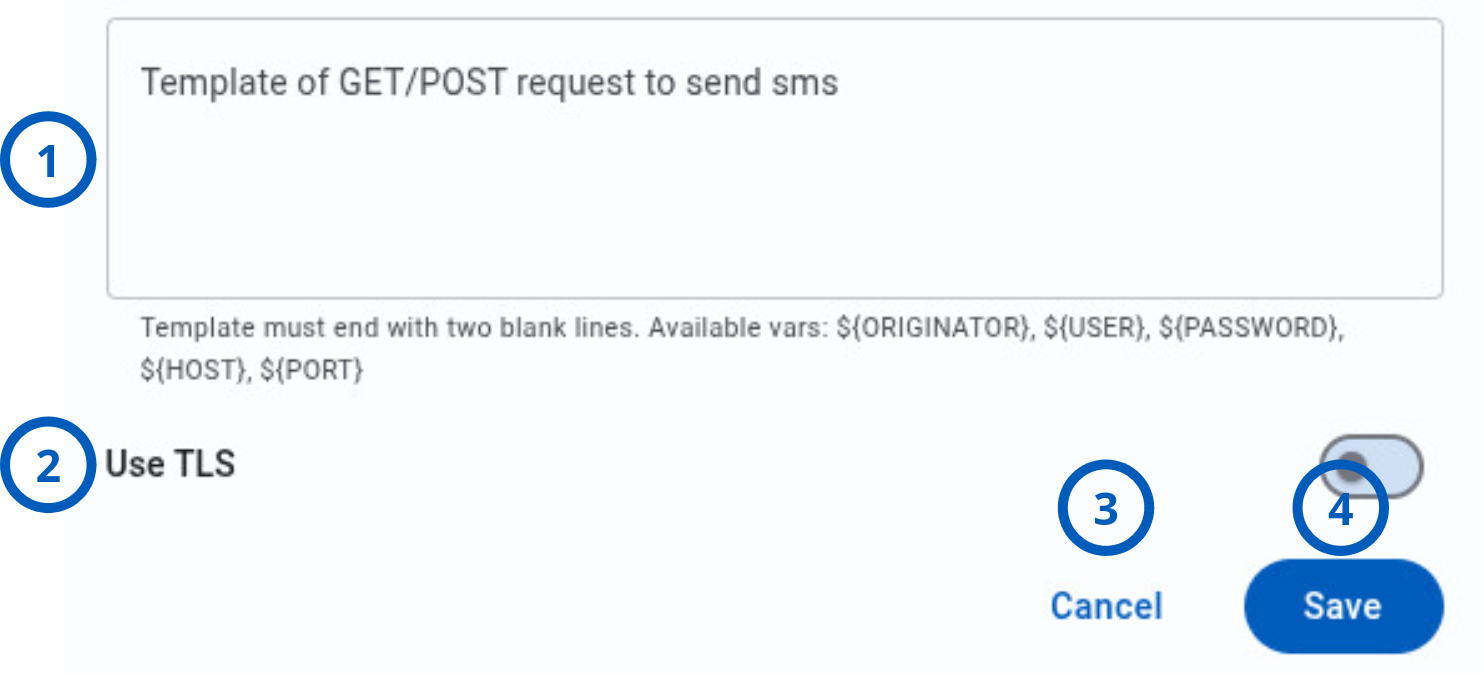
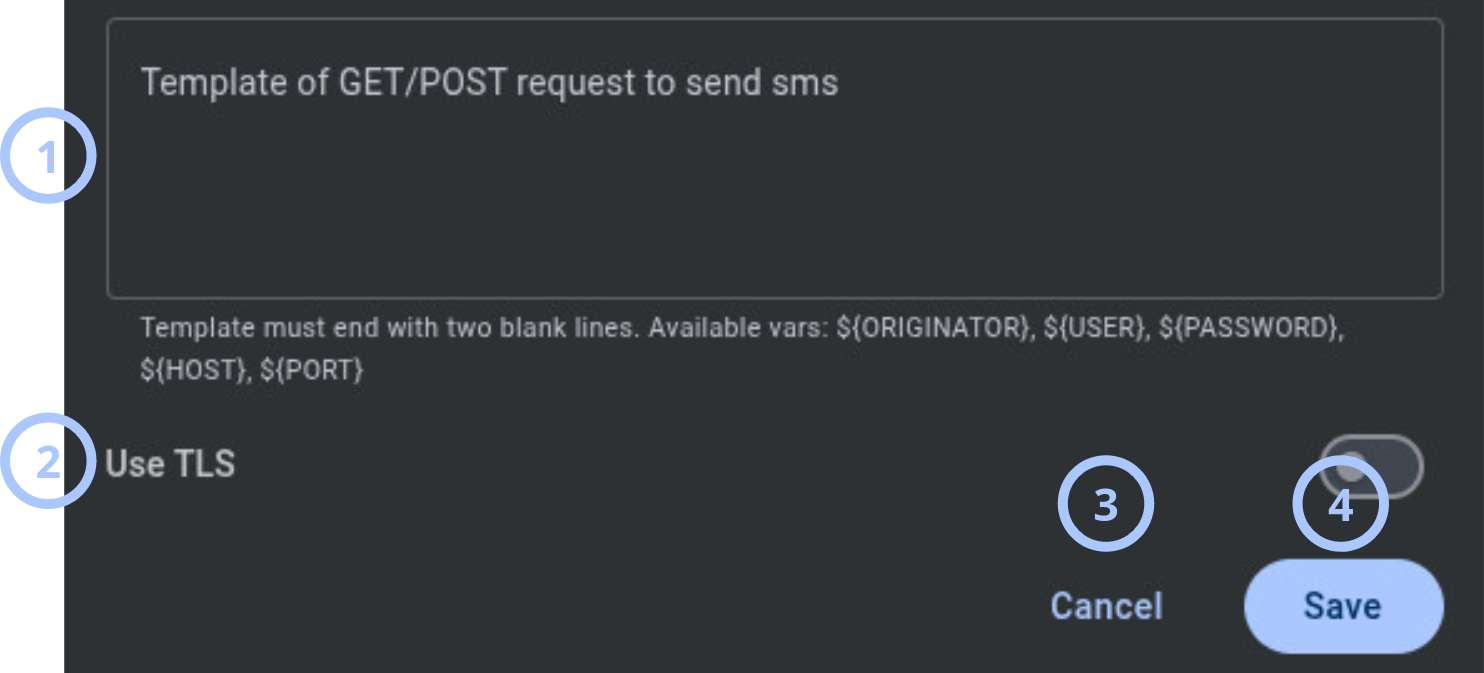
| Callout | UI element | Description | When to use |
|---|---|---|---|
| 1 | Template of GET/POST request to send sms | Defines the HTTP request template used to send SMS messages through the provider. | Use to paste or build the request format required by the SMS provider API. |
| 2 | Use TLS | Controls whether TLS is used for the broker connection. | Enable when the SMS provider requires HTTPS or another TLS-protected connection. |
| 3 | Cancel button | Closes the dialog without saving changes. | Use when you do not want to create or update the broker. |
| 4 | Save button | Saves the broker settings. | Use after all required fields and the request template are configured. |
Available configuration variables:
${ORIGINATOR}: your message broker's phone number. To the user, this number displays as the SMS sender.${USER}: the login that the message broker provides.${PASSWORD}: the password that the message broker provides.${HOST}: the message broker's URL.${PORT}: the port you use to connect to the message broker.
PowerManage also passes the following variables to the request based on panel and server configuration:
${DESTINATION}: SMS recipient number.${TEXT}: message text.${CONTENT_LENGTH}: the size of the POST request body.${ID}: an auto-increment variable.${UUID}: an auto-generated variable used as a message ID.
How to use this page
Create a message broker
Goal:
- Add a new SMS broker provider to PowerManage.
Steps:
- HTTP Gateway
- Serial Port
- Open Settings.
- Go to Message brokers.
- Select + Create a new MB.
- In Name, enter a unique broker name.
- In Description, enter a short description of the provider or purpose.
- In Type, select HTTP Gateway.
- In Sender
(${ORIGINATOR}), enter the sender value required by the SMS provider. - In Login
(${USER}), enter the provider account login or API user. - In Password
(${PASSWORD}), enter the provider password, secret, token, or API key. - In Host
(${HOST}), enter the SMS gateway host. - In Port
(${PORT}), enter the SMS gateway port. - In Template of GET/POST request to send sms, enter the provider request template.
- For HTTP Gateway enable Use TLS if the provider requires TLS.
- Select Save.
- Open Settings.
- Go to Message brokers.
- Select + Create a new MB.
- In Name, enter a unique broker name.
- In Description, enter a short description of the provider or purpose.
- In Type, select Serial Port.
- In Serial Port, select the relevant serial port connected to the GSM modem.
- Select Save.
Expected result:
- The dialog closes.
- The new broker appears in the broker list.
- PowerManage can use the broker for SMS workflows.
The request template must end with two blank lines. If the template does not follow this rule, the broker will not work as expected.
Edit a message broker
Goal:
- Update the settings for an existing SMS gateway provider.
Steps:
- Open Settings.
- Go to Message brokers.
- Select the broker row that you want to edit.
- Update the required fields.
- Review the request template.
- Confirm that the TLS setting matches the provider requirements.
- Select Save.
Expected result:
- PowerManage saves the updated broker settings.
- New SMS delivery attempts use the updated configuration.
Changes can affect active notification and wake-up workflows. If you change host, port, credentials, TLS, or template values, validate SMS delivery after saving.
Delete a message broker
Goal:
- Remove a broker that is no longer used.
Steps:
- Open Settings.
- Go to Message brokers.
- Find the broker in the list.
- Select the delete icon on the broker row.
- Confirm the deletion.
Expected result:
- The broker is removed from the list.
- PowerManage no longer uses the deleted broker for SMS delivery.
Do not delete a broker until you confirm that no SMS notifications, alerts, wake-up messages, or operational workflows depend on it.
Configure a custom HTTP Gateway broker
Goal:
- Add an SMS provider that is not available as a predefined broker.
Steps:
- Obtain the SMS API documentation from the provider.
- Confirm whether the provider uses HTTP or HTTPS.
- Confirm the required authentication method.
- Confirm the required request format for sending SMS.
- On the Message brokers page, select + Create a new MB.
- Set Type to HTTP Gateway.
- Enter the provider host, port, login, password, and sender values.
- Build the request template using the supported variables.
- Add two blank lines at the end of the template.
- Enable Use TLS if the provider requires HTTPS or TLS.
- Select Save.
- Trigger a controlled SMS workflow to validate delivery.
Expected result:
- The custom broker is saved.
- PowerManage can send SMS requests to the provider through the configured HTTP Gateway.
The exact request template depends on the SMS provider API. Use the provider documentation when building the GET or POST request.
Tips
- Use a broker name that identifies the provider and purpose, such as
Twilio productionorHTTP gateway backup. - Keep the description useful for operations teams. Include the provider name, account purpose, or API documentation link.
- Use TLS when the provider supports HTTPS or requires secure transport.
- Keep a copy of the provider API documentation with your system configuration records.
- After changing credentials, host, port, template, or TLS settings, validate SMS delivery with a controlled test workflow.
- If multiple brokers exist, document which broker is used for each operational purpose.
Troubleshooting
SMS messages are not delivered
Possible causes
- The broker credentials are incorrect.
- The host or port is incorrect.
- The provider account is inactive, blocked, or out of credit.
- The request template does not match the provider API.
- The request template does not end with two blank lines.
- TLS is enabled when the provider does not support TLS, or TLS is disabled when the provider requires TLS.
- Firewall or routing rules block outbound traffic from the PowerManage server.
What to do
- Verify the provider account status.
- Confirm the host and port with the SMS provider documentation.
- Confirm that the login, password, token, or API key is correct.
- Review the request template against the provider API.
- Add two blank lines at the end of the request template.
- Confirm whether Use TLS must be enabled.
- Check network connectivity from the PowerManage server to the provider endpoint.
- Save the broker and retry a controlled SMS workflow.
SMS wakeup does not work
Possible causes
- No working SMS broker is configured.
- The broker configuration is invalid.
- The panel SIM number is missing or incorrect.
- The panel SIM cannot receive SMS.
- Cellular connected settings use a different SMS broker.
- Group-level wakeup settings do not require SMS for the affected panel type.
What to do
- Confirm that SMS wakeup is expected for the panel type and workflow.
- Verify the panel SIM number.
- Confirm that the SIM can receive SMS.
- Review the broker host, port, credentials, template, and TLS setting.
- Confirm that the broker can send a regular SMS through a controlled workflow.
- Review the Cellular connected settings.
- Review the relevant group settings for wakeup behavior. Local wakeup should be disabled.
Broker was deleted by mistake
Possible causes
- The delete icon was selected on the wrong broker row.
- A broker was removed before dependencies were checked.
What to do
- Recreate the broker with the same provider settings.
- Re-enter the host, port, credentials, sender, template, and TLS option.
- Save the broker.
- Validate SMS delivery.
- Review dependent notification and wake-up workflows.