Authorization settings
Overview
Use the Authorization settings page to control authentication behavior for customer and installer access.
Use this page when you need to:
- Control verification-code expiration.
- Set login attempt limits and lock timeouts for account and panel access.
- Configure permanent user behavior for panel access.
These settings help reduce brute-force and replay risk while keeping access practical for authorized users.
Before you begin
Required permissions
- You must have permission for the Interactive category in Server Settings.
Preconditions
- The Interactive category of Server Settings section is available to your role.
- You understand your organization's policy for session lifetime, retry limits, and lockouts.
Important limitations
warning
- Saving any change restarts the session-manager-related service, which clears in-memory lock state and permanent-user state.
- If a value is too strict, legitimate users can be locked out more often.
- If a value is too permissive, brute-force and replay exposure increases.
Page layout
Authorization settings dialog
info
The Authorization settings dialog is shown as separate screenshots by section. Use the tabs below to view each part of the dialog.
- Factor & code settings
- Login lockout settings
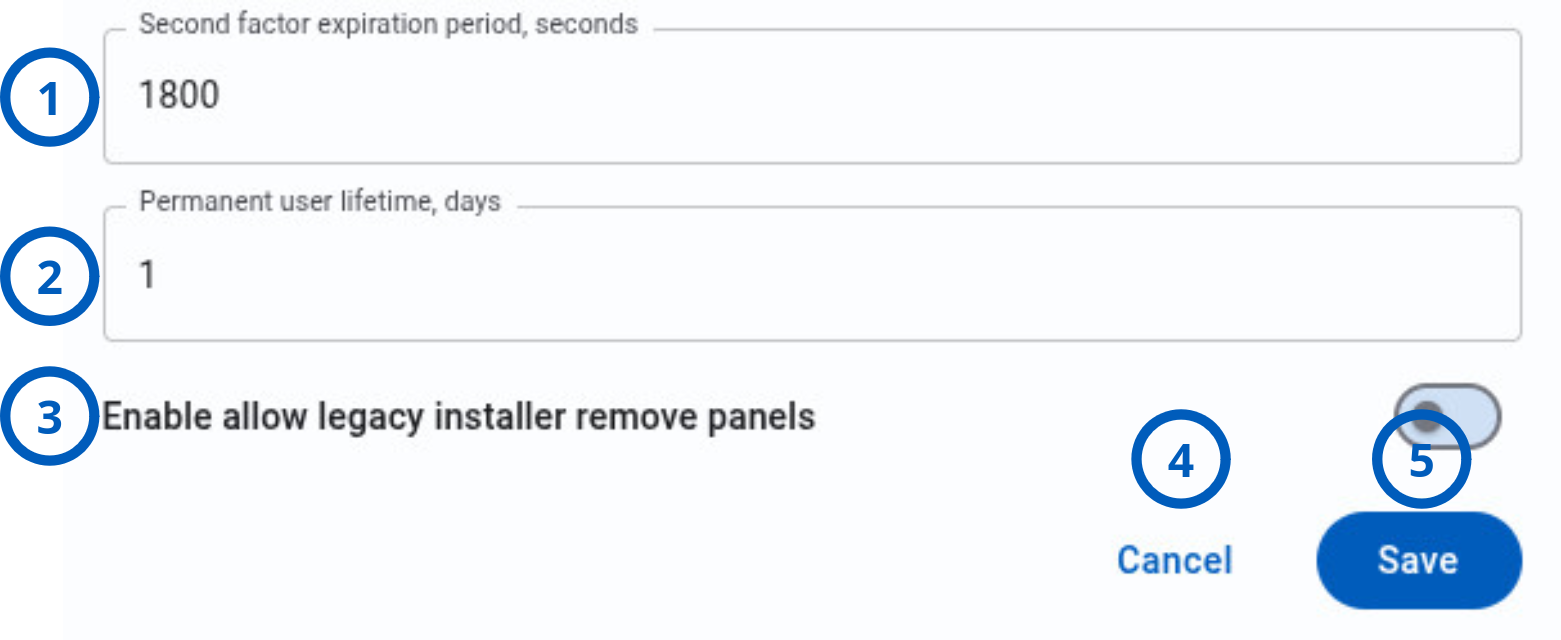
- Second factor & account lifecycle
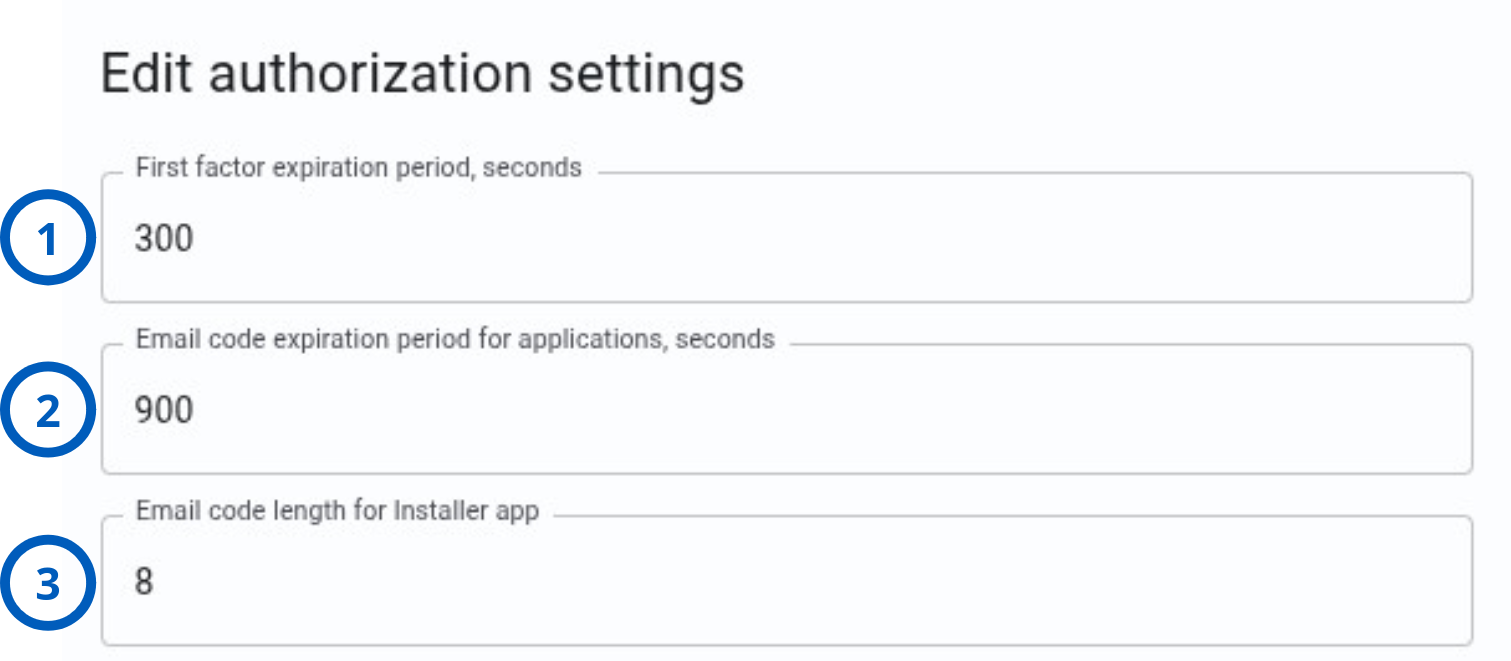
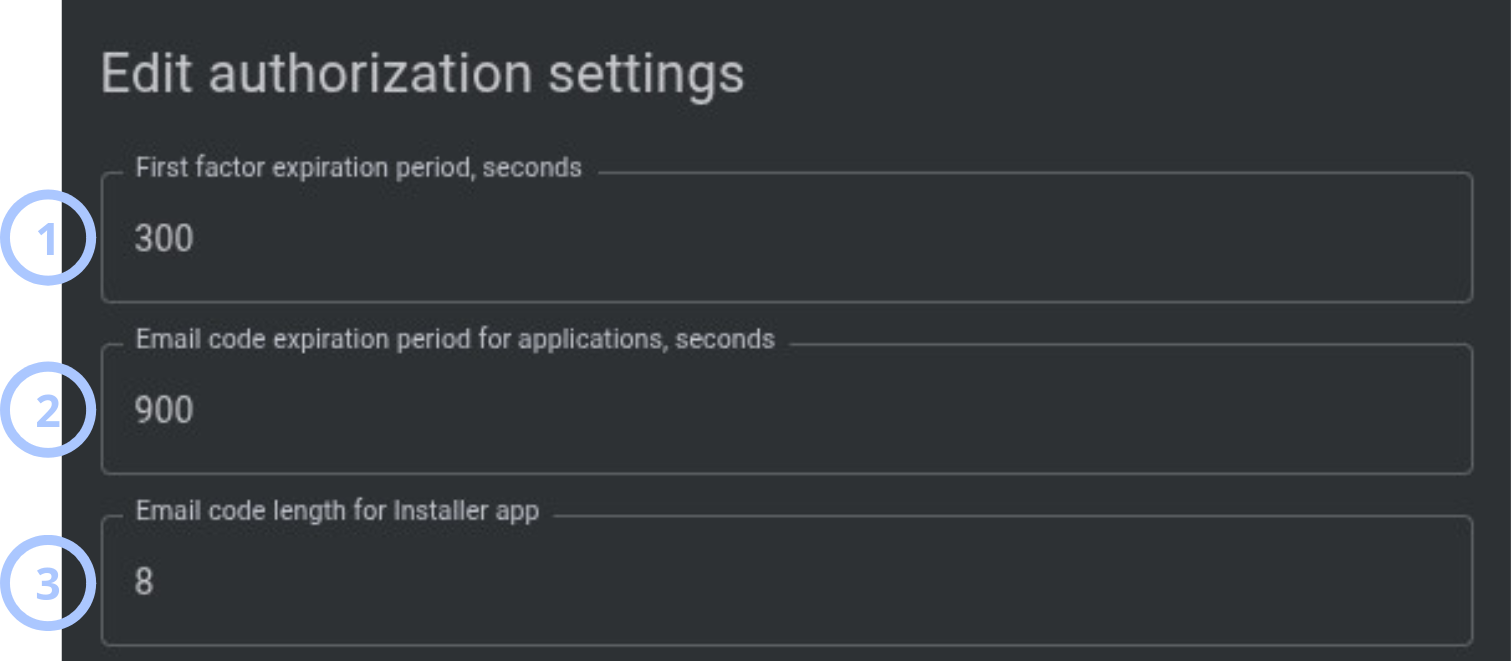
| Callout | UI element | Description | When to use |
|---|---|---|---|
| 1 | First factor expiration period, seconds | Sets the lifetime of the first-factor token issued after customer account login. Applies to the ConnectAlarm app. Accepted values: 10-100000 seconds. | Use to control idle session duration in the ConnectAlarm app. |
| 2 | Email code expiration period for applications, seconds | Sets how long email verification or registration codes remain valid. Applies to ConnectAlarm and AlarmInstall apps. Accepted values: 30-65535 seconds. | Use to limit replay risk from delayed or intercepted email codes. |
| 3 | Email code length for Installer app | Sets the code length for installer email verification flows. Applies to the AlarmInstall app. Accepted values: 5-72 digits. | Use when tuning security and usability for installer onboarding. |
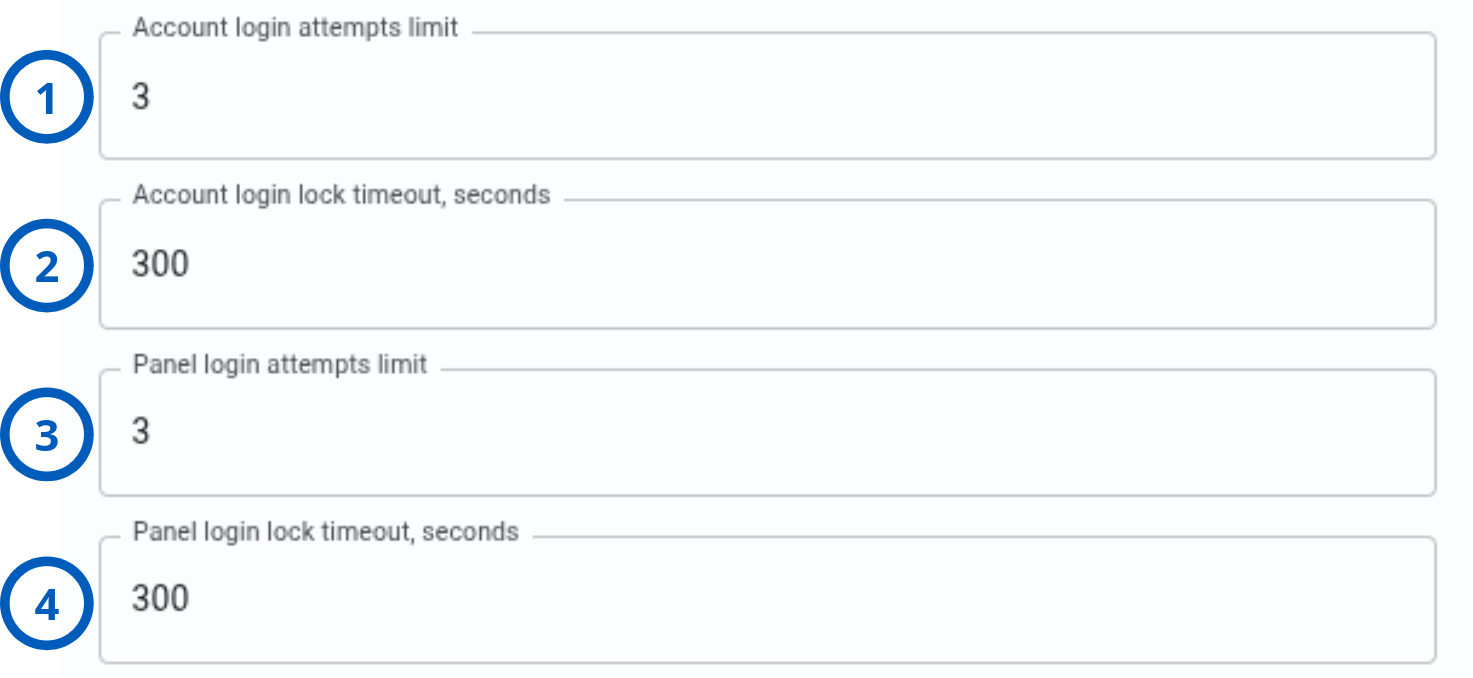
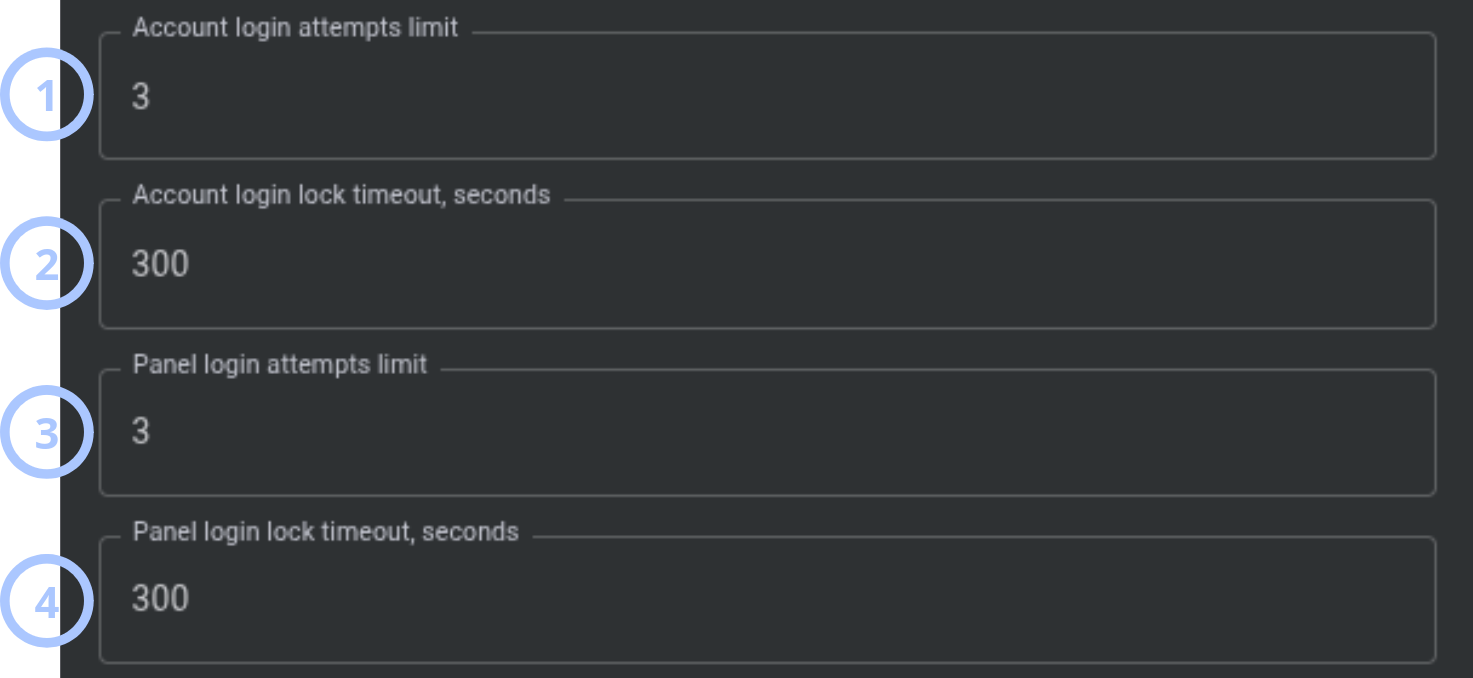
| Callout | UI element | Description | When to use |
|---|---|---|---|
| 1 | Account login attempts limit | Sets the allowed number of consecutive failed account login attempts before a temporary account lock. Applies to ConnectAlarm and AlarmInstall apps. Accepted values: 1-100 attempts. | Use to reduce brute-force and credential-stuffing attempts. |
| 2 | Account login lock timeout, seconds | Sets the lock duration after account login attempts are exhausted. Applies to ConnectAlarm and AlarmInstall apps. Accepted values: 1-100000 seconds. | Use with account attempts limit to balance protection and recovery. |
| 3 | Panel login attempts limit | Sets the allowed number of failed panel PIN attempts before lock behavior applies. Applies to AlarmInstall and ConnectAlarm apps. Accepted values: 1-100 attempts. | Use to reduce panel PIN guessing attacks. |
| 4 | Panel login lock timeout, seconds | Sets the panel lock duration after failed panel login attempts. Applies to AlarmInstall and ConnectAlarm apps. Accepted values: 1-100000 seconds. | Use to control how long panel access is blocked after repeated failures. |
| Callout | UI element | Description | When to use |
|---|---|---|---|
| 1 | Second factor expiration period, seconds | Sets the lifetime of the panel-level session token issued after successful panel authentication. Applies to AlarmInstall and ConnectAlarm apps. Accepted values: 10-100000 seconds. | Use to control active panel session duration. |
| 2 | Permanent user lifetime, days | Sets how long a customer remains a permanent user for panel lock-bypass behavior after successful panel login. A customer (end user) who has successfully logged in to a panel through the ConnectAlarm app is granted "permanent" status for a configured period. During this period, a permanent user can log in to that specific panel even if the panel is currently locked, for example, because another customer made multiple incorrect login attempts that triggered the "Panel login lock timeout." A non-permanent user (one who has not logged in recently enough) can log in only if the panel is not locked. They must wait for the lock timeout to expire before trying again. Applies to the ConnectAlarm app. Accepted values: 1-30 days. | Use to define how long trusted recent users keep lock-bypass privilege on a panel. |
| 3 | Enable allow legacy installer remove panels | Enables legacy installer panel-removal behavior. | Use only when your deployment requires legacy installer removal compatibility. |
| 4 | Cancel button | Closes the dialog without saving current changes. | Use when you want to discard edits. |
| 5 | Save button | Saves settings and applies authorization behavior changes. | Use after reviewing values and operational impact. |
How to use this page
Configure first and second factor token expiration
Goal:
- Set how long first-factor and second-factor sessions remain valid.
Steps:
- Open Settings and go to Authorization settings.
- Select the edit icon.
- Enter the required value for First factor expiration period, seconds.
- Enter the required value for Second factor expiration period, seconds.
- Select Save.
Expected result:
- New first-factor and second-factor expiration periods apply to subsequent sessions.
Configure email verification code behavior
Goal:
- Define expiration and strength of email verification codes.
Steps:
- Open the Authorization settings edit dialog.
- Set Email code expiration period for applications, seconds.
- Set Email code length for Installer app.
- Select Save.
Expected result:
- Installer and customer verification flows use the updated email-code expiration.
- Installer verification flows use the updated code length.
Configure account login lockout policy
Goal:
- Reduce repeated password guessing against customer accounts.
Steps:
- Open the Authorization settings edit dialog.
- Set Account login attempts limit.
- Set Account login lock timeout, seconds.
- Select Save.
Expected result:
- Customer account logins are blocked for the configured timeout after repeated failed attempts.
Configure permanent user lifetime
Goal:
- Define how long recently authenticated customer users keep permanent-user status for a panel.
Steps:
- Open the Authorization settings edit dialog.
- Set Permanent user lifetime, days.
- Select Save.
Expected result:
- Customers who successfully logged into a panel keep permanent-user status for the configured number of days.
note
Default value for Permanent user lifetime, days is 1 day.
Tips
tip
- Record current values before you edit this page.
- Change lock-related values during a planned window because saving restarts the session-manager-related service.
- Keep account and panel lockout settings aligned with your incident-response policy.
- Use shorter token lifetimes for higher-security environments and longer lifetimes for operations that require extended sessions.
Troubleshooting
Too many temporary account lockouts
Possible causes
- Account login attempts limit is too low.
- Account login lock timeout, seconds is too high.
What to do
- Review account login limit and lock timeout settings.
- Increase attempt limit or reduce lock timeout if policy allows.
- Save and monitor lockout events.
Verification email code is rejected
Possible causes
- Email code expiration period for applications, seconds is too short.
- User entered an old code after it expired.
What to do
- Request a new verification code.
- Enter the new code before expiration.
- Increase the email code expiration period if policy allows it and delivery latency requires it.
Related pages
Was this page helpful?