Customer notifications
Overview
Use the Customer notifications settings to control how PowerManage sends notification messages to customers by SMS and email.
Use this page when you need to:
- Select the SMS provider used for server-generated customer notifications.
- Allow email notifications with video attachments for visual verification workflows.
- Allow standard email notifications without video attachments for routine events.
- Adjust notification delivery options to match customer communication and storage requirements.
These settings help you define how customers receive alarms and how much event detail is included in email messages.
Before you begin
Required permissions
- You must have permission to edit Interactive category settings in Server Settings.
Preconditions
- The Interactive category is available to your role.
- At least one SMS broker is configured if you plan to send SMS notifications.
- SMTP is configured if you plan to send email notifications.
Dependencies
- SMS notifications depend on a configured message broker.
- Email notifications depend on server email configuration.
- Video email notifications depend on supported cameras, event sources, and attachment handling.
Important limitations
warning
- If no SMS broker is selected, SMS notifications cannot be sent from the server.
- Large video attachments can increase email size and delivery time.
- Some mail systems can block or reject emails with large attachments.
Page layout
Customer notifications settings dialog
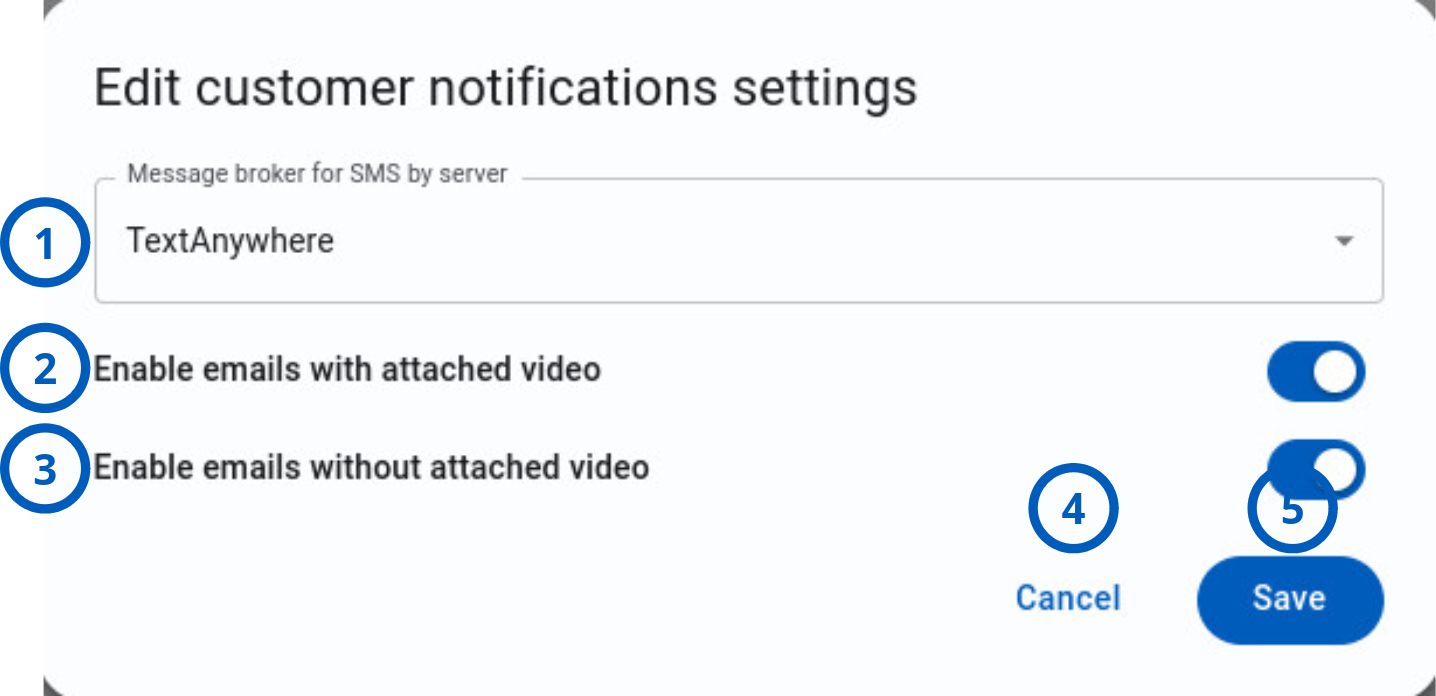
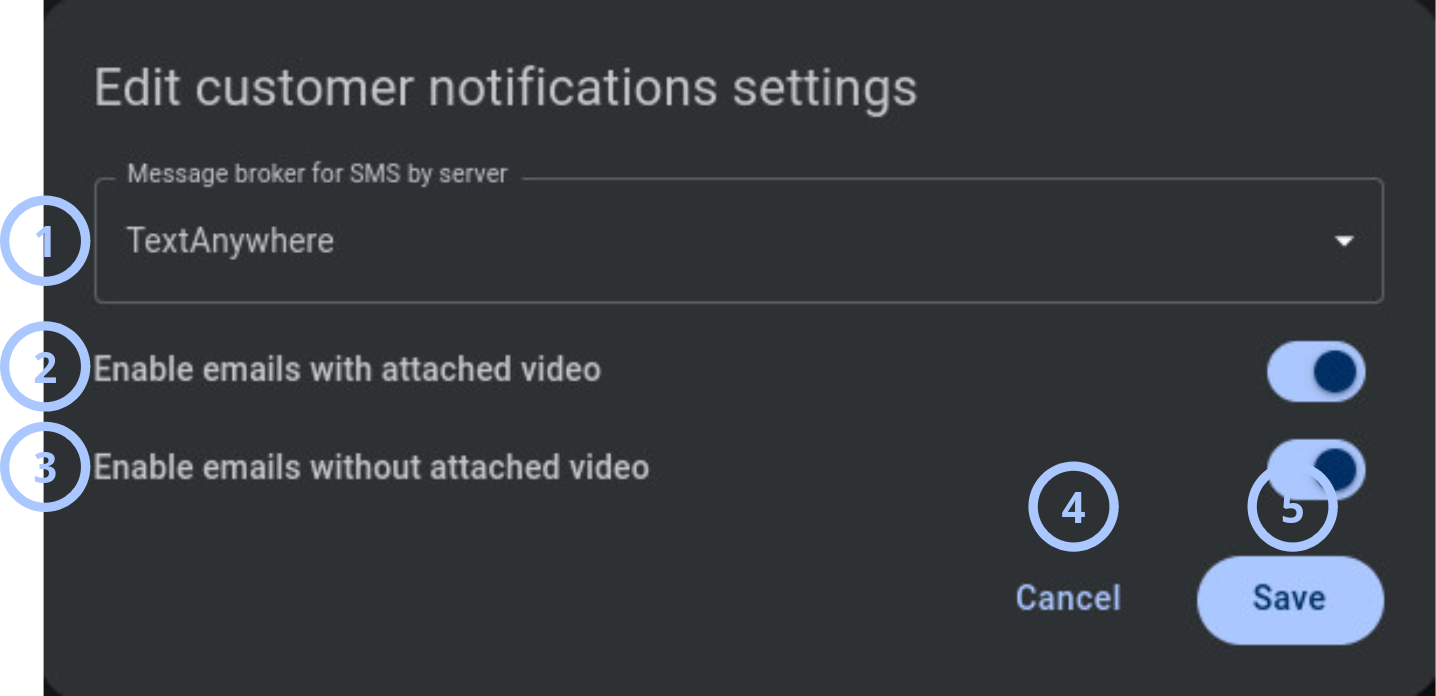
| Callout | UI element | Description | When to use |
|---|---|---|---|
| 1 | Message broker for SMS by server | Selects the third-party SMS provider the server uses to send text-message notifications to customers. | Use when customers must receive alerts by SMS, especially when app connectivity is unreliable or the app is not open. |
| 2 | Enable emails with attached video | Controls whether email notifications can include a video clip or image attachment for supported events. | Use for visual verification workflows, such as intrusion or motion events where customers need media evidence. |
| 3 | Enable emails without attached video | Controls whether standard text-based email notifications are sent without media attachments. | Use for routine event updates such as arming, disarming, or low-battery alerts when media is not required. |
| 4 | Cancel button | Closes the dialog without saving the current changes. | Use when you want to discard edits and keep the previous notification settings. |
| 5 | Save button | Saves the selected SMS and email notification settings. | Use after you confirm the delivery method and email options are correct. |
How to use this page
Configure SMS notifications
Goal:
- Select the SMS provider used for customer text notifications.
Steps:
- Open Settings.
- Select or scroll to Customer notifications.
- Select the edit icon.
- Select a value in Message broker for SMS by server.
- Select Save.
Expected result:
- PowerManage uses the selected broker for server-generated SMS notifications to customers.
Enable standard email notifications without attachments
Goal:
- Send email for routine events without media files.
Steps:
- Open the Customer notifications edit dialog.
- Turn on Enable emails without attached video.
- Select Save.
Expected result:
- Customers receive text-based email notifications for supported events without video attachments.
Configure a mixed notification policy
Goal:
- Use SMS for urgent alerts and email for routine or media-rich notifications.
Steps:
- Open the Customer notifications edit dialog.
- Select the required Message broker for SMS by server.
- Turn on Enable emails with attached video if visual verification is required.
- Turn on Enable emails without attached video if routine email notifications are required.
- Select Save.
Expected result:
- Customers can receive notifications through the configured mix of SMS and email delivery methods.
Tips
tip
- Select an SMS broker only after confirming it is configured and operational.
- Use email notifications with video attachments only for events where visual context improves response decisions.
- Use email notifications without attachments for routine events to reduce message size and storage use.
- Test delivery after changing these settings so you can confirm broker selection and email behavior.
Troubleshooting
Customers do not receive SMS notifications
Possible causes
- No value is selected in Message broker for SMS by server.
- The selected SMS broker is not configured correctly.
- The SMS provider is unavailable.
What to do
- Open Customer notifications settings.
- Confirm that Message broker for SMS by server is selected.
- Check the broker configuration in Message brokers.
Customers do not receive emails with video attachments
Possible causes
- Enable emails with attached video is turned off.
- Email delivery is not configured.
- The event does not support video or image attachments.
- The receiving mail system blocks large attachments.
What to do
- Open Customer notifications settings.
- Confirm that Enable emails with attached video is turned on.
- Confirm that email delivery is configured and operational.
- Check whether the related event source supports media attachments.
- Review mail-size limits on the sending and receiving systems.
Related pages
Was this page helpful?