Interactive session
Overview
Use the Interactive session settings to control connection capacity and define which apps and services can interact with security panels.
Use this page when you need to:
- Set server-wide and panel-level connection capacity limits.
- Enable or disable customer and installer app access for newly added panels.
- Control remote programming and maintenance capabilities via the DLS service.
- Require customer approval before installers can remotely access a panel.
These settings help balance access and functionality with resource capacity and security policy.
Before you begin
Required permissions
- You must have permission to edit Interactive category settings in Server Settings.
Preconditions
- The Interactive category is available to your role.
- You understand your organization's policy for app access and connection limits.
Dependencies
- Session limits affect all active connections to panels and services.
- App and service toggles apply to newly added panels from that point forward.
- Existing panels may retain previous settings unless explicitly reconfigured.
- Connection limits help prevent server overload but also affect how many users can connect simultaneously.
Important limitations
warning
- Reducing connection limits may disconnect users currently exceeding the new limit.
- Disabling app access for new panels affects only panels added after the change.
- High connection limits can impact server performance.
- The Approve installer access by customer setting adds workflow delays to installer access.
Page layout
Interactive session settings dialog
info
The Interactive session settings dialog is shown as separate screenshots by section. Use the tabs below to view each part of the dialog.
- Session limits
- App access toggles
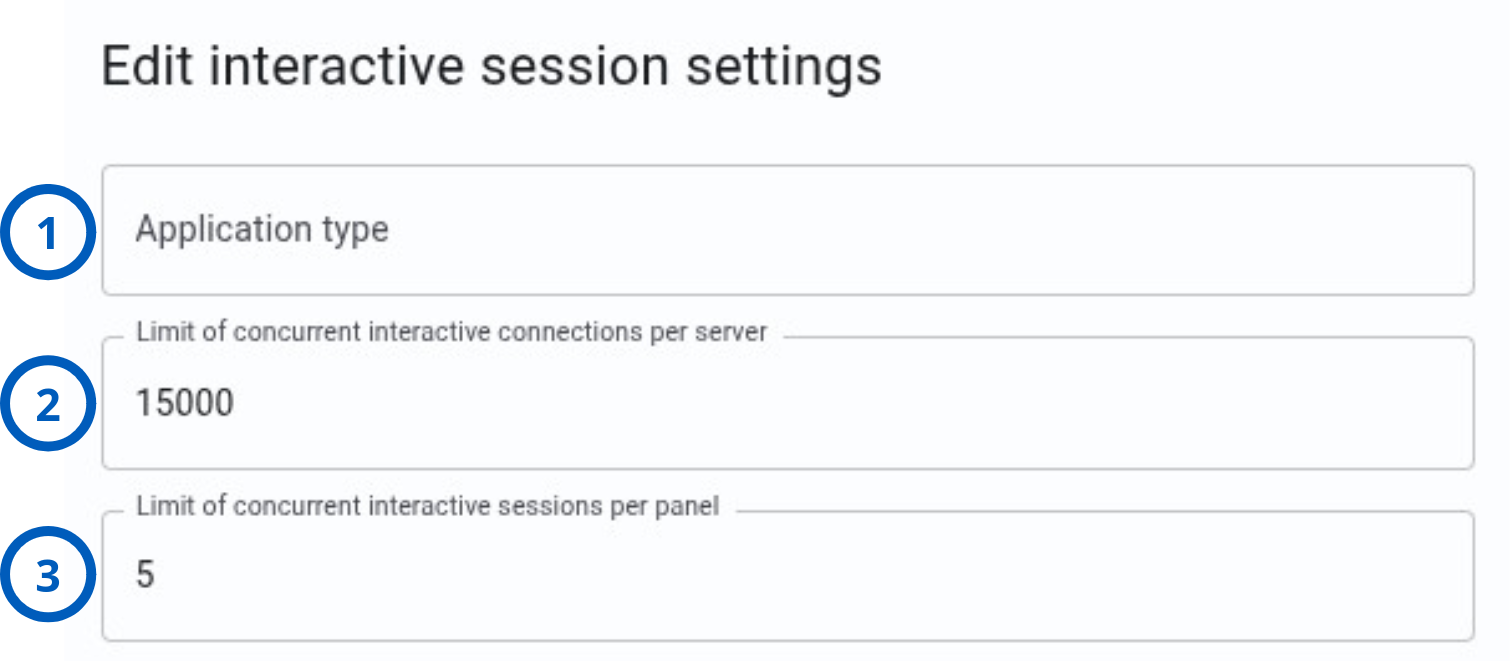
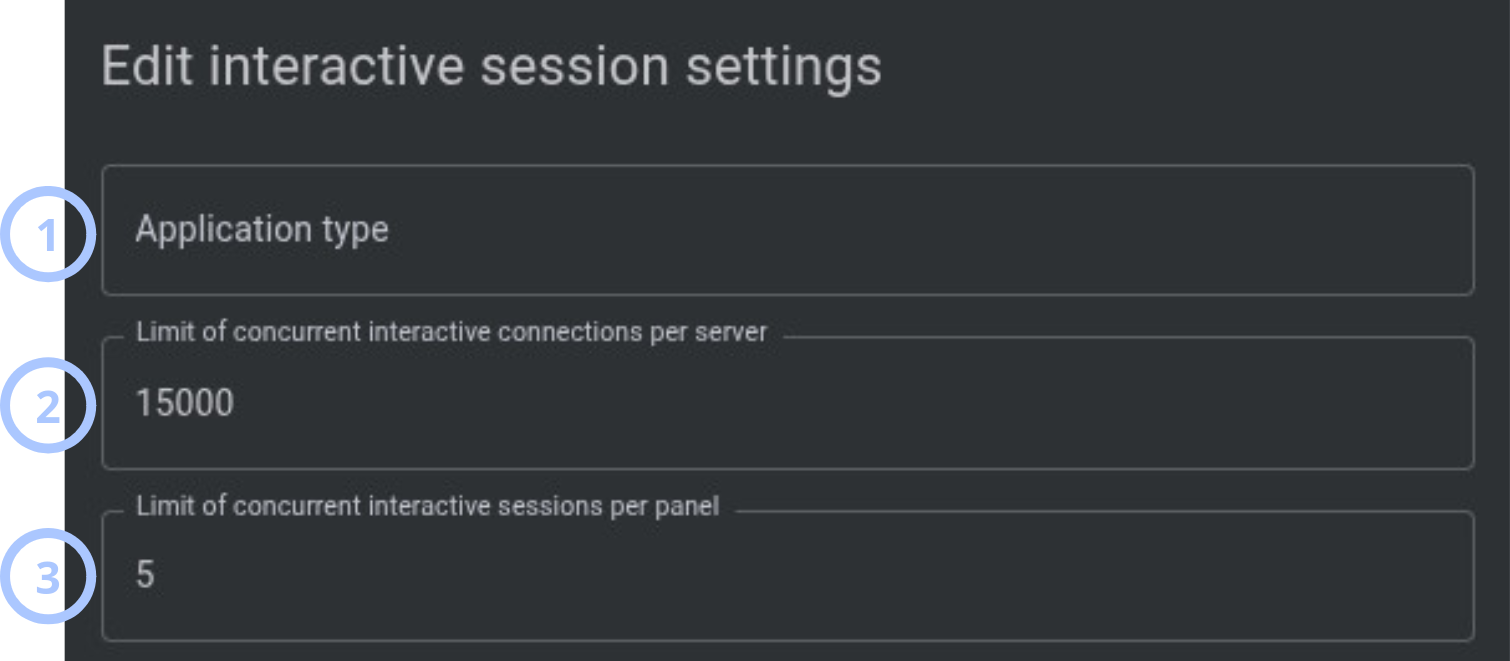
| Callout | UI element | Description | When to use |
|---|---|---|---|
| 1 | Application type | Selects which application or client type the connection limits apply to. | Use to configure limits for specific applications (e.g., mobile app, desktop client) separately. |
| 2 | Limit of concurrent interactive connections per server | Sets the maximum total active connections the server can handle at once. | Use as a capacity safety limit to prevent server crashes from over-subscription. |
| 3 | Limit of concurrent interactive sessions per panel | Sets the maximum active sessions allowed for any single panel. | Use to prevent a single panel from consuming all server resources. |
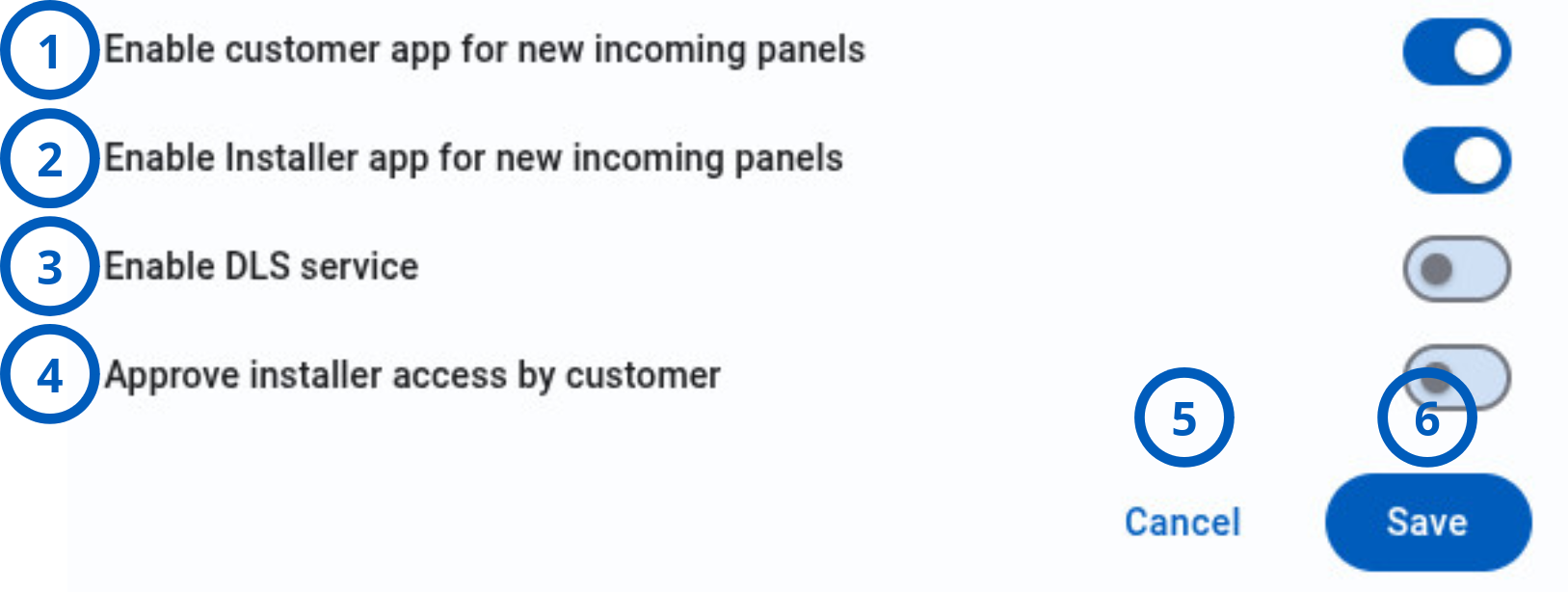
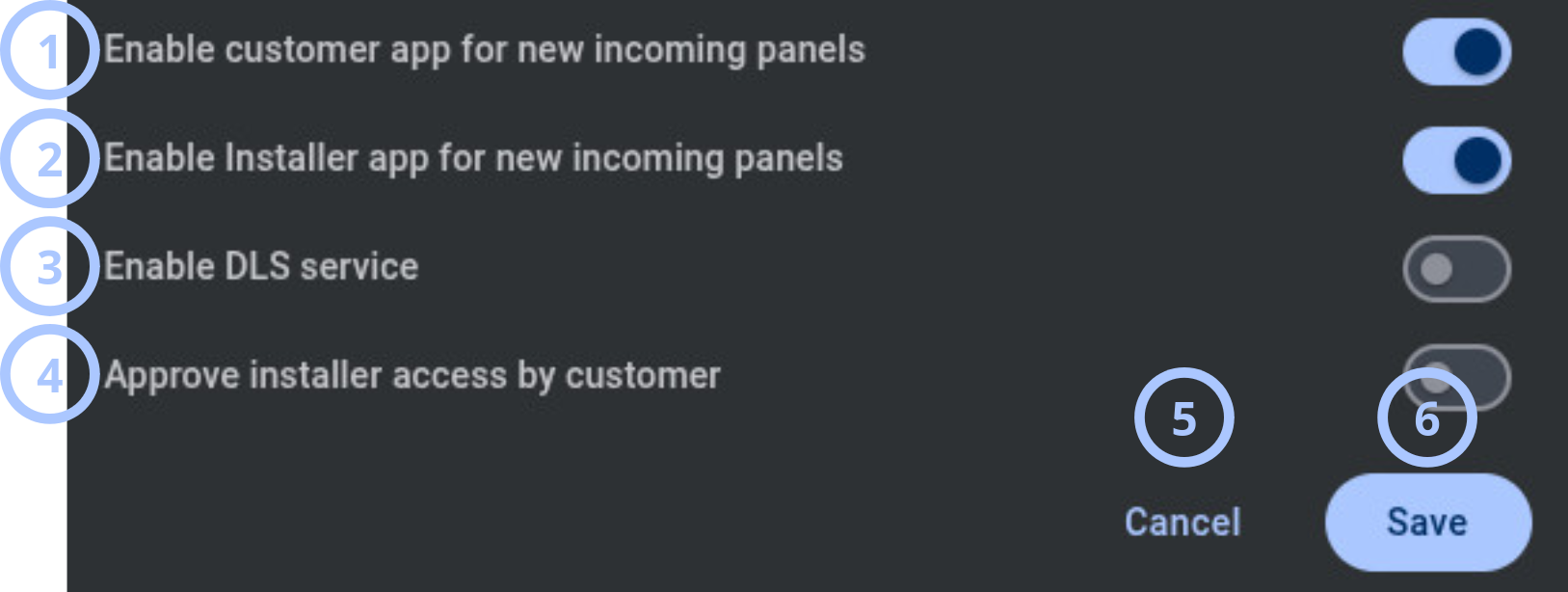
| Callout | UI element | Description | When to use |
|---|---|---|---|
| 1 | Enable customer app for new incoming panels | Controls whether the customer mobile or web application can connect to newly added panels. | Use to stage panel rollout: keep it off during testing and enable it when ready for customer access. |
| 2 | Enable Installer app for new incoming panels | Controls whether the installer application can connect to newly added panels. | Use during installation and configuration; disable when customers should have exclusive access. |
| 3 | Enable DLS service | Controls whether remote programming and firmware update services can connect to panels. | Use to enable remote maintenance windows; disable when maintenance traffic must be minimized. |
| 4 | Approve installer access by customer | Requires the customer to explicitly approve installer remote access to their panel. | Use in high-security or high-privacy environments to keep customers in control of technician access. |
| 5 | Cancel button | Closes the dialog without saving changes. | Use to discard edits. |
| 6 | Save button | Saves the current settings. | Use after reviewing all values and operational impact. |
How to use this page
Configure connection capacity limits
Goal:
- Set maximum connection limits to protect server resources.
Steps:
- Open the Interactive session edit dialog.
- Select an Application type.
- Enter the Limit of concurrent interactive connections per server.
- Enter the Limit of concurrent interactive sessions per panel.
- Select Save.
Expected result:
- The server enforces the new connection limits for the selected application type.
note
Example: Setting server limit to 15,000 and panel limit to 5 allows up to 15,000 total connections, with no single panel exceeding 5 simultaneous sessions.
Enforce customer approval for installer access
Goal:
- Require customer permission before installers can remotely access their panel.
Steps:
- Open the Interactive session edit dialog.
- Turn on Approve installer access by customer.
- Select Save.
Expected result:
- When an installer requests remote access, the customer must approve it before the connection is established.
Tips
tip
- Document your server capacity (CPU, memory, network) before setting connection limits.
- Start with conservative panel limits (e.g., 5-10) and increase only if you have operational justification.
- Use app toggles to stage new panel rollout: test with installers first, then enable customer access.
- Consider enabling Approve installer access by customer only if your security policy requires it, as it adds approval delays.
Troubleshooting
New panels cannot be accessed by the customer app automatically
Possible causes
- Enable customer app for new incoming panels is turned off.
- The panel was added before this setting was turned on.
What to do
- Open Interactive session settings.
- Confirm that Enable customer app for new incoming panels is turned on.
- If the setting is off, turn it on and select Save.
- For existing panels added while the setting was off, enable it manually.
Installers cannot access newly added panels automatically
Possible causes
- Enable Installer app for new incoming panels is turned off.
- The panel was added before this setting was turned on.
- Approve installer access by customer requires customer approval.
What to do
- Open Interactive session settings.
- Confirm that Enable Installer app for new incoming panels is turned on.
- If approval is required, ask the customer to approve installer access.
- If the setting is off, turn it on and select Save.
- For existing panels added while the setting was off, enable it manually.
Users receive "connection limit exceeded" error
Possible causes
- Limit of concurrent interactive connections per server has been reached.
- Limit of concurrent interactive sessions per panel has been reached for that panel.
- High traffic periods exceed configured limits.
What to do
- Increase Limit of concurrent interactive connections per server if hardware capacity allows.
- Increase Limit of concurrent interactive sessions per panel if needed.
- Ask users to disconnect idle sessions or retry during lower-traffic periods.
- Monitor trends and adjust limits based on operational demand.
Related pages
Was this page helpful?