Overview
Overview
The Settings page provides a central place to review and manage PowerManage configuration.
Use this page when you need to:
- Review system settings grouped by category.
- Open a settings section and check its current values.
- Edit settings such as auto-enrollment, receiver behavior, wakeup behavior, message broker configuration and even more.
The settings in PowerManage are primarily managed through the Web GUI.
Before you begin
Required permissions
- You must have permission to the relevant category of Server Settings.
info
Access to the Settings page and configuration actions is controlled by a role permission group.
Preconditions
- You are signed in to PowerManage.
- The Web GUI is available.
- At least one settings category is allowed for your user.
Important limitations
warning
- Changes to settings can affect panel enrollment, connectivity, receiver behavior, and automation flows.
- Some setting changes may require a service refresh, reconnect, or background synchronization before the effect is visible.
- Do not change any settings unless you understand the operational impact.
Page layout
Settings overview
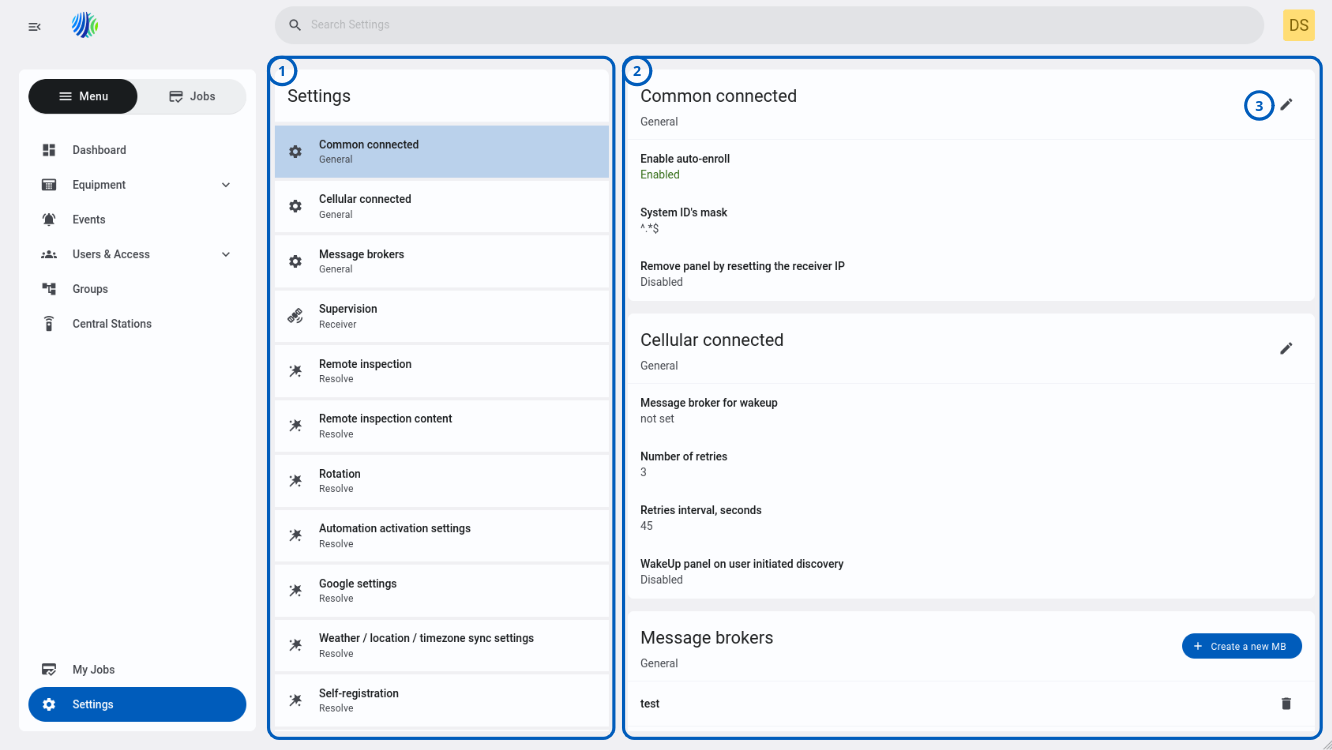
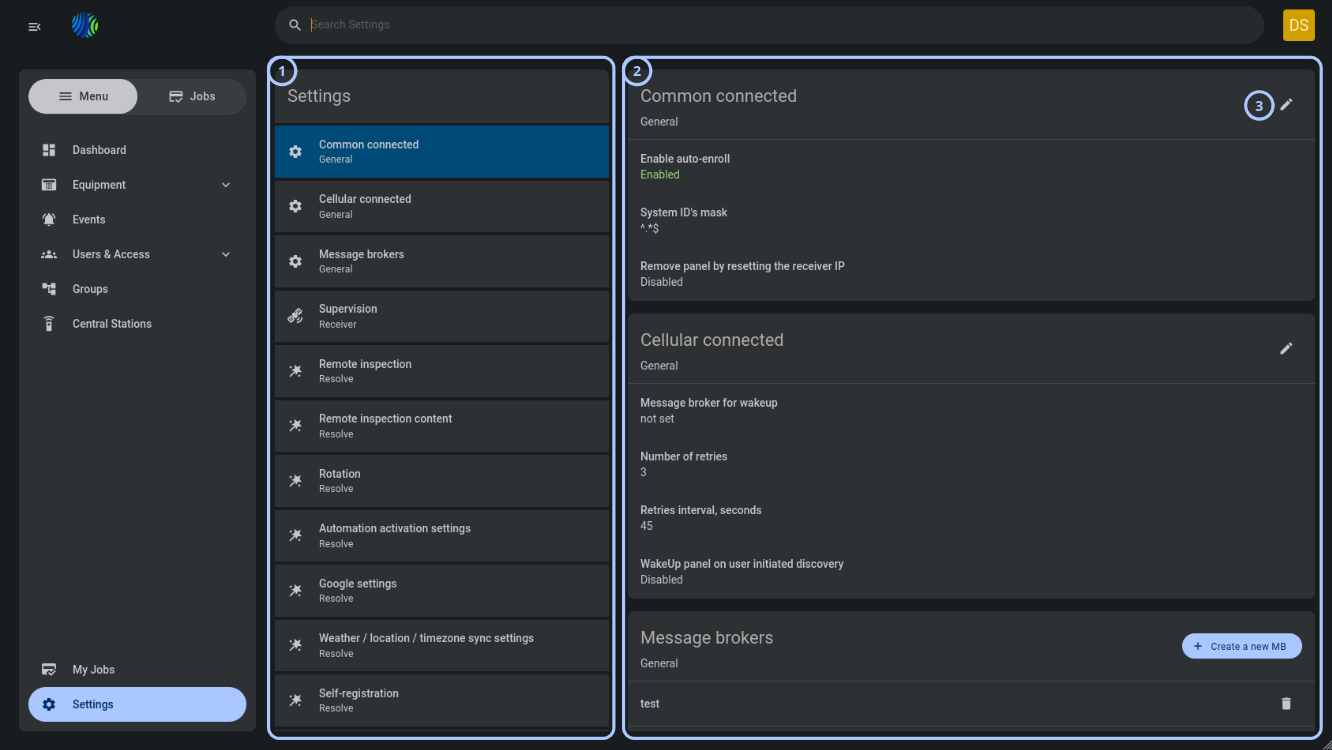
| Callout | UI element | Description | When to use |
|---|---|---|---|
| 1 | Settings navigation panel | Lists available settings sections. Each row shows a settings name and a category label, such as General, Receiver, Resolve, or Interactive. The selected row is highlighted. | Use to choose the settings section that you want to review or edit. |
| 2 | Settings details area | Shows setting cards for the selected or visible settings sections. Each card contains the section title, category, current values, and available actions. | Use to review current configuration values and find settings that require changes. |
| 3 |  | Opens the edit dialog for the related settings card. | Use when you need to change values in a settings section. |
How to use this page
Review settings
Goal:
- Check the current value of a setting.
Steps:
- Go to Settings from the main navigation.
- In the settings navigation panel, select the settings section that you want to review.
- Review the related card in the settings details area.
- Check the setting name and current value.
Expected result:
- The selected settings section is highlighted.
- The settings details area shows the current values for the selected section.
Search for a setting
Goal:
- Find a settings section without browsing the full list.
Steps:
- Go to Settings.
- Select the Search field in the header.
- Enter part of the setting name or category name.
- Review the matching results.
Expected result:
- The settings list or visible results update to match the search text.
Tips
tip
- Review the current values before selecting an edit icon.
- Use the settings navigation panel to move between sections without leaving the page.
- Search by section name when you know which setting you need.
- Record existing values before making operational changes so that you can restore them if needed.
Troubleshooting
The Settings page is not available
Possible causes
- You do not have permission to view Settings page.
- Your session expired.
- The Web GUI did not load the navigation correctly.
What to do
- Refresh the browser page.
- Sign out and sign in again.
- Confirm that your role includes access to at least on settings category.
- Contact an administrator if the page is still unavailable.
Search does not find the expected setting
Possible causes
- The search text does not match the available setting or category name.
- The setting catregory is not available to your role.
What to do
- Clear the search field.
- Search by a shorter term, such as part of the setting name.
- Confirm that your role allows access to the relevant settings category.
Related pages
Was this page helpful?