Supervision
Overview
Use the Supervision settings to configure how PowerManage handles panel connection status changes.
These settings control whether PowerManage sends notifications and generates system events when connected security panels go online or offline. Use this page when you need to:
- Notify administrators or monitoring teams about panel connectivity changes.
- Record online and offline events in the event history.
- Control event generation behavior for panels that use one communication channel or two communication channels.
Supervision settings help operators detect communication issues, review connectivity history, and respond when a panel loses connection to the PowerManage server.
Before you begin
Required permissions
- You must have permission to Receiver category of Server Settings.
Important limitations
- Changes apply to all panels.
- Enabling notification options does not create email or SMS delivery services. Configure the required external services first.
- If supervision is disabled for a channel, PowerManage will not generate online or offline events for that channel.
- For two-channel panels, system-level online and offline event behavior depends on how both communication paths are evaluated.
- The default state for each option is disabled.
Page layout
The Edit supervision settings dialog contains four supervision options and two action buttons.
Edit supervision settings dialog
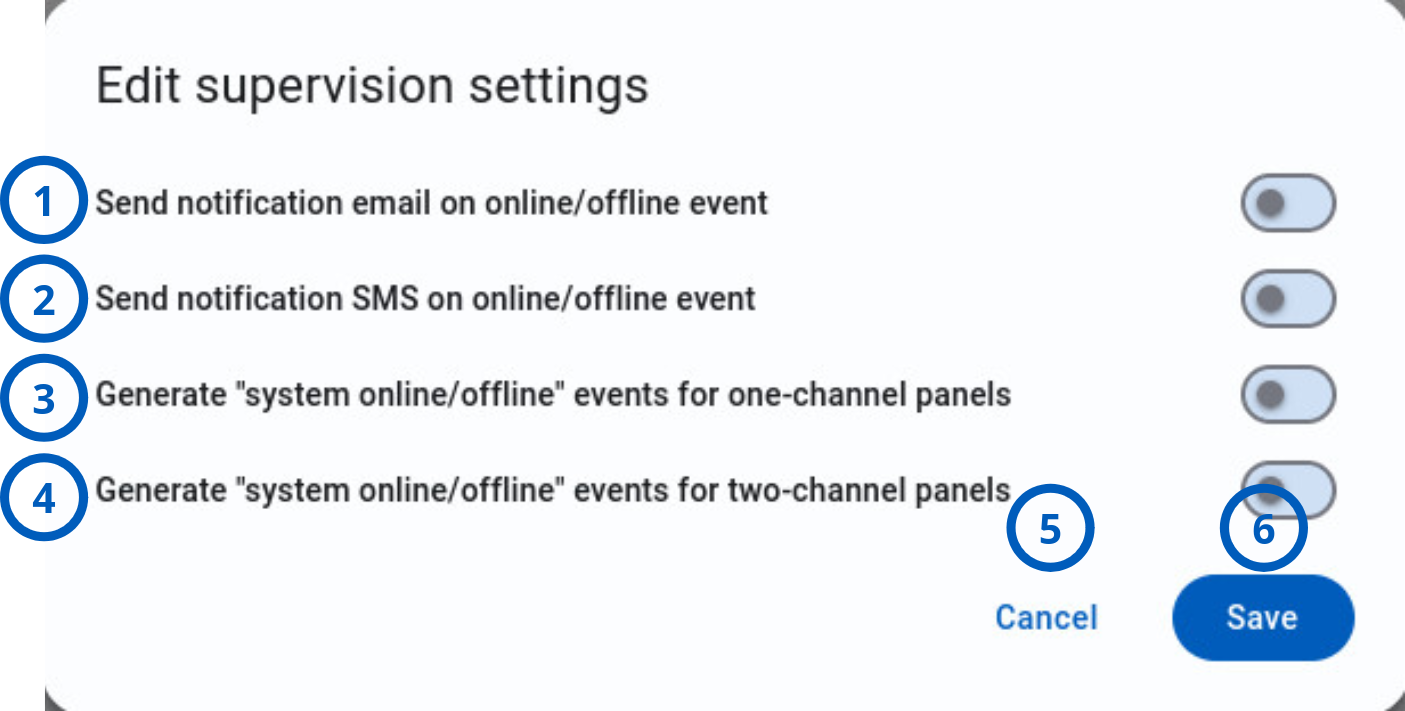
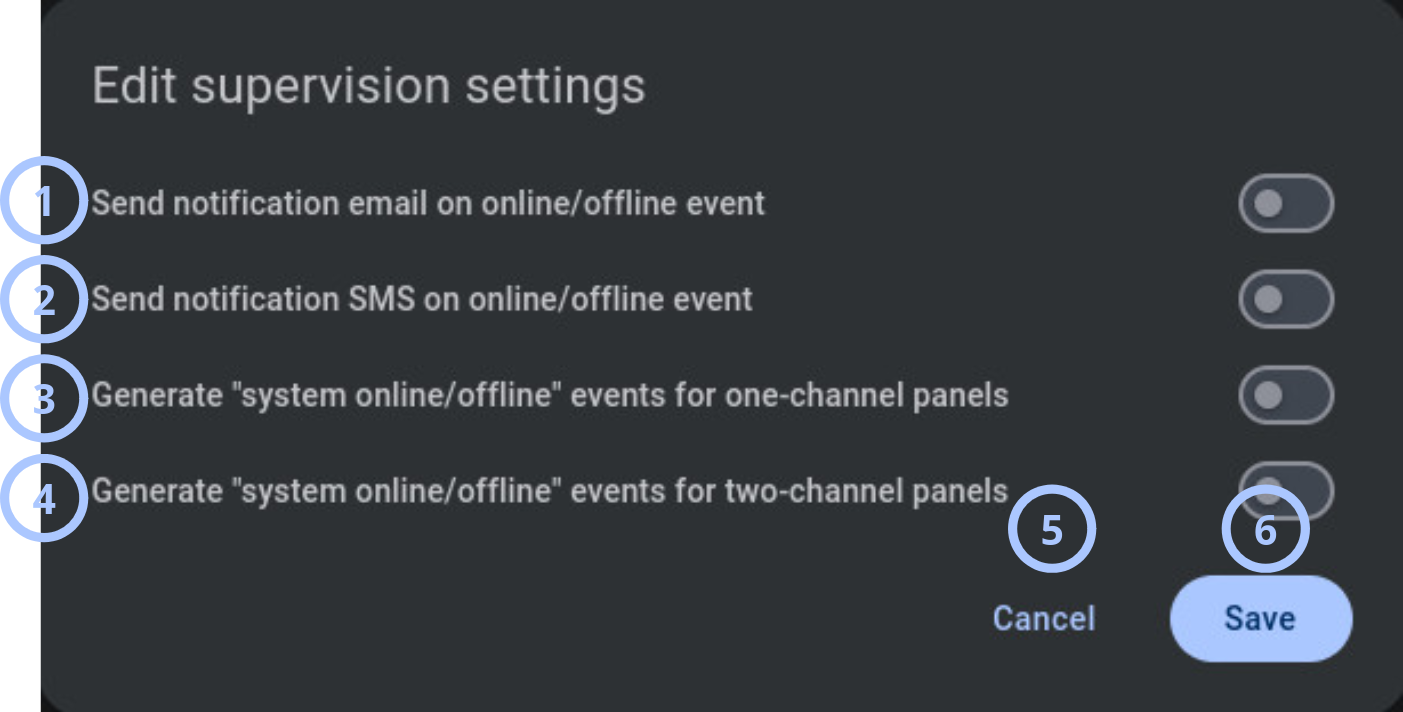
| Callout | UI element | Description | When to use |
|---|---|---|---|
| 1 | Send notification email on online/offline event | Controls whether PowerManage sends an email when a panel changes status between online and offline. | Use when administrators or monitoring recipients must receive email alerts about panel connectivity changes. |
| 2 | Send notification SMS on online/offline event | Controls whether PowerManage sends an SMS message when a panel changes status between online and offline. | Use for high-priority monitoring where operators need immediate awareness when a panel goes offline or returns online. |
| 3 | Generate "system online/offline" events for one-channel panels | Controls whether PowerManage creates formal system online and offline events for panels that use one communication path, such as only broadband or only cellular. | Use when single-channel panel connectivity changes must be recorded in event history or receiver logs. |
| 4 | Generate "system online/offline" events for two-channel panels | Controls whether PowerManage creates system online and offline events for panels that use two communication paths, such as broadband and cellular. | Use when dual-path panel connectivity changes must be recorded as system-level events. |
| 5 | Cancel button | Closes the dialog without saving changes made during the current edit session. | Use when you need to exit the dialog and keep the current saved configuration unchanged. |
| 6 | Save button | Saves the selected supervision settings. | Use after you review the options and want the new configuration to apply to the group. |
How to use this page
Enable email notifications for online and offline events
Goal:
- Send email alerts when a panel goes online or offline.
Steps:
- Open the Settings page.
- Open the Supervision settings.
- Enable Send notification email on online/offline event.
- Review the remaining supervision options.
- Select Save.
Expected result:
- PowerManage sends an email notification to the configured recipient when a panel changes online or offline status.
Email delivery requires a configured email or notification service. If the email service is not configured, enabling this option will not result in delivered messages.
Enable SMS notifications for online and offline events
Goal:
- Send SMS alerts when a panel goes online or offline.
Steps:
- Open the Settings page.
- Open the Supervision settings.
- Enable Send notification SMS on online/offline event.
- Select Save.
Expected result:
- PowerManage sends an SMS notification when a panel changes online or offline status.
- Operators can receive faster awareness of panel connectivity issues.
SMS delivery requires a configured SMS broker or GSM modem. Verify SMS configuration before enabling this option.
Generate system online and offline events for one-channel panels
Goal:
- Record system online and offline events for panels that use one communication channel.
Steps:
- Open the Settings page.
- Open the Supervision settings.
- Enable Generate "system online/offline" events for one-channel panels.
- Select Save.
Expected result:
- When a one-channel panel loses or restores its only communication path, PowerManage generates a system online or offline event.
- Operators can review the event.
A one-channel panel uses a single communication path, such as only broadband or only cellular.
Generate system online and offline events for two-channel panels
Goal:
- Record system online and offline events for panels that use two communication channels.
Steps:
- Open the Settings page.
- Open the Supervision settings.
- Enable Generate "system online/offline" events for two-channel panels.
- Select Save.
Expected result:
- PowerManage generates system online or offline events for applicable two-channel panel status changes.
- Operators can track connectivity changes for panels that use both broadband and cellular paths.
For two-channel panels, event behavior depend on whether one path are unavailable. Confirm the expected monitoring policy for your deployment before enabling this option.
Tips
- Enable email notifications when connectivity events need to be reviewed later by administrators or support teams.
- Enable SMS notifications only for events that require faster operational response. SMS delivery can depend on external provider availability and may involve additional cost.
- Use system online and offline event generation when operators need a formal audit trail for panel connectivity changes.
- Review one-channel and two-channel panel behavior separately. A single lost path on a two-channel panel will not mean the whole panel is unavailable.
- After changing supervision settings, review recent events to confirm that PowerManage is generating and delivering online and offline information as expected.
Troubleshooting
Online or offline events are not created for one-channel panels
Possible causes
- Generate "system online/offline" events for one-channel panels is disabled.
- Channel supervision is disabled for the panel family or protocol.
- The offline timer has not expired.
- The panel is not assigned to the group where the setting was changed.
What to do
- Enable Generate "system online/offline" events for one-channel panels.
- Select Save.
- Verify that supervision is enabled for the relevant communication channel.
- Review the configured supervision period and offline timer.
- Confirm that the panel is assigned to the correct group.
Online or offline events are not created for two-channel panels
Possible causes
- Generate "system online/offline" events for two-channel panels is disabled.
- Supervision is disabled for one or both channels.
- The panel is assigned to another group.
What to do
- Enable Generate "system online/offline" events for two-channel panels.
- Select Save.
- Check the status of both communication paths.
- Verify supervision settings for each channel.
- Review the event history after the next status change.