Automation activation settings
Overview
Use the Automation activation settings to control when automation features are available to end users and whether supported automation devices are shown in the user interface.
Use this page when you need to:
- Set whether automation is always available, available only during an alarm, or disabled.
- Set whether the interface shows control tabs for Z-Wave, ZigBee, and PowerG+ devices.
These settings help administrators align automation behavior with operational requirements and security policies.
Before you begin
Required permissions
- You must have permission for the Resolve category of Server Settings.
Preconditions
- Automation devices must be enrolled and available before users can control or view them.
Dependencies
- Automation availability depends on the selected Activation mode.
- Control-tab visibility for supported automation devices depends on the Display Z-Wave, ZigBee, and PowerG+ devices toggle.
- Actual device control depends on device enrollment, device communication, panel support, and the current system state.
- Z-Wave behavior may also depend on Z-Wave region configuration for supported IQ panels. Z-Wave region settings apply only to IQ panel family devices and can affect whether Z-Wave devices are reachable.
Important limitations
- If Activation is set to Disabled, automation features are turned off, even if automation devices are installed.
- If Display Z-Wave, ZigBee, and PowerG+ devices is off, supported devices still appear on the Devices page, but their control tabs are hidden.
Page layout
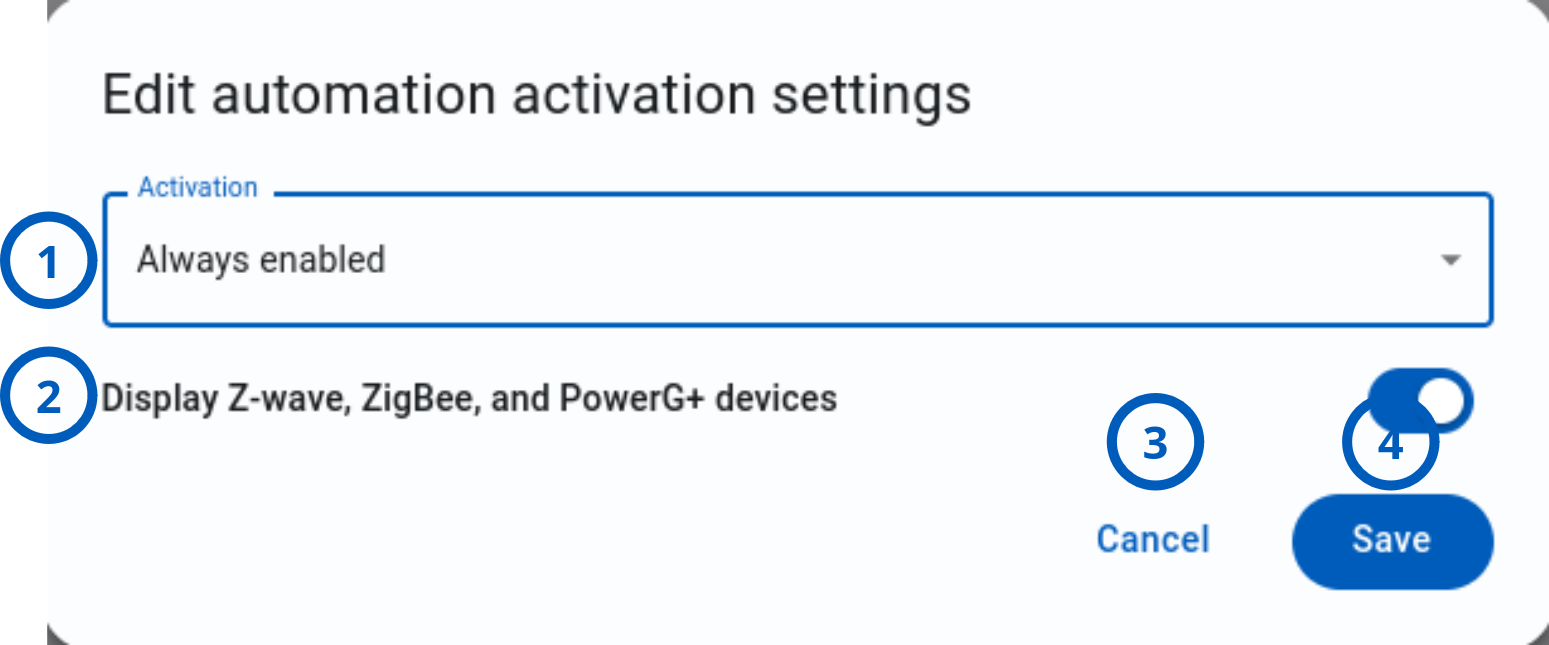
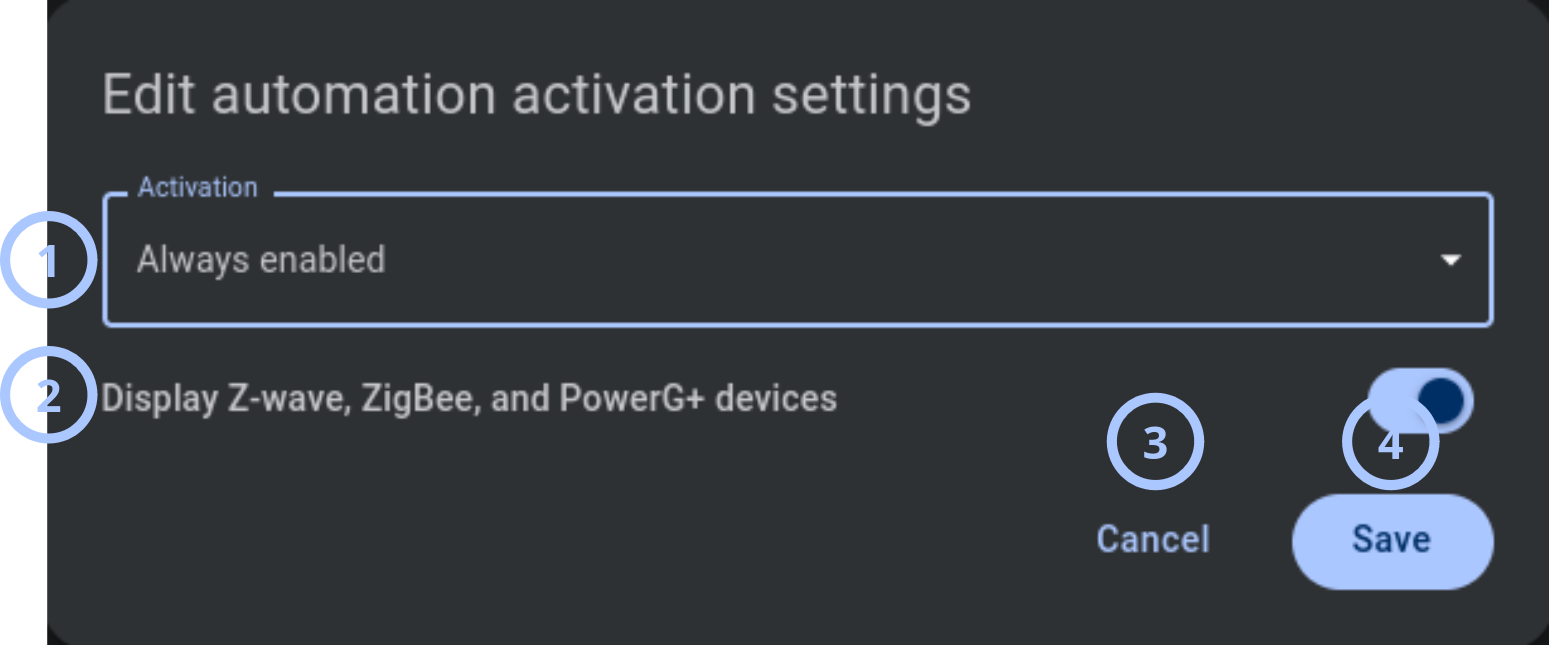
The Edit automation activation settings dialog contains one dropdown, one visibility toggle, and two action buttons.
Edit automation activation settings dialog
| Callout | UI element | Description | When to use |
|---|---|---|---|
| 1 | Activation | Defines when automation features are available to end users. Supported options are Always enabled, Enabled by alarm, and Disabled. | Use to control whether users can access automation features at all times, only during alarm conditions, or not at all. |
| 2 | Display Z-Wave, ZigBee, and PowerG+ devices | Controls whether control tabs are shown for Z-Wave, ZigBee, and PowerG+ automation devices. It does not affect PGM output control. | Use to show or hide automation controls while keeping enrolled devices visible on the Devices page. Users can still control outputs when this setting is off. |
| 3 | Cancel button | Closes the dialog without saving changes made during the current edit session. | Use when you want to review settings or discard unsaved changes. |
| 4 | Save button | Saves the selected automation activation and device visibility settings. | Use after you update one or more settings and want the changes to apply. |
Activation
The Activation dropdown defines when automation features are available to end users.
Available options:
- Always enabled: Automation features are available regardless of the system arming state.
- Enabled by alarm: Automation features activate only when the security system is in alarm within a predefined time window after the alarm. Available ranges from 60 to 600 seconds. Default value is 300 seconds.
- Disabled: Automation features are turned off for end users.
Use this setting to match automation availability to the customer expected experience or security policy. Use the Display Z-Wave, ZigBee, and PowerG+ devices toggle to control whether users can see control tabs for supported automation devices. This setting does not affect PGM output control; users can still control outputs when the setting is off.
How to use this page
Make automation always available
Goal:
- Allow end users to use automation features at all times.
Steps:
- Open the Edit automation activation settings dialog.
- Select the Activation dropdown.
- Select Always enabled.
- Review the Display Z-Wave, ZigBee, and PowerG+ devices toggle.
- Select Save.
Expected result:
- Automation features are available to end users regardless of the system arming state.
- Device control tab visibility follows the selected toggle state.
Enable automation only during alarm state
Goal:
- Allow automation features only when the security system is in an alarm state.
Steps:
- Open the Edit automation activation settings dialog.
- Select the Activation dropdown.
- Select Enabled by alarm.
- Set the expected time window for availability after the alarm.
- Select Save.
Expected result:
- Automation features are restricted during normal system operation.
- Automation features become available when the security system is in an alarm state.
- Device control-tab visibility follow the selected display toggle state.
Use this option only when automation access should be limited to alarm conditions. This setting can prevent users from controlling automation devices during normal operation.
Disable automation features
Goal:
- Turn off automation features for users.
Steps:
- Open the Edit automation activation settings dialog.
- Select the Activation dropdown.
- Select Disabled.
- Select Save.
Expected result:
- Automation features are disabled for users.
- Users cannot use automation controls through device control tabs.
Tips
- Use Always enabled when users need regular smart-home control.
- Use Enabled by alarm only when automation must be restricted to alarm conditions.
- Use Disabled when automation is not part of the customer service package.
- Turn off Display Z-Wave, ZigBee, and PowerG+ devices when control tabs for supported automation devices should be hidden.
- Display Z-Wave, ZigBee, and PowerG+ devices does not affect PGM output control. Users can still control outputs when this setting is off.
- Before saving, confirm that the selected activation mode matches the expected end-user experience.
Troubleshooting
Users cannot access automation features
Possible causes
- Activation is set to Disabled.
- Activation is set to Enabled by alarm, and the system is not in an alarm state.
- The user does not have access to the relevant interface.
- Automation devices are not enrolled, supported, or available.
- Device communication is unavailable.
What to do
- Open the Edit automation activation settings dialog.
- Check the selected Activation value.
- Select Always enabled if users need automation access during normal operation.
- Confirm that automation devices are enrolled and communicating.
- Select Save if you changed the setting.
- Ask the user to refresh or reopen the interface.
Automation control tabs are not visible
Possible causes
- Display Z-Wave, ZigBee, and PowerG+ devices is turned off.
- The device type is not one of the supported visible categories.
- The device is not enrolled.
- Device data has not updated in the interface.
What to do
- Open the Edit automation activation settings dialog.
- Turn on Display Z-Wave, ZigBee, and PowerG+ devices.
- Select Save.
- Confirm that devices are enrolled and supported.
- Refresh the interface.
Devices are visible, but control tabs are hidden
Possible causes
- Display Z-Wave, ZigBee, and PowerG+ devices is turned off.
- The device type is not a supported automation control type.
- The interface has not refreshed after a settings change.
What to do
- Open the Edit automation activation settings dialog.
- Turn on Display Z-Wave, ZigBee, and PowerG+ devices.
- Select Save.
- Refresh the interface.
- Reopen the device details and verify that the control tab is now visible.
Devices are visible but users cannot control them
Possible causes
- Activation is set to Enabled by alarm, and the system is not in an alarm state.
- Activation is set to Disabled.
- The device is offline or not communicating.
- The user's permissions do not allow automation control.
What to do
- Check the selected Activation value.
- Change Activation to Always enabled if control should be available during normal operation.
- Confirm that the device is online and communicating.
- Confirm that the user should have automation access.
- Save changes and ask the user to try again.