Google settings
Overview
Use Google settings to configure the Google API key used by PowerManage.
PowerManage uses this key to connect to Google services for supported location and weather features. When the key is configured, PowerManage can display the physical location of security panels on a map interface based on the data in the Address field in Onwer info section.
Use this page when you need to:
- Add or update the Google API key.
- Restore map-based panel location display after a key change or integration issue.
- Support location or enhance weather features that depend on Google services.
Before you begin
Required permissions
- You must have permission to Resolve category of Server Settings.
Preconditions
- You have a valid Google API key.
- The Google API key is enabled for the Google services required by your PowerManage.
- Network access from PowerManage to the required Google services is available.
Dependencies
- Google location and map-related services depend on a valid Google API key.
- Panel location display depends on panel location data being available in PowerManage.
Important limitations
warning
- An invalid, expired, restricted, or missing Google API key can prevent location and map display features from working.
- PowerManage cannot display a panel location on a map if the panel does not have location data.
- Google API usage, billing, service availability, and key restrictions are managed in Google Cloud, not in PowerManage.
- It does not work for “Weather/ location / timezone sync" & "Z-Wave region detection” functionalities without setting the Weather API key and Geo Names username.
Page layout
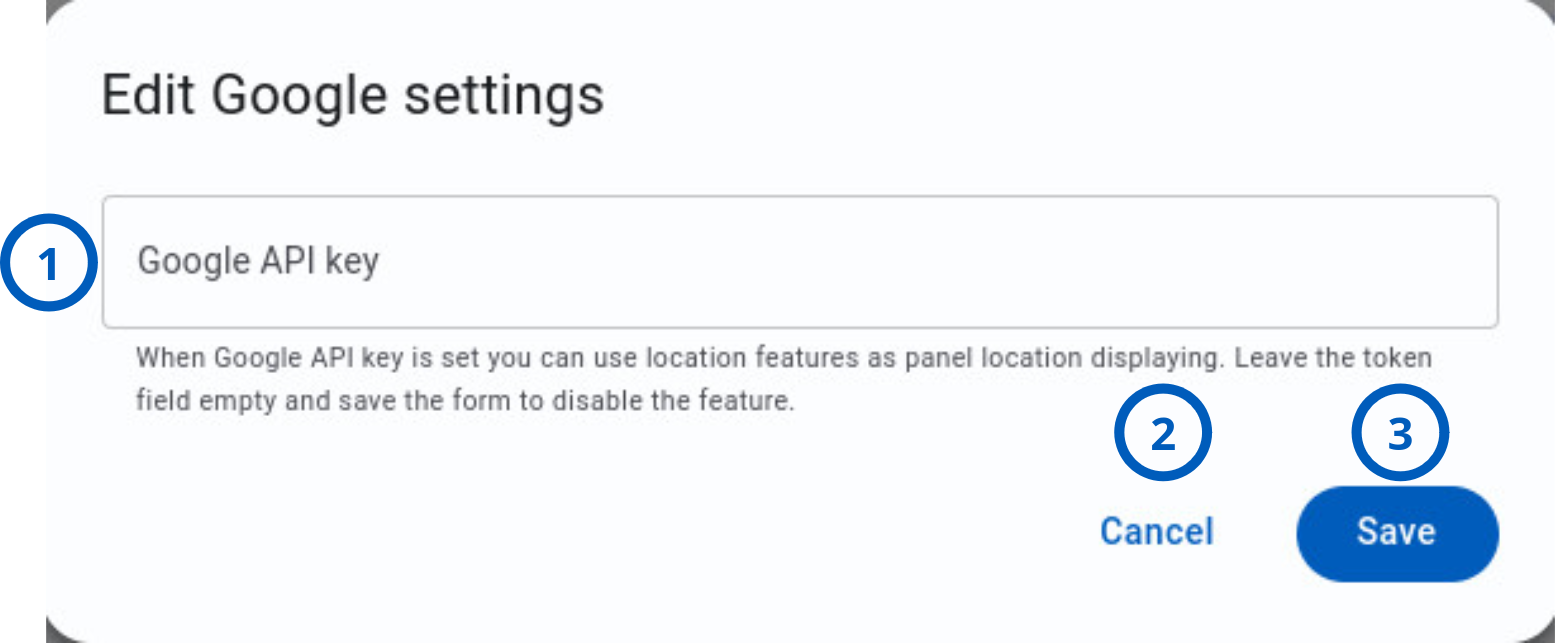
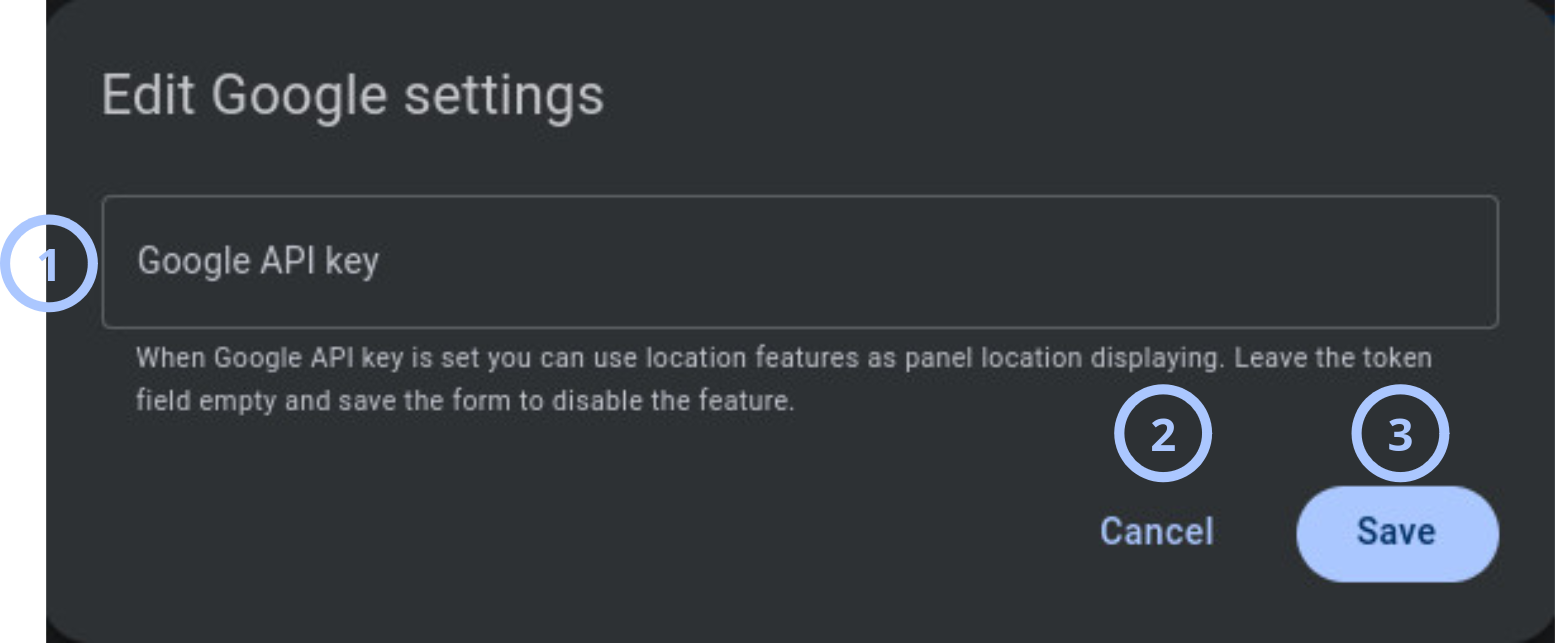
The Edit Google settings dialog contains one configuration field and action buttons.
Edit Google settings dialog
| Callout | UI element | Description | When to use |
|---|---|---|---|
| 1 | Google API key | Stores the Google API key used by PowerManage to connect to supported Google services. | Use when you need to add, replace, or correct the key used for location and panel map display features. |
| 2 | Cancel button | Closes the dialog without saving changes made during the current edit session. | Use when you want to leave the dialog and keep the current Google settings. |
| 3 | Save button | Saves the Google API key value. | Use after you enter or update the Google API key and want to apply the change. |
How to use this page
Configure the Google API key
Goal:
- Add the Google API key required for supported Google-based features in PowerManage.
Steps:
- Open the Edit Google settings dialog.
- In Google API key, enter the valid Google API key.
- Review the key value for typing errors.
- Select Save.
Expected result:
- PowerManage saves the Google API key.
- Supported location and panel map display features can use the configured key.
Tips
tip
- Keep the Google API key in a secure location outside PowerManage so authorized administrators can recover it when needed.
- Use a Google API key that is dedicated to PowerManage, if your organization’s security policy allows it.
- Review Google Cloud key restrictions before saving the key. Overly strict restrictions can block PowerManage access.
- After changing the key, check a panel map view to confirm that map-based location display works.
- Combine the Google settings, Weather API, and Geo Names settings to improve panel location detection, as providers sometimes set incorrect locations.
Troubleshooting
Map does not display
Possible causes
- The Google API key is missing.
- The Google API key is invalid, expired, or restricted.
- PowerManage cannot reach the required Google services.
- The panel does not have location data configured.
What to do
- Open the Edit Google settings dialog.
- Confirm that Google API key contains the correct key.
- Confirm in Google Cloud that the key is active and allowed to use the required services.
- Check whether the affected panel has location data configured in the Info page.
- Save the setting again if you corrected the key.
- Open the panel map view and confirm that the location displays.
User cannot access Google settings
Possible causes
- The user does not have access to the required settings category.
What to do
- Confirm that you are signed in with the correct user account.
- Ask an administrator to review your role permissions.
- After permissions are updated, verify the access again.
Related pages
Was this page helpful?