Remote inspection
Overview
Use the Remote Inspection settings to control how PowerManage communicates and records Remote Inspection results.
Remote Inspection (RI) supports automated checks of system health. These settings define whether PowerManage:
- Sends an email to the customer after a successful Remote Inspection.
- Creates a PowerManage history event for successful and failed Remote Inspection results.
Before you begin
Required permissions
- You must have permission to Resolve category of Server Settings.
Preconditions
- Owner info details must be configured if successful RI email notifications are enabled.
- SMTP must be configured before the system can send email notifications.
Dependencies
- Email delivery depends on owner info and the server SMTP configuration.
Important limitations
warning
- Enabling Send email to the customer of succeed RI does not send emails for failed Remote Inspections. It applies only when a Remote Inspection completes successfully.
- Disabling Generate "succeed/failed RI" Event will reduce the available audit trail for Remote Inspection activity.
- If SMTP or customer email details are missing, successful RI email notifications will not be delivered.
Page layout
The Edit remote inspection settings dialog contains two Remote Inspection options and two action buttons.
Edit remote inspection settings dialog
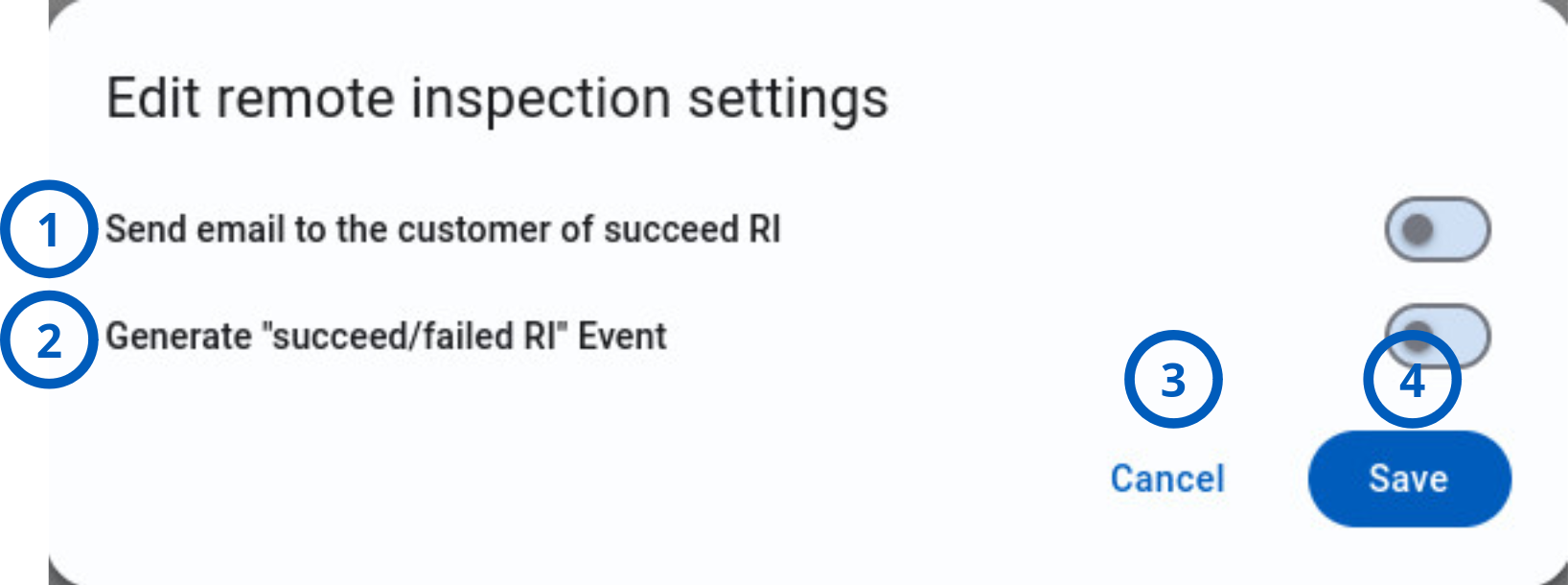
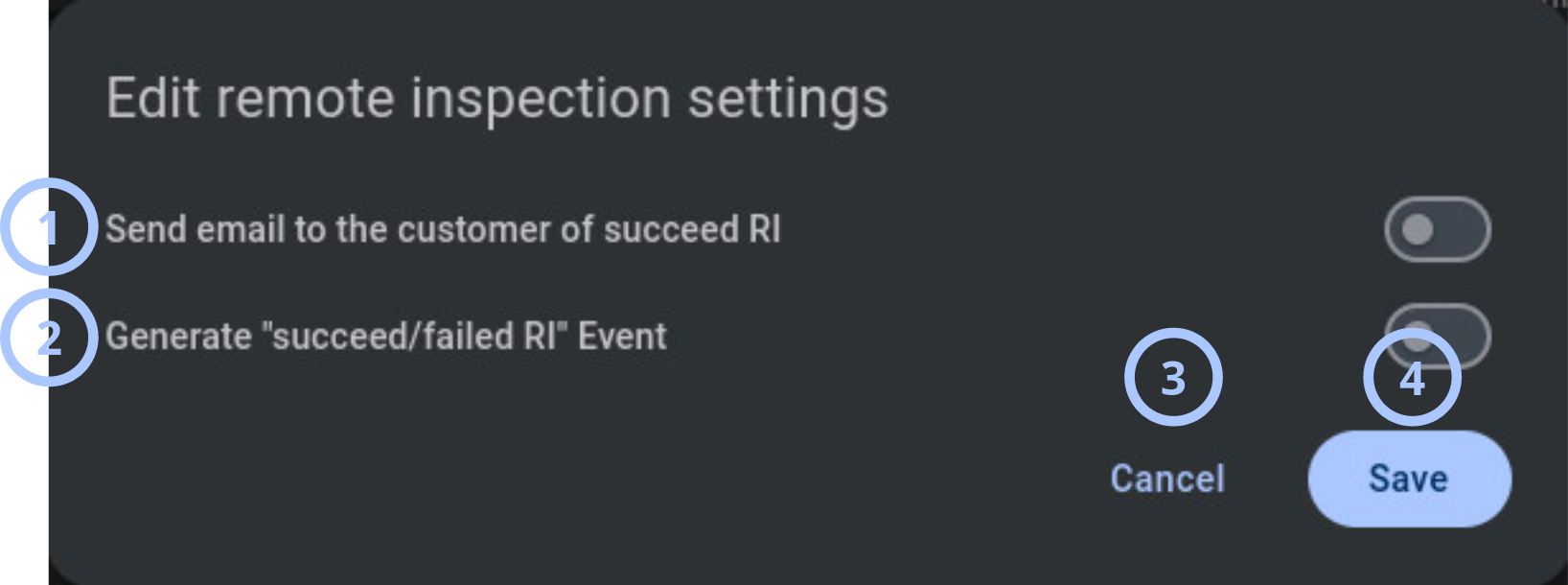
| Callout | UI element | Description | When to use |
|---|---|---|---|
| 1 | Send email to the customer of succeed RI | Controls whether PowerManage sends a confirmation email to the customer after a Remote Inspection completes successfully. | Enable when customers must receive confirmation that the inspection completed successfully. |
| 2 | Generate "succeed/failed RI" Event | Controls whether PowerManage creates a history event for Remote Inspection results. The setting applies to both successful and failed inspection attempts. | Enable when technicians or administrators need an audit trail for Remote Inspection activity. |
| 3 | Cancel button | Closes the dialog without saving changes made during the current edit session. | Use when you want to leave the dialog and keep the previous Remote Inspection settings. |
| 4 | Save button | Saves the selected Remote Inspection settings. | Use after you turn settings on or off and want to apply the changes. |
How to use this page
Enable customer email after successful Remote Inspection
Goal:
- Send a confirmation email to the customer when a Remote Inspection completes successfully.
Steps:
- Open the Edit remote inspection settings dialog.
- Turn on Send email to the customer of succeed RI.
- Review the setting.
- Select Save.
Expected result:
- PowerManage saves the Remote Inspection email setting.
- For future successful Remote Inspections, PowerManage sends a confirmation email to the customer when customer email details and SMTP are configured.
Enable Remote Inspection event logging
Goal:
- Create PowerManage history events for successful and failed Remote Inspection results.
Steps:
- Open the Edit remote inspection settings dialog.
- Turn on Generate "succeed/failed RI" Event.
- Select Save.
Expected result:
- PowerManage logs future successful and failed Remote Inspection results in event history.
- Technicians can use the event history as an audit trail for RI activity.
Tips
tip
- Enable customer email notifications only when customer contact details are maintained and SMTP is configured.
- After changing settings, run or review a Remote Inspection to confirm that the expected email and event behavior occurs.
Troubleshooting
Customer does not receive a successful RI email
Possible causes
- Send email to the customer of succeed RI is turned off.
- The Remote Inspection did not complete successfully.
- The customer email address is missing or incorrect.
- SMTP are not configured or are unavailable.
- Email delivery is blocked outside PowerManage, such as by a mail server or spam filter.
What to do
- Open the Edit remote inspection settings dialog.
- Confirm that Send email to the customer of succeed RI is turned on.
- Confirm that the Remote Inspection completed successfully.
- Check the customer email address.
- Check the server SMTP configuration.
- Run or wait for another successful Remote Inspection and confirm that the customer receives the email.
Remote Inspection result is missing from event history
Possible causes
- Generate "succeed/failed RI" Event is turned off.
- The user does not have permission to view the events.
- Event filtering hides the RI event from the current view.
What to do
- Open the Edit remote inspection settings dialog.
- Confirm that Generate "succeed/failed RI" Event is turned on.
- Select Save if you changed the setting.
- Run or wait for a new Remote Inspection.
- Check the PowerManage Events page again.
- Review filters, date range, and permissions if the event is still not visible.
Related pages
Was this page helpful?