Remote inspection content
Overview
Use the Remote inspection content settings to configure the thresholds that PowerManage uses to evaluate Remote Inspection (RI) results.
The values on this page define when an inspection is considered successful and when the result requires attention. These settings help technicians detect abnormal panel behavior, missing activity, excessive faults, insufficient system reports, and incorrect panel time.
Use this page when you need to:
- Define how many reported faults are allowed before RI is flagged.
- Set how many system state reports RI should analyze.
- Detect frequently used zones that have not reported activity.
- Treat large panel time adjustments as RI failures.
Before you begin
Required permissions
- You must have permission to Resolve category of Server Settings.
Dependencies
- RI result evaluation depends on panel event data, system state reports, zone activity, and panel time information.
Important limitations
- Setting thresholds too low can cause Remote Inspections to fail because of normal activity or temporary conditions.
- Setting thresholds too high can hide issues that require technician review.
Page layout
The Remote inspection values dialog contains four threshold fields and two action buttons.
Remote inspection values dialog
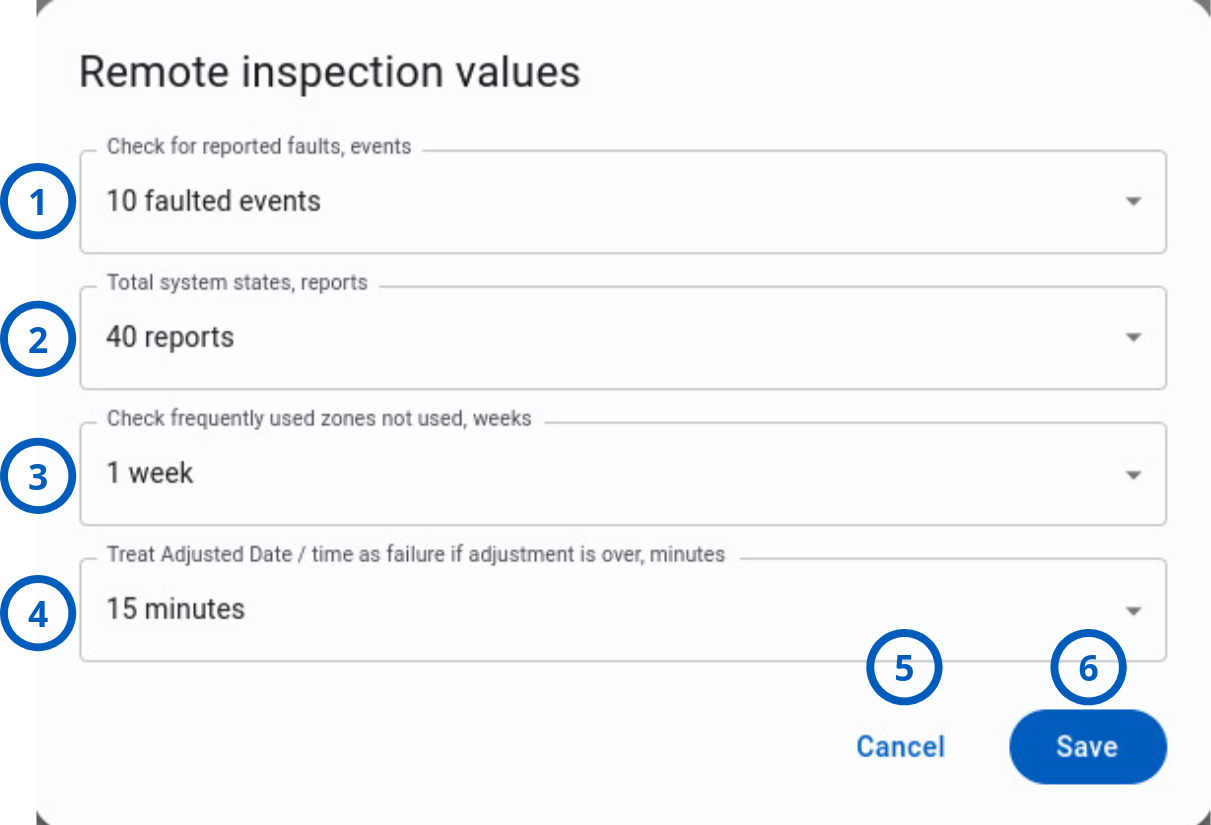
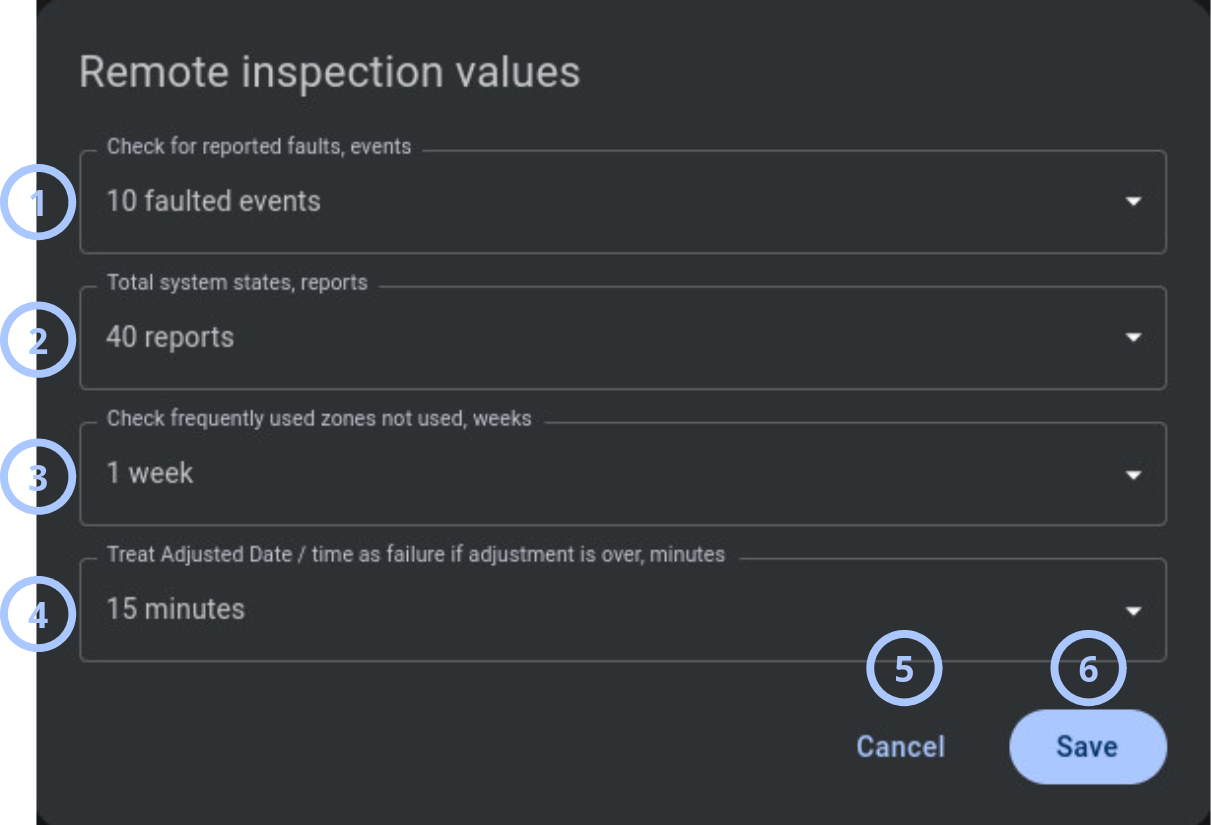
| Callout | UI element | Description | When to use |
|---|---|---|---|
| 1 | Check for reported faults, events | Sets the maximum number of faulted events allowed before RI is flagged. The default value is 10 faulted events. Another available options: 20 and 30 faulted events. | Use to control how sensitive RI is to reported faults or faulted events. |
| 2 | Total system states, reports | Defines how many system state reports RI analyzes. The default value is 40 reports. Another available options: 60 and 120 reports. | Use to make sure RI evaluates enough system state data before determining the result. |
| 3 | Check frequently used zones not used, weeks | Defines the inactivity period for zones that are usually active. The default value is 1 week. Another available options: 2 and 5 weeks. | Use to identify frequently used zones that have stopped reporting activity and may need inspection. |
| 4 | Treat Adjusted Date / time as failure if adjustment is over, minutes | Defines the maximum allowed panel date or time adjustment before RI is treated as failed. The default value is 15 minutes. Another available options: 30 and 45 minutes. | Use to flag inspections when the panel clock requires a large correction. |
| 5 | Cancel button | Closes the dialog without saving changes made during the current edit session. | Use when you want to review settings or discard unsaved changes. |
| 6 | Save button | Saves the selected Remote Inspection threshold values. | Use after you update one or more thresholds and want the new values to apply to future RI evaluations. |
How to use this page
Configure RI fault sensitivity
Goal:
- Set how many faulted events RI allows before the inspection is flagged.
Steps:
- Open the Remote inspection values dialog.
- Select the Check for reported faults, events dropdown.
- Select the required fault threshold.
- Review the selected value.
- Select Save.
Expected result:
- PowerManage saves the reported fault threshold.
- Future Remote Inspections use the selected value when evaluating reported faults.
- RI will be flagged when reported faults exceed the configured threshold.
Use a lower value for stricter inspection criteria. Use a higher value only when the site normally reports more fault activity and that behavior is expected.
Configure the number of system state reports
Goal:
- Define how many system state reports RI evaluates.
Steps:
- Open the Remote inspection values dialog.
- Select the Total system states, reports dropdown.
- Select the required number of reports.
- Select Save.
Expected result:
- PowerManage saves the system state report threshold.
- Future RI evaluations use the selected system state report count when analyzing system health.
Configure inactive frequently used zone detection
Goal:
- Identify frequently used zones that have not reported activity within the configured period.
Steps:
- Open the Remote inspection values dialog.
- Select the Check frequently used zones not used, weeks dropdown.
- Select the required inactivity period.
- Select Save.
Expected result:
- PowerManage saves the zone inactivity threshold.
- Future RI evaluations can flag frequently used zones that remain inactive longer than the configured period.
A zone with no activity is not always faulty. Review the site context before deciding that a sensor requires service.
Configure date and time adjustment failure threshold
Goal:
- Treat RI as failed when the panel clock requires an adjustment greater than the configured limit.
Steps:
- Open the Remote inspection values dialog.
- Select the Treat Adjusted Date / time as failure if adjustment is over, minutes dropdown.
- Select the required time adjustment threshold.
- Select Save.
Expected result:
- PowerManage saves the date and time adjustment threshold.
- Future RI evaluations fail when the panel time adjustment is greater than the selected number of minutes.
If this threshold causes repeated failures, review panel time synchronization, panel time zone settings, and server time configuration.
Tips
- Review RI thresholds before changing them. Thresholds affect how RI results are classified.
- Start with conservative changes. Large threshold changes can affect inspection pass or fail rates.
- Keep the date and time adjustment threshold aligned with your audit and event review requirements.
Troubleshooting
Remote Inspections fail because of reported faults
Possible causes
- Check for reported faults, events is set too low for the site.
- The panel reports more faulted events than expected.
- A real device, communication, or system issue exists.
What to do
- Review the Remote Inspection result details.
- Check the reported faulted events.
- Resolve real panel or device faults.
- If the site normally reports this volume of faults, review whether the threshold should be adjusted.
- Update Check for reported faults, events only when the higher fault volume is expected and acceptable.
- Run RI again and review the result.
Remote Inspection result is based on too little system state data
Possible causes
- Total system states, reports is set too low.
- The panel has not reported enough recent system states.
- Communication issues prevented reports from reaching PowerManage.
- The inspection ran before enough data was available.
What to do
- Review the selected value in Total system states, reports.
- Confirm that the panel is communicating with PowerManage.
- Wait for additional system state reports if the panel was recently enrolled or reconnected.
- Adjust the report threshold if the current value does not match the required evaluation depth.
- Save the change and run RI again.
Remote Inspections fail because of panel date or time adjustment
Possible causes
- Treat Adjusted Date / time as failure if adjustment is over, minutes is set too low.
- The panel clock is drifting.
- Panel time synchronization is disabled or misconfigured.
- The panel time zone is incorrect.
- The server time or time zone configuration is incorrect.
What to do
- Check the configured time adjustment threshold.
- Review the amount of time correction applied to the panel.
- Verify panel time and time zone settings.
- Verify server time and time synchronization settings.
- Run RI again and confirm that the time adjustment is below the threshold.