Rotation
Overview
Use the Rotation settings to configure how long PowerManage keeps selected operational data before removing old records.
Use this page when you need to:
- Set rotation periods for events, processes, reports, audit logs, RRI results, and unverified accounts.
- Limit the number of Rule Engine log records kept per panel user.
- Review how long operational records remain available before automatic cleanup.
- Prevent unnecessary growth of stored system data.
PowerManage supports two rotation strategies:
- Configurable rotations: Managed in the Web UI.
- Hardcoded rotations: Defined by the system and not editable in the Web GUI.
Before you begin
Required permissions
- You must have permission to Resolve category of Server Settings.
Preconditions
- You must understand the rotation requirements for your environment before reducing rotation values.
- If you plan to run rotations on demand, you must have access to the MMI.
Dependencies
- Configurable rotations run automatically at scheduled times.
- All configurable rotations can also be executed on demand from the MMI.
- Rotation results depend on the configured threshold values.
Important limitations
- Rotation permanently removes records that exceed the configured threshold. Confirm rotation requirements before saving changes.
- Lower rotation values reduce storage use but also reduce historical data available for audits, troubleshooting, and reports.
- Higher rotation values keep more history but increase database and disk usage.
- Hardcoded rotations cannot be edited from the Web UI.
- The most recent RRI record for each panel is not rotated.
- Accounts with assigned panels are not rotated, even if they are unverified.
Page layout
The Edit rotation settings dialog contains retention fields for configurable rotations and two action buttons.
Edit rotation settings dialog
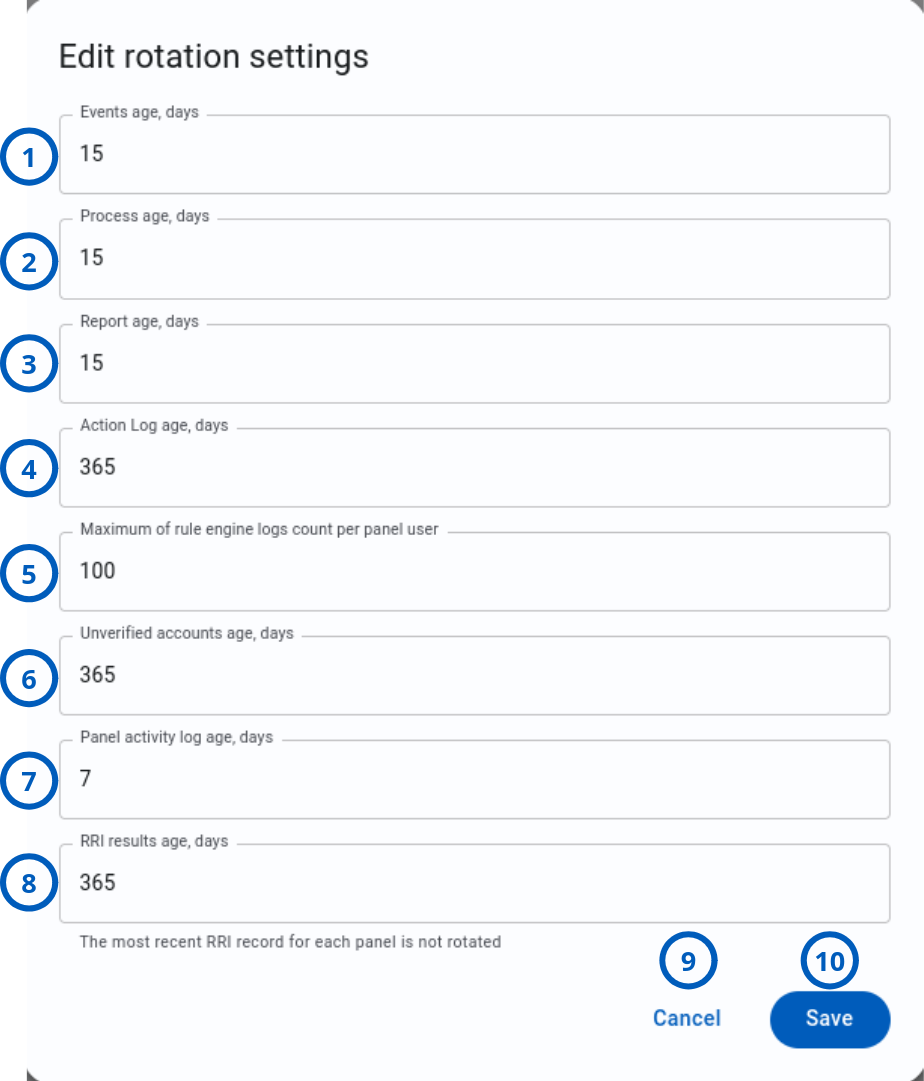
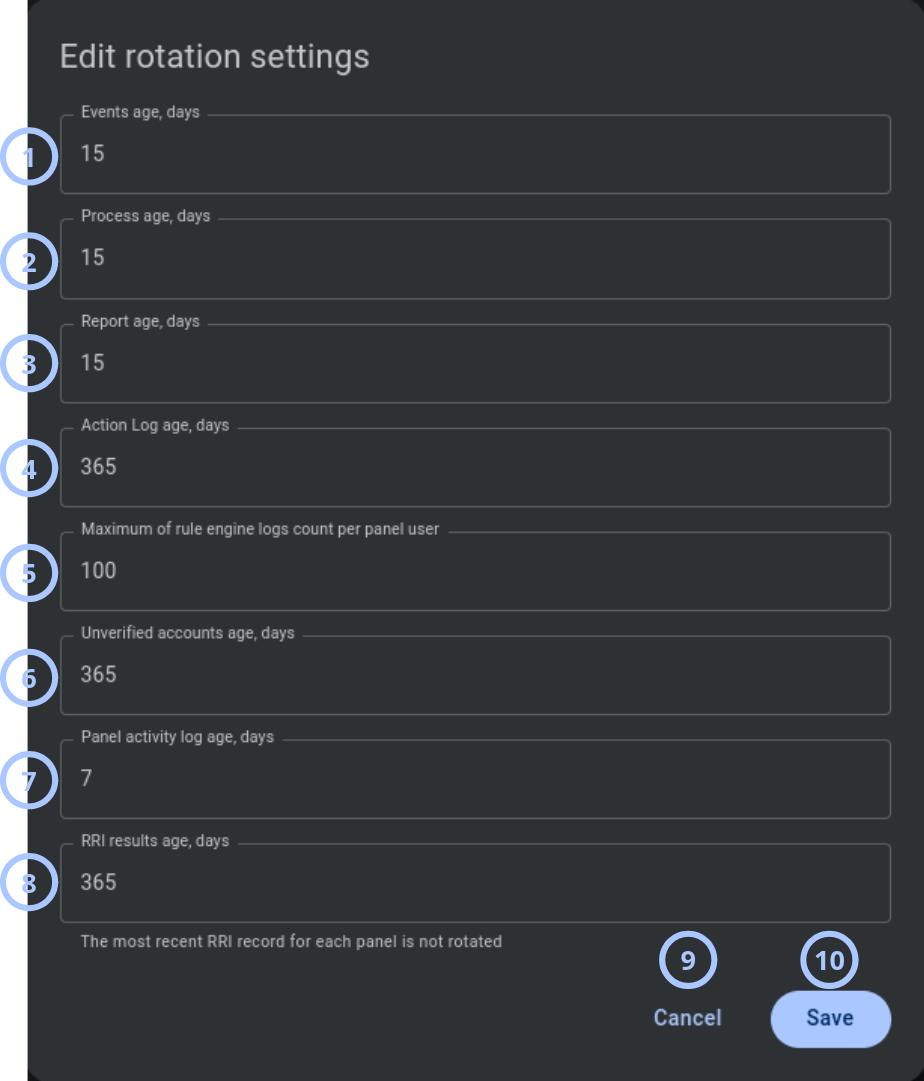
| Callout | UI element | Description | When to use |
|---|---|---|---|
| 1 | Events age, days | Defines the maximum age, in days, for event records. Events older than this value are removed by the Events Rotation job. | Use to control how long event history remains available. |
| 2 | Process age, days | Defines the maximum age, in days, for process records. Process records older than this value are removed by the Processes Rotation job. | Use to control how long process history remains available. |
| 3 | Report age, days | Defines the maximum age, in days, for report records. Reports older than this value are removed by the Reports Rotation job. | Use to control how long generated report records remain available. |
| 4 | Audit log age, days | Defines the maximum age, in days, for audit log records. Audit log records older than this value are removed by the Audit Log Rotation job. | Use to control how long user or system action history remains available. |
| 5 | Maximum of rule engine logs count per panel user | Defines the maximum number of Rule Engine log rows kept per panel user. | Use to limit Rule Engine log growth while keeping recent rule execution history. |
| 6 | Unverified accounts age, days | Defines the maximum age, in days, for unverified account records that are eligible for rotation. | Use to remove old unverified accounts that were not completed and are not protected by rotation rules. |
| 7 | RRI results age, days | Defines the maximum age, in days, for RRI result records. RRI results older than this value are removed, except for the most recent RRI record for each panel. | Use to control how long Remote Routine Inspection results remain available. |
| 8 | Cancel button | Closes the dialog without saving changes made during the current edit session. | Use when you want to review settings or discard unsaved changes. |
| 9 | Save button | Saves the selected rotation threshold values. | Use after you update one or more values and want the new retention thresholds to apply. |
Events age, days
This field defines the maximum age of event records.
The Events Rotation job runs daily at 02:00 AM. Event entries older than the configured value are removed.
- Minimum value: 1 day
- Maximum value: 366 days
- Default value: 15 days
Events are rotated by panel serial. PowerManage does not keep more than 256 events per panel.
Process age, days
This field defines the maximum age of process records.
The Processes Rotation job runs daily at 01:30 AM. Process entries older than the configured value are removed.
- Minimum value: 1 day
- Maximum value: 366 days
- Default value: 15 days
Report age, days
This field defines the maximum age of report records.
The Reports Rotation job runs daily at 03:00 AM. Report entries older than the configured value are removed.
- Minimum value: 1 day
- Maximum value: 366 days
- Default value: 15 days
Audit log age, days
This field defines the maximum age of audit log records.
The Audit log Rotation job runs daily at 02:30 AM. Audi log entries older than the configured value are removed.
- Minimum value: 1 day
- Maximum value: 1825 days or 5 years
- Default value: 365 days
Maximum of rule engine logs count per panel user
This field defines the maximum number of Rule Engine log rows kept per panel user.
The Rule Engine Log Rotation job runs daily at 01:00 AM. Rule Engine log entries that exceed the configured row threshold are removed.
- Minimum value: 1 row
- Maximum value: 5000 rows
- Defalut value: 100 rows
This setting uses a row count, not an age in days.
Unverified accounts age, days
This field defines the maximum age of unverified account records that are eligible for rotation.
The Unverified Accounts Rotation job runs daily at 04:00 AM. Eligible unverified accounts older than the configured value are removed.
- Minimum value: 1 day
- Maximum value: 366 days
- Default value: 365 days
The following accounts are not rotated:
- Accounts where the interval from the registration date is shorter than the configured rotation period.
- Accounts that already have assigned panels.
- Verified Active accounts.
- Suspended accounts.
RRI results age, days
This field defines the maximum age of Remote Routine Inspection (RRI) result records.
The RRI Results Rotation job runs daily at 01:00 AM. RRI entries older than the configured value are removed.
- Minimum value: 1 day
- Maximum value: 1825 days or 5 years
- Example shown: 365 days
The most recent RRI record for each panel is not rotated.
Hardcoded rotations
Hardcoded rotations cannot be managed through the Web UI. The values are predefined in the system code.
Statistic Tables Rotation
The Statistic Tables Rotation job runs daily at 00:30 AM.
This job removes entries older than 31 days from the statistic tables displayed on the Dashboard page.
Hardcoded rotation values cannot be changed from Web UI.
How to use this page
Configure event rotation
Goal:
- Set how long event records remain available.
Steps:
- Open Settings page.
- Open the Edit rotation settings dialog.
- In Events age, days, enter a value from 1 to 366.
- Review the value.
- Select Save.
Expected result:
- PowerManage saves the event rotation threshold.
- The Events Rotation job removes event records older than the configured value during the next scheduled run.
- The job runs daily at 02:00 AM.
Reducing event rotation can remove event history needed for troubleshooting or audits. Confirm the required rotation period before saving.
Configure process rotation
Goal:
- Set how long process records remain available.
Steps:
- Open the Edit rotation settings dialog.
- In Process age, days, enter a value from 1 to 366.
- Select Save.
Expected result:
- PowerManage saves the process rotation threshold.
- The Processes Rotation job removes process records older than the configured value.
- The job runs daily at 01:30 AM.
Configure unverified account rotation
Goal:
- Remove old unverified accounts that are eligible for rotation.
Steps:
- Open the Edit rotation settings dialog.
- In Unverified accounts age, days, enter a value from 1 to 366.
- Select Save.
Expected result:
- PowerManage saves the unverified account rotation threshold.
- The Unverified Accounts Rotation job removes eligible unverified accounts older than the configured value.
- The job runs daily at 04:00 AM.
Unverified accounts are not rotated if they have assigned panels, are verified and active, are suspended, or are newer than the configured rotation period.
Tips
- Review available disk space before increasing rotation values.
- Keep event and audit log rotation aligned with audit requirements.
- Use shorter rotation for high-volume data when storage is limited.
- Use the MMI on-demand rotation option when immediate cleanup is required.
- After lowering rotation values, verify that required reports and audit data are still available.
Troubleshooting
Old records are still visible after saving a lower rotation value
Possible causes
- The scheduled rotation job has not run yet.
- The record is protected by a rotation exception.
- The data type is controlled by a different rotation process.
What to do
- Reopen Settings page.
- Confirm that the new value is saved.
- Check the scheduled runtime for the relevant rotation job.
- Wait until the next scheduled run, or run the configurable rotation on demand from the MMI.
Disk usage remains high after rotation
Possible causes
- Rotation values are still too high for the data volume.
- A high-volume data type is not controlled by the edited setting.
- A hardcoded rotation has not run yet.
- Rotation jobs failed or did not run.
- Disk usage comes from files or tables outside the listed rotation settings.
What to do
- Check current disk usage.
- Review each rotation threshold.
- Check whether the high disk usage is related to events, logs, reports, RRI results, accounts, or another data source.
- Run applicable configurable rotations from the MMI if immediate cleanup is needed.
- Escalate to system administration if disk usage remains high.
Expected unverified accounts were not rotated
Possible causes
- The account is newer than the configured rotation period.
- The account has assigned panels.
- The account is verified and Active.
- The account is Suspended.
- The Unverified Accounts Rotation job has not run yet.
What to do
- Check the account registration date.
- Confirm whether the account has assigned panels.
- Check the account status.
- Confirm that Unverified accounts age, days is configured correctly.
- Wait until the job runs at 04:00 AM, or run the rotation on demand from the MMI.