Self-registration
Overview
Use the Self-registration settings to control how new users, such as installers or dealers, can create accounts in PowerManage.
Use this page when you need to:
- Prevent open registration on production systems.
- Require administrator approval before account activation.
- Control the baseline role that new users receive.
This page helps reduce unauthorized access risk by defining how registration requests are handled and what permissions new registrants receive.
Before you begin
Required permissions
- You must have permission to edit Resolve category settings in Server Settings.
Preconditions
- You can access the Settings page in the Web GUI.
- If you plan to use Manual approval, your team has an approval process for pending registrations.
Dependencies
- Default role depends on an existing role definition in the system.
- Manual approval depends on administrators reviewing and approving pending users before access is granted.
Important limitations
- Automatic approval can expose the system to unauthorized access when the server is reachable from the public internet.
- A high-privilege Default role with Automatic approval increases security risk.
- If Registration mode is Disabled, no new users can self-register.
Page layout
Self-registration settings
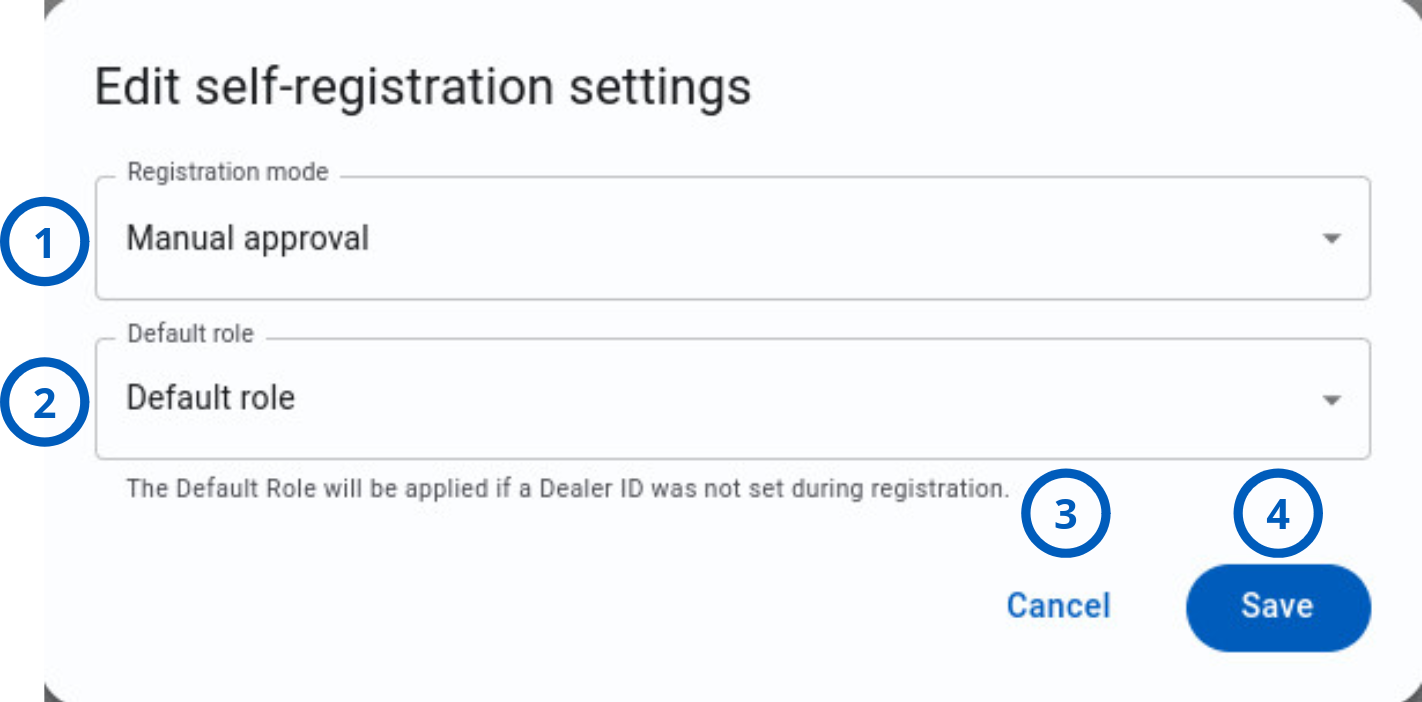
| Callout | UI element | Description | When to use |
|---|---|---|---|
| 1 | Registration mode | Selects how new user registrations are handled: disabled, manual approval, or automatic approval. | Use when defining the registration security model for your deployment. |
| 2 | Default role | Assigns the role given to users who register without a specific Dealer ID. | Use when defining the baseline permissions for new self-registered users. |
| 3 | Cancel button | Closes the dialog without saving your current changes. | Use when you need to exit without applying edits. |
| 4 | Save button | Saves the selected registration mode and default role. | Use after you confirm the configuration is correct for your environment. |
Self-registration configuration matrix
The table below shows which user roles can register based on server mode, registration mode, and default role configuration.
- Without billing
- Using Dealer ID
- Using Dealer Plus ID
| Registration mode | Default role | Behavior |
|---|---|---|
| Disabled | Without default role | Registering through AlarmInstall:
Registering through PowerManage:
|
| Automatic approval | Set | Registering through AlarmInstall:
Registering through PowerManage:
|
| Without default role | Misconfiguration | |
| Manual approval | Set | Registering through AlarmInstall:
Registering through PowerManage:
|
| Without default role | Registering through AlarmInstall:
Registering through PowerManage:
|
| Registration mode | Default role | Behavior |
|---|---|---|
| Disabled | Without default role | Registering through AlarmInstall:
Registering through PowerManage:
|
| Automatic approval | Set | Registering through AlarmInstall:
Registering through PowerManage:
|
| Without default role | Registering through AlarmInstall:
Registering through PowerManage:
| |
| Manual approval | Set | Registering through AlarmInstall:
Registering through PowerManage:
|
| Without default role | Registering through AlarmInstall:
Registering through PowerManage:
|
| Registration mode | Default role | Behavior |
|---|---|---|
| Disabled | Without default role | Registering through AlarmInstall:
Registering through PowerManage:
|
| Automatic approval | Set | Registering through AlarmInstall:
Registering through PowerManage:
|
| Without default role | Registering through AlarmInstall:
Registering through PowerManage:
| |
| Manual approval | Set | Registering through AlarmInstall:
Registering through PowerManage:
|
| Without default role | Registering through AlarmInstall:
Registering through PowerManage:
|
See the Legacy installers page for more information about installer types and their behavior.
How to use this page
Configure secure registration for internet-exposed servers
Goal:
- Reduce unauthorized registration risk on servers that are reachable from the public internet.
Steps:
- Open Settings.
- Go to Self-registration in the Resolve category.
- Select the edit icon.
- Set Registration mode to Manual approval or Disabled.
- Verify Default role is a low-privilege role.
- Select Save.
Expected result:
- New registrations are either blocked or require administrator approval before activation.
Do not use Automatic approval on internet-exposed servers unless your security team has explicitly approved that design.
Configure manual approval workflow
Goal:
- Allow users to submit registration requests while keeping accounts inactive until review.
Steps:
- Open Self-registration settings.
- Set Registration mode to Manual approval.
- Select Save.
- Open the review area for pending registrations.
- Verify registrant identity and business context.
- Assign the correct role.
- Approve the request.
Expected result:
- Users can register, but they receive access only after an administrator validates and approves the account.
Configure a hardened default role
Goal:
- Ensure new users start with minimal permissions until an administrator assigns production access.
Steps:
- Create or identify a role with no active permissions.
- Open Self-registration settings.
- Set Default role to the restricted role.
- Select Save.
Expected result:
- New users who register without a Dealer ID receive a restricted role and cannot perform sensitive actions by default.
Configure automatic approval for isolated environments
Goal:
- Allow immediate access after registration in controlled internal networks.
Steps:
- Confirm the server is restricted to internal or VPN-only access.
- Open Self-registration settings.
- Set Registration mode to Automatic approval.
- Set Default role to a low-privilege role.
- Select Save.
Expected result:
- New users are activated immediately after registration.
This workflow is intended only for environments with strong network controls and administrative oversight.
Tips
- Use Manual approval as the baseline option for most production deployments.
- Create a dedicated low-privilege role for Default role and keep it restricted.
- Review pending registrations daily when manual approval is enabled.
Troubleshooting
New users cannot register
Possible causes
- Registration mode is set to Disabled.
What to do
- Open Self-registration settings and confirm the mode.
- If registration is required, switch to Manual approval.
User registered but cannot sign in
Possible causes
- Registration mode is Manual approval and the account is still pending review.
What to do
- Open the Staff page and check pending registration requests.
- Verify whether the user is awaiting approval.
- Approve the user and assign the correct role.
- Ask the user to sign in again.
Unexpected elevated access after registration
Possible causes
- Default role has broader permissions than intended.
- Automatic approval is enabled with a high-privilege default role.
What to do
- Open Self-registration settings.
- Change Default role to a restricted role.
- Change Registration mode to Manual approval if the server is internet-exposed.
- Audit recently registered accounts and correct role assignments.