Weather / location / timezone sync settings
Overview
Use Weather / location / timezone sync settings to configure the external services and sync frequency that PowerManage uses for weather, location, and timezone data.
Users configure this settings when they need to:
- Enable weather information for supported panels.
- Use GeoNames to identify and standardize panel locations.
- Keep panel timezone information aligned with the panel location.
- Control how often PowerManage synchronizes weather, location, and timezone data.
These settings help keep location-based features accurate.
Before you begin
Required permissions
- You must have permission to Resolve category of Server Settings.
Preconditions
- You have a valid Weather API key if you want to enable weather features.
- You have a valid GeoNames username.
- PowerManage can connect to the required external weather and GeoNames services.
Dependencies
- Weather display depends on a valid Weather API key.
- Weather API is responsible for automatically detecting the panel's location using the IP address to retrieve weather data, time zone, and Z-Wave region. It can work without configuring GeoNames username and Google API key.
- GeoNames is responsible for automatically detecting the panel's location based on the data in the Address field in Onwer info section to obtain the time zone and Z-Wave region.
- Location identification depends on a valid GeoNames username.
- Timezone synchronization depends on accurate panel location data.
- Synchronization depends on network access to the required external services.
Important limitations
- Leaving Weather API key empty disables weather features after you save the setting.
- An invalid Weather API key can prevent weather information from displaying.
- An invalid GeoNames username can prevent location and timezone synchronization from working correctly.
- Timezone synchronization may be incorrect if panel location data is missing or inaccurate.
- GeoNames cannot work without setting the Weather API key. With the Weather API key configured, it only works if the Address field in Onwer info section is set to something simple (for example, the name of a city or country:
Kyiv, Ukraine). - External service availability, API limits, and account status are managed outside PowerManage.
Page layout
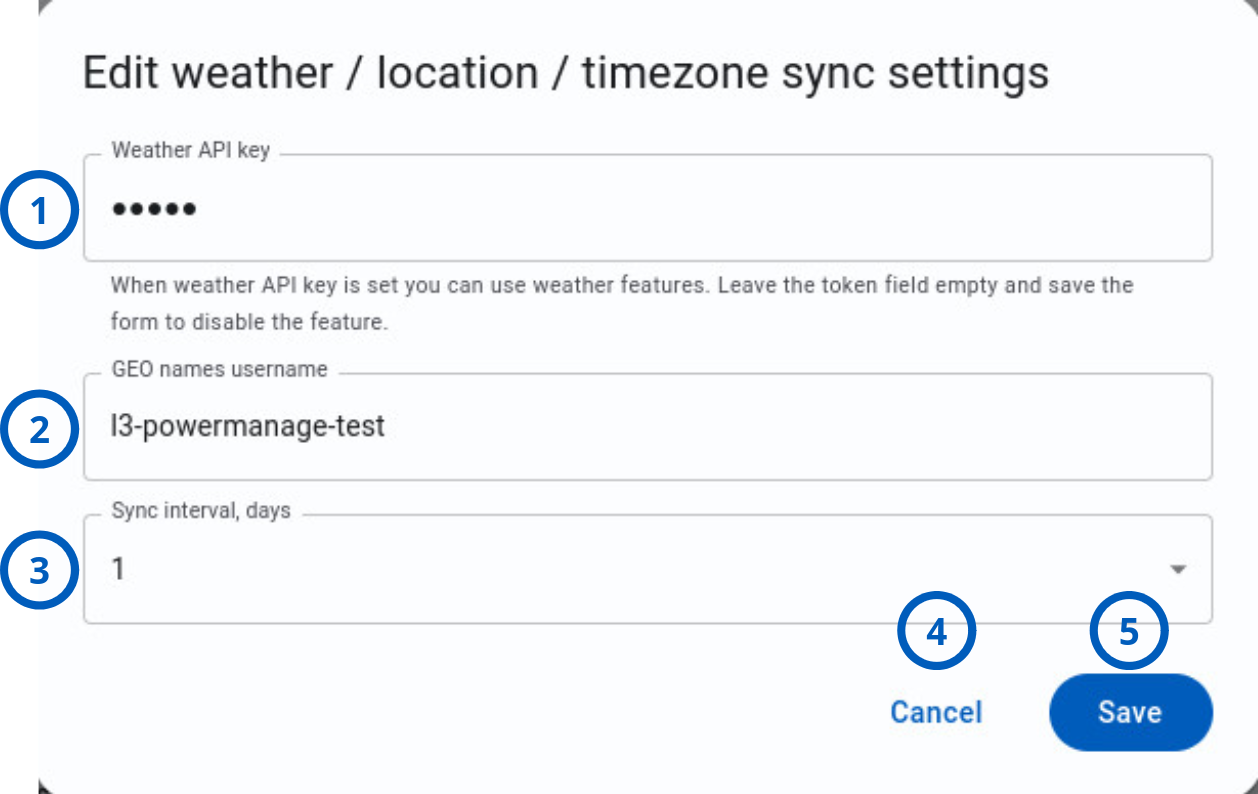
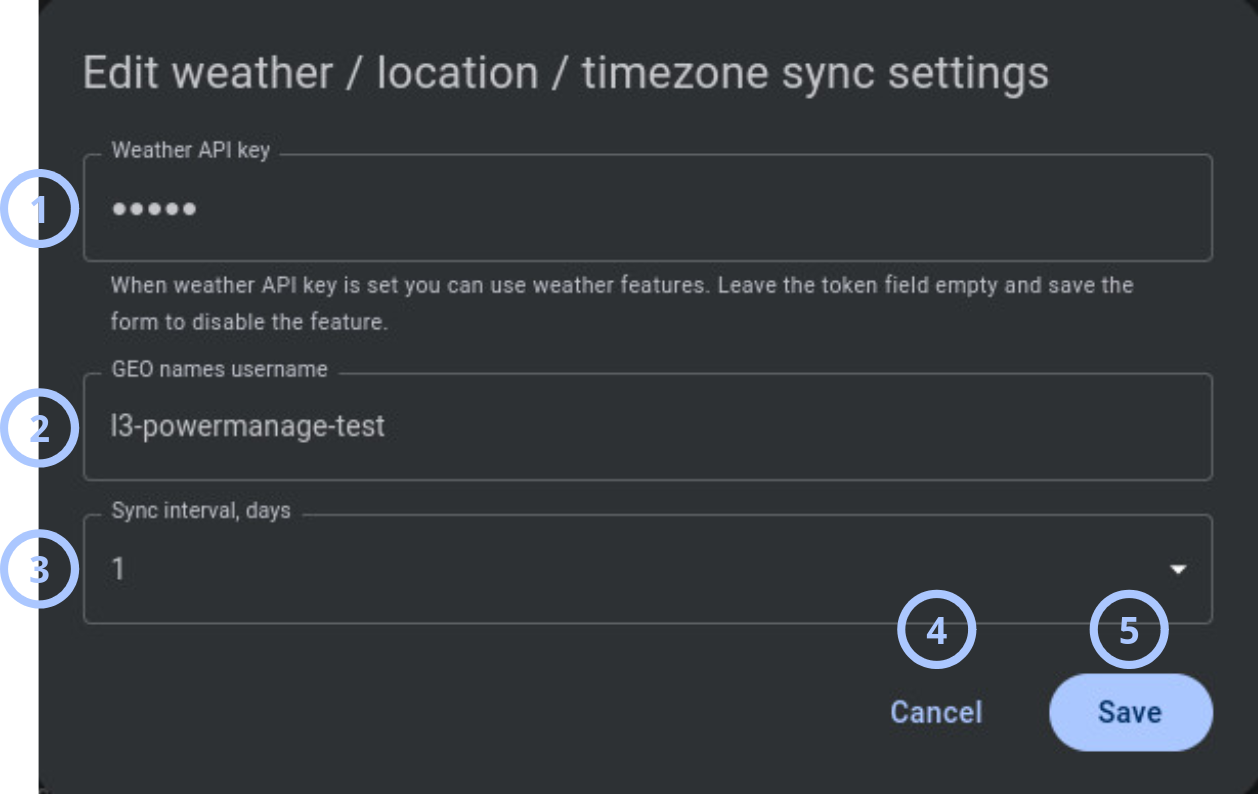
The Edit weather / location / timezone sync settings dialog contains three configuration fields and standard action buttons.
Edit weather / location / timezone sync settings dialog
| Callout | UI element | Description | When to use |
|---|---|---|---|
| 1 | Weather API key | Stores the Weather API key used by PowerManage to retrieve weather information. | Use when you want to enable or update weather features. Leave this field empty and save to disable weather features. |
| 2 | GeoNames username | Stores the GeoNames username used to identify and standardize geographical locations. | Use when PowerManage must synchronize location and timezone data for panels. |
| 3 | Sync interval, days | Sets how often PowerManage automatically synchronizes weather, location, and timezone data. | Use when you need to control the synchronization frequency. Available values are 1, 6, and 30 days. |
| 4 | Cancel button | Closes the dialog without saving changes made during the current edit session. | Use when you want to keep the current settings. |
| 5 | Save button | Saves the configured Weather API key, GeoNames username, and sync interval. | Use after you enter or update settings and want to apply the changes. |
How to use this page
WeatherAPI.com sign up
Goal:
- Get the Weather API token required for weather forecast display.
Steps:
- Go to WeatherAPI.com.
- Scroll to Quick and Easy Signup for Weather API.
- Select Get Started.
- Complete the signup process.
- Save the username, email address, and API token for PowerManage setup.
Expected result:
- You have the Weather API token required for the Weather API key field.
Some WeatherAPI.com features may require payment. Review the service plan before you configure the key in PowerManage.
GeoNames registration and account verification
Goal:
- Create and verify a GeoNames account so you can use the GeoNames username in PowerManage.
Steps:
- Go to GeoNames.
- Open the account registration page.
- Enter the required account details.
- Submit the registration form.
- Open the verification email from GeoNames.
- Follow the verification link or instructions in the email.
- Sign in to GeoNames after verification is complete.
- Copy the GeoNames username.
- Use this username in the GeoNames username field in PowerManage.
Expected result:
- The GeoNames account is verified.
- You have the GeoNames username required for location and timezone synchronization.
Use the GeoNames username, not the email address, in the GeoNames username field.
IQ panel setup
Goal:
- Enable weather forecast synchronization on the IQ panel.
Steps:
- On the IQ panel, select Settings.
- Select Advanced Settings.
- Enter the installer code.
- Select Installation.
- Select Installer Settings.
- Find Sync Weather Forecast and Weather Forecast Interval.
- Configure the settings according to the panel installation manual.
Expected result:
- The IQ panel is configured to use weather forecast synchronization.
Configure weather / location / timezone synchronization
Goal:
- Enable PowerManage to synchronize weather, location, and timezone data.
Steps:
- Open the Edit weather / location / timezone sync settings dialog.
- In Weather API key, enter the valid Weather API key.
- In GEO names username, enter the valid GeoNames username.
- In Sync interval, days, select the required synchronization interval.
- Review the values.
- Select Save.
Expected result:
- PowerManage saves the settings.
- Weather features can display weather information.
- PowerManage can use GeoNames for location identification.
- PowerManage synchronizes information according to the selected interval.
Disable weather features
Goal:
- Turn off weather features without changing location and timezone synchronization settings.
Steps:
- Open the Edit weather / location / timezone sync settings dialog.
- Clear the Weather API key field.
- Select Save.
Expected result:
- PowerManage saves the empty Weather API key.
- Weather features are disabled.
GeoNames cannot work without setting the Weather API key.
Tips
- Use the default 1 day interval when location or timezone data must stay current.
- Use a longer interval only when frequent synchronization is not required.
- Store API credentials in a secure location outside PowerManage so authorized administrators can recover them.
- After changing these settings, review a panel with known location data to confirm that weather, location, or timezone behavior works as expected.
- Google API key with the Weather API key and GeoNames username set works in all cases if the correct address or geographical coordinates are specified in the Address field in Onwer info section, like
Ukraine, Kyiv, Khreshchatyk st. 86/2 OR 52° 31' 12.0288'' Nand13° 24' 17.8344'' E.
Troubleshooting
Weather information does not display
Possible causes
- Weather API key is empty.
- The Weather API key is incorrect, expired, or restricted.
- The weather service account has reached an API limit.
- PowerManage cannot connect to the weather service.
- Weather forecast synchronization is not enabled on the IQ panel.
What to do
- Open the Edit weather / location / timezone sync settings dialog.
- Confirm that Weather API key contains a valid key.
- Check the WeatherAPI.com account status, API limits, and key restrictions.
- Confirm that PowerManage has network access to the weather service.
- Confirm that Sync Weather Forecast is enabled on the IQ panel.
- Select Save if you corrected the key.
- Reopen the weather-enabled interface and confirm that weather information displays.
GeoNames username does not work
Possible causes
- The GeoNames account registration is not complete.
- The GeoNames account was not verified by email.
- The email address was entered instead of the GeoNames username.
- The username contains a typing error.
- PowerManage cannot connect to GeoNames.
What to do
- Sign in to GeoNames.
- Confirm that the account is verified.
- Copy the GeoNames username from the account details.
- Open the Edit weather / location / timezone sync settings dialog.
- Enter the username in GeoNames username.
- Select Save.
- Wait for the next synchronization or edit panel Address in the Owner info section.
Location or timezone synchronization is incorrect
Possible causes
- Weather API key is empty.
- GeoNames username is missing, incorrect, or not verified.
- The panel Address field in the Owner info section is missing, inaccurate, or too complex.
- PowerManage cannot connect to WeatherAPI.com or GeoNames.
What to do
- Open the Edit weather / location / timezone sync settings dialog.
- Confirm that GeoNames username contains the correct GeoNames username.
- Confirm that Weather API key contains a valid key.
- In the panel Owner info section, check the Address field.
- Use a simple city and country value, such as
Kyiv, Ukraine, if GeoNames cannot resolve the full address. - Check network access from PowerManage to WeatherAPI.com and GeoNames.
- Configure the Google API key and use a more complex address or coordinates.
- Select Save if you changed any setting.
- Review the panel location and timezone information.