Show current event path for panels
Overview
PowerManage shows the current event path for each panel. This helps users quickly confirm how the panel is expected to deliver events to PowerManage, such as through the primary route or a fallback route.
This visibility helps installers and support teams validate panel configuration and troubleshoot event delivery issues without guessing which path the panel is expected to use.
The current event path indicates the expected or active event delivery route as presented by PowerManage.
What's changed
PowerManage now provides a UI indicator that shows the panel's expected or active event delivery path.
This update adds support for:
- Viewing the event delivery path used by each panel.
- Confirming the expected route when investigating missing or delayed events.
- Accessing event path visibility in the PowerManage web interface.
- Identifying whether the panel is expected to deliver events through the primary route or a fallback route.
Who is affected
This update affects:
- Installers and support teams who need to verify how a panel is expected to deliver events to PowerManage.
- Users who troubleshoot missing, delayed, or unexpected panel events.
Benefits
Current event path visibility provides the following benefits:
- Faster troubleshooting of event delivery issues.
- Clear visibility into the panel's expected event path.
- Reduced uncertainty about whether the panel is using a primary route or fallback route.
What you need to do
View the event path indicator
To find the current event path indicator:
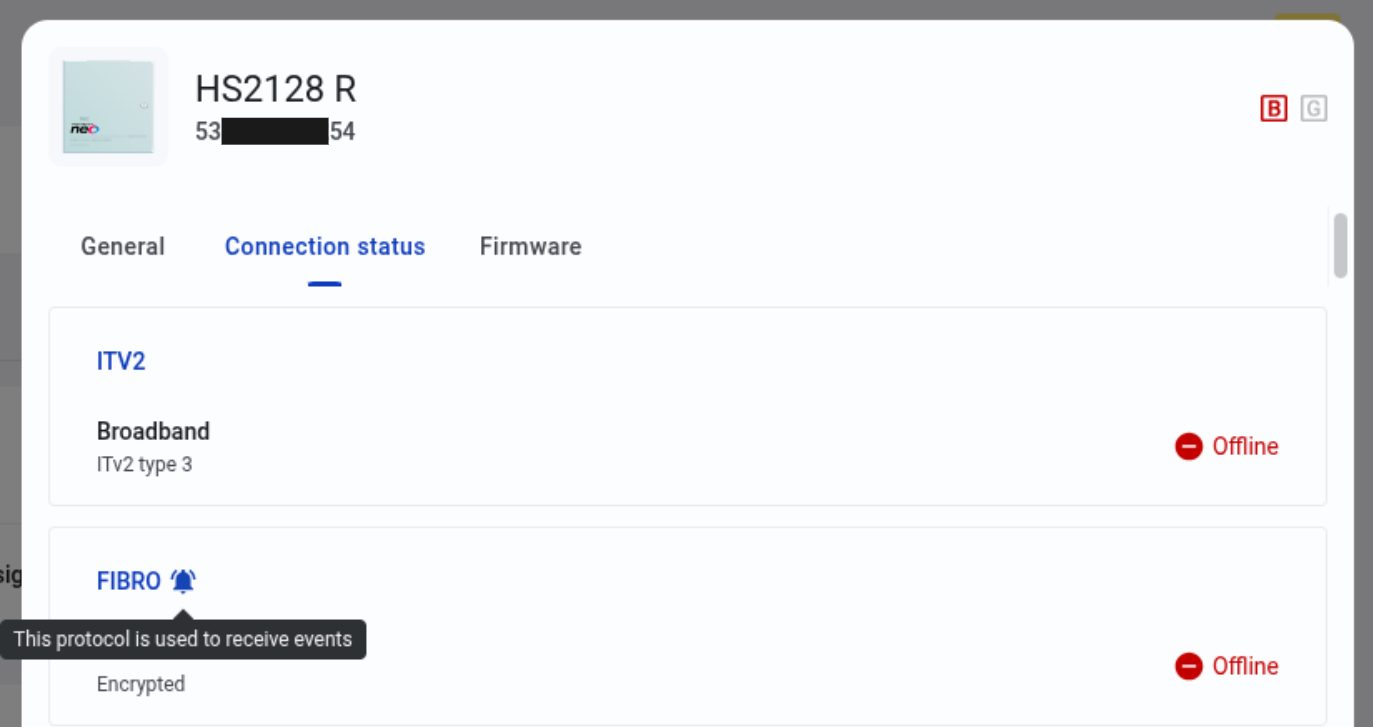
- Open Equipment hub for panel.
- Open the Panel info modal window.
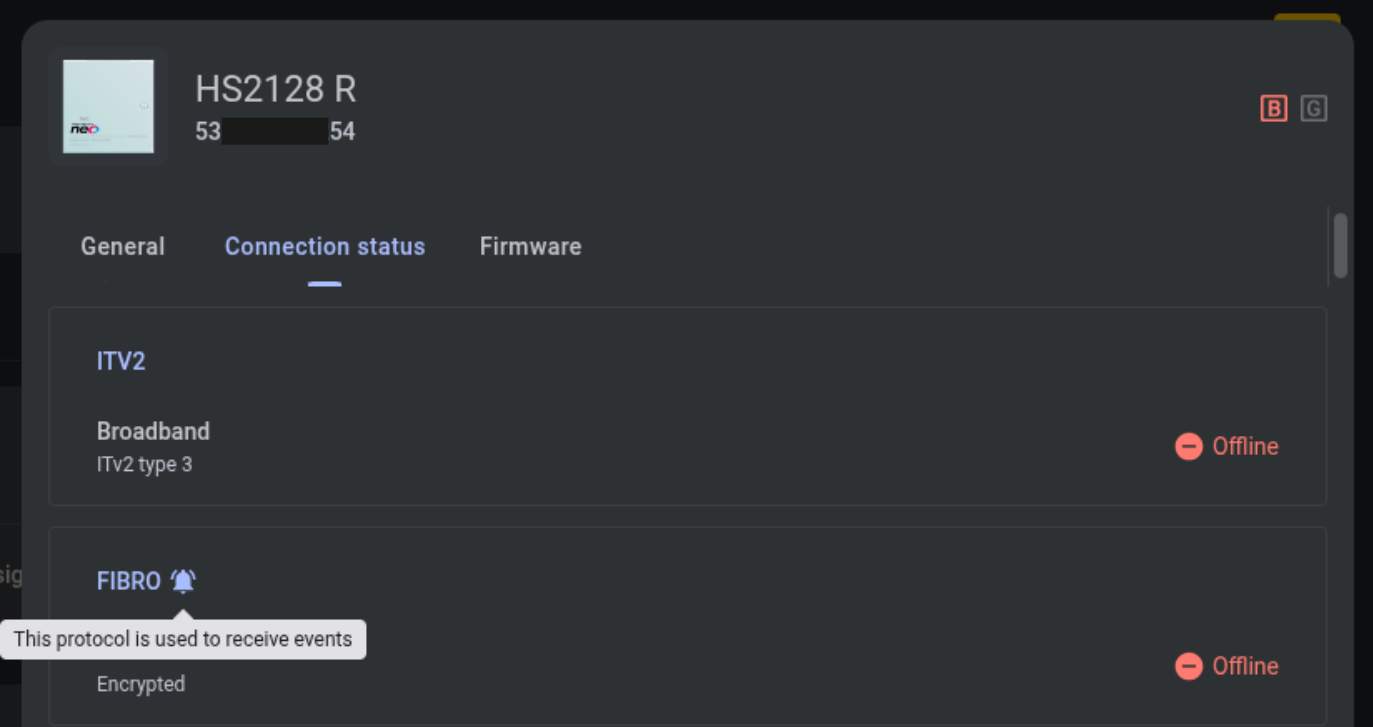
- Open the Connection status tab].
- Look for the event path indicator near the one of panel protocols.
Behavior details
PowerManage displays the current event path in the panel connection information. The indicator shows the expected or active event delivery path for the panel, as presented by PowerManage.
Important notes and limitations
- This feature shows the panel's expected or active event delivery path as presented by PowerManage.
- The indicator is intended to support troubleshooting and configuration validation.